
The User Administration page is where admins can manage users and configure licenses and permissions across Uncountable. This article focuses solely on the licenses, set in the User Listing tab. For information on other User Administration page actions, refer to:
Navigating to User Administration
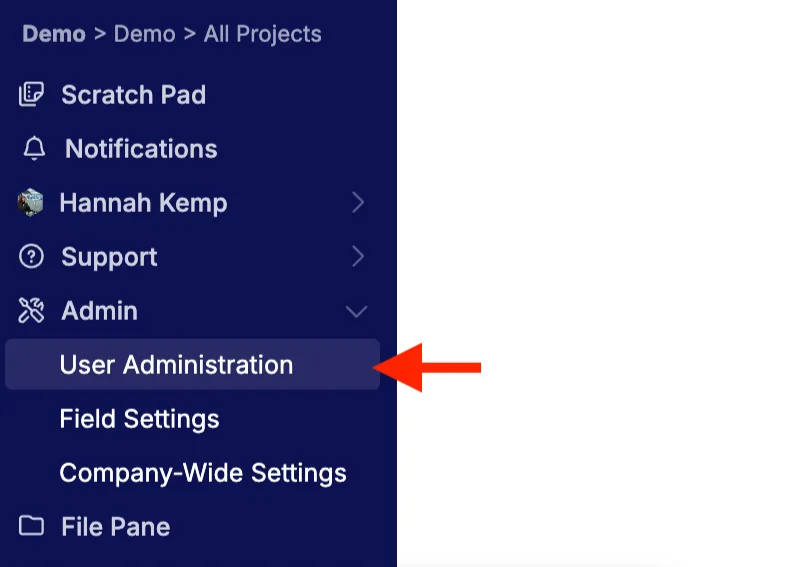
To access User Administration, select Admin > User Administration from the navigation bar.
Licenses Overview
Licenses determine which features of the Uncountable platform a user can access. While user groups and project permissions control what data a user can see or edit, licenses govern what tools and workflows are available once inside the platform.
License Tiers
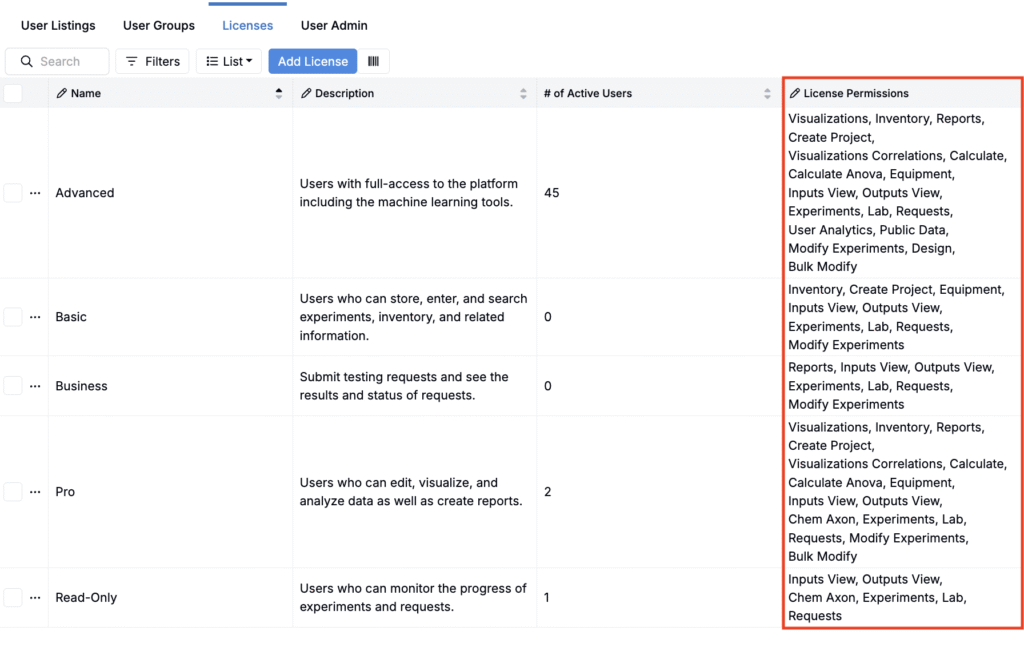
In the Licenses tab, you can view the different Uncountable license tiers, designed to match different R&D roles:
| License Type | Capabilities |
|---|---|
| Read-only | View ingredients, recipes, properties, dashboards, and activity. Cannot analyze or manipulate data (no specs, visualizations, notebooks, reporting, or predictive tools). |
| Basic | Store and search recipes, manage inventory and equipment, handle lab requests, export data, and use notebooks (ELN) and reporting tools. |
| Note: Basic users can view Visualizations saved to Notebooks by Pro users. | |
| Pro | Includes all Basic features, plus: analyze experimental data using visualizations and charts, manage experiments, and create Visualizations. |
| Advanced | Includes all Pro features, plus: predictive AI tools (custom models, suggested formulations, surface visualizations, and design experiments). |
User Licenses
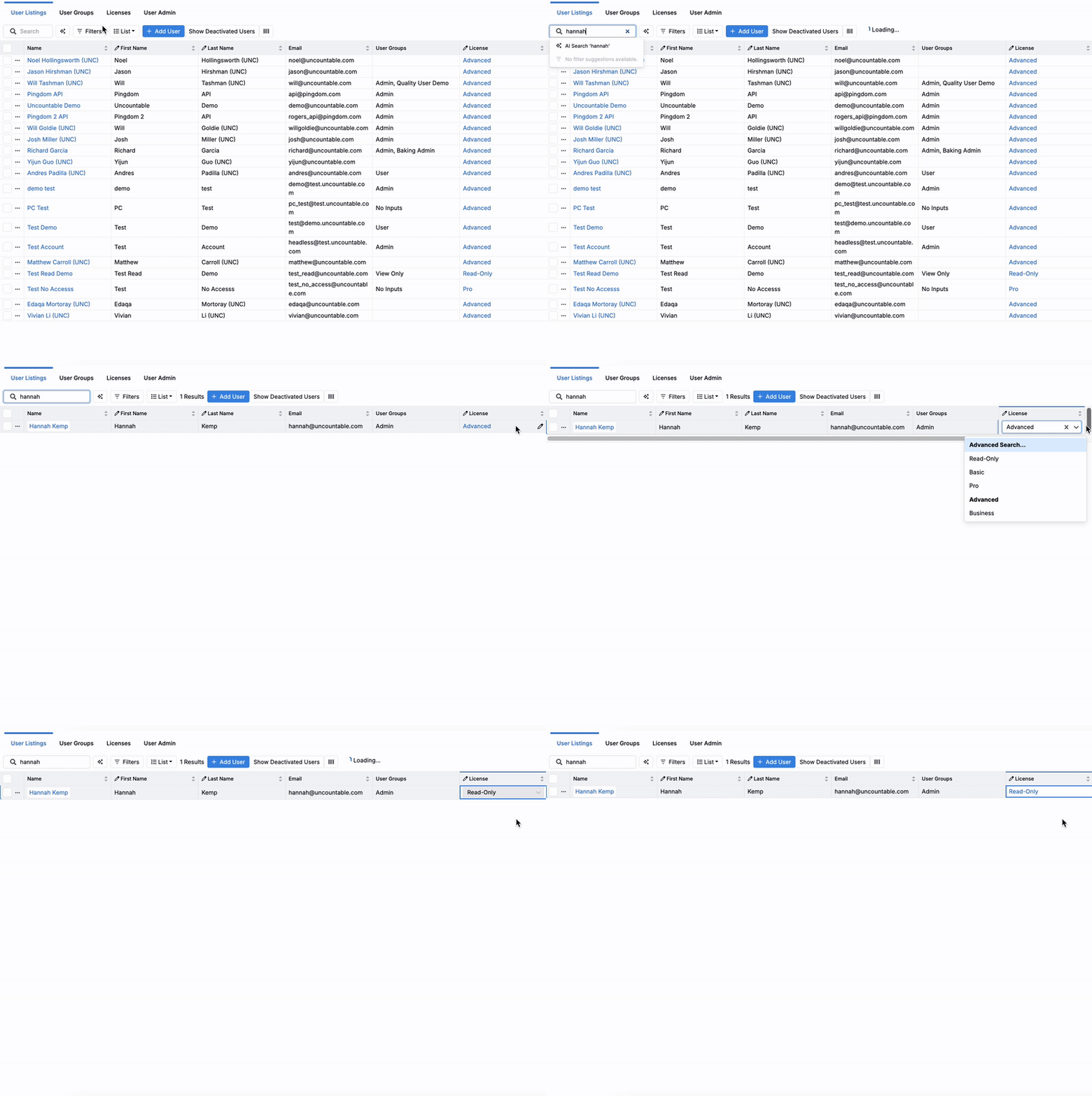
In the User Listing tab, admins can modify a user’s license directly from the User License column. If the column isn’t currently visible, add it to the table first.
Once the column is available:
- Find the user in the listing.
- Click the User License cell and select the pencil icon to edit.
- Choose the new license from the dropdown menu.
License Permissions
To view permissions granted by each license type, navigate to the Licenses tab. Permissions include:
- ML — Controls core machine learning features such as creating DOE runs and interacting with training sets.
- Visualizations — Access to all pages in the Visualize tab: Explore Data, View Correlations, and Data Sets.
- Inventory — Access to the Inventory listing page.
- Reports — Ability to view, modify, create notebooks.
- Create Project — Ability to create new projects.
- ML Train — Controls training workflows for ML, including managing training sets and running training jobs.
- Visualizations Correlations — Access to the View Correlations tool.
- Calculate — Controls access to the Objective Search and Identical Experiments pages.
- Calculate ANOVA — Access to the Run ANOVA tool
- Equipment — Access to the Equipment listing page.
- Inputs View — Access to the Inputs listing page.
- Outputs View — Access to the Outputs listing page.
- Experiments — Access to pages in the Experiments tab: Experiment List and Experiment Groups.
- Lab — Access to pages in the Lab tab: Requests, Tasks, Approvals, Inventory, Equipment, Barcode Tracking, Calendar, Lists.
- Requests — Ability to view, modify, and create lab requests.
- User Analytics — Ability to view the User Analytics page, which aggregates per-user platform usage.
- Public Data — Ability to view and work with data/fields that are synced to the Uncountable’s Public Data catalog.
- Modify Experiments — Ability to edit experiments.
- Design — Access to pages in the Design tab: Suggest with AI, Analyze with AI, Advanced Screening, View Past Jobs.
- Bulk Modify — Access to the Bulk Modify Experiments page, which allows you to perform bulk actions across the platform.
Key takeaways
- Licenses define which tools and workflows a user can access in Uncountable.
- They work alongside user groups and project permissions: groups and projects control data visibility/editing, while licenses control feature availability.
- Four license tiers—Read-Only, Basic, Pro, and Advanced—align with different R&D roles.
- Admins manage licenses through the User Administration page by editing the User License column in the user listing.