The User Administration page is where admins can manage users and configure licenses and permissions across Uncountable. This article covers user permissions, set within the User Groups tab. For information on other User Administration page actions, refer to:
Navigating to User Administration
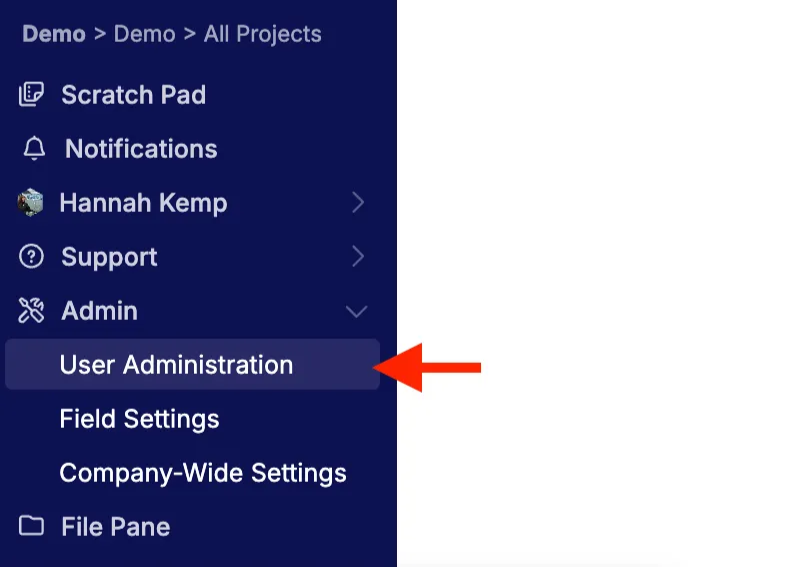
To access User Administration, select Admin > User Administration from the navigation bar.
User Permissions Overview
User permissions can be established on the user group (material family) and lab-specific level.
- User groups typically map to teams or divisions (e.g., Polymer Team or Paint Team). User group permissions set baseline access within material families.
- Labs represent top‑level physical locations. Lab‑specific permissions govern access to inventory, equipment, and other lab operations at a given site.
Together, user group and lab‑specific permissions determine what a user can see and do across data domains and specific lab locations.
User Group Permissions
Every user should belong to at least one user group, which sets their baseline access to experiments, inputs, and outputs within a material family. Permissions can range from no access, to read-only, to full edit rights, and form the foundation of how data visibility and editing are controlled across the platform.
Setting User Group Permissions
To set permissions for a user group:
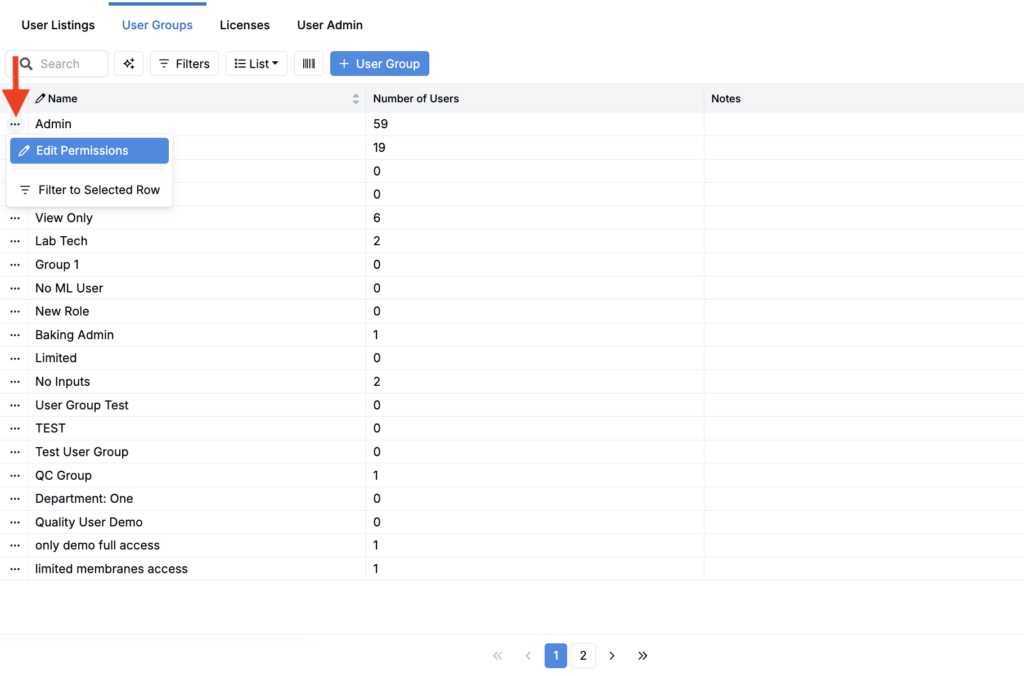
- Access the User Groups tab.
- Search for a group.
- On the group, select … > Edit Permissions.
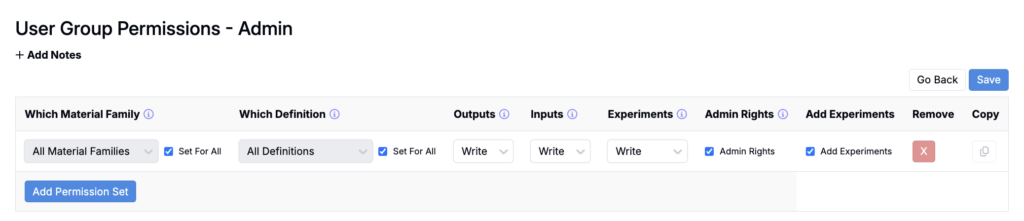
- Under User Group Permissions, edit the group’s permissions set or create a new one.
- For each permissions set, configure:
- Material Family — Choose material families to set permissions for. Use Set for All to apply across all families.
- Definitions — Select the experiment definitions (e.g., Experiment, Test Sample, Lot). Use Set for All to apply to all definitions.
- Outputs — Controls access to the outputs listing. By default, users have Create rights.
- None: Cannot view
- Read: View only
- Write: View and modify
- Inputs — Controls access to the inputs listing. By default, users have Create rights.
- None: Cannot view
- Read: View only
- Write: View and modify
- Experiments — Controls access to experiments in the material family.
- None: No access
- Read (Outputs Only): View outputs only
- Read: View measurements and inputs, no edits
- Write (Outputs Only): Edit outputs only
- Write Outputs, Read Inputs: Edit outputs, view inputs
- Write: Full edit rights
- Admin Rights — Grants admin‑level control for the material family (lock/unlock recipes, manage users, change settings, adjust permissions).
- Add Experiments — Allows the group to create new experiments in the material family.
Lab‑Specific Permissions
Labs represent physical sites and exist outside of material family permissions. Use Lab‑Specific Permissions to control a user group’s access to inventory and equipment at a given lab location or across all labs.
Setting Lab-Specific Permissions
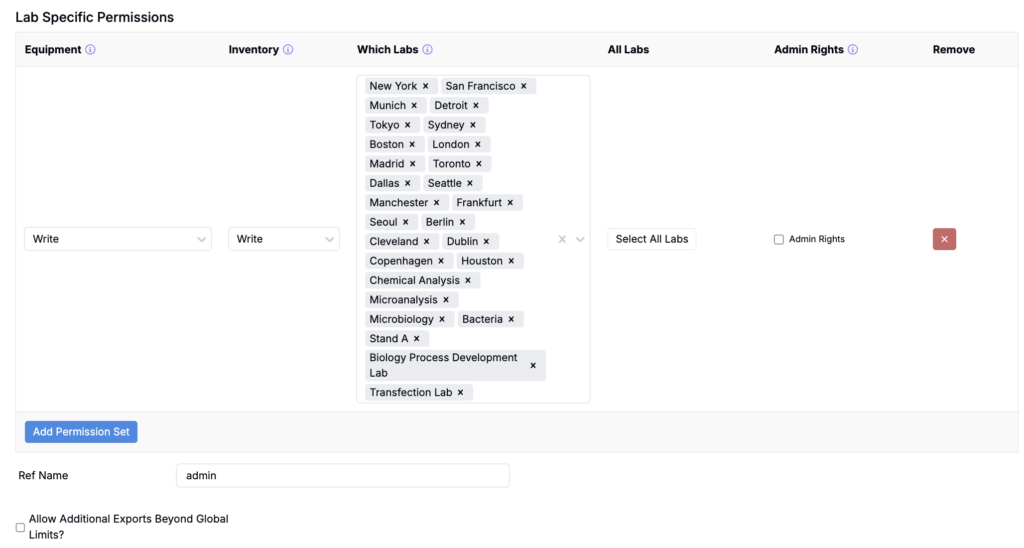
- Under Lab Specific Permissions, edit the group’s permissions set or create a new one.
- For each permissions set, configure:
- Lab — Choose the lab(s) to set permissions for. Click Set for All to apply across all labs.
- Equipment — Controls the user group’s access to equipment.
- None: No access
- Read: View only
- Write: View and edit
- Inventory — Controls the user group’s access to inventory.
- None: No access
- Read: View only
- Write: View and edit
- Admin Rights — Grants admin‑level control for the lab (change settings, adjust permissions).