Experiments are the core unit of work in Uncountable. Each experiment represents a single formulation, process, or test — not a collection of trials or samples, as is common in traditional labs.
Every experiment has two main views:
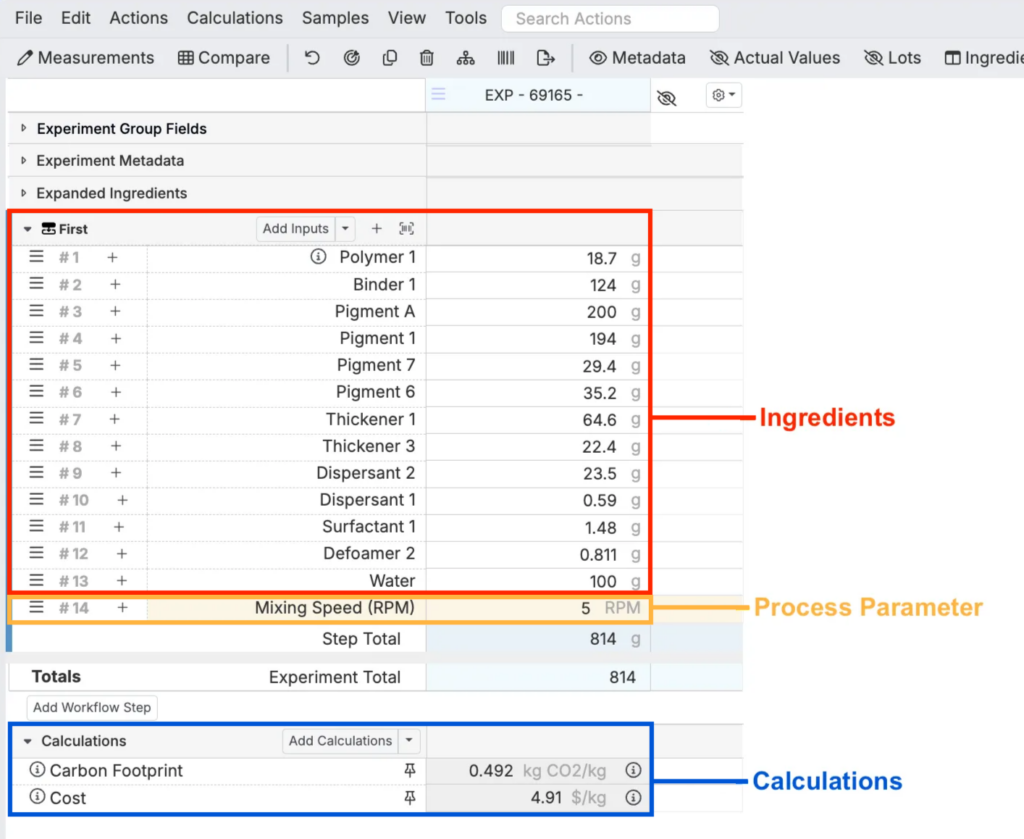
- Recipe – defines how the experiment is prepared, including ingredients and process parameters.
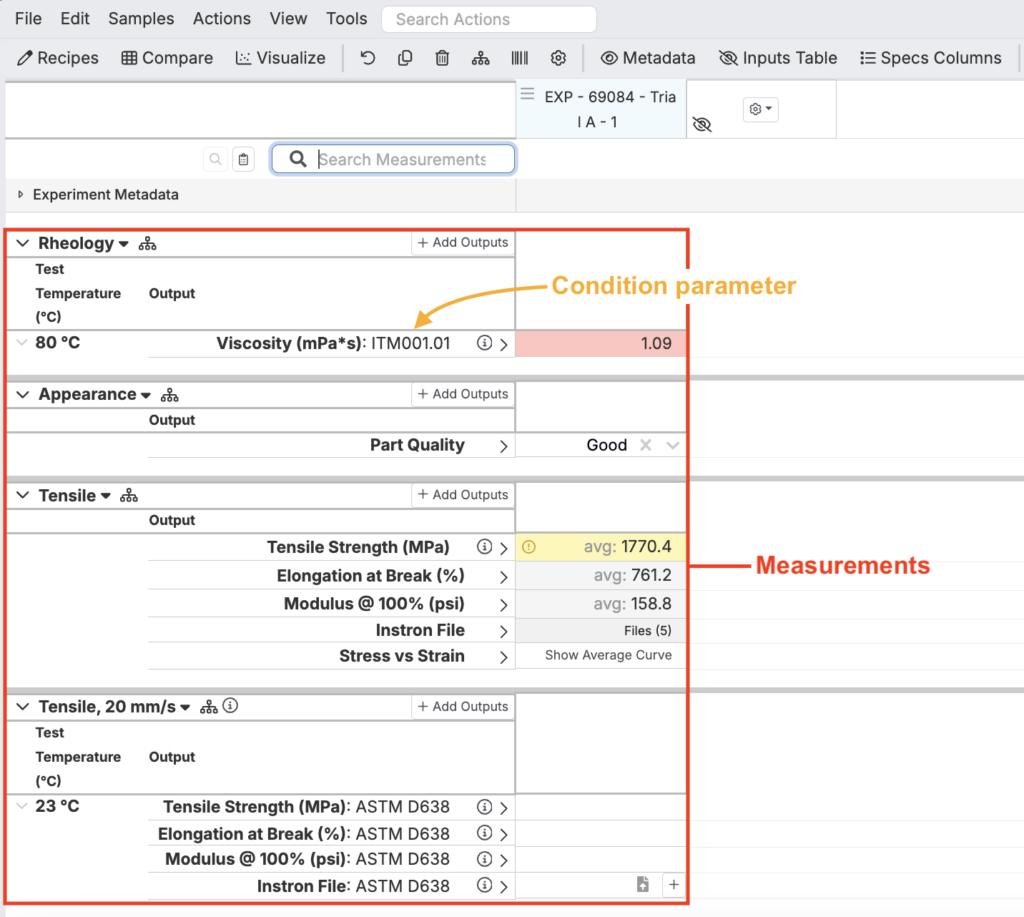
- Measurements – records test results, outputs, and characterization data.
Experiments are always created within projects, and their structure is controlled by experiment definitions.
Experiment Recipe
When a clicking into an experiment, users are directed to the Recipe view. This is where you will define the recipe for an experiment before it is run by entering inputs, such as ingredients, process parameters, and calculations.
Experiment Measurements
To access the Measurements view of experiments, click the Measurements button in the top-left corner of the toolbar. Here, users can record outputs, such as measurements and condition parameters, during and after experiments have been run.
Creating Experiments
Experiments can be created from scratch or by copying existing ones. All new experiments are tied to an experiment definition, which determines their structure and permissions.
Experiment Definitions
Experiment definitions are managed in the Form Admin → Definitions tab. They specify how different experiment types behave.
Every schema includes three standard types:
- Experiment – general-purpose definition for recipes or formulations.
- Test Sample – represents a sample derived from a parent experiment, while retaining a link back.
- Lot – represents a lot or batch of a specific material.
Definitions also allow for role-specific access. For example, an inventory manager may only see “Lots,” while formulators work with “Experiments.”
Creating from Scratch
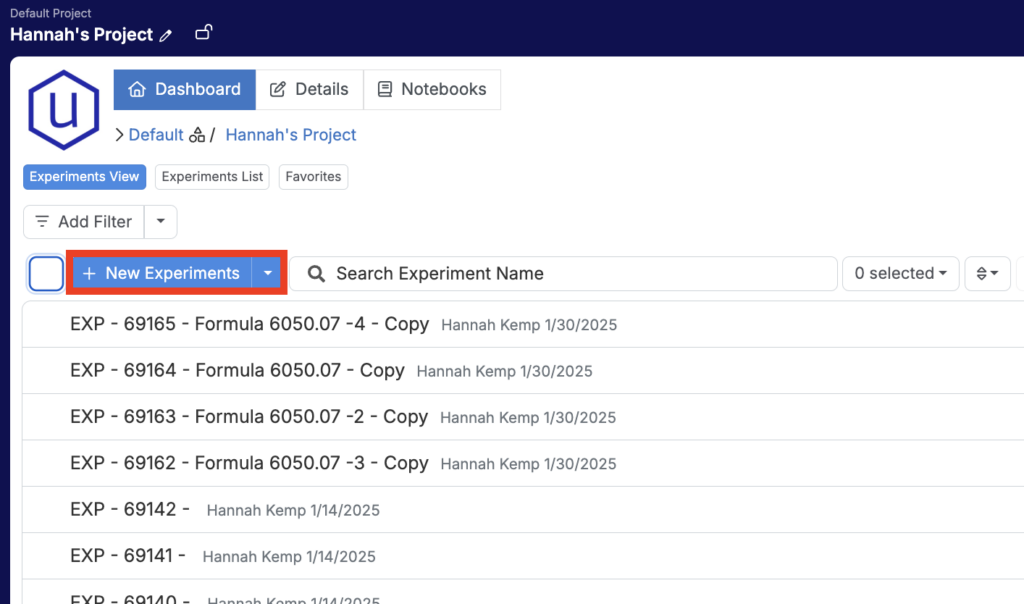
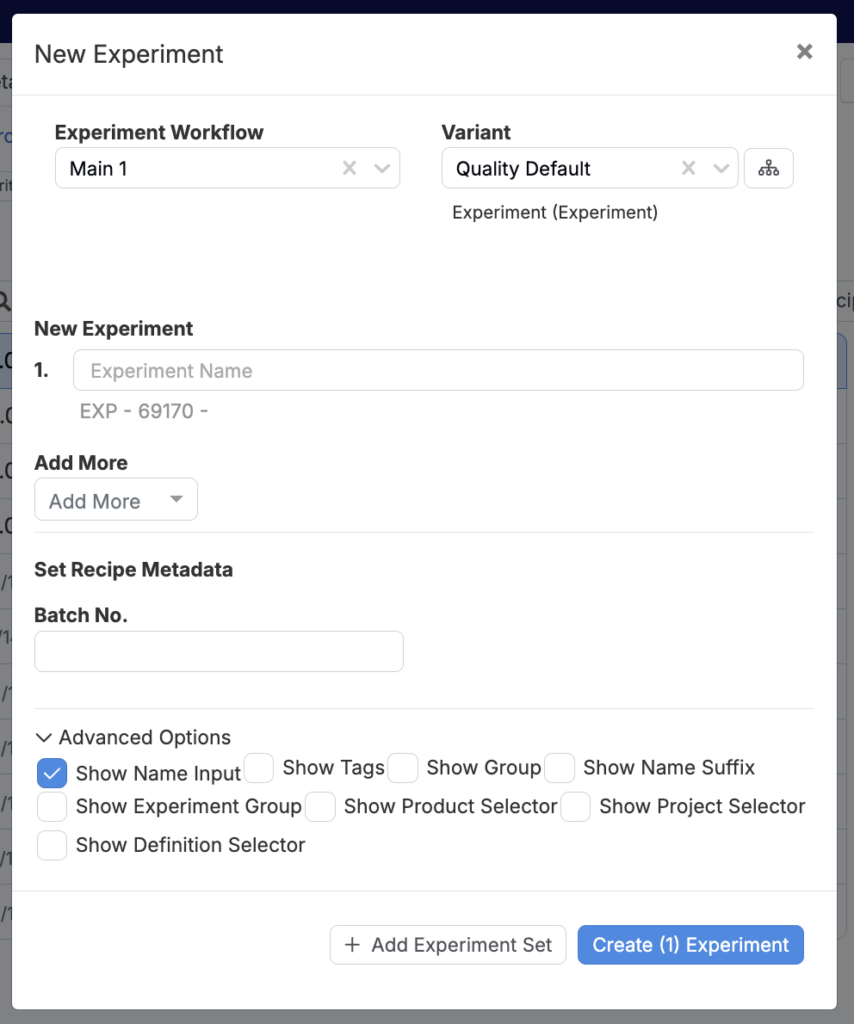
- From the Project Dashboard, click New Experiment.
- In the modal, configure:
- Workflow and Variant – Select the workflow template.
- Experiment Name – Adjust the default name if needed.
- Number of Experiments – Create multiple at once.
- Recipe Metadata – Fill in fields configured in Form Admin (e.g., batch number).
- Advanced Options – Assign tags, groups, products, or select a different project/definition.
- Click Create to add the experiment(s) to your workspace.
Creating by Copying
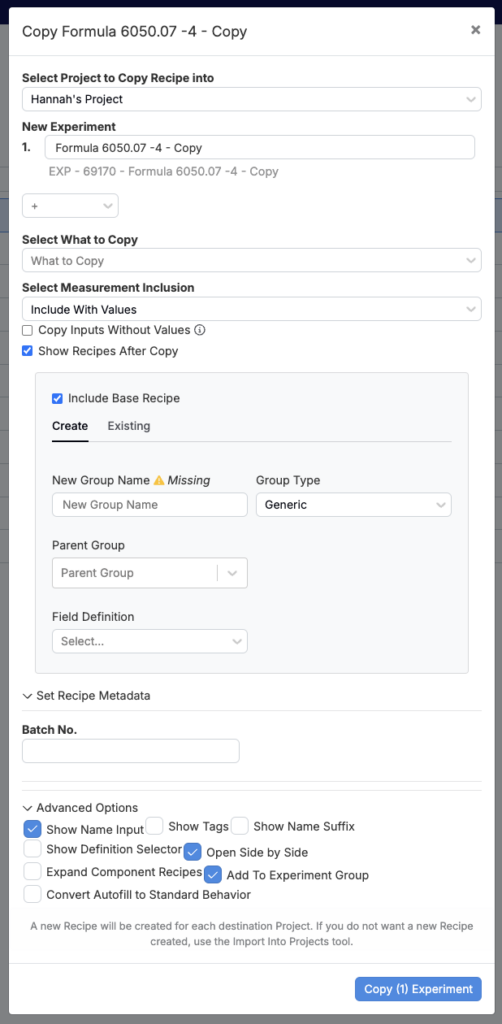
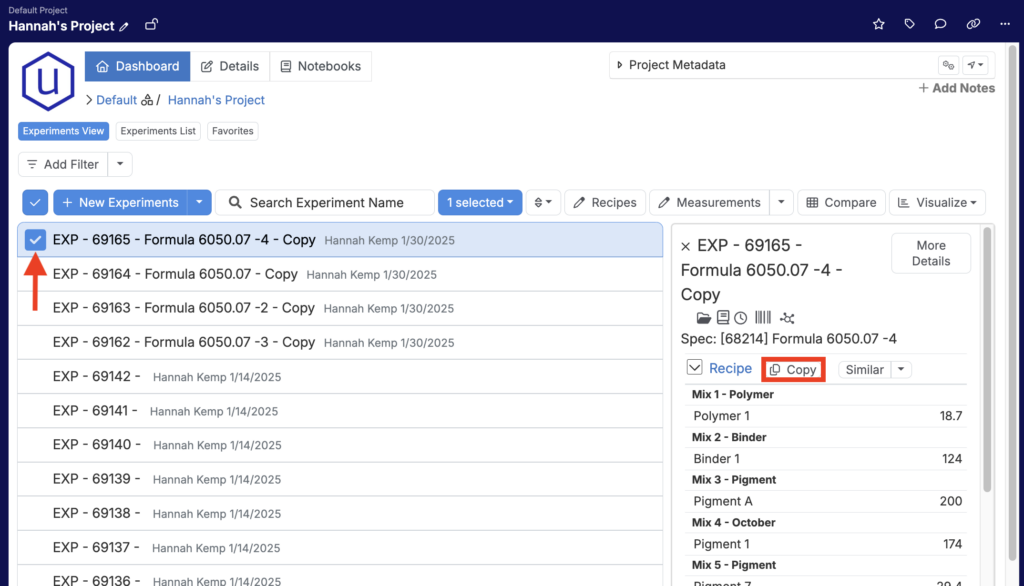
- From the Project Dashboard, open the details sidepanel for an experiment and click Copy.
- In the modal, configure:
- Project – Choose where the copy will be created
- Experiment Name – Rename if needed
- Number of Copies – Specify how many
- What to Copy – Include/exclude instructions, comments, notebooks, measurements, etc.
- Recipe Metadata – Fill in fields as required
- Advanced Options – Add tags, select a definition, or assign to a group
- Click Copy to finalize.