
The Data Sets feature in Uncountable allows users to group experiments for analysis without needing access to the same project. It’s designed for cases where users don’t have permission to view all projects in a material family.
Data Sets also respect user permissions. On the Data Sets page, users can only view and create data sets using experiments they have full Read access to.
To access the Data Sets page, use the navigation bar and select Visualize → Data Sets.
What Are Data Sets?
A Data Set is a custom collection of experiments selected from one or more projects. Data sets can include experiments from the same material family or across different material families. Once created, a data set functions like a virtual project:
- You can view a dashboard or Details page of all experiments in the data set.
- You can use Explore Data to build visualizations.
- You can apply filters, sort experiments, and interact with the data just as you would in a regular project.
Creating Data Sets
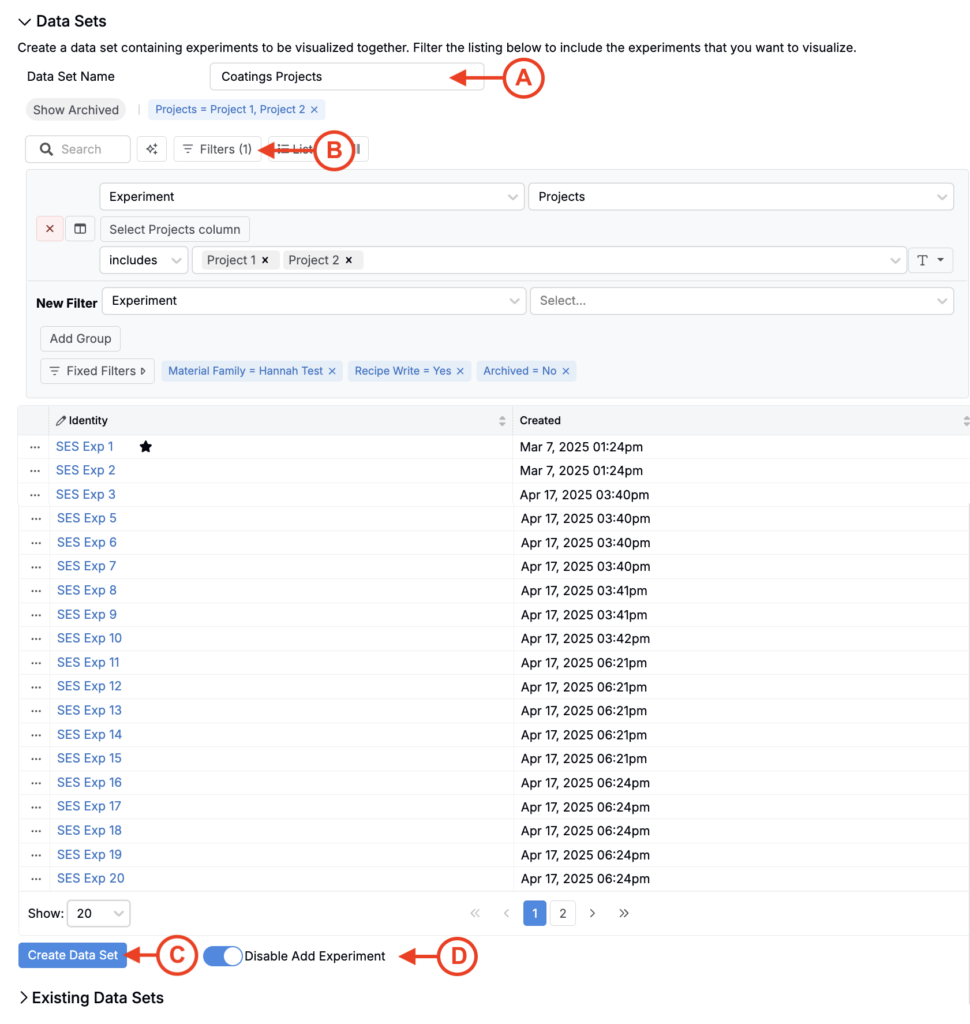
- Add a Data Set Name (A).
- Use Filters (B) to select the experiments you want to include. You can filter by project, formula, status, or any custom fields available.
- (Optional) If you do not want users to be able to create new experiments inside the data set, turn on the setting to disable adding new experiments when creating the data set. This prevents non-admin users from adding new experiments to the data set.
- Click Create Data Set (C) to save.
- To prevent non-admin users from adding new experiments to the data set after it has been created, use the Disable Add Experiments toggle (D).
Existing Data Sets
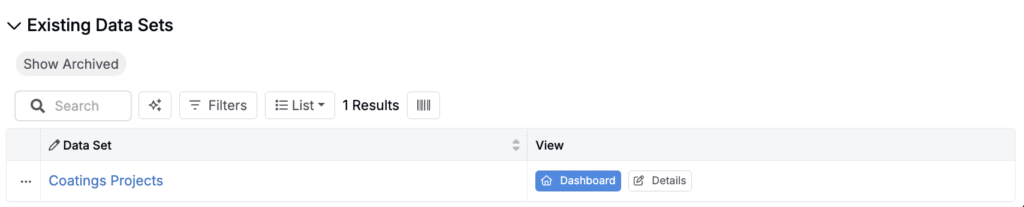
Data sets use a distinct project structure, so they won’t appear in the Select Projects dialog or the main Projects Listing. To view all data sets associated with the current material family:
- Go to the Data Sets page.
- Expand the Existing Data Sets section.
A table will appear listing all data sets created within the material family. Click any data set in the list to open its Dashboard or Details page.
Working with Data Sets
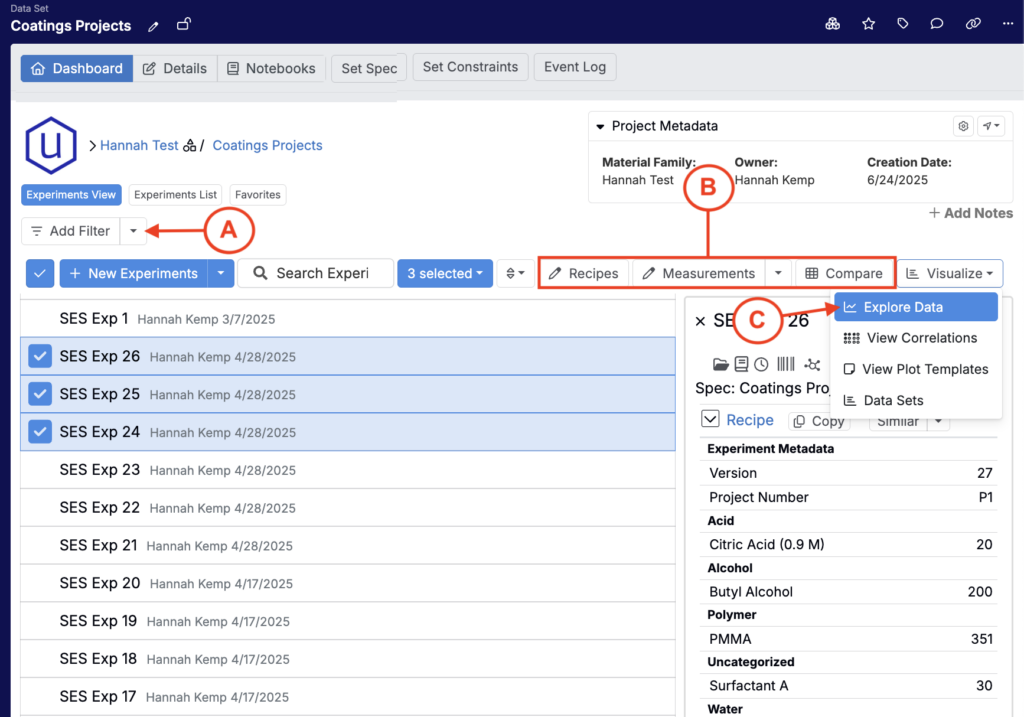
When you open a data set, you’ll see a Project Dashboard-style view of all the experiments it includes. From this view, you can:
- Search and filter experiments (A)
- View a Recipe, Measurements, or Compare view of selected experiments (B)
- Create Explore Data visualizations to analyze experiments within the data set (C)
FAQs
Are data sets shared across users?
Currently, data sets are private to the user who created them.
Can a data set include experiments from different material families?
Yes. Data sets can now include experiments from different material families, giving you more flexibility in grouping and analyzing experiments across your workspace.
Can I edit a data set after creating it?
You can rename an existing data set at any time. However, the filters used to define the data set cannot be changed once it’s been created.
Depending on how your workspace is configured, non-admin users may not be able to add experiments to an existing data set. Admins will still be able to add experiments.
If you need to adjust which experiments are included and you cannot add experiments to the data set, you’ll need to create a new data set from scratch with the desired filters.