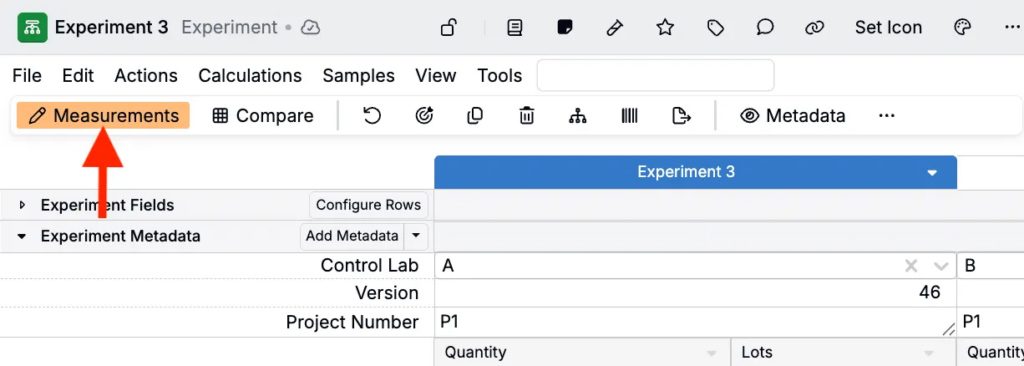
The Actions toolbar on Recipe and Measurements view of experiments appears below the File menu and provides quick access to frequently-used functions.
Users can customize this toolbar by adding, removing, and organizing action buttons to match your workflow. By default, it contains a standard set of actions, but you can personalize it to include the functions you use most often, reducing time spent navigating through menus.

Accessing Configure Actions
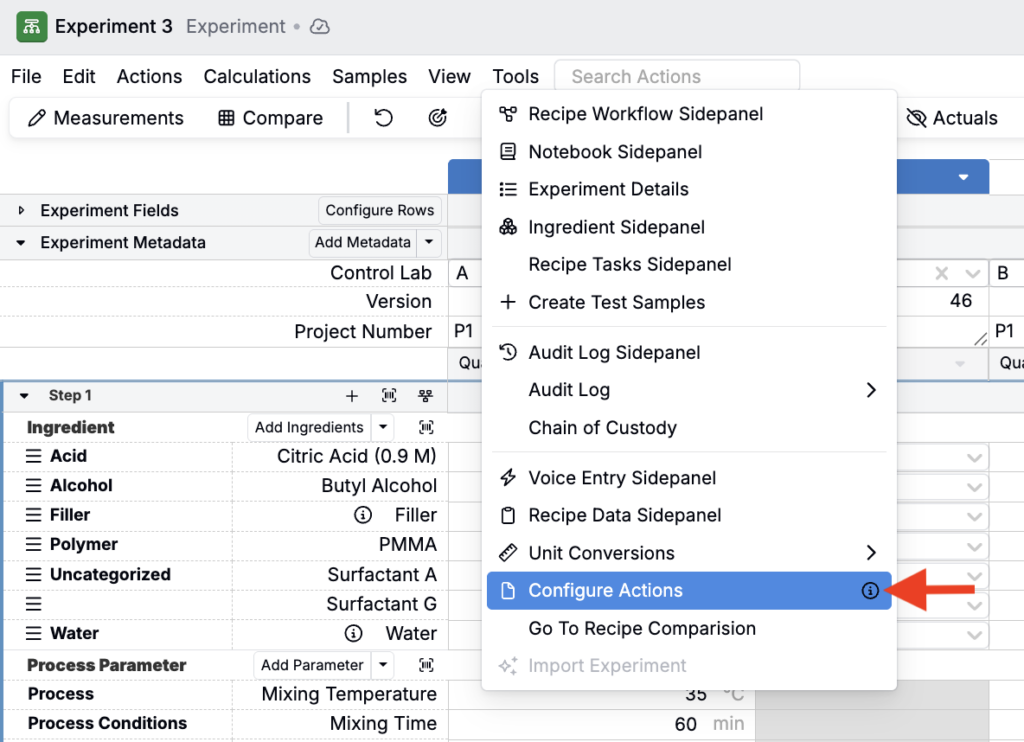
To customize the Actions toolbar on the Enter Recipe or Enter Measurements page, select Tools > Configure Actions from File menu. The Configure Actions sidepanel will open, showing all available actions and your current toolbar configuration.
Configuration Options
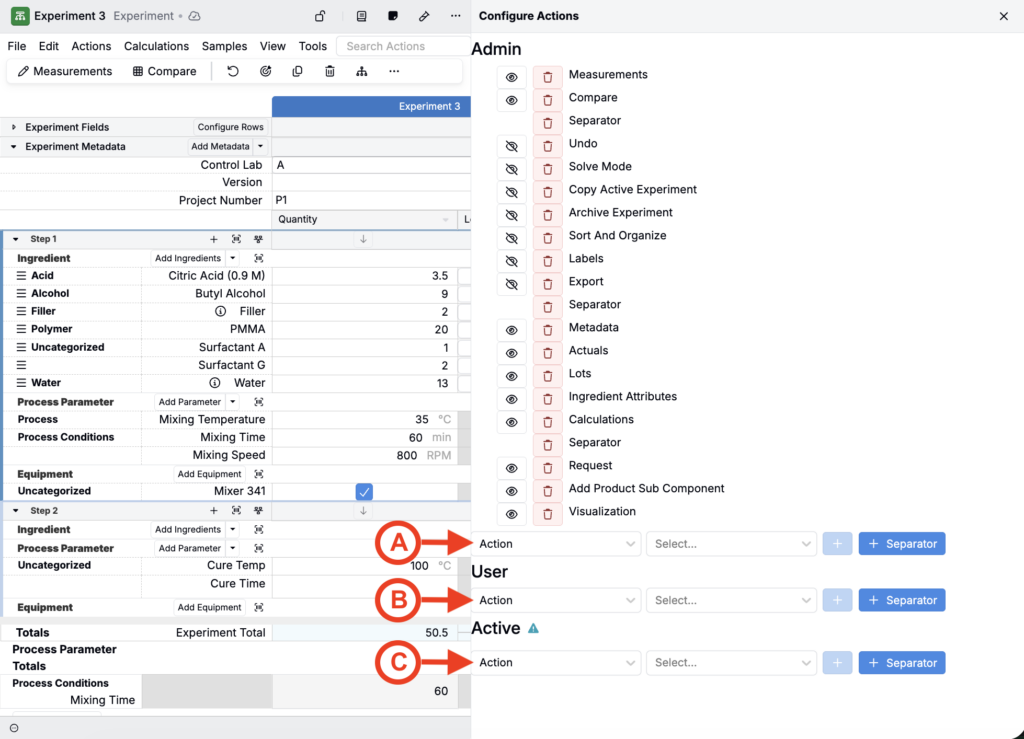
The sidepanel provides three configuration options:
- Admin (A): Allows admins to configure how the toolbar appears by default for all users
- User (B): A user-specific override, set by users and applying only to the user configuring
- Active (C): Active User Items are visible to the user only. They will be saved to View Preferences. When loading a View Preference, existing active user items will be wiped and replaced with the active user items of the view preference.
Adding Items to the Toolbar
Within each configuration option (Admin, User, or Active), you can add any of the following item types to the toolbar:
Adding Actions
To add a standard action button to the toolbar:
- Select Action from the item type dropdown
- Use the second field to select from available options
- Click the blue + button to add.

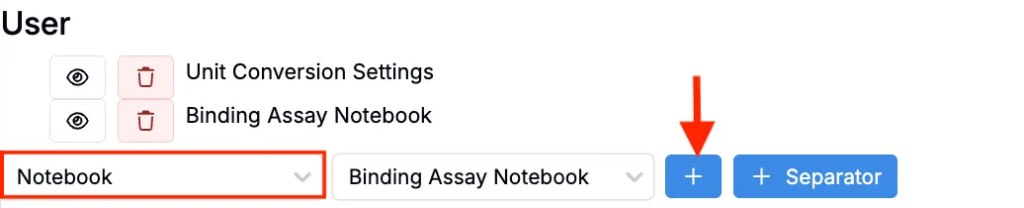
Adding Notebooks
To add a notebook quick navigation button:
- Select Notebook from the item type dropdown
- Use the second field to select a notebook from your workspace
- Click the blue + button to add.
Adding Dropdowns
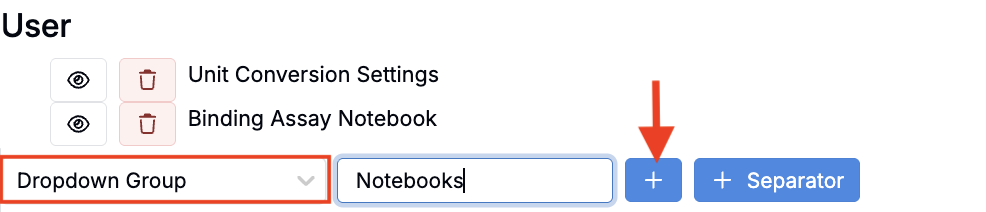
To create a dropdown group of actions, notebooks, view preferences, or triggers on the toolbar:
- Select Dropdown from the item type dropdown
- Use the second field to name the group
- Click the blue + button to add.
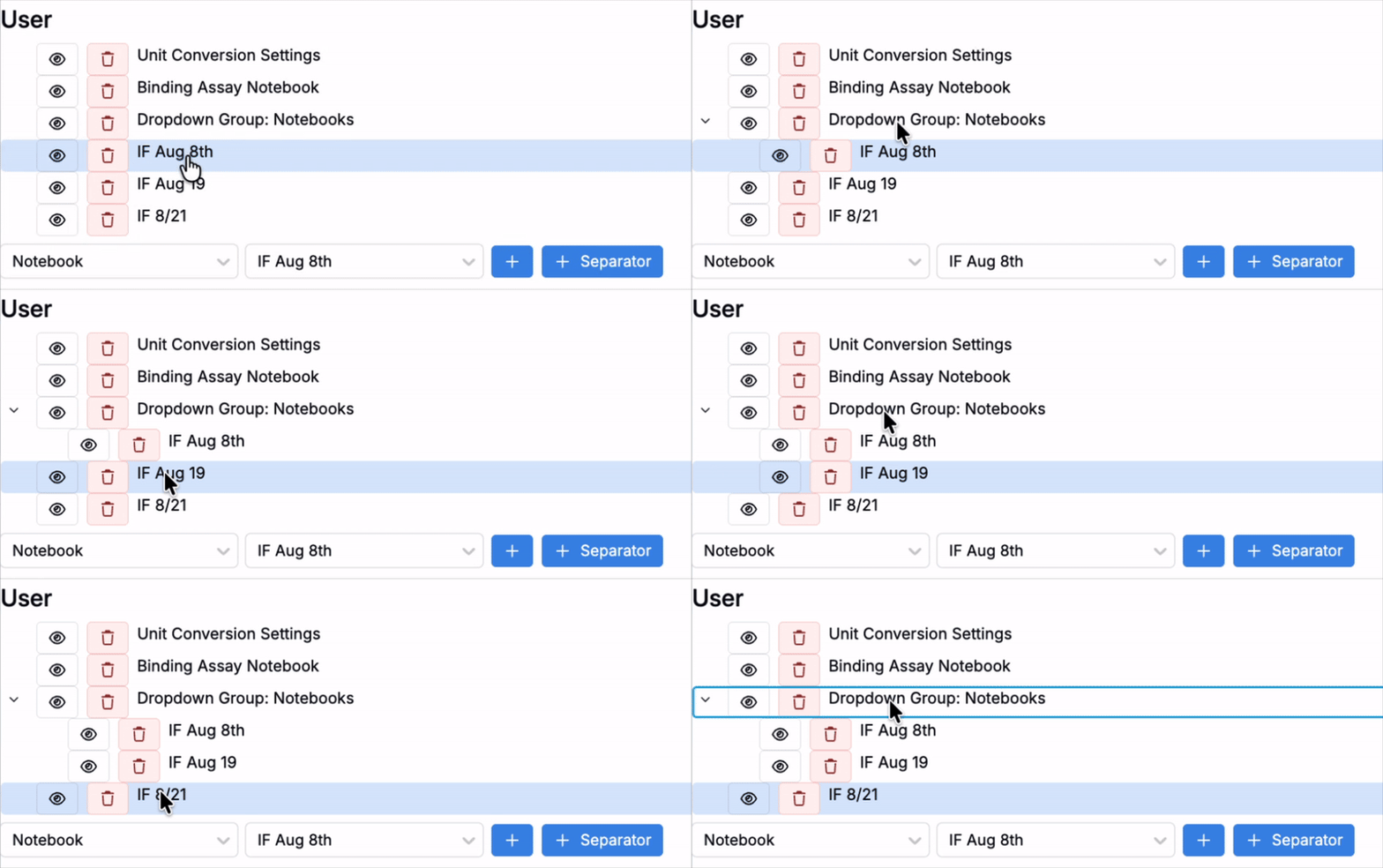
- Once added, add actions, notebooks, view preferences, or triggers to that menu by:
- Adding them to the sidepanel.
- Dragging them onto the dropdown group.
Adding View Preferences
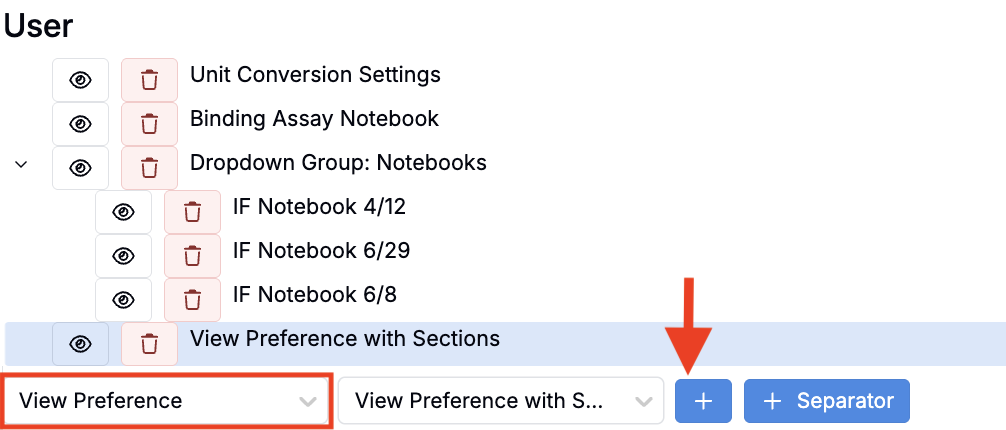
To add a View Preference button to the toolbar:
- Select View Preference from the item type dropdown
- Use the second field to select a View Preference.
- Click the blue + button to add.
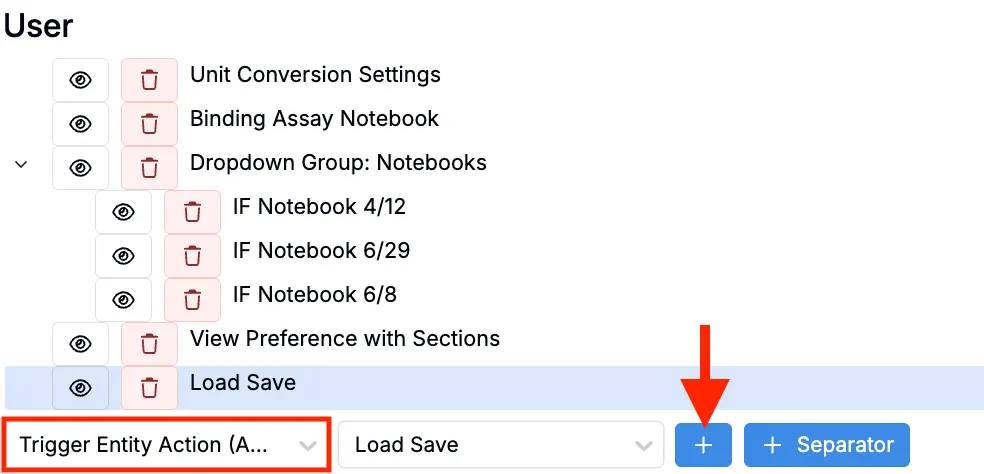
Adding Trigger Entity Actions (Active Experiment)
To add an entity action button for the active experiment:
- Select Trigger Entity Action (Active Experiment) from the item type dropdown
- Use the second field to select from available entity actions
- Click Add → or drag the item to the Current Actions panel
These actions will execute on the currently active experiment.
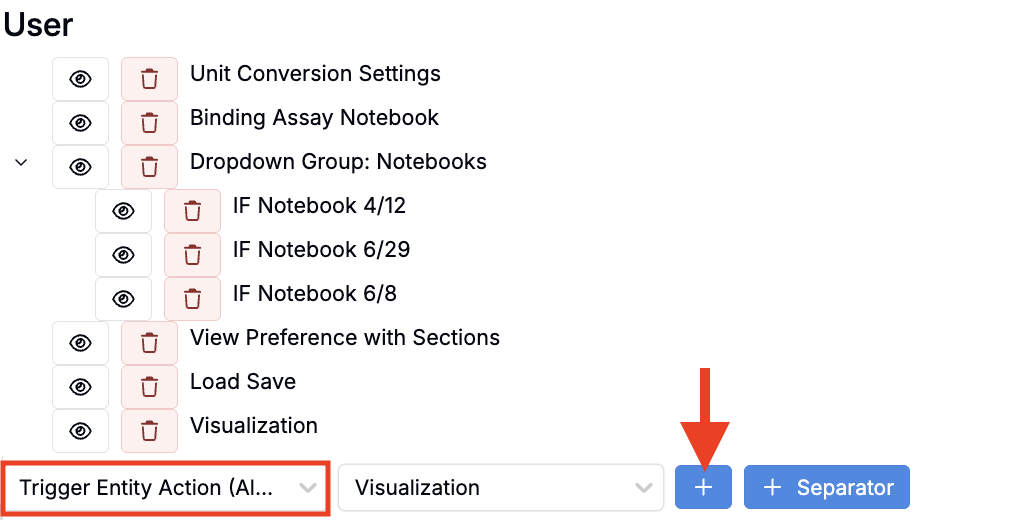
Adding Trigger Entity Actions (All Experiments)
To add an entity action button for all experiments:
- Select Trigger Entity Actions (All Experiments) from the item type dropdown
- Use the second field to select from available entity actions
- Click Add → or drag the item to the Current Actions panel
These actions will execute across all experiments.
Additional Configuration Options
You can further customize the Actions toolbar:
- Rearrange items: Click and drag action toolbar buttons and menus to reorder them
- Remove items: Click the garbage icon to remove actions from the toolbar
- Add separators: Click the + Separator button to add a separator to group related actions or visually separate actions
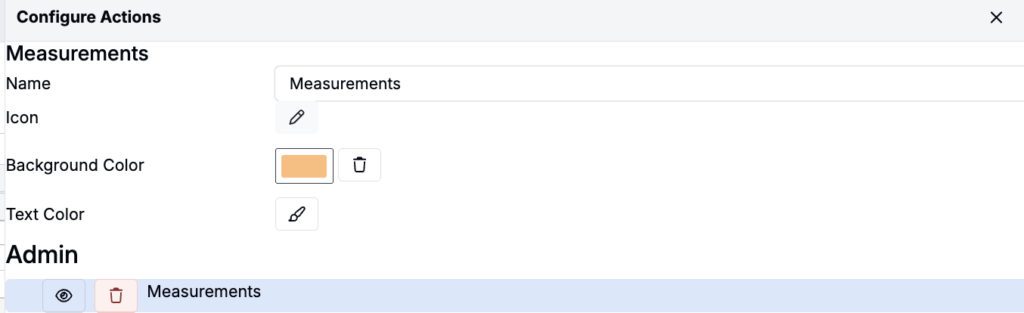
- Customize appearance: Select any action, notebook, view preference, or trigger after adding it to customize:
- Edit the Name field to change the button or action name
- Use the Background Color and Text Color options to change the button colors
- Use the Icon button to change the button icon