
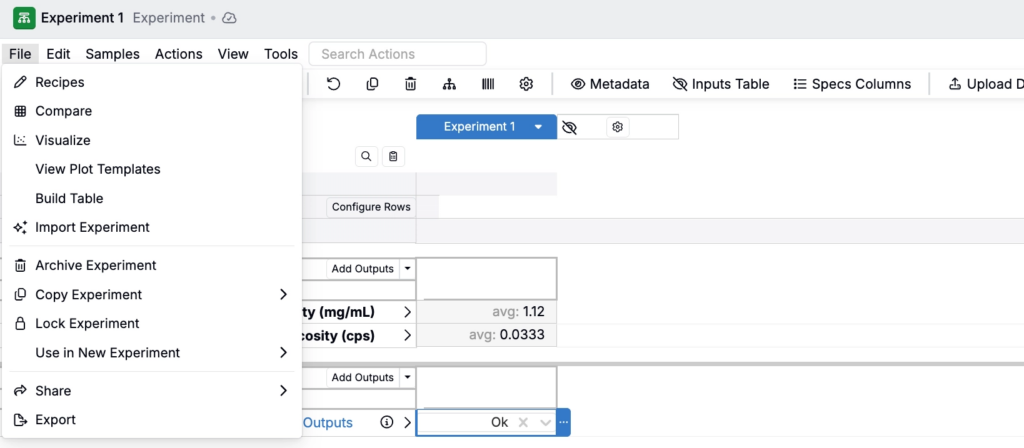
The File Menu on the Measurements view of experiments page provides centralized access to all actions, tools, and settings available when working with measurement data. This menu organizes functionality into menus, making it easier to find and use the features you need.
File Menu Structure
The File Menu, from left to right, contains these tabs:
File
- Recipes — Quick navigates to the Recipe view for the experiments in view
- Compare — Quick navigate to the Compare view, scoped to the experiments in view
- Visualize — Quick navigate to the Explore Data page, scoped to the experiments in view
- View Plot Templates — Opens your saved notebook templates for plots
- Build Table — Opens a modal to create a table using the Table Builder and add to a notebook or sidepanel
- ✨ Import Experiments — Populate your recipe’s inputs/outputs with data from a PDF file using an AI document parser
- Archive Experiment — Archives the experiment or all experiments in view. Archived experiments are moved out of active view but can be unarchived later. Learn more.
- Copy Experiment
- Copy Active Experiment — Duplicates the currently active experiment
- Copy All Experiments — Copies all experiments currently in view
- Lock Experiment— Locks the experiment to prevent edits. Various lock types available including input-only, test samples locks, and lock with signature.
- Use in New Experiment
- Active Experiment — Uses the active experiment as an intermediate in a new experiment
- All Experiments — Uses all experiments in view as intermediates in a new experiment
- Share
- Share Active — Share the currently active experiment with other users, with options for Read or Write access
- Share All — Share all experiments in view with other users
- Export — Export experiment data using a selected runsheet
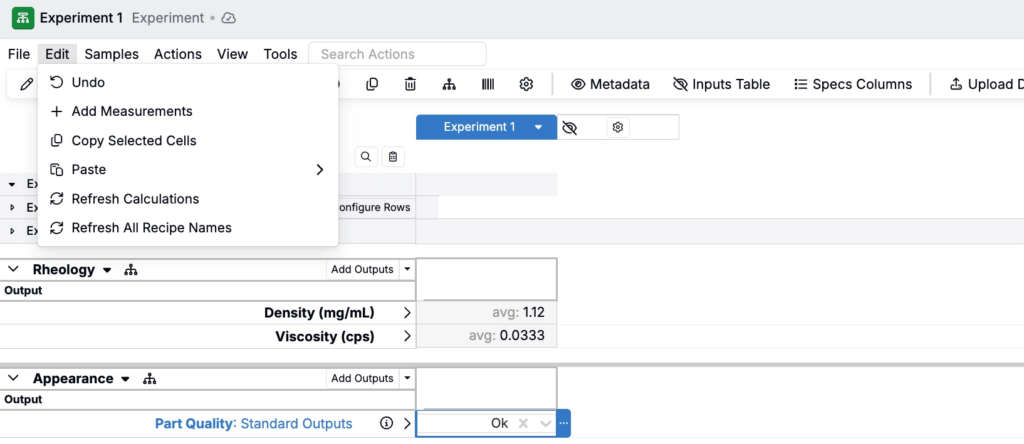
Edit
- Undo — Undo the last action
- Add Measurements — Opens the Add Outputs modal to add new measurement rows
- Copy Selected Cells — Copy selected cells to clipboard
- Paste
- Paste Special: Transpose — Paste data with rows and columns swapped
- Paste Special: Fill Selection — Fill selected cells with pasted data
- Paste Special: Include Notes/Annotation — Paste including any notes or annotations
- Refresh Calculations — Forces the platform to re-run and update computed values after underlying data or settings change
- Refresh All Recipe Names — Update all recipe names based on naming scheme
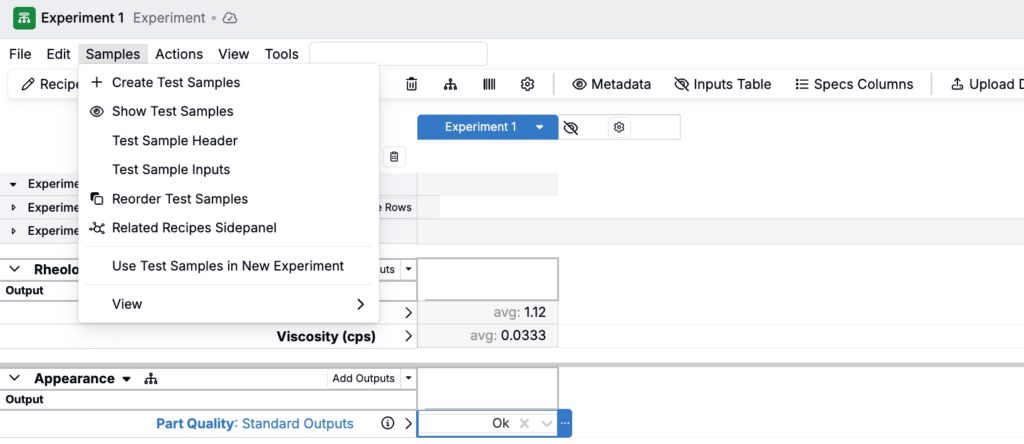
Samples
- Create Test Samples — Create test samples from the current experiment
- Show Test Samples — Show or hide test samples created from the current experiment
- Test Sample Inputs — Displays an Inputs section in the test sample where you can select and view test sample parameters without opening each sample’s recipe page.
Example:

- Test Sample Header — Displays select input values directly within the test sample header.
Example:

- Reorder Test Samples — Opens a sidepanel that allows you to reorder test samples by clicking and dragging them
- Related Recipes Sidepanel — Opens a sidepanel that allows you to quickly view and navigate the other recipes tied to what you are working on (e.g. a parent experiment and its test samples), and helps you compare across them without hunting for links
- Use Test Samples in New Experiment — Creates a new, standalone experiment from one or more test samples. Use this when you want to recombine or rerun work based on test samples.
- View
- View Test Samples — Quick navigates to a view of test samples only
- View All Test Samples — Quick navigates to a view of test samples only
- View Output Experiments — Switches your view to the output recipes created by the experiment, which represent the post-reaction composition. This helps you validate what the experiment produced compared to the starting ingredients.
- View Parent Experiments — Quick navigates from the test sample only view to the parent experiment
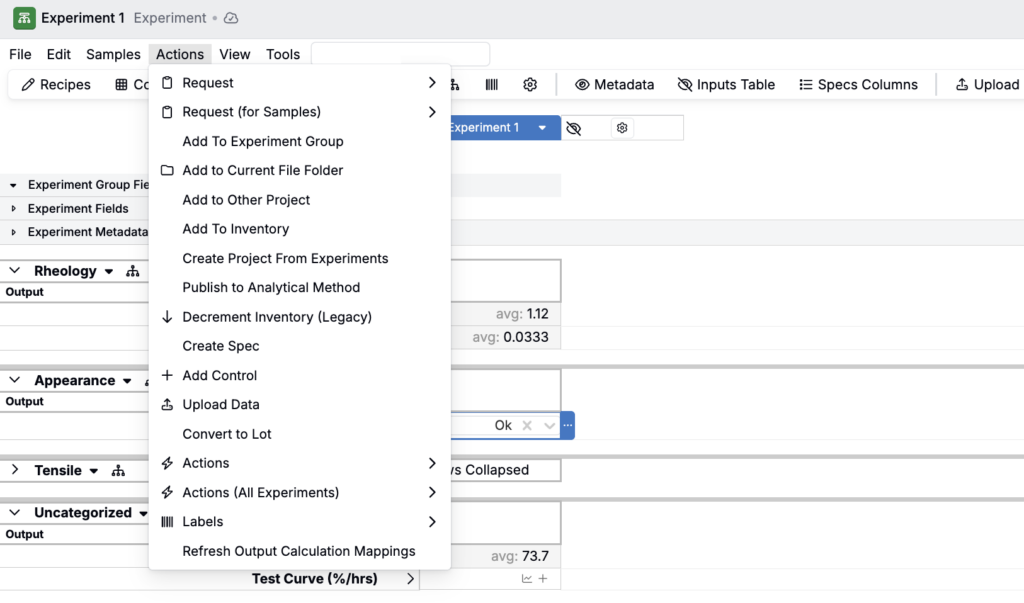
Actions
- Request — Create a new lab request by selecting from available request definitions
- Add to Experiment Group — Add experiments to an existing or new experiment group
- Add to Current Field Folder — Adds the experiment to the current file folder, when the File/Folder pane is open
- Add to Other Project — Move or copy experiments to another project
- Add to Inventory — Add the experiments as inventory
- Create Project From Experiments — Create a new project using selected experiments
- Publish to Analytical Method — Publish experiment data to an analytical method definition
- Decrement Inventory (Legacy) — Legacy method for decrementing inventory quantities
- Create Spec — Quick navigates to the project spec page
- Add Control — Adds a control experiment row at the bottom of the Measurements view so you can compare results against a baseline. Useful when you want a consistent reference point across experiments.
- Upload Data — Open the Upload Data modal to import measurement data from external files using an uploader
- Convert to Lot — Convert the experiment to an ingredient lot
- Actions — Select from available custom entity actions configured for the schema
- Actions (All Experiments) — Apply custom entity actions to all experiments in view
- Labels — Select from available labels for printing or identification
- Refresh Output Calculation Mappings — Used to make output calculations update correctly when they are not refreshing as expected, by forcing the system to refresh the output-calculation mapping layer. Often the recommended workaround when “Refresh Calculations” does not update output calculations.
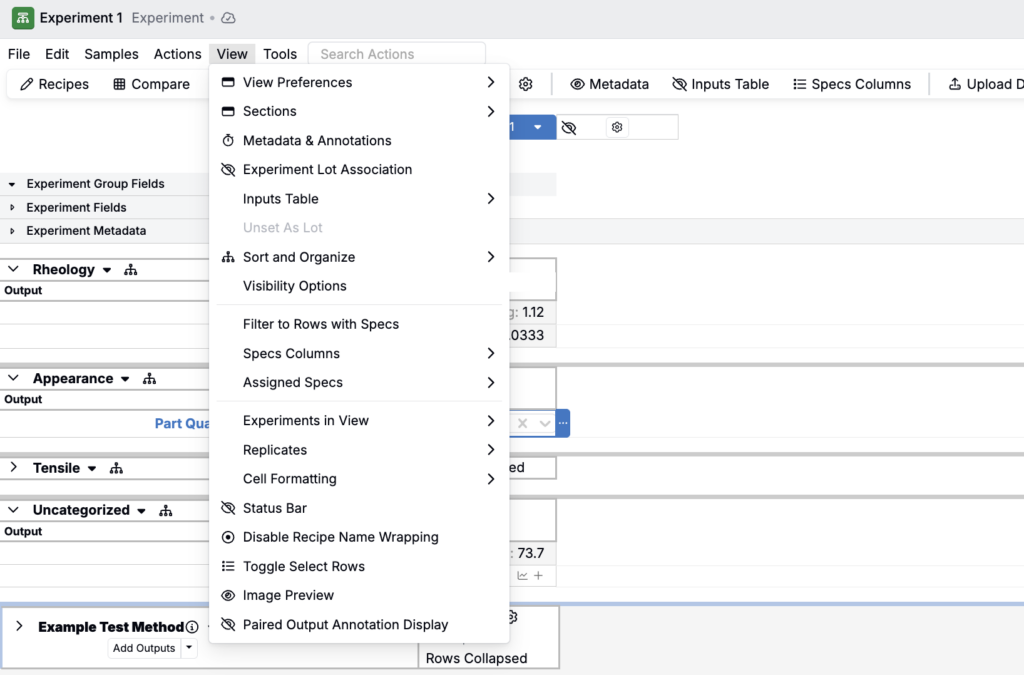
View
- View Preferences — Save and load different column configurations on the Measurements page
- Sections — Show or hide sections on the Measurements page
- Metadata & Annotations — Opens a sidepanel in which you can quickly assign output metadata and annotations to measurement values in the data grid
- Experiment Lot Association — View or hide lot associations for experiments
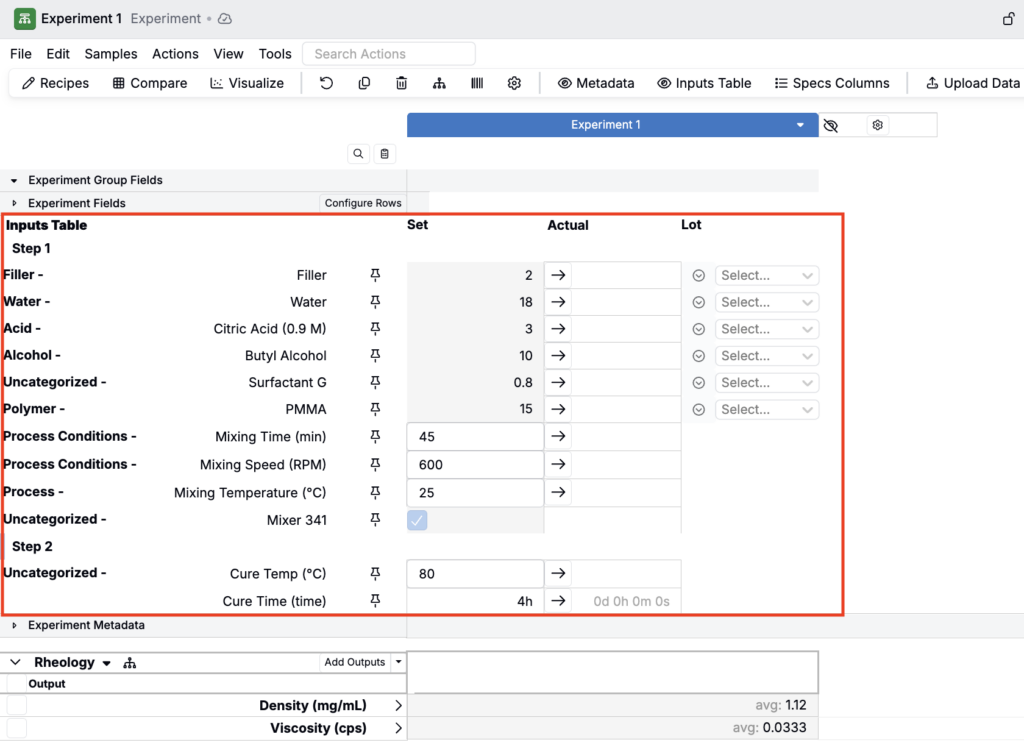
- Inputs Table — Show or hide the Inputs Table section above the Measurements data grid
Example:
- Unset As Lot — Reverses a “Convert to lot” action. Use this if the wrong recipe is converted to a lot and you need to correct it.
- Sort and Organize
- Clear Blank Measurements — Remove rows for blank measurements
- Clear Row Selection — Unselect any selected rows
- Collapse All Tables — Collapse all table sections
- Collapse Empty Tables — Collapse any empty table sections
- Collapse Nested Test Samples — Collapse any tested test samples
- Expand All Tables — Expand all table sections
- Sorting and Organizing Options — Access recipe page sorting and organizing settings
- Save Measurement Views — Create a save of the data table, with all data, sections, and columns with options to share with other users
- Load Measurement Views — Load a saved measurement view
- Create New Group from View — Create a new output group from all outputs in view on the page
- Visibility Options
- Apply to Whole View — Applies settings below (Show/Hide Standard, Published, or Raw) to the entire Measurements view
- Apply to Test Samples Only — Applies settings below (Show/Hide Standard, Published, or Raw) to the test samples only
- Show Standard — Shows only outputs whose category have a “Standard” visibility type
- Show Published — Shows outputs whose category have a “Published” visibility type (often used for results intended for sharing/reporting)
- Show Raw — Shows outputs whose category have a “Raw” visibility type (often used for results intended for sharing/reporting)
- Filters to Rows with Specs — Filter the table to only rows associated with specs
- Specs Columns
- Show Project Spec — Display the project spec as a column on the data grid
- Show Spec for Experiment Checks — Displays the spec tied to an experiment check so you can see the thresholds being evaluated, with pass/fail highlighting
- Show Assigned Specs Per Recipe — Display an assigned spec column per recipe on the data grid
- Select Specs to Show — Manually select any spec to display as a column for comparing data against specs other than the project spec
- Hide All Specs — Removes all spec columns from view
- Assigned Specs
- Always Show — Always display assigned specs
- Automatic — Automatically show specs when relevant
- Never Show — Never display assigned specs
- Experiments in View
- Experiments Viewed — Select experiments in view
- Hide Experiment From View — Removes the active experiment from view
- Previous Experiments — Navigates to the previous experiment in the current project
- Next Experiments — Navigates to the next experiment in the current project
- Replicates
- Replicate Display — Automatic or Always Replicate Row
- Replicate Header Display — Set replicate header as alphabetic or numeric
- Replicates — Show or hide replicates
- Cell Formatting
- Grey Non-Existent Outputs — Gray out cells without output values
- Highlight Edited Outputs — Add cell highlighting any edited output values
- Cell Emphasis — A display toggle that bolds cell values that are “uncommon” across the experiments in view, helping you quickly spot differences. Only triggers under threshold-based logic (e.g. a value that appears in 25% or fewer of the columns in view).
- Status Bar — Show or hide the status bar at the bottom of the Measurements page
- Disable/Enable Recipe Name Wrapping — Disable or enable experiment names from wrapping in the header
- Toggle Select Rows/Clear Row Selection — Enable or disable data grid row selection
- Image Preview — Toggles whether image outputs render as an in-cell thumbnail or display as a filename/loaded indicator
- Paired Output Annotation Display — Display setting that shows a “paired” output calculation inside the same cell as the primary output value, as an annotation. Mainly used for cases like showing an uncertainty next to the main measurement to keep the grid cleaner. Learn more.
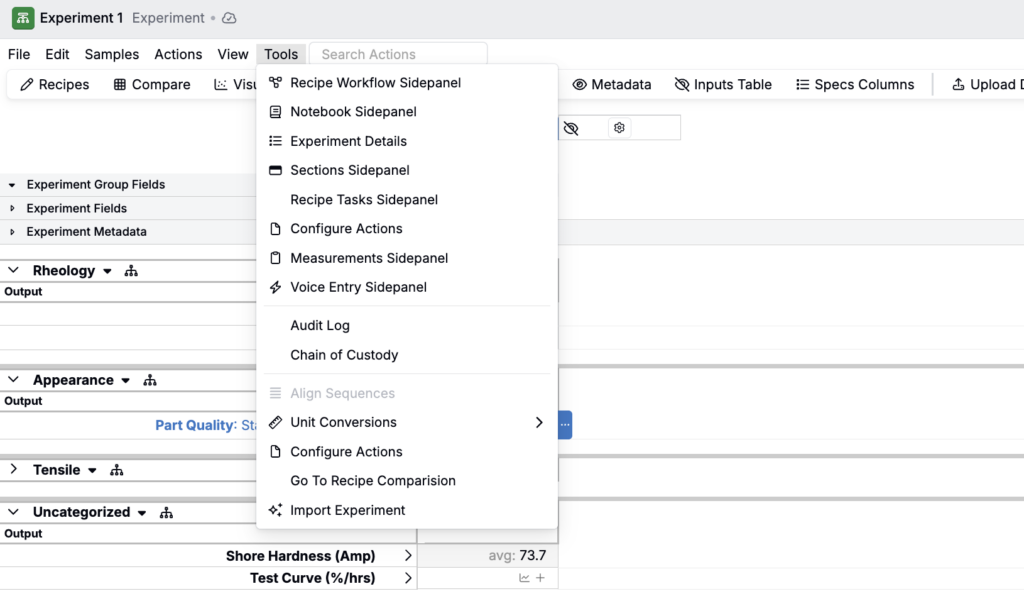
Tools
- Recipe Workflow Sidepanel — Open the recipe workflow sidepanel for workflow management
- Notebook Sidepanel — Open the Notebook Sidepanel, within which you can create or view notebook alongside your experiment to capture notes, reference procedures, and guide work without leaving the Measurements view
- Experiment Details — View detailed experiment information and metadata
- Sections Sidepanel — Open the Sections sidepanel, where you can add and remove sections from view
- Recipe Tasks Sidepanel — View and manage tasks associated with the recipe
- Configure Actions — Configure which actions appear in the Actions toolbar
- Measurements Sidepanel — Opens a sidepanel where you can record measurement values, notes, annotations, and recipe output fields specific to individual values (e.g., timestamp)
- Voice Entry Sidepanel — Open voice entry interface for hands-free data entry
- Audit Log — View the full audit log
- Chain of Custody — View chain of custody tracking information
- Align Sequences — Align the ordered measurement structure (e.g. workflow step/test sample structure) so the measurement rows are matched up correctly, rather than being shifted or mismatched.
- Unit Conversions
- Metric → Imperial — Convert units from metric to imperial
- Imperial → Metric — Convert units from imperial to metric
- [Conversion Groups] — Access specific conversion group options
- Unit Conversion Settings — Configure unit conversion preferences
- Rounding and Formatting Settings — Configure rounding and formatting for conversions
- Configure Actions — Configure which actions appear in the Actions toolbar
- Go to Recipe Comparison — Navigate to the recipe comparison view, a graph interface for comparing measurements and inputs between selected experiments (separate from the Compare page)
- ✨ Import Experiment — Populate your recipe’s inputs/outputs with data from a PDF file using an AI document parser
Search Actions
A search bar is also available to quickly find and execute actions across all menu tabs.
