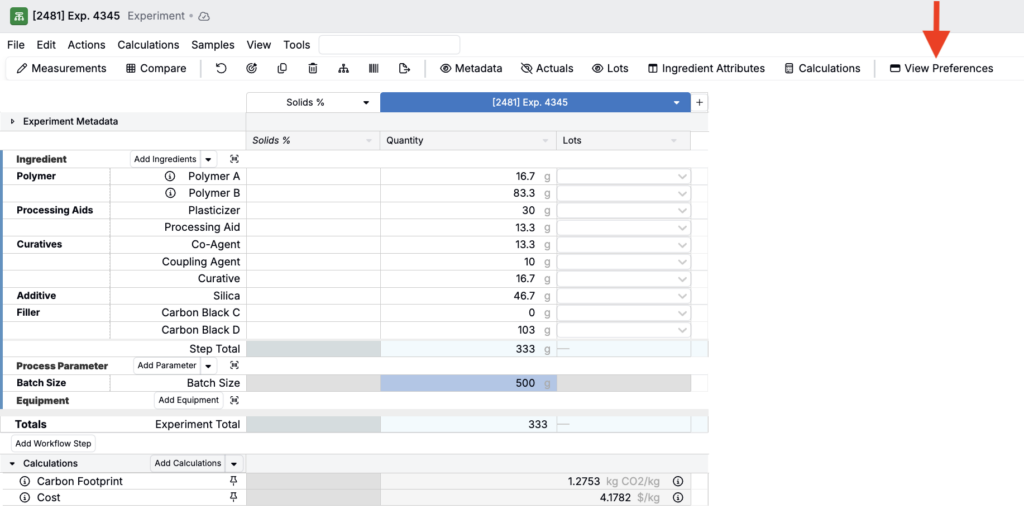
View Preferences let you save and reuse a setup for the Enter pages, including which columns and sections you show on the Recipe and Measurements views.
Use them to switch quickly between different layouts for different workflows or roles, without reconfiguring columns each time. For example, you might keep a detailed view for reviewers and a simplified view for operators.
Common ways teams use View Preferences
View Preferences are helpful when different experiment types or roles need different columns.
For example:
- Rubber formulations: show Actual Value, Batch Weight, Cost, and Specific Gravity.
- Synthesis experiments: show Molecular Weight, Moles, and Temperature.
- Paint formulations: show Ingredient Codes and Weight %.
Instead of rebuilding these layouts each time, save them as separate View Preferences. Many teams keep both a standard and consolidated view.
Creating a View Preference
- Create your desired Recipe or Measurement page configuration with select columns and sections.
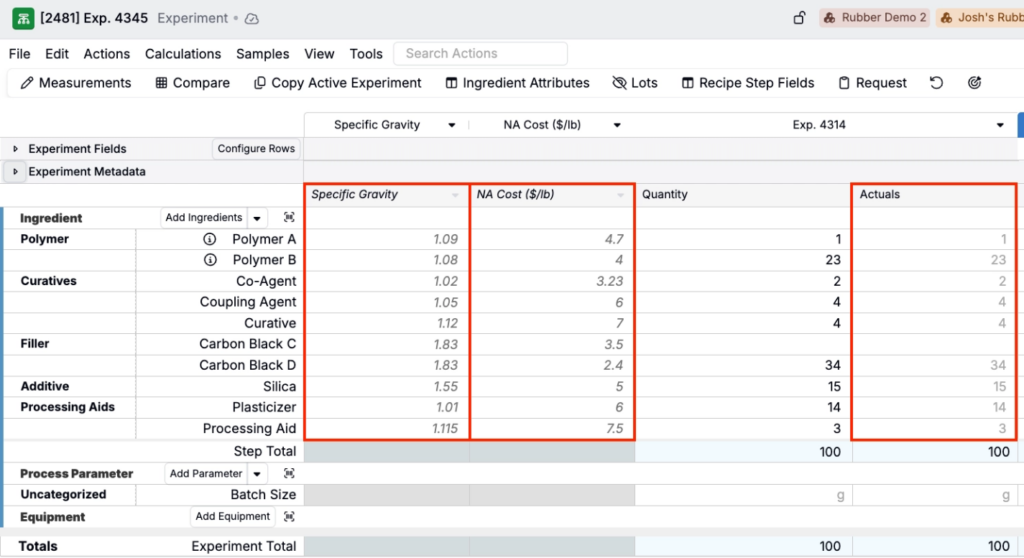
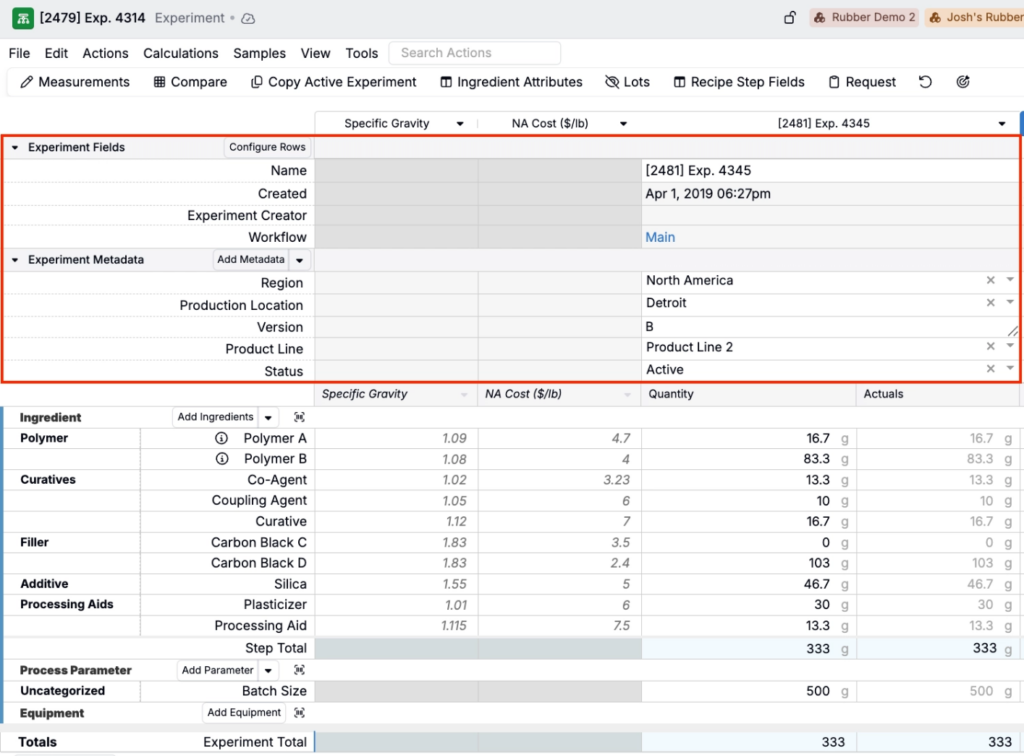
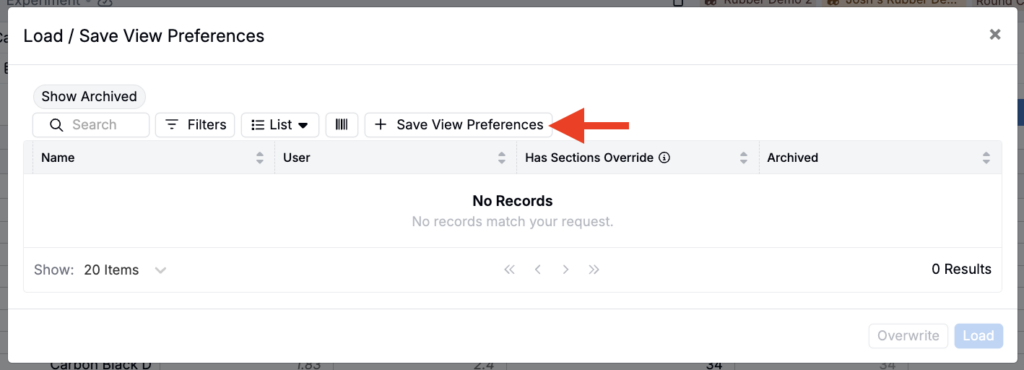
- Select View > View Preferences. In the modal, click Save View Preferences.
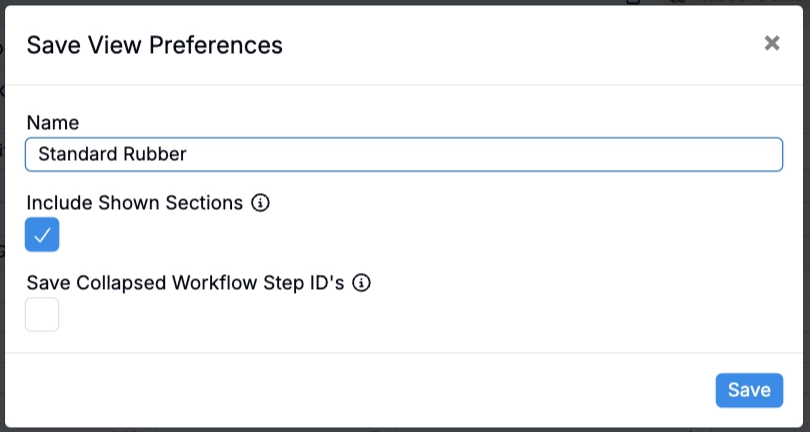
- Add a View Preference name and configure settings:
- Include Shown Sections: Choose whether or not to include current page sections (e.g. Expanded Ingredients, Experiment Metadata, Experiment Fields)
- Save Collapsed Workflow Step ID’s: When toggled on, the View Preference will track which workflow steps are collapsed, instead of tracking the order of collapsed steps in the recipe.
- Click Save.
Loading a View Preference
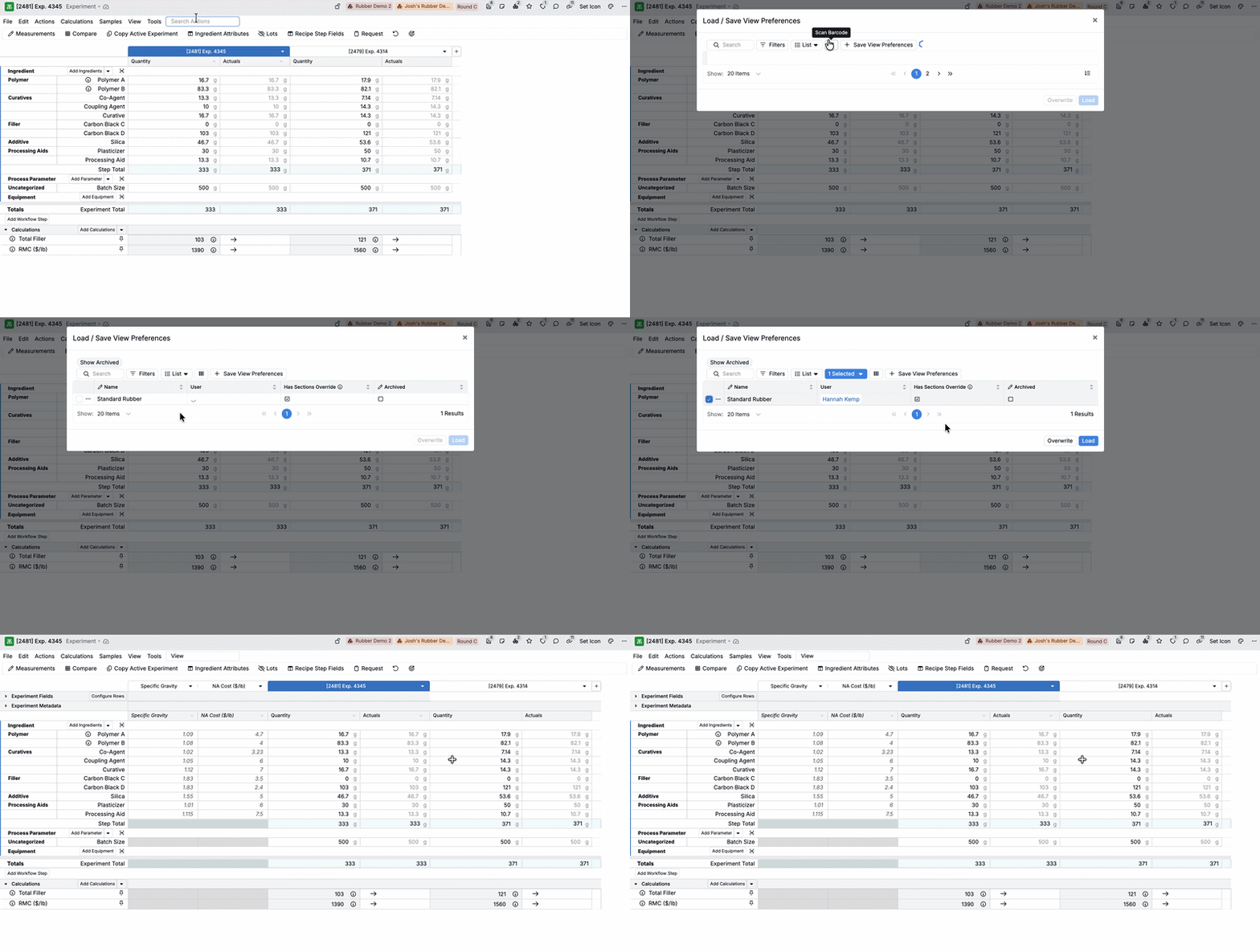
- From the Recipe or Measurements view of experiments, Select View > View Preferences.
- Select from the list of menu options or click View All to open the modal.
- In the modal, select a View and click Load.
Sharing a View Preference
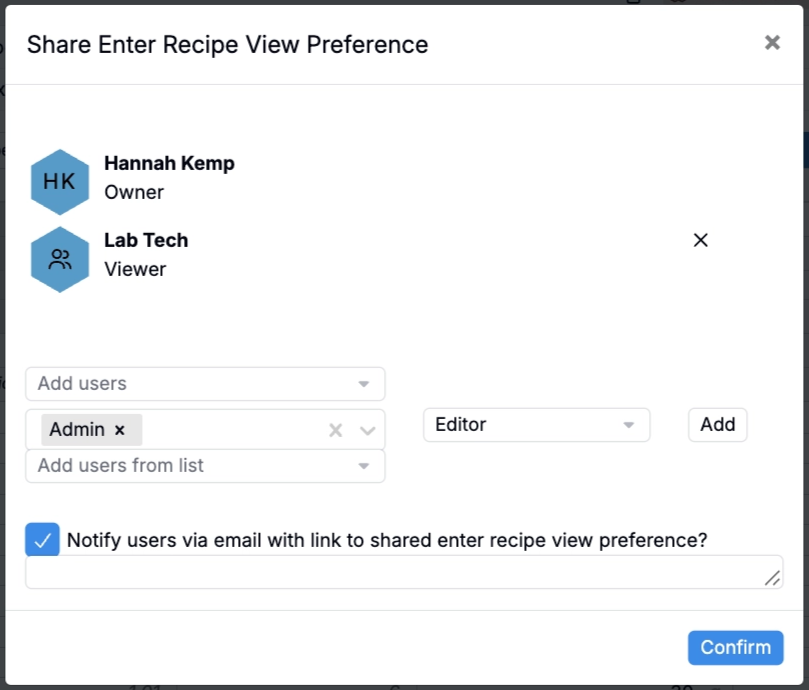
You can also share View Preferences with specific people or teams. When you share one, choose an access level:
- Viewer: can load the preference
- Editor: can load and edit the preference
To share a View:
- Select View > View Preferences.
- In the modal, select the View to share.
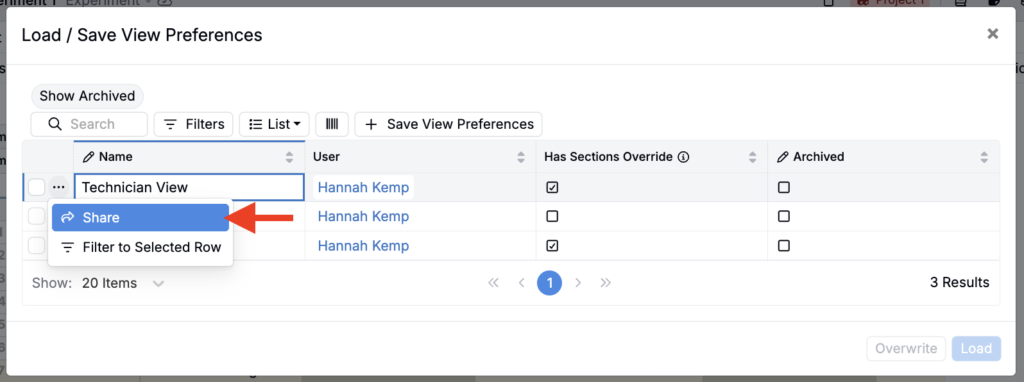
- Select users or user groups.
- Choose an access level (Viewer or Editor).
- Click Add.
- To notify users by email when sharing the View, use the checkbox below. Use the text field to add an optional message.
- Click Confirm.
Adding View Preferences to the Action Bar
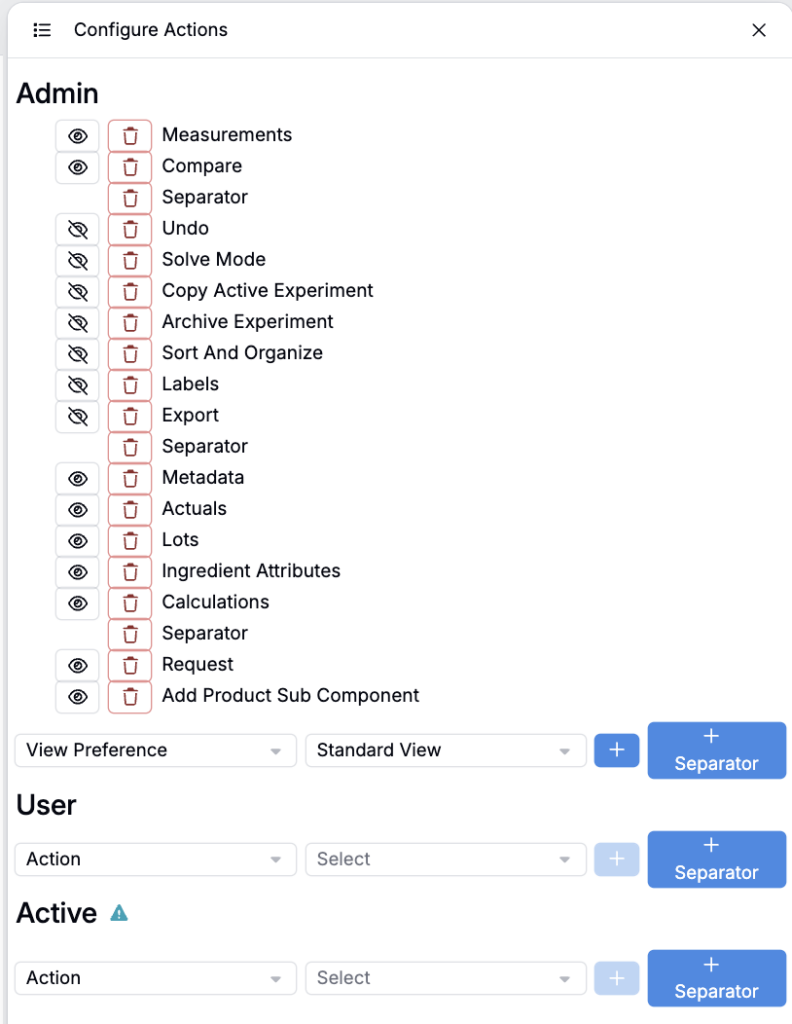
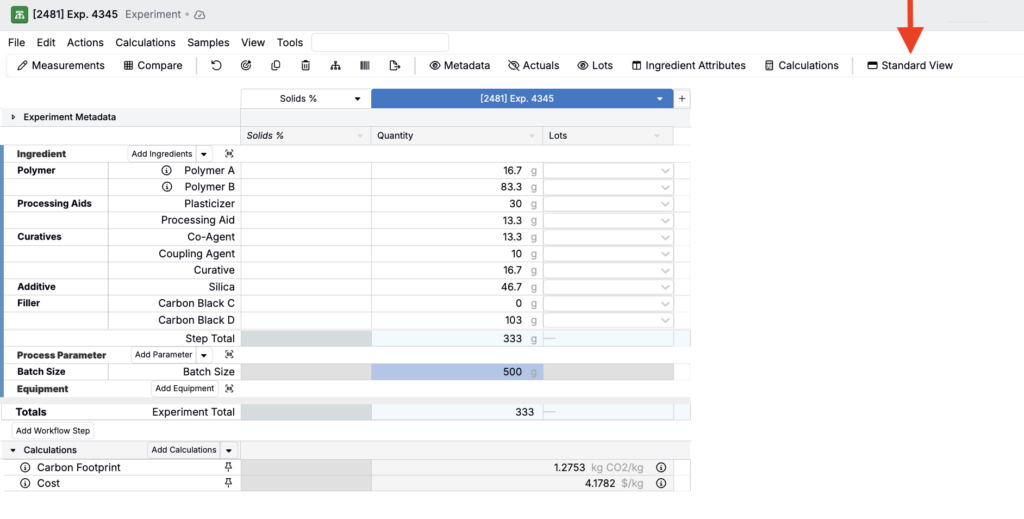
Once you save View Preferences, you can access them directly from action bar shortcuts, making it faster and more convenient to switch between views.
To add a select View Preference to the action bar:
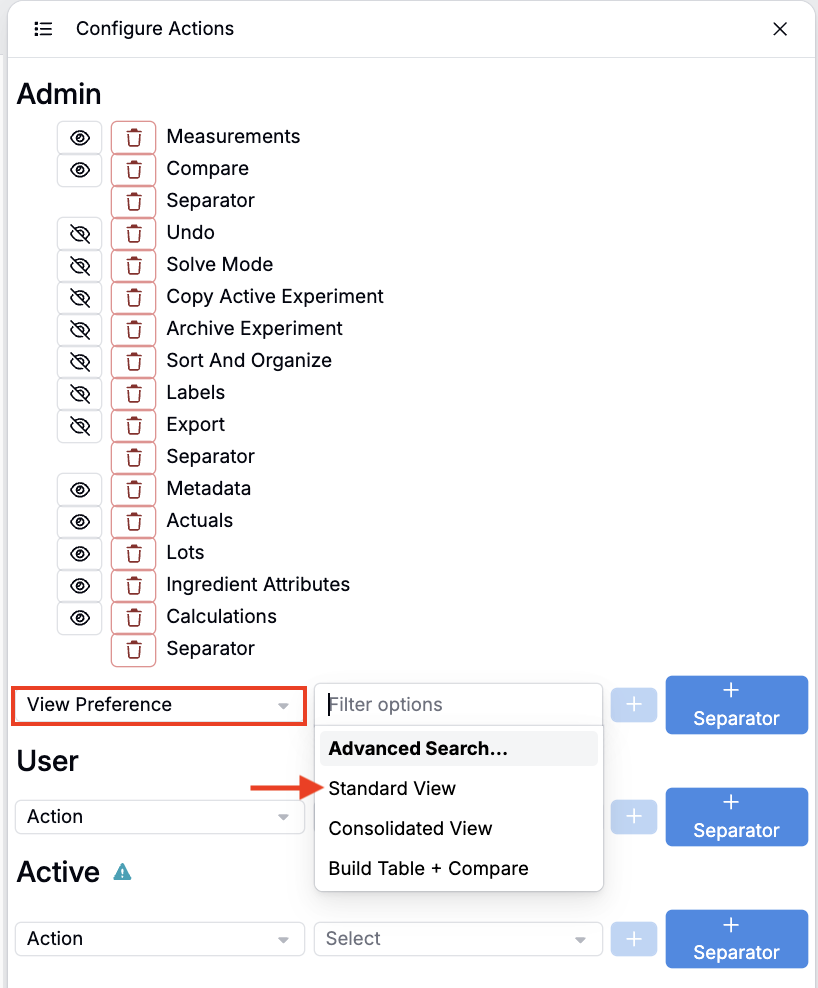
- Open Configure Actions (Tools > Configure Actions).
- In the side panel, under either Admin or User, select View Preference + the View you want to add (e.g. Standard View).
- Click the blue ➕ to add the action.
To add a the View Preferences action (to view all available preferences):
- Open Configure Actions (Tools > Configure Actions).
- In the side panel, under either Admin or User, select Action + View Preferences.
- Click the blue ➕ to add the action.