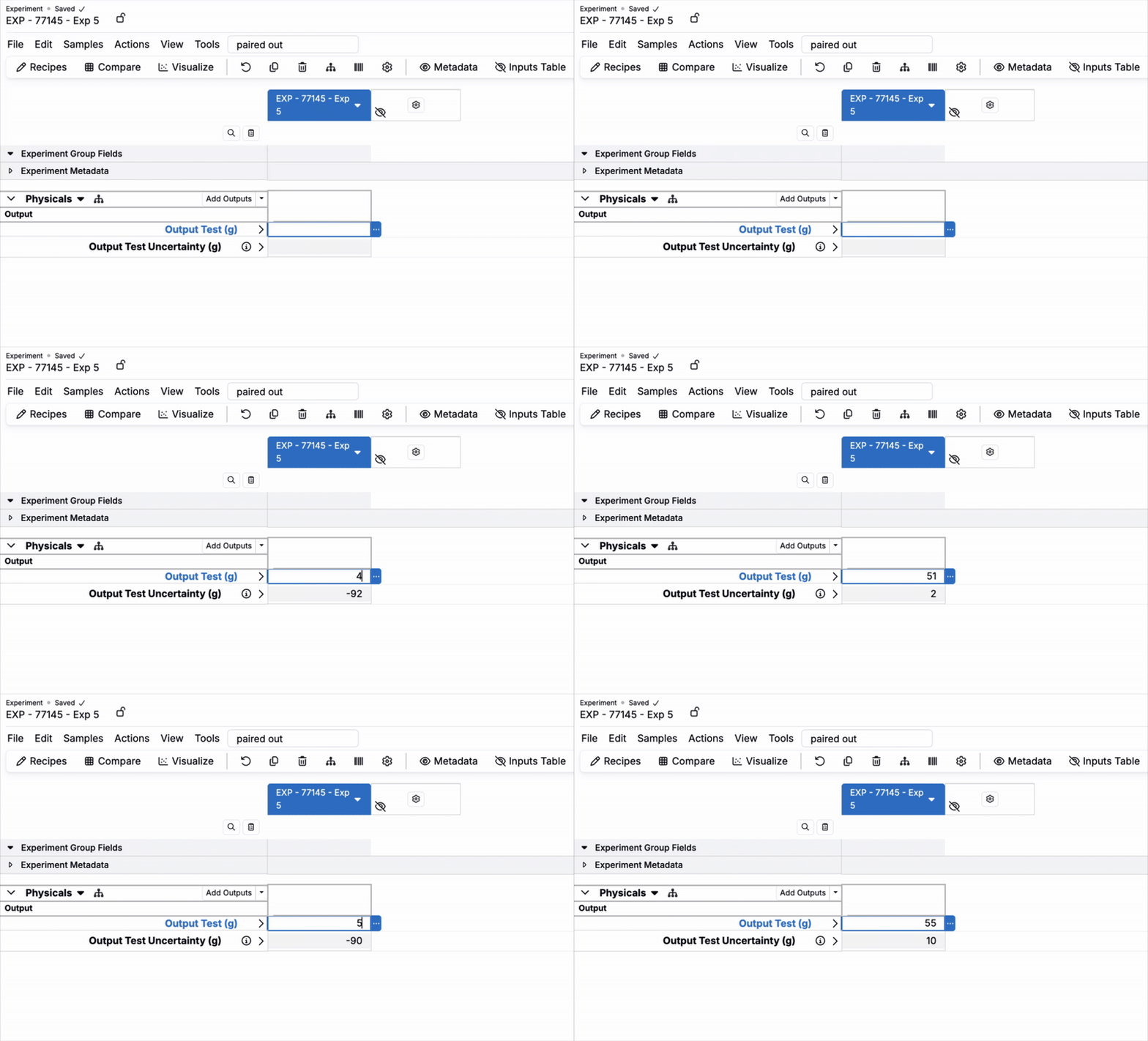
Paired Output for Annotation Display lets you attach a calculated value to a primary output and show that calculation as an inline annotation inside the output’s cell. This reduces clutter in Measurements and keeps related numbers together where users enter data.
When to use it
- Uncertainty calculations — Show uncertainty next to a measured value.
- Quality metrics: Surface scores or flags beside the primary result.
- Conversions: Display a converted unit alongside the original.
- Statistics: Add mean, median, or standard deviation annotations.
How it works (overview)
- Create a primary output (Numeric).
- Create an output calculation that references the primary output.
- In the calculation output’s Advanced Settings, set the Paired Output for Annotation Display to the primary output.
- Wherever the primary output appears on an experiment, the calculation will appear as an annotation in the same cell.
Setting up paired outputs
Step 1 — Create the primary output
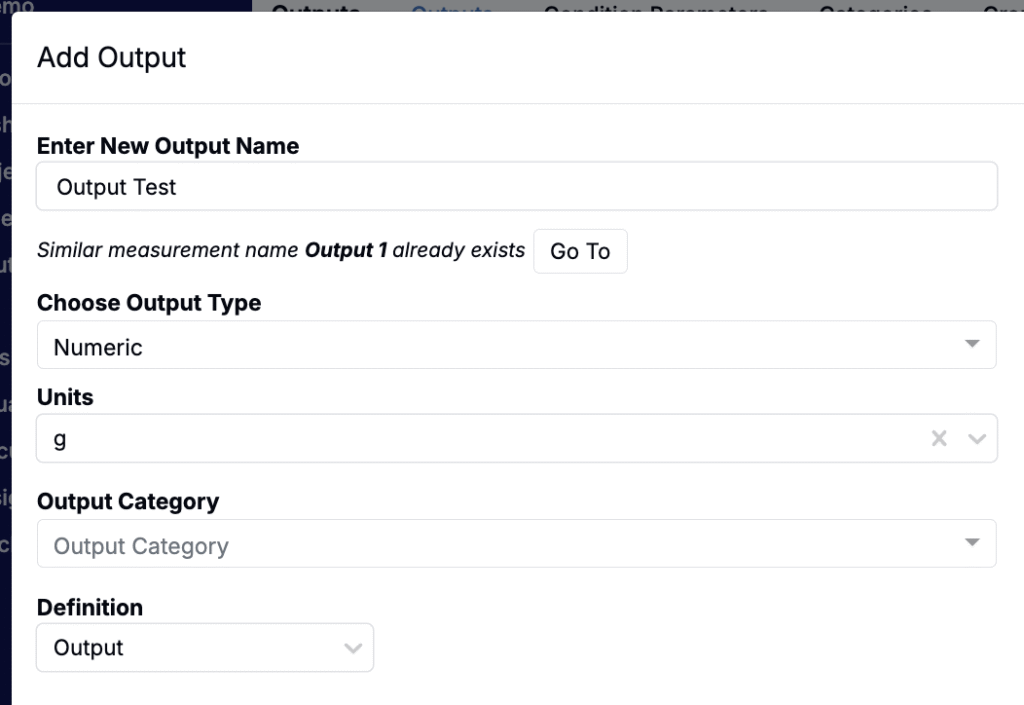
- Go to Inputs/Outputs > Outputs and click Add Output.
- In the modal:
- Name the output.
- Set Type to Numeric.
- Choose the appropriate Units.
Step 2 — Create the output calculation
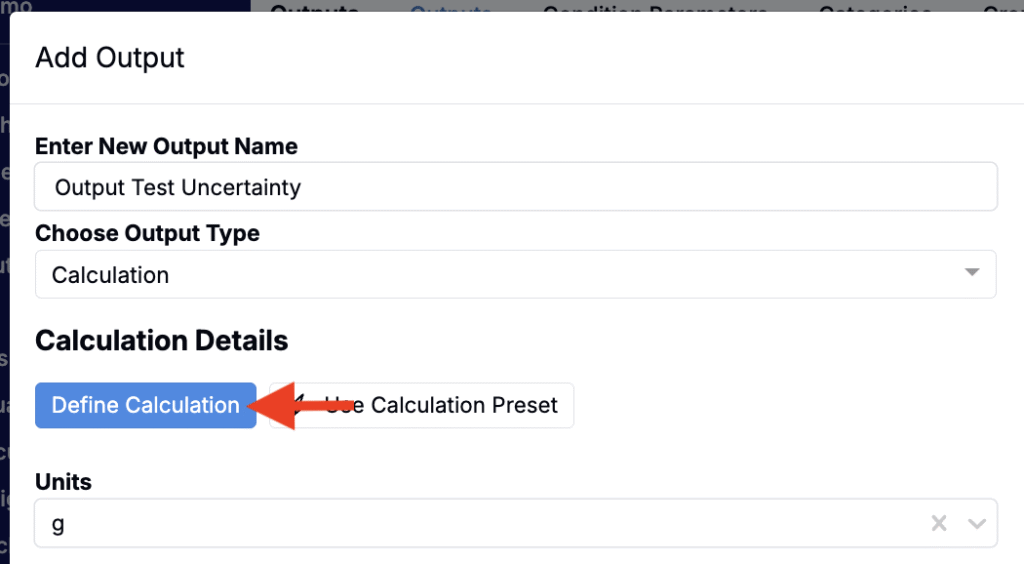
- Go to Inputs/Outputs > Outputs and click Add Output.
- In the modal:
- Name the output.
- Set Type to Calculation.
- Choose the appropriate Units.
- Click Define Calculation.
Step 3 — Define the calculation
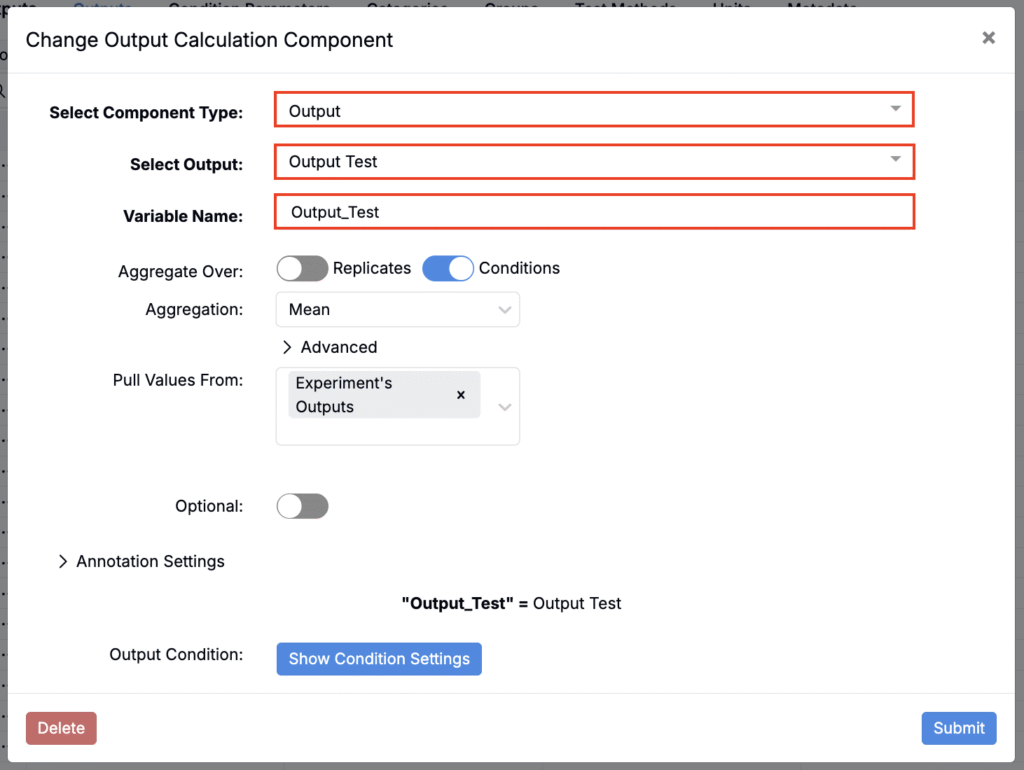
- In the modal:
- Set Component Type to Output.
- Select the primary output you created above.
- Give the variable a clear name (e.g.,
Output_Test). - Click Submit.
- (Optional) Add more variables with + Add Entity if needed.
- In the equation box, enter your formula using the variables listed below it.
- Example: To define uncertainty as twice the measured value, enter
2 * Output_Test.
- Example: To define uncertainty as twice the measured value, enter
- Click Submit, then Create Output.
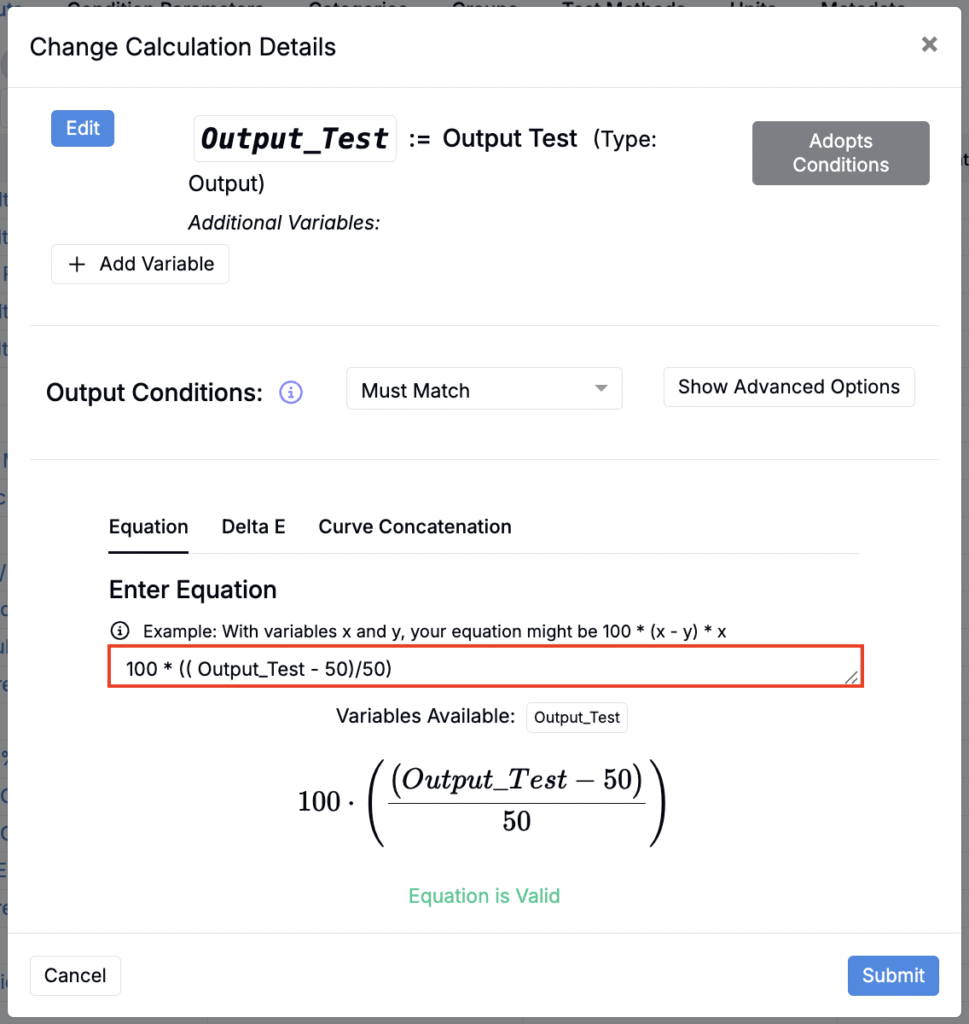
Step 4 — Pair the calculation to the primary output
- Open the new output calculation’s details page from the Outputs listing to view its settings.
- Expand Advanced.
- Set Paired Output for Annotation Display to your primary output.
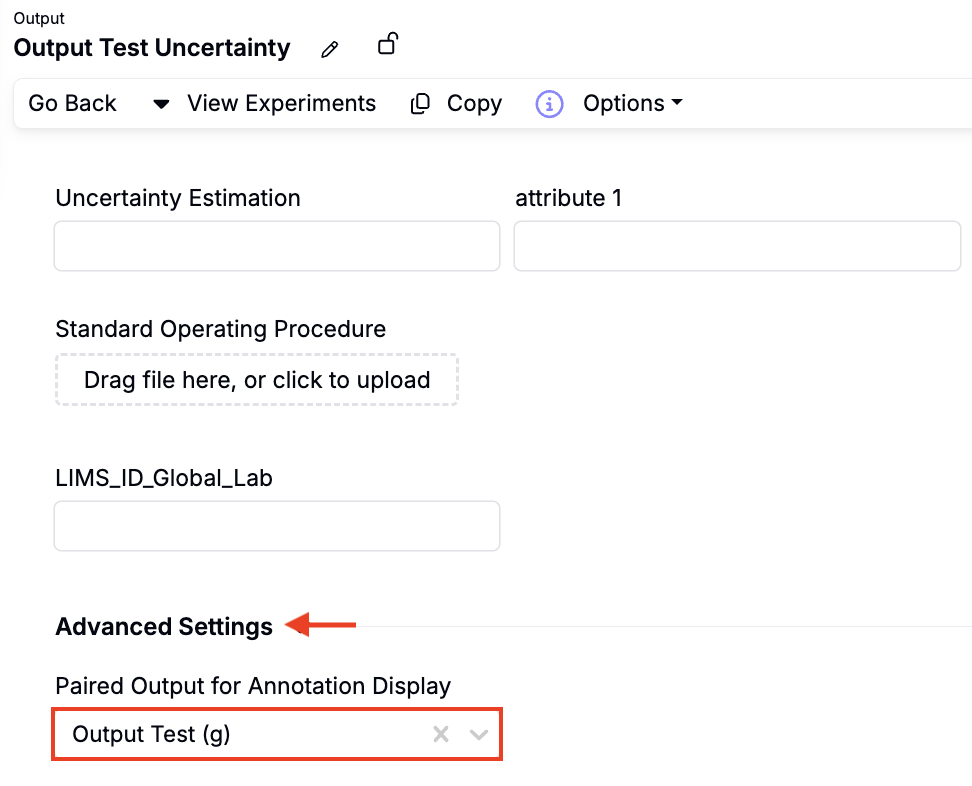
Using paired outputs for annotation display
Once paired, the calculation appears with the primary output anywhere it’s shown. When you assign a value to the primary output, the annotation calculates automatically from your equation.