Ingredient lots track specific batches of ingredients from suppliers, including batch-specific properties, metadata (such as expiration dates), supporting documents (COAs, SDSs), outputs from tests run on the lot, and any associated labels and barcodes.
You can view all lots in your schema from the Lots listing page (Inputs/Outputs > Lots) or view the lots tied to a specific ingredient from that ingredient’s Details page.
What’s Stored on a Lot
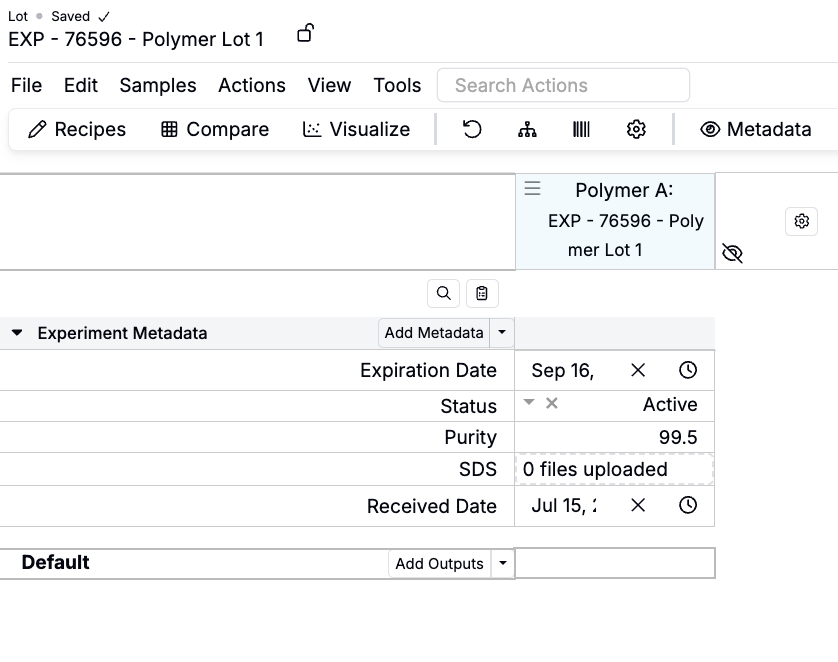
Each lot page provides a complete record of the batch, and can include:
- Lot-specific properties (e.g., purity, cost, expiration date)
- Metadata fields inherited from the base ingredient or added specifically for lots
- Supporting documents such as Certificates of Analysis (COAs), Safety Data Sheets (SDSs), and customer labels
- Outputs from tests performed on the lot
- Labels and barcodes for tracking and printing
Creating Ingredient Lots
You can create lots in several ways:
From the Lots Listing Page
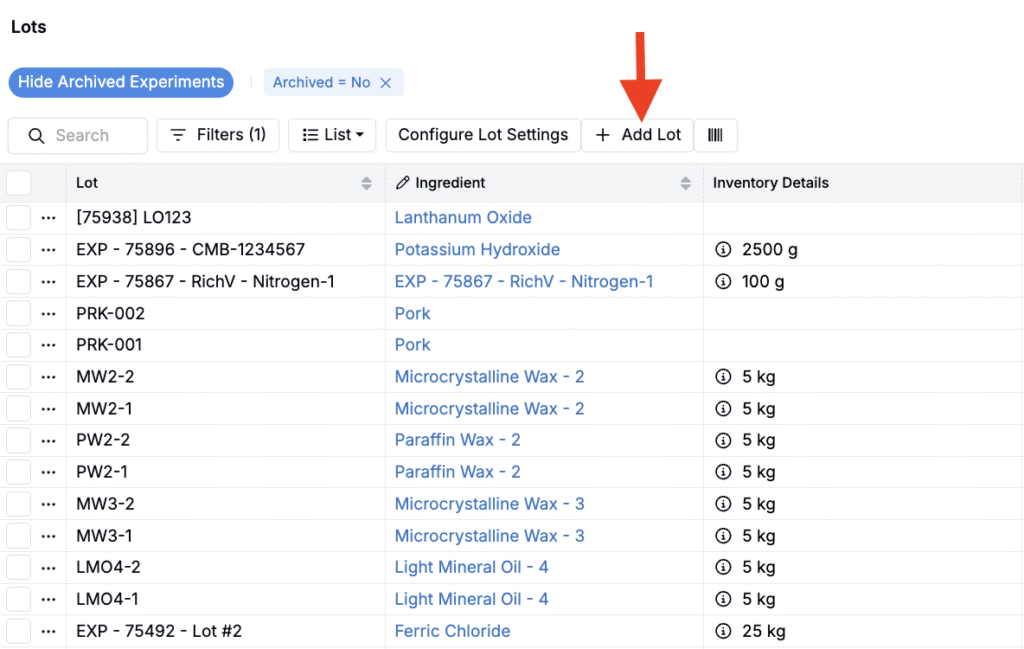
- Navigate to Inputs/Outputs > Lots.
- Click Add Lot.
- In the modal:
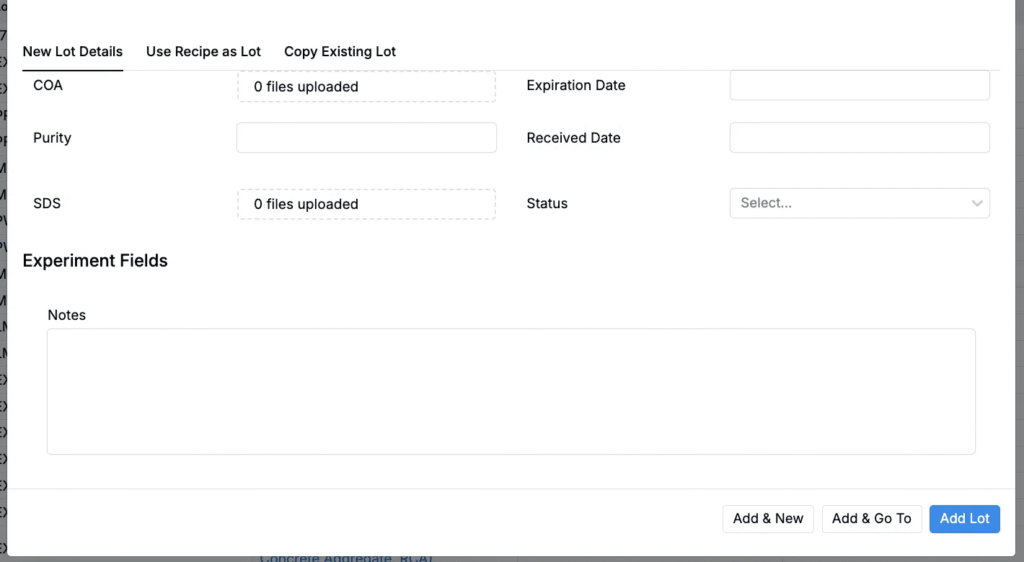
- Select the Ingredient.
- Enter a Lot Name.

- Choose one of two tabs:
- New Lot Details: Create a standalone batch record. Fill in optional fields such as COA, cost, expiration date, purity, SDS, status, etc.
- Use as Recipe Lot: Link the lot directly to an existing recipe. The recipe details will populate the lot automatically.
- Copy Existing Lot: Duplicates an existing lot with the same properties, metadata, and documents.
- Click Add Lot to save.
From an Ingredient Details Page
- Go to Inputs/Outputs > Inputs > Ingredients and select an ingredient.
- In the Lots section:
- Click Add Lot to create a new lot.
- Use the Default Lot dropdown to set a default for that ingredient.
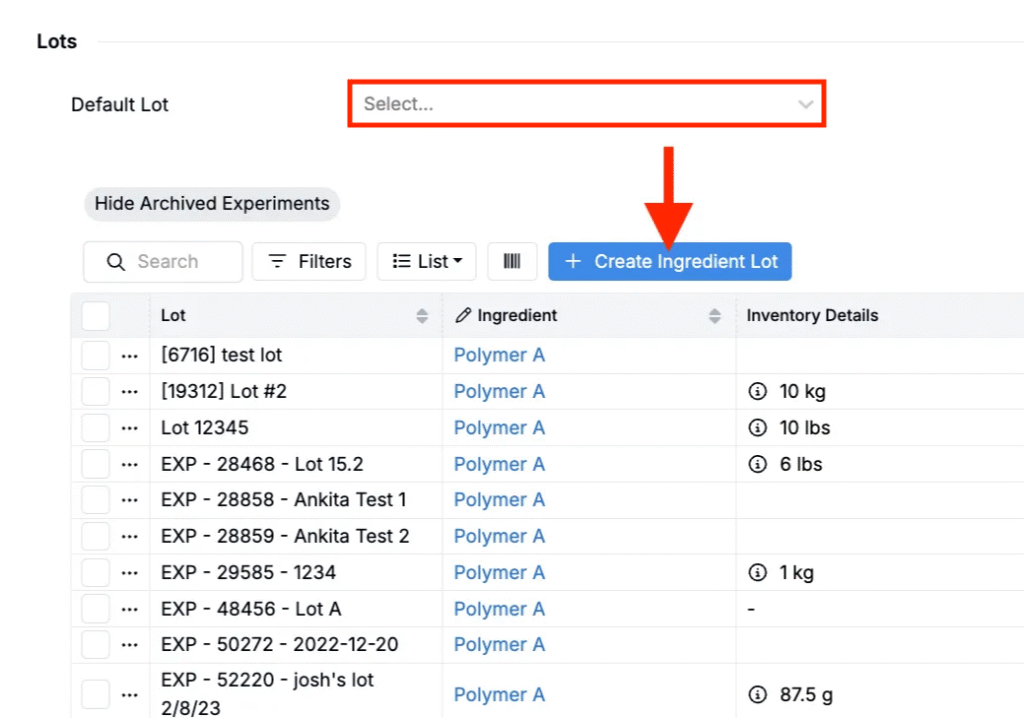
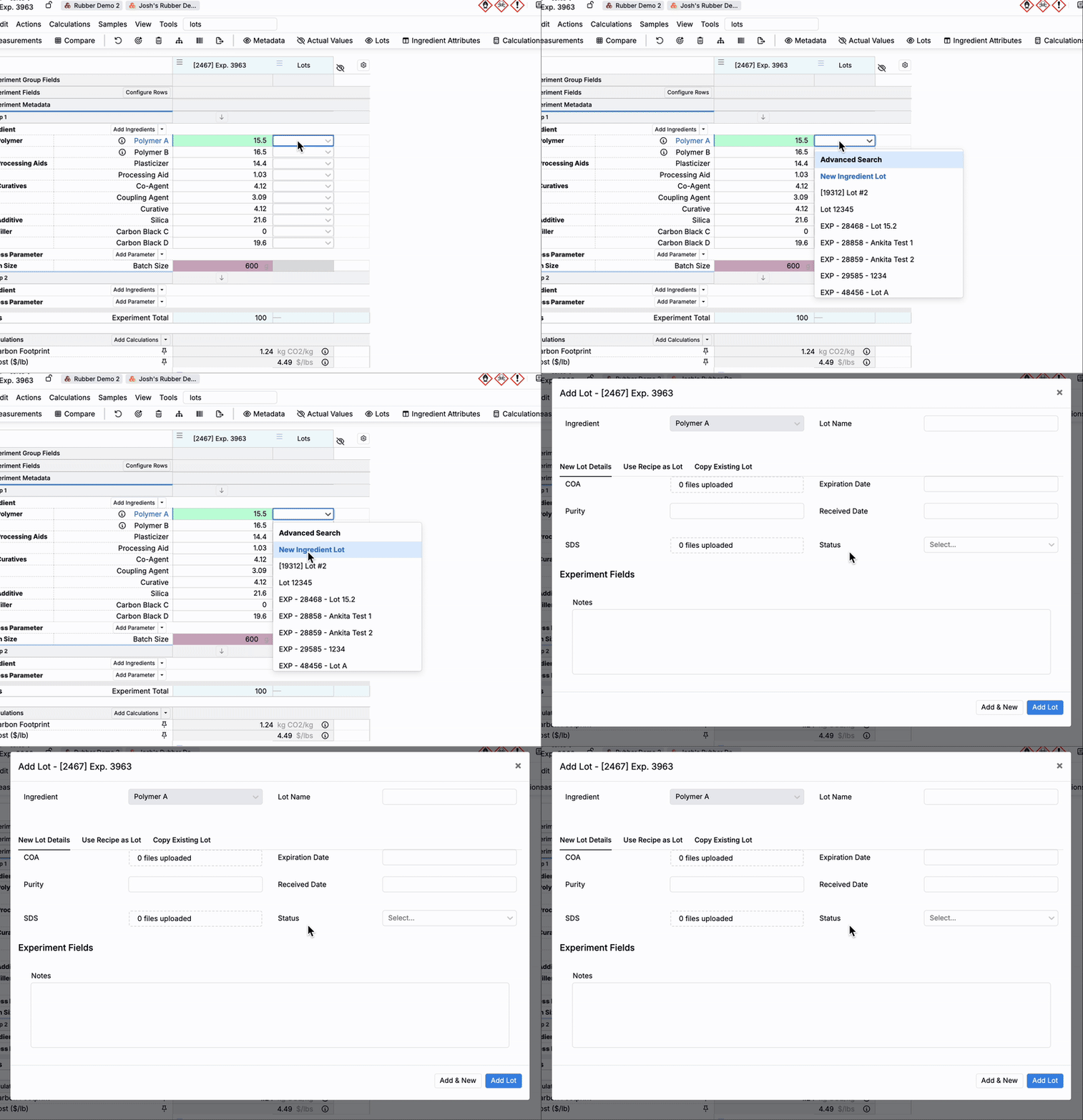
From the Enter Recipe Page
- Make sure the Lot column is visible.
- In the recipe grid, click an empty lot cell for an ingredient and select New Ingredient Lot.
- Configure details or link to a recipe, then click Add Lot.
Labels and Barcodes
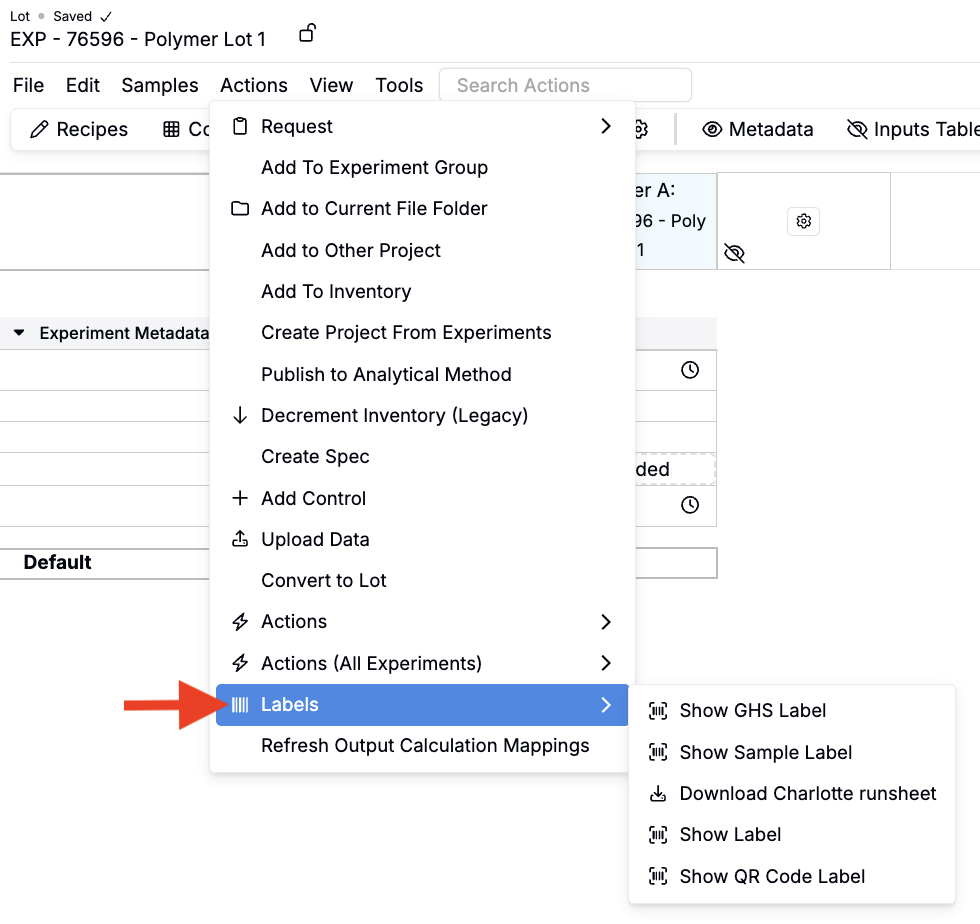
To view or print lot labels and barcodes:
- Open the lot page.
- Go to Actions > Labels.
- Select from the available options.
Metadata on Lots
Lots can store both supplier-provided details (COA, purity, SDS) and additional metadata fields.
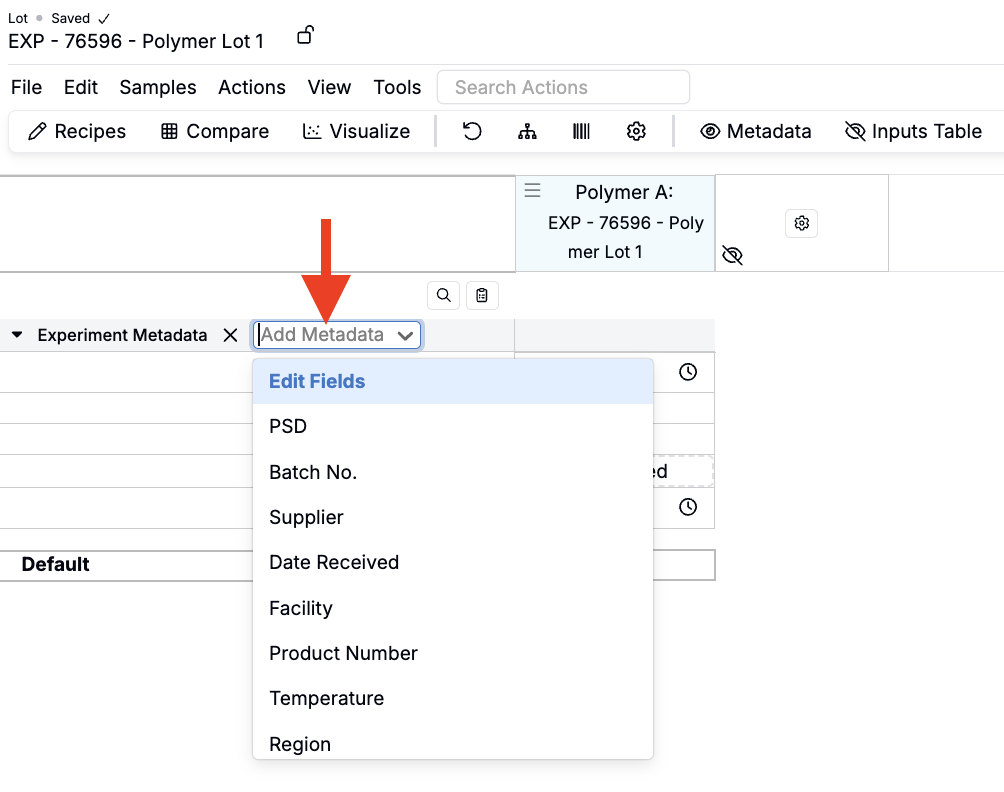
To add or configure metadata fields:
- On the lot page, click Add Metadata > Edit Fields.
- Select from existing fields, or click Edit Fields to open the Edit Experiment Metadata page.
- On the Edit Experiment Metadata page:
- Click Add Field to create new fields.
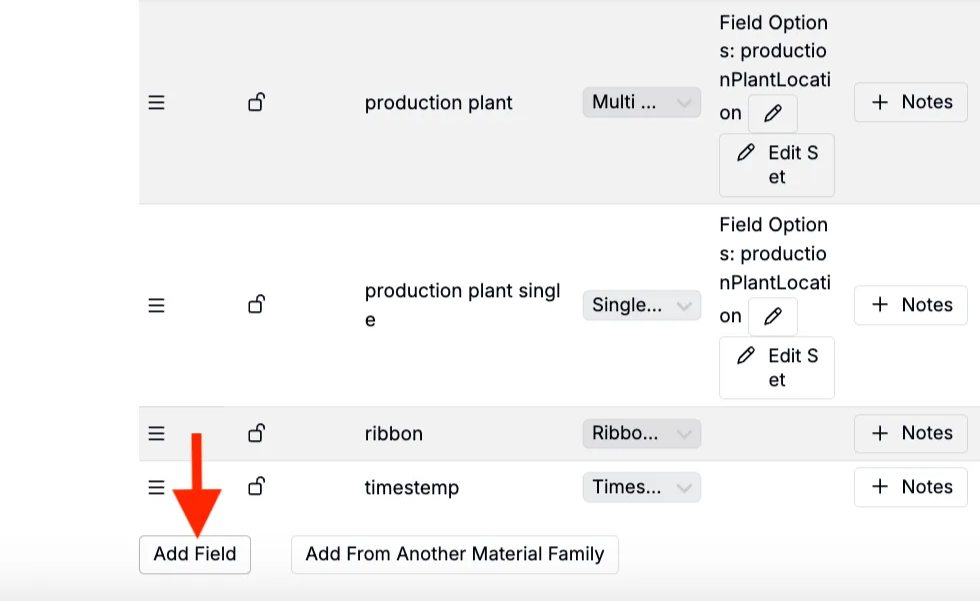
- Use Show for Lots When Blank to display a field in the lot creation modal.

- Return to the lot page and enter metadata values directly into the grid.
These values become part of the lot’s record and are available for use in recipes, calculations, and reporting.
For details on configuring metadata fields, see Experiment Metadata.
Using Lots in Recipes and Inventory
Assigning a lot to an ingredient row ties the recipe to that batch. This ensures lot metadata, outputs, documents, and any workflow-specific steps are accessible in downstream analysis.
- Use the Lots column in recipes to select the correct batch.
- Lots can also be assigned via barcode scanning.
- When copying an experiment with Copy Active Experiment, select Lots in the Select What to Copy dropdown to keep the experiment’s lot assignments in the copy.
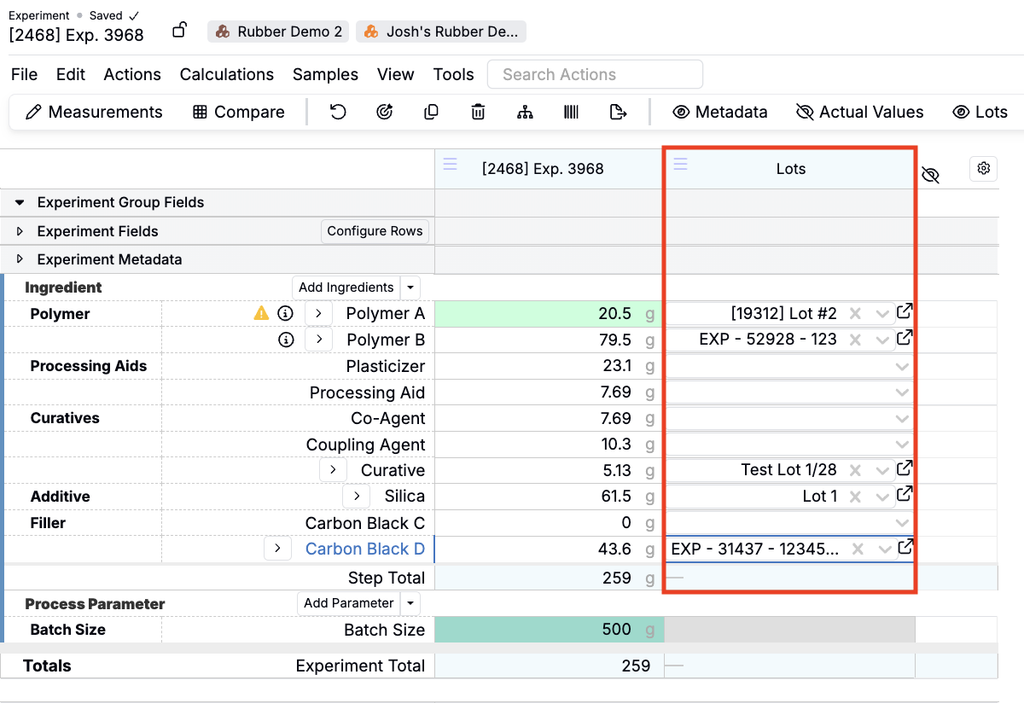
Lots also connect with inventory:
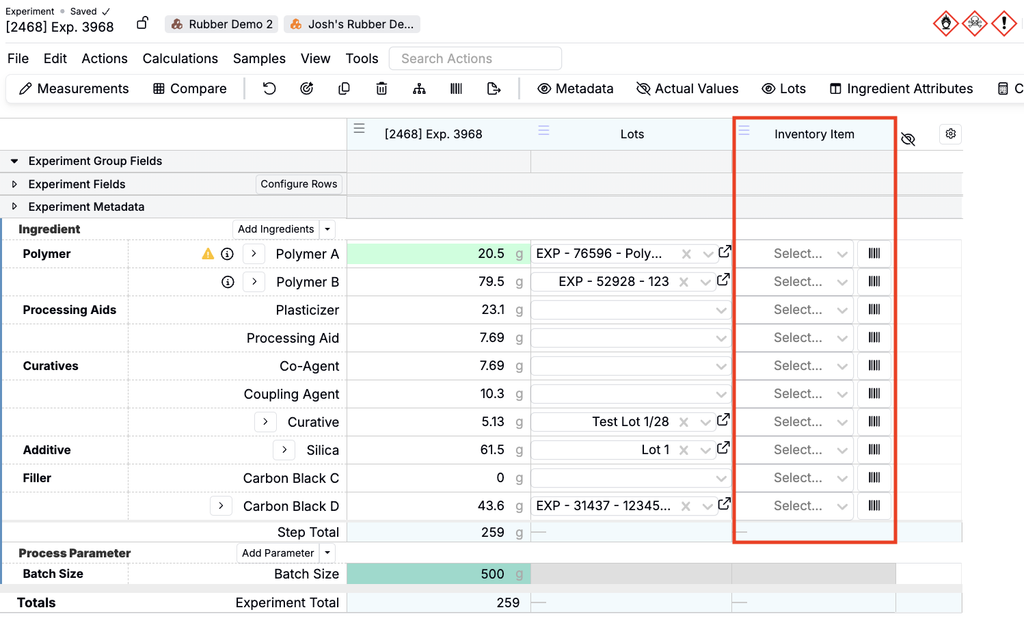
- Inventory items can reference lots, ensuring consumption is tied to the correct batch.
- Use the Inventory Item column in recipes to update stock levels automatically when experiments are run.
Showing Lot Fields as Recipe Columns
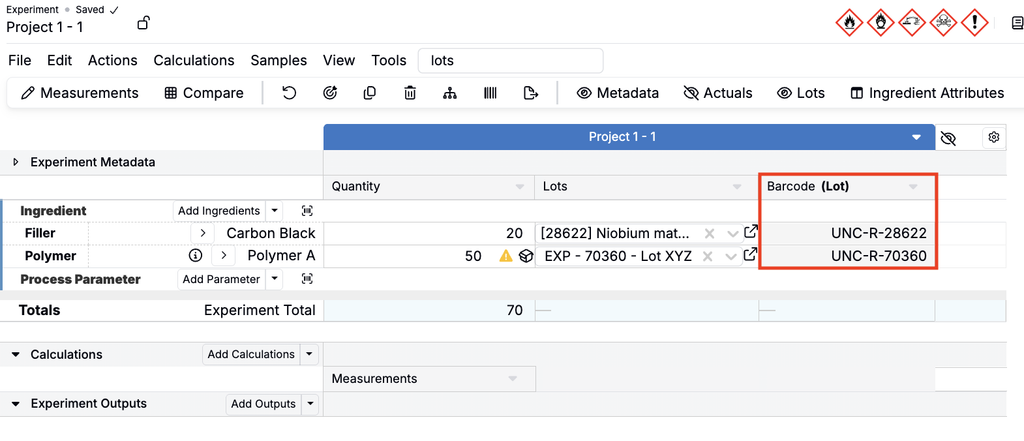
Lot fields can be displayed as columns on the recipe view of an experiment, so you can review lot information across multiple ingredients at once and edit editable lot fields inline.
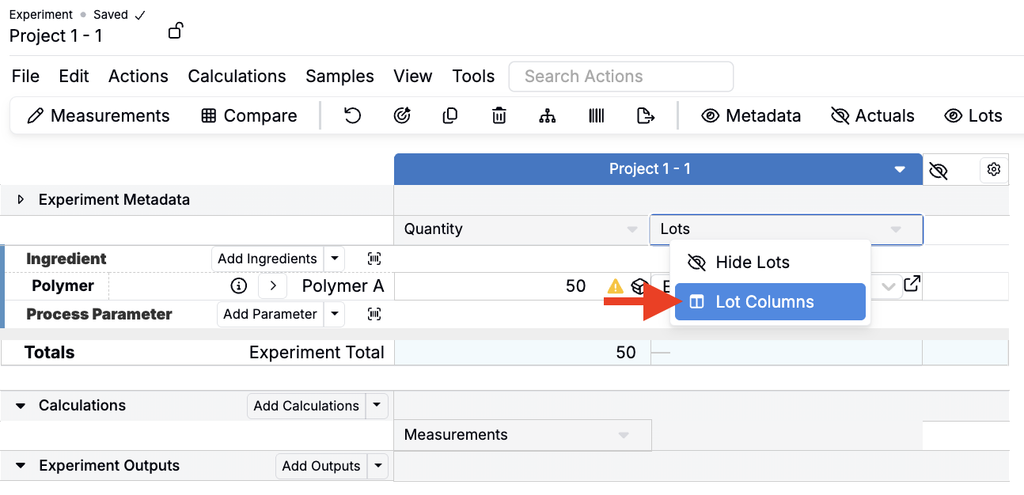
- Display the Lots column on the experiment recipe.
- Open the Lots column header menu and select Lot Columns.
- In the modal, select the lot fields to display and save.
- Reorder or resize the new columns as needed.
Default Compounding Behavior for Lots
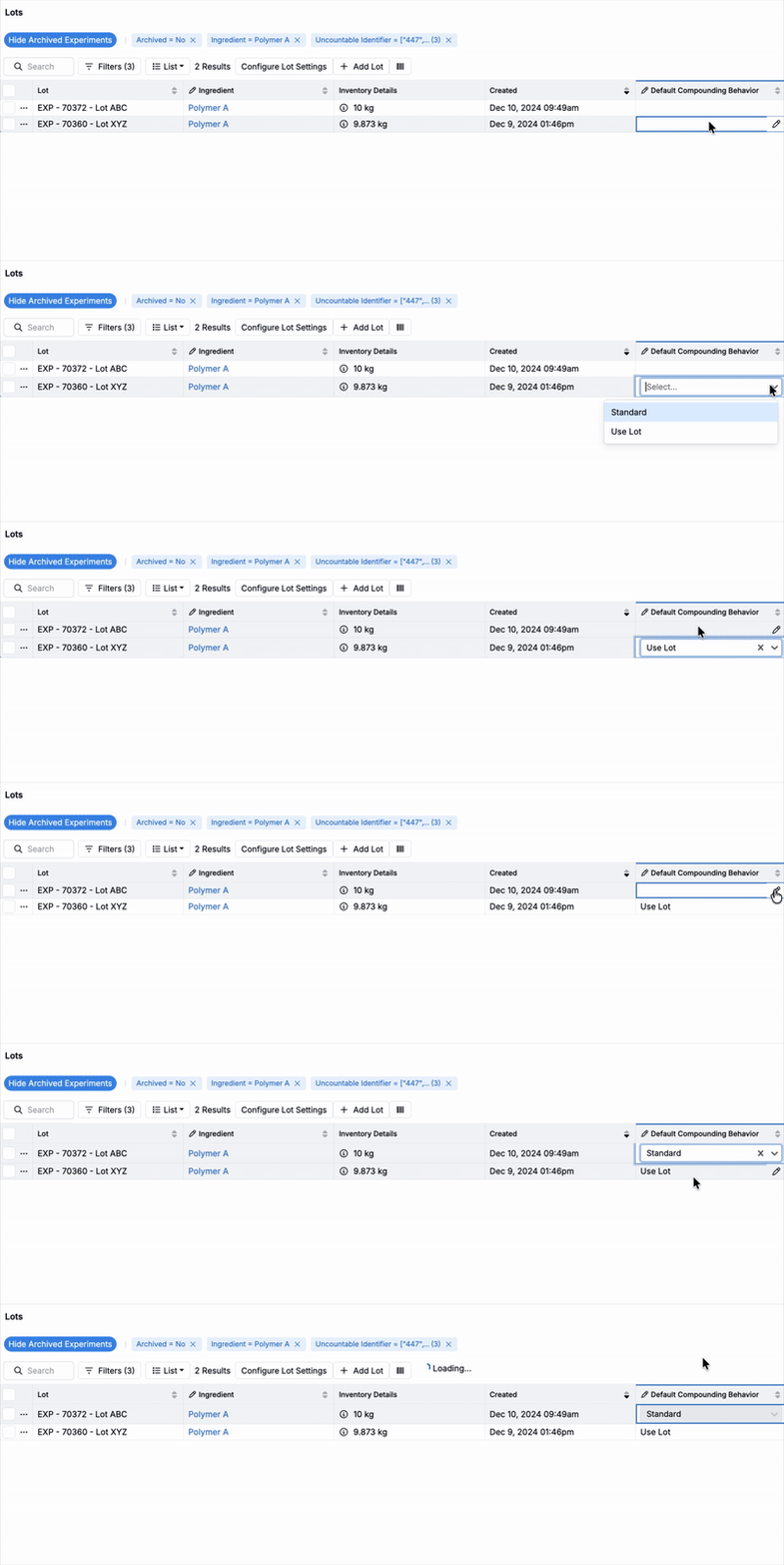
Each lot can have a default compounding behavior (Use Lot or Standard) that is applied automatically whenever that lot is selected or swapped into a recipe. A lot-level default takes precedence over the ingredient-level default. If a lot has no default set, the recipe’s current behavior is left as is.
To set a lot’s default compounding behavior:
- On the Lots listing page, display the Default Compounding Behavior column (List > Set Columns).
- For each lot, use the column to select Use Lot or Standard.