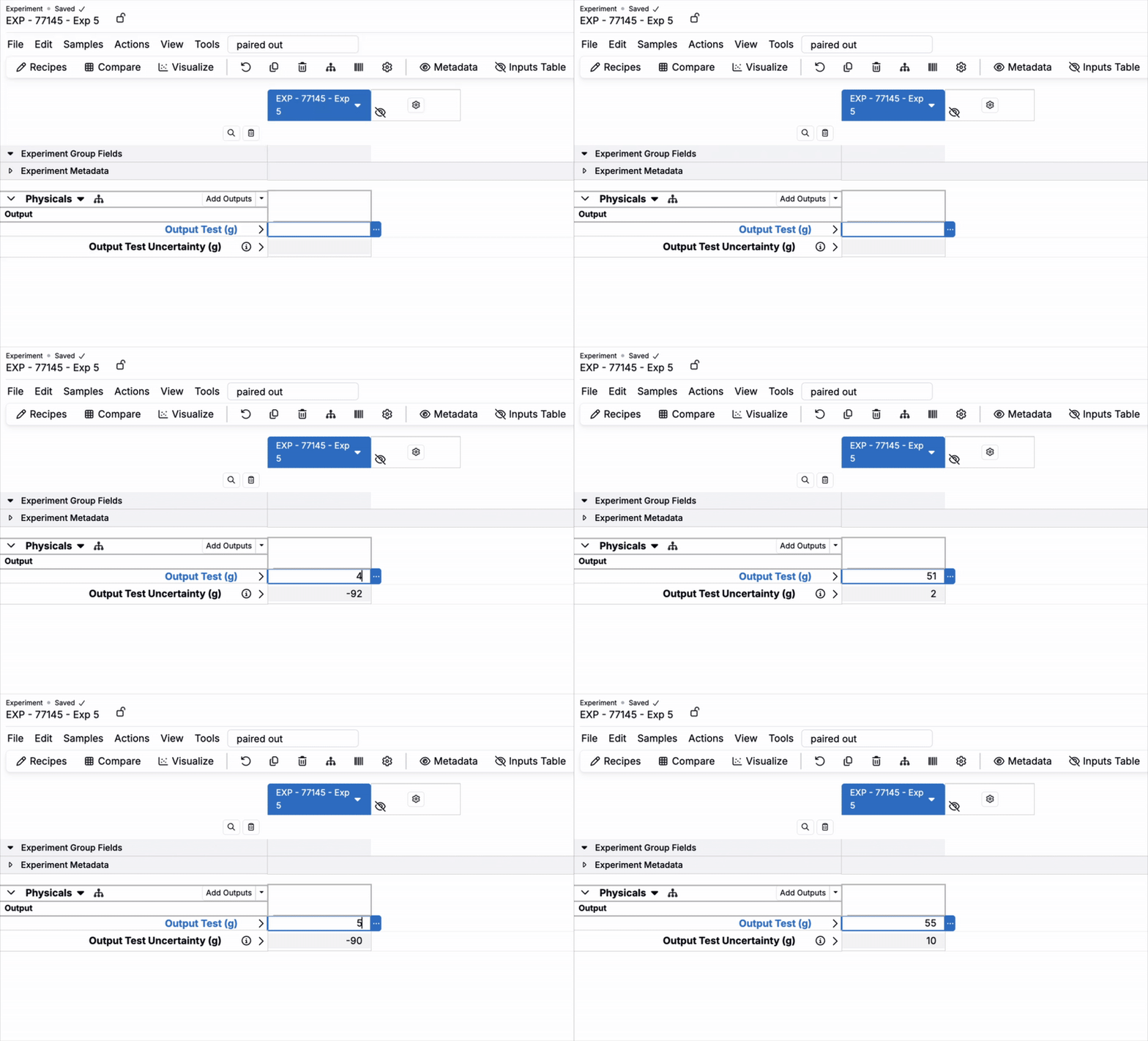
Output calculations derive new measurement values from existing data in Uncountable. They are created as a “Calculation” type output and populate automatically once all referenced variables resolve on an experiment.
When to use
Use output calculations when:
- Computing transformations of measured outputs, such as percent change after aging, ratios across shear rates, or reaction yields.
- Pairing supporting calculations (for example, uncertainty) directly with a primary output as an annotation to condense the grid. Learn more.
- Implementing dynamic analytics where a calculation depends on other values that may update over time. Learn more.
Key concepts
- Variables — A calculation uses one or more entities as variables. Supported entities include outputs, inputs and their attributes or process parameters, and other calculations.
- Rounding and display — Rounding and formatting are display-only and configurable per calculation or output. Learn more.
- Units — Numeric outputs require units.
- Conversions — Unit conversions are respected in calculations.
Creating output calculations
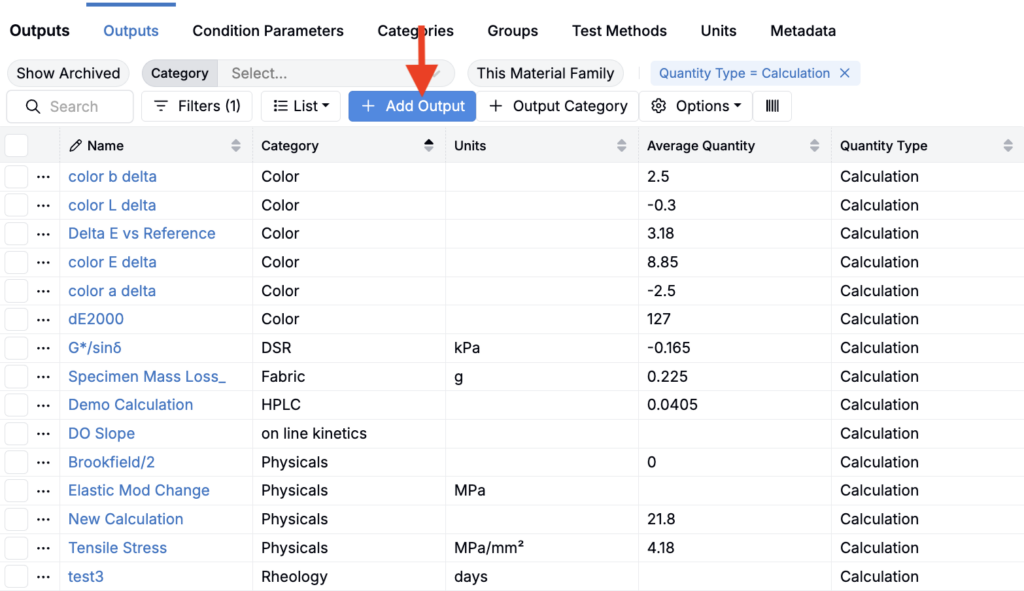
- Go to Inputs/Outputs > Outputs.
- Click Add Output.
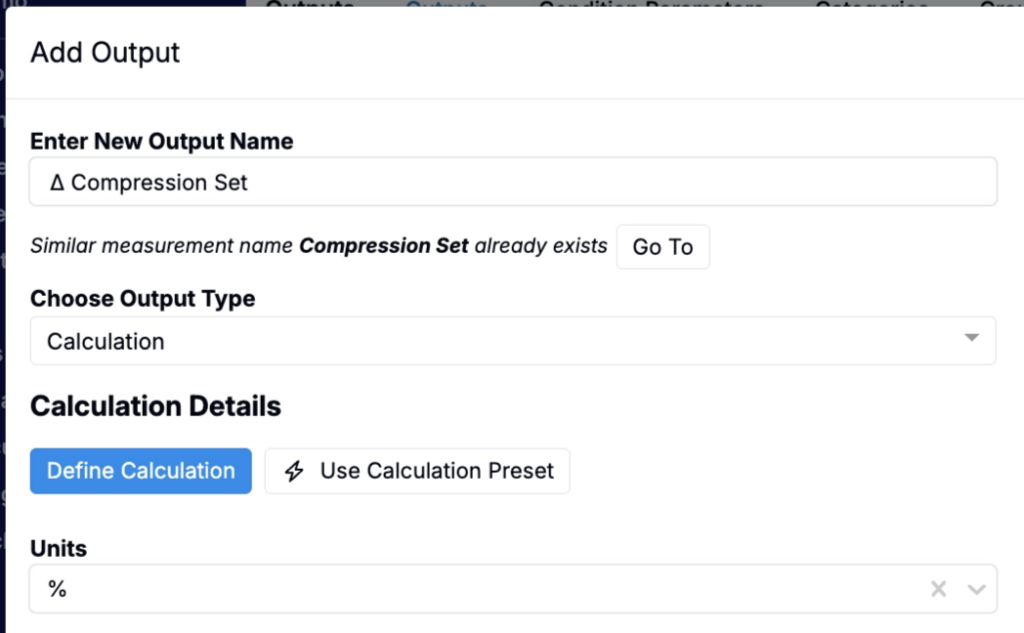
- In the modal:
- Name the output.
- Set Type to Calculation.
- Define Units, if numeric.
- Click Define Calculation.
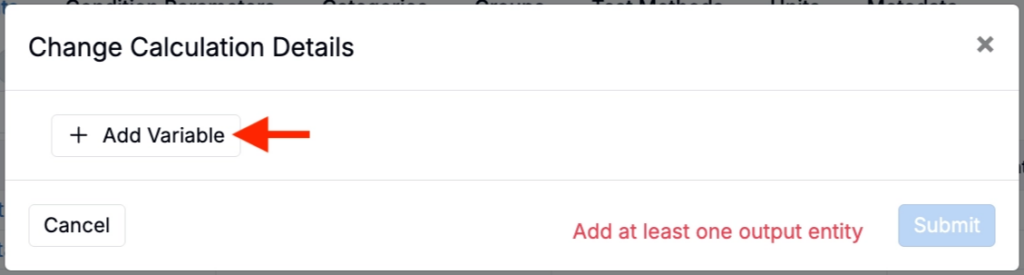
- Click Add Variable to add calculation components.
- For each variable:
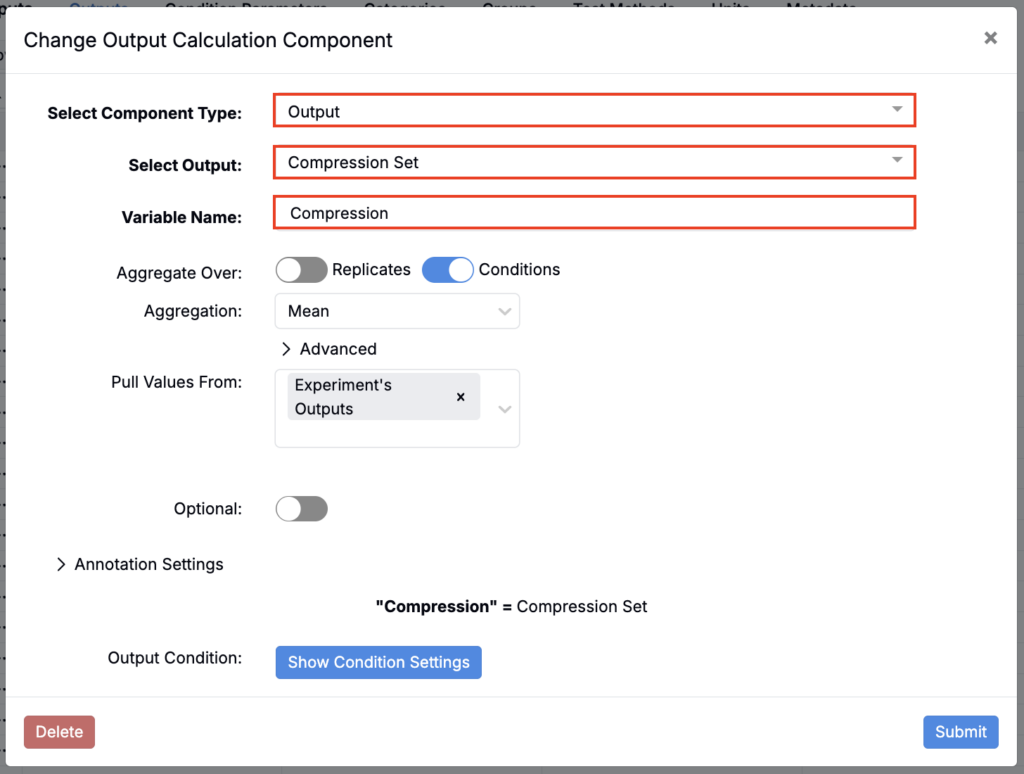
- Select a Component Type (Output, Input, Input Calculation)
- Select a component.
- Add a Variable Name.
- Click Submit.
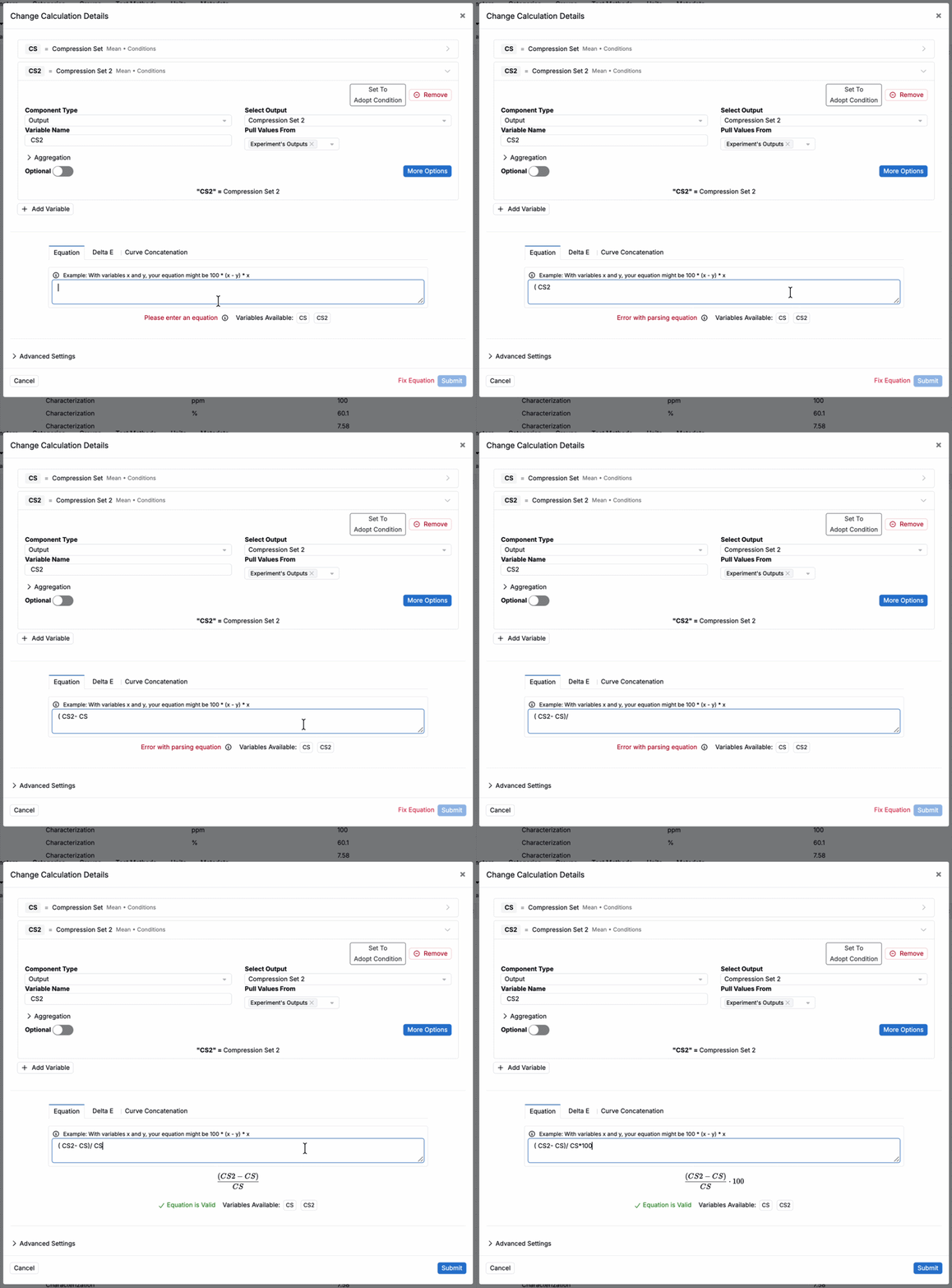
- Once all variables have been defined, use the Equation field below to define the equation.
- Click Submit.
Additional configuration options
Output conditions matching
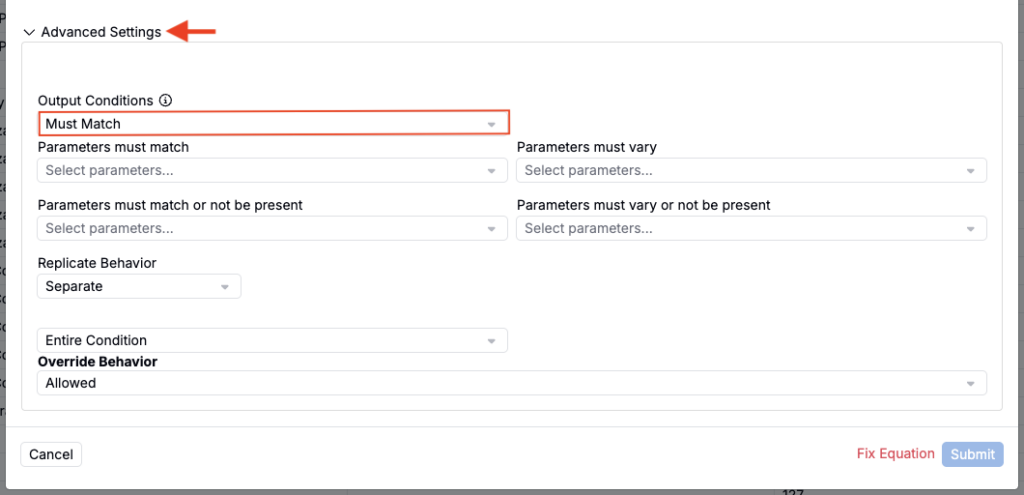
When multiple variables are involved in a calculation, you can specify whether output conditions must match across variables or may vary:
- Must match — All variables must have identical output conditions. The calculation engine builds each result by combining one output per variable, and keeps a combination only if every pair of outputs is condition-compatible.
- May vary — Variables can have different output conditions (e.g., comparing test pieces against standards).
For example, if one variable has Filter 1 and another variable has Filter 2, those values will not combine when the Filter Number condition is set to Must match. If one variable does not have a Filter Number and the setting allows missing values, the combination may still be valid.
Annotation filtering on variables
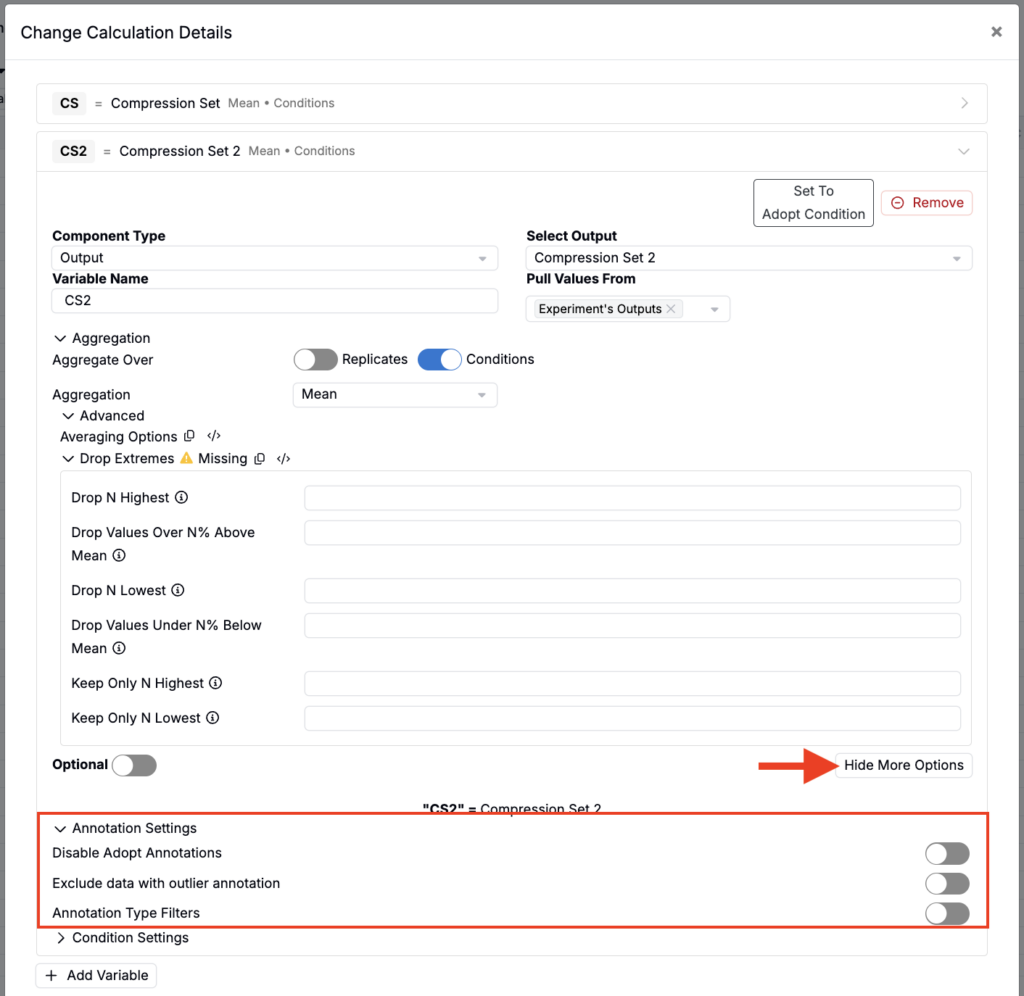
When configuring output calculation equation variables, you have the option to apply annotation filtering. This helps refine calculations by considering only outputs with relevant annotations or excluding data points like outliers.
Under Annotation Settings, toggle on:
- Exclude data with outlier annotation — excludes any data marked as an outlier via annotations.
- Annotation Type Filters — allows you to select specific annotations to filter the variable to. Only variable source data with the selected annotations will be included in the output calculation.
Condition adoption
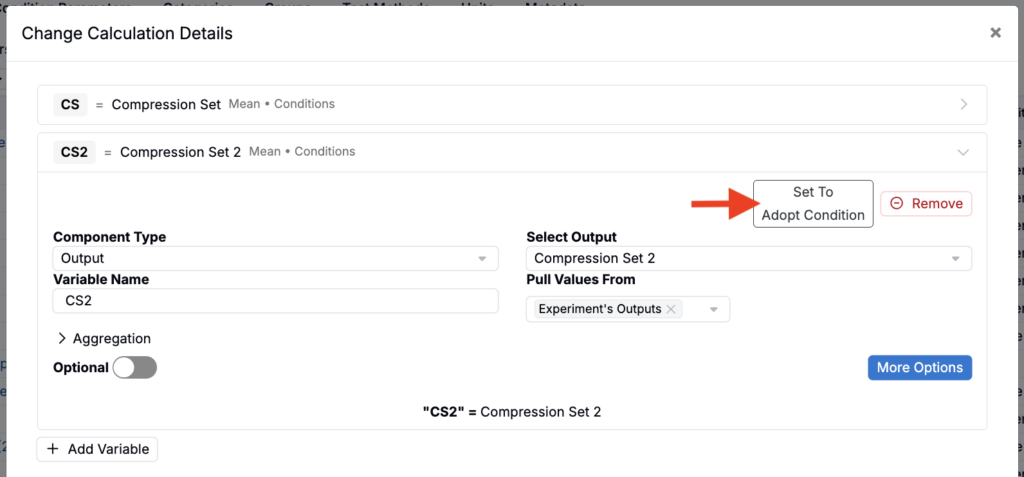
When defining the output calculation equation, use the Set To Adopt Condition button to control whether a variable carries its condition parameters into the calc.
- Adopt to get per-condition results.
- Do not adopt to ignore condition parameters so you can aggregate across instances or require certain condition parameters without splitting the output.
If any required variable adopts, its condition parameters define the scope. Non-adopting variables must reduce to one value per scoped row.
The calculation writes results to the output condition created by the adopted variable. If you manually add a blank calculated output under a different condition section, the calculation will not automatically backfill that row. To change where the result appears, adjust which variable’s conditions the calculation adopts.
Aggregation and replicate behavior
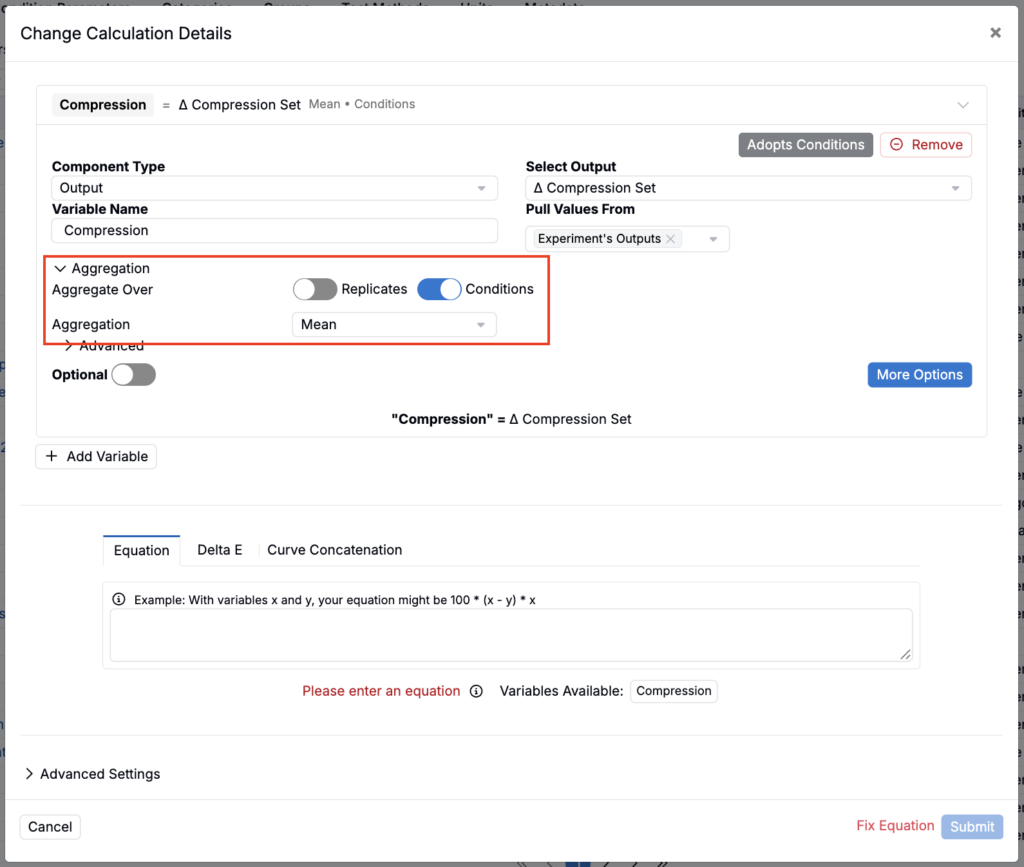
Use aggregation settings when a variable may return multiple values for the calculation. You can aggregate over replicates, conditions, or both, and choose an aggregation method such as mean, sum, max, min, median, or count.
Aggregation controls whether the calculation produces one combined result or separate results for each replicate or condition. If you want the calculation to preserve distinct replicate- or condition-level results, set the relevant behavior to keep values separate instead of aggregating them.
Optional variables and default values
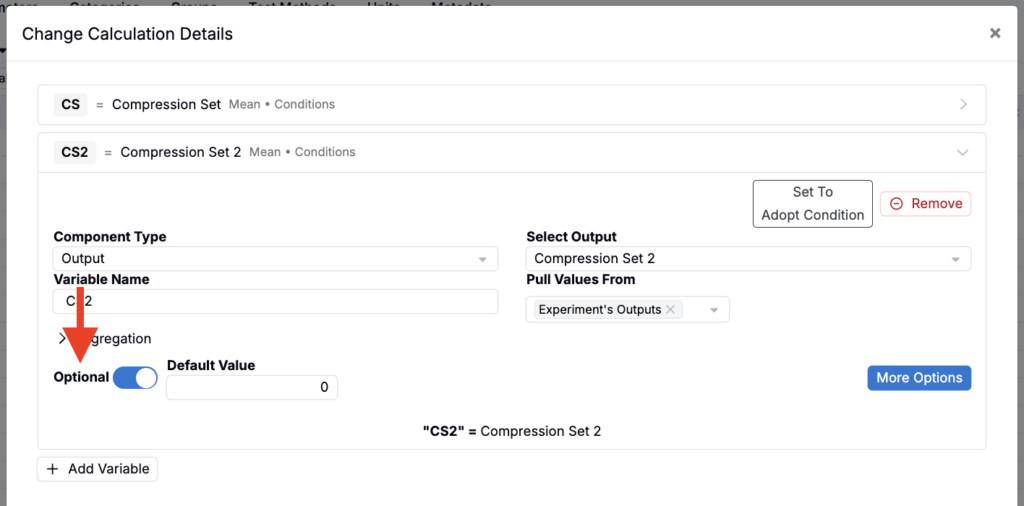
Variables can be configured as optional when a calculation should still run if that value is missing. Optional variables may use a default value in place of missing data.
Use optional variables carefully when calculations involve many replicates or output conditions. Optional values can make the matching logic more complex because the calculation has more possible combinations to evaluate.
Refreshing the “experiments used” count (cache)
This count reflects the number of experiments included in the most recent successful aggregation for the output calculation, after applying all filters, validity checks, and condition‑adoption rules. By default, this count refreshes on a daily schedule.
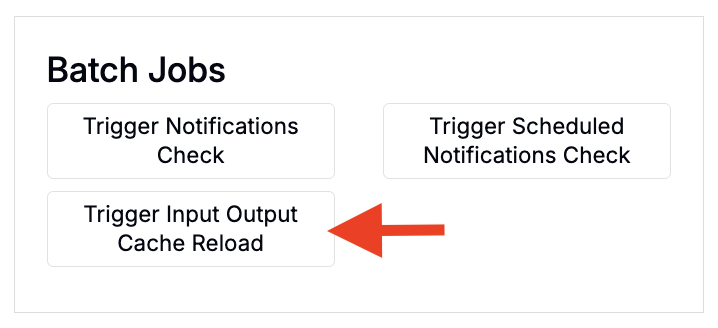
To manually update, admins can:
- Open the Control Panel.
- Under Batch Jobs, run Trigger Input/Output Cache Reload.
Using output calculations
Output calculations appear automatically on an experiment when all of their required variables are present and the calculation is enabled for the material family.
Add the required variables to the experiment (for example, the outputs referenced in the equation). Once every required variable is present, the calculation will appear in the measurements table and begin populating.
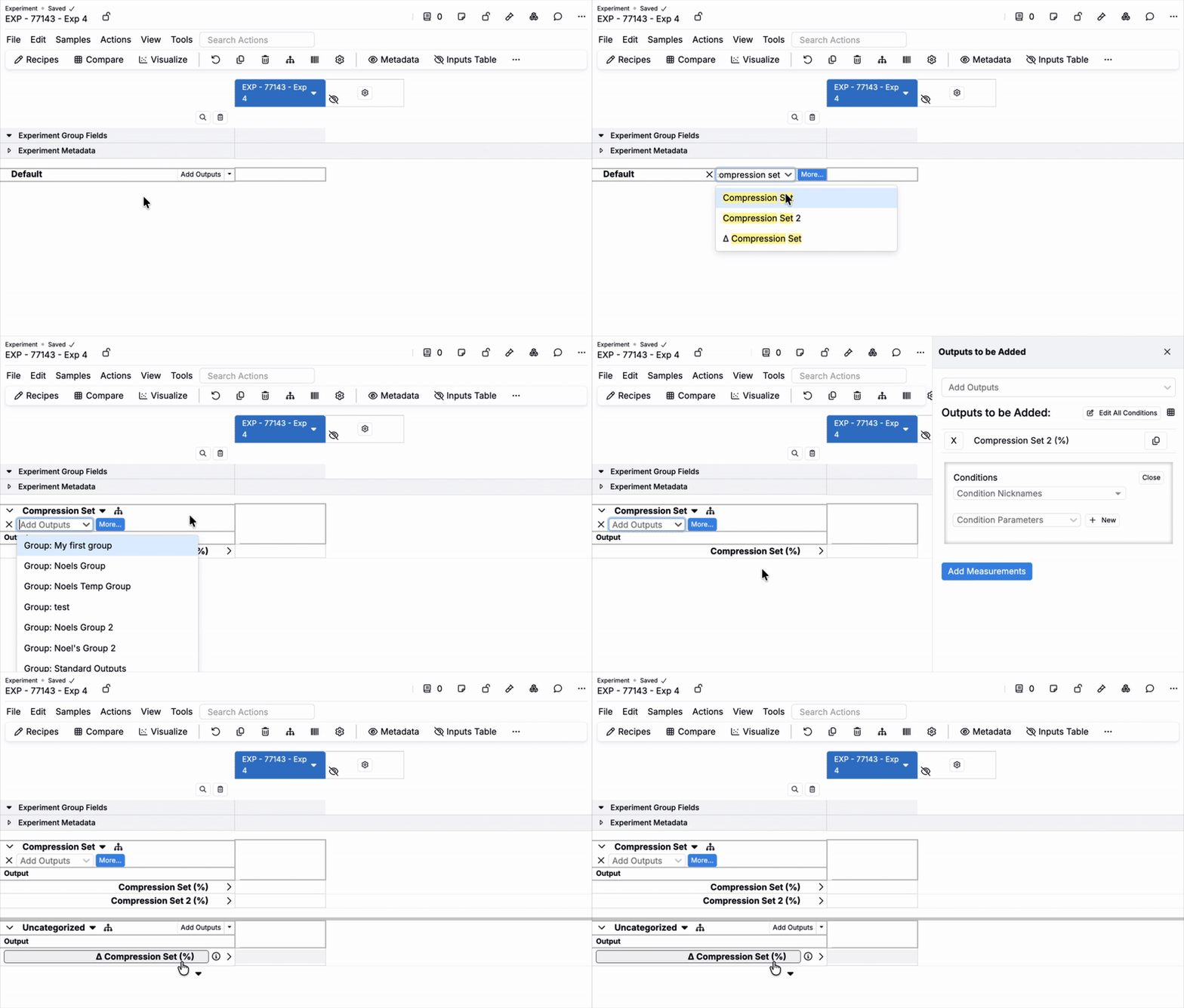
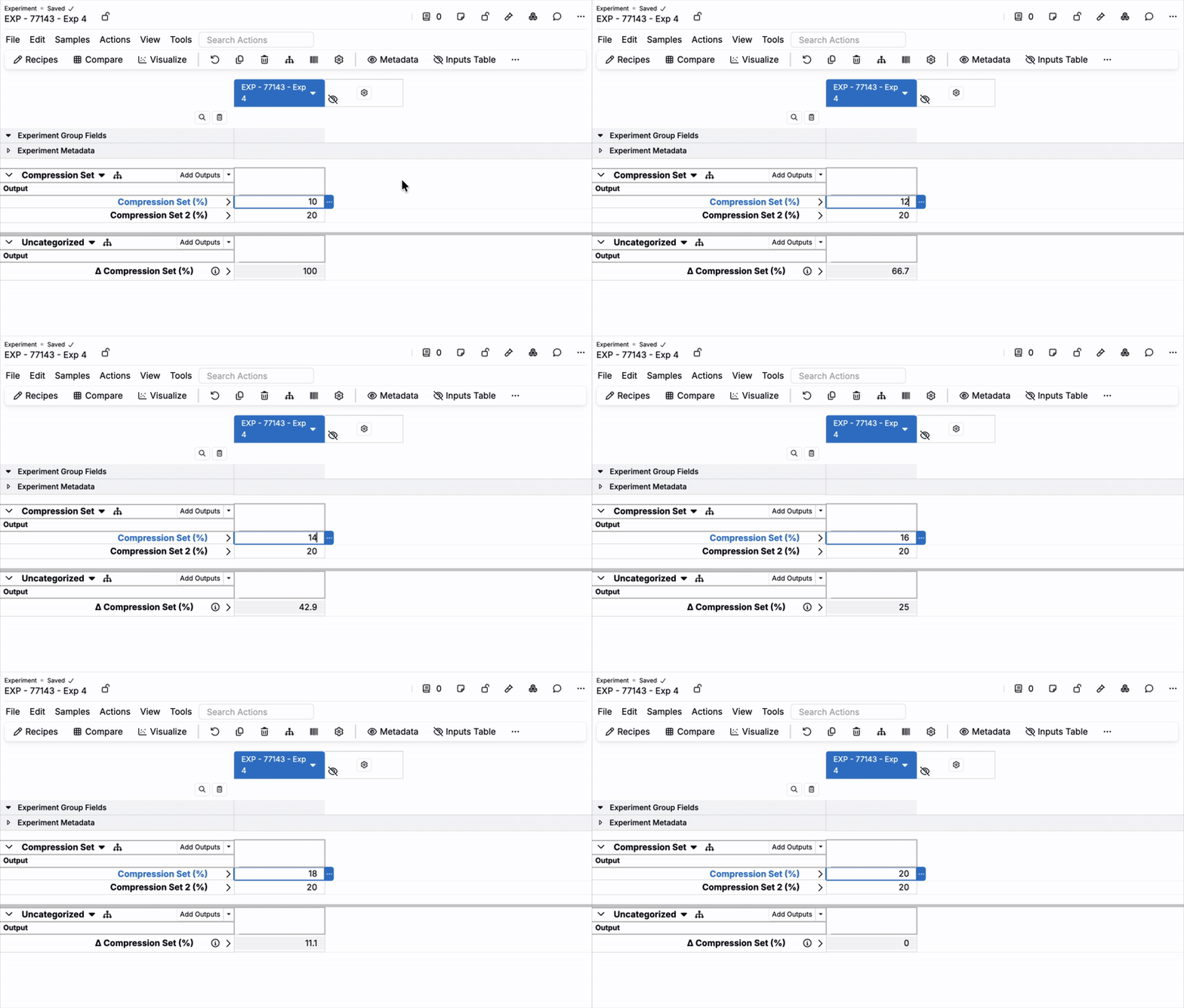
Once added, output calculation values update automatically as underlying variable data changes.
Paired outputs for annotation display
You can also use output calculations to set up paired outputs. Paired outputs display supporting metrics (like uncertainty or pass/fail) inline next to a primary output. To learn more, refer to Paired Outputs for Annotation Display.