
In Uncountable, entity actions allow users to trigger predefined actions directly from entities such as lab requests, experiments, approvals, and more. Entity actions provide a powerful way to automate workflows and streamline processes without requiring users to navigate away from the entity they’re working on.
Entity actions are configured using trigger sets, making them reusable across multiple definitions. Once configured, they appear in the Actions dropdown menu in the toolbar of an entity form, allowing users to execute complex workflows with a single click.
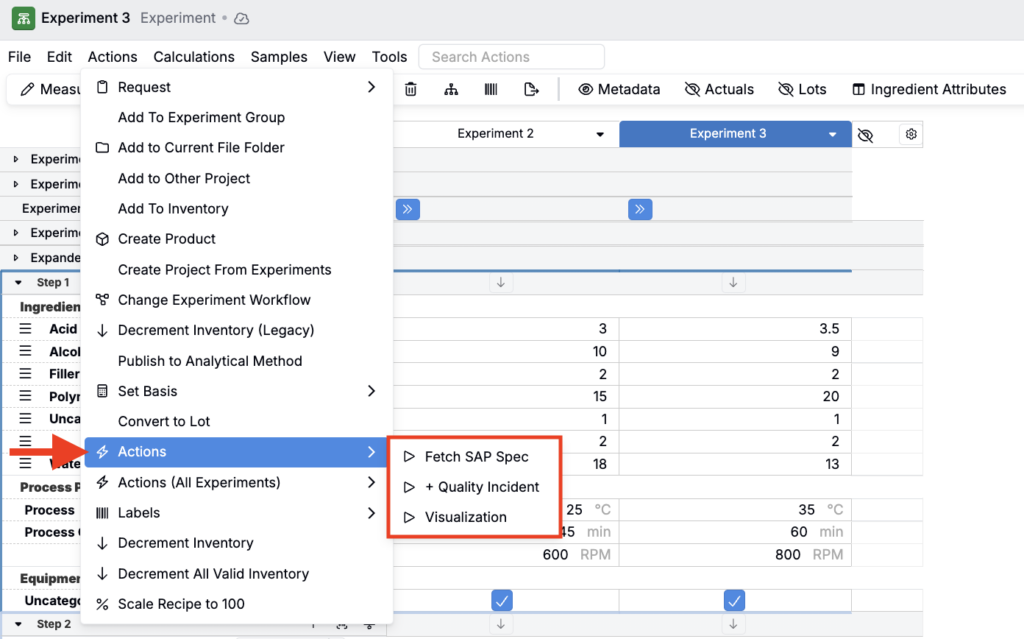
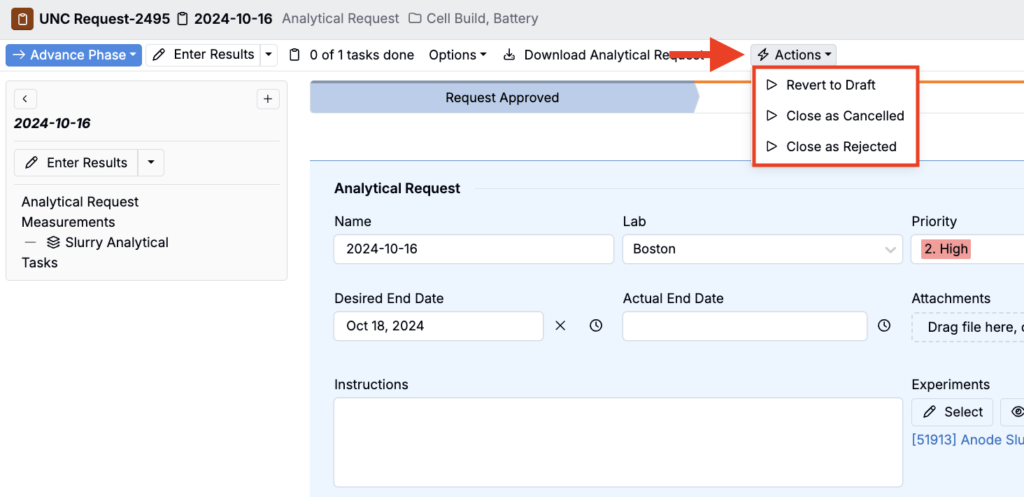
How Entity Actions Work
Entity actions are built on top of Uncountable’s trigger system. When you configure a trigger as an entity action, it becomes available to users directly from the entity interface. This means users can:
- Execute automated workflows without leaving the entity page
- Trigger multiple actions in sequence (such as status updates, notifications, or creating related entities)
- Interact with entity-specific data through customizable forms
Entity actions run in the context of the entity they’re triggered from, meaning they can access and use data from that specific entity to perform their actions.
Creating Entity Actions
Entity actions are configured through trigger sets on a definition. Here’s how to set them up:
- Navigate to Form Admin and select the Trigger Sets tab.
- Create a new trigger set or select an existing one.
- Within the trigger set, create a new trigger.
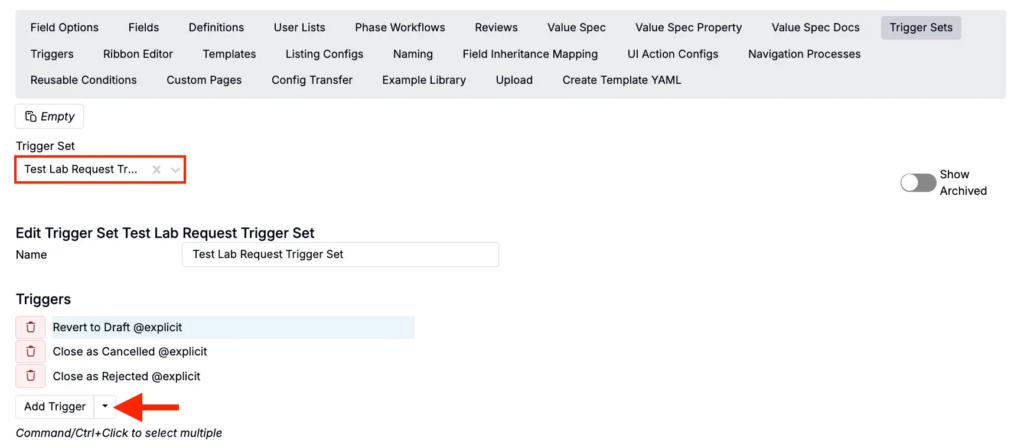
Adding a new trigger to an existing trigger set
- On the new trigger:
- Add a trigger name.
- Set the “When” field to “Explicit” if the trigger should only be available as an entity action.
- Add a trigger action by selecting from the menu or clicking Add.
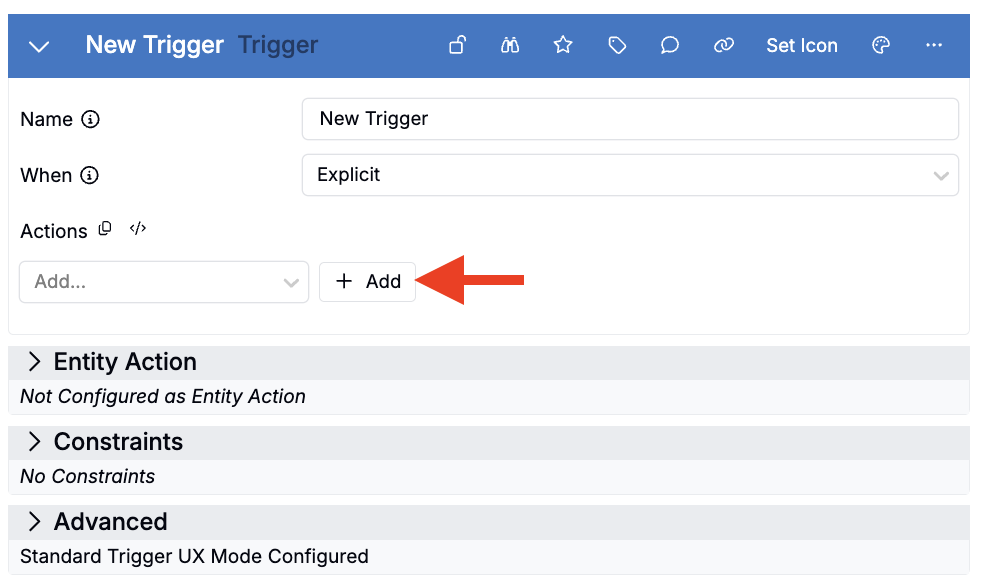
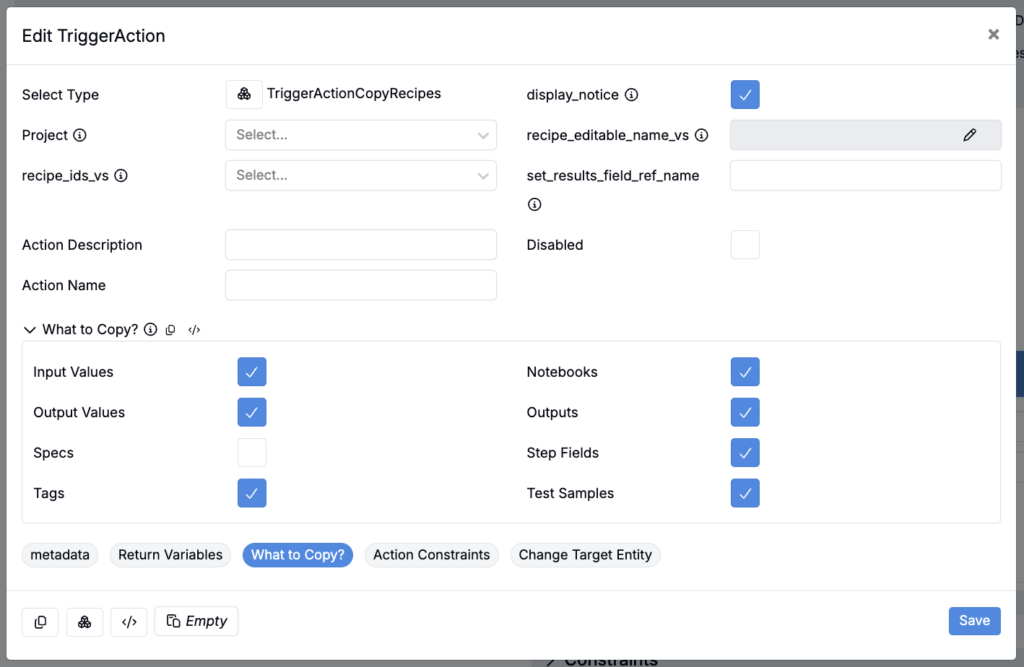
- In the modal, configure trigger settings (e.g. adding constraints, display settings).
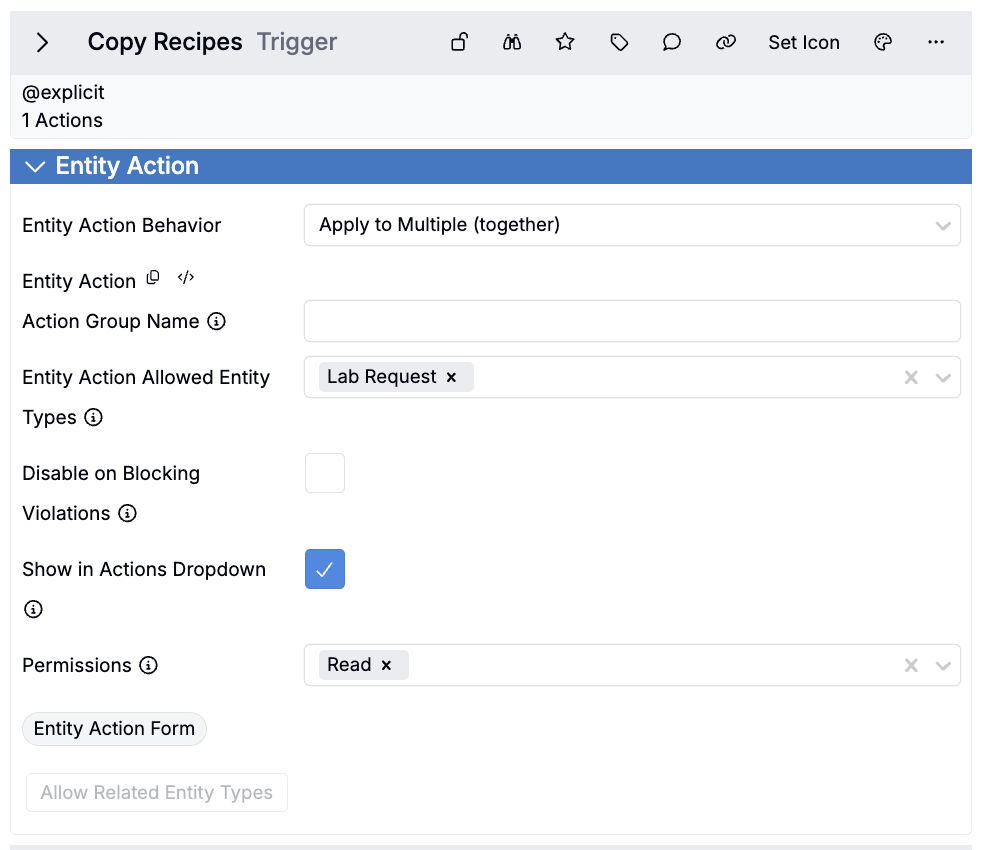
- In the Entity Action tab, configure additional settings such as:
- Entity Action Behavior —
- Not Available as Action — The trigger will not appear as an entity action in the Actions dropdown menu
- Apply Independent of an Entity — The action can be executed without being associated with a specific entity.
- Apply to Multiple (Separate) — The action can be applied to multiple entities at once, but each entity is processed separately with its own individual execution
- Apply to Multiple (Together) — The action can be applied to multiple entities at once, and they are processed together as a batch in a single execution
- Only Apply to Single Entities — The action can only be executed on one entity at a time
- Entity Action Behavior —
- Entity Action Allowed Type — Specifies which entity definitions can use this action
- Show in Actions Dropdown — Enable to show the action in the Actions dropdown
- Permissions — Set the permissions required to trigger this action
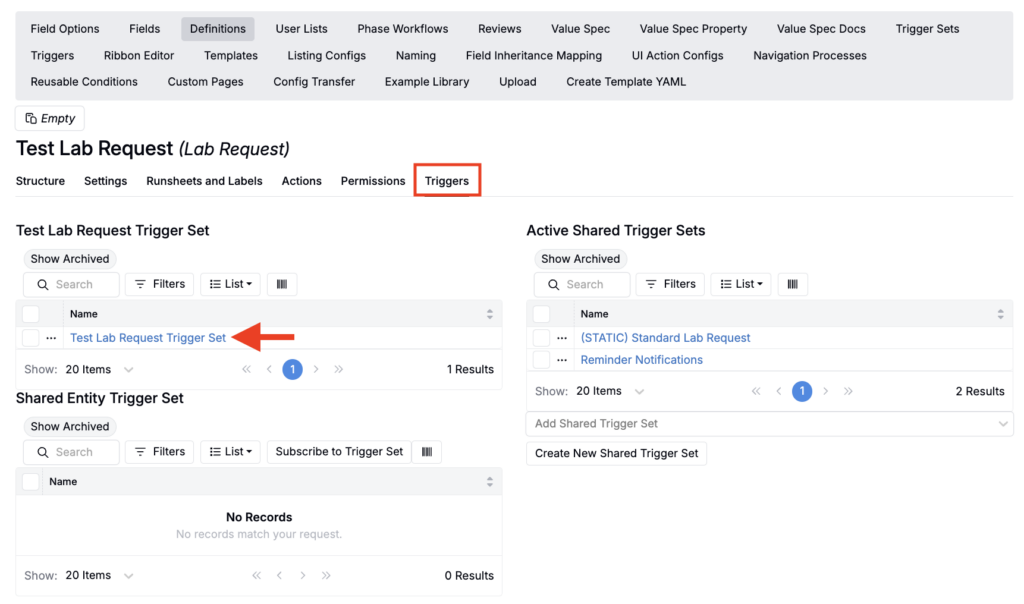
- Add the trigger set to your definition through the Triggers tab of the definition.
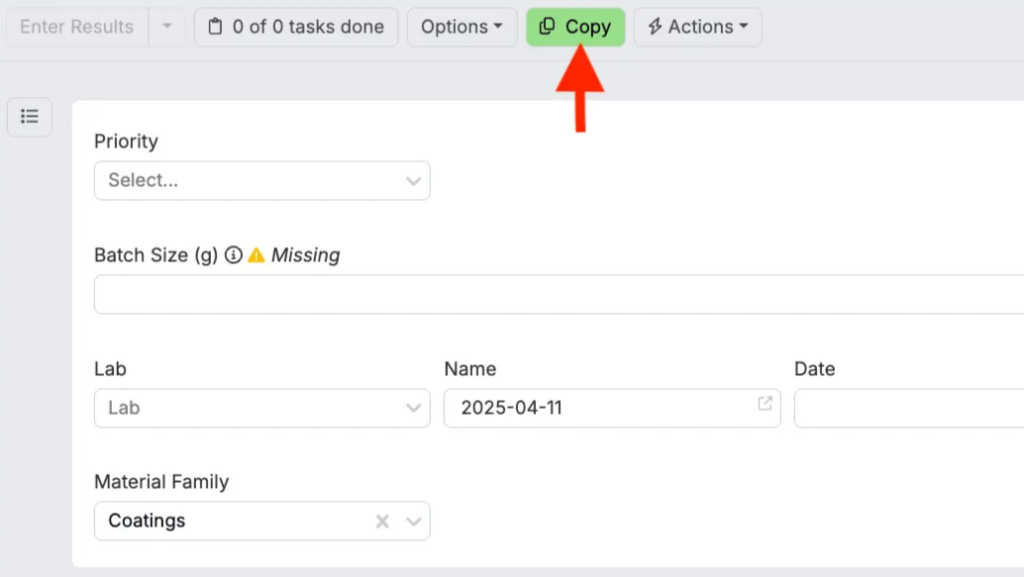
Once configured, the entity action will appear in the Actions dropdown menu when users open entities based on that definition.
Entity Action Forms
You can also add an entity action form to prompt users for additional information before the action executes. Entity action forms are built using custom entity definitions and appear in a side panel when the user clicks the entity action. This allows you to collect specific data (such as priority levels, due dates, or comments) before running the automated workflow.
Entity Actions vs. Action Buttons
While entity actions appear in the entity’s Actions menu, action buttons are a related feature that creates visible buttons directly on the entity form itself. Both use triggers to execute automated workflows, but they differ in presentation:
- Entity actions: Accessed through the Actions dropdown in the toolbar
- Action buttons: Appear as clickable buttons embedded within the entity form structure
Both features can be used together to provide users with convenient access to frequently-used workflows.
Common Use Cases
Entity actions are commonly used to:
- Create related entities: Automatically generate lab requests, tasks, or follow-up items based on the current entity
- Update statuses: Move entities through phase workflows or update multiple fields at once
- Send notifications: Alert team members or external systems when specific actions occur
- Export data: Trigger runsheet exports or label generation with user-provided parameters
- Navigate workflows: Guide users through multi-step processes with pre-configured navigation paths