
The Notebook Sidepanel lets you open a new or existing notebook alongside the Recipe or Measurements view of the experiment(s) you are working in. It is designed for in-line reference and note-taking during experimentation without navigating away from your work.
The notebook sidepanel is often used as a lightweight, experiment-level log. For longer-form reporting or dashboards, use a Project Notebook.
Opening the Notebook Sidepanel
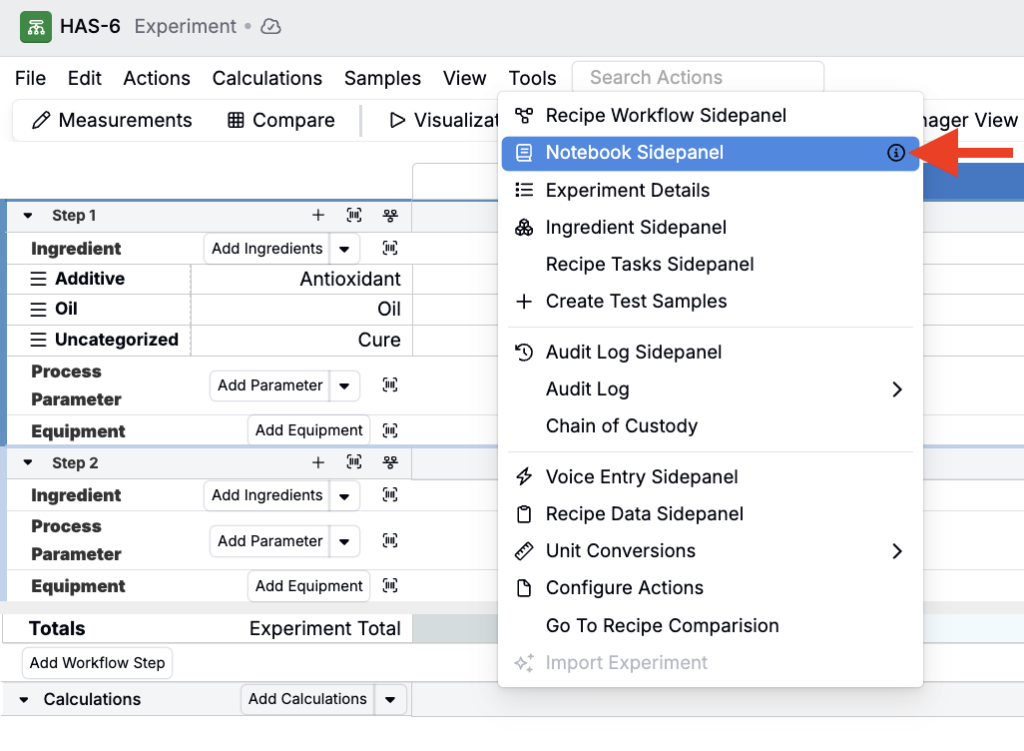
To open the Notebook Sidepanel while working on an experiment, select Tools > Notebook Sidepanel.
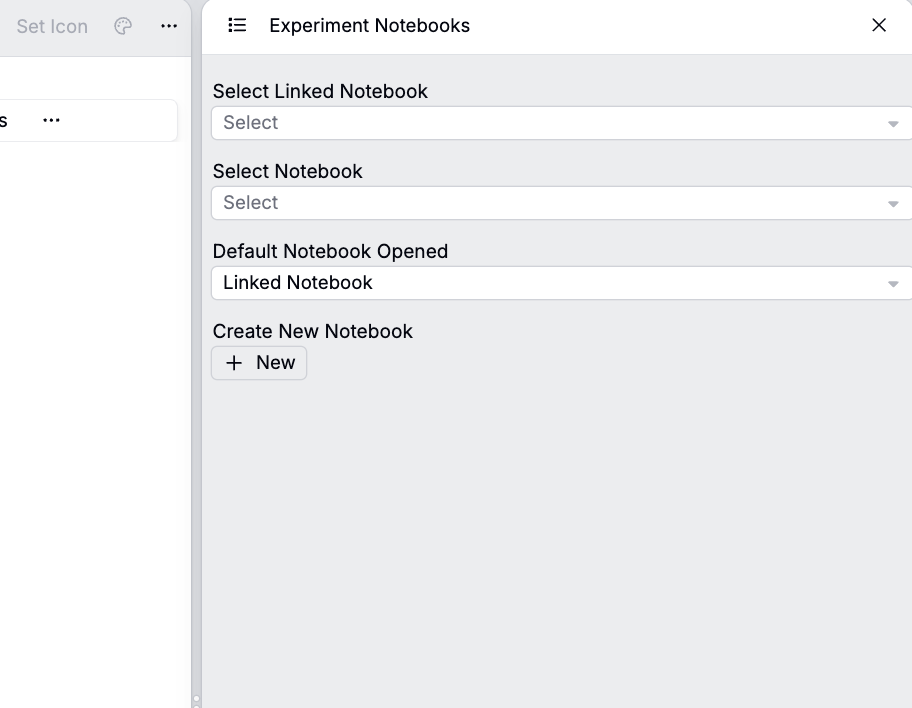
From the sidepanel, you can open an existing notebook.
- Select Linked Notebook — Select from a list of existing notebooks that are linked to the experiment(s) in view
- Select Notebook — Select from a list of all notebooks within your current schema.
You can also use the Default Notebook Opened setting to set what notebook the sidepanel defaults to in future instances (Linked Notebook or Most Recently Opened).
Creating a new notebook from the Notebook Sidepanel
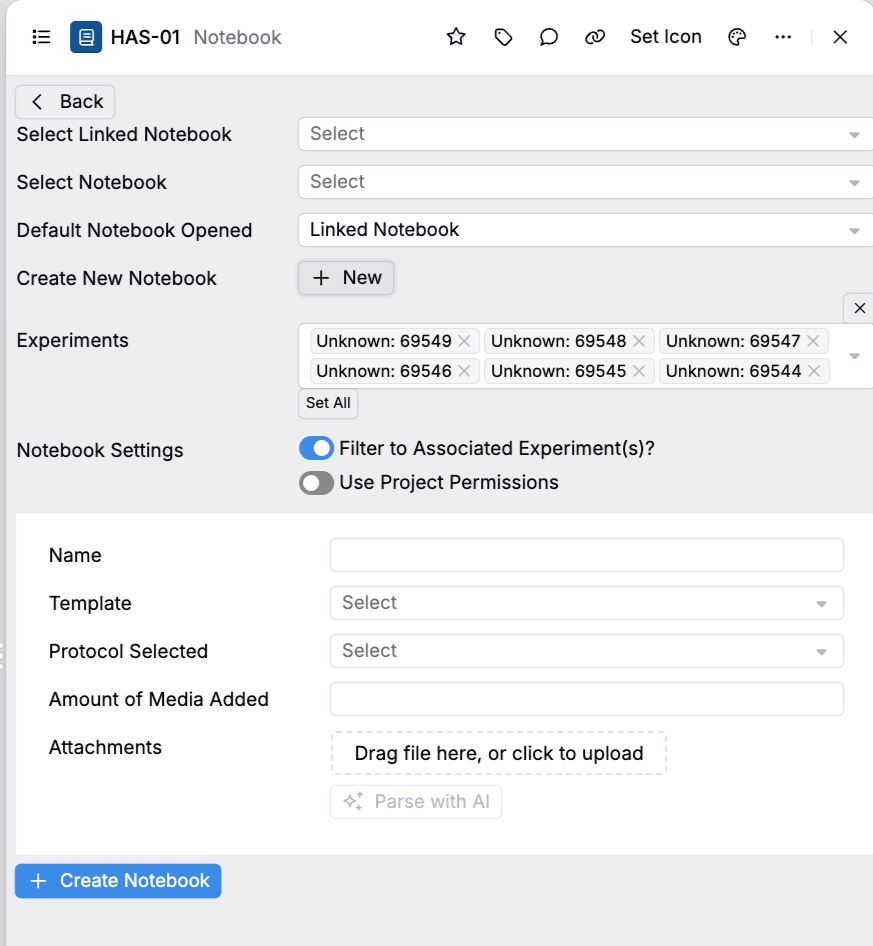
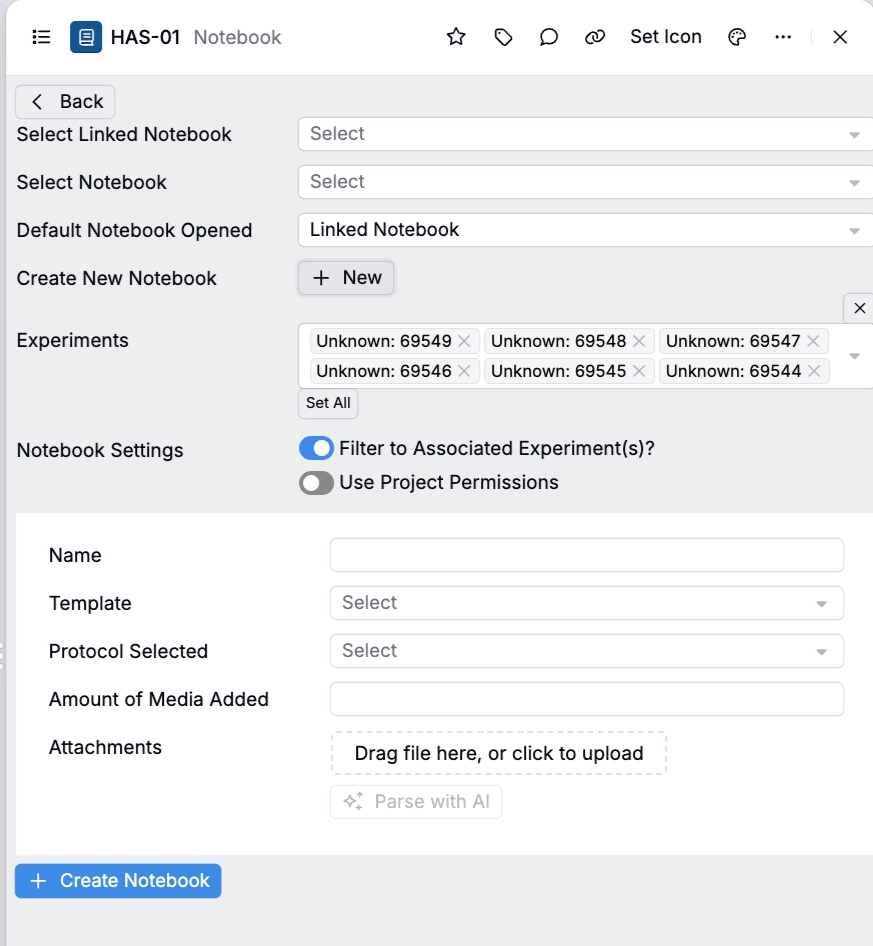
By clicking New, you can create a new notebook.
- Select Experiments. All experiments selected will be linked to the notebook via entity link automatically. Defaults to the experiments currently in view.
- Configure Notebook Settings:
- Filter to Associated Experiment(s) — If toggled on, the notebook context (e.g. visualizations) will be scoped to the associated experiments, instead of showing data from the whole project.
- Use Project Permissions — Applies project permissions to the notebook, restricting access to users with project-level permissions.
- Protocol Selected — If using notebook protocols, select the appropriate protocol from the available options.
- Add a notebook Name.
- (Optional) Optionally, use the Template field choose a notebook template to pre-populate the notebook with pages and content blocks. Learn more.
Switching notebooks in the Notebook Sidepanel
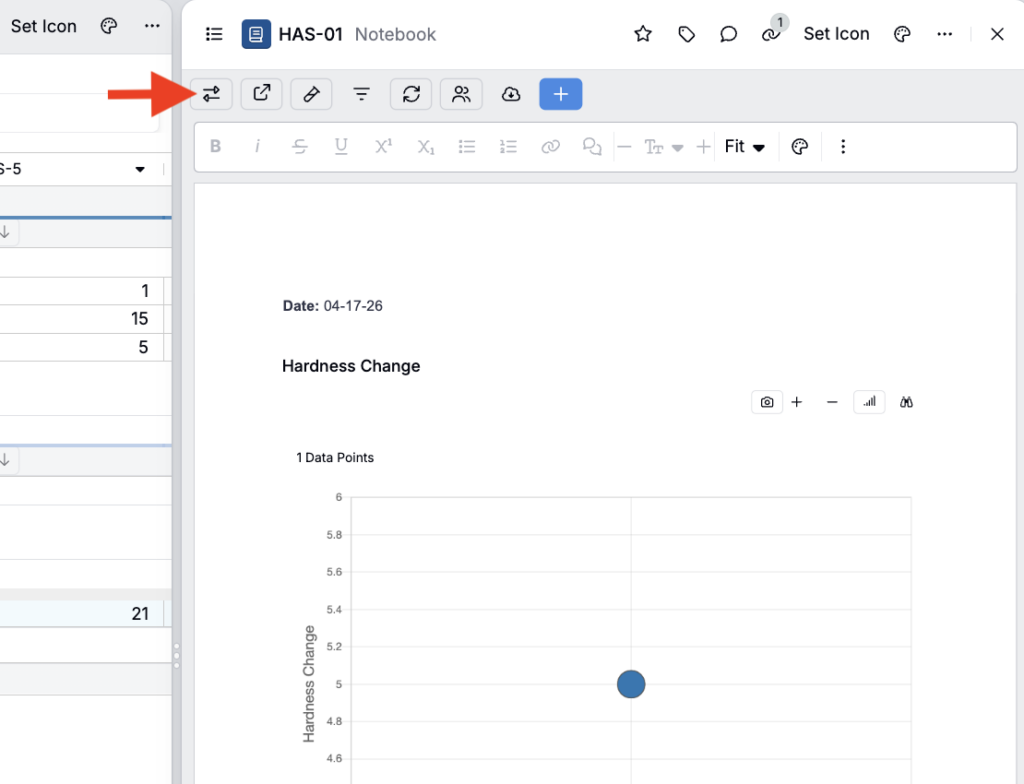
To open a different notebook or switch between notebooks, click Change Notebook (arrows icon) to the notebook selector.
Use cases for the Notebook Sidepanel
Notebooks created or opened from the Notebook Sidepanel are used in a few different ways, but there are two especially common patterns.
Electronic lab notebook (ELN) notes
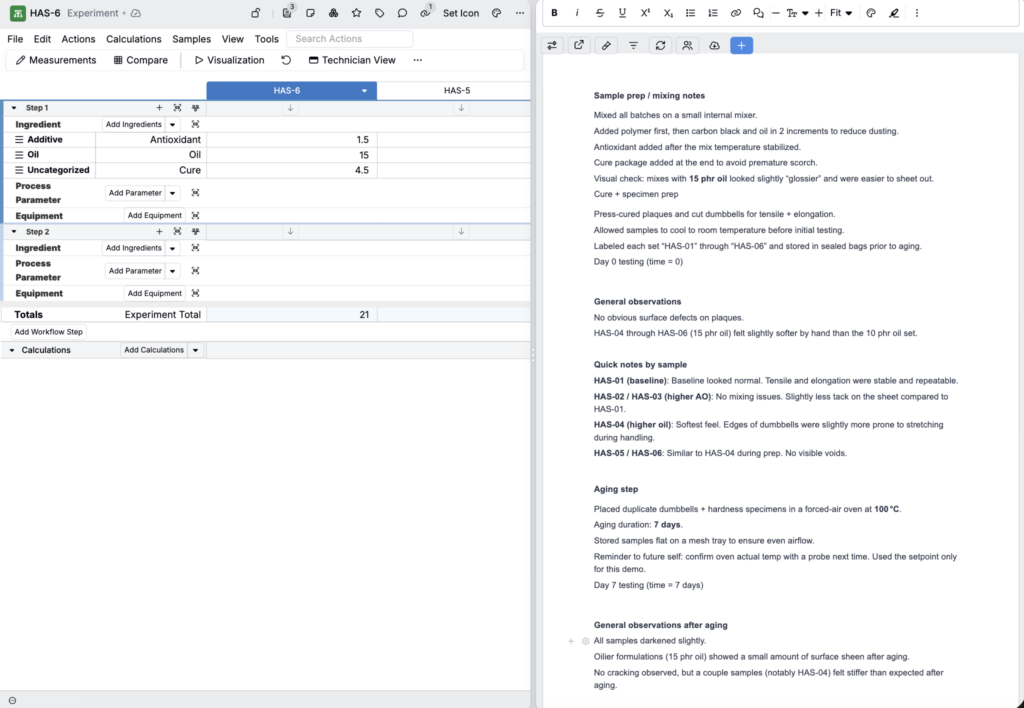
Notebooks created from the sidepanel can serve as a lightweight electronic lab notebook for unstructured observations and lab notes. This is a good fit for information that is important, but does not belong in structured experiment fields or measurement tables.
Common examples include:
- Use as in-line reference material while you work, such as procedures, checklists, or acceptance criteria
- Freeform observations and conclusions
- Process notes and deviations
Because this information lives inside a notebook instead of on paper, it stays searchable and connected to the experimental context.
Standardized experiment plots
The Notebook Sidepanel is also useful when you want consistent plots for a specific test type.
A typical workflow looks like this:
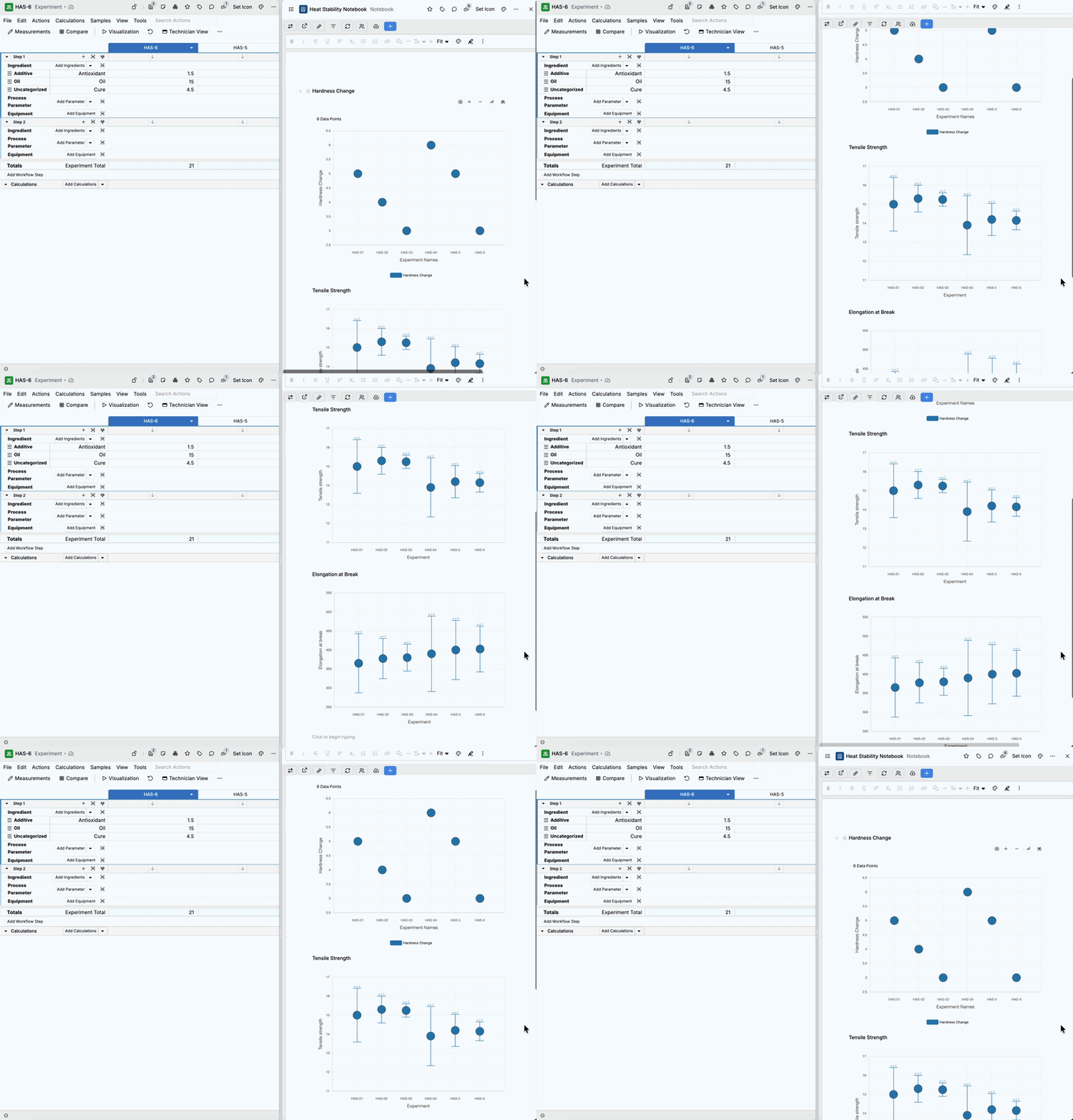
- Create a notebook template that includes the plots you want for a test type.
- When working on an experiment (or set of experiments), create a notebook from that template.
For example, a heat age stability template can populate a notebook with the standard plots a team expects. Because the notebook is created from within the experiment page, it stays associated to the experiment and can be viewed directly from the Recipe or Measurements view.
To learn more, refer to Notebook Templates for Plots.
Search and discoverability benefits
As mentioned above, a major benefit of using notebooks for unstructured information is that they support full text search across notebook content.
For example, if someone records a note like “15 phr oil looked slightly glossier and was easier to sheet out, and HAS-04 felt stiffer than expected after 7 days at 100 °C,” a teammate can later do a full text search for “15 phr oil,” “glossier,” “HAS-04,” “stiffer,” or “100 °C” across notebooks to quickly find similar heat aging observations from past work.
This makes it easier to learn from past work, especially when troubleshooting months later.
Dynamic content in notebook text cells
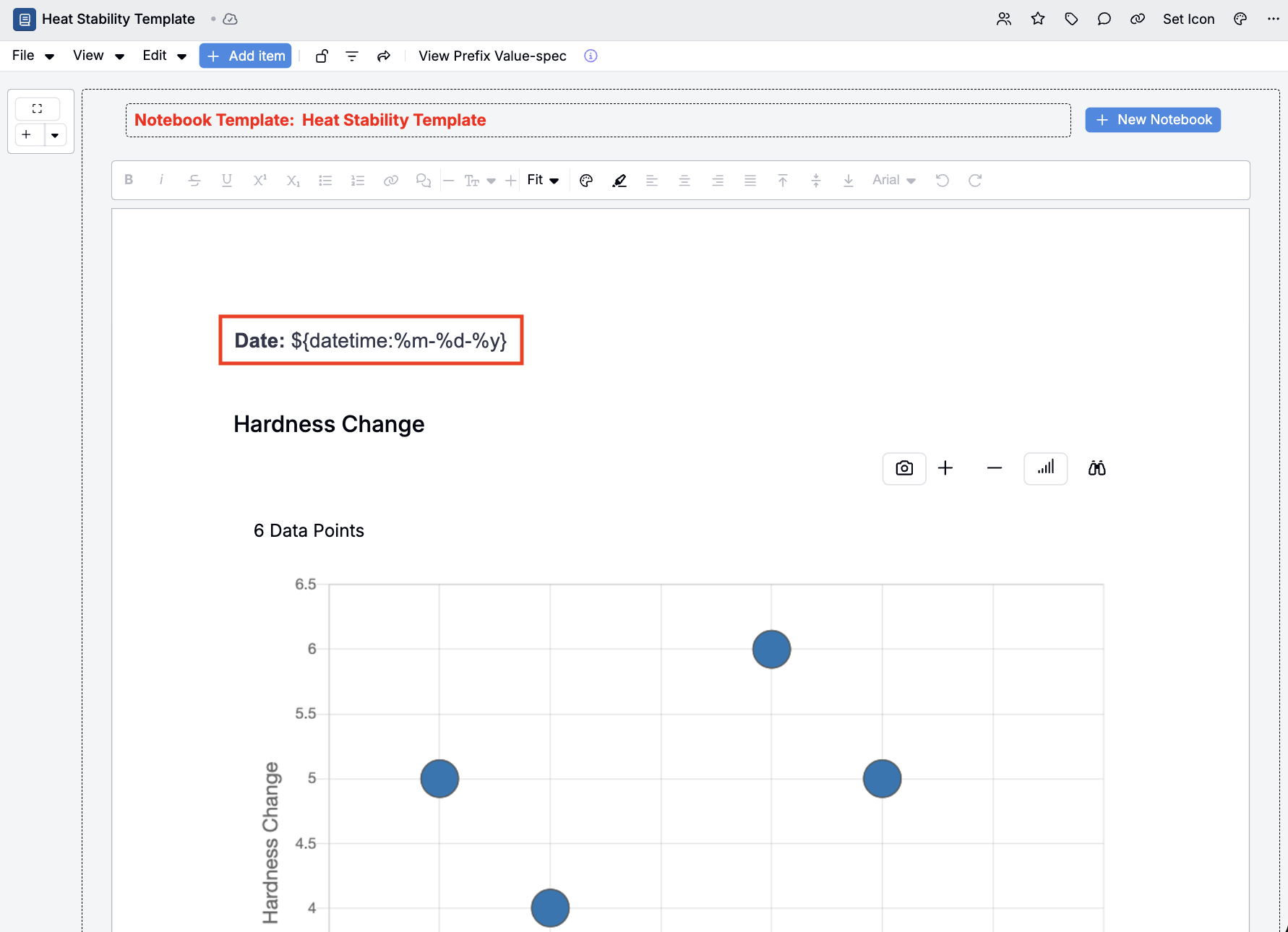
Notebook text cells can optionally contain value spec expressions that evaluate dynamically. This can be used to pull in values such as experiment names, date, input/output information, etc.
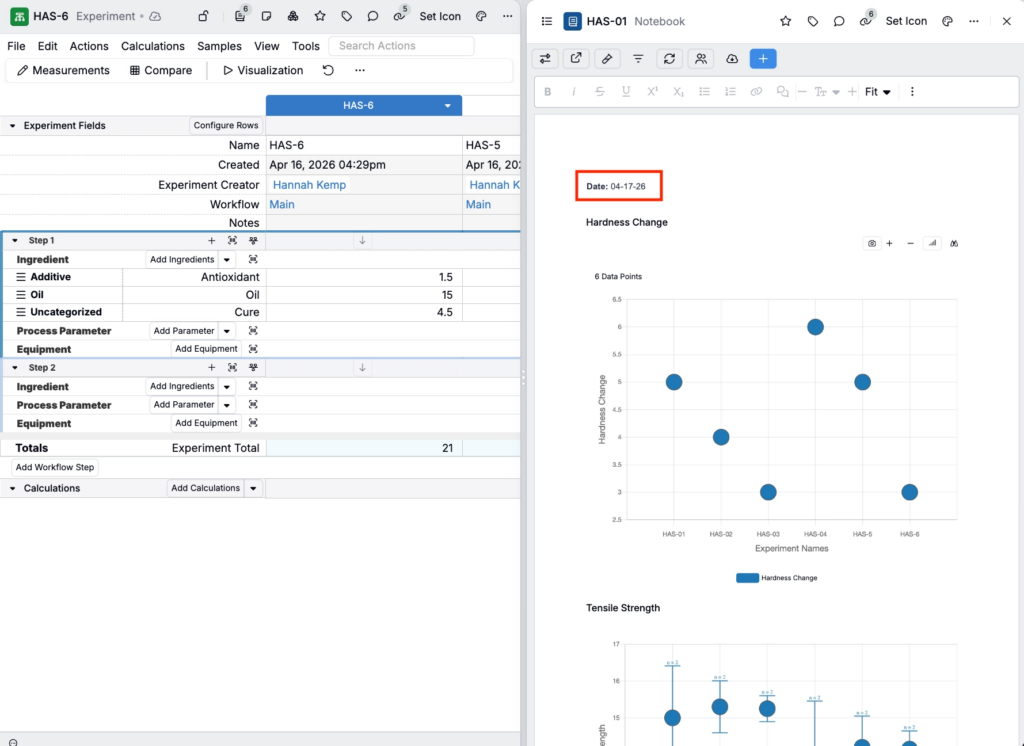
To learn more about adding dynamic content to your notebook, contact your Uncountable representative.