
Outputs in Uncountable typically have default units. Default units apply to all users across the schema, are set on creation, and can be viewed/modified on the output details page.
However, teams often work in different unit systems. Output unit conversions are user-specific and allow you to view measurements in units that make sense to you without changing the data stored in Uncountable.
Key points
- Conversions are per‑user, what you set applies only to your view.
- Data is not modified, only the display changes.
- Conversions can be global or targeted to a Material Family:Measurement scope.
Setting up Unit Conversions
You can create conversions in two places:
- User Unit Settings (recommended for managing all conversions)
- On an output’s details page (quickly add one while inspecting a specific output)
User Unit Settings
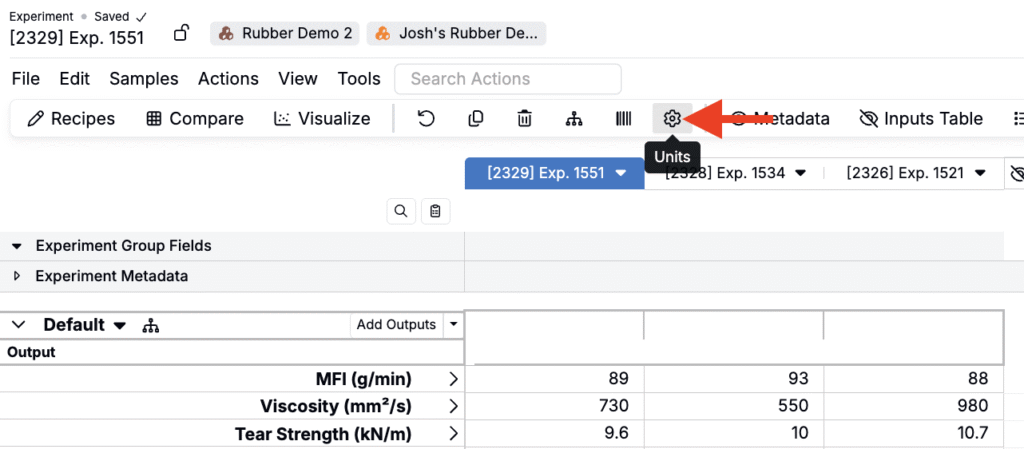
- On the Measurements view of an experiment or experiments, click the ⚙️ icon or search for “Unit Conversion Settings.”
- Under User Unit Settings, set a new conversion by:
- Selecting a scope (Universal or Material Family:Measurement).
- Selecting a Unit from (e.g. g/10 min).
- Selecting a Unit to (e.g. g/min).
- Click the equation to modify it by editing the multiplicative factor and/or additive constant.
- Clicking + Add.

Output Details
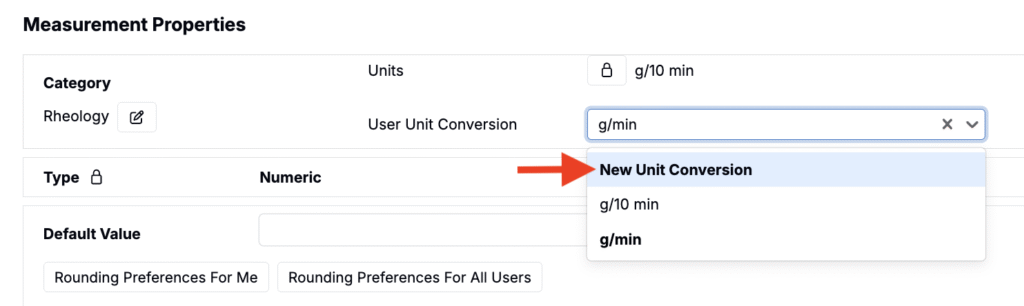
- Open the output’s details page and locate User Unit Settings under Measurement Properties.
- Select New Unit Conversion.
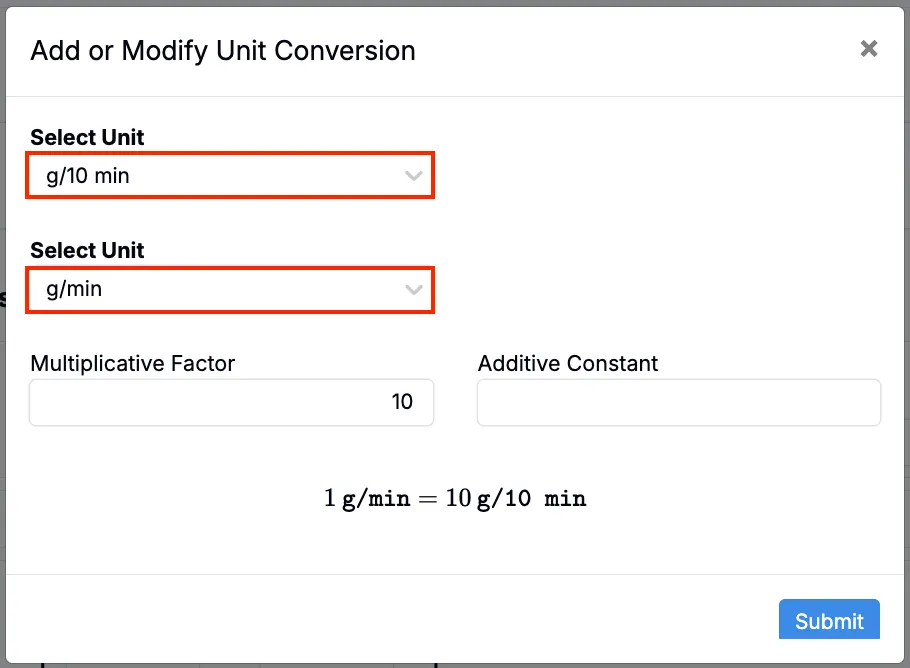
- In the modal, select to and from units and add create a conversion equation by adding a multiplicative and/or additive factor.
Once added, these conversions are available for selection when converting an output’s units.
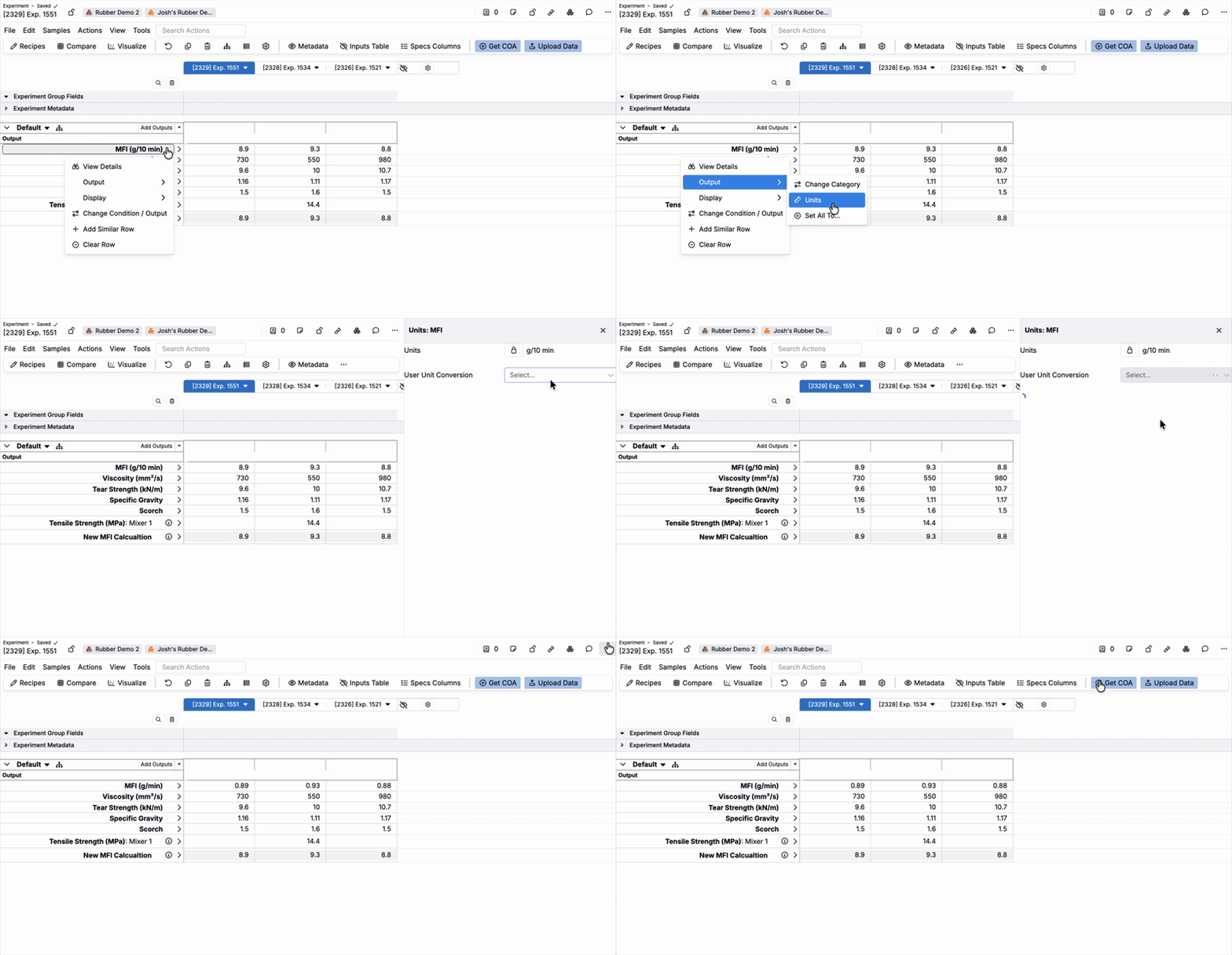
Converting Units on an Experiment
When viewing data in the measurements view, you can change the default units by:
- Selecting the output header row on the data grid.
- Selecting Output > Units to access the Units sidepanel.
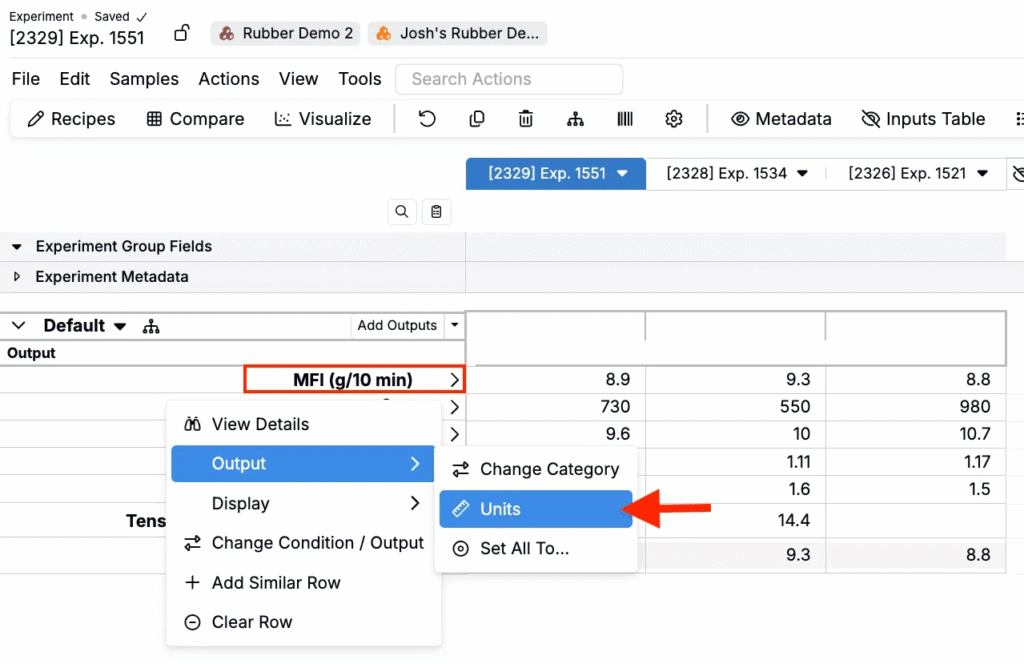
- Within the sidepanel, select from the available list of unit conversions.
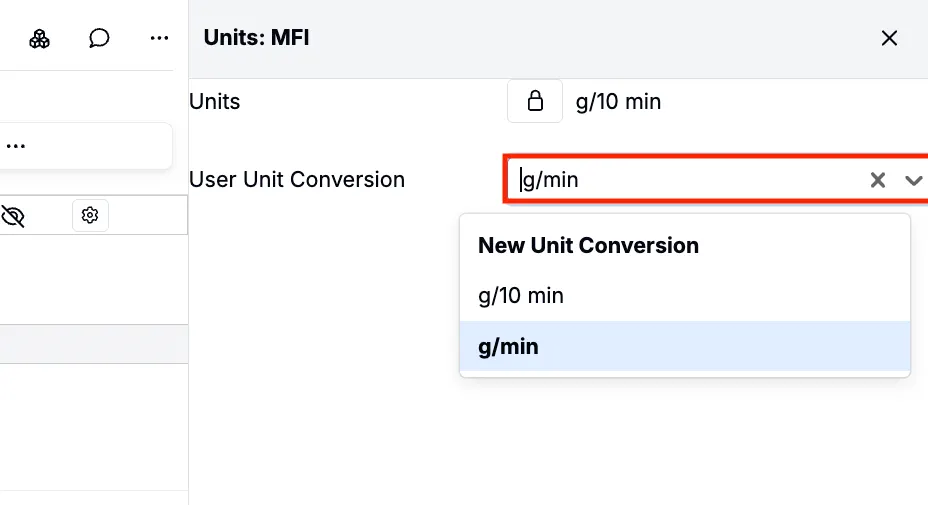
This will convert the value for the selected output for all recipes in view, only when you view the data.