
Related Entities Side Panel: List View and Redesigned Graph View
The Related Entities side panel has a redesigned Graph view and a new List view.
In Graph view (default), each entity is a compact card with an entity-type tag and a colored border and a legend shows which color matches which type. Click a node to highlight it and open a details panel below the graph, or double-click a node to open the entity directly.
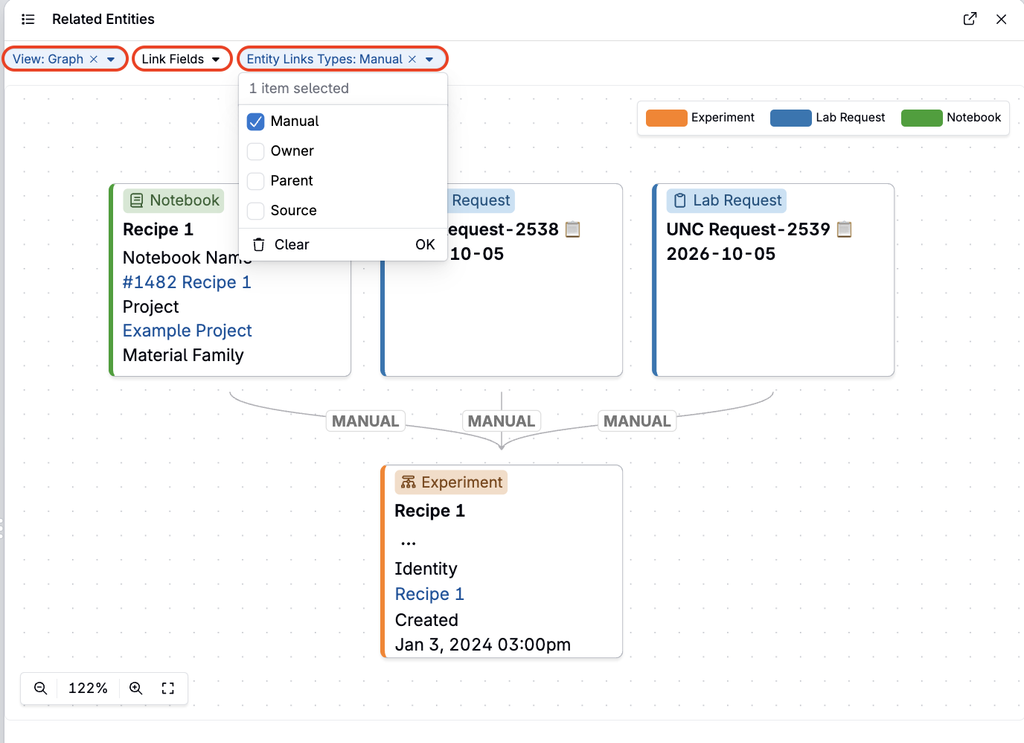
Select View: List to see related entities as a searchable list, with the current entity pinned at the top. This is useful when an entity has many relationships, for example, a lab request linked to several notebooks and experiments, and the graph becomes crowded. The links shown and the filters used to choose them are unchanged.
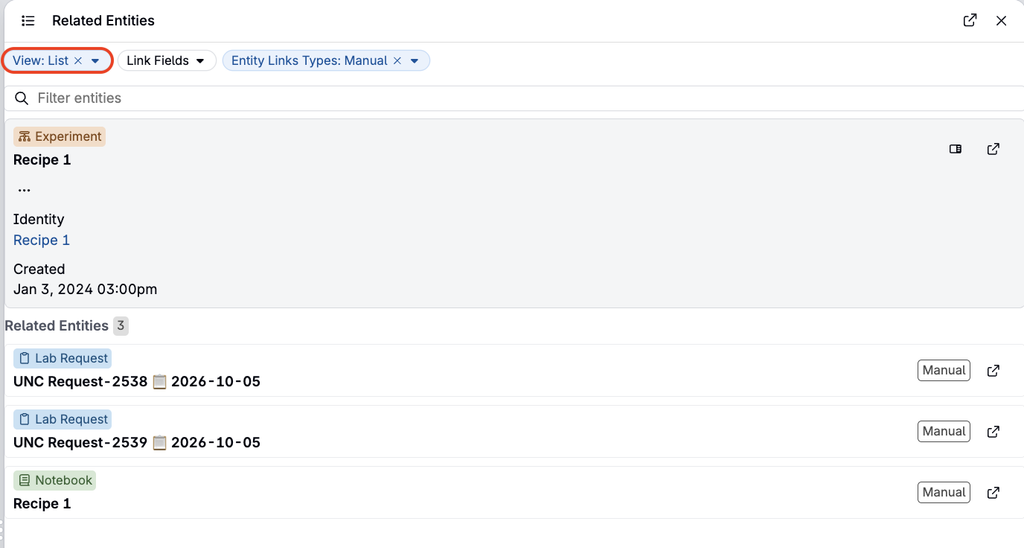
To learn more, refer to Update to the Related Entities Sidepanel.
Notebooks: View Project Data Source
You can now choose where notebook cells pull their data from by selecting View > View Project Data Source and choosing Notebook, Current User Project (Default), or All Projects. This replaces the earlier Edit menu setting, which applied only to plots.
- Explore Data plot cells pull data from the selected source. Radar plots with selected recipes keep showing those recipes.
- Experiment Comparison cells set to Manually Select Experiments keep their selected experiments and cells set to Automatically Select Experiments follow the new source.
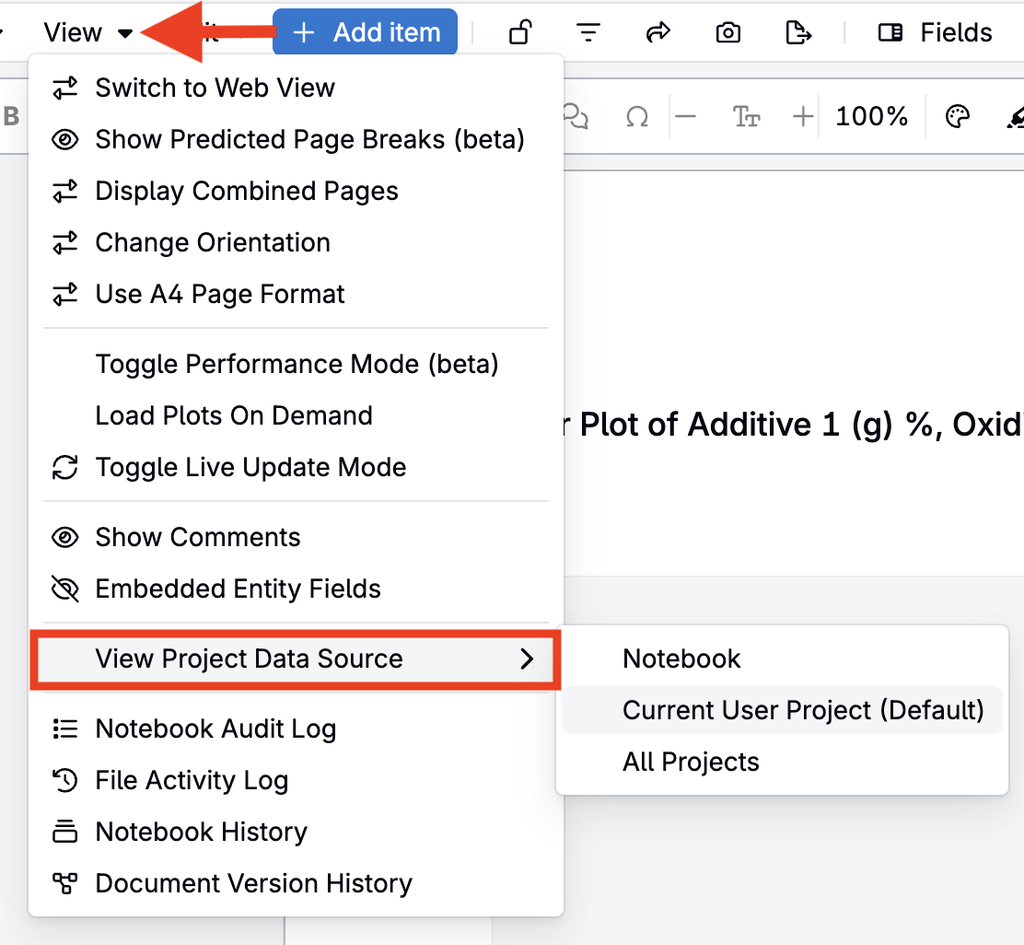
After a source is selected, a Project Data Source indicator appears in the notebook menu bar, where you can see the project in use and switch sources. The setting is also available in edit mode on dashboard notebooks.
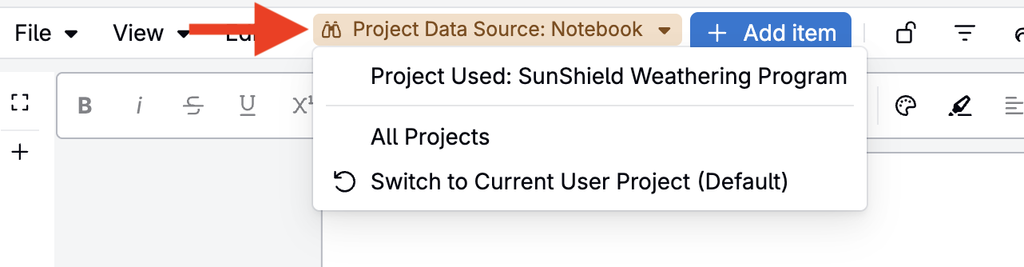
This makes it easier to review a notebook’s data in the context of its own project, or across all projects, without moving the notebook.
Note: The project data source currently applies only to your view. It is not saved with the notebook and does not change what other users see.
To learn more, refer to Notebooks.
Triggers: Batch Operations in Loops and Asynchronous Timeframe
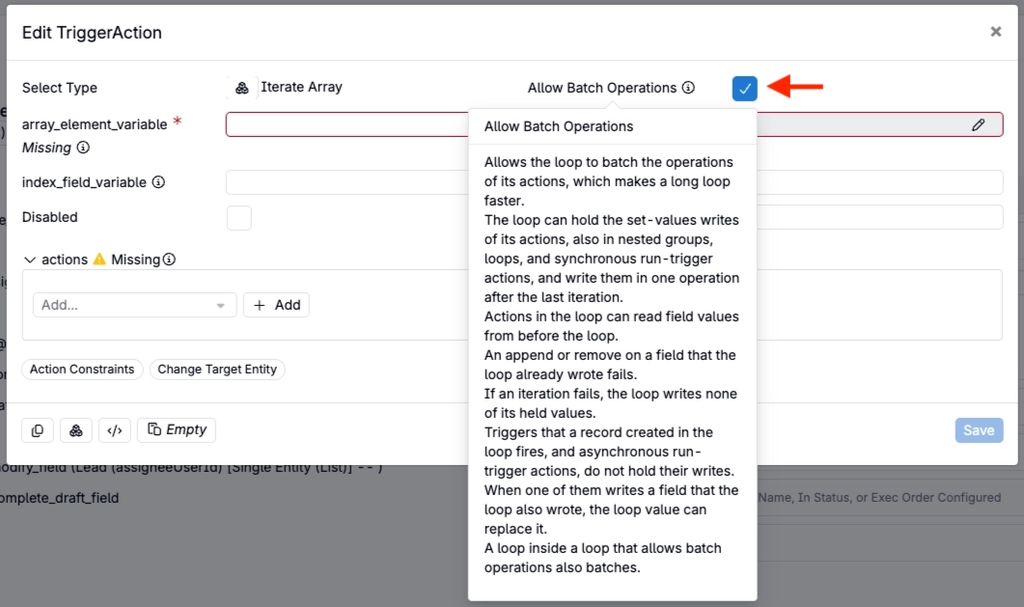
Loop trigger actions such as Iterate Array and Iterate Entities now have an Allow Batch Operations setting that saves the loop’s Set Values writes together after the last iteration, instead of one at a time. This makes triggers that update many records run noticeably faster, for example, a loop that sets a field on 50 test samples saves all 50 values in one operation.
Allow Batch Operations is checked by default on new loop actions, and loops in existing triggers keep their previous behavior.
Run Trigger actions also have an Asynchronous Timeframe setting with two options: Short Term (the default) and Long Term. Set Long Term for background work that can wait, so Short Term runs start first. This gives teams more control over which asynchronous work runs ahead of the rest.
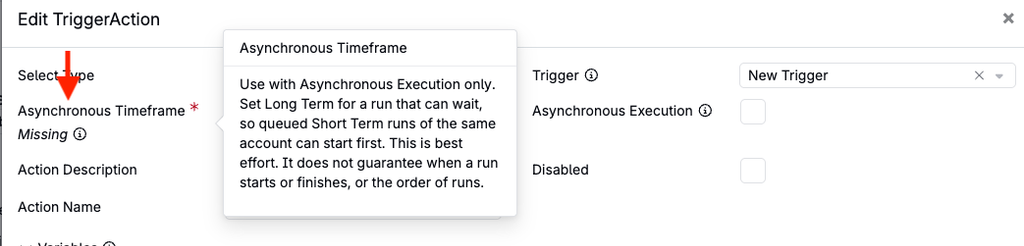
Note: With batching turned on, actions in the loop read field values from before the loop started. Leave Allow Batch Operations unchecked for loops that read back values they wrote earlier in the same loop. Asynchronous Timeframe applies only when Asynchronous Execution is on; leave it set to Short Term for synchronous runs.
To learn more, refer to Managing Triggers and Trigger Sets in Form Admin and Trigger Actions.
Notebooks: Renamed History and Log Menus
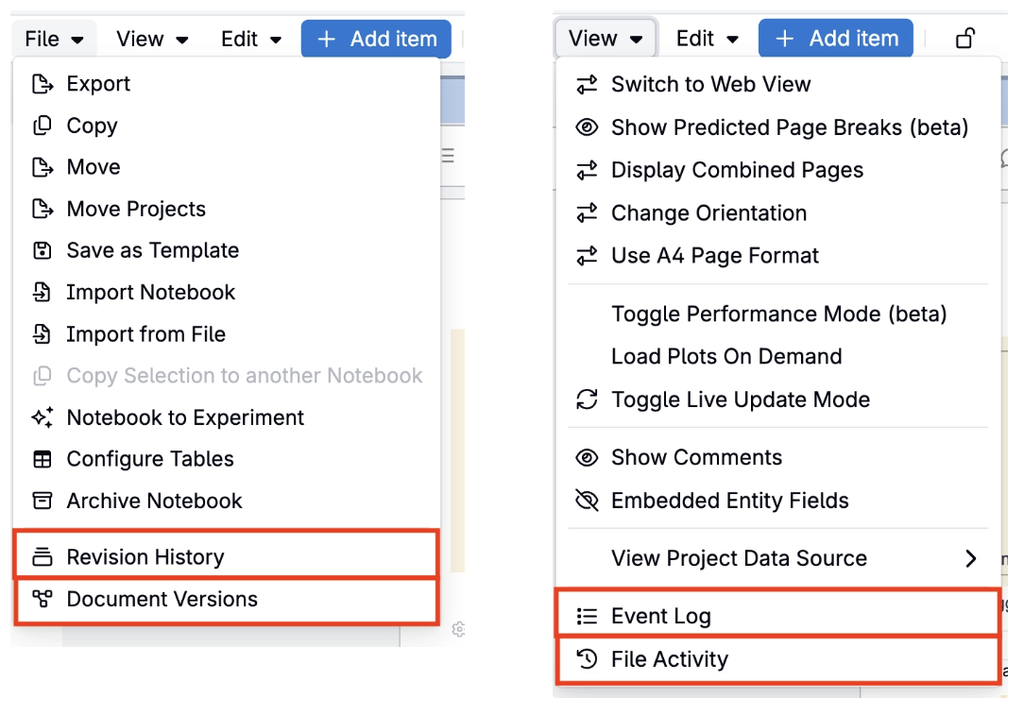
The history and log options in notebooks have been renamed and reorganized to make it clearer which record to open:
- Notebook Audit Log is now Event Log.
- File Activity Log is now File Activity.
- Notebook History is now Revision History.
- Document Version History is now Document Versions.
Revision History and Document Versions have moved from the View menu to the File menu. Event Log and File Activity remain in the View menu.
This reduces confusion between similar-sounding options when auditing changes or reviewing notebook versions.
To learn more, refer to Notebooks.
Files: Recently Viewed
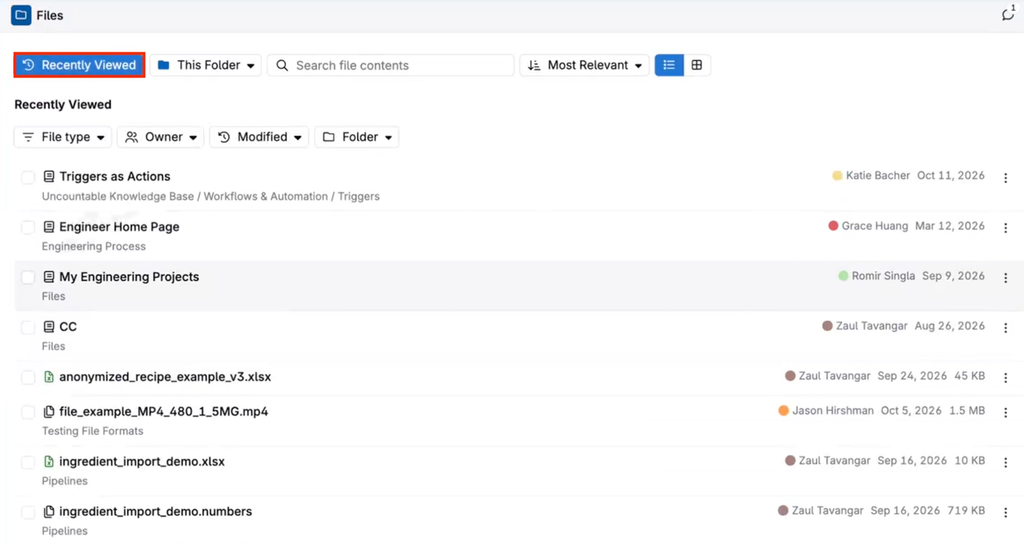
A new Recently Viewed view on the Files page lists the files and notebooks you opened most recently, newest first, along with the folder each one is in. The list is personal to each user and shows only files you can still access.
You can narrow the list with the File type, Owner, Modified, and Folder filters. This makes it faster to get back to a report, SOP, or notebook you were working on without remembering where it was saved.
To learn more, refer to The File Folder System.

Compare Page: Refreshed Layout
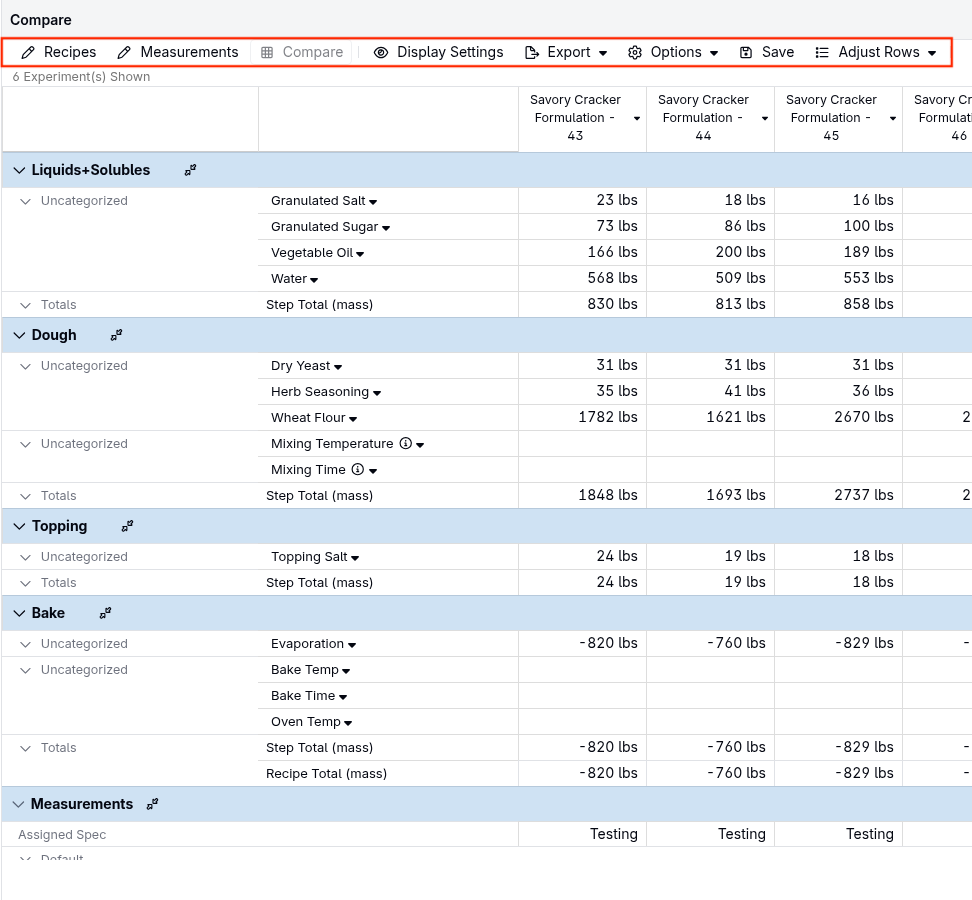
The Compare page has a refreshed layout that reduces clutter at the top of the page. Recipes, Measurements, Display Settings, Export, Options, Save, and Adjust Rows now sit in a single action bar above the grid, matching the Recipes and Measurements tabs. The number of experiments shown appears as text below the action bar.
The grid is also easier to scan: column headers are flat, rows have a consistent height, and section headers such as workflow steps and Measurements keep a colored fill so each section stands out.
This is a visual update only. Sorting, display settings, export, saving, adjusting rows, collapsing sections, hiding columns, and color scales work the same as before.
To learn more, refer to Update to the Compare Page Design.
Notifications: Refreshed Notifications and Inbox Panel
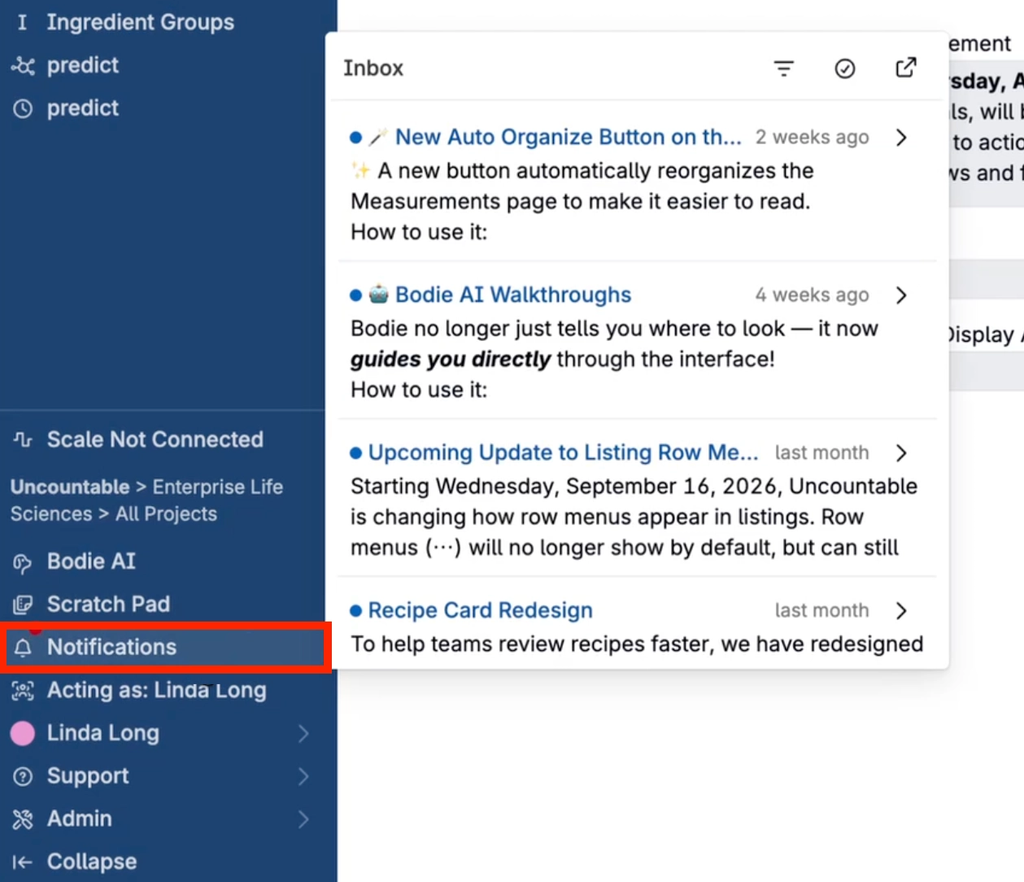
Notifications and the Inbox panel have a new look. In the panel opened from Notifications in the navigation bar, each notification is its own card: unread notifications have a blue title with a dot, and an arrow expands a card to show the full message. Icons at the top of the panel filter to unread notifications, mark all as read, and open the full inbox.
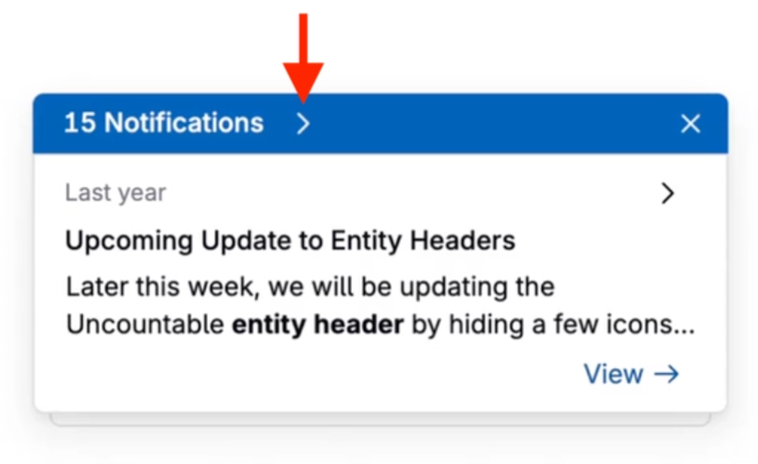
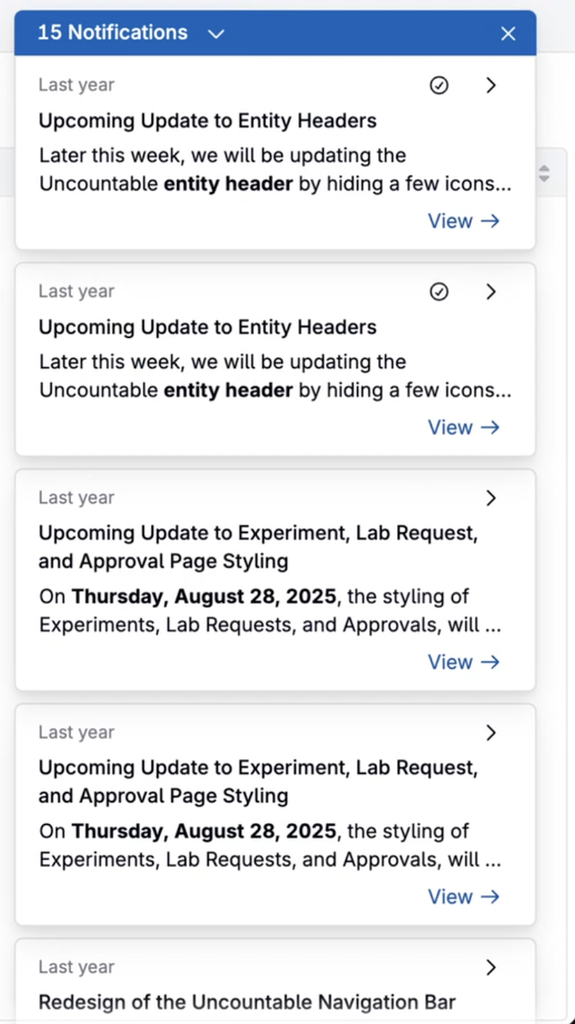
Pop-up notifications now stack under a blue bar that shows the notification count, with an arrow to expand or collapse the stack and an X to clear all. Each notification shows its severity as a colored bar on its side, and completed items, such as a finished upload, keep their green background. On mobile, notifications collapse under an “N notifications” header at the bottom of the page.
This makes it easier to scan many notifications at once and to spot urgent ones by color.
To learn more, refer to User Subscriptions and Emails.
Data Pipelines: File Detection
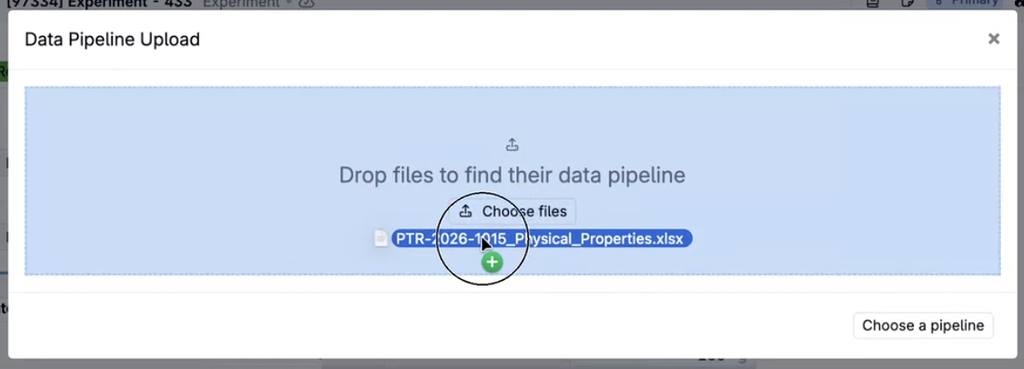
Data pipelines can now recognize the files they read. Each pipeline can have detection rules, such as a file extension, a file name pattern, or a value in a specific cell. When you drop files into the Data Pipeline Upload modal, the matching pipeline is selected automatically and each file is placed in the source it fills.
If more than one pipeline matches, you choose from the matches; if none match, you can choose from the full list with your files kept. You can also select Choose a pipeline to pick one yourself.
This removes the need to remember which pipeline handles which instrument report or test file, making repeat uploads faster and less error-prone.
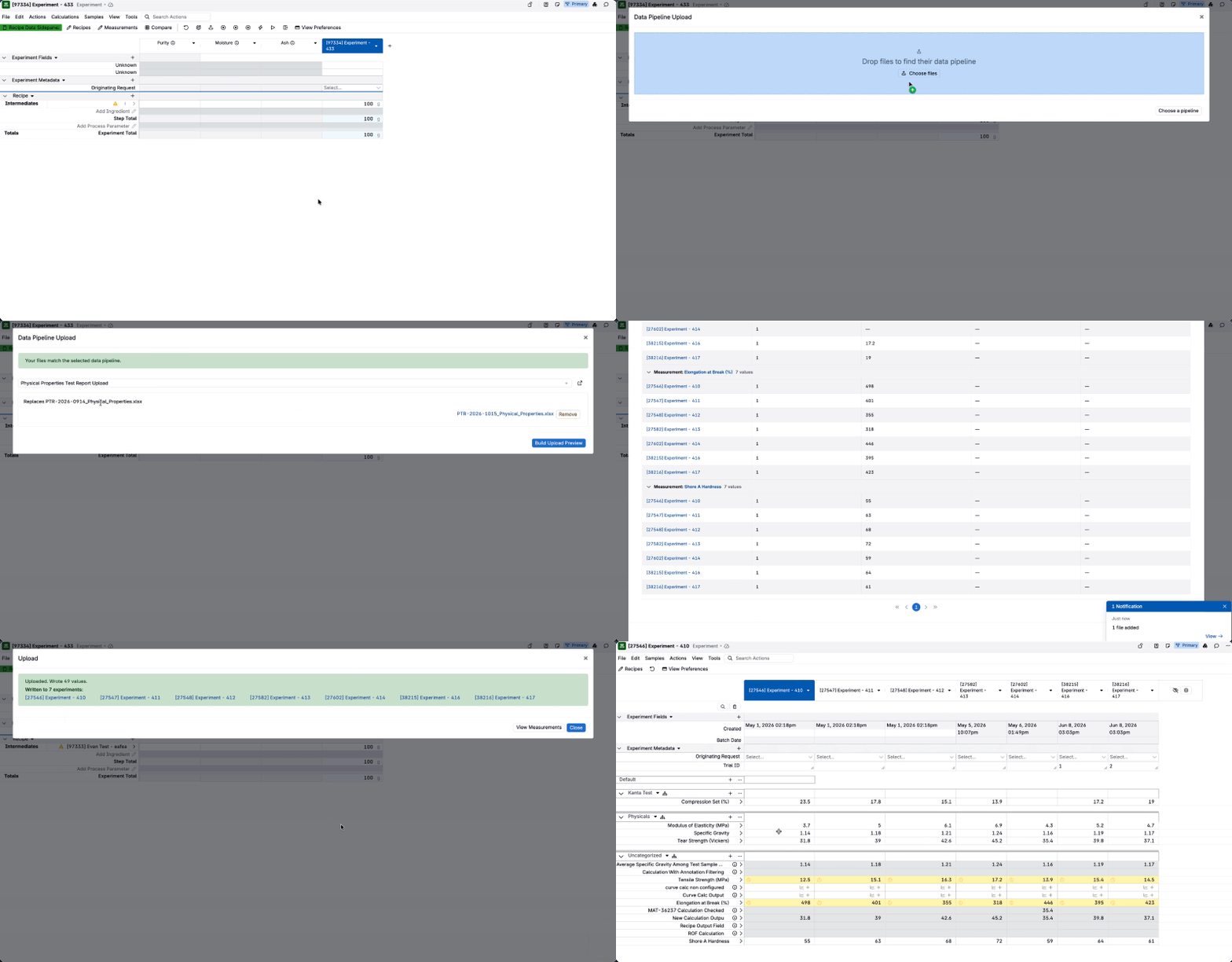
How to use:
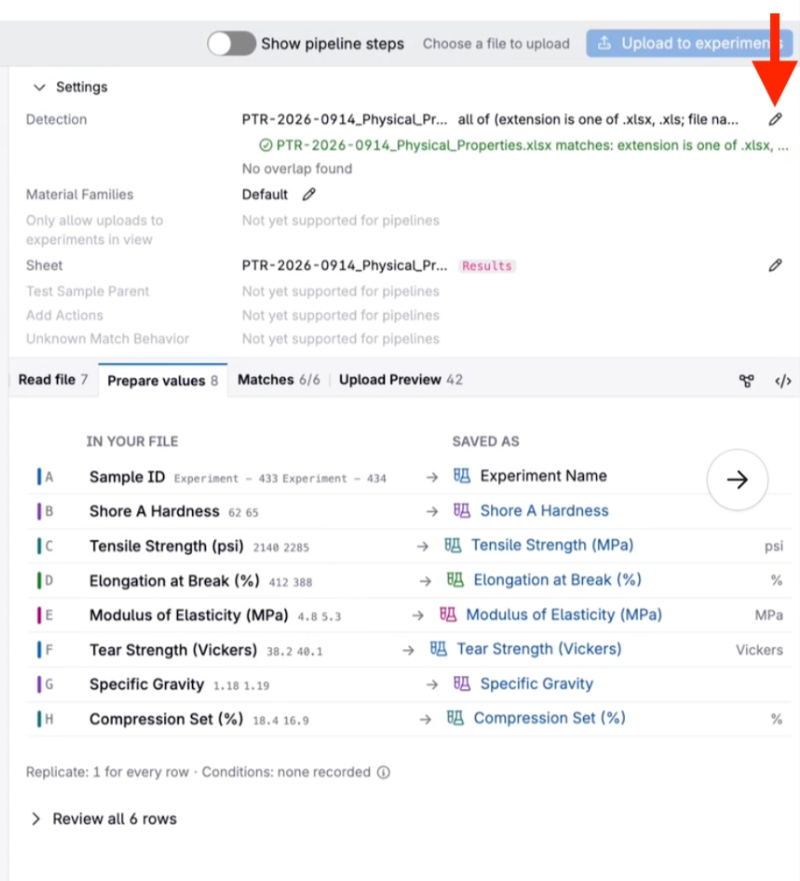
- On the data pipeline page, expand Settings and select the pencil icon next to Detection.
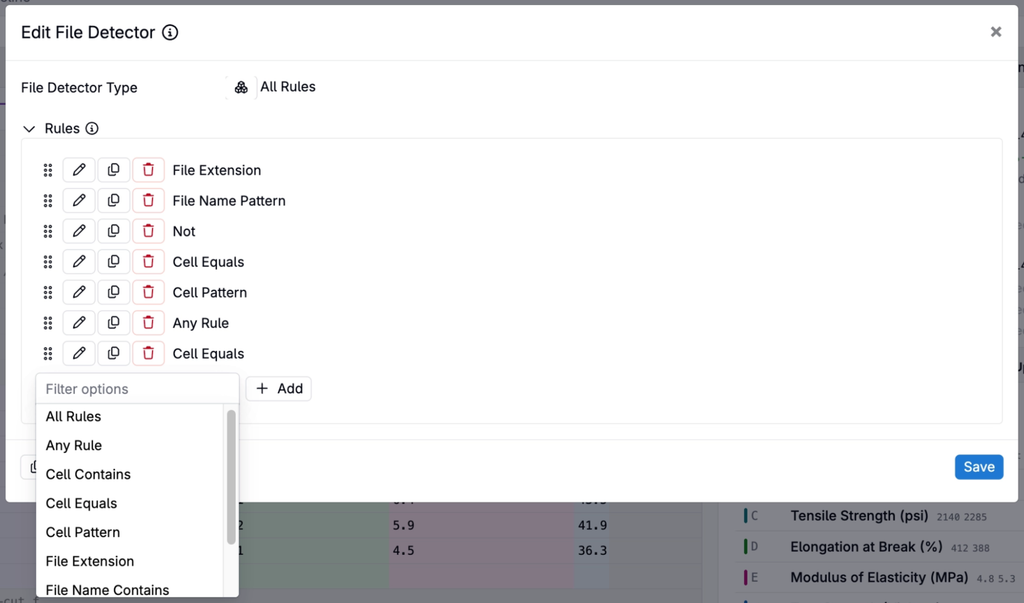
- In Edit File Detector, choose a File Detector Type (All Rules, Any Rule, or Not), add rules, and click Save.
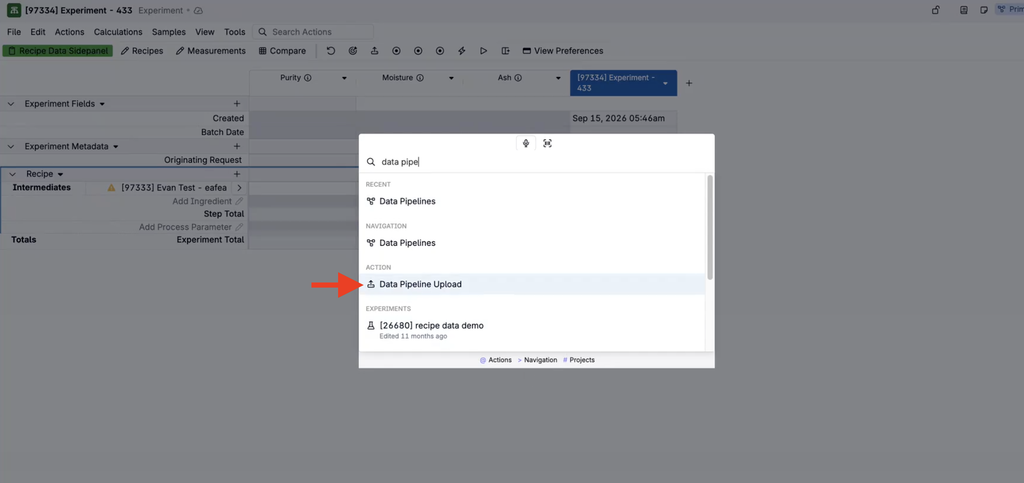
- On an experiment page, open Data Pipeline Upload and drop your files on Drop files to find their data pipeline.
To learn more, refer to Data Pipelines.
Projects: Notebooks Tab Listing
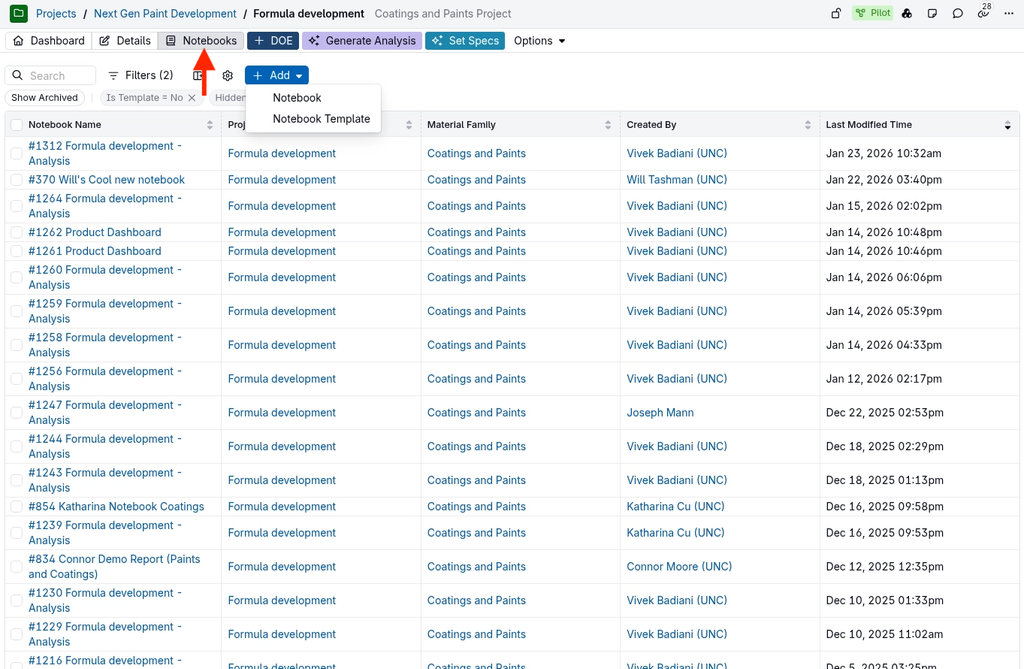
The Notebooks tab on the project page now shows a listing of the notebooks associated with the current project.
Previously, the tab showed a Select Notebook dropdown and displayed one notebook at a time in a frame that cut off part of the notebook. You can now search, filter, sort, and choose columns as on other listings, and click a notebook name to open it in the side panel.
Notebook templates are hidden by default with the Is Template = No filter, which replaces the earlier View toggle; change or remove the filter to see templates.
This makes it easier to find and organize a project’s notebooks, especially for projects with many reports or ELN entries.
To learn more, refer to Update to the Project Notebooks Tab.
Calendar: Redesigned Calendar and Resource Timeline
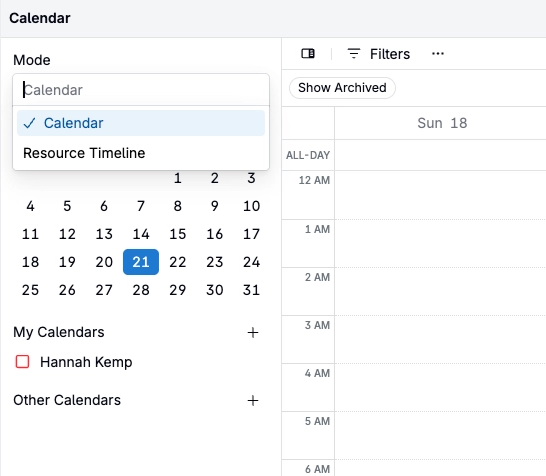
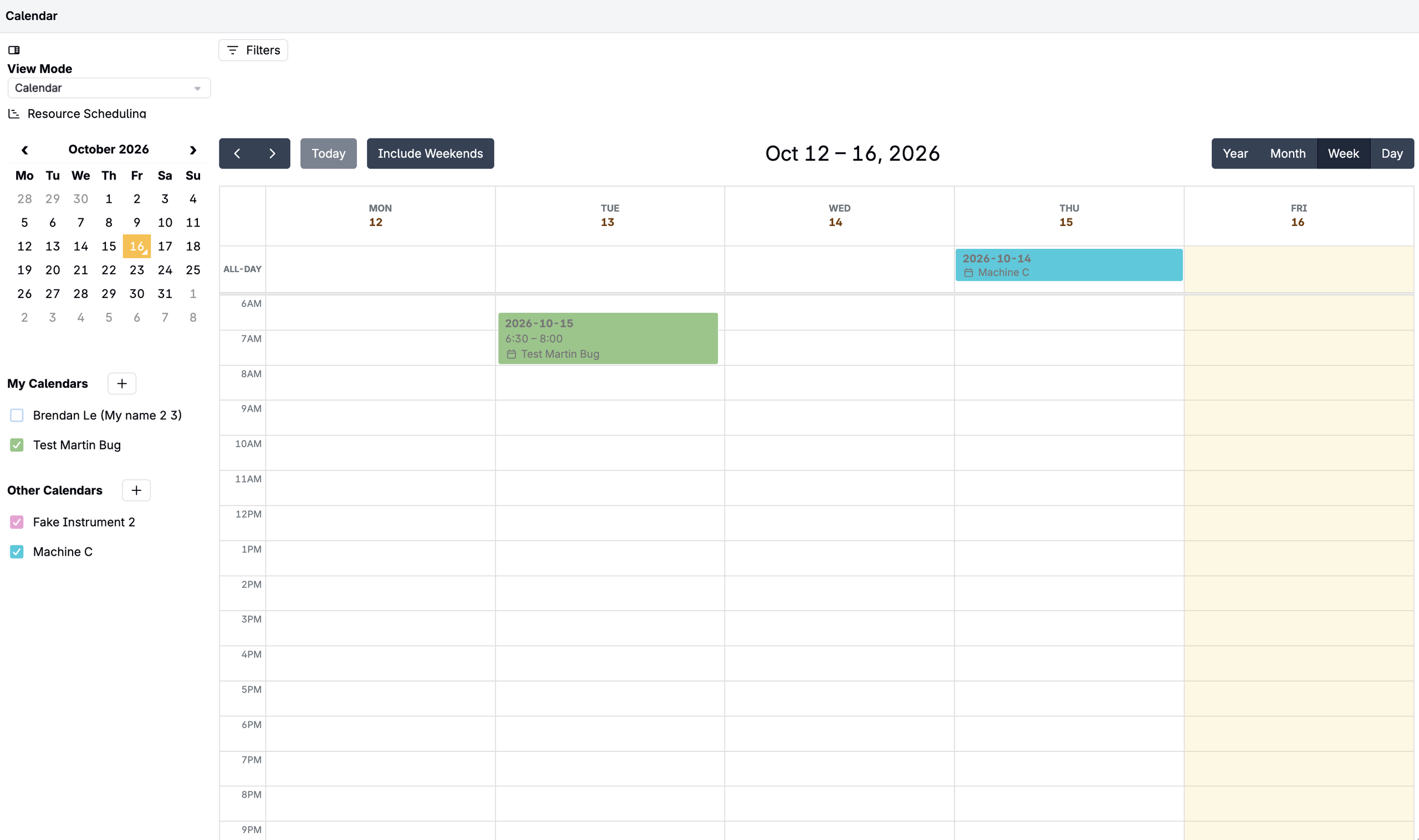
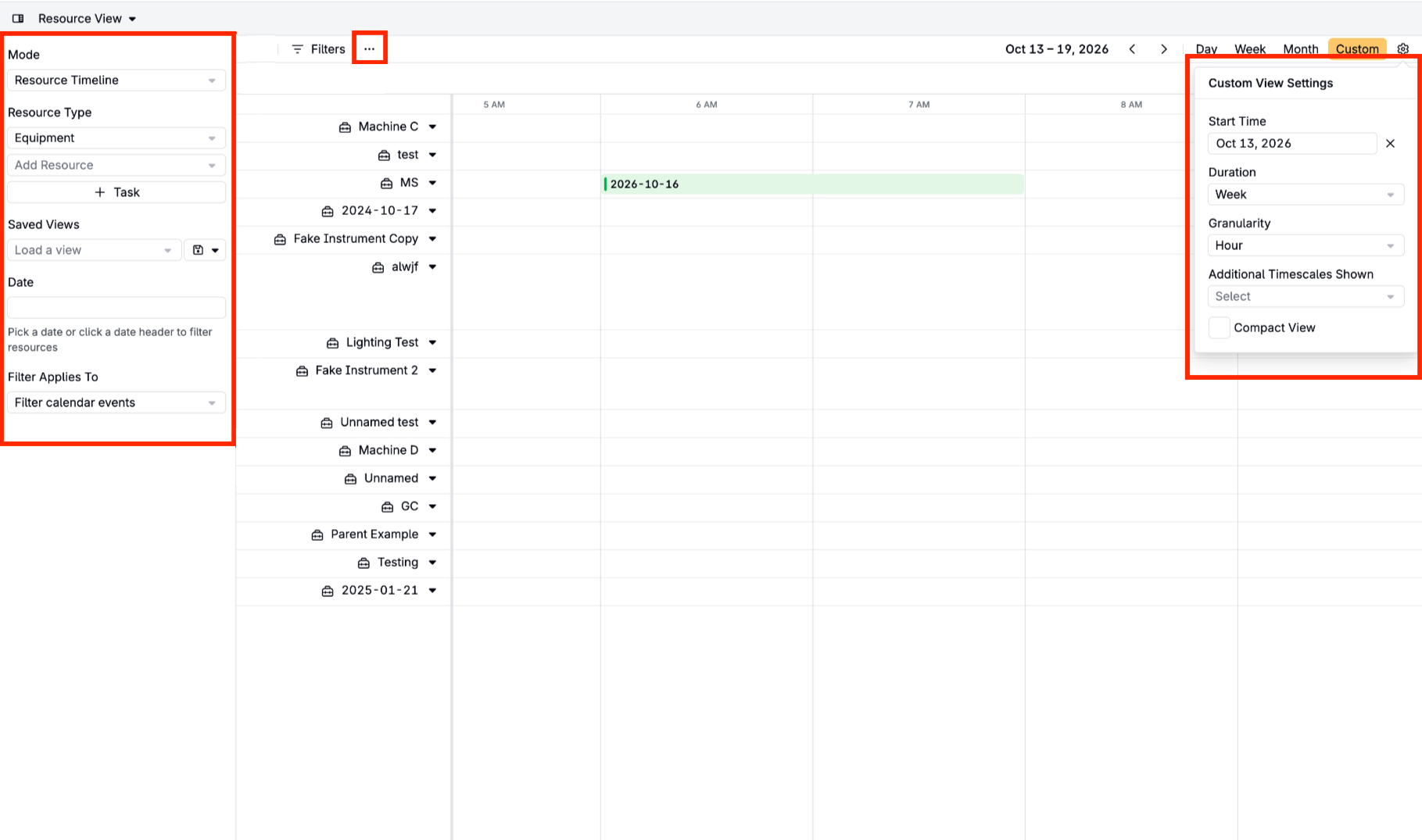
The Calendar page has been redesigned. A new sidebar lets you switch between the Calendar and the Resource Timeline modes and holds a month picker along with your My Calendars and Other Calendars lists.
Most other controls are in about the same place as before, and each event now shows the Calendar it belongs to under its time, so events are easy to tell apart when several calendars are shown.
On the Resource Timeline, most options have moved into the sidebar (such as Resource Type, Saved Views, and Filter Applies To) or into the … menu in the action bar. Settings for the Custom view, including Start Time, Duration, and Granularity, are now under the cog next to Custom.
This gives the schedule more room on screen and keeps planning controls in one place, for example when checking equipment availability across a busy week.
Config Transfer: Notebooks
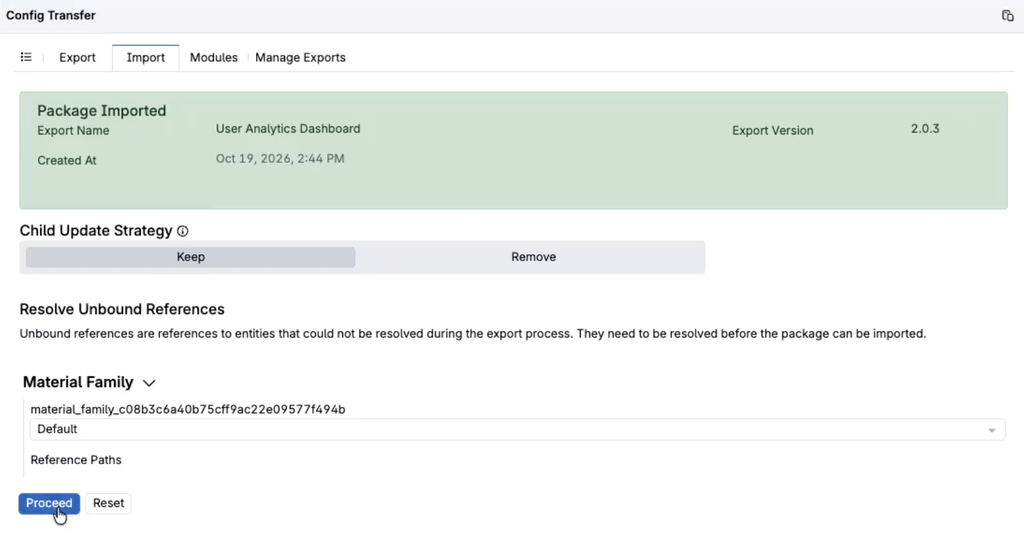
Config Transfer can now move notebooks between schemas, including dashboard notebooks with structured listing, text, chart, metric card, and value selection cells. Listing cells carry only their default listing configuration, not users’ personal views. After the import is committed, the notebook appears on the Files page.
This makes it easier to roll out a standard dashboard to other schemas without rebuilding it cell by cell.
Note: Other cell types cannot be transferred yet. When exporting, include the notebook’s cells and any default configurations they use, and leave out the notebook template.
To learn more, refer to Config Transfer (Form Admin).
Product Carbon Footprint Side Panel
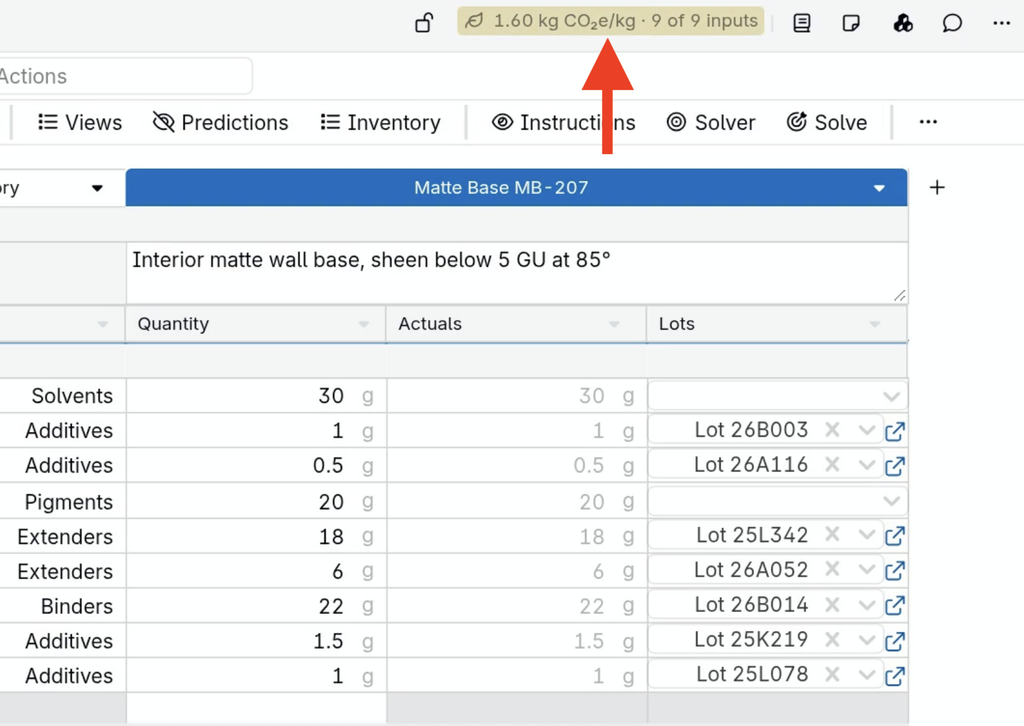
A new Carbon footprint side panel, available on the experiment page, calculates an experiment’s cradle-to-gate CO₂e from the CO₂e values stored on its ingredients and lots.
The panel shows the total footprint, the top contributing ingredients with the largest marked as a Hotspot, the share of primary data, and any ingredients that are still missing a value.
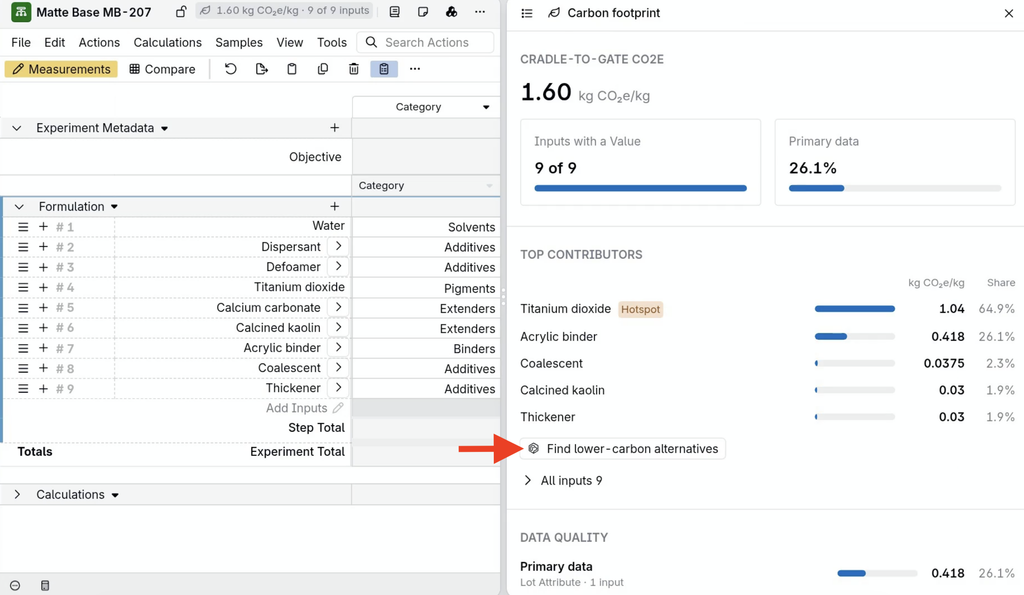
Select Find lower-carbon alternatives to ask Bodie AI for lower-carbon replacement candidates and their estimated effect on the footprint.
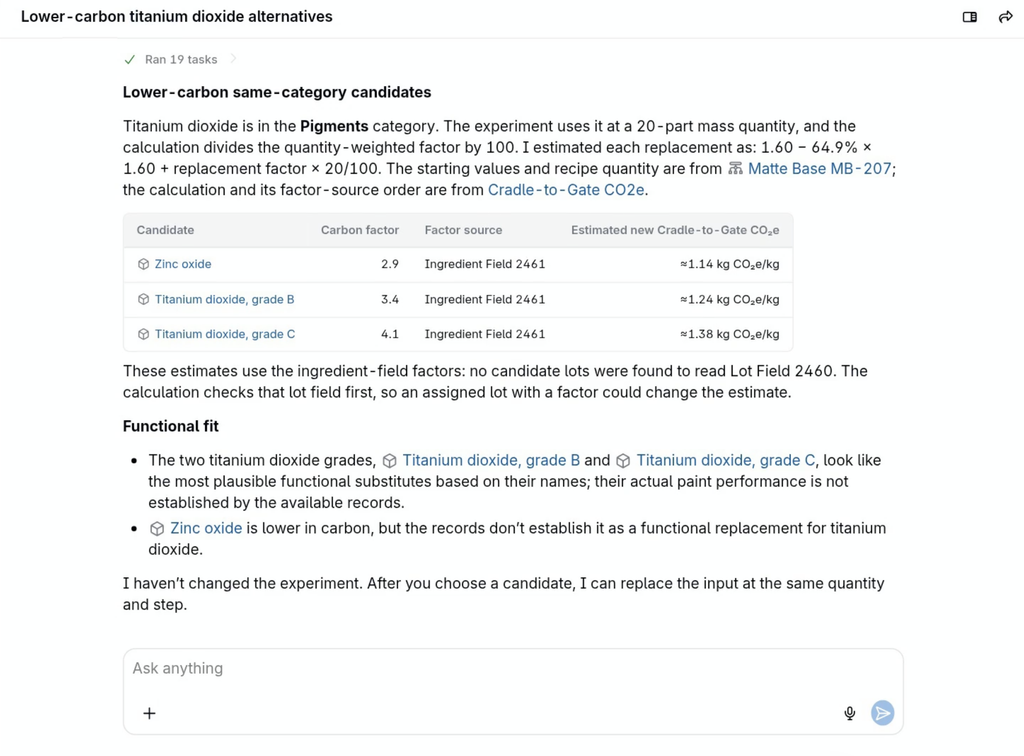
This helps teams build sustainability into formulation decisions as they work, for example swapping a high-impact pigment grade before a coating goes to scale-up.
Note: CO2e values must be added to ingredients or lots; the platform does not supply emission factors. This side panel is available only after the Carbon Footprinting module is turned on and Find lower-carbon alternatives requires the Generative AI module.
To learn more, refer to Product Carbon Footprint.
Solver: Bulk Lock Create
A new Bulk Lock Create action in the Solver/Locks side panel lets you apply one lock to several ingredients at once. Choose a lock type, set the value once, and select the ingredients it should apply to, for example, locking the compounded ingredient quantity of two ingredients at 50.
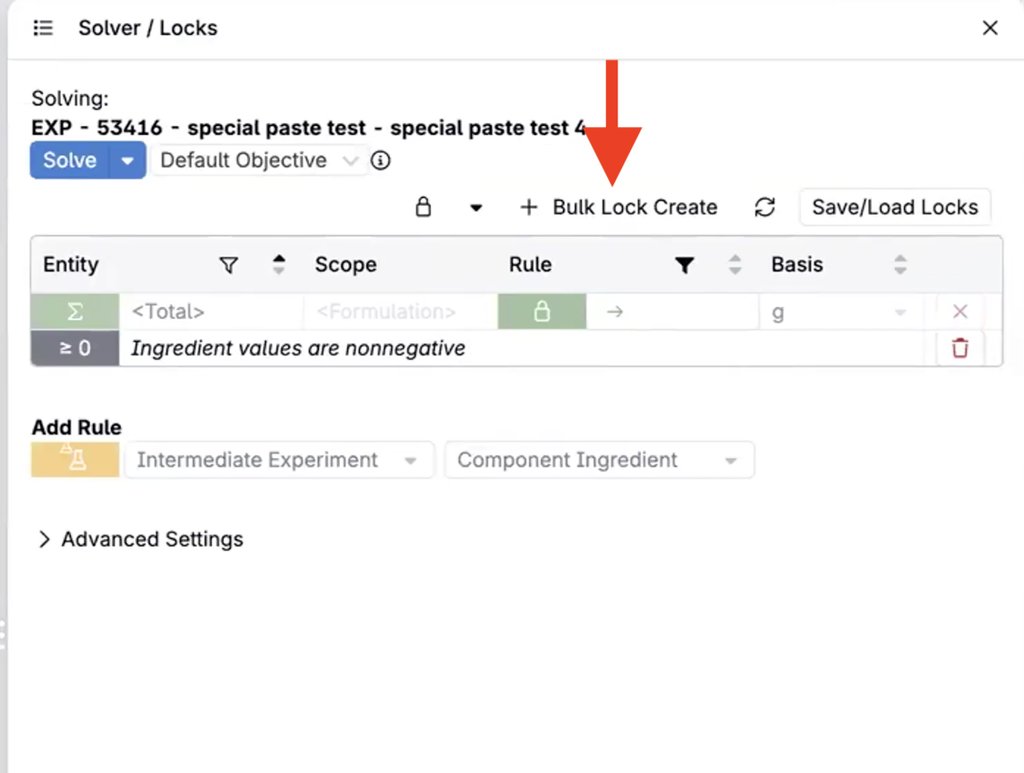
The modal remembers your last lock type, rule, basis, value, and selection, so you can repeat the same locks on another recipe in a few clicks. Existing locks are kept, and leaving the quantity blank keeps each ingredient’s current amount.
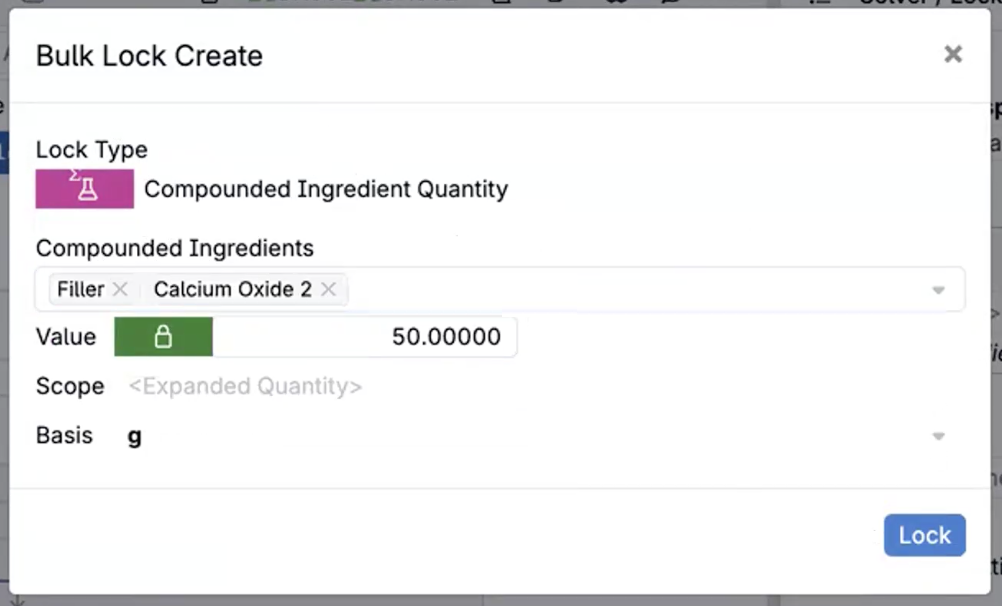
This saves time for formulators who apply the same constraints across many recipes, such as fixing additive levels across a series of coating formulations.
Note: Ingredient ratio and proportional locks can’t be created in bulk.
To learn more, refer to Solver.
Dashboard Notebooks: Kanban Board View for Listing Cells
Structured listing cells on dashboard notebooks can now be displayed as a Kanban Board. Choose a Primary Axis and the values to show as columns, and each record appears as a card in the column that matches its value. The dashboard keeps the selected view for each cell, and changing it applies to everyone viewing the dashboard.
This makes it easier to see work moving through stages at a glance, for example lab requests or projects grouped by workflow phase on a team status dashboard.
How to use:
- On a dashboard notebook, click the cog icon on a structured listing cell and select View > Kanban Board.
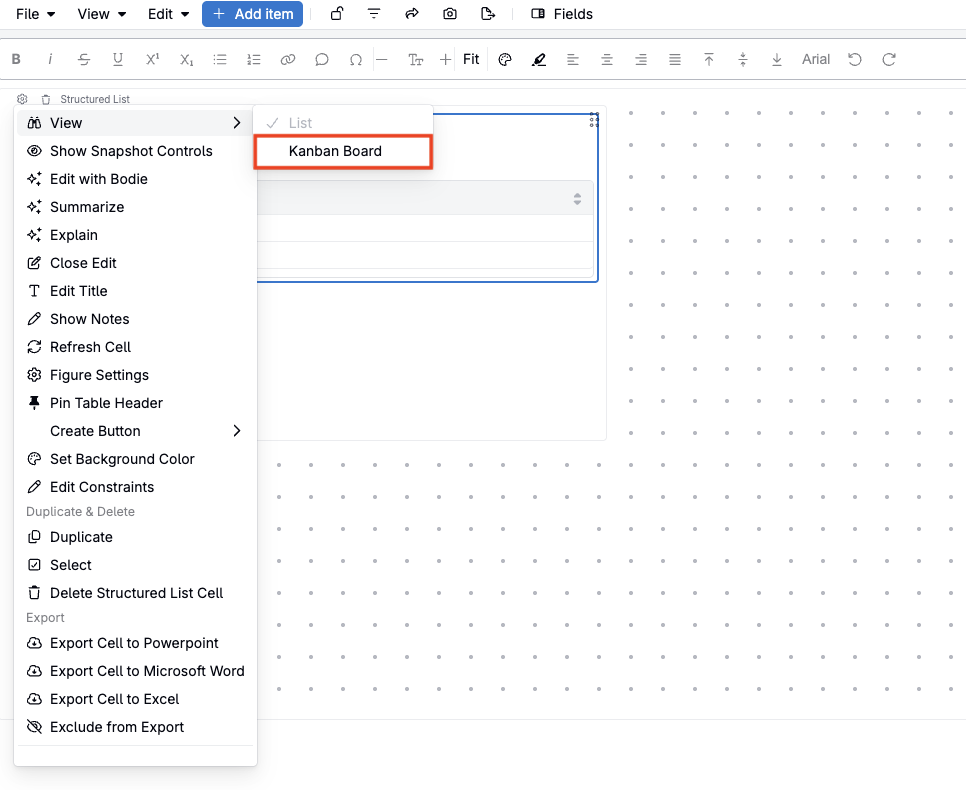
- Under Primary Axis, select the field to group cards by.
- Under Value, select the values to display as columns.
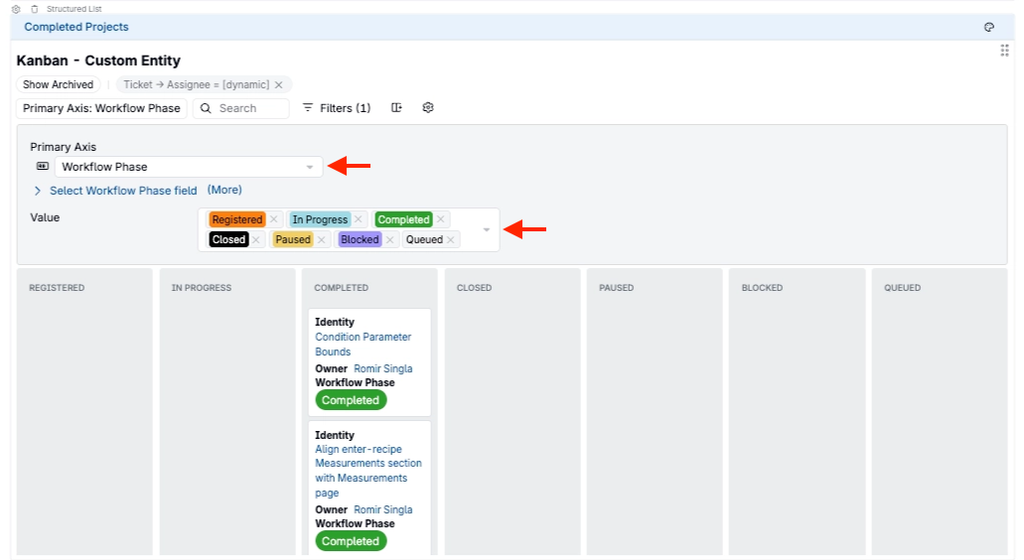
To learn more, refer to Dashboard Notebooks.
Notebooks: Performance Mode On by Default
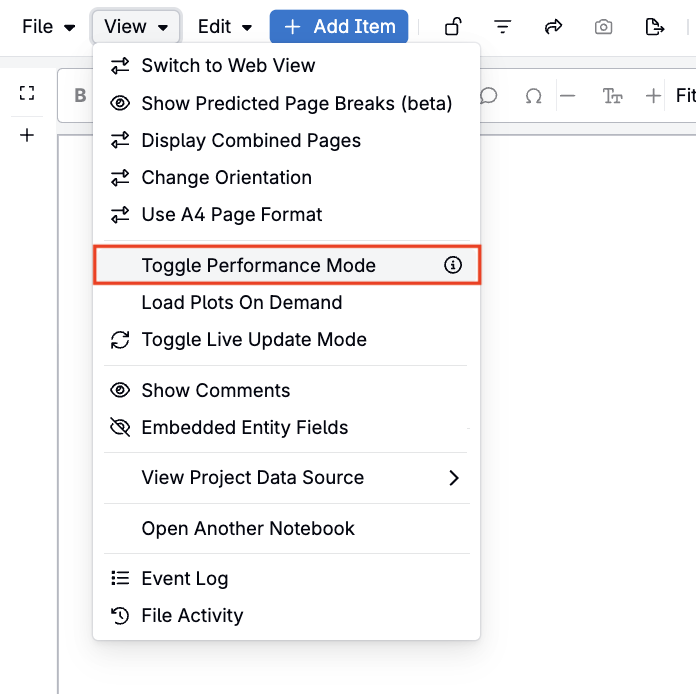
Performance Mode is now on by default in notebooks. In Performance Mode, a notebook loads only the cells near the part of the page you are viewing, so large notebooks that used to take many seconds to load open almost instantly, and typing stays as responsive as in a small notebook. Previously, Performance Mode was a beta option that each user had to turn on from the View menu.
This makes long notebooks, such as ELN entries, SOPs, and project reports with many cells, much faster to open and edit.
Note: If you previously turned Performance Mode off, your choice is kept, and a banner at the top of the notebook notes that it may load and respond slowly. To turn Performance Mode on, select View > Toggle Performance Mode.
To learn more, refer to Notebooks.
Authentication Settings: SCIM Tokens
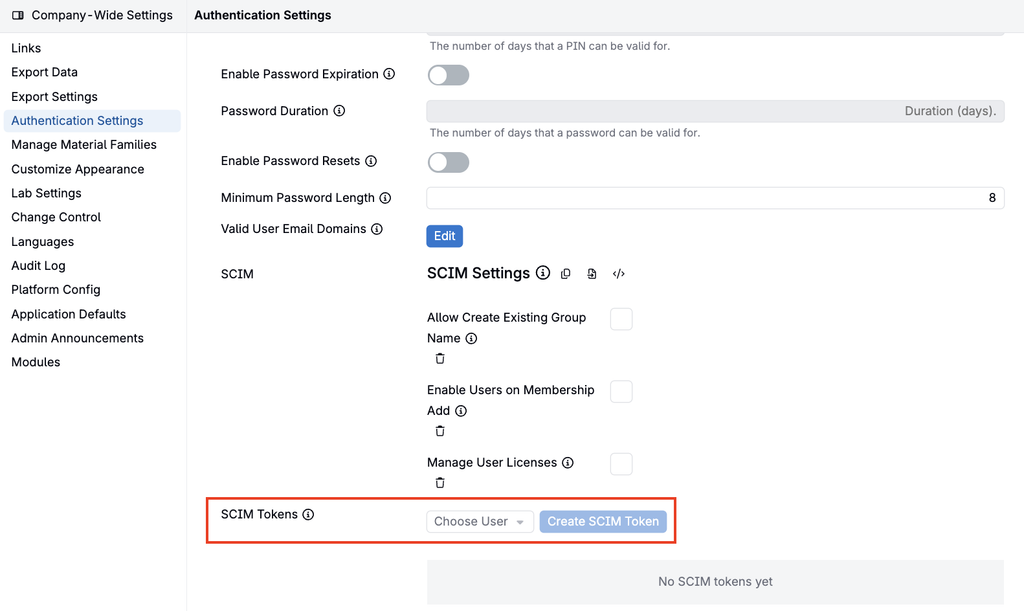
IT admins can now create and revoke SCIM tokens directly on the Authentication Settings page. A SCIM token connects your identity provider, such as Microsoft Entra ID or Okta, to Uncountable so users are provisioned and deprovisioned automatically. Previously, these tokens were set up by the Uncountable team.
How to use:
- Go to Company-Wide Settings > Authentication Settings.
- In SCIM Tokens, select a user under Choose User and click Create SCIM Token.
- Copy the token, which is shown only once, and enter it in your identity provider’s SCIM connection.
This gives IT teams direct control over their provisioning credentials, for example to issue a new token when an identity provider connection is reconfigured.
Note: Only users with the Manage Users IT admin permission can manage SCIM tokens, and the user a token is tied to must also have Manage Users. A dedicated SCIM user is recommended. SCIM tokens work only for SCIM provisioning.
To learn more, refer to SCIM Tokens.
Output Unit Conversions: Curve Outputs
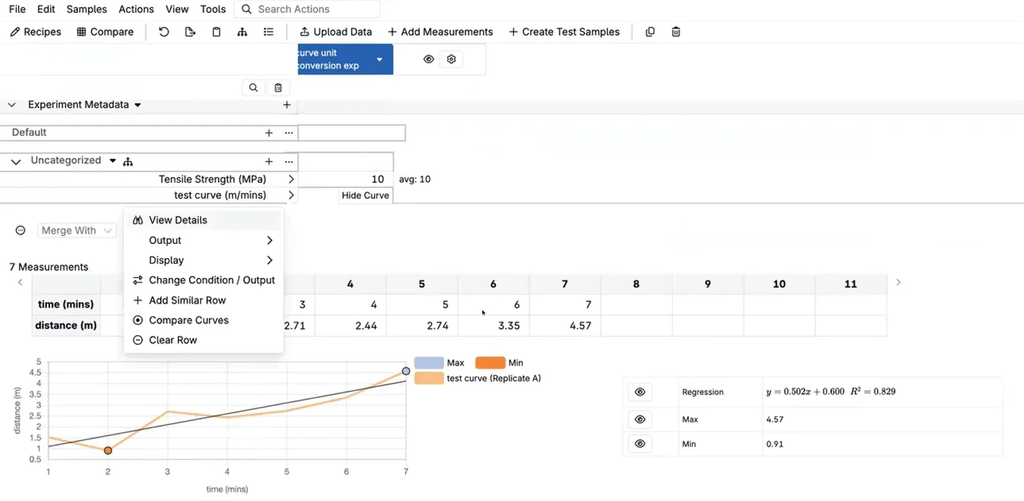
Output unit conversions now work for curve and curve calculation outputs, with a separate conversion for each axis. Previously, the units of a curve output could only be changed by converting its stored values for every user. Now, each user can view a curve in their own units, for example a distance vs. time curve stored in ft and mins shown as m and mins, while the stored points stay unchanged.
How to use:
- On the Measurements view, select the curve output’s header row and select Output > Units.
- In the Units side panel, select a unit under Y Axis User Unit Conversion, X Axis User Unit Conversion, or both.
The same settings are available under User Unit Conversions on the curve output’s details page. The measurement table, chart, and axis labels show the converted units.
This makes it easier for teams that report in different unit systems to work with the same curve data, for example viewing rheology or pressure curves in the units each site uses.
To learn more, refer to Output Unit Conversions.