
The Solver tool in Uncountable allows you to specify a calculated value you want to reach (e.g., Tg, OH Number, solids percentage, or Weight %) and automatically determines the ingredient amounts needed to achieve that value.
It is designed for formulators who need to adjust ingredients to meet strict targets while keeping other recipe constraints fixed.
This article covers the core concepts, basic workflow, and key behaviors you need to use the Solver confidently. To learn more about compatible calculations, advanced configuration, column-solving, and troubleshooting, refer to the other linked sub-articles.
What the Solver Does
Solver answers the question: “I know the value I want for this calculation. What ingredient amounts get me there?”
You control:
- Which calculated values must stay fixed (locked)
- Which ingredients are allowed to change (unlocked)
- Which calculation values should update through the solve
The Solver then:
- Adjusts only the unlocked ingredients
- Ensures locked calculations remain fixed
- Finds a recipe that satisfies all constraints
- Chooses the formula closest to your original recipe when multiple solutions exist
This “closest match” behavior minimizes unnecessary ingredient changes and keeps the formulation chemically intuitive.
Before You Start
Make a copy of your recipe
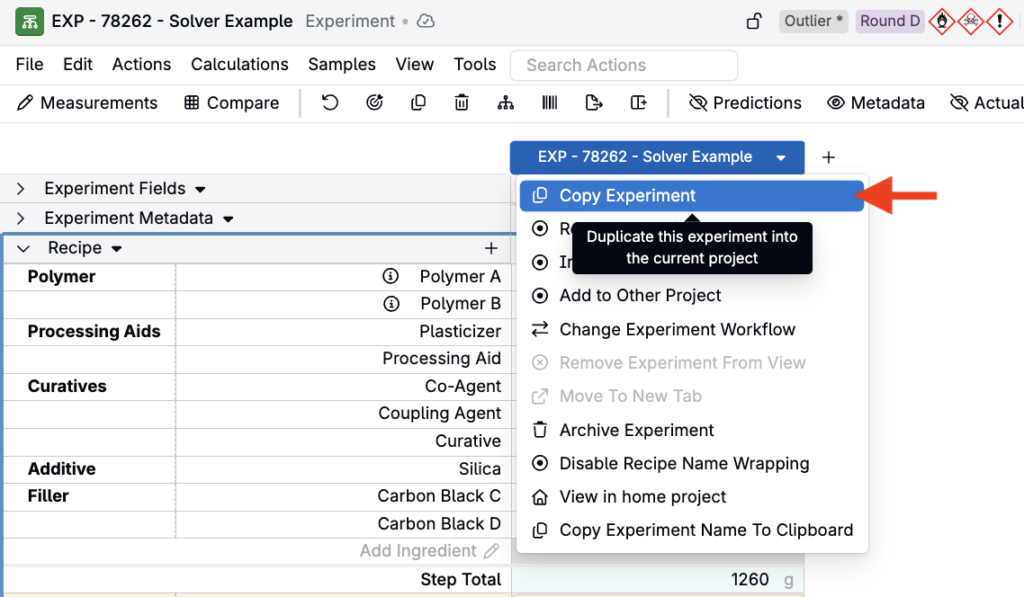
Before running the Solver, it’s good practice to copy your original recipe so you can compare the Solver’s adjustments against your starting formulation. From the Recipe page of your experiment, click the experiment column header and select Copy Experiment.
Display ingredient attributes
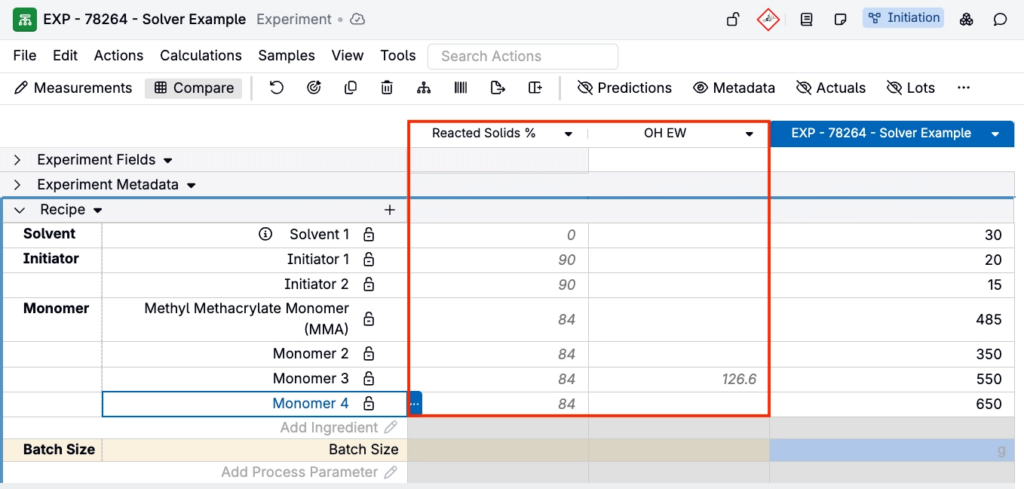
Solver relies heavily on ingredient attributes. Make sure required attribute columns are visible—click the Ingredient Attributes button at the top of the page and select the attributes you need from the dropdown. You can remove or hide them again later; they’re only needed while you’re setting up the solve.
Use solver-compatible calculations
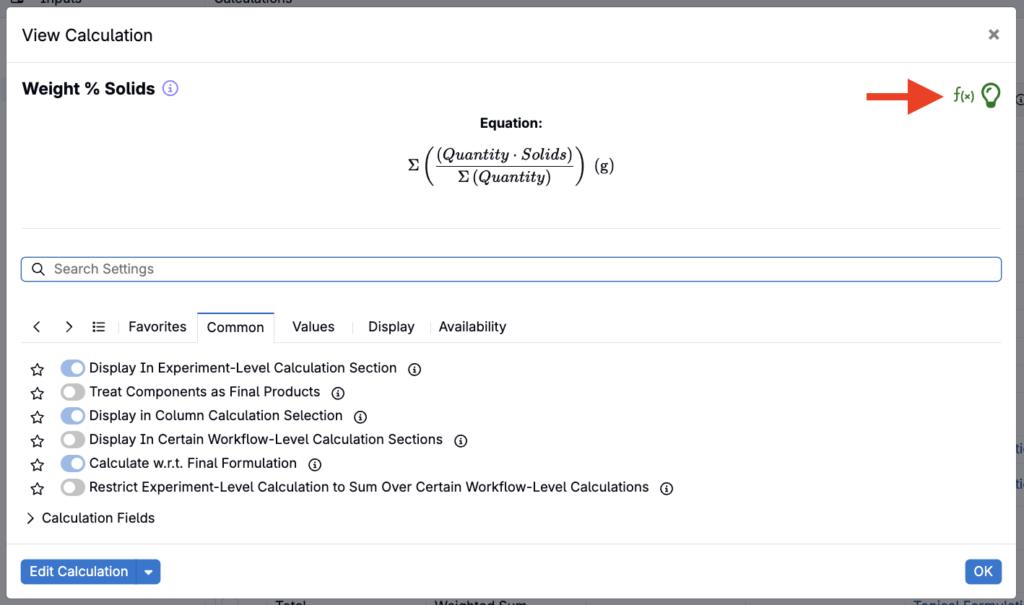
Only two calculation types can be used with Solver:
- Weighted Sum / Weighted Average
- Composite (built only from weighted sums)
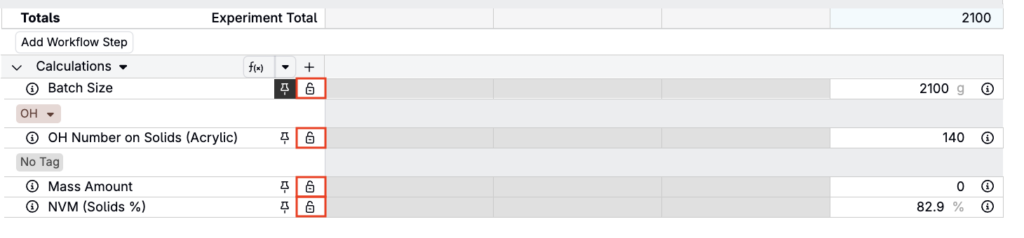
If a calculation does not display a lock icon, it cannot be used with Solver. To learn more, refer to Solver Compatible Calculations.
Ensure adjustable ingredients have non-zero amounts
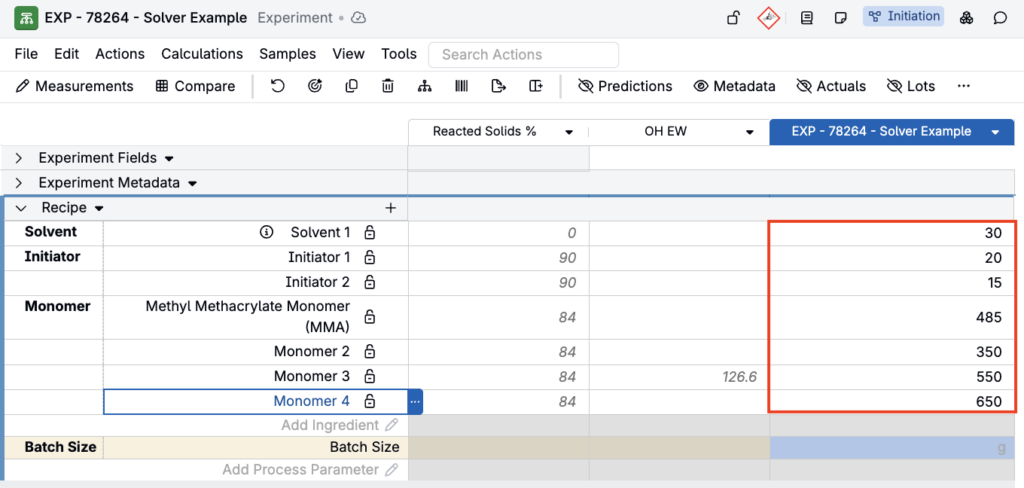
Solver will not change an ingredient amount that is blank or zero. If you want Solver to adjust an ingredient, seed it with any non-zero value—typically 1 g.
Step 1 — Enabling Solve Mode
- Open a recipe.
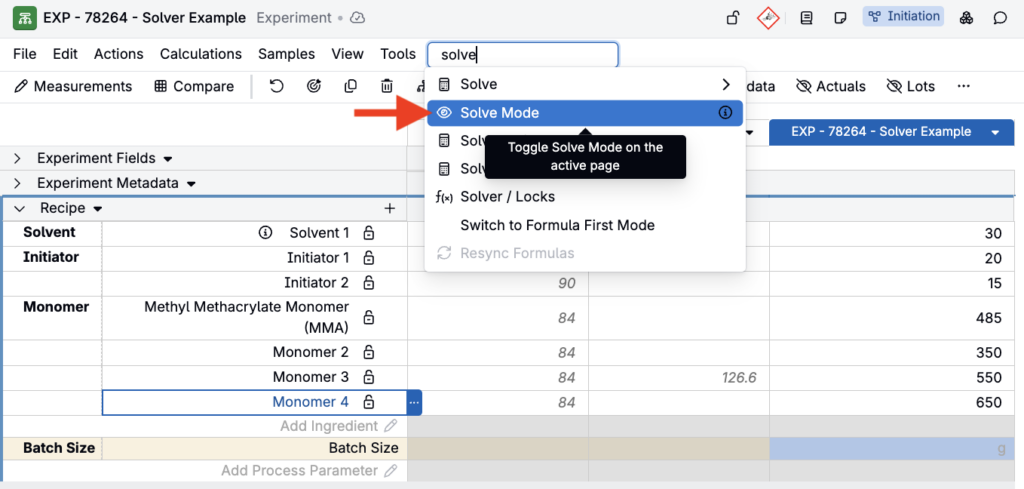
- Click Calculations → Solve Mode.
- Solver-compatible calculations will display a lock icon.
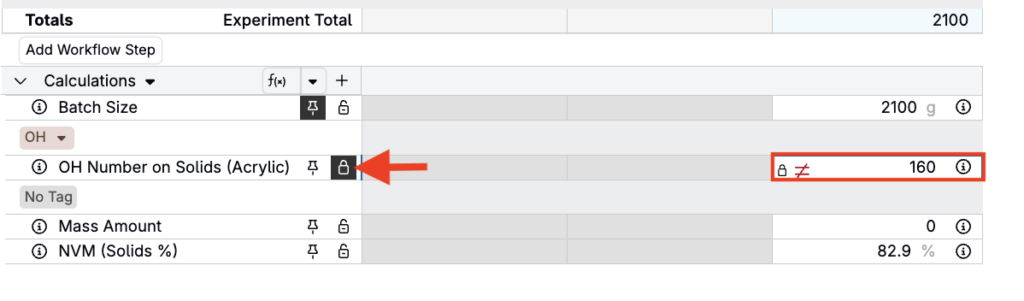
To set a target value, type the desired number directly into the calculation cell.
The cell will show:
- A lock indicating it is now a constraint
- A “not equal” (≠) symbol until you run Solver
Step 2 — Locking and Unlocking
Solver works by combining locked constraints with editable ingredients.
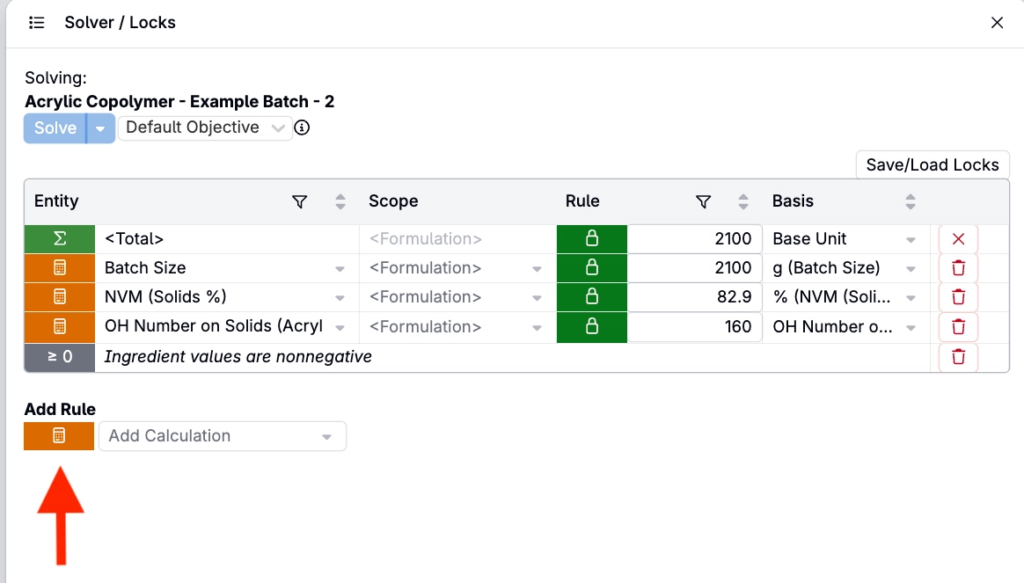
Lock calculations
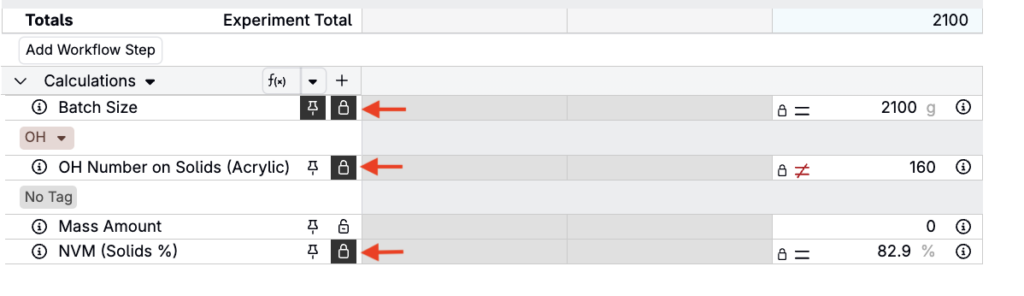
Lock a calculation when you want it to remain fixed, such as:
- OH Number on Solids = 160 (raising it from the baseline 140)
- Batch size = 2100 g
- NVM (Solids) = 85%
You can:
- Type a target into the cell, this will automatically lock it
- Click the lock icon to lock manually
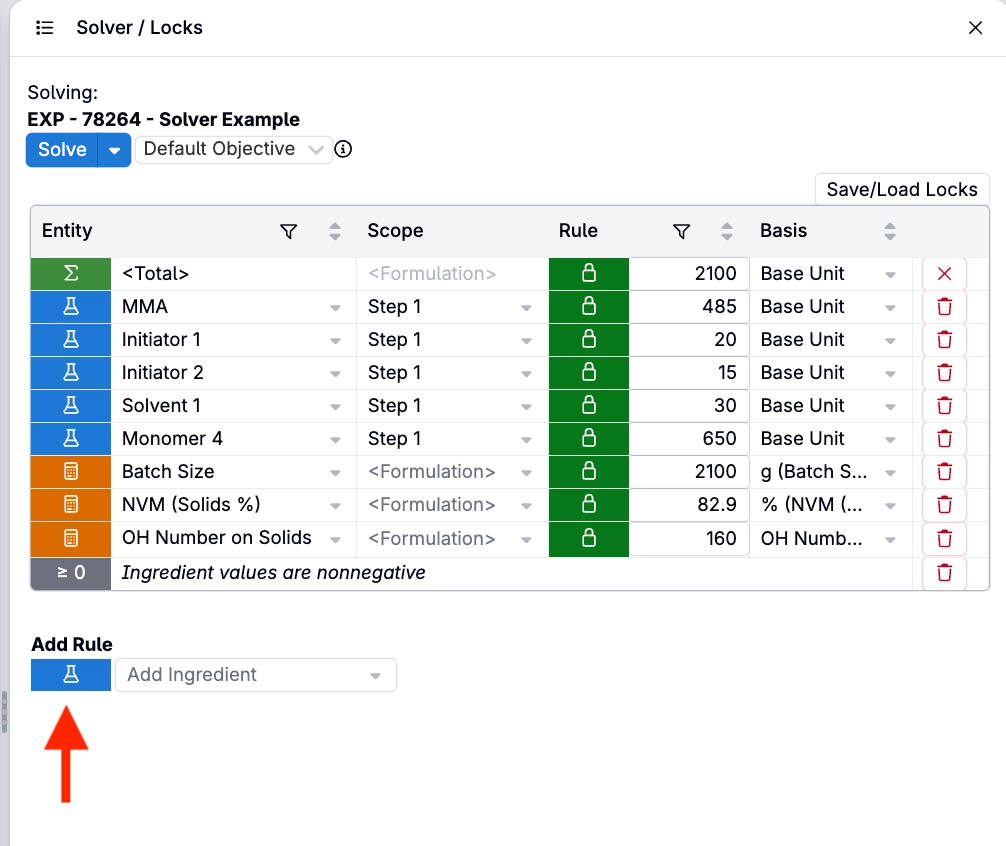
- Add locks via the Solver/Locks side panel
- Type a value into the experiment total or a workflow step total; a lock is added automatically when you click out of the cell, and other values in the experiment are not normalized
Lock/unlock ingredients
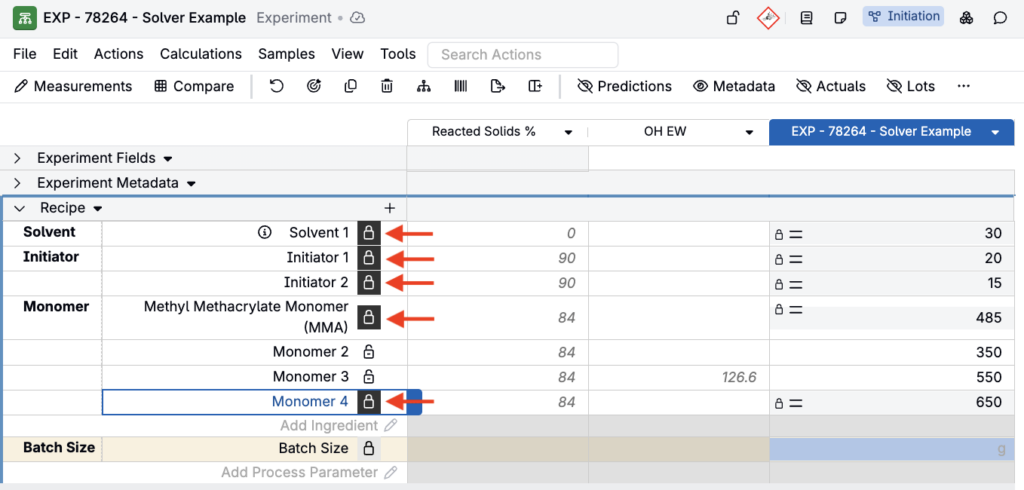
Locked ingredients stay the same. Unlocked ingredients may be adjusted.
You can:
- Lock ingredients you do not want Solver to change.
- Select from the ingredients menu (e.g. “Lock All Other Ingredients” or “Lock All Monomers”) to quickly restrict Solver to select ingredients
- Leave ingredients unlocked when Solver is allowed to adjust their amounts. Each unlocked ingredient gives Solver another degree of freedom—a value it can change to satisfy the locked targets.
- Add locks via the Solver/Locks side panel
- Use Items in Experiment or Items in Workflow Step under Advanced Settings in the Solver/Locks side panel to lock every ingredient in the recipe, or in the workflow step of the focused cell, in one click
- Use Update Base Unit for All Locks under Advanced Settings to set every locked item to the same base unit in one action, which is useful when a recipe uses ingredients with mixed units
For example, to raise OH Number on Solids to 160 while keeping batch size fixed, you might lock every ingredient except Monomer 2 and Monomer 3, letting Solver adjust only those two.
Locking a range instead of a fixed value
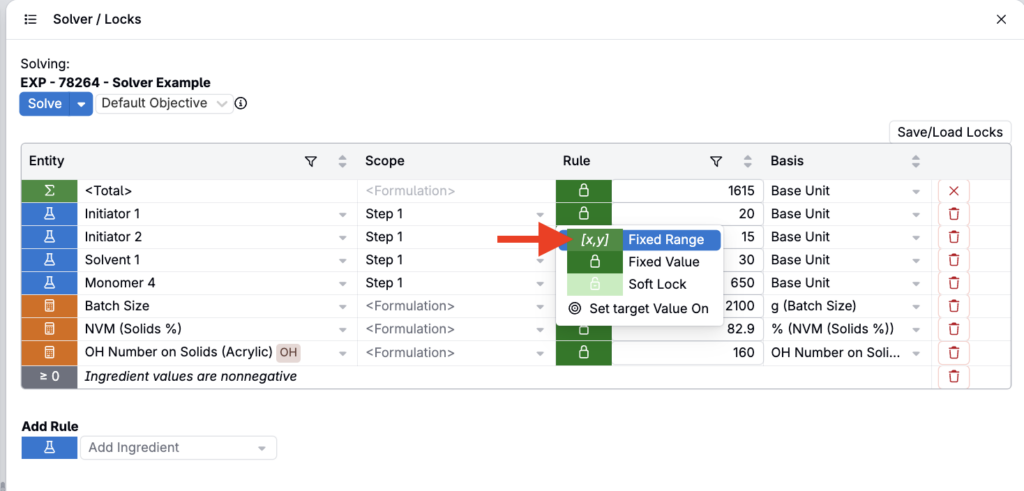
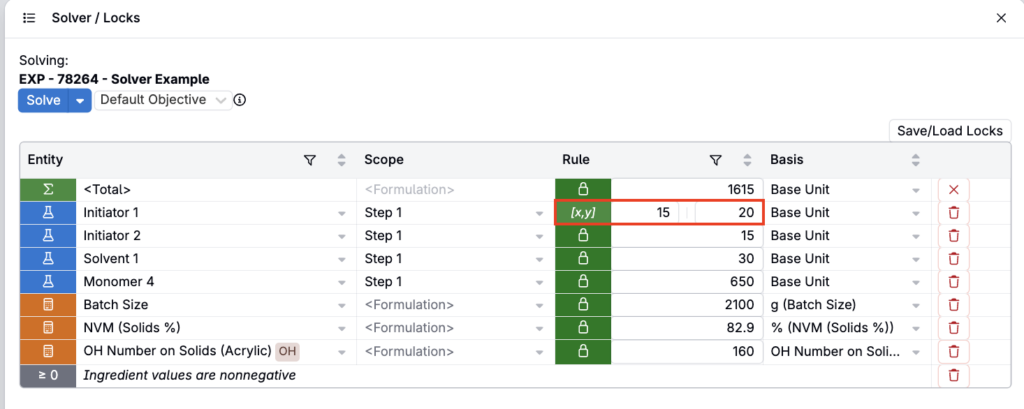
Not every target has to be one exact number. When setting a target, you can also enter a Fixed Range constraint instead of a fixed value by clicking the lock icon in the Rule column of the Solver/Locks sidepanel and selecting Fixed Range.
Then:
- Enter both a lower and upper bound for a fixed range (e.g., 15-20 g)
- Enter only a lower bound for a ≥ (minimum) constraint
- Enter only an upper bound for a ≤ (maximum) constraint
Using a soft lock
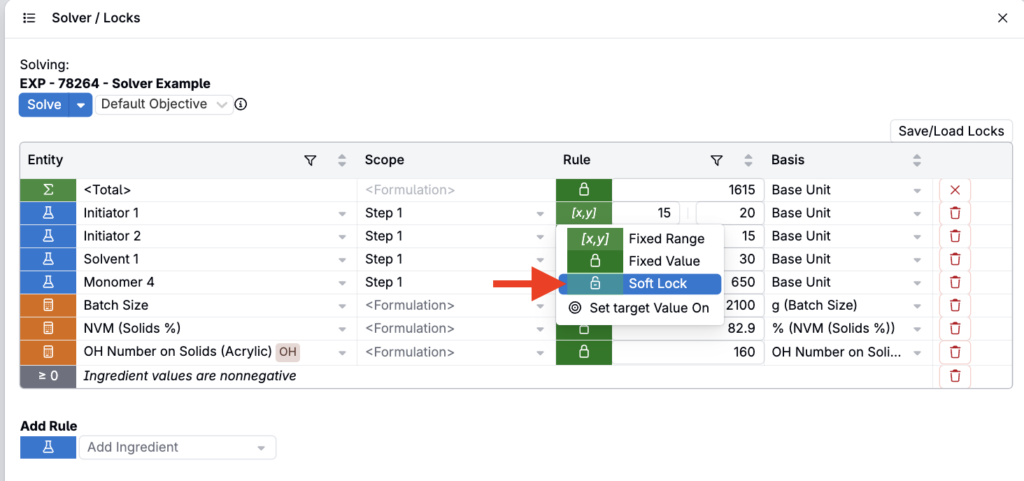
In the Rule column menu, you can also switch to a soft lock. Soft locks tell Solver to keep a value as close as possible to its current value, but allow it to change if needed to satisfy stricter locks. Use a soft lock when a value is important to preserve, but not important enough for the solve to fail.
For example, you might soft lock an ingredient amount you prefer to keep stable while still allowing Solver to adjust it slightly if that helps meet the required calculation targets.
Step 3 — Run the Solver
Once you’ve locked your targets and unlocked ingredients:
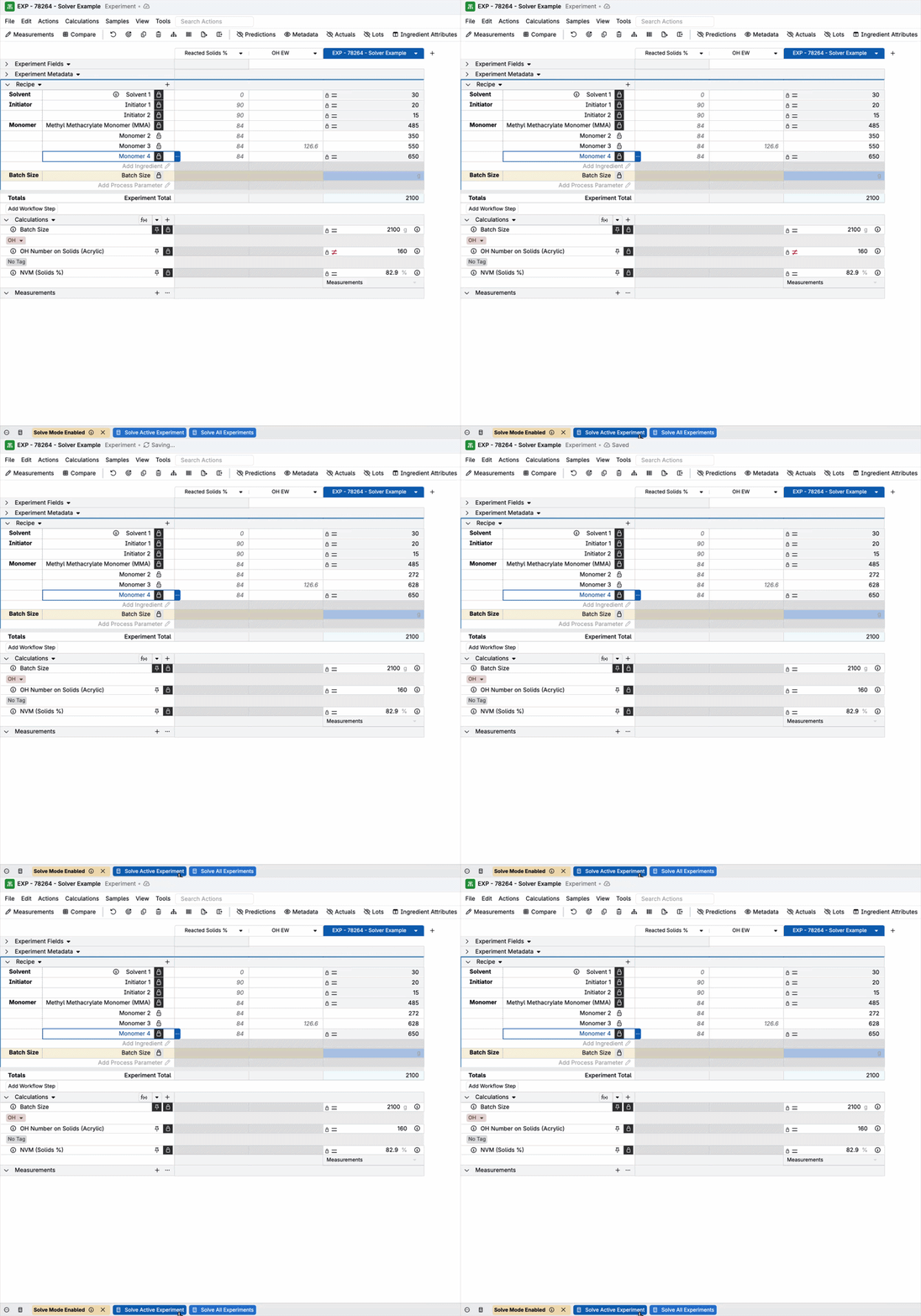
- Solve by clicking Solve Active Experiment (solves only the active experiment) or Solve All Experiments (solves for all experiments in view). Solving for all experiments runs the Solver across every visible formula in a single action instead of solving each one individually. You can solve from within the Solver/Locks sidepanel or via the search menu.
- Solver adjusts ingredient amounts instantly.
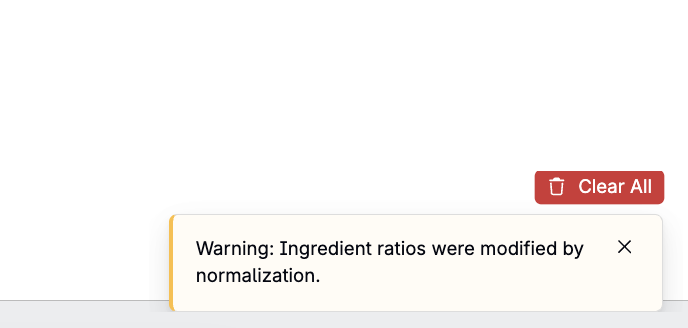
- A banner confirms ingredient ratios were modified by normalization.
- Use Undo to revert if needed.
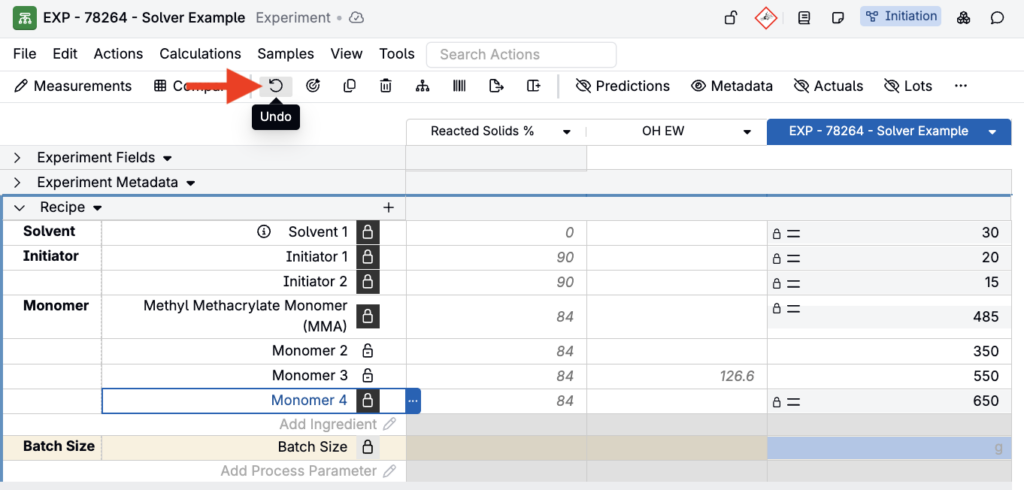
If multiple solutions satisfy your constraints, Solver picks the least disruptive one—the recipe that requires the fewest and smallest ingredient changes.
In the OH Number on Solids example above, Solver reaches OH Number on Solids = 160 at the fixed 2100 g batch size by increasing Monomer 3 from 550 g to 628 g and decreasing Monomer 2 from 350 g to 272 g—a shift of about 79 g in each direction that leaves every other ingredient untouched.
Solving Multiple Constraints (Complex Solves)
You can lock several calculations at once (e.g., OH Number on Solids + NVM + Batch Size).
Solver will report the problem as infeasible when too many constraints compete for too few adjustable variables. To resolve this, remove constraints, unlock additional ingredients, or use Tolerance Percent to give fixed-value constraints a small percentage of flexibility—or set the constraint as a range instead of a fixed value.
Exceptions and additional rules (including column-calculation behavior and other lock types) are covered in Advanced Solver Configuration, which walks through a three-constraint complex solve using this same example recipe.
Solving with Column Calculations
Solver can also use column calculations such as Weight %, OH equivalence contributions, or solids contributions as targets.
Key points:
- You can lock column calculation cells by right-clicking them.
- Column-calculation solving follows the same principles as bottom calculations.
- Locking a column calculation adds one constraint per locked ingredient row.
A full walkthrough, including the Auto-Lock setting, can be found in Solving with Column Calculations.
Solver First and Formula First Modes
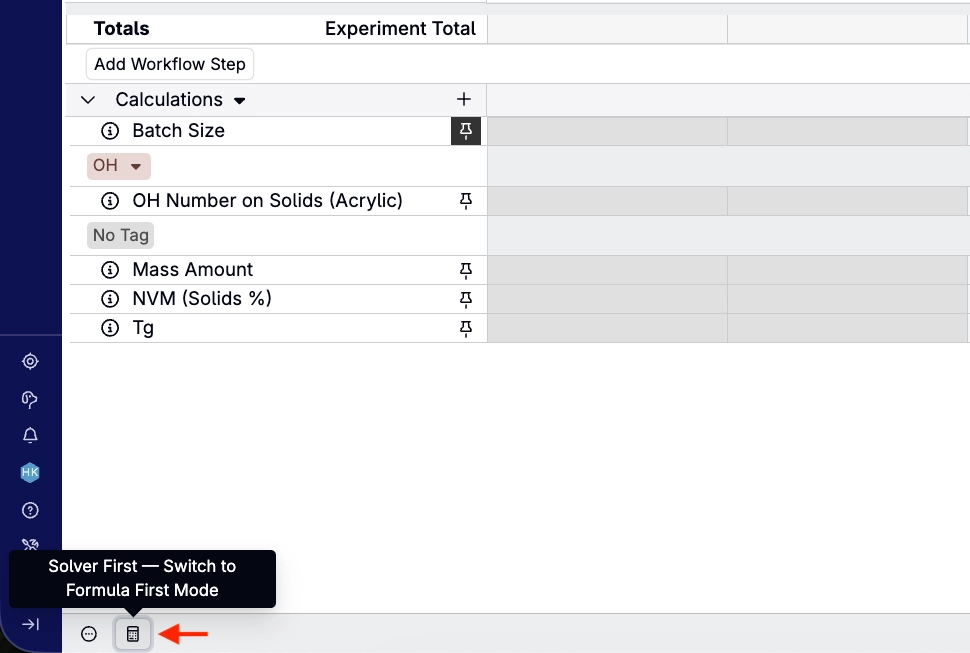
Recipes support two formula modes. Switch between them with the toggle in the bottom-left corner of the Recipes page, which shows a calculator icon in Solver First mode and a function icon (f(x)) in Formula First mode.
- Solver First mode is best when you start from target values or constraints and want the Solver to determine ingredient amounts. Excel-type formulas must reduce to linear expressions (such as sums, weighted averages, or scaling) so the Solver can use them, and each one appears in the Solver/Locks side panel as a read-only Linear Constraint row showing the formula’s cell, its referenced cells, and any constants.
- Formula First mode is best when you build or adjust a recipe directly from its ingredients. Formulas can be any spreadsheet-style formula, including nonlinear ones such as multiplying two cells or taking a square root, and dependent cells recalculate automatically. The Solver does not use these formulas.
Switching modes does not delete formulas set up in the other mode. The toggle only changes how a recipe looks when it has Excel-type formulas or Solver locks.
Common Solver Errors
If Solver reports an issue such as “infeasible,” the most likely causes are:
- A locked calculation is hidden but still active
- At least one unlocked ingredient is zero or blank
- More calculations are locked than degrees of freedom allow
- Non-solver-compatible calculations are being used
- A column calculation was locked unexpectedly
To view a full guide, refer to Solver Troubleshooting.
Automating the Solver with Triggers
The Solver can also run automatically through the Run Solver trigger action. The action supports calculation locks, workflow step locks, and a Solver Objective, so recurring solves can be set up once without users interacting with solver settings directly. To learn more, refer to Running the Solver with a Trigger in Managing Triggers and Trigger Sets in Form Admin.
Best Practices
- Always start by showing relevant ingredient attributes.
- Make a copy of your recipe before solving.
- Begin with simple solves (one target), then add complexity.
- Lock ingredients intentionally; leave others unlocked.
- Seed adjustable ingredients with a non-zero amount.
- Check the Solver/Locks side panel if you encounter errors.
- Use weighted sum or composite calculations whenever possible during configuration.
- When you only need a target range rather than one exact number, use a directional lock instead of a fixed value—it gives Solver more flexibility and can reduce infeasible solves.