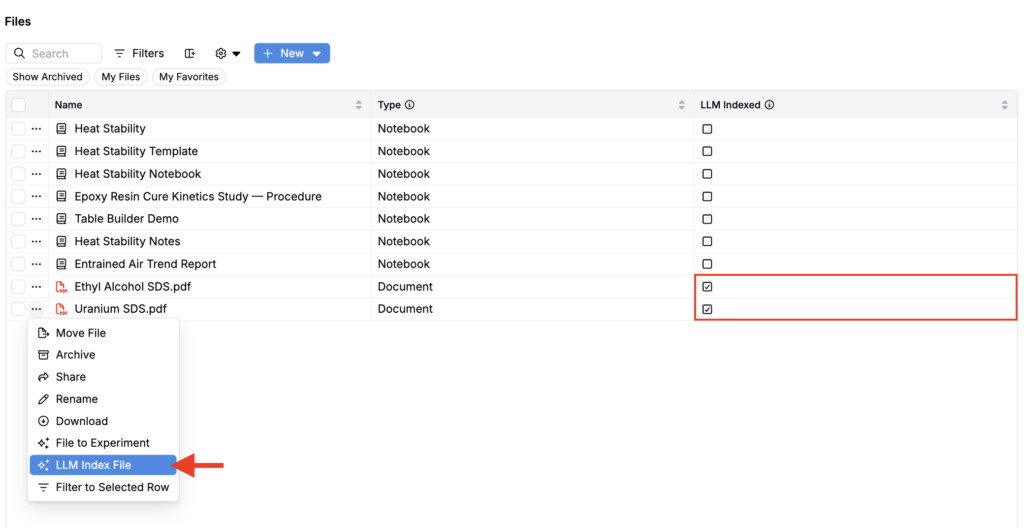
The file folder system is Uncountable’s file storage and organization layer — a folder-based way to upload, structure, and find documents in the platform, similar to Google Drive or Dropbox. It works alongside (not instead of) project-based navigation, giving teams a place to keep documents, reports, SOPs, and other files that don’t live neatly inside a single experiment or project.
This article covers what the file folder system is, how to access and use it, common use cases, and how to make sure files in it are indexed so Bodie, Uncountable’s AI assistant, can find and read them.
What Is the File Folder System?
The file folder system lets you organize files into a nested hierarchy of folders (with a root folder called Files), much like a shared drive. Folders can contain:
- Uploaded documents (PDFs, Word docs, spreadsheets, images, and more)
- Links to other platform entities, like notebooks or sets of experiments (see Experiment Links for File-Based Navigation)
- Other subfolders, nested as deep as needed
Folders can be shared or private, and each gets a distinct icon in the sidepanel so you can tell them apart at a glance.
How to Access It
Select Files from the platform’s navigation bar or use Quick Actions to access the Files listing page.
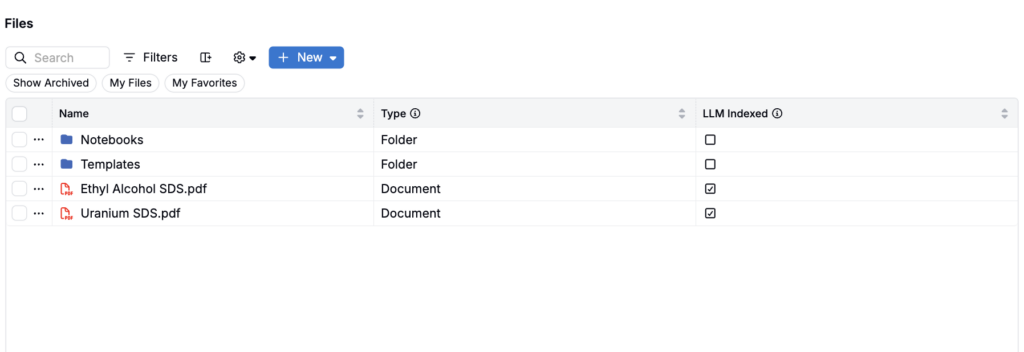
By default, new folders are not shared with all users — you need to explicitly grant access. If you’d rather everything be visible to everyone on a small team, you’ll need to configure sharing per folder; there isn’t currently a single toggle to make the whole system public to all users.
How to Use It
Creating and organizing folders
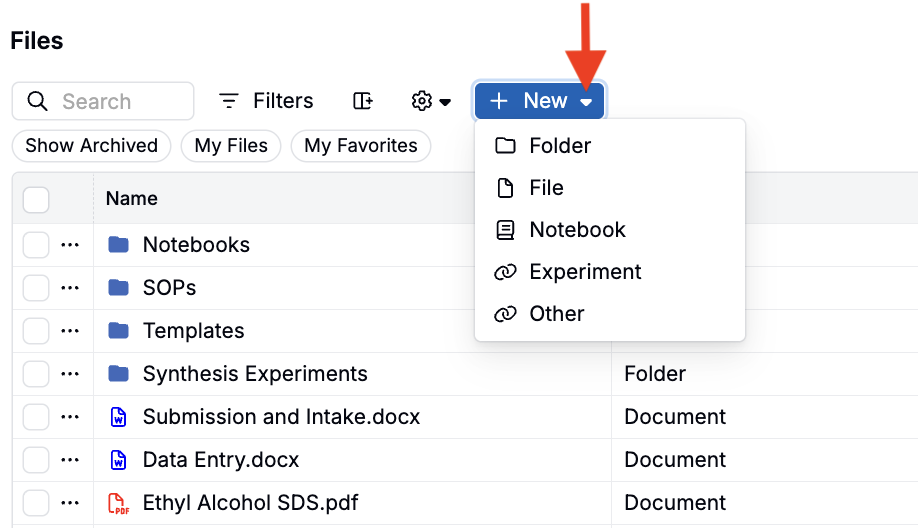
- Click the blue + New button and select from the menu to create a new folder, file, notebook, experiment, or other entity type. When uploading files, you can also fill out definition level fields.
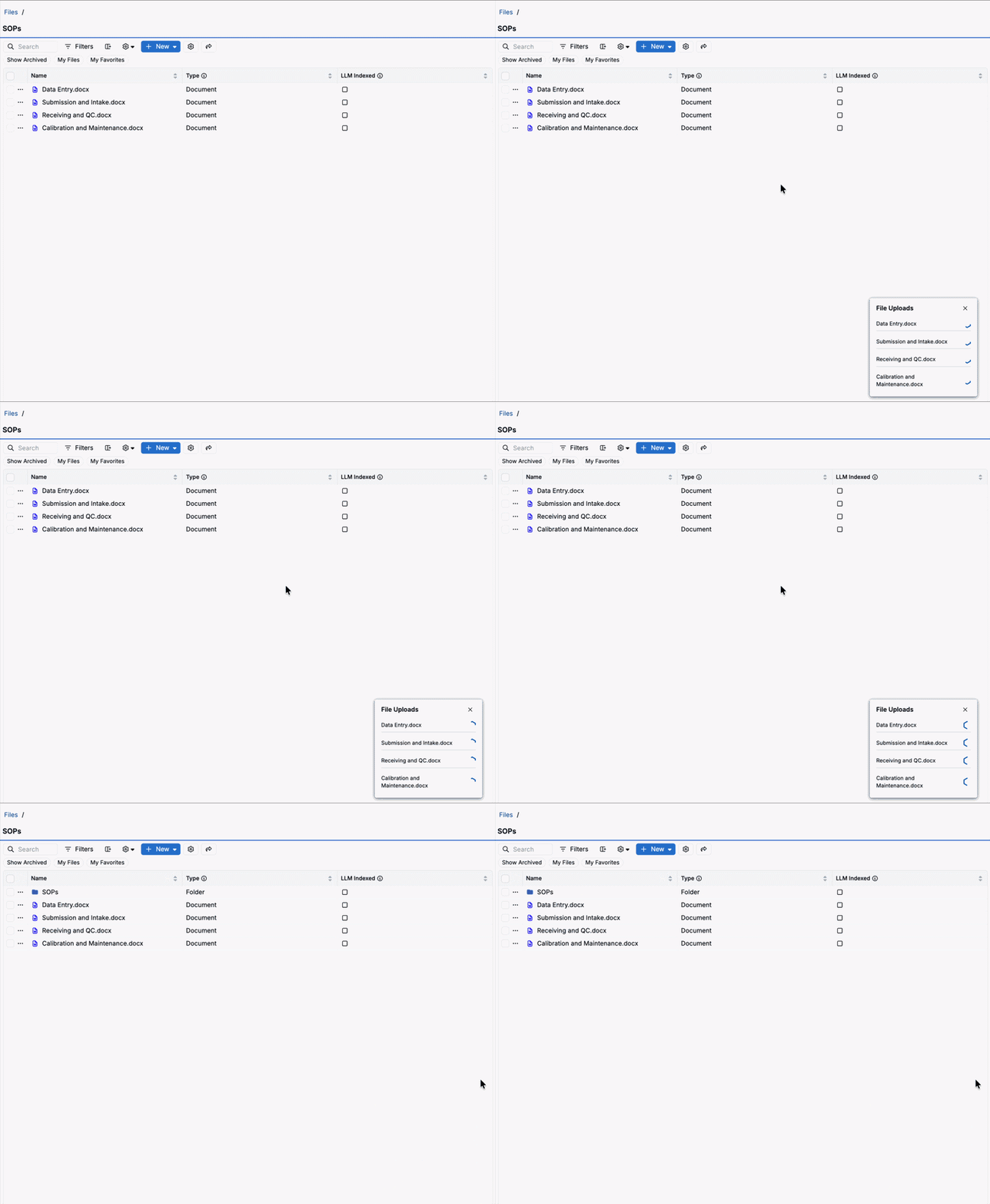
- Drag and drop files (or entire folders) directly onto the page to upload them. Dropping a folder recursively uploads everything inside it, preserving structure.
- Click … > Move File to move a file or folder into an existing folder.
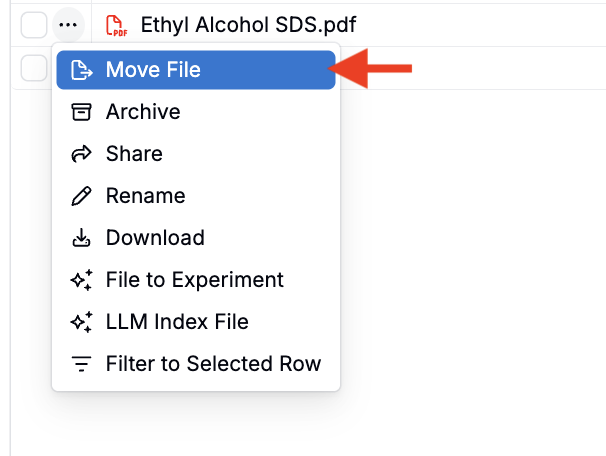
- Use the three-dot menu on a file or folder row for actions like moving, renaming, or archiving.
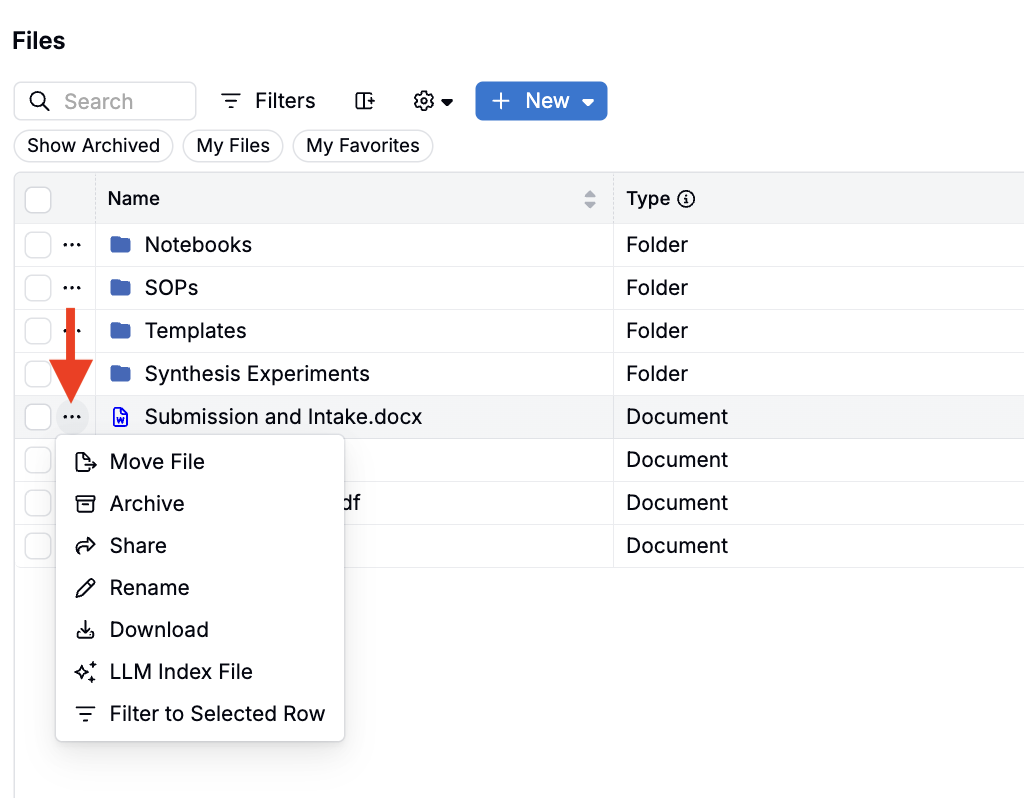
Linking experiments and notebooks into folders
Folders aren’t limited to uploaded files — you can also add existing notebook pages or link entire sets of experiments into a folder for file-centric navigation:
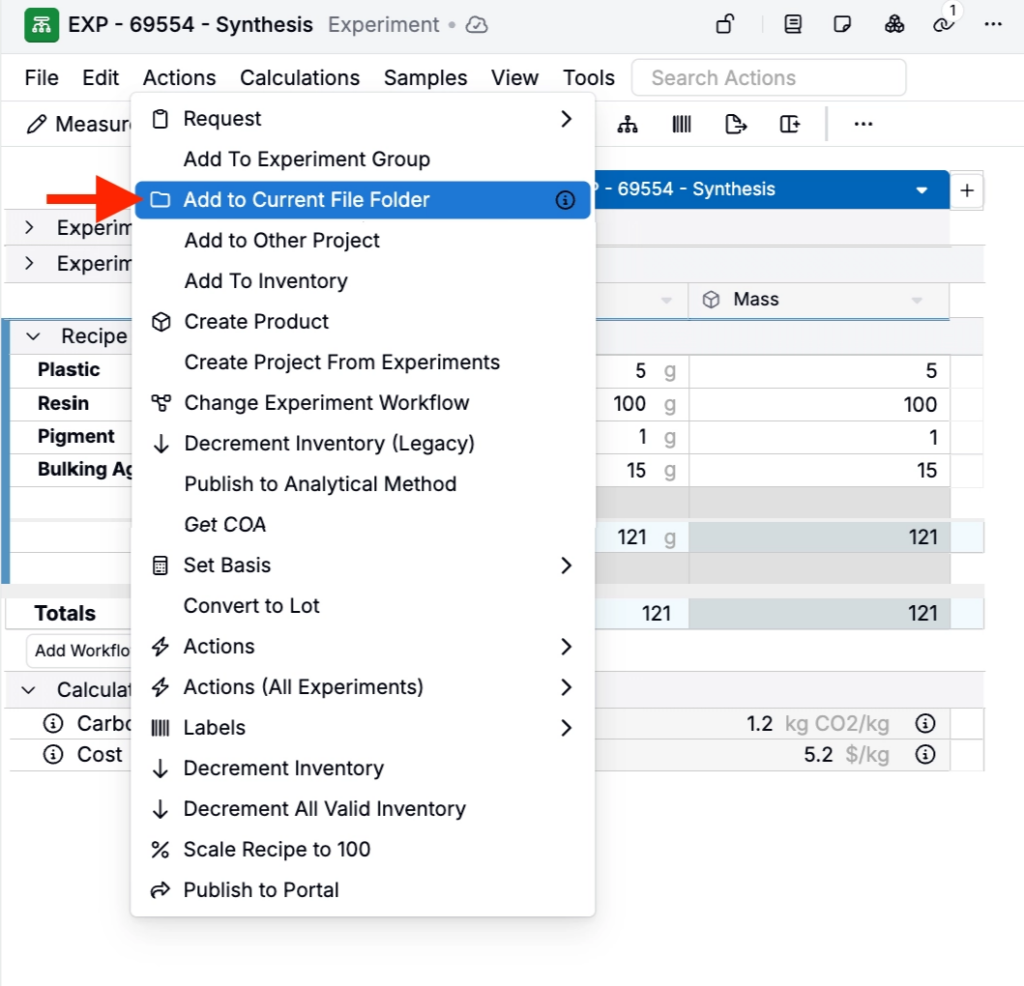
- Add to Current File Folder from an experiment view to link one or more experiments into the open folder.
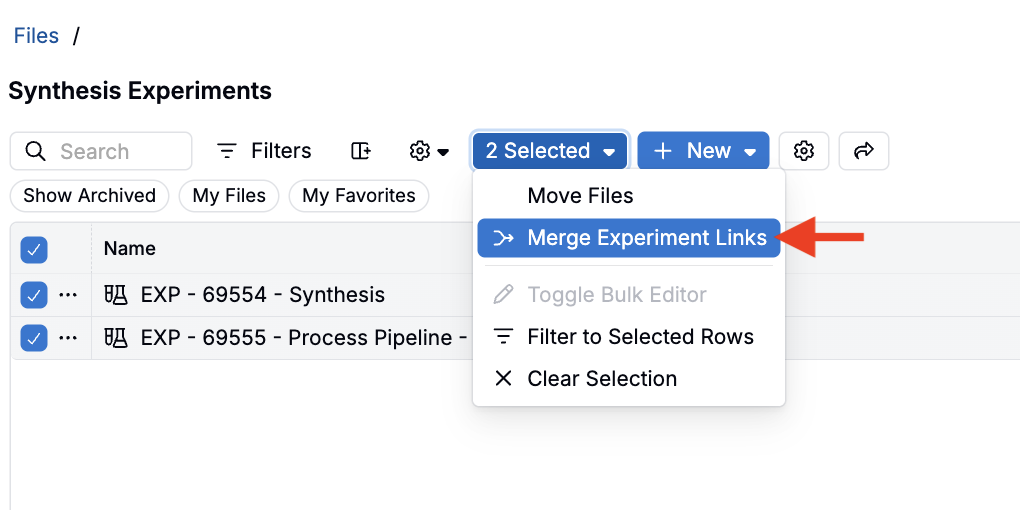
- Merge Experiment Links to combine multiple selected experiment-link files into one.
Links respect your existing project and experiment permissions, and a link label shows up to five experiment names before you need to click in to see the full set.
File Folder Use Cases
- Notebook-first / ELN-style teams: use folders as the primary way to navigate between experiments instead of drilling into projects one at a time.
- Training materials and SOP libraries: a dedicated folder (e.g. “Training Materials”) with custom fields like File Description or a SharePoint link, so files carry useful metadata beyond just a filename.
- Reference literature for R&D: store internal reports, past project files, and patents so they can be searched and cited when researching a new formulation.
Finding and Indexing Files for Bodie
Bodie can search, read, and summarize files stored in the file folder system as long as they are indexed and the user has permission to access them.
Text-based documents are generally indexed automatically after upload. Scanned PDFs, standalone images, and handwritten documents usually need to be indexed manually:
- Locate the file in the file folder system.
- Run the LLM Index File action.