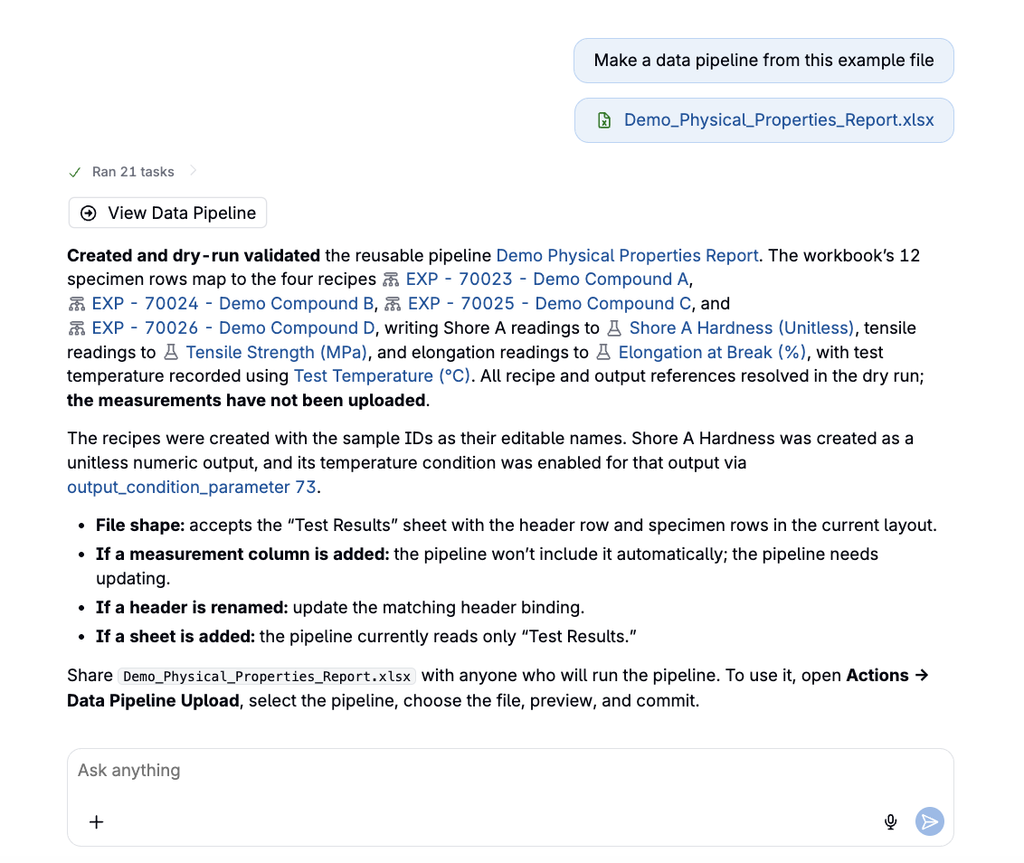
A data pipeline is a saved, reusable upload process that reads a data file and writes its values to experiments. Bodie AI builds the pipeline once from an example file, and users can then upload new files through it as often as needed. For example, a pipeline built from a physical properties test report can read each new report and save Shore A hardness, tensile strength, and elongation results to the matching experiments
Note: Data pipelines are different from process pipelines, which model step-by-step experiment workflows. To learn more about process pipelines, refer to Pipelines.
The Data Pipeline Page
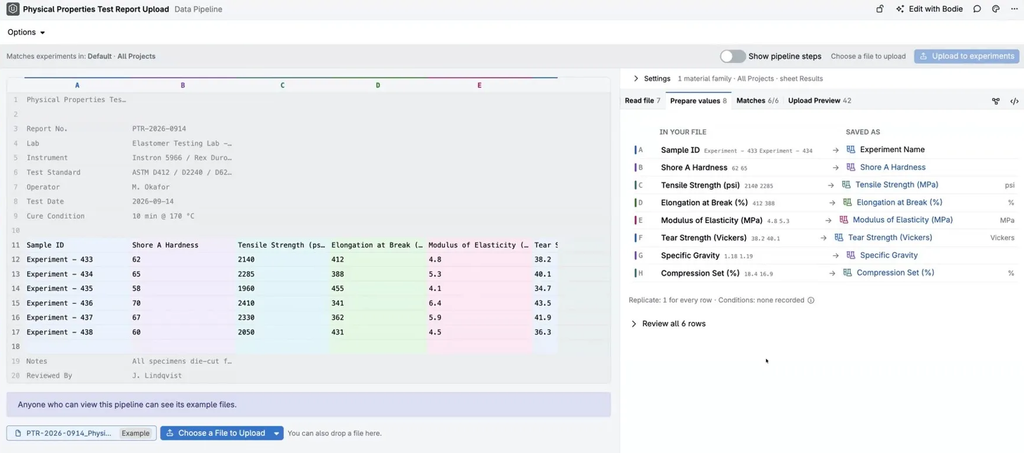
Each saved pipeline has its own page. To view a list of all data pipelines, use Quick Actions to access Data Pipelines. Each individual data pipeline page shows the pipeline’s source file alongside what the pipeline extracts from it:
- Source file — The example file appears on the left. Columns and regions the pipeline reads are color-coded to match the values on the right. Hover over or click a value to see where it comes from in the file. Files with several sheets show a tab for each sheet.
- Settings — Expand Settings to review and edit the pipeline’s Detection rules, Material Families, and Sheet. Select the pencil icon next to a setting to change it.
- Read file — How many rows the pipeline reads from the file.
- Prepare values — Each value in the file (In Your File) and where it is saved (Saved As), such as Experiment Name or an output, with units and replicate and condition details.
- Matches — How many file values match existing experiments and measurements, for example 3 / 3 experiments found. Values that match nothing are flagged here; Fix with Bodie can help resolve them.
- Upload Preview — The values that will be written, before anything is committed.
To change the pipeline with Bodie, select Edit with Bodie in the page header.
Viewing Pipeline Steps
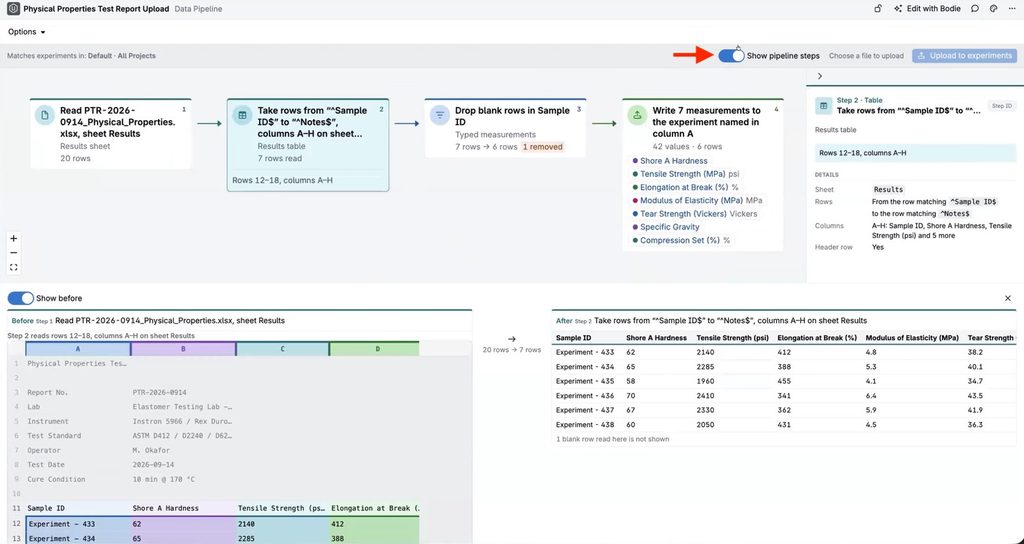
Turn on Show pipeline steps to see the pipeline as a flow of numbered step cards. Each card describes its operation in plain language, such as Turn Sweetness, Aroma, Fruity Flavor and 4 more into rows, and shows row counts (for example, 48 rows → 336 rows).
- Select a step card to open its details in the side panel, including the step type (for example, Reshape: Unpivot).
- Turn on Show before to compare the table before and after that step side by side.
This makes it easier to see how each step transforms the data and to find the step responsible for an unexpected value.
File Detection
Detection rules let the platform recognize which pipeline reads a file. When a file is dropped into the Data Pipeline Upload modal, every pipeline’s rules are checked and the matching pipeline is selected automatically.
Rule Types
Rules can check the file name and the file contents:
- File Extension — The file has one of the listed extensions, such as .xlsx or .xls.
- File Name Contains / File Name Pattern — The file name contains text or matches a pattern.
- Cell Equals / Cell Contains / Cell Pattern — A cell in the file equals, contains, or matches a value, such as a report title in the first row.
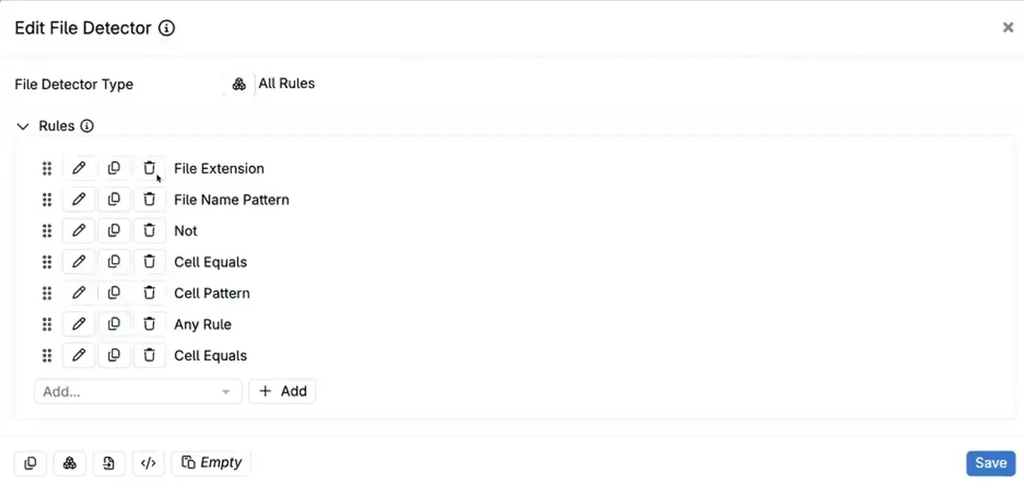
Rules are grouped by a File Detector Type: All Rules (every rule must match), Any Rule (at least one rule must match), or Not (the rule must not match). Groups can be nested.
Setting Up Detection Rules
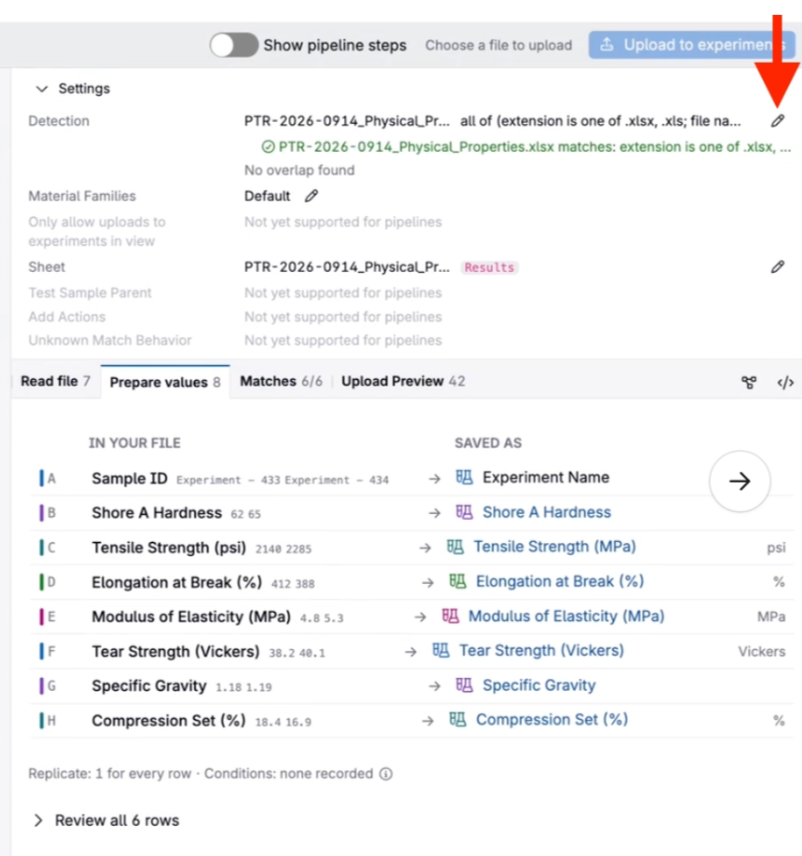
- Open the data pipeline page and expand Settings.
- Select the pencil icon next to Detection to open Edit File Detector.
- Choose a File Detector Type.
- Select a rule type from the dropdown and click Add. Select the pencil icon on a rule to set its values.
- Click Save.
After saving, Settings shows a summary of the rules and whether the pipeline’s example file matches them. Each rule set must match its own example files. The platform also checks whether the rules overlap with other pipelines in the same material family; overlap is shown as a warning, because the user can choose between matching pipelines at upload.
Uploading Files with a Data Pipeline
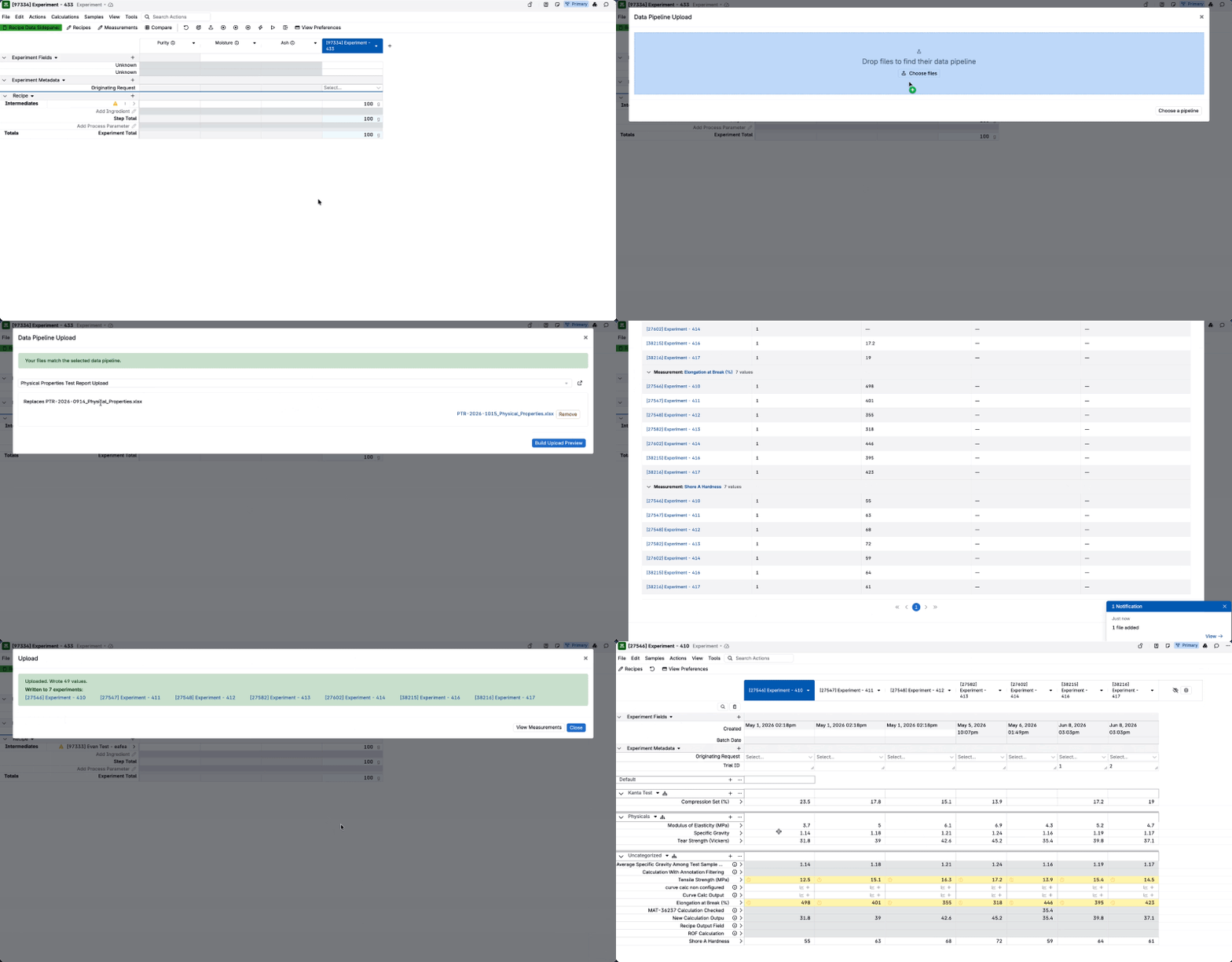
- On an experiment page, search actions for Data Pipeline Upload.
- Drop one or more files on Drop files to find their data pipeline, or click Choose files. To pick a pipeline yourself, click Choose a pipeline.
- Review the result:
- One match — The pipeline is selected and each file is placed in the source it fills, with the message Your files match the selected data pipeline. Drop any remaining files into open sources.
- More than one match — Choose from the matching pipelines.
- No match — Choose from the full list of pipelines. The dropped files are kept.
- Click Build Upload Preview and review the values, grouped by experiment or output.
- Resolve any unmatched values, then confirm the upload.
Replicates
Replicate assignment depends on the pipeline setup: a pipeline can use a fixed replicate number, read the replicate from a file column (including a number in a sample name), or assign the next free replicate, starting at 1 or after existing replicates.
If the upload needs you to provide a replicate, you’ll be prompted, and the preview shows the final replicate numbers before anything is saved. In long-format files, each measurement row counts separately; if multiple rows would be assigned to the same replicate, the upload stops so you can correct the setup. Data pipelines can’t start at an arbitrary replicate number or number replicates across a well plate.
Creating a Pipeline with Bodie
Bodie can create a pipeline from an example data file. Bodie asks its setup questions together in one card, and the saved pipeline can then be reviewed and refined on the data pipeline page or with Edit with Bodie.
Note: Only creating a pipeline uses Bodie credits. Uploads through a saved pipeline are credit free.