Custom input calculations are the most flexible calculation type in Uncountable. They allow you to build a recipe-level value from a user-defined equation, combining ingredients, process parameters, ingredient attributes, other calculations, and more into a single formula.
What Is a Custom Input Calculation?
A Custom calculation is driven by a free-form equation that you write using variables you define. Each variable corresponds to a component — a specific ingredient, process parameter, ingredient attribute, another calculation, a weighted sum component, a step quantity, or experiment metadata.
Custom calculations work well for situations that don’t fit the structured numerator/denominator model of Weighted Sum or Average calculations.
Example use cases
- Feed Volume (mL) — Multiply a feed rate (mL/min) process parameter by a feed time (min) process parameter
- Batch Temperature Correction — Combine a target temperature process parameter with a correction factor attribute
- Remaining Solvent — Subtract an evaporation-based value from an ingredient amount
- Scaled property value — Multiply an ingredient’s attribute value by its fractional amount in the recipe
- Conditional logic — Use
if()functions to return different values based on the state of metadata or a process parameter
How to Configure a Custom Input Calculation
Custom calculations can be created from the Calculations listing page or directly in the Recipe view of a formulation. Both methods open the same creation modal.
In the modal:
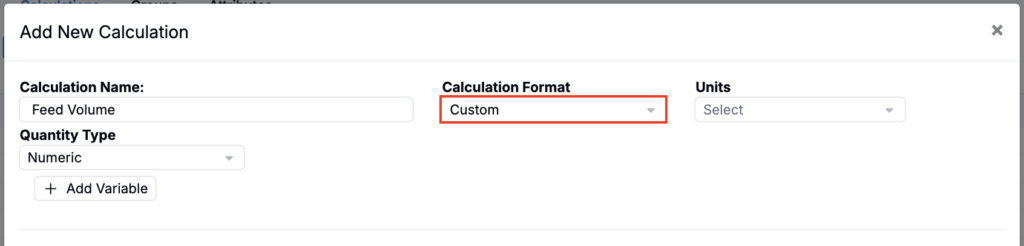
- Enter a name and units (recommended) for your calculation
- Set Calculation Format to Custom.
Custom Calculation Components
You’ll build the calculation by adding individual components as variables, then writing an equation that references them.
Available component types include:
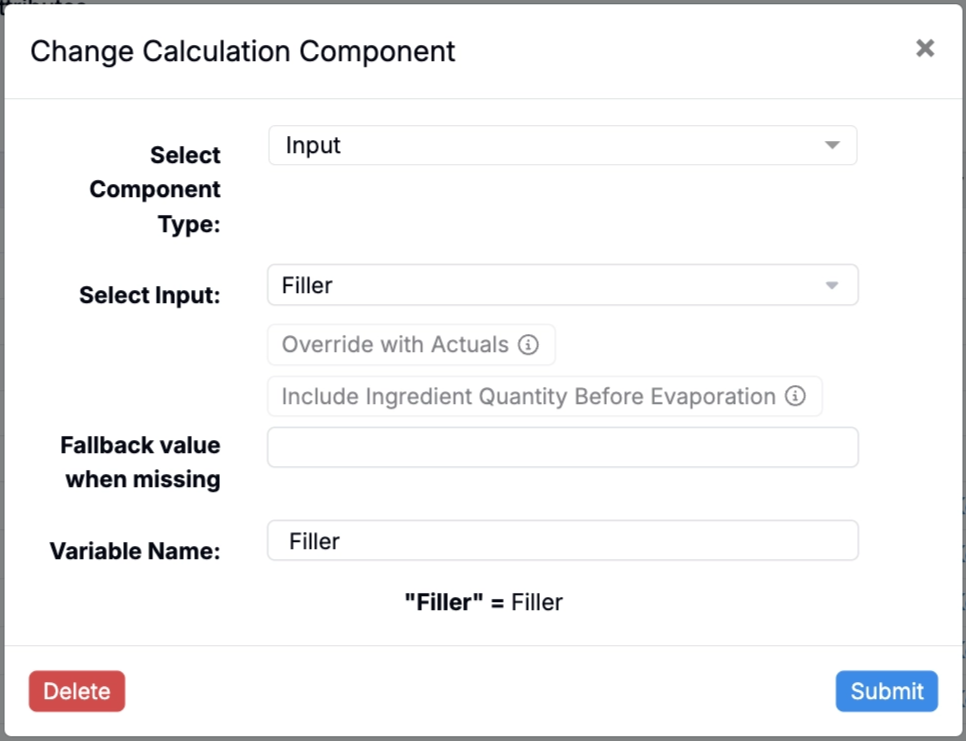
Input
Input components references a specific ingredient or process parameter by name. You can also:
- Override with Actuals — If actual values are present, override with that value
- Include Ingredient Quantity Before Evaporation — Choose to include ingredient quantity before evaporation (the entered value, not the remaining post-evaporation amount).
- Ingredient evaporation is an advanced feature. For more details, reach out to your dedicated account manager.
- Include Process Parameters From Component Recipes — If your calculation references a process parameter that lives on a component recipe (e.g., a Recipe-as-Ingredient / intermediate experiment used inside your current recipe), enable this to pull that parameter’s value from the component recipe instead of only looking at the top-level recipe.
- Fallback attribute when missing — Set a value used if the ingredient or parameter is not present in the recipe. If left blank, the calculation displays as blank when the input is absent.
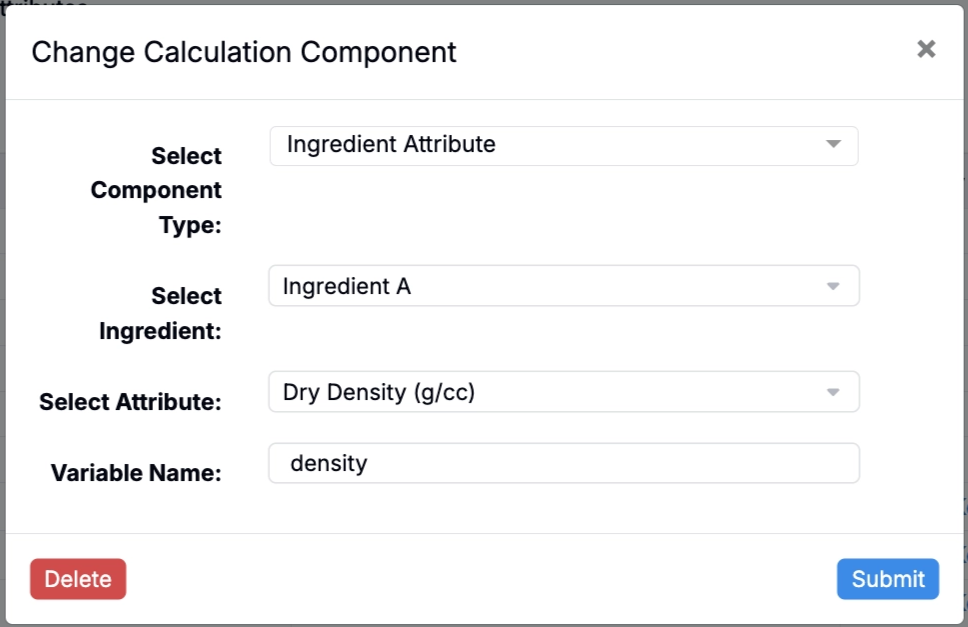
Ingredient Attribute
References a specific attribute of a specific ingredient (e.g., the density of Ingredient A). Process parameter attributes can also be used. Select the ingredient and then the attribute to reference.
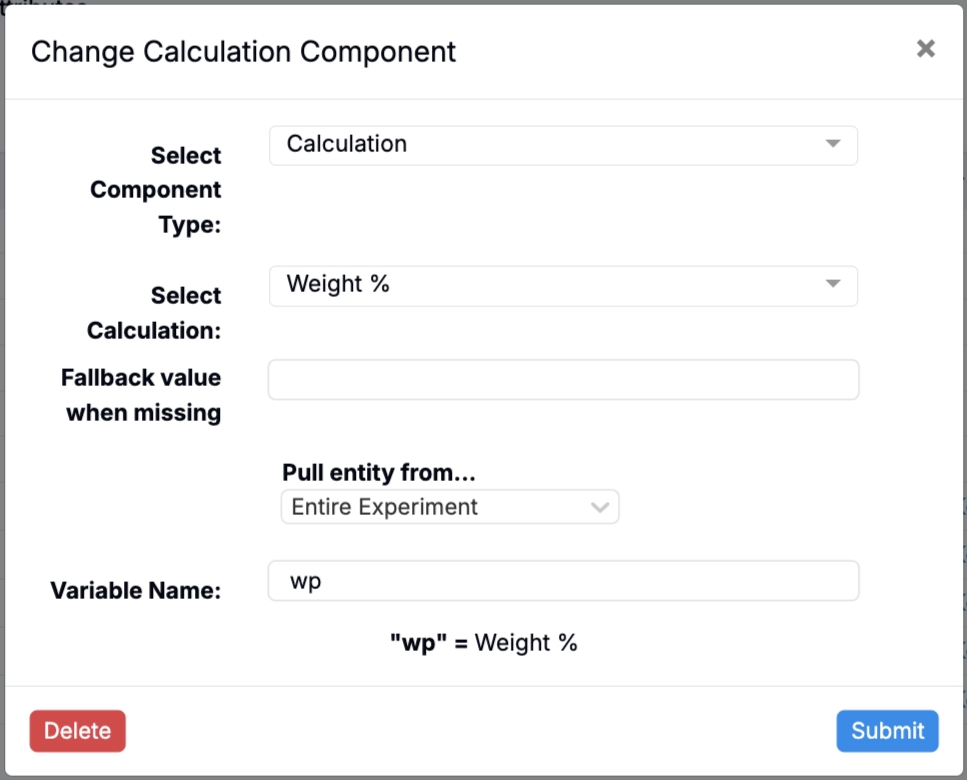
Calculation
References an existing input calculation as a variable. You can set a fallback value and specify whether the value is pulled from the entire experiment, the same workflow step, or a specific workflow step.
Only input calculations can be referenced. Output calculations cannot be used as entities.
Weighted Sum
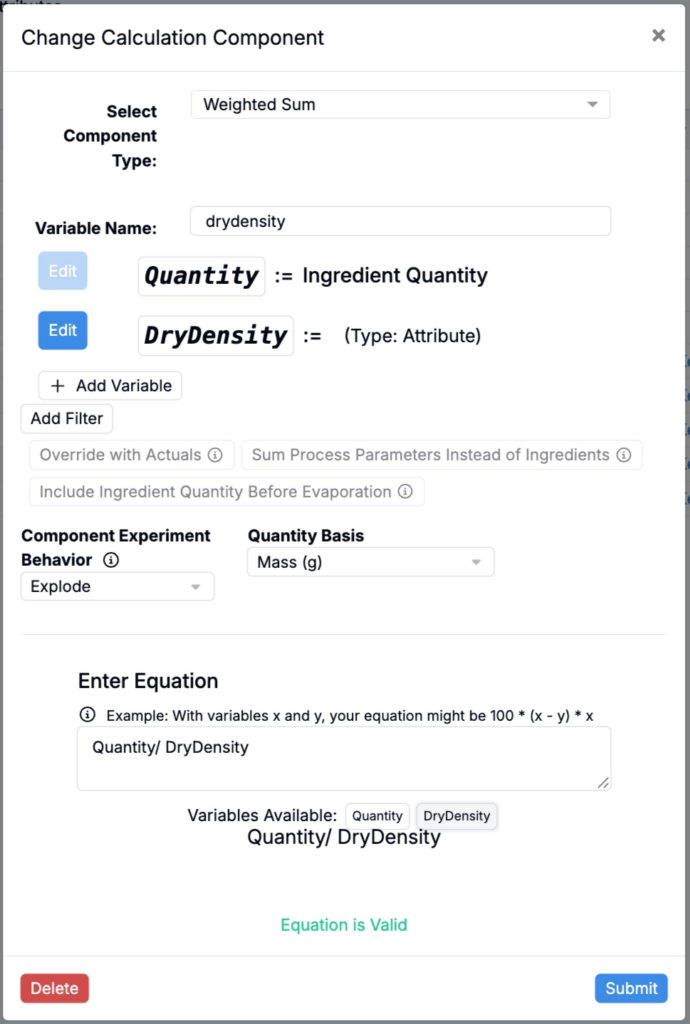
An embedded weighted sum component within the Custom calculation. A Quantity sub-entity is preselected by default. You can add additional sub-entities (such as an ingredient attribute like density), write an equation for the sub-entities, apply filters to restrict which ingredients are included.
Additional advanced options include:
- Override with Actuals — If actual values are present, override with that value
- Sum Process Parameters Instead of Ingredients — Sums process parameter values instead of ingredient amounts
- Include Ingredient Quantity Before Evaporation — Uses entered amounts rather than post-evaporation amounts
- Component Experiment Behavior — Either “Explode” (use the individual ingredients inside the component) or “Use as Single Term” (treat the entire intermediate experiment as one ingredient)
Step Quantity
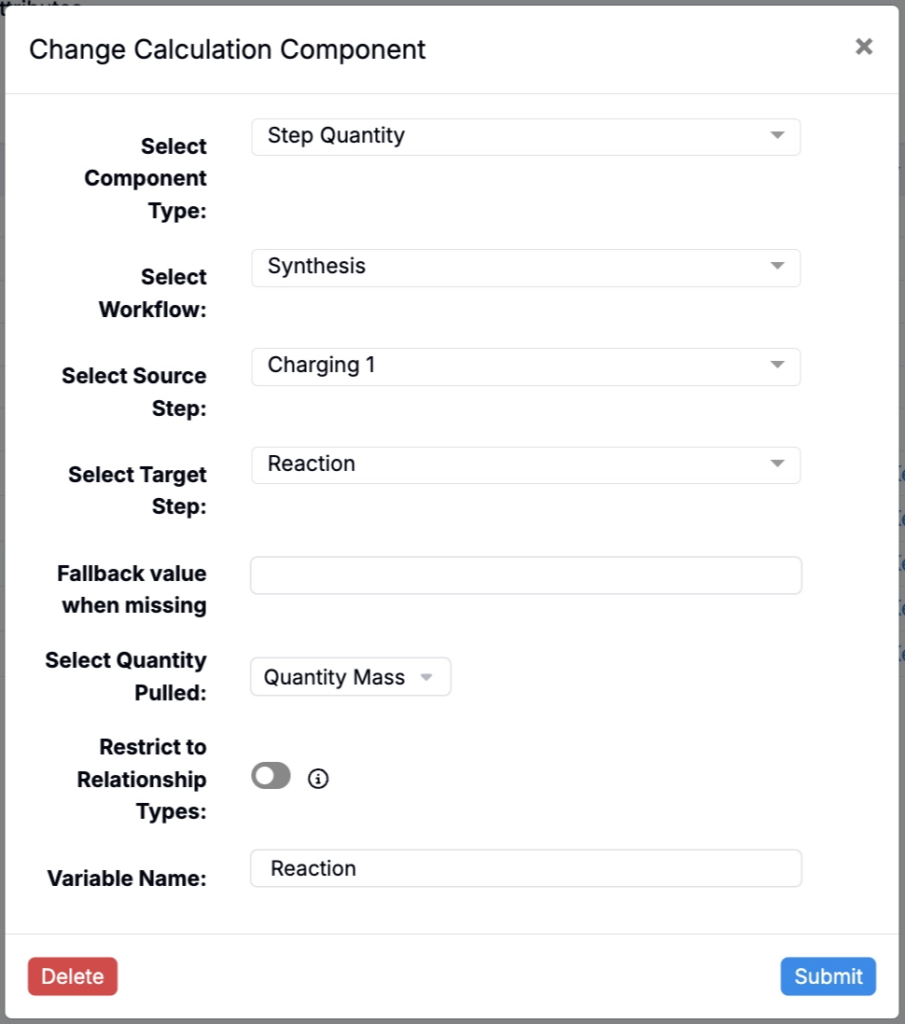
References the actual amount of material carried from one workflow step to another (the “step take” quantity). You select the workflow, source step, and target step.
Additional options include:
- Fallback attribute when missing — Set a value used if the quantity is not present in the recipe. If left blank, the calculation displays as blank when the input is absent.
- Select quantity pulled — Select basis units to pull
- Restrict to Relationship Types — Restriction to specific step relationship types (autofill, feed, feed percentage, include all, include percentage, include quantity)
Step Quantity entities are most commonly used to scale a calculation based on how much material was actually transferred from a preceding step.
Metadata
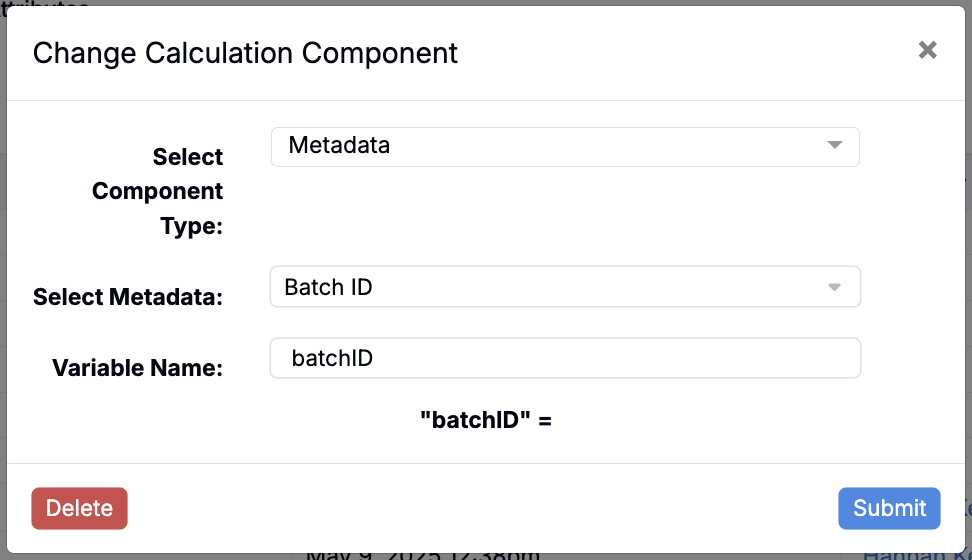
References a numeric, text, or categorical experiment metadata field. Text and categorical fields can only be used in conditional logic (e.g., if(metadata_field == "value", result_a, result_b)). Numeric fields can be used directly in arithmetic expressions.
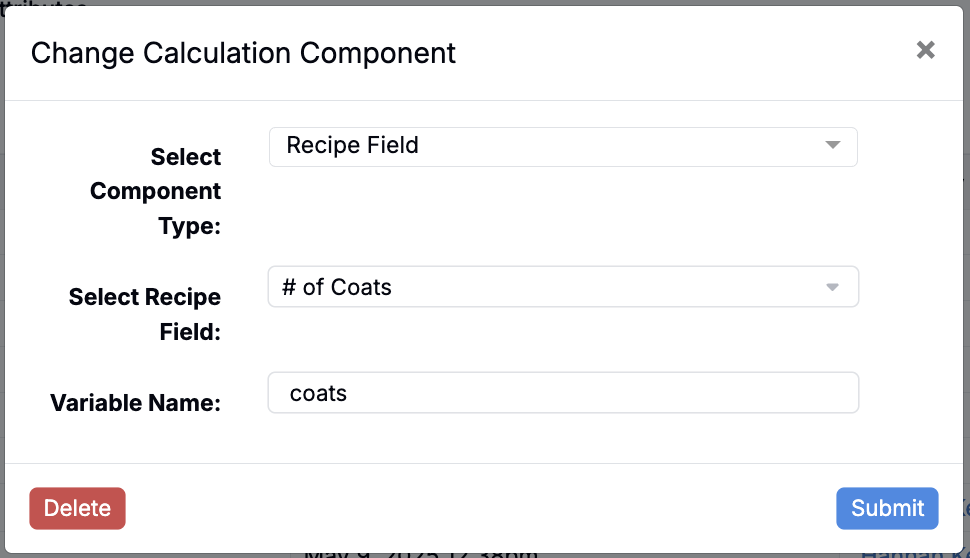
Recipe Field
References a value stored on the experiment itself (i.e., an experiment-level “field” on the experiment definition, such as batch size, target temperature, region, reactor type, or other recipe metadata).
Recipe fields can be numeric or non-numeric; non-numeric fields are most often used for conditional logic via if() (for example, if(region == "EU", value_a, value_b)).
This is useful when the calculation needs to incorporate context that isn’t tied to any single ingredient or workflow step.
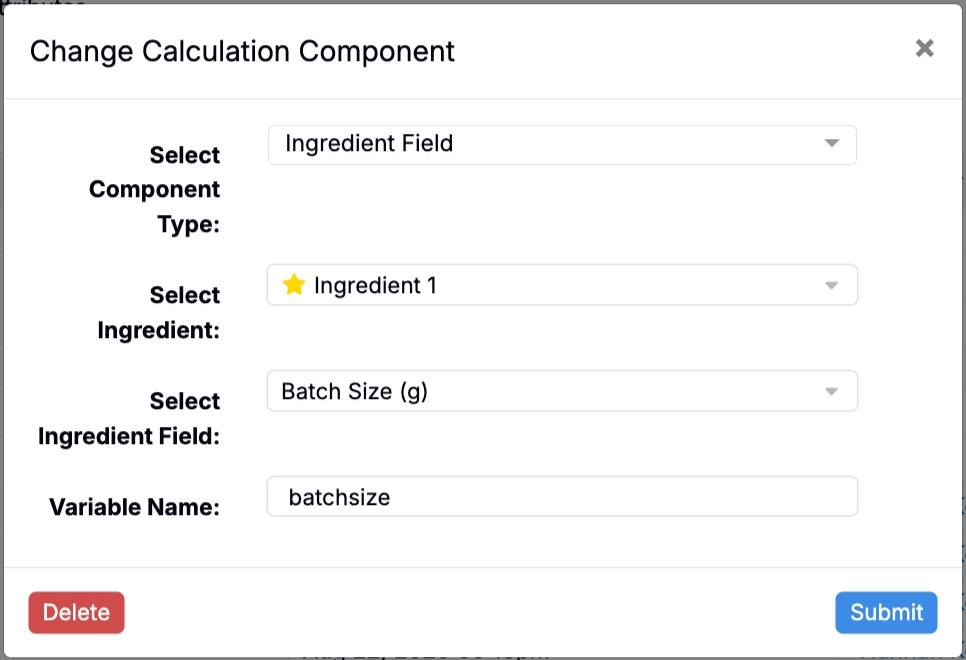
Ingredient Field
References a value stored on an ingredient definition (i.e., an ingredient “field” on the ingredient details page), similar in spirit to an ingredient attribute, but sourced from the ingredient’s field-based schema. This is especially common in configurations that rely on ingredient fields instead of ingredient attributes.
If your ingredient field is text/categorical, it’s typically used for conditional logic; numeric fields can be used directly in arithmetic.
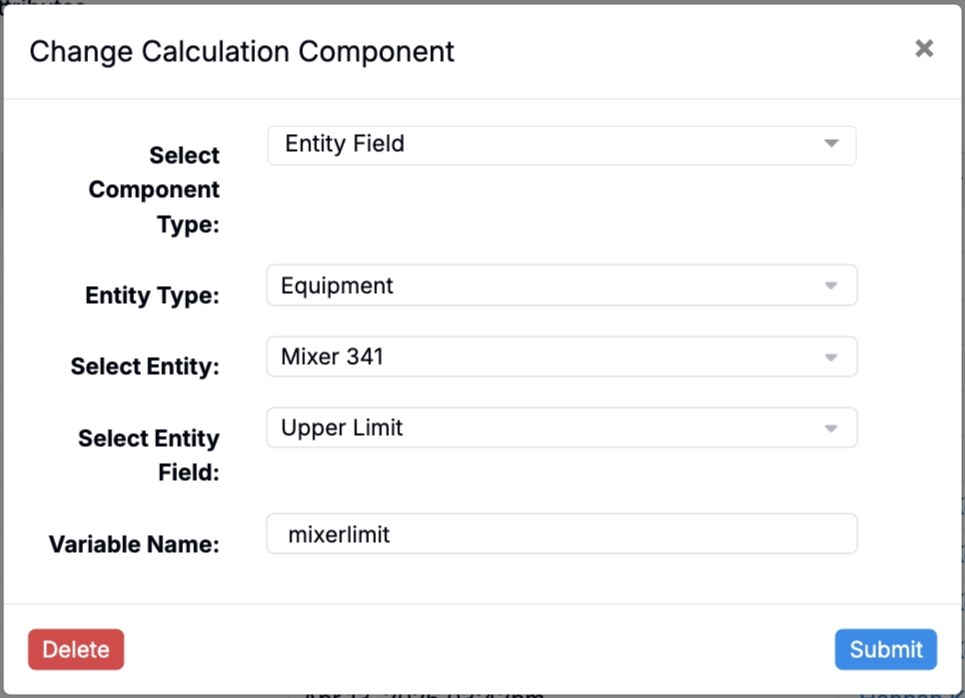
Entity Field
References a field value from a piece of equipment used in the recipe, for example, a spec, setting, or identifier stored on the equipment definition into your calculation.
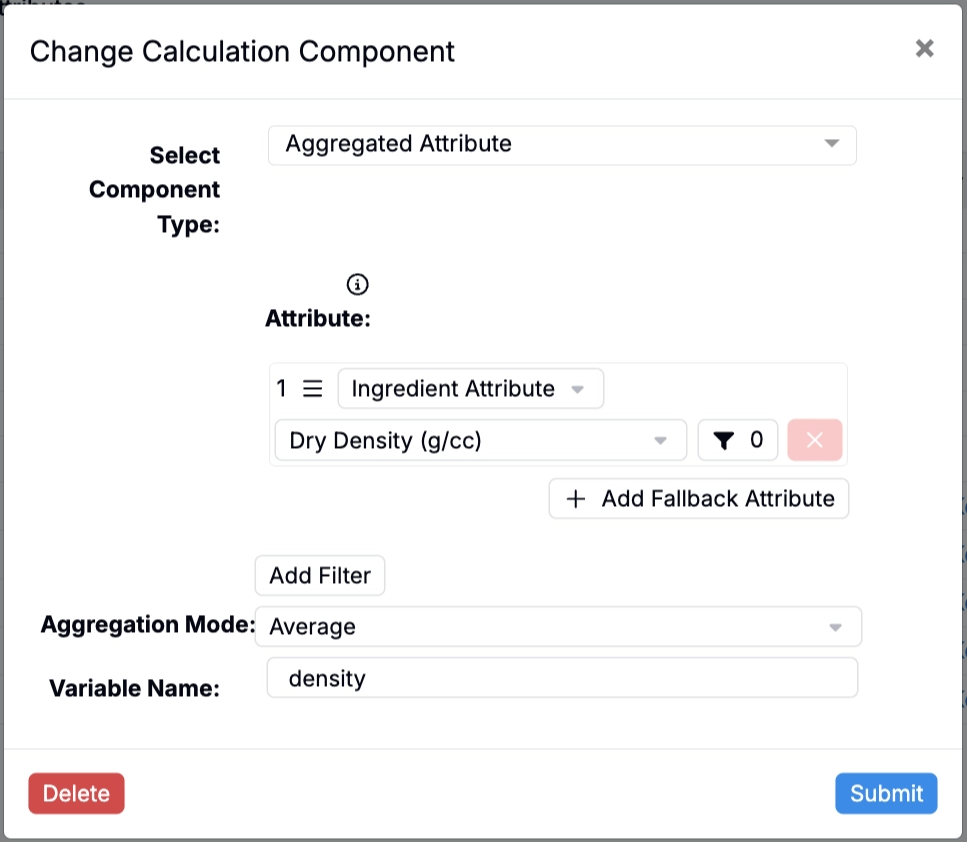
Aggregated Attribute
Aggregates a selected attribute across ingredients (and/or process parameters) in the recipe, returning a single value for the recipe.
This is the component type you’ll typically use when you want to pull something like “the average/max/min of a value across the recipe,” or when you want to reference recipe ingredient fields in a Custom calculation.
You can also configure fallback attributes for this component so the calculation can pull from an alternative attribute source when the primary attribute is missing.
Writing the Equation
Once components are defined, write the equation using standard arithmetic operators (+, -, *, /) and Excel-style functions such as:
average(),min(),max()log(),sqrt(),abs()if(condition, value_if_true, value_if_false)round(),floor(),ceiling()
Hover over the info (i) icon above the equation editor to see the full list of supported functions. Use the pill buttons below the editor to insert variable names, or type them directly.
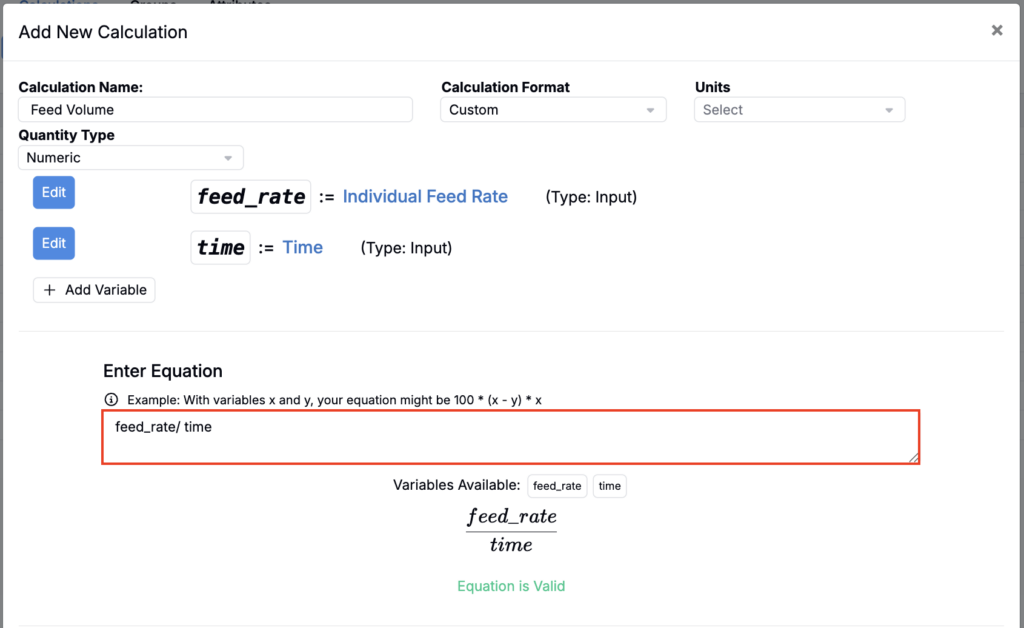
For example, you could create a custom equation for Feed Volume by dividing the Feed Rate process parameter by the Feed Time process parameter.
Calculation Settings
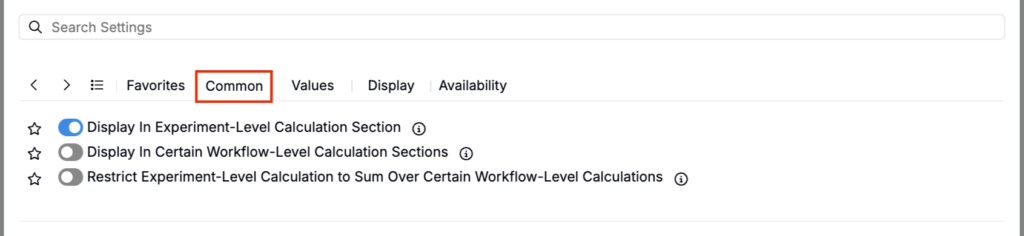
Common
- Display in Experiment-Level Calculation Section — Shows the value at the bottom of the full recipe
- Display in Certain Workflow-Level Calculation Sections — Shows the value only at selected workflow steps
- Restrict Experiment-Level Calculation to Sum Over Certain Workflow-Level Calculations — Limits the experiment-level total to selected workflow steps
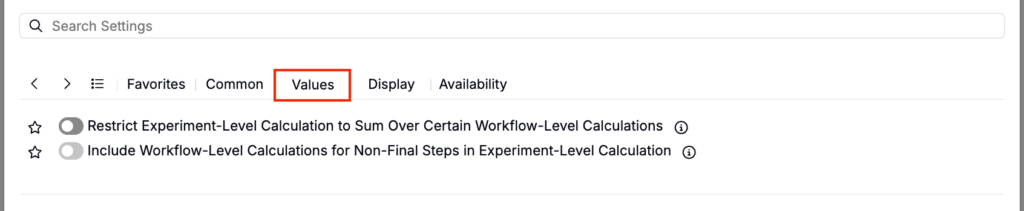
Values
- Restrict Experiment-Level Calculation to Sum Over Certain Workflow-Level Calculations — Limits the experiment-level total to selected workflow steps
- Include Workflow-Level Calculations for Non-Final Steps in Experiment-Level Calculation — Controls whether non-final step values roll up into the experiment-level calculation
Display
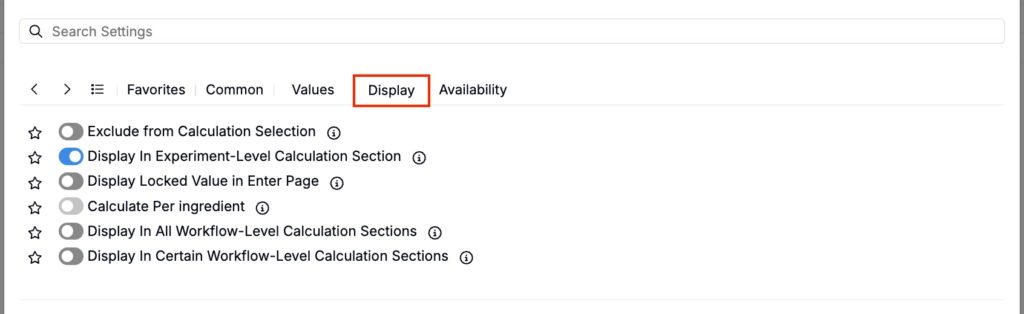
- Exclude from Calculation Selection — Hides the calculation from view (useful for intermediary calculations)
- Display in Experiment-Level Calculation Section — Shows the value at the bottom of the full recipe
- Display Locked Value in Enter Page — If enabled, all cells for this calculation are locked on the Enter Recipe page (behaving like they are in Solve mode), preventing manual edits.
- Calculate Per Ingredient — When enabled, the calculation is computed separately for each ingredient (rather than only as a single rolled-up recipe-level value).
- Display in All Workflow-Level Calculation Sections — Shows the calculation at the end of every workflow step.
- Display in Certain Workflow-Level Calculation Sections — Shows the calculation only at the end of selected workflow steps.
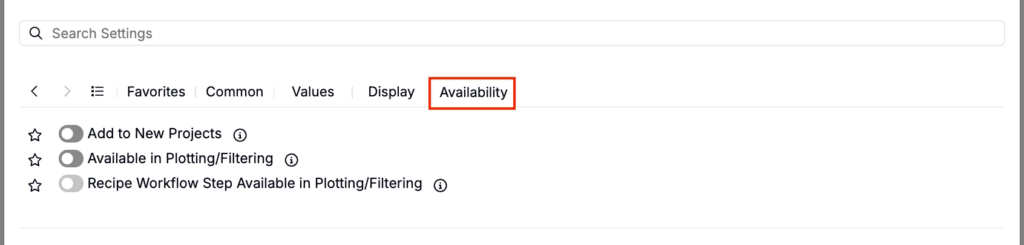
Availability
- Add to New Projects — Automatically includes this calculation in new projects in the material family
- Available in Plotting/Filtering — Makes the calculation value available as a filter or plot axis
- Recipe Workflow Step Available in Plotting/Filtering — Makes the calculation’s workflow-step-level values available to use as filters or plot axes (so you can analyze how the value changes by workflow step, not only at the overall experiment level).
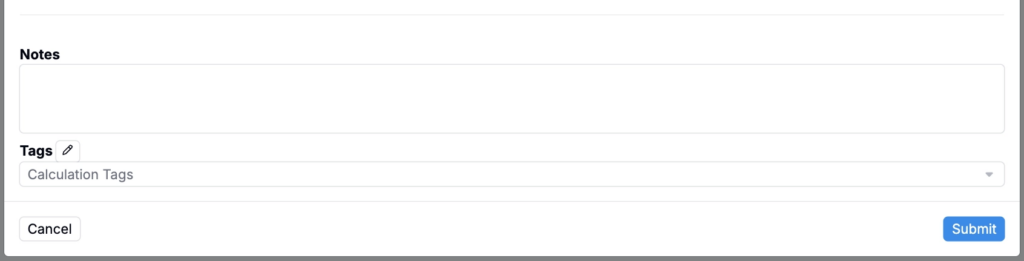
- Notes — Free-text shown on hover over the calculation in the recipe view
- Tags — Group calculations together. Tags let you toggle visibility of related calculations as a set.