Weighted Sum and Weighted Average calculations are among the most powerful and flexible input calculation types in Uncountable. They allow you to compute recipe-level and ingredient-level derived values — such as formulation cost, total percent solids, or moles NCO — by weighting ingredients according to their associated attributes.
What are Weighted Sum and Weighted Average calculations?
Both calculation types work by multiplying the amount of each ingredient in a recipe by one or more associated attributes (such as cost per gram, percent solids, or density), then aggregating those values across the recipe.
- Weighted Sum — Adds together all the weighted contributions of each ingredient. Used when you want a total across the formulation (e.g., total cost, total moles of a reactive group).
- Weighted Average — Divides the weighted sum by a denominator to produce an average. Used when you want a normalized value across the formulation (e.g., average density, average refractive index).
These calculations are the foundation of most formulators’ day-to-day work in Uncountable. Any time you want to know something about the recipe as a whole based on what’s in it, a Weighted Sum or Weighted Average is the right starting point.
Example use cases
- Formulation cost ($/kg) — Weighted Sum of each ingredient’s cost attribute, divided by total weight
- Total % solids — Weighted Sum of each ingredient’s solids content, weighted by mass fraction
- Moles NCO — Weighted Sum of isocyanate equivalent weight attributes
- Average density — Weighted Average using density as the attribute
- Volume % of each ingredient — displayed as a column calculation on the recipe page
How to configure
Weighted Sum and Weighted Average calculations can be created from the Calculations listing page or directly in the Recipe view of a formulation. Both methods open the same creation modal.
In the modal:
- Enter a name and units (recommended) for your calculation.
- Set Calculation Format to Weighted Sum or Average.

Generate Calculation ✨
Use Generate Calculation to describe the calculation you want in plain language (for example, “calculate total cost per kg” or “compute % solids as a weighted average”). Uncountable will translate your prompt into a starting calculation setup (weights, totals, and/or numerator/denominator), which you can then review and adjust before saving.
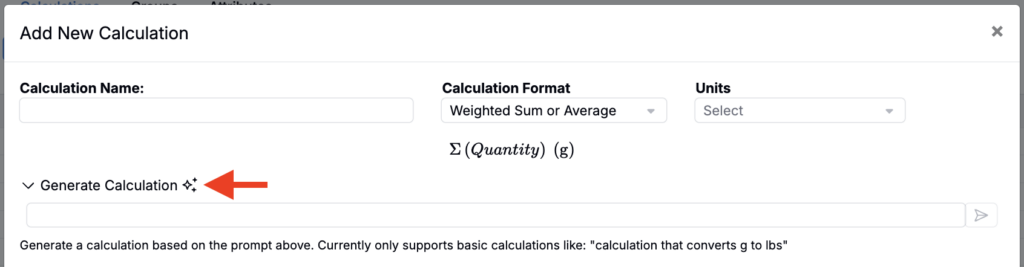
To manually configure calculations instead, use the following sections:
Total (Multipliers)
Before defining the numerator and denominator, you can optionally define variable Totals — scaling factors applied to the overall calculation. This section is optional for most calculations; skip it if you only need a straightforward weighted sum or average across all ingredients.
Use Totals when you need to scale the result by something specific — for example, dividing by the amount of a particular base ingredient (instead of total batch weight) or multiplying by a process parameter like batch size.
Multiplier types:
- Constant — a fixed numeric value (e.g.,
100to express a result as a percentage) - Ingredient — the amount of a specific ingredient in the recipe. The total input is derived from the same workflow step as the calculation; it will not pull across different workflow steps. If the ingredient appears multiple times in the same workflow step, the sum is used.
- You can optionally set a Quantity Basis Override to pull the ingredient amount in a different basis (mass, volume, moles) than the calculation’s default basis — if no override is set, the ingredient amount is pulled in the calculation’s own quantity basis.
- Process Parameter — the value of a process parameter, either from the whole experiment or from a specific workflow step. When multiple workflow steps are selected, you can choose whether to sum or average the values.
- Ingredient Calculation — an existing input calculation that uses ingredients as entities
- Process Calculation — an existing input calculation that uses only process parameters
- Recipe Field — a numeric value stored on the recipe/experiment (for example, batch size or another recipe-level parameter)
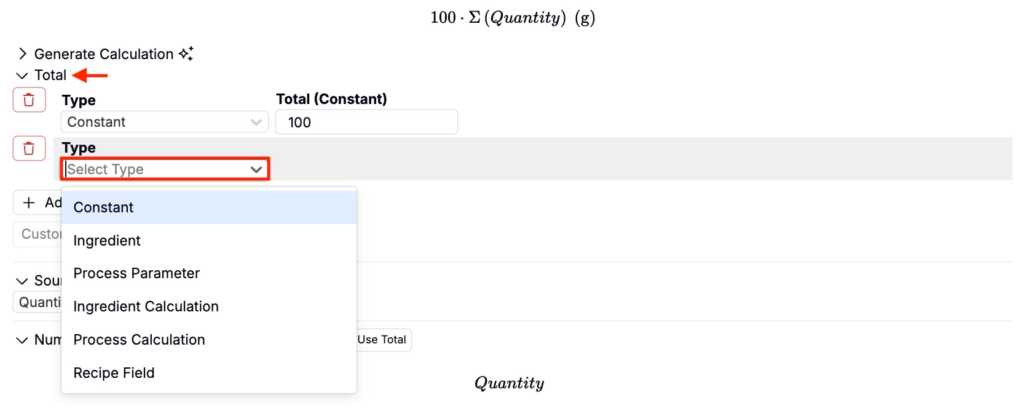
After defining one or more multipliers, you can optionally enable Custom Equation to write a basic arithmetic expression combining them.
Numerator / Denominator
The Numerator defines what gets weighted and summed. The Denominator (for Weighted Average only) defines what to divide by.
Key settings (apply to both numerator and denominator):
- Basis Units — Set the mass/volume/moles basis for the ingredient amounts used. Defaults to mass.
- Use Total — Allows you to use a manually entered experiment total rather than the sum of all ingredients. When selected, you can choose to fall back to calculated totals if a manual total isn’t present.
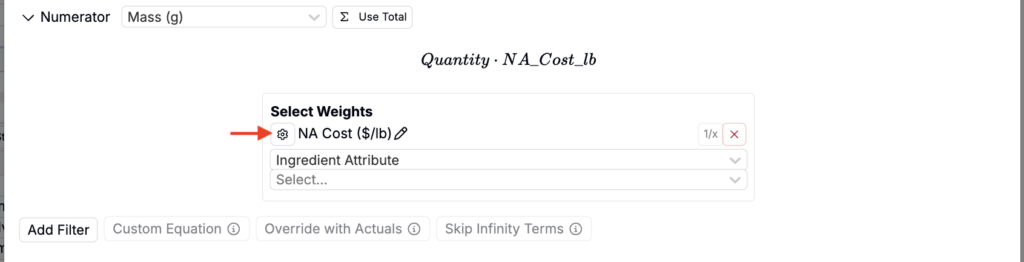
- Select Weights — Select the attributes, parametes, values, and/or fields to use in the weighting. You can also add fallback attributes and apply the inverse attribute (1/x) option to flip how the attribute contributes.
- Add Filter — Restrict the calculation to a subset of ingredients using category, subcategory, ingredient identity, attribute values, or quantity thresholds. Multiple filters are joined with AND logic; multiple options within a single filter are joined with OR.
- Custom Equation — Apply basic arithmetic to the selected attribute(s) before weighting. For example, use
100 - Solids %to derive a water percentage from a solids attribute. - d/t Feed Rate — When using a feed-type relationship between workflow steps, divides out the feed time to produce a feed rate value.
- Override with Actual Values — Uses actual entered ingredient amounts (if present) instead of recipe amounts. Useful when you want the calculation to reflect what was physically prepared in the lab.
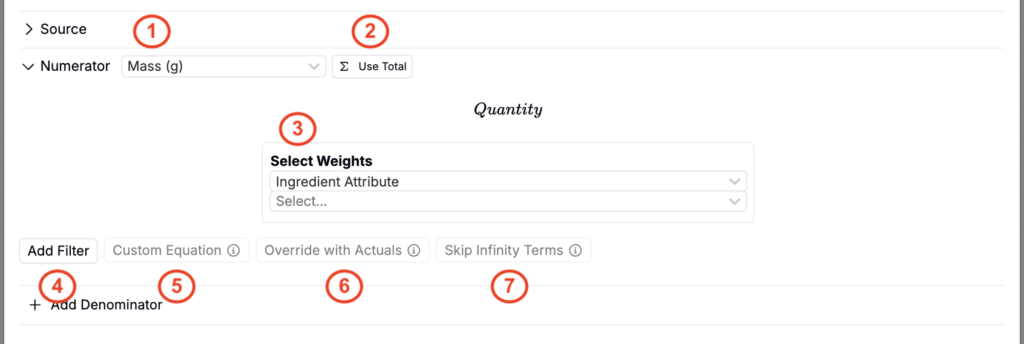
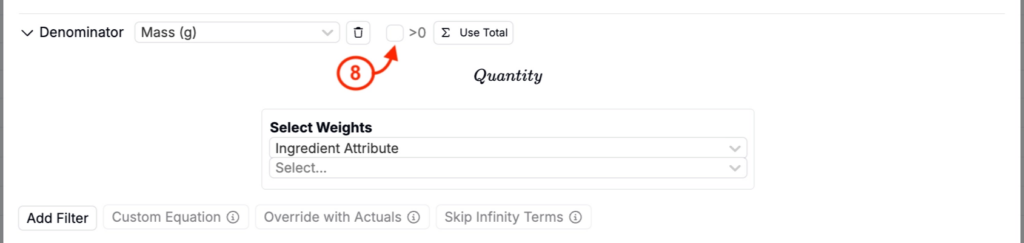
8. >0 — (Denominator only) Turn on to require the denominator to be strictly greater than zero (prevents divide-by-zero/negative-denominator results).
Fallback Attributes
When selecting weights, you can define a fallback attribute order. The system will check each source in sequence and use the first value it finds.
Common fallback chains include intermediate attributes (measured outputs on a component experiment used as an ingredient), lot attributes (measured values on a specific ingredient lot), and ingredient attributes (standard theoretical value stored on an ingredient itself).
You can also use input annotations (values stored directly on the recipe input), recipe input attributes (values on associated equipment or fields), and process parameters as fallbacks.
To add fallback attributes:
- Click the ⚙️ next to the weight.
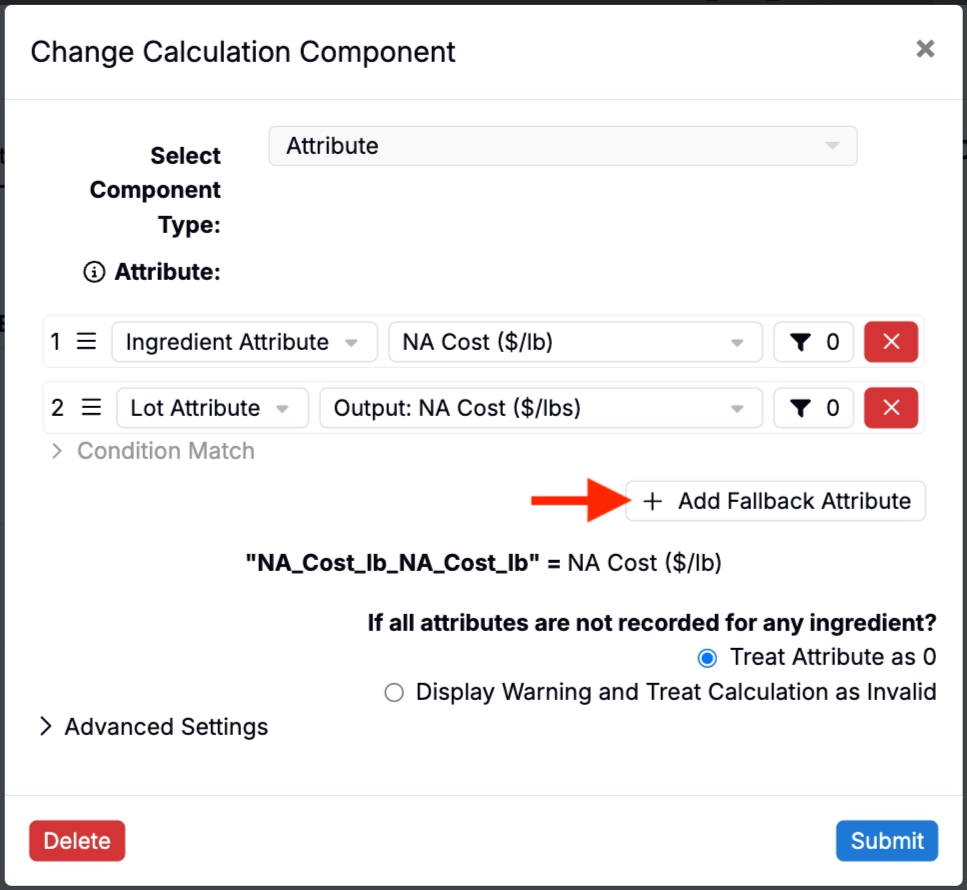
- In the modal, click + Fallback Attribute.
- Use the fields to select weights to add as fallback attributes (e.g. NA Cost lot attribute as a fallback to the NA Cost ingredient attribute).
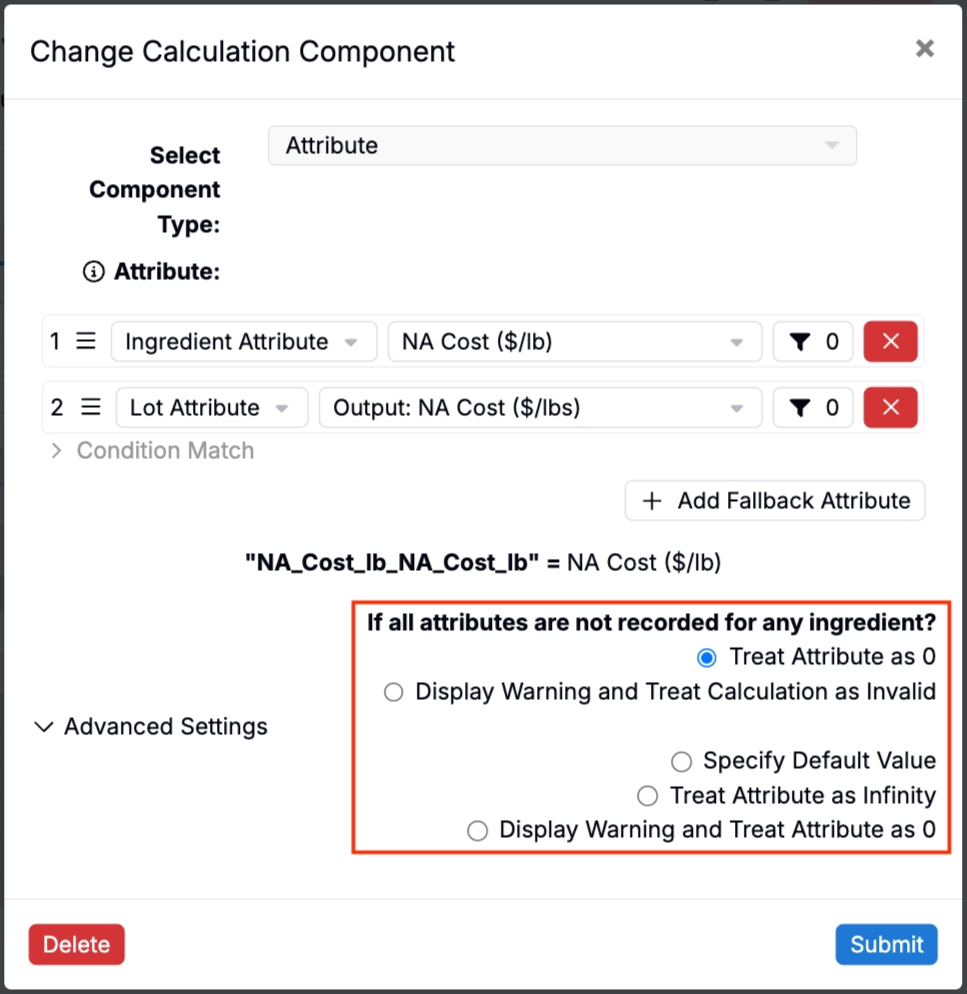
You can also define behavior if all attribute are not recorded for any ingredient:
- Treat attribute as 0 (default)
- Display warning and treat calculation as invalid
- Specify a default value
- Treat attribute as infinity (useful when the attribute appears in a denominator)
- Display a warning and treat attribute as 0
- Configure calculation settings.
- Save the calculation.
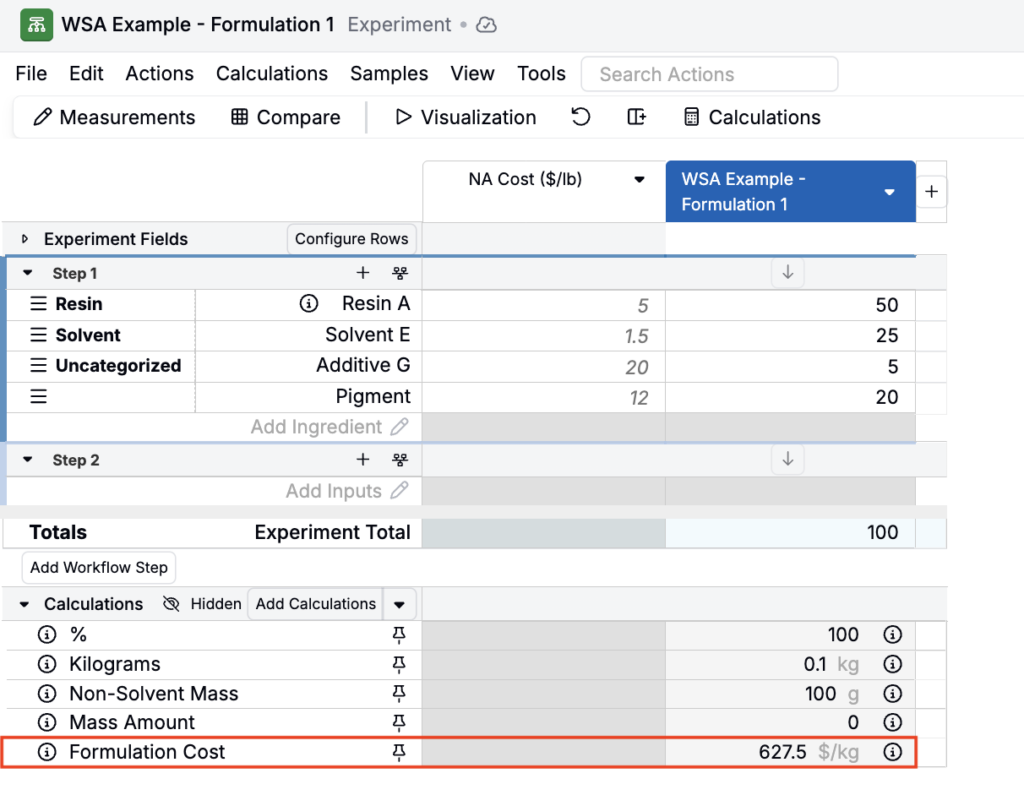
Weighted Sum/Average Calculation Examples
The examples below show two calculations built on the same set of ingredients, each demonstrating a different way the Custom Equation option can transform attribute values before weighting.
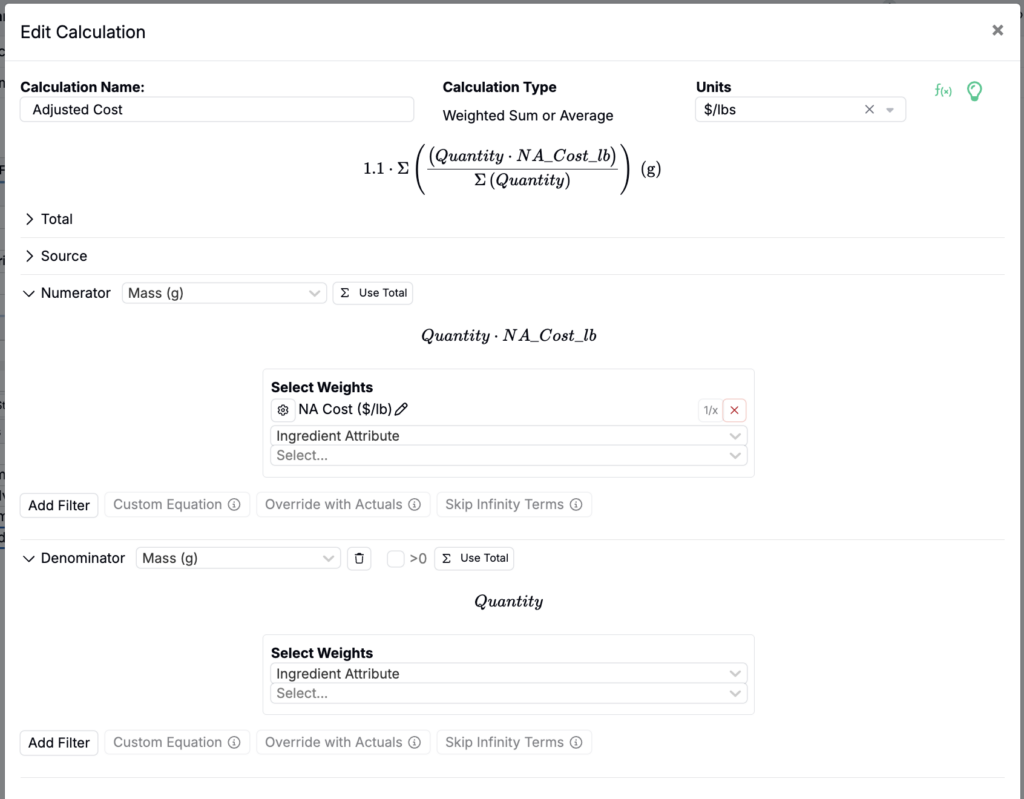
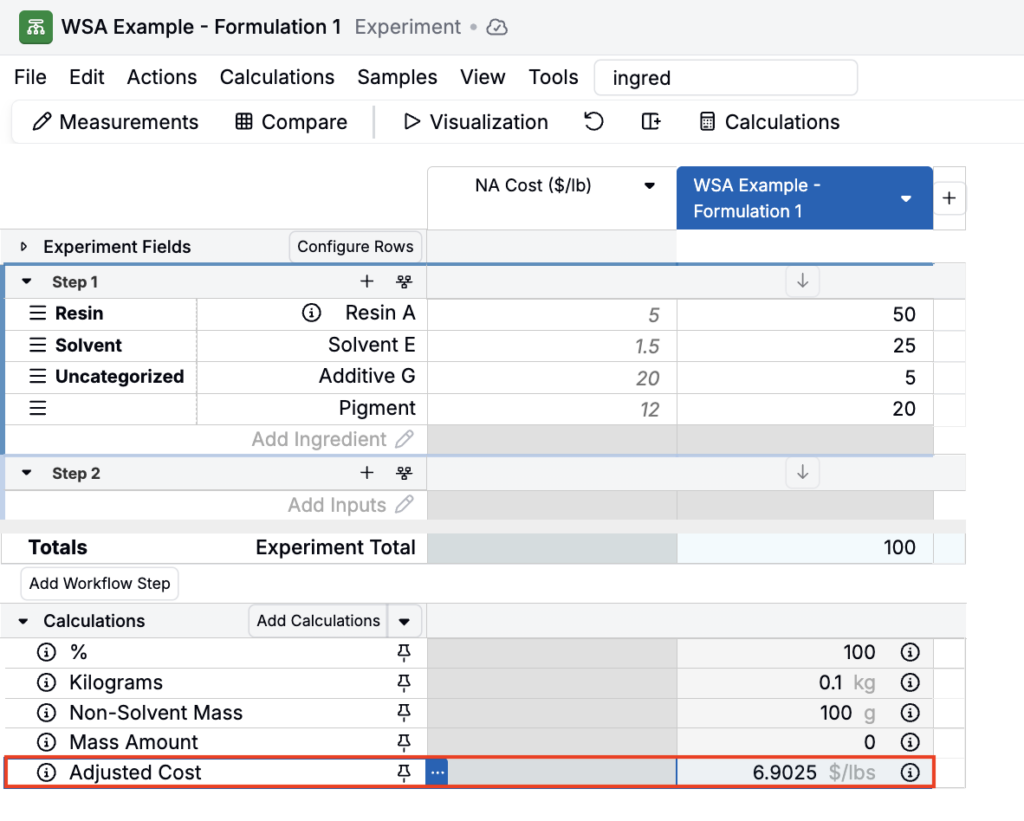
Adjusted Cost ($/lb) — Weighted Average with a multiplier
This calculation produces a markup-adjusted cost per pound across the formulation. It is configured as a Weighted Average: the numerator weights each ingredient’s amount by its NA Cost ($/lb) attribute, and the denominator sums all ingredient quantities to normalize the result. A constant multiplier of 1.1 is applied in the Total section, which scales the final average by 10% to reflect a cost markup.
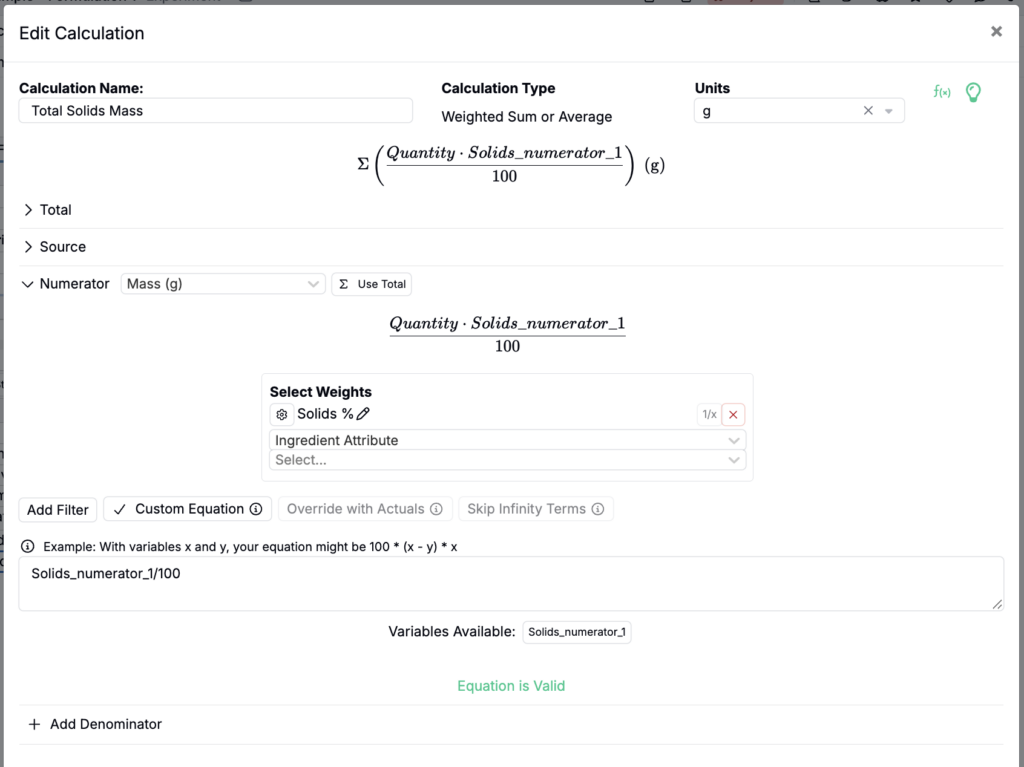
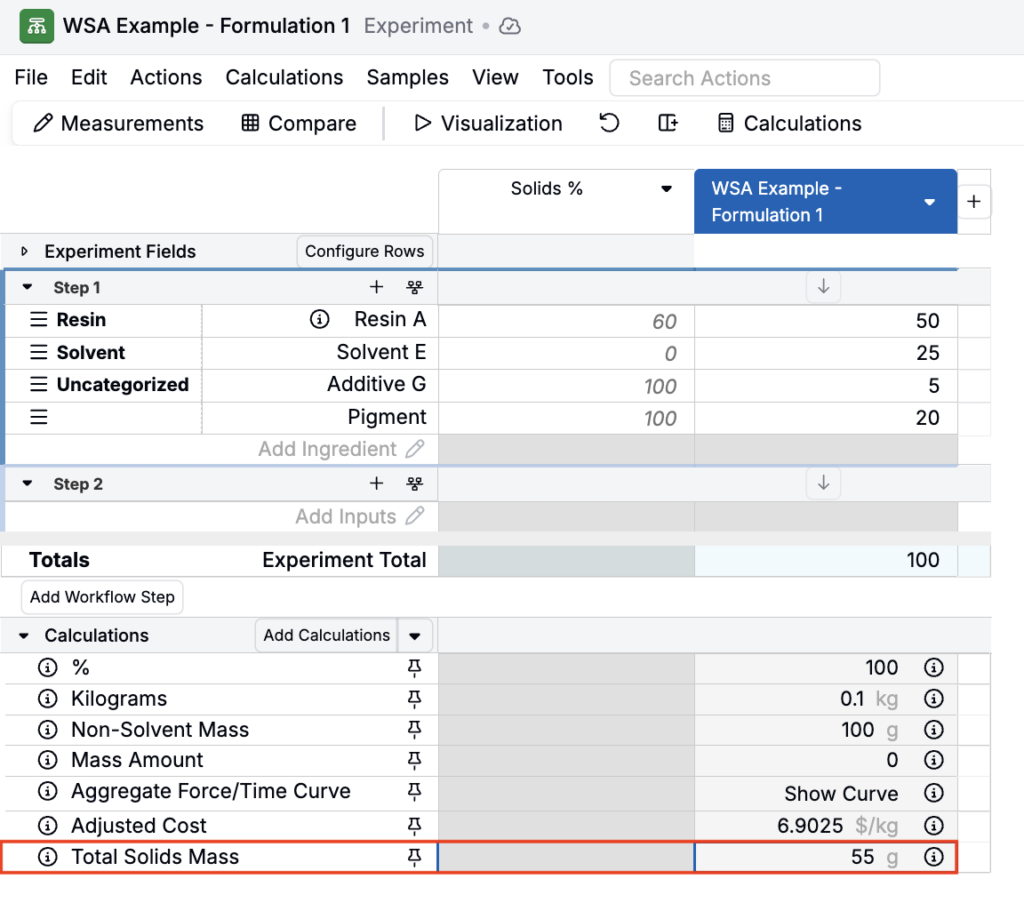
Total Solids Mass (g) — Weighted Sum with a custom equation
A Weighted Sum of each ingredient’s Solids (%) attribute, with a Custom Equation of Solids_numerator_1/100 to convert the percentage to a decimal before weighting. The Custom Equation modifies the attribute value per ingredient before summing — the quantity multiplication is handled automatically by the platform.
Calculation Settings
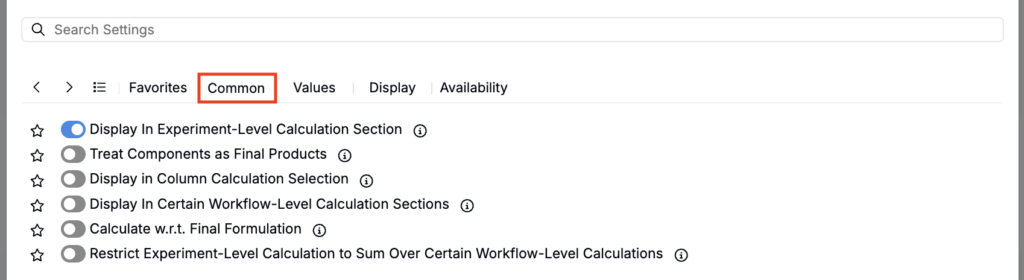
Common
- Display in Experiment-Level Calculation Section — Shows the final calculated value at the bottom of the recipe, summarizing the whole experiment.
- Treat Components as Final Products — Treats component (intermediate) experiments as a single term rather than expanding into their individual ingredients.
- Display in Column Calculation Selection — Shows the calculation as a column on the Enter Recipe page, displaying each ingredient’s individual contribution. Column calculations can be used with the Solver and are the basis for features like Weight % and Solids % display.
- Display in Certain Workflow-Level Calculation Sections — Shows the value only at the end of selected workflow steps.
- Calculate w.r.t. Final Formulation — Controls how column calculation values are normalized. When disabled, each ingredient’s value is normalized with respect to the ingredients in the current workflow step only. When enabled, each ingredient’s value is normalized with respect to all ingredients across the entire experiment.
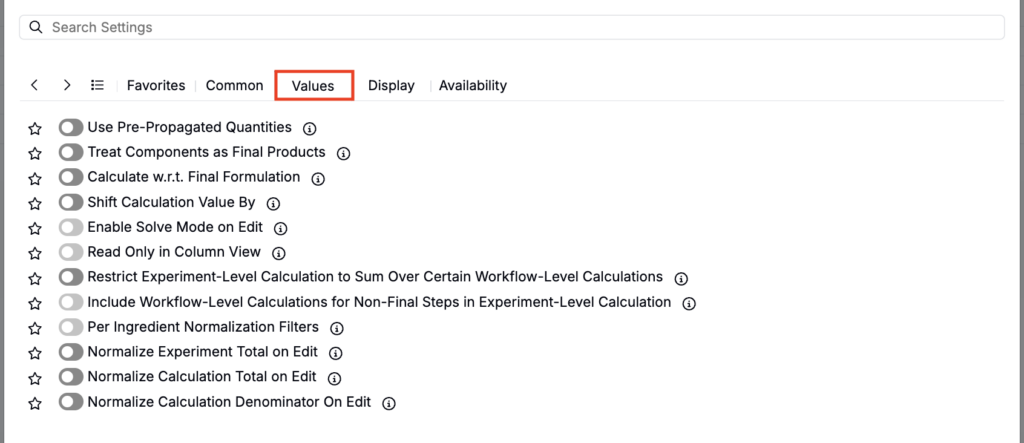
Values
- Use Pre-Propagated Quantities — When enabled, uses the original entered ingredient amounts rather than the propagated percentages. For example, if an ingredient is 10 parts and propagates to 50%, enabling this uses 10 parts; disabling it uses 5 parts.
- Treat Components as Final Products — Treats component (intermediate) experiments as a single term rather than expanding into their individual ingredients.
- Calculate w.r.t Final Formulation — Controls how column calculation values are normalized. When disabled, each ingredient’s value is normalized with respect to the ingredients in the current workflow step only. When enabled, each ingredient’s value is normalized with respect to all ingredients across the entire experiment.
- Shift Calculation Value By — Adds or subtracts a constant offset from the final calculation value.
- Enable Solve Mode on Edit — Enables Solve Mode by default on editing column calculation cells. Only available for column calculations.
- Read Only in Column View — When enabled, displays the calculated value but prevents editing on the Enter Recipe page.
- Restrict Experiment-Level Calculation to Sum Over Certain Workflow-Level Calculations — Limits the experiment-level total to a selected subset of workflow-level calculations.
- Include Workflow-Level Calculations for Non-Final Steps in Experiment-Level Calculation — When enabled, includes workflow-level calculation values from non-final steps in the experiment-level total.
- Per Ingredient Normalization Filters — (Column calcs w/ denominator) Filters which ingredients are included in each row’s denominator (e.g., “% within category”).
- Normalize Experiment Total on Edit — When you edit a column value, automatically rescales other ingredients so the experiment total stays fixed.
- Normalize Calculation Total on Edit — When you edit a column value, automatically rescales other terms so the calculation total stays fixed.
- Normalize Calculation Denominator on Edit — When you edit a column value, automatically rescales other denominator terms to keep the denominator-normalized ratio consistent.
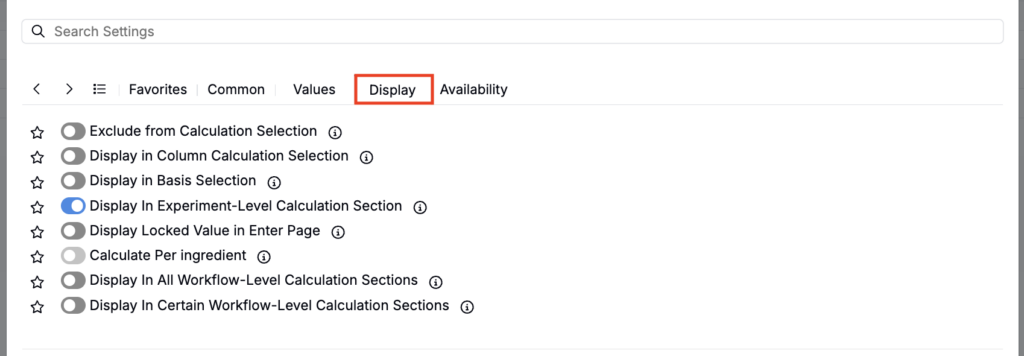
Display
- Exclude from Calculation Selection — Hides the calculation from the platform UI. Useful for intermediate calculations that feed into other calculations but don’t need to be shown directly.
- Display in Column Calculation Selection — Allow this calculation to be viewed as an additional column on the Recipe view of experiments. The weighted sum term for each ingredient will be displayed alongside the ingredient’s quantity.
- Display in Basis Selection — Makes the calculation available as a basis option for ingredient quantities.
- Display in Experiment-Level Calculation Section — When enabled, the calculation will appear in an experiment’s calculations section.
- Display Locked Value in Enter Page — If enabled, all calculation cells for this calculation will be locked, behaving as if they are in Solve mode.
- Calculate Per ingredient — When enabled, the calculation will be computed separately per ingredient.
- Display in All Workflow-Level Calculation Sections — Shows the value at the end of each workflow step.
- Display in Certain Workflow-Level Calculation Sections — If toggled on, the calculation evaluated at the specified workflow steps will be displayed in the respective workflow step’s calculation
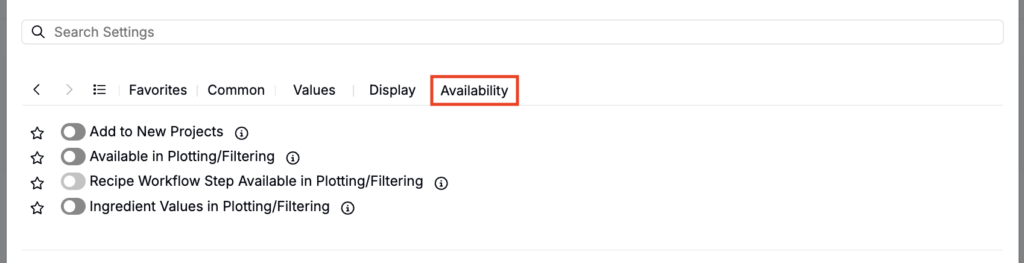
Availability
- Add to New Projects — Automatically enables this calculation in any new project created in the material family. An additional option lets you push it to all existing projects at once.
- Available in Plotting/Filtering — Makes the calculation value available as a filter or plot axis.
- Recipe Workflow Step Available in Plotting/Filtering — Make recipe workflow step calculation values filterable and plottable.
- Ingredient Values in Plotting/Filtering — When enabled, ingredients can be filtered or plotted based on their individual contribution to the calculation rather than their entered amount.
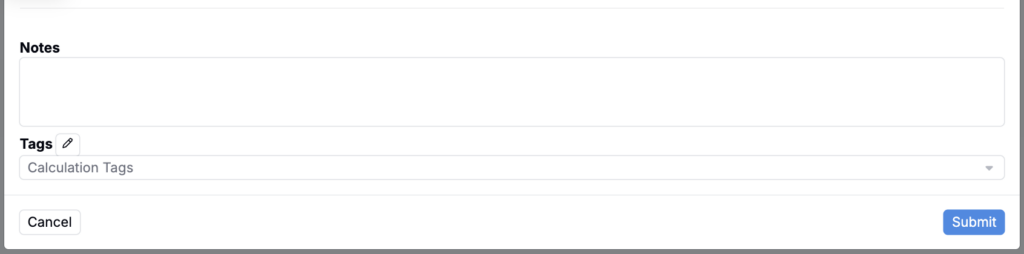
- Notes — Free-text field shown on hover over the calculation in the recipe view.
- Tags — Group calculations together. Tags let you toggle visibility of related calculations as a set.