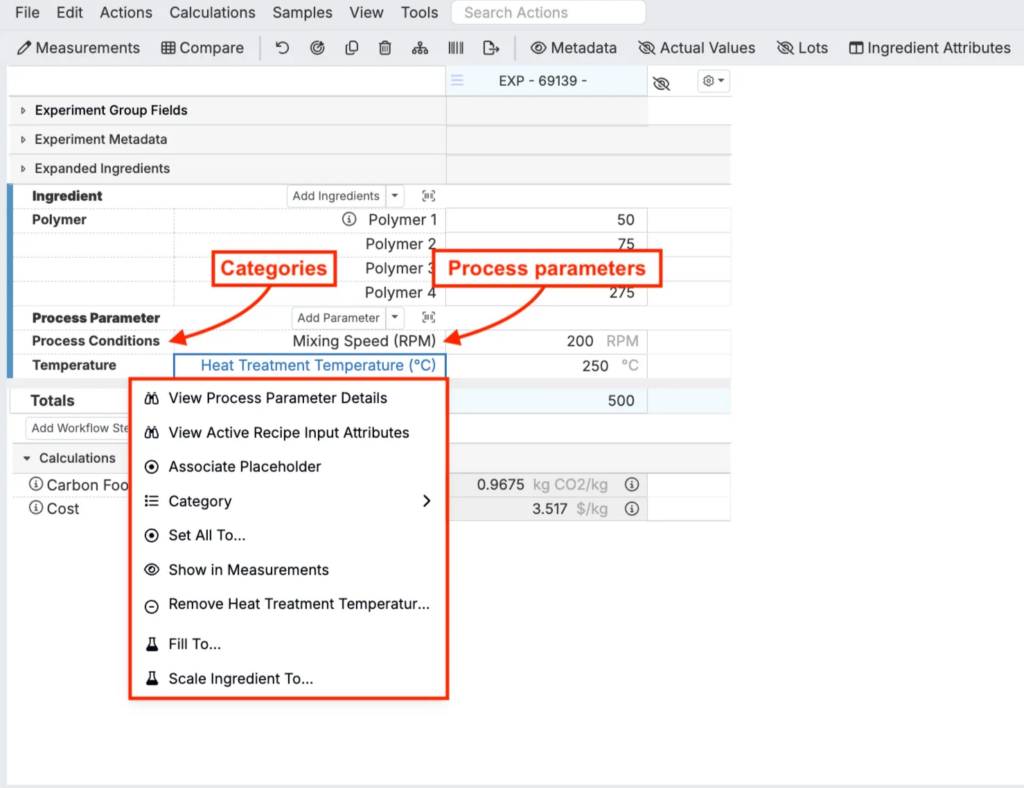
Process parameters capture the conditions and settings used during formulation and production, such as mixing speed, temperature, pressure, cure time, or equipment type. Unlike ingredients that represent materials, process parameters describe how those materials are processed.
Each process parameter can include:
- Identification — A clear, descriptive name
- Classification — Categories and material family assignments
- Type — Numeric, categorical, text, date, timestamp, attachment, or curve
- Units — Measurement units appropriate to the parameter
- Attributes — Additional properties or metadata
Process parameters are managed centrally and can be reused across multiple recipes and experiments, ensuring consistency in how conditions are tracked and reported throughout your R&D process.
Creating New Process Parameters
You can create process parameters from the Process Parameters listing page or directly from a recipe. Both methods use the same New Process Parameter modal.
From the Process Parameters Listing
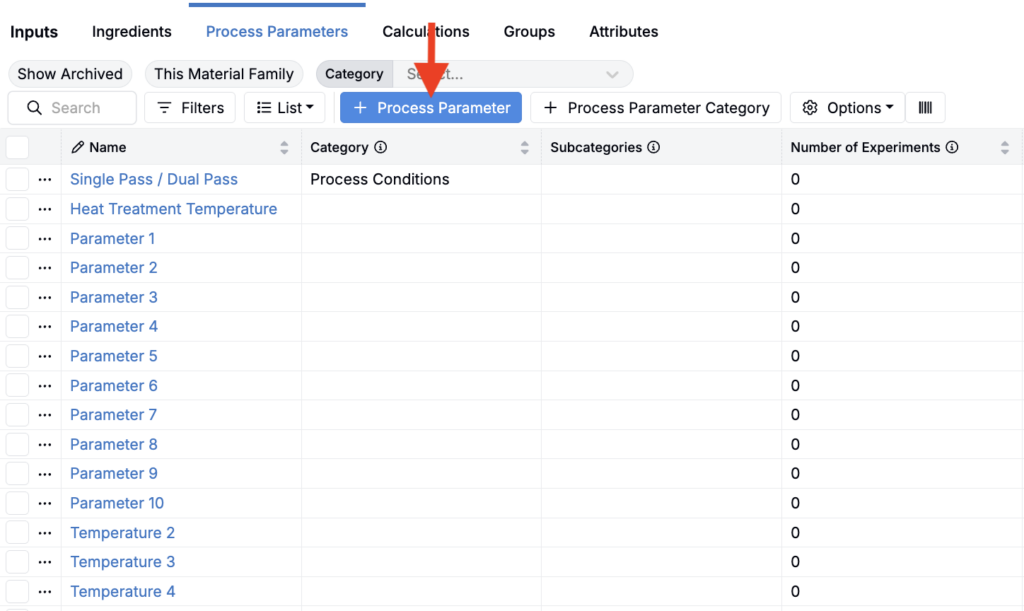
- Select Inputs/Outputs > Inputs from the navigation bar.
- Select the Process Parameters tab.
- Click the blue + Process Parameter button.
- Fill out the modal:
- Process Parameter Name — Give the parameter a clear, descriptive name.
- Additional Material Families — By default, the parameter belongs to the current family. Select additional families to make it available elsewhere.
- Category — Assign a category if relevant.
- Type — Choose the parameter type (numeric, categorical, text, date, timestamp, attachment, or curve).
- Units — Set appropriate units for the parameter.
- Attributes — Add any relevant attributes.
From a Recipe
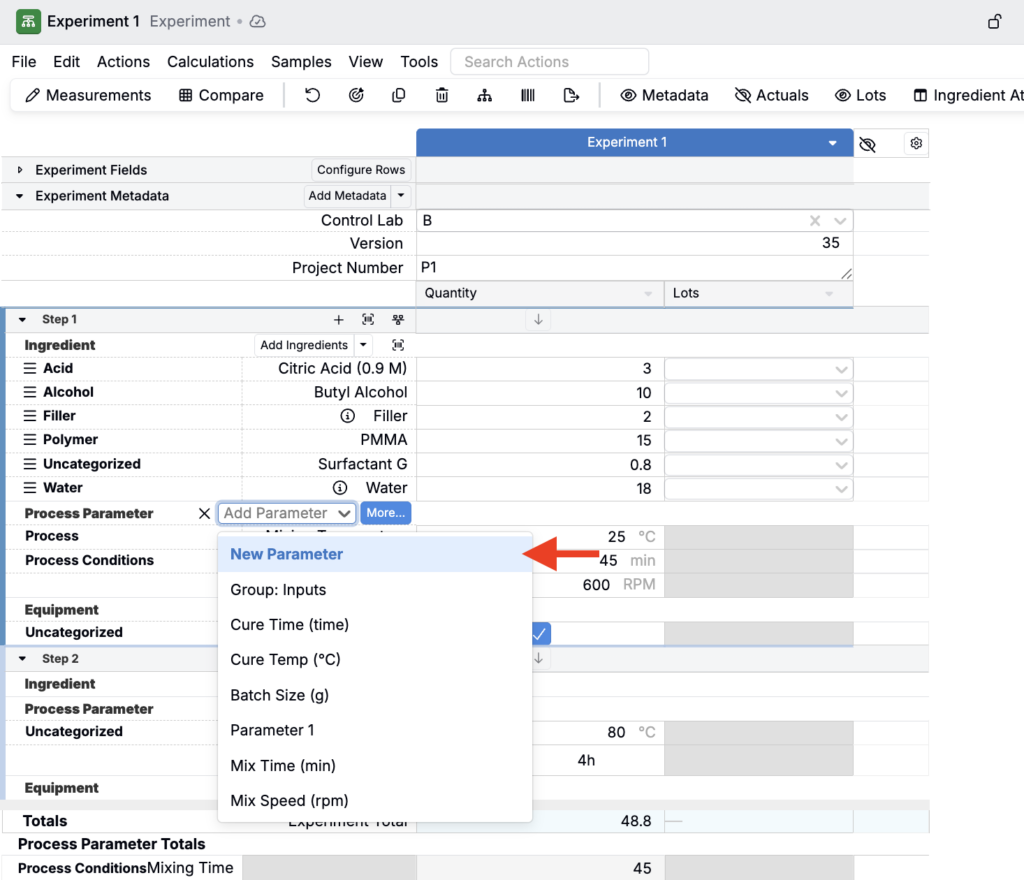
- On the Recipe view, click Add Parameters (this may also appear as Add Inputs).
- Select New Process Parameter from the menu.
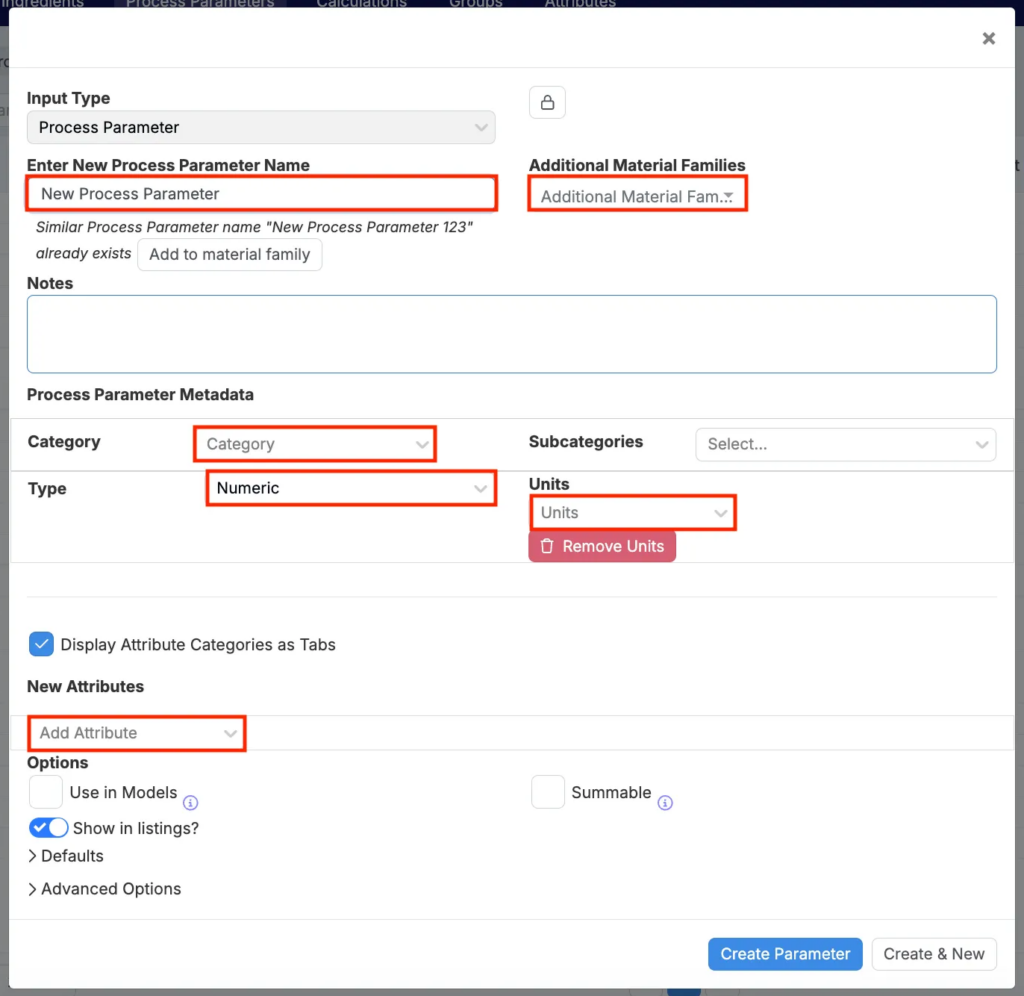
- Complete the same modal as above.
Adding Process Parameters to a Recipe
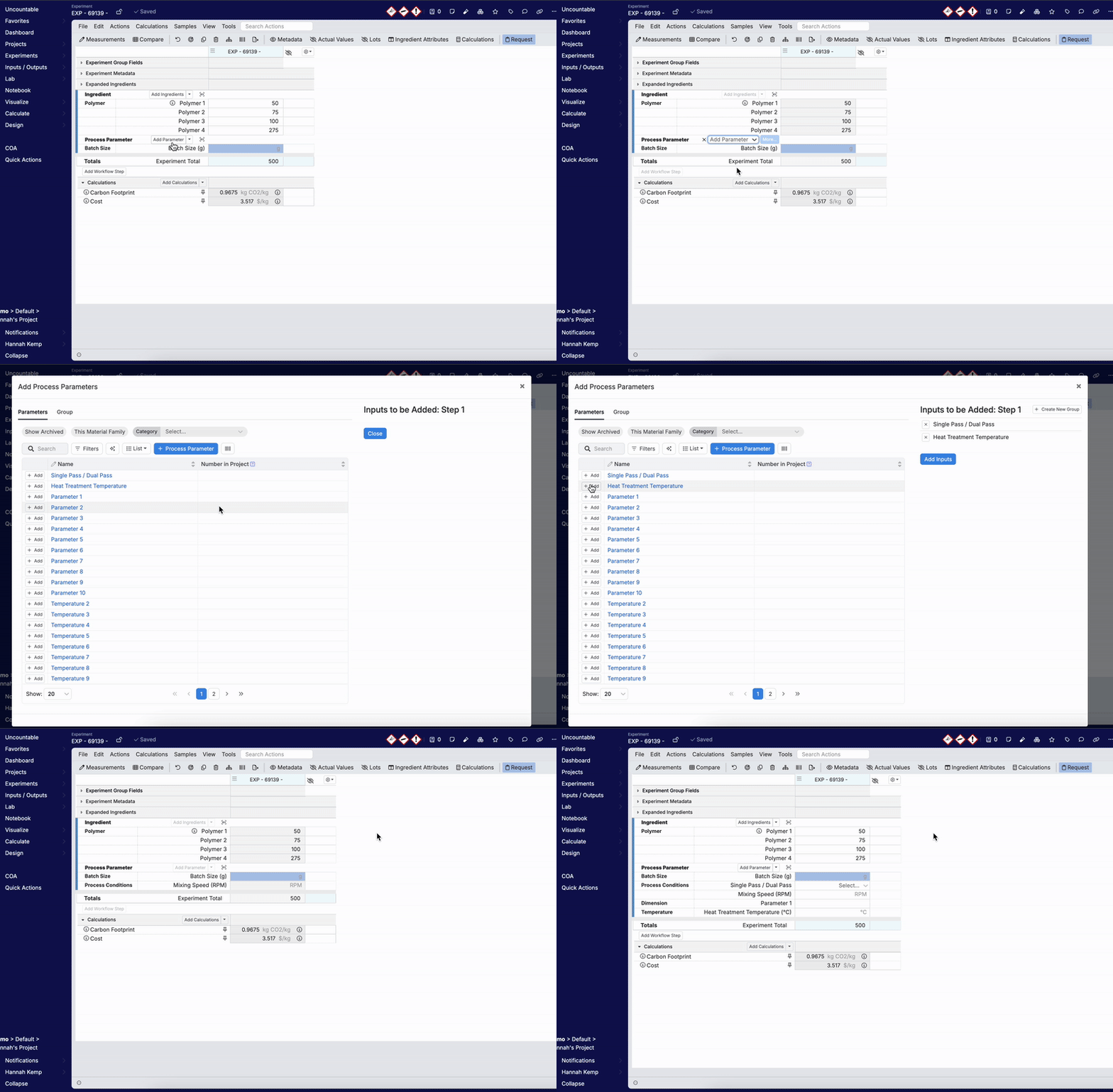
Once process parameters exist in your system, you can add them to recipes in the recipe view of an experiment. To add a process parameter to a recipe:
- Click Add Parameters (this may also appear as Add Inputs).
- Choose how to add:
- Search and add individually — Type a parameter name into the field and select from the dropdown.
- Add multiple at once:
- Click More.
- In the Parameters tab, search or filter the listing and click + Add. Selected items will appear in the Inputs to be Added panel.
- In the Groups tab, add pre-configured input groups.
- Click Add Inputs to confirm.
You can also add a process parameter inline using the Add Process Parameter ghost row at the bottom of a workflow step. See Experiment Recipe (Enter Recipe).
Working with Process Parameters in a Recipe
Once added, process parameters appear in the Parameters section, organized by category. Enter values directly into the associated cells.
Clicking a parameter name opens a dropdown with additional options:
- View Process Parameter Details — Open the parameter’s details page.
- View Active Recipe Input Attributes — View or edit recipe-specific attributes. Learn more.
- Associate Placeholder — Retroactively assign the parameter to a subcategory. Learn more.
- Category — Change the parameter’s category directly from the recipe view.
- Set All To — Assign a specific value to all instances of the parameter.
- Show in Measurements — Add the parameter to the inputs table in the measurements view of the recipe.
- Remove — Delete the parameter from the recipe.