
Batch Execution guides operators through a batch one step at a time, directly from the experiment’s recipe. Each charge, measurement, and adjustment is saved to the experiment as it happens, so the batch record is complete when the batch is finished. For example, an operator making a pilot batch of a coating can record each raw material charge, run in-process viscosity checks, and close the batch without a separate paper batch card.
Opening Batch Execution Mode
- Open the experiment on the Enter Recipe page.
- In the Tools tab, select Batch Execution Mode.
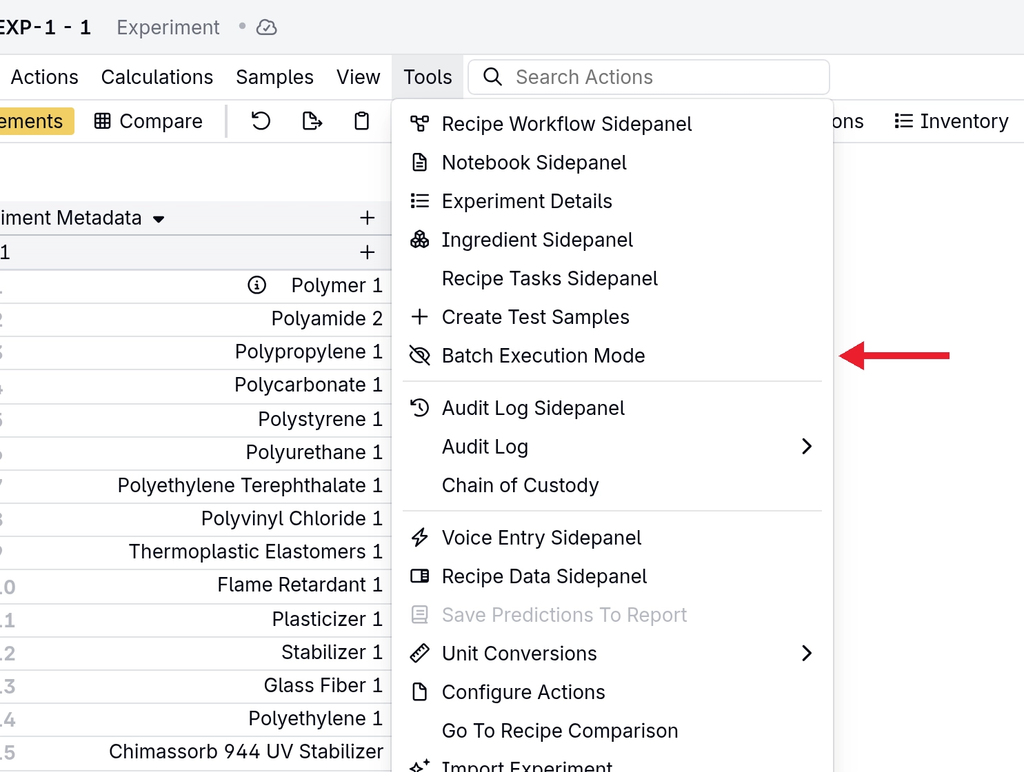
The batch execution side panel opens. To return to the recipe grid, select Batch Execution Mode again.
To open a saved view in batch execution each time it loads, set Open In to Batch Execution when you save the view preference.
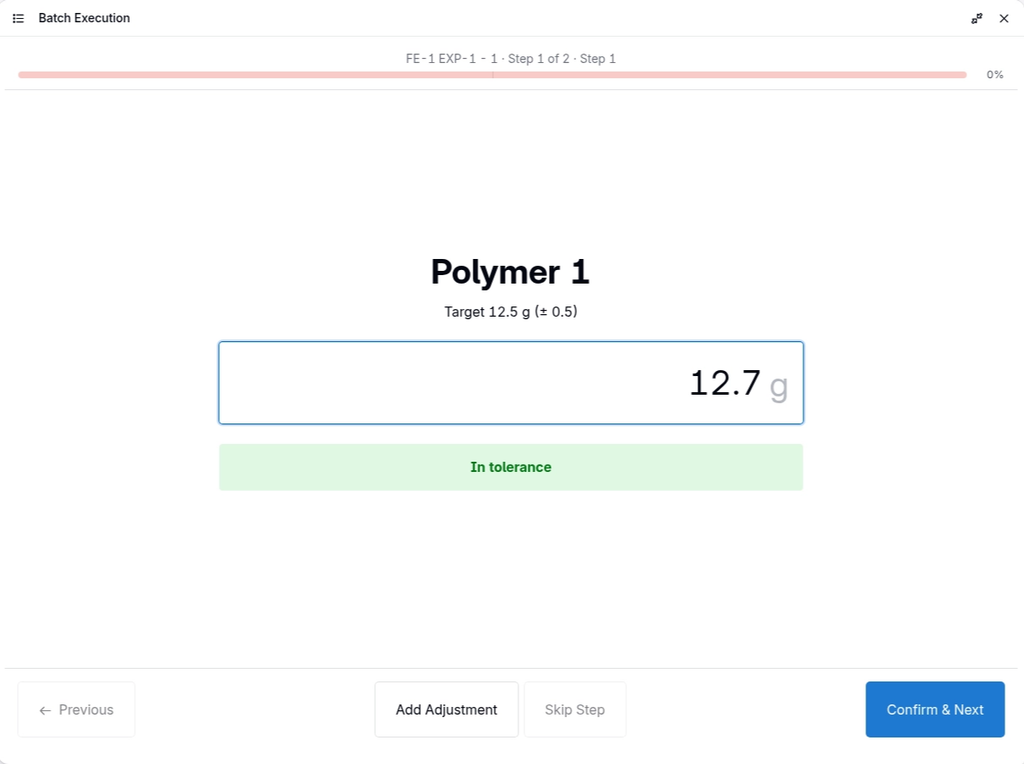
Each charge screen shows the target and tolerance, a large input for the actual amount, and the tolerance status.
Running a Batch
Charges
Each charge has its own screen that shows the ingredient, its target amount and tolerance, and a large input for the actual amount. Scales can be connected from the charge screen when the Enable Instrument Connection setting is on.
The charge screen also shows the recipe ingredient fields that the current view shows as columns, such as a lot number, so the operator can record them at the charge. Values entered here also appear in the recipe grid.
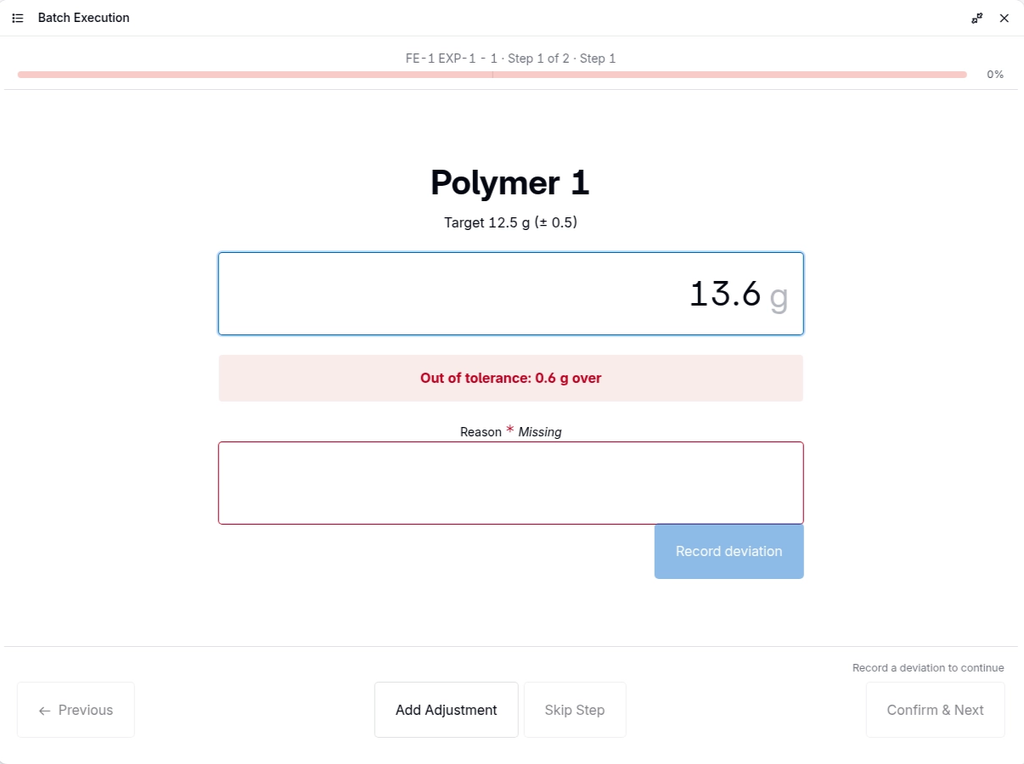
If an actual amount is outside the tolerance, it is logged as a deviation, and the operator must enter a reason.
Enter the Reason and click Record deviation. Confirm & Next stays unavailable until the deviation is recorded.
Adjustments and Retests
Operators can record corrections during the batch and run QC again. Every attempt is kept rather than overwritten.
Click Add Adjustment to add an adjustment step, named Adjustment 1, Adjustment 2, and so on, after the current step. On a QC sample screen with an out-of-spec result, click Add Adjustment and Re-test to add the adjustment step and start a new test sample for the re-test.
QC Samples
The QC sample screen shows each measurement with its spec and whether the result is in spec or out of spec. Calculated outputs are marked.
If a measurement is out of spec, the operator enters a reason and clicks Record deviation before continuing.
Releasing and Closing a Batch
- Supervisor release: Before the batch can be closed, a supervisor approves any deviations with a PIN and signature. Only members of the Deviation Approver Group set on the workflow step can click Release on a deviation or skip a step with Skip Step.
- Close batch: Closing the batch runs the recipe’s own phase transition, for example moving it to Completed and locking it. On the summary screen, click Close to followed by the next phase name, for example Close to Completed. The button is available after every step is finished or skipped and every deviation is recorded and released.
Every action in the batch is recorded in the audit log.