A workflow variant is a saved configuration of a workflow — a collection of steps arranged in a specific order, with optional template data, that can be assigned to experiments.
Variants let you store not just which steps are included, but also the relationships between them: how steps feed into one another, which step feeds its output into which downstream step, and what data carries over.
Variants let teams maintain a curated library of process templates within a single workflow, so scientists can choose the right starting point for each experiment without rebuilding from scratch each time.
Creating a variant
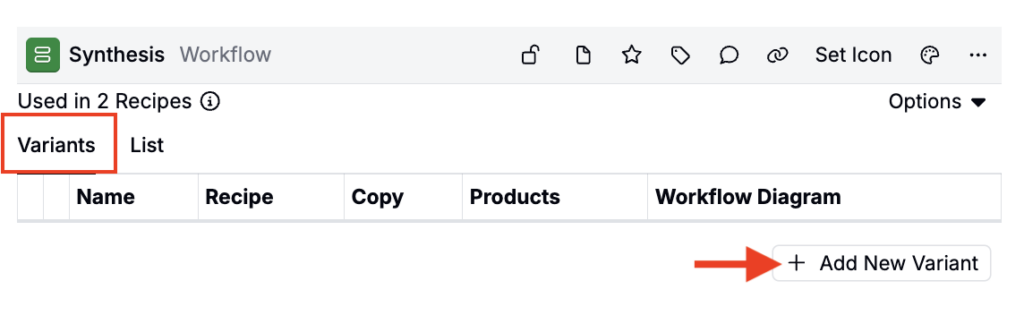
- In the Workflow Editor, open the Variants tab.
- Click + Add New Variant.
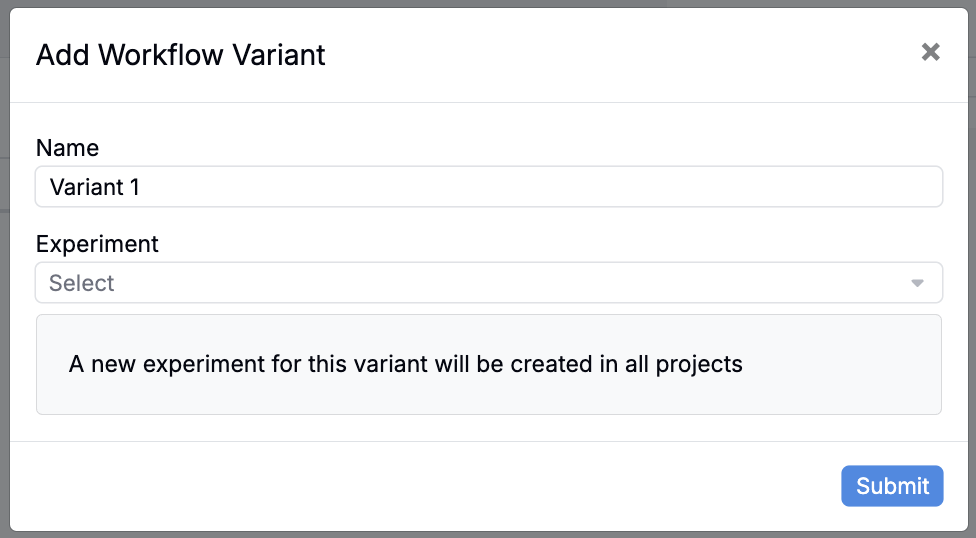
- Give the variant a name.
- Optionally, assign an existing template experiment — this experiment’s data will serve as the starting point for any new experiment created with this variant.
Configuring a variant’s template experiment
If no existing template experiment was selected when creating a new variant, Uncountable automatically generates a new one.
The template experiment is where you set the default data (ingredients, process parameters, outputs, test samples) that new experiments will inherit when created from this variant. To modify it:
- In the variant list, click the experiment name linked to the variant.
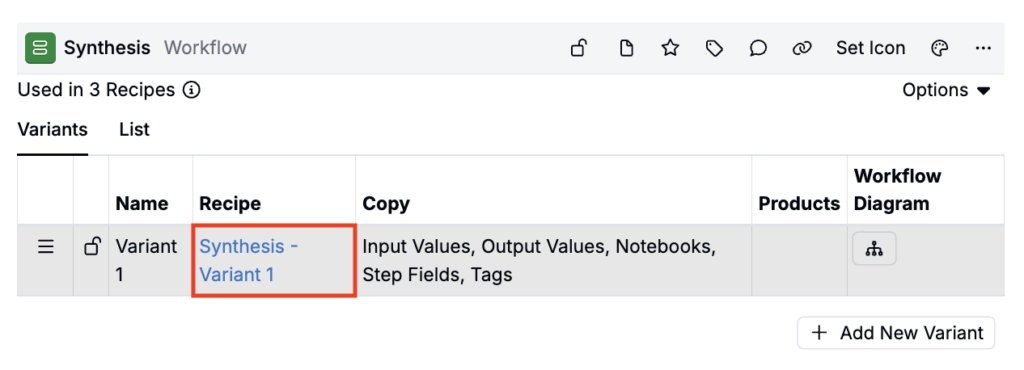
- In the Recipe view, add ingredients, process parameters, or notebook entry templates as defaults.
- In the Measurements view, add any default outputs or test samples.
New experiments created from this variant will automatically include this data, based on which inheritance options were enabled when the variant was configured.
Editing a workflow variant
Once created, you can use the variant’s workflow diagram to:
- Add steps — Use an Add Step menu. Selecting one before a step inserts the new step upstream (feeds into that step). Selecting one after a step inserts it downstream (the existing step feeds into the new step). Only steps defined on the workflow are available.
- Delete steps — Delete a step from the variant by selecting … > Delete step.
- Rename steps — Delete a step on the variant by selecting … > Rename step.
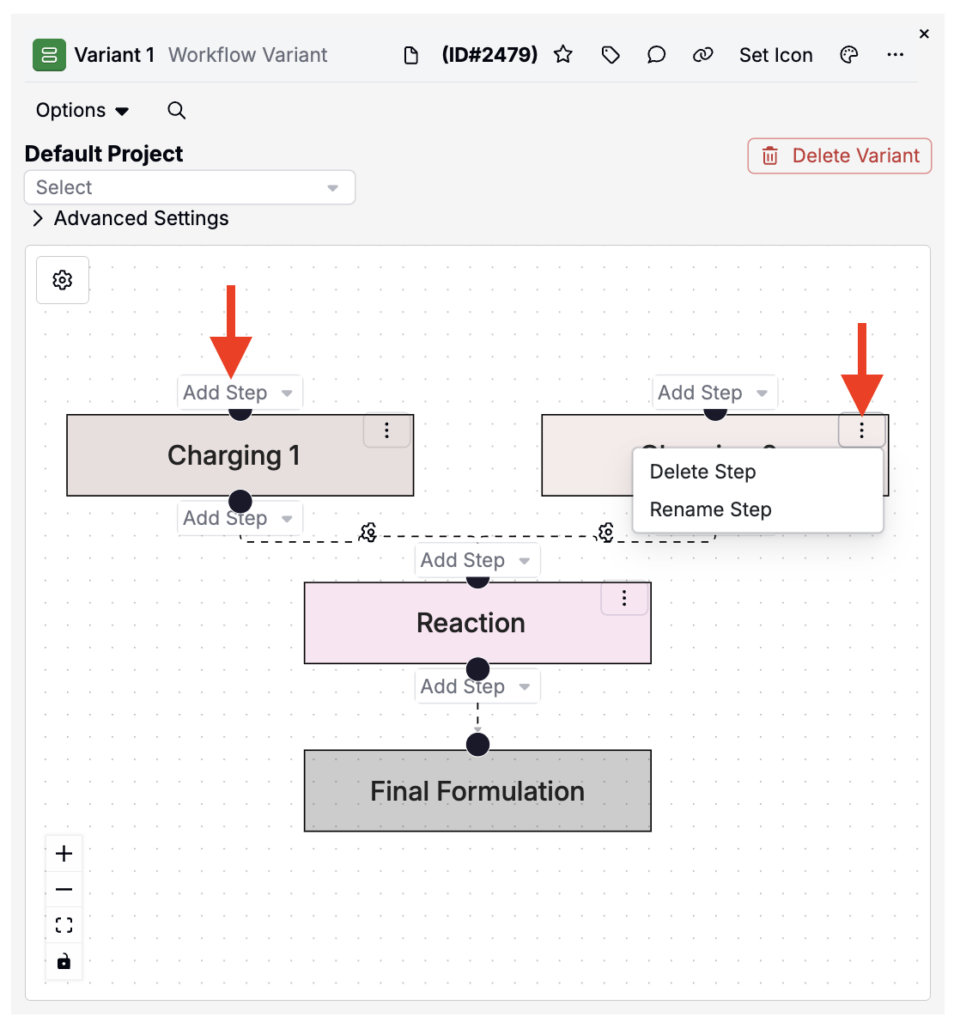
Step relationships
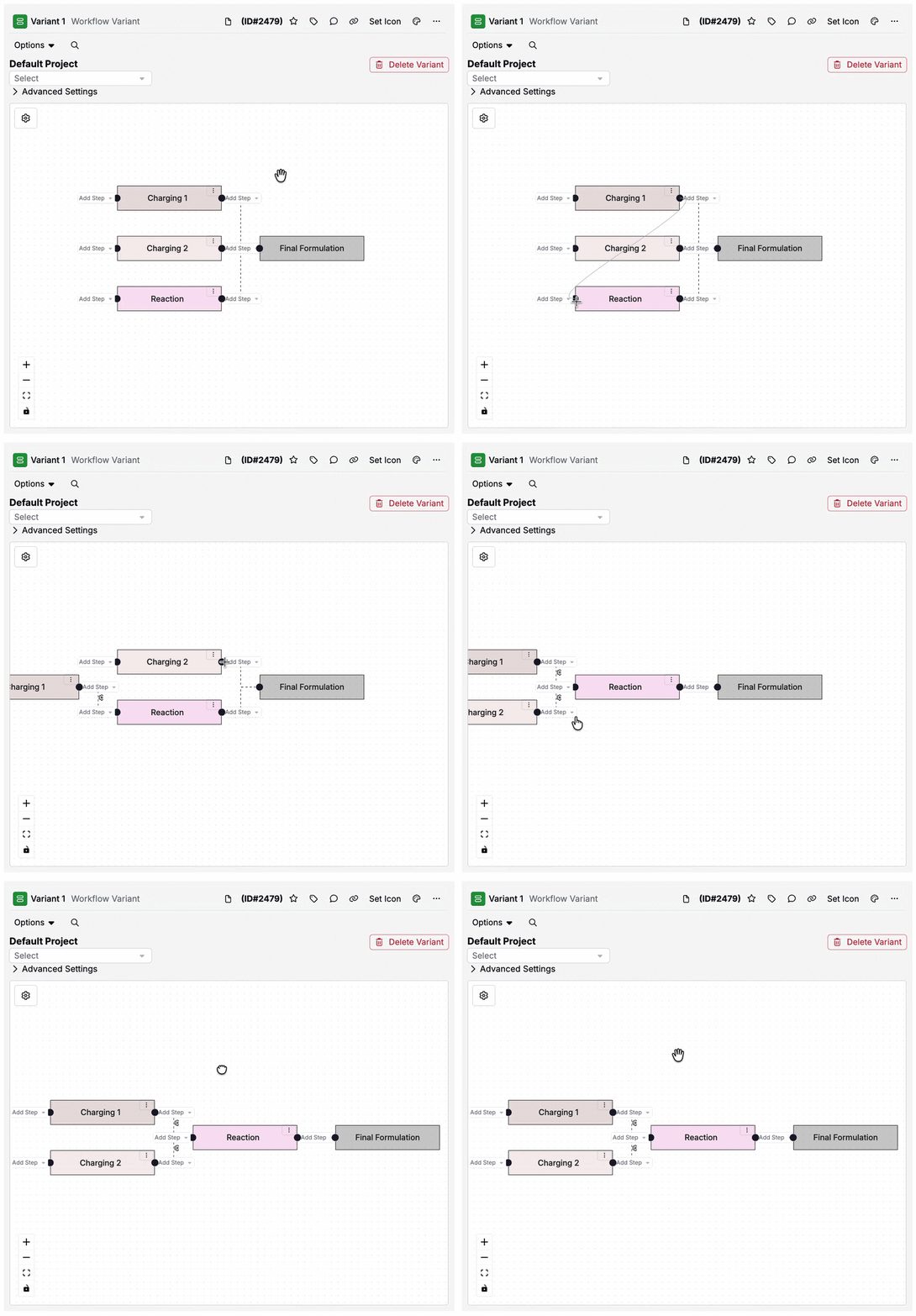
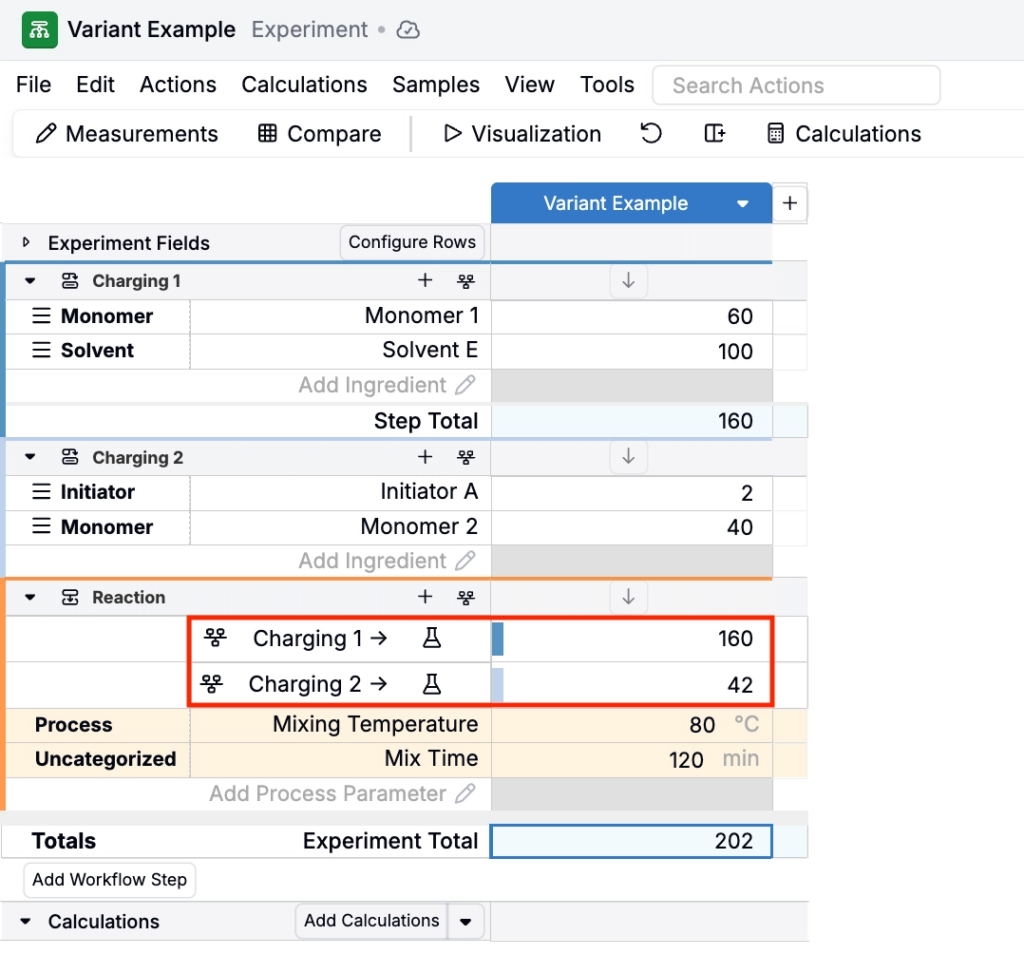
On a workflow variant, you can define how material transfers from one step to the next by creating step relationships. For example, two “Charging” steps can be configured to each feed into a single “Reaction” step.
To create step relationships:
- Grabbing the black connector dot before or after a step.
- Drag and drop it onto the connector dot before or after another step.
This updates the step order and the “feeds into” relationship between steps.
Step relationships appear both in the workflow diagram and on the recipe view of any experiment using that workflow.
Step relationships type
Step relationship types define how material is transferred from an upstream step to a downstream step. You choose a relationship type when connecting steps in a workflow/variant, and you can also change it on an individual experiment.
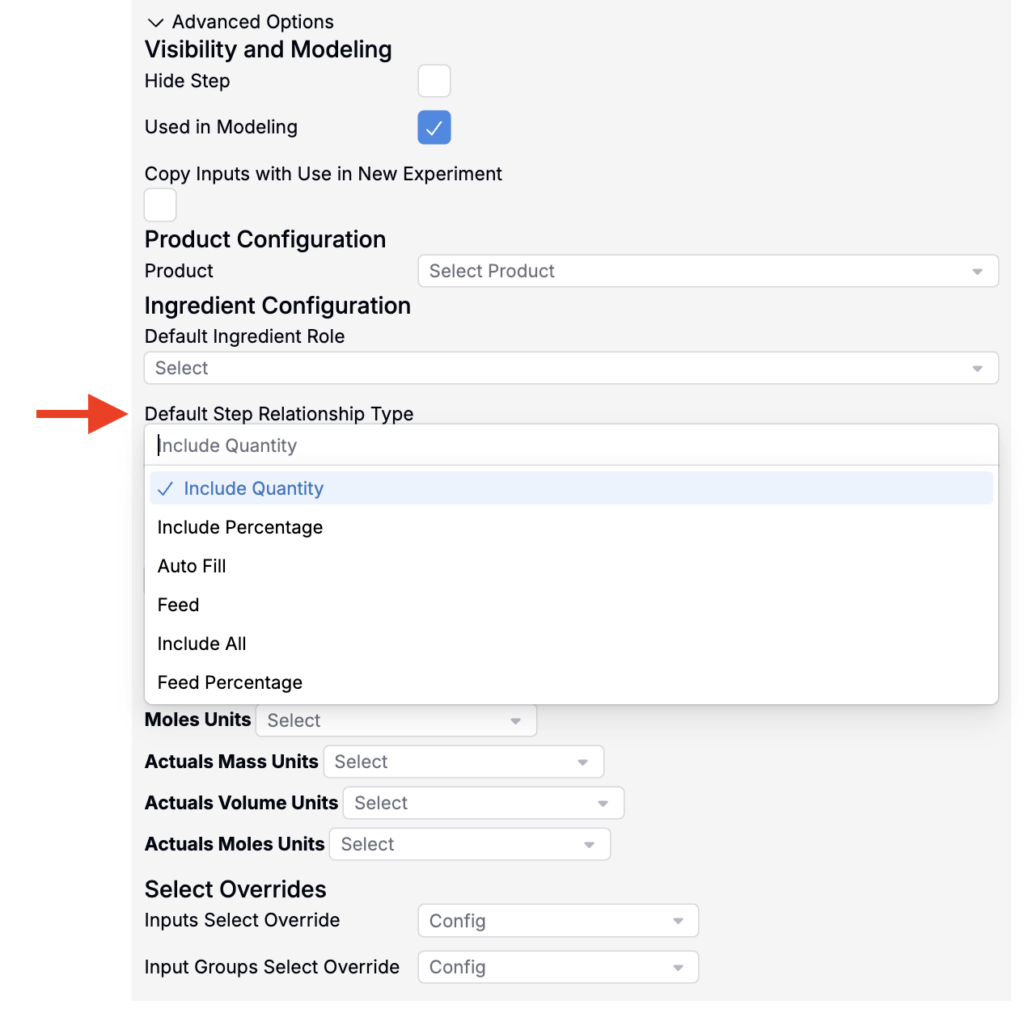
The available relationship types are:
- Include Quantity — transfers a specific quantity of material from the upstream step, defined by an amount and optional quantity basis (e.g., mass, volume, moles).
- Include Percentage — transfers a set percentage of the upstream step’s output into the downstream step.
- Auto Fill — automatically fills the downstream step to 100% from the upstream step, without requiring an explicit quantity.
- Feed — transfers material at a defined feed rate over time, with optional quantity and feed time parameters. Used for continuous or semi-continuous addition processes.
- Feed Percentage — like Feed, but the amount transferred is expressed as a percentage of the upstream step’s output, with optional feed rate and time parameters.
- Include All — assumes that the full output of the upstream step transfers into the downstream step, without specifying a quantity or relationship details.
The set the default relationship type on a workflow/variant:
- Open the workflow in the Workflow Editor.
- Edit the workflow step.
- Under Advanced Options, use the Default Step Relationship Type field to select from available options.
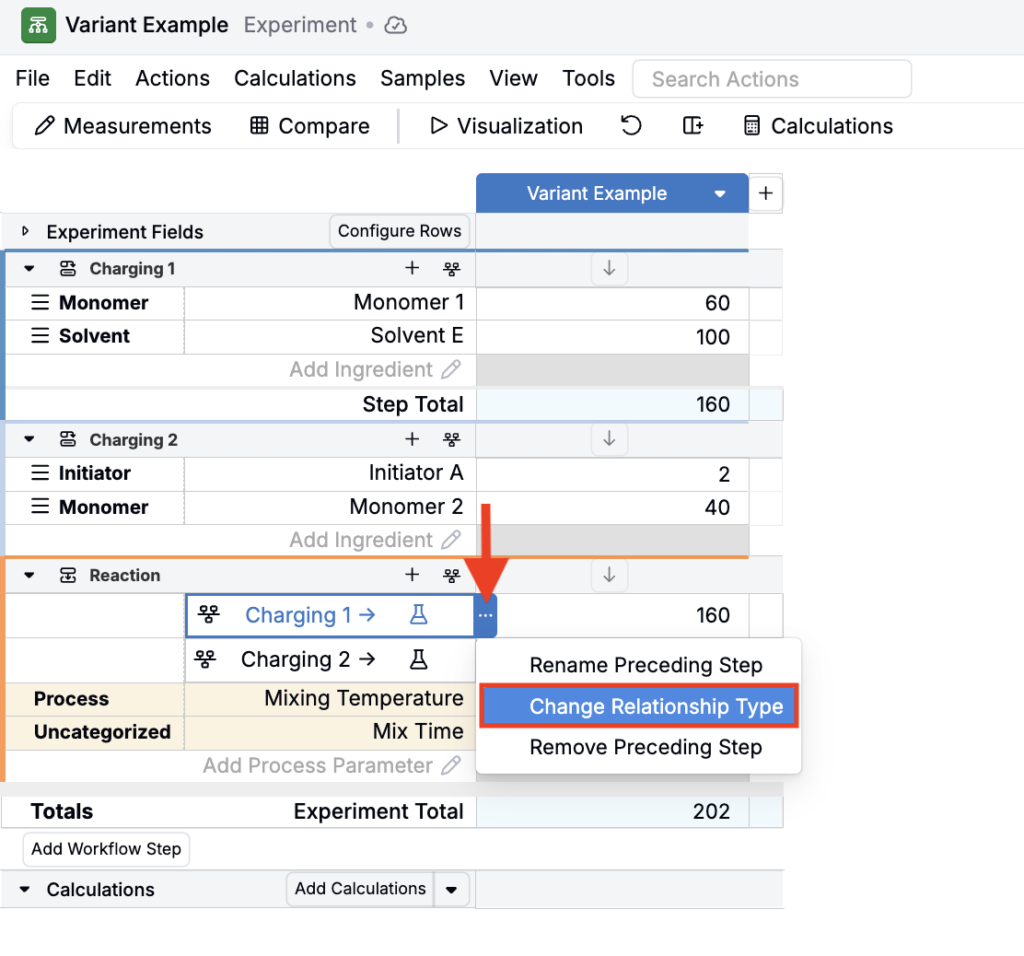
To change a relationship on an experiment:
- Navigate to the recipe view.
- Select the … associated with an upstream step.
- Choose Change Relationship Type and select from available options.
Using variants in experiments
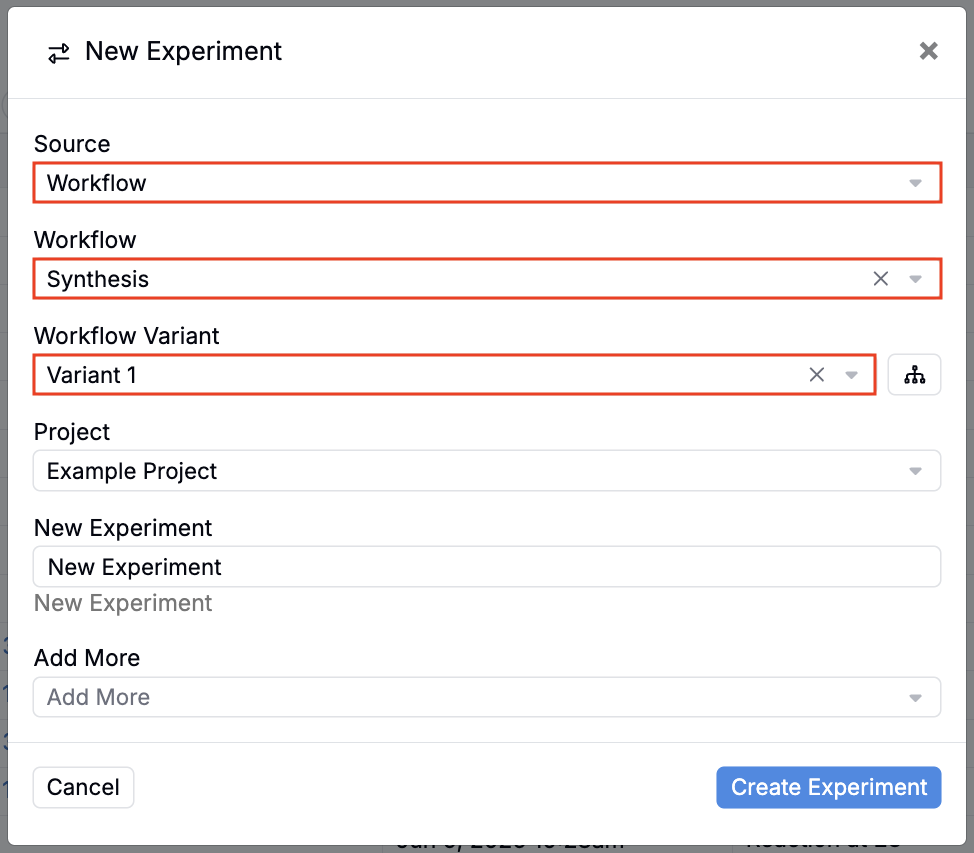
When creating a new experiment, you can select a workflow variant from the New Experiment modal. By default, the new experiment will include all workflow steps and any inputs/outputs added to the template experiment.