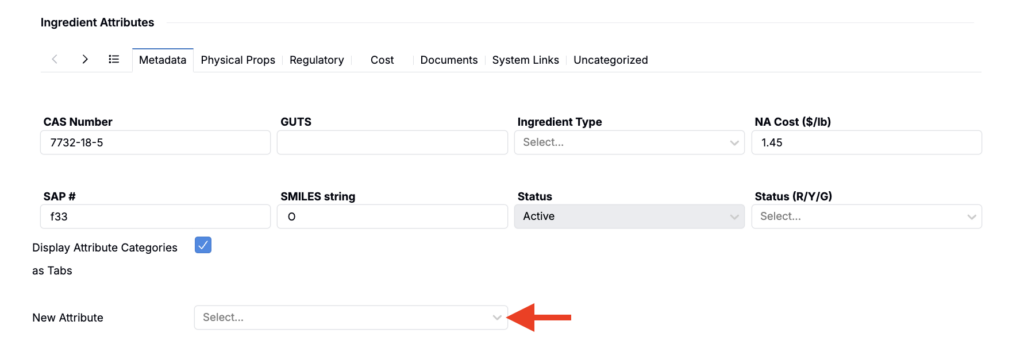
In Uncountable, ingredient attributes represent specific characteristics or properties of each ingredient. Attributes include numeric or categorical values, images, PDFs, and links providing detailed information about an ingredient. This information is often used to identify ingredients with similar characteristics.
Ingredient attributes are also different from recipe ingredient fields (also called recipe input attributes). Recipe ingredient fields belong to a workflow step or input within a recipe. Ingredient attributes belong to the ingredient itself and apply wherever that ingredient is used.
Note: Ingredient fields are the recommended model for new ingredient configuration. See Ingredient Fields for how ingredient fields and ingredient attributes compare.
Attributes listing page
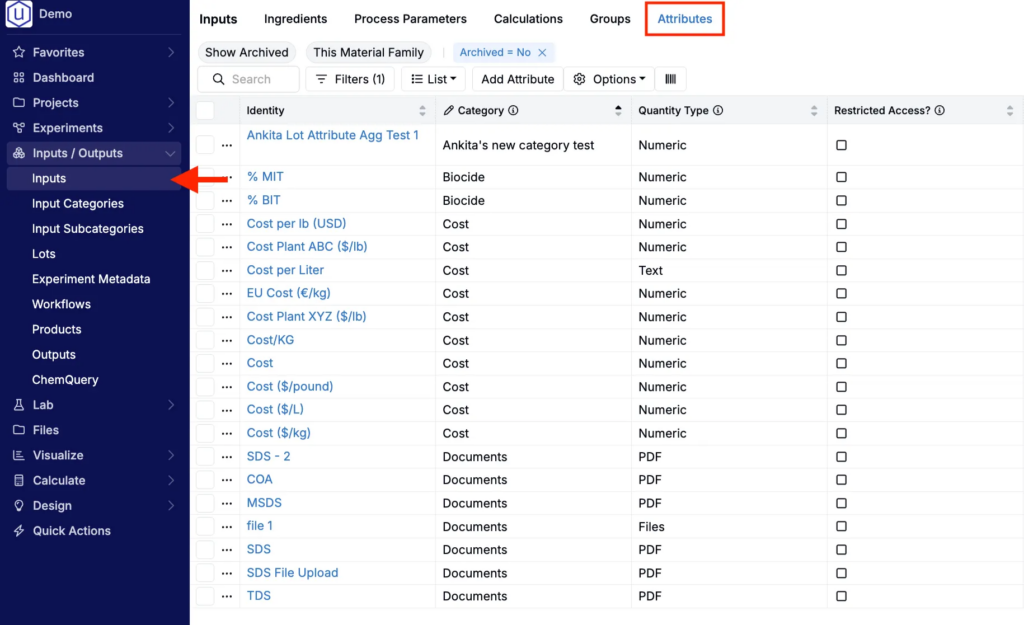
The configuration and display settings of ingredient attributes are highly customizable from the Attributes listing page (Inputs/Outputs > Inputs > Attributes).
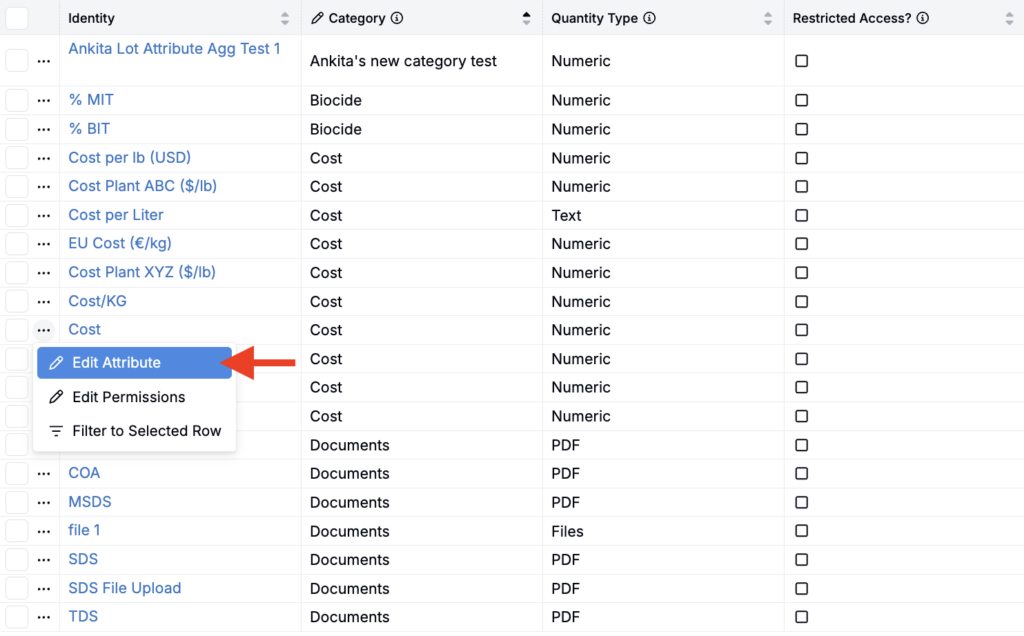
From this page, users can see all attributes stored within the platform. Sortable columns display their name, category, quantity type, access, and archive status.
Creating new attributes
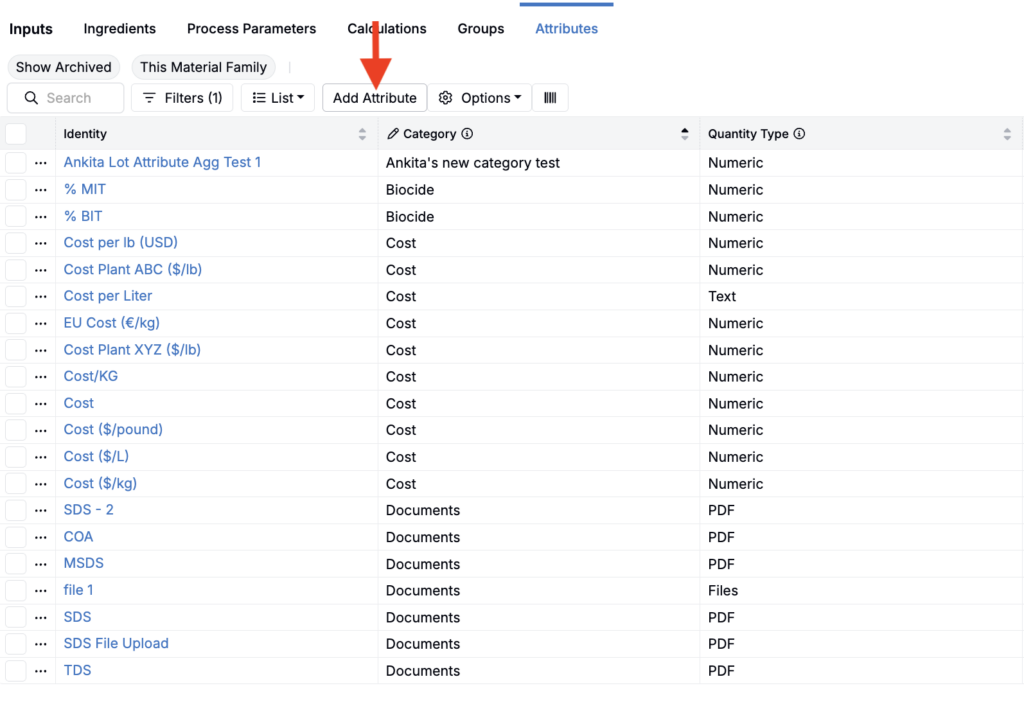
To create a new attribute from the listing page:
- Click New Attribute.
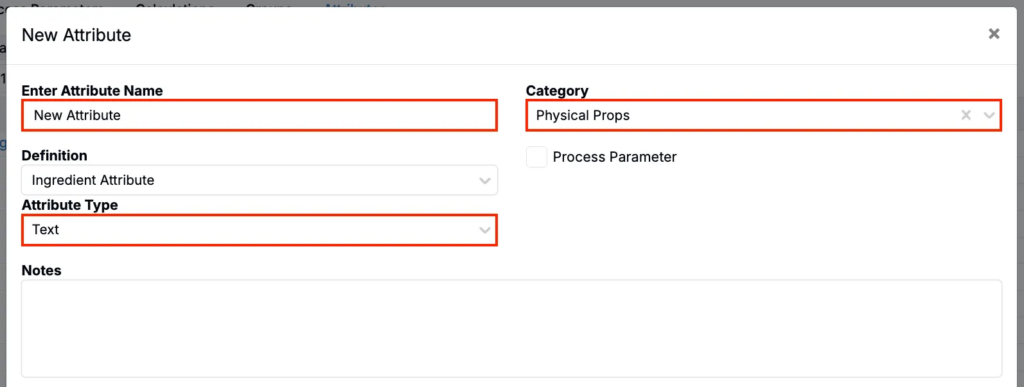
- In the modal, provide:
- Name — Edit the attribute name
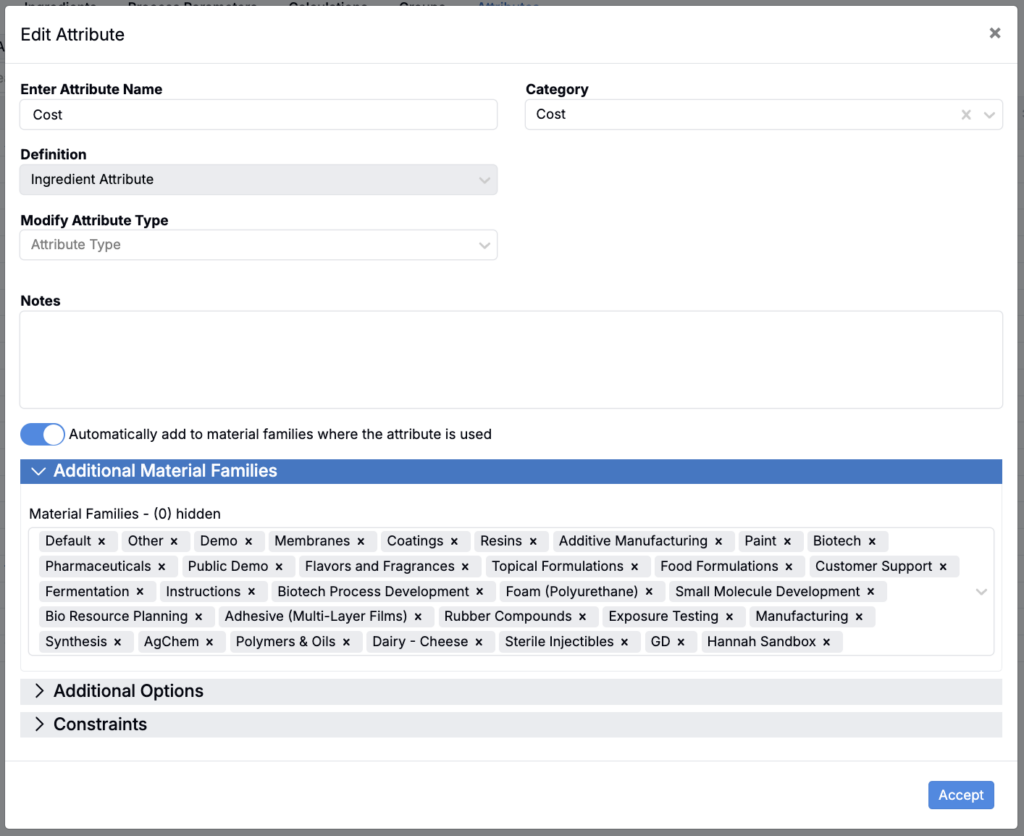
- Category — Edit the attribute category. Category refers to the tab under which an attribute is displayed on the ingredient details page (see screenshot below).
- Attribute Type (Text, Numeric, Image, File, Checkbox, Select, Date, etc.)Add notes, if desired

- Under Additional Material Families (A), select material families to make the attribute available within. Use the toggle above to add the attribute to any material family whenever it’s used there.

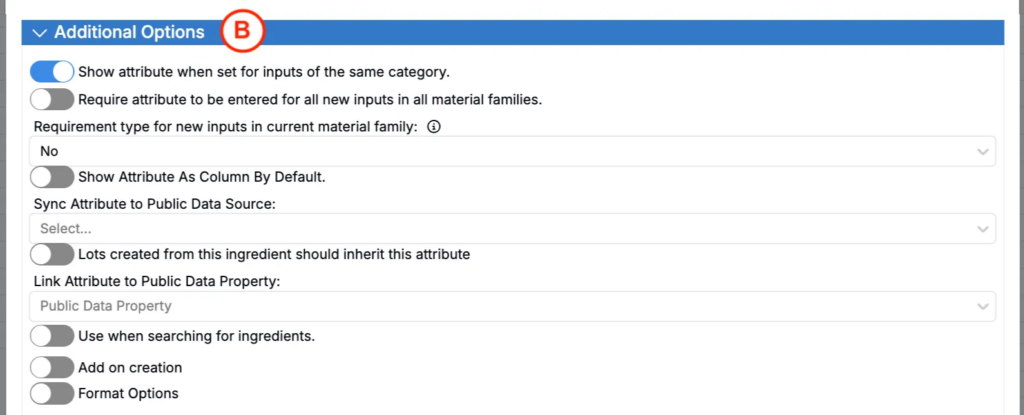
- Under Additional Options (B), you can configure additional attribute settings, such as:
- Show attribute when set for inputs of the same category — When enabled, if another ingredient within the same category has this attribute filled in, it will be shown for all ingredients within that category on the ingredient details page. This is the case even if an ingredient is currently blank.
- Require attribute to be entered for all new material families — When on, this attribute will be required for all new ingredients in all material families.
- Requirement type for new inputs in current material family — Alternatively, this dropdown determines whether an attribute is required for all new ingredients in only the current material family.
- Selecting No from the dropdown informs the platform that the attribute is not restricted and is required for all material families.
- Selecting Warning, Required, or Prompt adds an additional menu and/or toggle. The toggle allows the user to require the attribute only for certain categories. If toggled on, the additional menu specifies which category.
- Each of these options — Warning, Required, or Prompt — function differently by warning, requiring, or prompting the addition of the specific ingredient attribute.
- Show Attribute as Column By Default — When enabled, the attribute will be included as a default column on the recipe view of experiments.
- Sync Attributes to Public Data Source — Enabling this option allows the attribute to directly access information from Uncountable’s PubChem integration. For example, adding a CAS number attribute allows the platform to retrieve relevant chemical data from PubChem (chemical structure, properties, safety information, etc).
- Lots created from this ingredient should inherit this attribute — When enabled, ingredient lots made from this ingredient will inherit the specific attribute.
- Add on creation — This toggle enables the user to set up an automatic value specification (spec) for that attribute during the creation of new entities. When enabled, users can access the Value Spec Editor modal. Clicking the adjacent pencil icon opens the modal, in which users can select entities and see how the value spec will be evaluated.
- Propagate — When enabled, the ingredient attribute (e.g. Cost) will show up in every ingredient category for every material family.
- + Create Aggregation — Clicking this button at the bottom of the modal expands a new Lot Attribute Aggregation section. Creating an aggregation applies an operation (mean, median, mode, min value, max value) to the attribute being configured. It then groups the results by a second output attribute.
- For example, a user could aggregate the average cost (attribute being configured) across a lot and group the results by density (output attribute). The result is the average cost for each ingredient within a lot, grouped by density.
- Alternatively, a user could aggregate the minimum or maximum cost across a lot and group the result by density, resulting in the cheapest or most expensive ingredients of a given density.
- Under Constraints (C), you can add optional constraints to control the attribute’s visibility, editability, or whether it’s required.
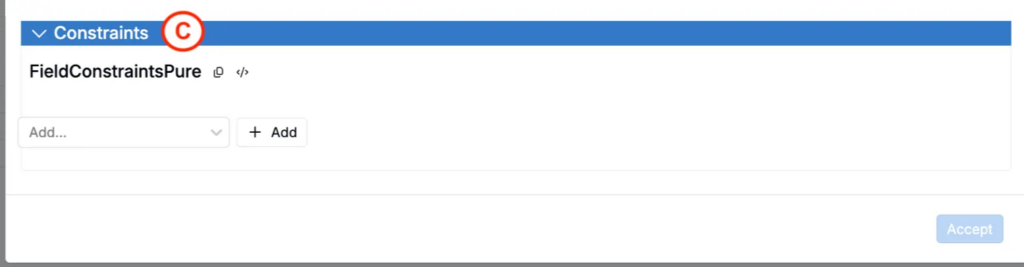
- Click Accept to create the attribute.
Editing an attribute
To edit an attribute from the listing page, click … > Edit Attribute.
The Edit Attribute modal controls all of the settings relevant to an individual attribute.
Adding attributes to an ingredient
Attributes can be added to an ingredient on the ingredient’s details page. To add a new attribute to an ingredient, select from the New Attribute field. Only users with Write permissions can create or modify attributes.