
Importers are Uncountable’s spreadsheet-driven tools for creating and updating large sets of records in bulk. They are used when creating in-platform catalogs during implementation, performing migrations, or making broad updates to ingredients, inventory, entire formulations, etc.
Core Concepts
- Spreadsheet structure— Each importer expects a specific spreadsheet layout. Start from the provided sample template and organize your data into rows and columns. Values in each column import/update the corresponding entity data (e.g., ingredient attributes, recipe metadata, outputs).
- Matching strategy — By default, each importer creates or matches entities based on its primary column (e.g., the Ingredients Importer matches on the Ingredient column). To change the match key, add an asterisk (
*) to the column header you want to match on. View an example. - Updating entities — When using the importer to update existing entity information, check the Overwrite Existing Values checkbox at the bottom of the page when reviewing.
- Blank cells — Blank cells do not overwrite existing values.
- Field ref names — For Entities Importer updates, headers must match field reference names for the target definition.
General Workflow
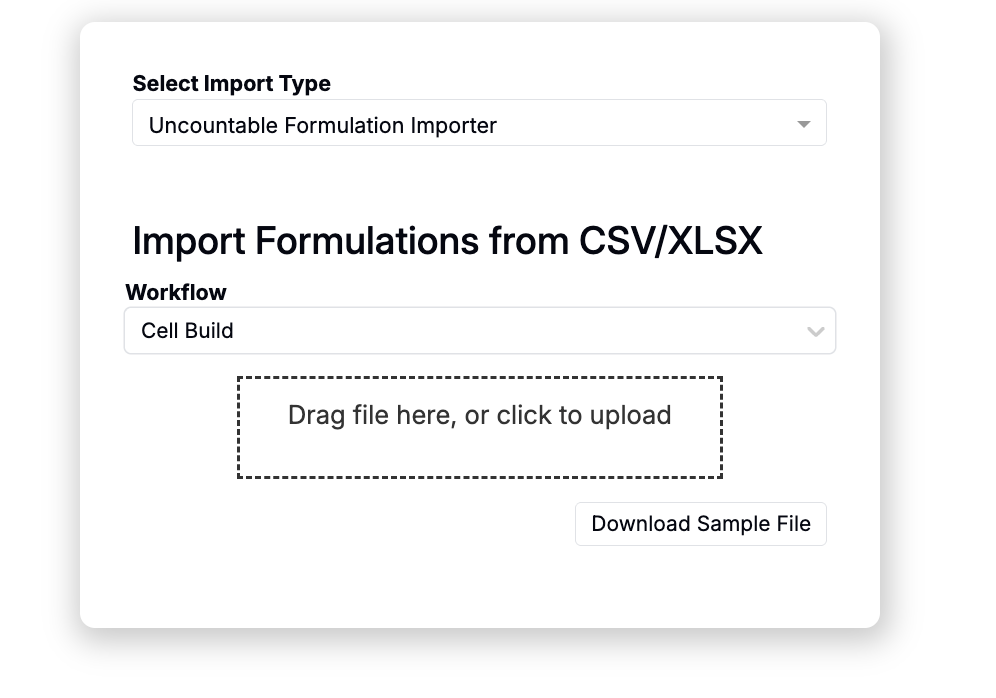
- Access the importer page and select the correct importer type.
- Configure a spreadsheet with rows and columns per the importer’s requirements.
- Upload the file, review highlighted matches and errors, then submit.

| Type of Import | Overview | Link to Documentation | Sample Template(s) |
| Formulations | Create or update full recipes, including inputs, outputs, replicates, mix order, and condition parameters. | Importing Formulations | Formulation Importer Template Formulation Importer Template (with Mix Order) |
| Ingredients, Process Parameters, Lots | Create or update ingredients or process parameters. Optionally include lots on a separate tab. | Importing Ingredients, Process Parameters, and Lots | Ingredients Importer Template (Ingredients) Ingredients Importer Template (Process Parameters) |
| Outputs | Create or update ingredients or process parameters. Optionally include lots on a separate tab. | Importing Outputs | Output Importer Template |
| Output Groups | Create or update output groups stored in your schema’s output groups library. | Importing Output Groups | Output Groups Importer Template |
| Inventory | Create or update inventory in bulk. | Importing Inventory | Inventory Importer Template |
| Inventory Locations | Create or update inventory locations in bulk. | Importing Inventory Locations | Inventory Locations Importer Template |
| Equipment | Create or update equipment in bulk. | Importing Equipment | Equipment Importer Template |
| Projects | Create or update projects, including parent projects and project definition fields/metadata. | Importing Projects | Project Importer Template |
| Condition Parameters | Create or update parameters stored in your schema’s condition parameters library. | Importing Condition Parameters | Condition Parameters Importer Template |
| Recipe Metadata | Create or update metadata fields stored in your schema’s experiment metadata library. | Importing Recipe Metadata | Recipe Metadata Importer Template |
| Analytical Methods | Create or update AMCPs stored within the schema. | Importing Analytical Methods | Analytical Methods Importer Sample Template |
| Users | Create or update users in the platform | Importing Users | User Uploader Template |
| General Entities | Create or update entities (projects, equipment, AMCPs, custom entities, and dropdown source lists). | Using the Entities Importer | N/A |
When to use an Importer vs an Uploader
- Use an Importer to create or update many objects from a spreadsheet in one go.
- Use an Uploader to upload instrument files into specific experiments, mapping parsed values to outputs/CPs.