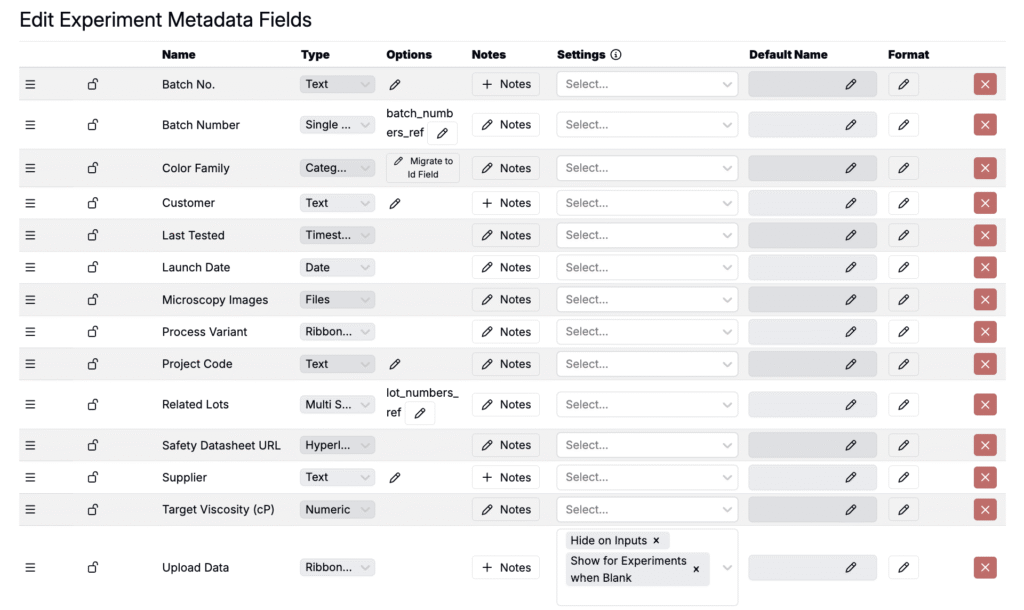
Use the Recipe Metadata Importer to create or update many experiment metadata fields at once. This importer allows you to update recipe metadata information such as name, type, options, units, notes, etc.
For small, one‑off adds, you can still edit recipe metadata fields manually, but the importer is the fastest and most consistent path for bulk setup.
Using the Recipe Metadata Importer
Step 1 — Access the Importer
- Navigate to any project dashboard.
- Access the selection menu and click Import CSV/XLSX.

Step 2 — Select Import Type
At the top of the page, select Recipe Metadata Uploader.

Step 3 — Prepare Your Spreadsheet
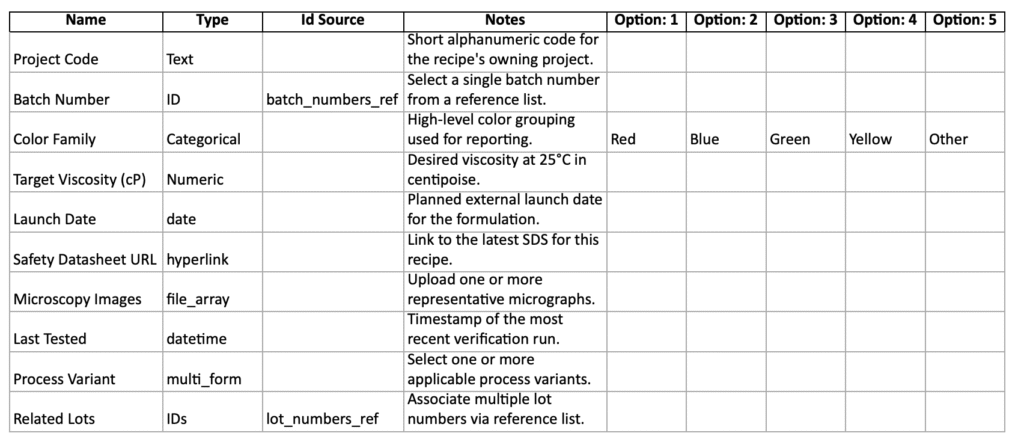
For Uncountable to process your upload, your spreadsheet must follow a specific format. Start from the template and then configure the headers as needed for your fields.
- Download template example: Recipe Metadata Importer Sample Template
Columns
- Name — Case sensitive. This is the display name for the metadata field.
- Type — One of: Text, Numeric, Categorical, ID, date, file_array, hyperlink, datetime, multi_form, IDs
- Categorical Options as “Option: #” — For Categorical fields only. Provide one option per column. If you have 5 options, include headers: Option: 1, Option: 2, Option: 3, Option: 4, Option: 5
- Id Source — Reference name of the ID source to populate selectable values.
- Notes — Free‑text notes. These appear in a pop‑up next to the metadata field on the experiment page.
- Recipe Metadata Field settings headers — Optional. See template for the full list. Cells can be YES or NO, or left blank.
Rules & Constraints
- Column order does not matter, but headers must match exactly.
- One row defines one metadata field.
- Avoid duplicate rows for the same field within a single upload.
- When updating an existing field, keep structural attributes consistent. For example, do not change a field from Numeric to Categorical in the same update.
Step 4 — Import, Review, and Submit
- Upload the file. Drag and drop your spreadsheet into the Recipe Metadata Uploader.
- Resolve validation errors. Problem rows are highlighted in red. Fix in the file and then re‑upload, if necessary.
- Review pending changes. Confirm the list of Import Operations.
- Click Import to apply changes.

After submission, the importer will create new recipe metadata fields or update existing ones. To review changes made, navigate to the Experiment Metadata page (Inputs/Outputs > Experiment Metadata).