
Skills are saved instructions or workflows that Bodie, Uncountable’s AI assistant, can load and follow. Instead of re-explaining your process each session, you define it once as a skill, and Bodie knows exactly what to do whenever you need it.
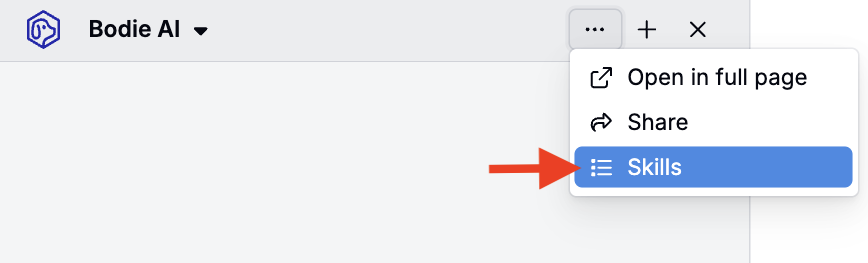
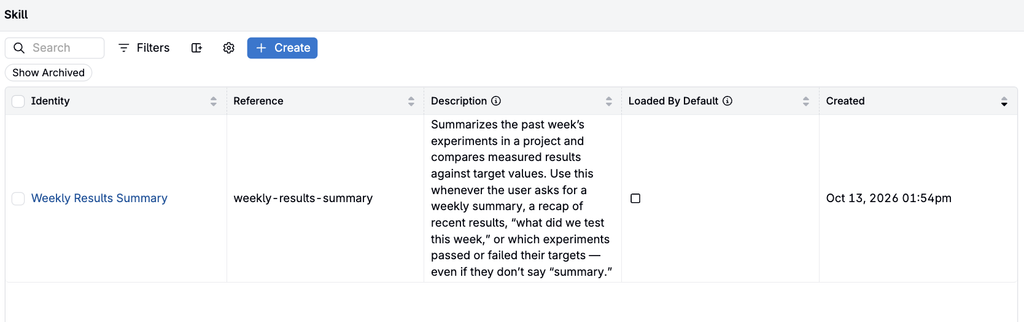
Manage skills from Bodie’s side panel by selecting … > Skills, or use Quick Actions (Command + K) to find Skills.
Built-in System Skills are provided and managed by Uncountable, and Bodie can use them without any setup. System Skills are listed on a separate page rather than in the Skills listing. To view them, open Quick Actions (Command + K), search for System Skills, and select it.
When a skill is invoked, Bodie loads its instructions and follows them to complete the task — whether that’s generating a report, drafting a value spec, editing a recipe, or summarizing experiment results.
Why Use Skills?
Skills are useful any time you have a workflow that should work the same way every time — or when Bodie needs context about how your team works that would otherwise be tedious to explain each session.
Common use cases:
- Generating structured reports or summaries from experiment data
- Drafting or reviewing value specs with consistent evaluation context
- Creating or editing recipes according to a standard process
- Building plots and visualizations from Explore Data
- Teaching Bodie team-specific terminology (e.g. your team calls experiments “Batches”)
Creating New Skills
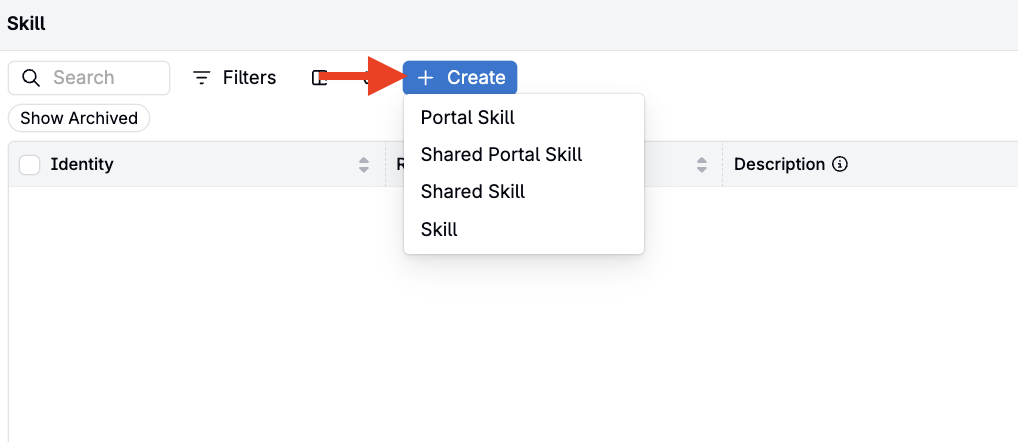
To create a new skill, access the Skills page and click + New Skill.
Each skill belongs to a skill definition, which controls who can read it:
- Shared Skill: readable by all users.
- Skill: not readable by all users, so access can be scoped to specific user groups through permissions.
- Shared Portal Skill and Portal Skill: the equivalent definitions for skills that Bodie uses in the Portal. Skills created under the non-portal definitions are not available in the Portal.
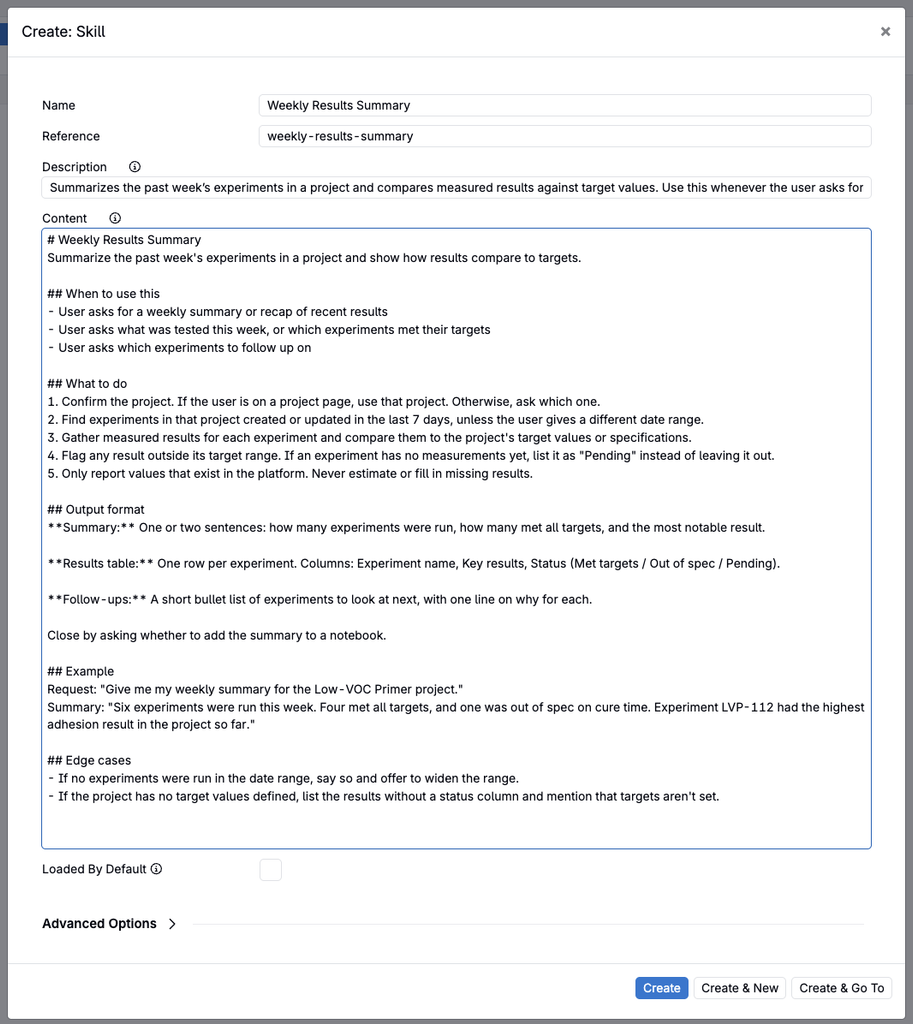
For each skill, fill out:
- Name — short, human-readable, Title Case, 2–4 words ideal
- e.g. Experiment Report Generator, Pilot Kickoff Brief, Recipe Cleanup Helper
- Reference — lowercase hyphenated slug, no spaces, no special characters
- e.g. experiment-report-generator, pilot-kickoff-brief, recipe-cleanup-helper
- Description (most important) — This is the primary triggering mechanism. Bodie decides whether to use a skill almost entirely based on this text.
- Write it to bias toward triggering; under-triggering is the more common failure mode.
- Include both (a) what the skill does and (b) explicit trigger phrases the user is likely to say.
- Aim for 2–4 sentences and include concrete trigger phrases.
| Example | |
|---|---|
| ❌ Weak | Helps create experiment reports. |
| ✅ Strong | Generates structured experiment reports for a given study. Use this whenever the user asks for a report on an experiment, mentions summarizing results, asks “what happened in this run”, or wants a notebook generated from data — even if they don’t explicitly say “report.” |
- Content — The full skill body, written in Markdown. Write it like instructions to a capable-but-forgetful teammate. Use imperative voice.
# Skill Name
One-line purpose statement.

## When to use this
Specific trigger conditions, phrases, contexts.

## What to do
Step-by-step or principle-based instructions.

## Output format
Template for the required output shape (if applicable).

## Examples
1–3 input → output examples.

## Edge cases / gotchas
Known failure modes or ambiguities.
- Loaded by Default — Toggle that determines whether or not the skill loads on demand. Default to No when uncertain.
| Setting | When to use |
|---|---|
| Yes | Skill is always in Bodie’s context — good for broad-purpose workflows or customer-specific terminology (e.g. “this customer calls experiments ‘Batches'”) |
| No (default) | Bodie only sees name + description until the skill is invoked. Use for narrow/specialized skills. |
Not every section is needed — a lightweight skill might just need purpose + instructions + one example. Bodie can also create skills for you. Simply describe the workflow and ask Bodie to draft it.
Skill “Content” Writing Tips
- Imperative over descriptive. “Ask the user for X” beats “The agent should probably ask for X.”
- Explain the why when behavior is non-obvious — it helps Bodie generalize beyond exact examples.
- Examples are gold. One good example often replaces three paragraphs of rules.
- Keep it under ~500 lines unless the skill genuinely needs more. Long skills dilute their own instructions.
- Don’t over-specify. Teach principles, then show 1–2 examples of applying them. Rules that cover every edge case make the skill brittle.
- Avoid MUST/ALWAYS spam. Reserve it for genuine hard rules; everything else should be framed as guidance with reasoning.
Using Skills
Once you’ve added skills, you can either reference them explicitly in your prompt, or (if they’re set to load by default) rely on Bodie to pull them in automatically when relevant.
How skills get used in practice:
- Invoke a skill directly: Type @ in the Bodie chat and select the skill to load it into the conversation for Bodie to reference, or ask Bodie to use it by name — e.g. “Use the experiment report skill.”
- Auto-reference (Loaded by Default): If a skill is set to load by default, Bodie can use it automatically without you calling it out.
- Reference examples/files: A skill can instruct Bodie to look at supporting materials (including files in the platform’s file system). Notebooks are typically indexed better than uploaded files.
- Encode team knowledge: Skills are a good place to capture customer/team-specific terminology, how to find SOPs by keyword, or how to interpret your team’s tags/field conventions.
Note: Explicit /command-style skill invocation isn’t supported yet.
Example Skills
Each example below shows the full set of fields used to create the skill, so you can use these as templates when building your own.
Some of these examples, such as Plotting Workflow, are built-in System Skills; to view the current versions, open the System Skills page from Quick Actions (Command + K).
Writing and Evaluating Value Specs
| Field | Value |
|---|---|
| Name | Writing and Evaluating Value Spec |
| Reference | value-spec-drafter |
| Description | Helps draft and troubleshoot value specs with a repeatable workflow covering evaluation context and common patterns. Use this skill whenever the user asks to write, review, edit, or debug a value spec — or asks about base entity types, evaluation expressions, or how to structure a value spec. |
| Loaded by Default | No |
Content:
# Writing and Evaluating Value Spec
Help the user draft, refine, or troubleshoot value specs with a consistent workflow.

## When to use this
- User asks to write, create, or draft a value spec
- User asks to review, edit, or improve an existing value spec
- User asks about base entity types or evaluation expressions
- User says a value spec "isn't working" or wants to debug it

## What to do
1. Identify the base entity type for the context (e.g. Recipe, Experiment). Set it correctly before drafting.
2. Ask the user what they are trying to evaluate if it isn't clear.
3. Draft or refine the value spec expression based on their goal.
4. If debugging, read the current value spec and explain what it does before suggesting changes.

## Output format
Return the value spec expression in a code block. Include a plain-language explanation of what it evaluates and why.

## Edge cases / gotchas
- The base entity type must match the context — a mismatch is the most common source of errors.
- If the user hasn't specified an output or metric, ask before drafting.
For example, in the Value Spec editor, Bodie AI can use this skill to:
- Set the correct base entity type for the context (A)
- Draft or refine the value spec you’re trying to build (B)
Editing Recipes
| Field | Value |
|---|---|
| Name | Editing Recipes |
| Reference | core_edit_recipe_workflow |
| Description | Workflow for editing existing recipes via the helpbot tools — their inputs, steps, and fields. Use this workflow any time the user asks to edit an existing recipe through the helpbot, including adding, modifying, removing, or swapping inputs, and editing recipe steps or workflow steps. |
| Loaded by Default | No |
Content:
# Editing Recipes
Use this workflow any time the user asks to edit or iterate on a recipe through the helpbot tools.
For creating a recipe from scratch, use the Creating Recipes workflow instead.

## What to do first
Before making any edit, call `get_recipes_content` to see the recipe's current state: its workflow
steps, recipe step ids, and the inputs already on each step. You need these identifiers to target
edits, and you need to know which inputs exist before deciding whether an action is an add,
a modification, or a removal.

## Editing recipe inputs

Two tools edit recipe inputs:
- `set_recipe_inputs`: Generally should be used for mutating existing recipe inputs — change values,
  associate a lot, or remove an input. In some cases this can be used to add recipe inputs.
- `edit_recipe_inputs`: Generally should be used for adding new recipe inputs, instructions,
  or unstructured steps onto a recipe workflow step.

### Adding inputs
Use `edit_recipe_inputs`, resolve ingredient names with `batched_reverse_id_sources` and target
the workflow step with `recipe_workflow_step_identifier`. Then `add_input` resolved ingredients,
`add_step` unresolved ones as unstructured steps, and `add_instructions` for free-text directions.

### Modifying input values
Use `set_recipe_inputs`, targeting the existing `input_id`. Pass `recipe_step_id` to target a
specific step, `set_actual_value` to edit the actual rather than the set value, and `lot_recipe_id`
to associate a lot.

### Removing inputs
Use `set_recipe_inputs` with `remove` set to `true`.

### Swapping one input for another
A swap is a removal then an add, both via `set_recipe_inputs`:
1. Find the `recipe_step_id` recipe input A lives on, from `get_recipes_content`.
2. Remove recipe input A (`remove` set to `true`).
3. Add recipe input B on the same `recipe_step_id`.

## Editing recipe steps and workflow steps
Use `edit_recipe_steps` to edit recipe steps in batch. Use `upsert_recipe_workflow_step`
to add or modify workflow steps.

## Editing recipe fields and entity details
Edit via `edit_entities` the same way as any entity.
For example, from a recipe page, Bodie AI can use this skill to:
- Add, modify, or remove inputs on the correct recipe step
- Swap one ingredient for another while keeping it on the same workflow step
- Edit recipe steps, workflow steps, and entity fields in batch
Plotting Workflow
| Field | Value |
|---|---|
| Name | Plotting Workflow |
| Reference | core_plotting_workflow |
| Description | Invoke this skill for user requests related to graphs and visualizations, including creating or editing plots, surface plots, and adding plots to notebooks. Use whenever the user asks to plot, graph, or visualize data, or wants to edit an existing Explore Data visualization. |
| Loaded by Default | No |
Content:
# Plotting Workflow
Use this workflow when building or editing Explore Data plots with `create_plot` or
`edit_explore_viz`.

## Tool usage
- Use `create_plot` for plot creation requests.
- Pass `notebook_id` when the user explicitly wants the graph added to a notebook.
- If no notebook target is requested, omit `notebook_id` to create a detached explore save.

## Default execution pattern (strict)
1. Resolve x-axis entity id and y-axis entity id unless you already have them.
2. Resolve project scope (`project_id` or `recipe_ids`) unless you already have it.
3. Build canonical axis options (`ingred_<id>`, `output_<id>`, `oc_<cp_id>`, etc.).
4. Call `create_plot` once with final resolved inputs.

Do not call `create_plot` until axis ids and scope are fully resolved.

## Editing existing explore visualizations
- If frontend context includes `explore_viz_frontend_context`, prefer editing the current
  visualization in place with `edit_explore_viz`.
- Use `create_plot` instead of `edit_explore_viz` when the user explicitly asks for a new plot.

## Surface plot requests
- For DOE surface-plot analysis requests, use `get_surface_plot`.
- Resolve `doe_run_id` from current page/entity context before calling the tool.

## Project scope
- Provide either `project_id` or `recipe_ids`.
- If the user says "this project", use current page/project context id directly.
- For a broad plot with no specific project named, use `project_id=0`.

## How to find ids
Never guess ids. Use structured-query tools:
1. `discover_structured_targets` to select the relevant target.
2. `discover_structured_column_catalog` to find searchable columns.
3. `run_structured_query` to resolve the id by name.
For example, from an Explore Data page, Bodie AI can use this skill to:
- Resolve the correct x- and y-axis variables by name before building a plot
- Edit an existing visualization in place using the current page context
- Generate DOE surface plots by resolving the run ID from context
Finding and Reading Files
| Field | Value |
|---|---|
| Name | Finding and Reading Files |
| Reference | core_find_files |
| Description | Workflow for finding files via search or folder listing, reading file contents, and summarizing or comparing files. Use this whenever the user asks to find, list, read, summarize, or compare files — or searches for files mentioning specific terms. |
| Loaded by Default | No |
Content:
# Finding and Reading Files
Use this workflow when the user asks to find files, list files in a folder, read files,
summarize files, compare files, or search for files mentioning specific terms.

## Goal
Minimize tool calls.
- Use `global_search` to find files by their contents.
- Do not use the current page folder id unless the user says "this folder" or "here".

## Pick the right path
- If the user asks for the contents of a specific folder → use the named-folder path below.
- If the user asks to find files mentioning a term → use `global_search`.
- If the user asks to summarize or compare files matching a term → `global_search` first,
  then pass matching files into `read_files`.

## Named-folder path
1. Resolve the folder with `run_structured_query` on base=`file_folder`.
2. List folder contents with `run_structured_query` on base=`file_folder_membership`.
3. If the user wants to read or summarize files, call `read_files`.
4. Answer from the file list or file contents.

## General file discovery
Use `global_search` when the user wants to find files by keywords or contents.
- If the user only wants to find files: return matching results, do not call `read_files`.
- If the user wants to summarize or compare: call `global_search`, then `read_files` with
  matching `text_document_id` refs.

## Summarizing multiple files
- Batch whenever possible — call `read_files` once with all matching ids.
- Do not call `read_files` if the user only asked to find or list files.
For example, when asked about files, Bodie AI can use this skill to:
- Resolve a folder by name and list its contents
- Search across the platform for files mentioning specific terms
- Batch-read and summarize multiple files in a single step
Suggest Formulations Workflow
| Field | Value |
|---|---|
| Name | Suggest Formulations Workflow |
| Reference | core_suggest_formulations_workflow |
| Description | Invoke this skill for user requests to suggest formulations, generate optimized recipe suggestions, or run a DOE suggest job. Covers how to submit the job and how to present its results. |
| Loaded by Default | Yes |
Content:
# Suggest formulations workflow
Use this workflow when the user wants recipe suggestions, optimized formulations, or DOE suggestions based on constraints and goals.

Submit the job with `submit_suggest_job` via run_in_background — it takes 1–5 minutes and returns once complete with doe_run_id and the resolved entity IDs.

After the job completes, do not just report the raw IDs (doe_run_id, predictive_model_id, etc.) — they are not useful to the user on their own. Before ending your turn:
1. Call `doe_get_suggest_details` with doe_run_id to load the suggested recipes, and present them to the user as a table.
2. Give the user a short summary of the model's results — how the suggested recipes are predicted to perform against the goals and constraints.
3. Navigate the user to the suggest results page: call `navigate_to_page` on its own (not alongside other tools) with the doe_run entity redirect (route /materials/redirect/entity, query args type=doe_run and id=<doe_run_id>). navigate_to_page ends your turn, so do this last, after presenting the table and summary.
For example, when a user asks for recipe suggestions or wants to run a DOE suggest job, Bodie AI can use this skill to:
- Submit the suggest job in the background and wait for it to complete
- Present the suggested recipes as a table with predicted performance
- Navigate the user directly to the suggest results page
Background Research
| Field | Value |
|---|---|
| Name | Background Research |
| Reference | background_research |
| Description | Invoke this skill when a user asks for a formulation starting point, recipe, or chemistry for a target (“how would I formulate X to hit Y,” “what should I start with for Z”; “what is a better approach”), or for prior art, “what do we know about…,” or a new DOE. Trigger it even if the question seems answerable from general knowledge — the value is grounding the answer in Uncountable’s own documents and experiments, not memory. |
| Loaded by Default | Yes |
Content:
# Experiment Background Research & Starting-Point
Purpose. When a scientist asks for a starting point, prior art, or background research for a formulation, mine the project's documents and patents, its historical experiments, and the ingredient inventory; combine them with expert chemistry and materials-science reasoning; and deliver a cited, concrete, actionable proposal. The same pipeline serves retrospectives ("what did we learn?") and cross-domain transfers ("what would this look like for X?"). Always end by offering to turn the proposal into a task or an experiment.

When this applies. Load when the user asks to find prior art, propose a formulation or DOE, summarize what a set of experiments taught, or transfer insights to a new application.

Principles (apply throughout)
- Ground every fact, and link it. Each composition, loading, or process condition taken from the corpus must name and hyperlink its source. Never present a number as historical without its source.
- Separate data from inference. Clearly label what the records show versus what your chemistry knowledge adds.
- Prefer measured examples over claim ranges. A patent's worked examples are the real answer.
- Get the chemistry class right. Match the recommendation to the application's chemistry.
- Surface trade-offs; promise no free lunch.
- Be specific enough to act on.

How to research
1. Read the project's document and patent corpus first. Retrieve and read actual documents, not just search snippets.
2. Patents may be in several languages. Read each in its original language and translate extracted facts into English.
3. Sweep experiments and inventory. Sample historical formulations across the whole platform for the same application or property profile.
4. Add expert reasoning. Explain the mechanism behind each major trend.

Output
Deliver inline in clearly labeled sections: Request & Targets · What the Records Show (cited) · Expert Interpretation · Proposed Starting Formulation · Gaps & Ingredients to Source · Suggested DOE.
Present any formulation or DOE as a narrow table with no rationale column; put the "Why" as one short line per row directly below the table.
Close by asking whether to (1) create a task or (2) spin up an experiment from the formulation — or leave it for now. Create nothing until the user explicitly chooses.
For example, when a user asks for a formulation starting point or prior art, Bodie AI can use this skill to:
- Mine project documents, patents, and historical experiments for cited evidence
- Deliver a concrete starting formulation with source links and trade-off analysis
- Offer to create a task or spin up an experiment from the proposal
Suggest Graphs Workflow
| Field | Value |
|---|---|
| Name | Suggest Graphs Workflow |
| Reference | core_suggest_graphs_workflow |
| Description | Invoke this skill when the user has clicked Suggest Graphs in the Explore Data view and the agent needs to produce 3 to 5 ready-to-view chart suggestions by calling create_plot multiple times. |
| Loaded by Default | No |
Content:
# Suggest graphs workflow
Use this workflow when the user has clicked "Suggest Graphs" in the Explore Data view. Produce 3 to 5 ready-to-view chart suggestions by calling `create_plot` once per suggestion. Do not ask the user to clarify before producing suggestions.

## Context to read first
Frontend context provides `explore_viz_frontend_context` with `save_id` and `viz_config`. Use these to understand current filters and visualization scope. Resolve the current project id from page URL or location context. Do not call `discover_entity_tools` first — use the listing tools below directly.

## Data discovery
1. `listing_discover_columns` with `entity_type=recipe` to enumerate columns.
2. `listing_run_query` with `entity_type=recipe`, limit ~50, and a project filter scoped to the current project.

Pick candidate columns from the sample, not from catalog metadata.

## Validating candidate pairings
Before calling `create_plot` for a pairing (x, y), you must have evidence from `listing_run_query` that at least 5 rows have both columns non-null on the same recipe. If a candidate fails this joint check, drop it.

## Suggestion selection
Pick 3–5 distinct pairings:
- 1–2 numeric × numeric scatter pairs (input/condition on x, output on y)
- 1–2 categorical × numeric comparisons (experiment name on x, output on y)
- 0–1 trend over time (`meta_create_time` on x)

Never repeat the same (x, y) pair. Do not exceed 5 `create_plot` calls.

## Plot geometry mapping
- numeric × numeric → SCATTER
- categorical × numeric → BAR
- time-like × numeric → LINE

## Composing create_plot calls
Pass `x_axis`, `y_axis`, `plot_geom`, `project_id`, and `graph_title`. Do not pass `notebook_id`.

## Closing message
The preview cards show chart type, axes, and title. Your closing message must NOT restate that. Instead write one short rationale bullet per suggestion explaining why the pairing is interesting — what the user might learn from it. One sentence per bullet. No headers.
For example, when a user clicks Suggest Graphs in Explore Data, Bodie AI can use this skill to:
- Discover populated columns scoped to the current project before building any plot
- Validate joint population before calling
create_plotto avoid empty chart errors - Produce a diverse set of 3–5 chart suggestions with rationale for each
Upsert Entities Guide
| Field | Value |
|---|---|
| Name | Upsert Entities Guide |
| Reference | core_upsert_entities_guide |
| Description | Domain knowledge for the upsert_entities tool: PackageDocument structure, entity spec types, references, and WrappedJSONB conventions. Load when the user wants to create or import entity configurations such as definitions, fields, triggers, option sets, or phase workflows. |
| Loaded by Default | No |
Content:
# Entity Upsert System
The `upsert_entities` tool creates and updates entity configurations. Provide a flat list of entities, each with `dry_run`, `entity_type`, `reference`, and `attributes`.

Always call with `dry_run: true` first to preview, then `dry_run: false` after the user confirms. Submit all entities in a single call — do not split into batches.

## Workflow
1. Discover target entities using `listing_run_query` and `get_entity_details` — verify ref_names and IDs before building the payload.
2. Discover attribute schema by calling `discover_fields` with the desired `entity_type`.
3. Build the `upsert_entities` payload using verified ref_names and discovered schema.
4. Call with `dry_run: true`, then apply with `dry_run: false` after confirmation.

## Reference conventions
- Most entities: `{"type": "ref_name", "ref_name": "myEntity"}` — camelCase, letters/numbers/underscores only, no hyphens
- Definition field groups and definition fields: `{"type": "uuid", "uuid": "..."}` — generate a fresh UUID v4 for each new entity
- Updating by database ID: `{"type": "id", "id": 12345}`

## Key patterns
- **Fields**: every field requires both an `entity_field` (the definition) and an `entity_definition_field` (the placement on a definition in a group)
- **Trigger sets**: attach to a definition via a separate `definition_trigger_set` entity, not by updating the definition
- **Phase workflows**: most environments already have a standard "Primary" workflow — only create a custom one when genuinely needed
- **Translated text**: `name` on `entity_field` and `field_option` must be `{"value": "...", "display_value": "...", "inferred_locale": "en-US"}`, not a plain string
- **WrappedJSONB**: complex nested fields (trigger actions, constraints, format options) must be wrapped with a `wrapped_type` discriminator, e.g. `{"wrapped_type": "trigger_actions", "value": [...]}`
- **Omit defaults**: omit null values and boolean false defaults to keep payloads small
For example, when a user wants to configure entity definitions, fields, or triggers, Bodie AI can use this skill to:
- Discover existing entity ref_names before building the payload to avoid guessing
- Structure WrappedJSONB attributes and translated text fields correctly
- Preview the full import plan with
dry_run: truebefore applying changes
Label Editing
| Field | Value |
|---|---|
| Name | Label Editing |
| Reference | core_label_editing |
| Description | Domain knowledge and behavioral guidelines for editing labels. Load when the URL contains label_editor. |
| Loaded by Default | No |
Content:
# Label editing
When the user is editing a label and asks you to make changes:

- If the user asks you to create a new label template, tell them to create it through the label editor UI first, then ask you to edit it. Do not call `write_label_template` with a template name that has not been confirmed by a prior `read_label_template` call.
- The label template name can be determined from the `templateName` query parameter in the frontend context URL.
- If you want to call `write_label_template`, you MUST first call `read_label_template` to load the current card spec.
- Label specs can include placeholders like `$variable8` inside item fields. Every `$variableN` placeholder must be backed by a matching entry in the card spec's `vars` map: `vars.variableN = "<ValueSpec expression>"`.
- ValueSpec expressions are evaluated at render-time using the label editor's current entity context.
- To read the current entity's field, use `ref:fields.<fieldName>`. To read fields from a related entity, use `(with_entity "<entityType>" <entityIdExpr> <expr>)`.
- Common ValueSpec building blocks:
  - `(array_index <arrayExpr> <i>)`: pick the i-th element
  - `(text <part1> <part2> ...)`: concatenate parts
  - `(datetime)` / `(date)`: current datetime/date
  - `(format_date <dateExpr> "<strftimeFormat>")`: format a date
  - `(counter "<name>")`: next value from a named counter
- If you need a new `$variableN`, also add the corresponding `vars.variableN` entry.
- Be very concise. Make the requested changes and briefly confirm what was changed.
For example, when a user is working in the label editor, Bodie AI can use this skill to:
- Read the current label template before making any edits
- Add or update
$variableNplaceholders with correctly wired ValueSpec expressions - Confirm changes concisely without verbose explanations
DOE Constraints
| Field | Value |
|---|---|
| Name | DOE Constraints |
| Reference | core_doe_constraints |
| Description | Guidelines for finding and editing constraints in a DOE context. |
| Loaded by Default | No |
Content:
# Constraint editing
ConstraintSetId is in listing attributes. Never call `listing_discover_columns`.

Prefer this interaction pattern: infer a reasonable action from context, tell the user exactly what you plan to do and why, and ask for confirmation only when the plan depends on your own inference rather than an explicit user instruction. If the user already gave an explicit action with explicit values, execute it directly.

## Finding constraints
1. Get the constraint set ID from page context, DOE run, or parent entity.
2. Resolve the target entity ID by searching for the ingredient, category, or calculation by name.
3. Query constraints with filters for both constraintSet and the target column. Never query constraints without a constraintSet filter.

Do not show raw category or calculation IDs to the user — always resolve them to display names before responding.

## Editing with explicit values
1. Resolve the target constraint type (check prior resolved results first, then search ingredient and ingredient_category_all in parallel if needed).
2. Query matching constraints for each viable target in parallel.
3. Call `edit_entities` directly if the user explicitly gave the target and values.

## Editing using project data percentiles
1. Find ingredient, find constraint, get usage via recipe query — in parallel.
2. Compute percentile min/max from non-null usage values.
3. Tell the user the computed min/max and wait for explicit confirmation before calling `edit_entities`.

## Creating a new ingredient constraint
1. Find ingredient by name.
2. Get the constraint set's workflow ID and call `get_workflow_steps`.
3. Choose workflow step carefully — prefer the step used by similar existing constraints; if multiple candidates remain, tell the user which step you plan to use before creating.
4. Use known field ref_names directly: `constraintSet`, `ingredient`, `minVal`, `maxVal`, `workflowStepId`, `samplingSetting`.
5. Always set `samplingSetting` to `sometimes` unless the user specified otherwise.

## Generating constraints from project data
1. Find project recipes with `listing_run_query` `entity_type=recipe`.
2. Fetch recipe inputs with `get_recipes_data`.
3. Aggregate ingredient usage, determine appropriate workflow step per ingredient, compute 10th/90th percentile min/max.
4. Show the concrete proposal with workflow step names (not raw IDs), then ask whether to apply it.
For example, when a user wants to work with DOE constraints, Bodie AI can use this skill to:
- Look up existing constraints and resolve ingredient/category names before displaying them
- Create or edit constraints directly when values are explicit, or propose percentile-based bounds from project data
- Choose the correct workflow step based on existing constraints rather than defaulting to the first step
Creating Recipes
| Field | Value |
|---|---|
| Name | Creating Recipes |
| Reference | core_create_recipe_workflow |
| Description | Workflow for creating recipes via the helpbot tools. Use this instead of the Creating Entities skill for creating recipes. Use this workflow any time the user asks to create a recipe through the helpbot. |
| Loaded by Default | No |
Content:
# Creating recipes
Use this workflow any time the user asks to create a recipe through the helpbot tools.

## Create the recipe
Call `create_recipe` with the required `material_family_id` and `workflow_id`.
- `project_id`: default to current project from page/URL context.
- `workflow_id`: pick a reasonable workflow; the specific choice doesn't matter much — you can add workflow steps afterward.
- `name`: use the name the user gave, otherwise leave unset.

`create_recipe` returns the recipe id.

## Building the recipe from scratch
Only build up the recipe when the user specified the experiment shape (inputs, quantities, steps). If the user said something generic with no content, stop after `create_recipe`.

Use `get_recipes_data` to inspect the initial state before deciding what to create or update. If the user did not specify whether workflow steps are mix order, assume all should be mix order.

### Workflow steps
Use `upsert_recipe_workflow_step` to create or update steps.
- `data_source`: ALWAYS use a real data_source — either `workflow_step` (normal case, uses a real `workflow_step_key`) or `copy_recipe_workflow_step`.
- `has_mix_order`: set when creating mix order steps.
- `recipe_workflow_step_key`: provide to UPDATE an existing step; omit to CREATE a new step.

### Inputs
For each workflow step, identify two kinds of rows:
1. Ingredients / equipment / process parameters — become input rows keyed by `ingredient_key`.
2. Instructions — free-text directions, added with `add_instructions`.

Use `batched_reverse_id_sources` to resolve ingredient names. Then use `edit_recipe_inputs` (additive, not `set_recipe_inputs`) to add rows:
- Matched inputs: `add_input` with resolved `ingredient_key`
- Unmatched inputs: `add_step` as an unstructured step
- Instructions: `add_instructions`

Always target a specific step with `recipe_workflow_step_identifier`.
For example, when a user asks to create a recipe, Bodie AI can use this skill to:
- Create the recipe with the correct project and workflow, defaulting from page context
- Decompose a user description into workflow steps, ingredient rows, and instruction rows
- Resolve ingredient names and add matched and unmatched inputs in the correct step
Creating Entities
| Field | Value |
|---|---|
| Name | Creating Entities |
| Reference | core_create_entity_workflow |
| Description | Workflow for creating entities via the helpbot tools. Resolve the correct definition first, especially for multi-definition entity types such as skills, then call create_entities. |
| Loaded by Default | No |
Content:
# Creating entities
Use this workflow any time the user asks to create an entity through the helpbot tools.

## Choose the right definition first
- For standard entity types: pass `entity_type` directly into `discover_fields` to get field ref_names.
- For custom entities: call `find_custom_entity_definition` to resolve the numeric `definition_id`, then call `discover_fields` with that `definition_id`.

Do not infer the definition by copying an arbitrary existing row. Use the resolved `definition_id` when calling `discover_fields` and `create_entities`.

## Create the entities
Call `create_entities`, passing each entity as an object in the `entities` list. Provide either `definition_id` or `entity_type` (not both) and populate every `required: true` field.
For example, when a user wants to create an entity, Bodie AI can use this skill to:
- Resolve the correct definition ID for custom entity types before attempting creation
- Discover the exact field ref_names required for the target definition
- Create the entity with all required fields populated correctly
Writing and Evaluating Value Spec
| Field | Value |
|---|---|
| Name | Writing and Evaluating Value Spec |
| Reference | core_value_spec_overview |
| Description | Orientation to Uncountable’s value spec mini-language — schema prefixes, the vars/context system, and the function layer. Load before writing or debugging value spec. |
| Loaded by Default | No |
Content:
# Value spec overview
Value spec is a string-based expression language used across the platform to compute values from an entity's context: field defaults, naming schemes, listing column formulas, and anything configured through Form Admin.

## Schema prefixes
- `json:` — JSON-encoded literal: `json:false`, `json:"a string"`
- `ref:` — dotted path into vars: `ref:fields.<field_ref_name>`, `ref:recipe.metadata.<field_ref_name>`, `ref:project.metadata.<field_ref_name>`
- `text:` — template string with `${...}` interpolation: `text:R-${v:fields.runNumber}`
- `counter:` — monotonic counter, body MUST be quoted: `counter:"ABC"`, `counter:"ABC":04d`
- `ns:` — evaluates a named entry from the naming_schemes table
- `(...)` — bare lisp-like function call (canonical form): `(coalesce ref:fields.a text:fallback)`

## Workflow
1. Identify the evaluation context — which entity is the base and which vars are loaded.
2. Discover field ref_names by evaluating `ref:fields` with the `execute_value_spec` tool — do not guess ref_names.
3. Pick the simplest schema that can express the output.
4. **Never make up a function.** Call `get_value_spec_function_documentation` to confirm any function before using it.
5. **Run the value spec** with `execute_value_spec` to test it before committing. Iterate: run, inspect, adjust, run again.

## Common patterns
- Current date: `(date)`, formatted: `(format_date (date) "%Y/%m/%d")`
- Counter-based name with padding: `text:ATL-${counter:"ABC":04d}`
- Fallback: `(coalesce ref:fields.requestName text:fallback)`
- Read from related entity: `(with_entity "recipe" (array_index ref:fields.unc_coa_data_recipes 0) ref:fields.productName)`
For example, when a user needs to write or debug a value spec, Bodie AI can use this skill to:
- Discover actual field ref_names by evaluating
ref:fieldsrather than guessing them - Look up function signatures with
get_value_spec_function_documentationbefore using any function - Test candidate expressions with
execute_value_specand iterate before committing