
Many teams, especially larger organizations or those migrating from legacy systems, store ingredients using both an ingredient Name and an “Ingredient Code”.
By default, the Ingredient Importer matches on Name. You can also configure it to match on a specific attribute (such as Ingredient Code). Matching on an attribute lets you bulk-update ingredients without relying on naming conventions, reducing errors from variations like “HCl” vs “Hydrochloric acid,” capitalization, or spacing.
This article explains how to update ingredients by matching on an attribute. To upload ingredient by matching to ingredient name, see Importing Ingredients, Process Parameters, and Lots.
How to Update Ingredients via Attribute
Step 1 — Choose an attribute
Pick an attribute that uniquely identifies each ingredient (e.g. Ingredient Code or another unique identifier). The attribute should already exist on the ingredient records you want to update.
Step 2— Add a starred attribute column to your importer file
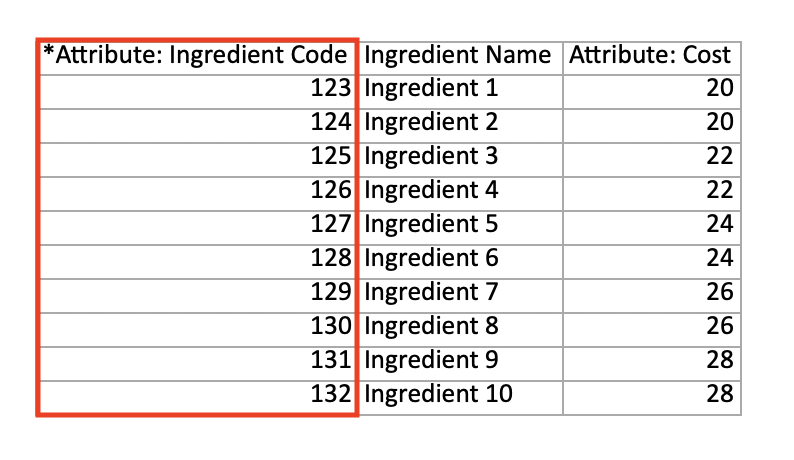
In your file, add a column whose header is the attribute name prefixed with an asterisk.
- Example header:
*Attribute: Ingredient Code - Fill each row with the corresponding attribute value for the target ingredients.
Step 3— Include the fields you want to update
Add any other columns you intend to change (e.g., Cost).
Step 3— Import the file using the Ingredients Importer
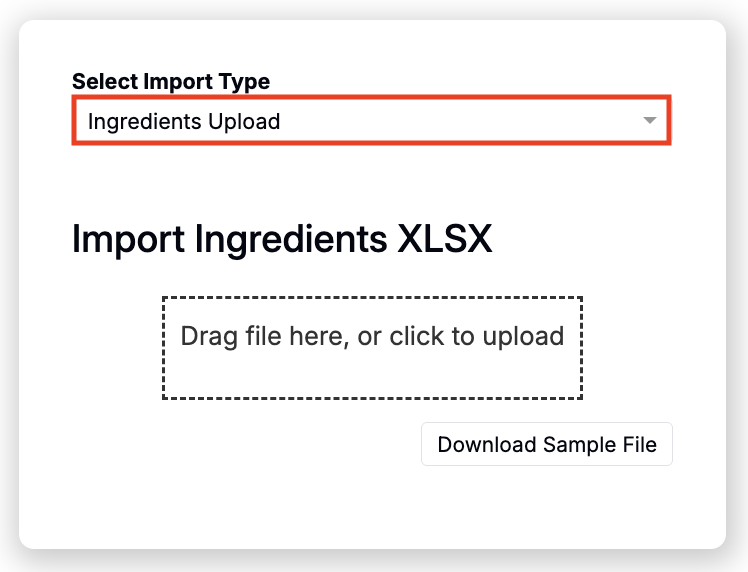
Drag and drop the file into the Ingredients Importer. The importer will match rows to existing ingredients by the starred attribute and apply your updates.
Step 4— Upload, Review, and Submit
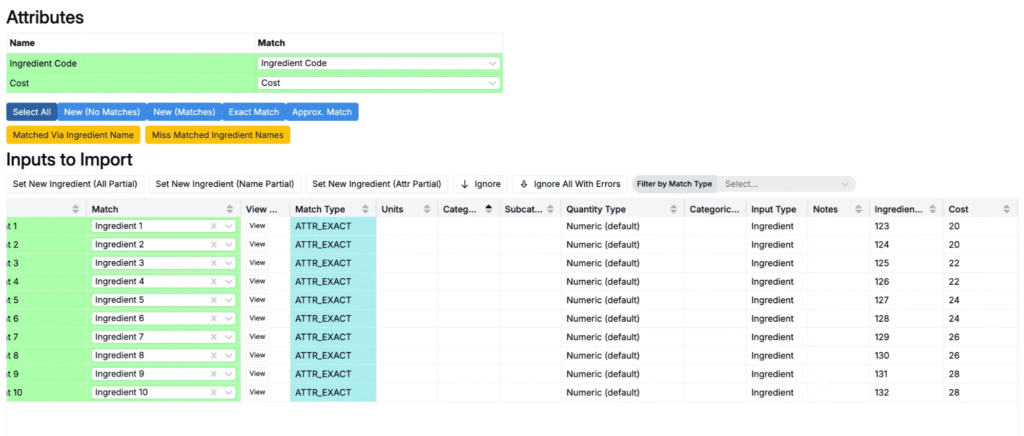
- Review the mapping results and resolve any issues.
- Green rows are valid matches and will be included.
- Red rows indicate errors that must be fixed before submission.
- Use the Match Type column to confirm that each row is mapped by attribute.
- Blank rows are ignored and won’t be updated.
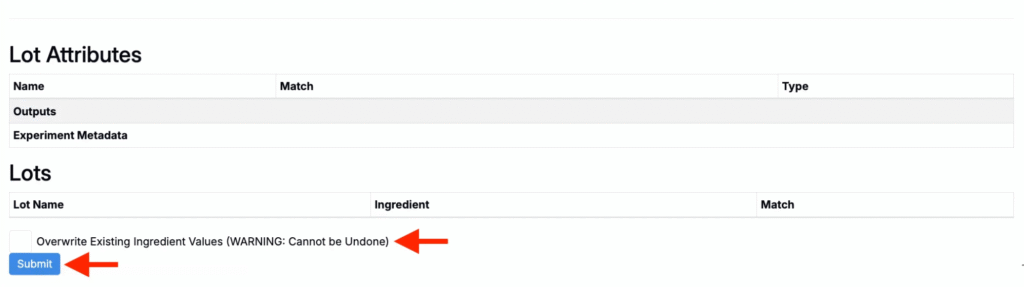
- Click the Overwrite Existing Ingredient Values checkbox.
- Values in all attribute columns will be updated for the matched records.
- Click Submit.
Notes
- Importer column order doesn’t matter.
- Use attributes that are unique across your catalog to prevent wrong matches.
- If the Ingredient Name columns is included, it will not be used for matching but will be updated accordingly.