Basis units in Uncountable allow users to add ingredients into experiments using three different basis unit families — Mass, Molarity, and Volume. Each family also has a default unit — g, mol, and mL respectively.
There is no inherent relationship between basis unit families. Instead, inter-basis conversions can be set up to convert from Mass to Volume, Mass to Moles, and Volume to Moles. Within an individual basis unit family, intra-basis conversions can also be configured to convert the default unit to another (e.g. g to kg, g to lb).
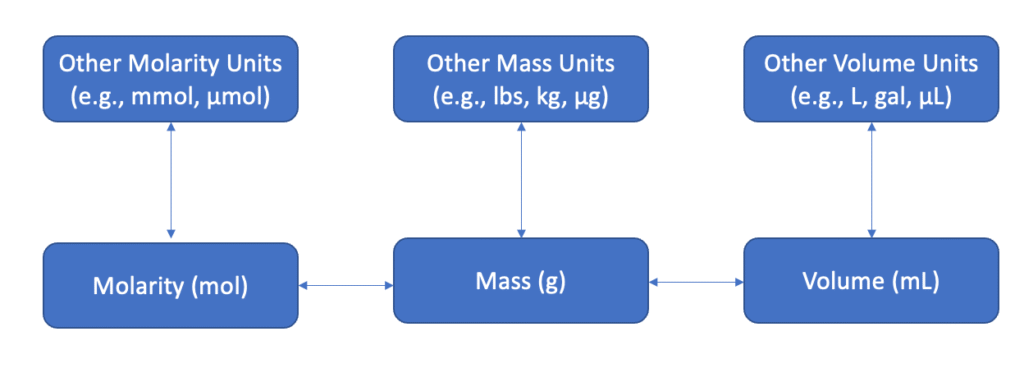
Basis Unit Hierarchy
On a recipe, the default basis units for ingredients is determined via the following hierarchy:
- Ingredient-level
- Recipe-level (ingredients and/or totals)
- Workflow step default
- Material family default
Setting Basis Units
Ingredient-level
Basis units set on an individual ingredient in a recipe is evaluated at the highest priority. To change the default unit for an ingredient:
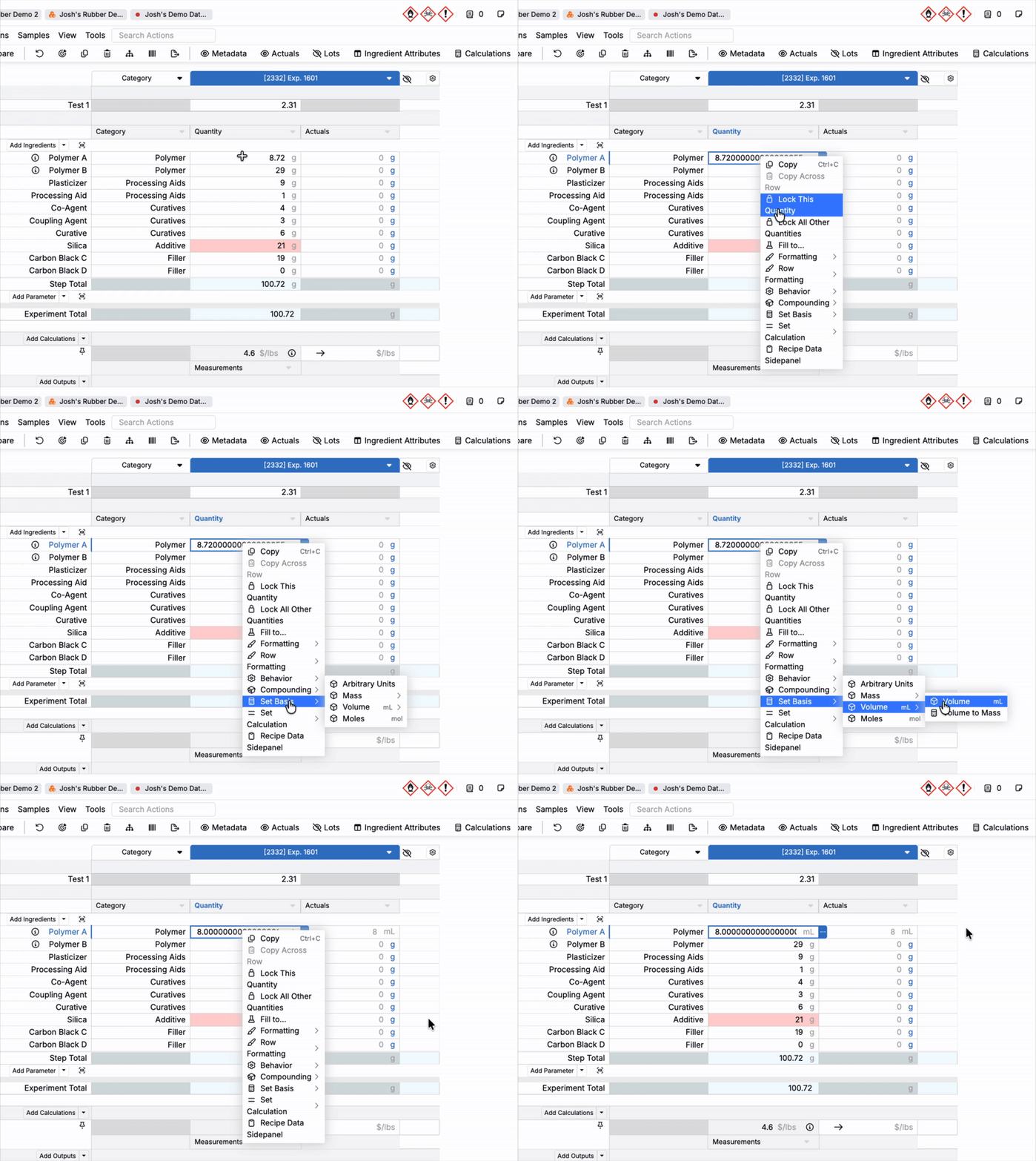
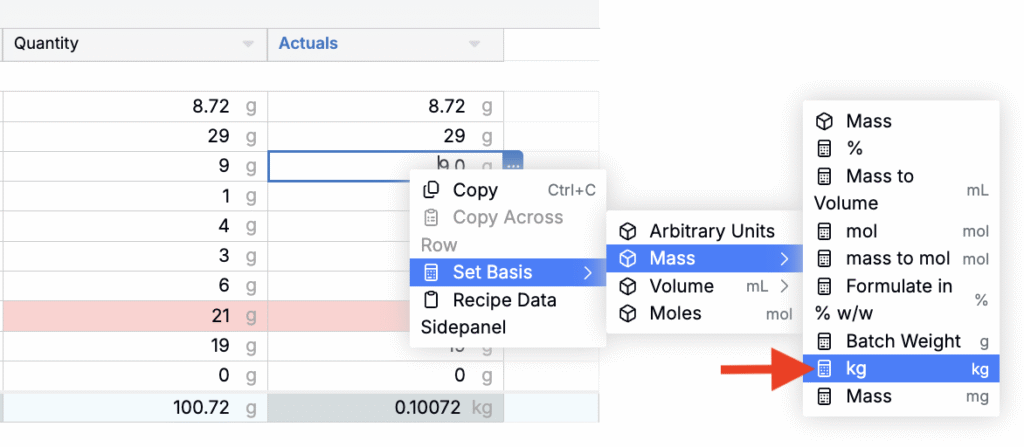
- Right-click the ingredient (or multi-select) and select Set Basis.
- Choose a family (Mass/Volume/Moles).
- Choose a unit or unit conversion.
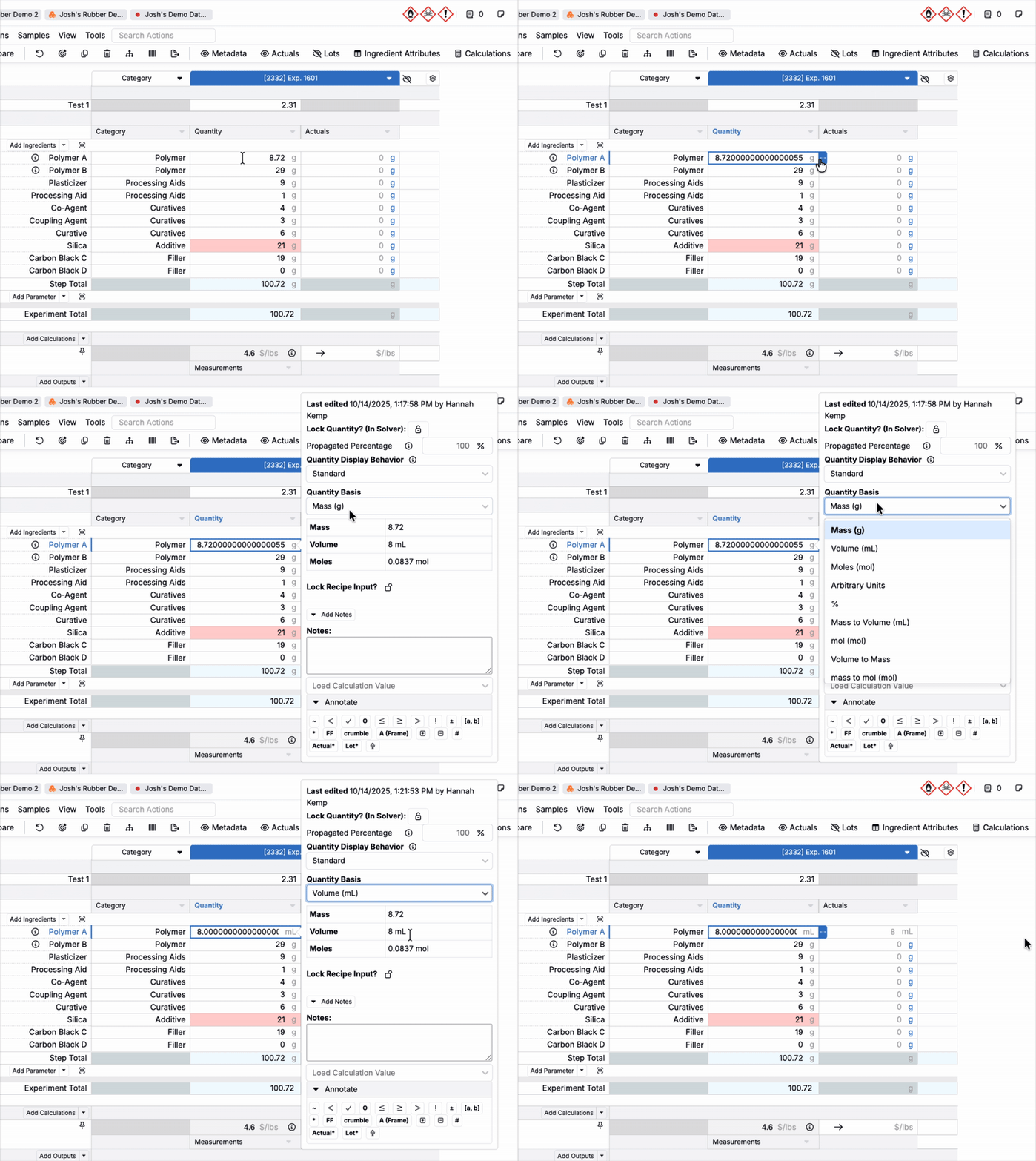
You can also view and switch between quantity bases via a cell’s popover window. To access the modal, select a cell and click the blue …. Within the modal, you can:
- View the cell’s value in the default Mass, Volume, and Moles units
- Use the Quantity Basis menu to select a new default unit for that ingredient cell
Recipe-level (all ingredients)
Basis units set on an individual recipe is evaluated second. To change the default unit for all ingredients in a recipe:
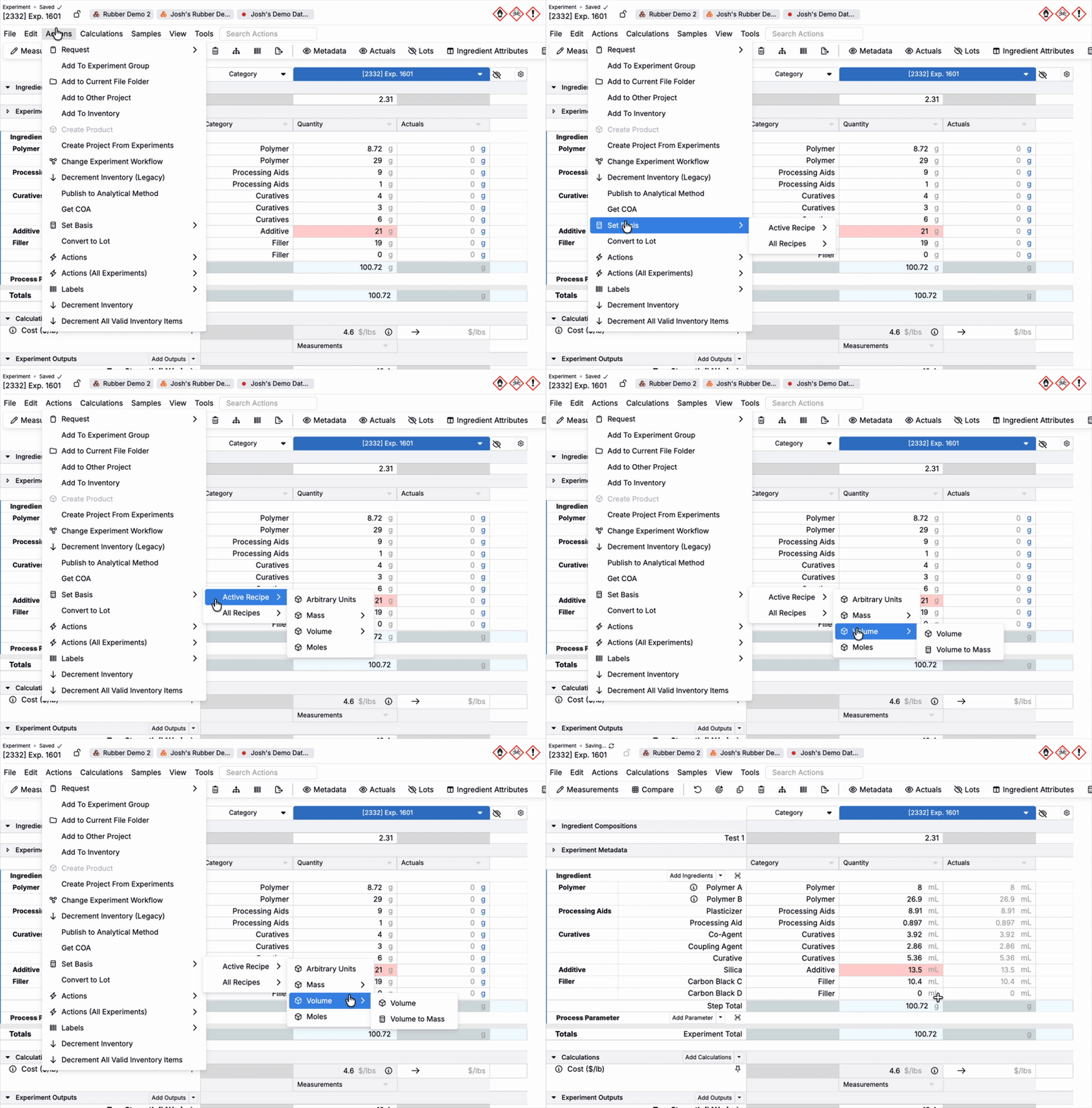
- Use the toolbar to select Actions → Set Basis.
- Pick the scope:
- Active Experiment – apply to this experiment only
- All Experiments – apply to all experiments in the current view/scope (if available in your build)
- Select the basis and unit.
This will update the default unit for all ingredients in the recipe or recipes. Step and Experiment totals are not updated via this setting. Note that this change applies only to the experiments in view— it does not impact workflow or global defaults.
Recipe-level (Step or Experiment Totals)
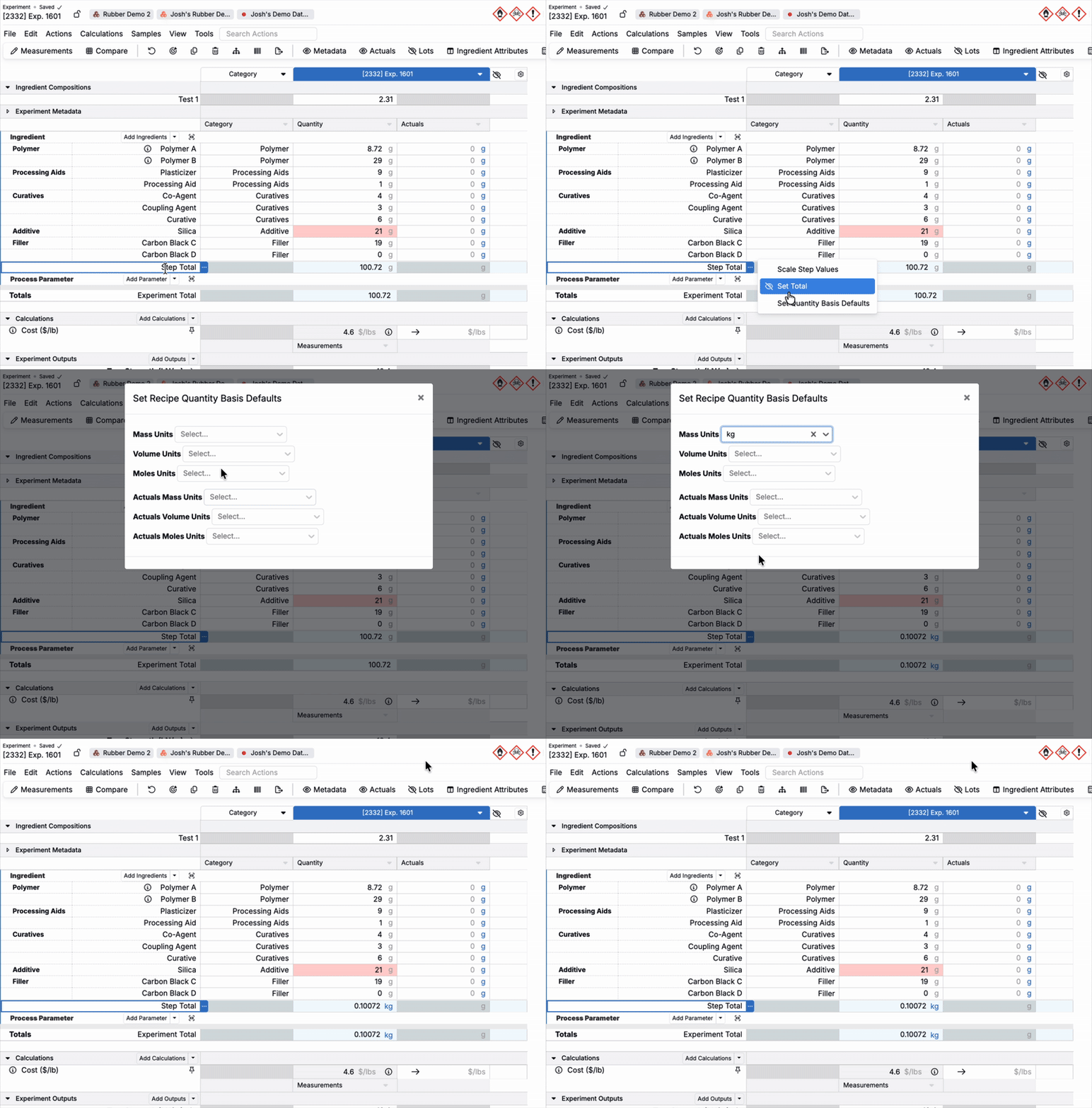
On the recipe-level, unit overrides can also be applied to the recipe Step or Experiment Totals. To show recipe totals in a specific basis unit:
- Right click on the Step or Experiment Totals header.
- Select Set Quantity Basis Defaults.
- Use the modal to select basis units and/or Actuals basis units.
Workflow Step-level
If an experiment has no ingredient or recipe-level overrides, basis units configured on the experiment’s workflow are prioritized next.
To set default units for ingredients in a workflow step:
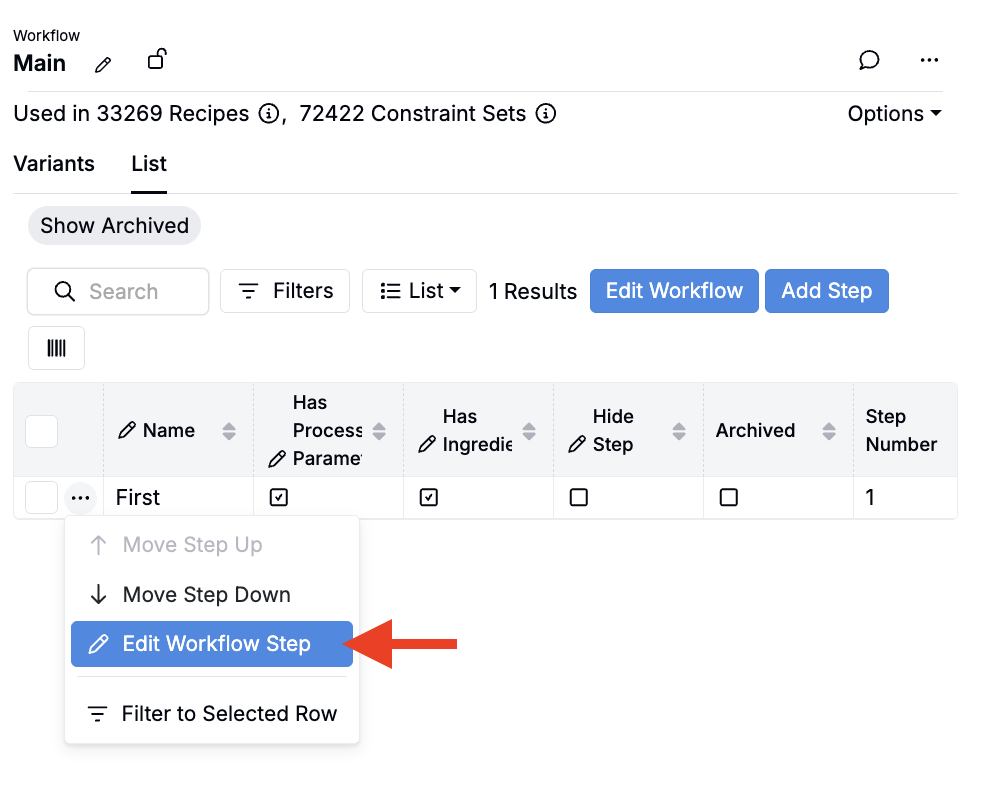
- Navigate to the Workflow editor.
- For a workflow step, select … > Edit Workflow Step.
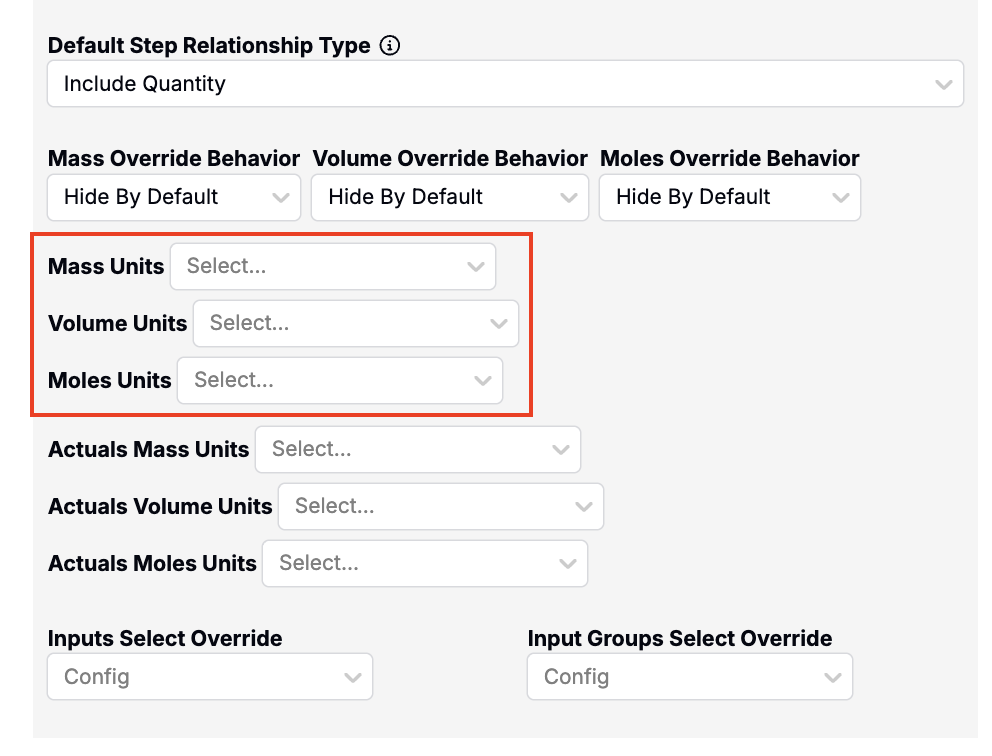
- In the sidepanel under Advanced Settings, use the Mass, Volume, and Moles Units fields to select the default basis unit for each family.
Material family-level
If ingredients, recipes, and workflow steps all have no overrides, the recipe uses the material family default. To set default units for all recipes within a material family, admins can:
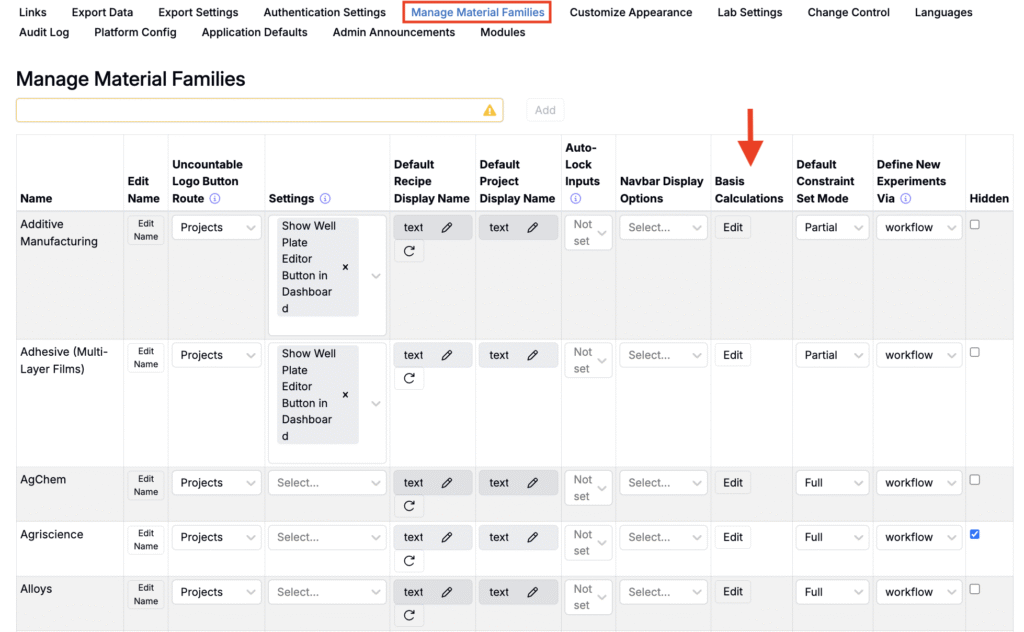
- Access Manage Material Families page (Company-Wide Settings > Manage Material Families).
- Click Edit in the Basis Calculation column of a material family row.
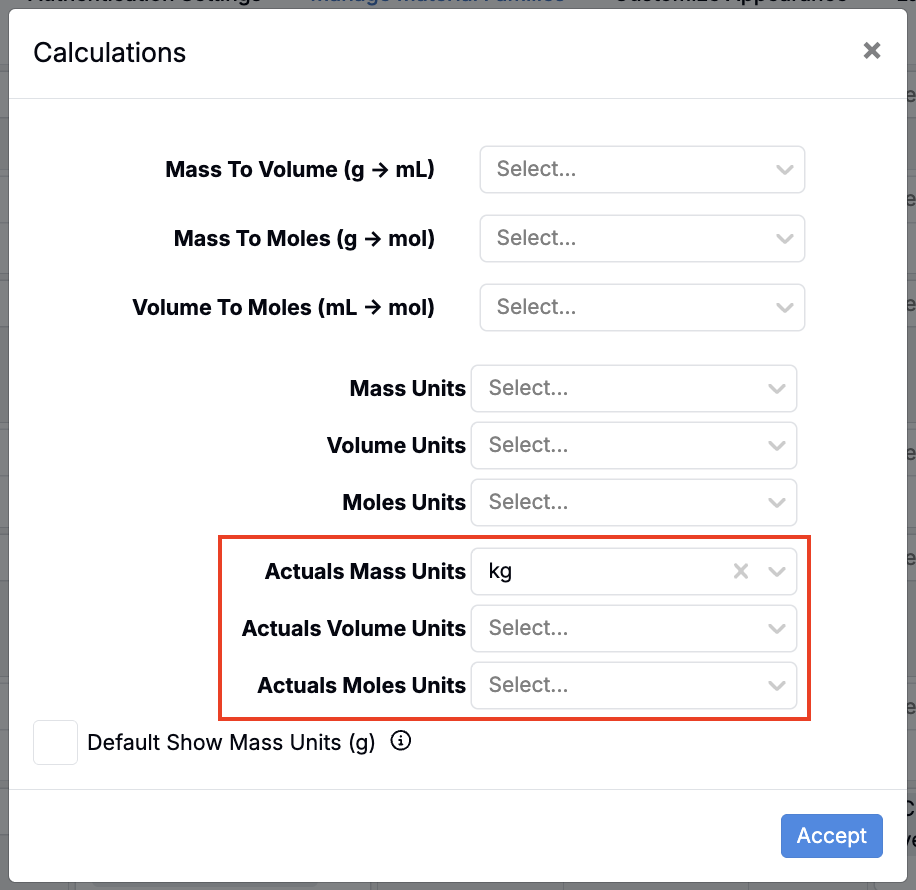
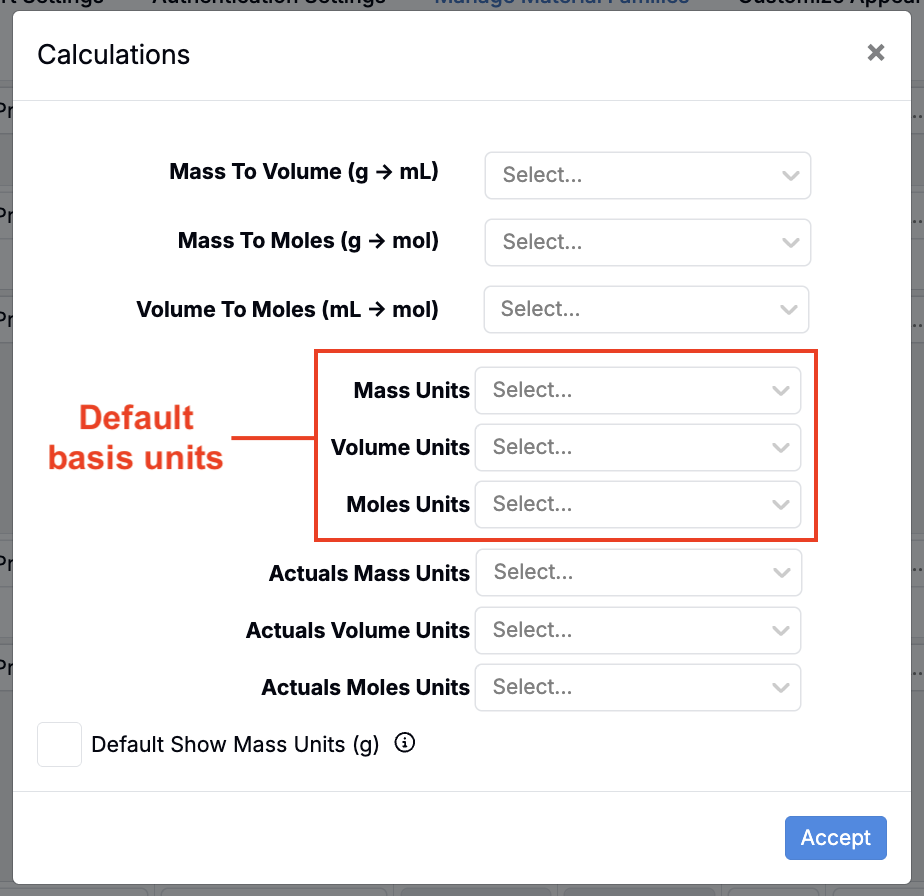
- In the modal, use the Mass, Volume, and Moles Units fields to select your default basis unit for each family.
Basis Units for Actual Values
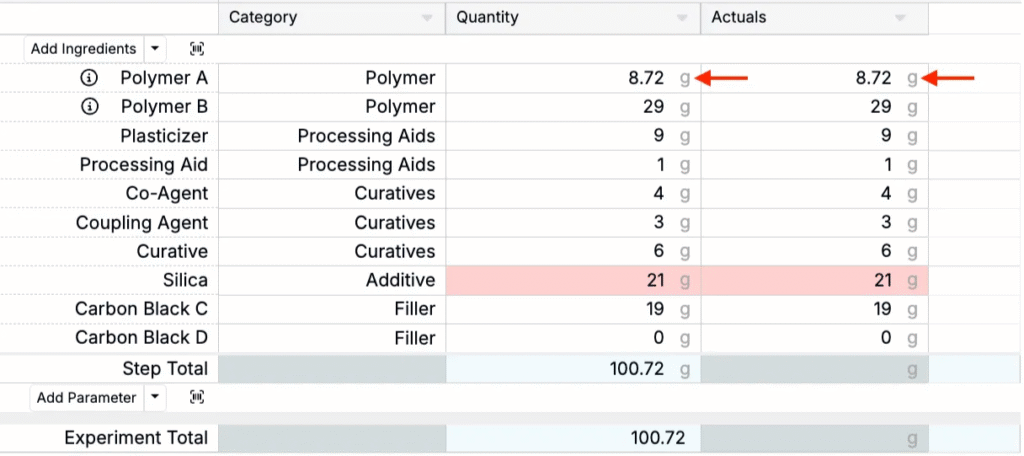
By default, the Actual Values column uses the same basis unit as set values.
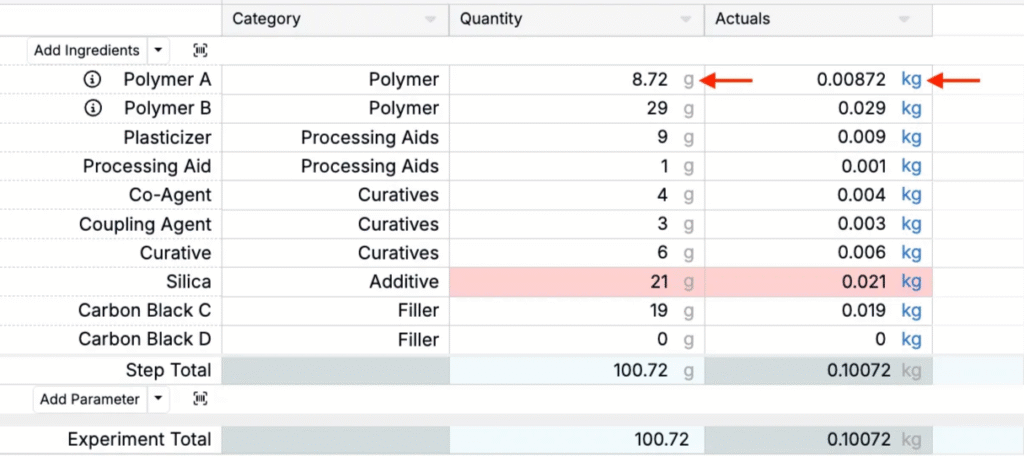
If needed, admins can set a different basis for Actuals. For example, you could choose to display set values in g and Actuals in kg.
Setting Basis Units for Actual Values
Basis units for Actual values can be set at the ingredient, workflow step, or material family-level.
- On an ingredient, set the basis unit for an Actual value by clicking into the Actual cell and setting the Basis Unit manually (same process as the Set values column).
- On a workflow step, use the Actual Mass, Volume, and Moles Units fields in the workflow step editor Advanced Settings.
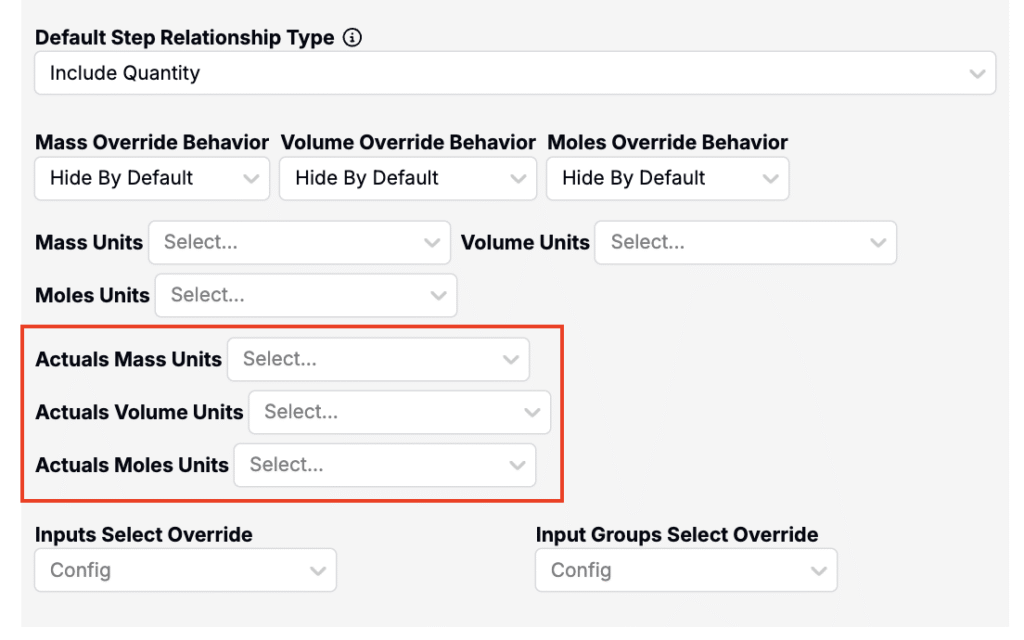
- For a material family, use the Actual Mass, Volume, and Moles Units fields in Basis Calculations modal (Company-Wide Settings > Manage Material Families).