
Bodie Context Bar
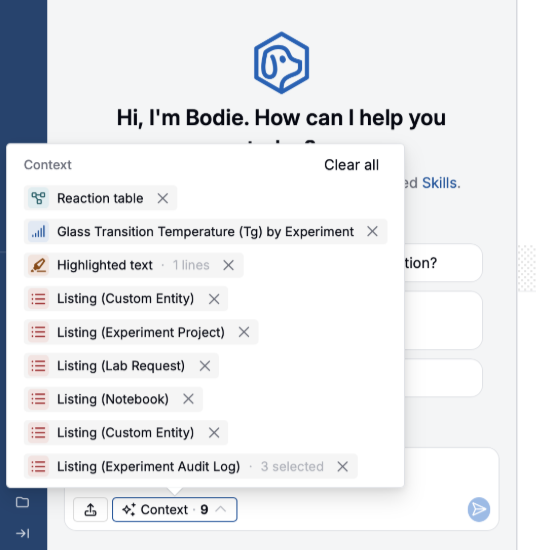
Bodie AI now shows the automatic context that will be sent with a message before you submit it. Any extra information Bodie receives from the page you are working on appears in the chat context bar, giving users more visibility and control over what Bodie can see.
This is useful because Bodie often works best when it understands the surrounding page, but that context has not always been obvious to the user. The context bar makes that behavior explicit: users can see when Bodie is receiving information from listings, experiments, selected measurements, images or files, visualizations, chemical structures, and other supported page context.
The update also supports removable context pills, so users can remove context that should not be included in a specific message. This makes it easier to steer a conversation, avoid sending irrelevant context, and understand why Bodie may be able to answer questions about the current page without the user restating everything in the prompt.
Bodie Support for Reaction Table Cells
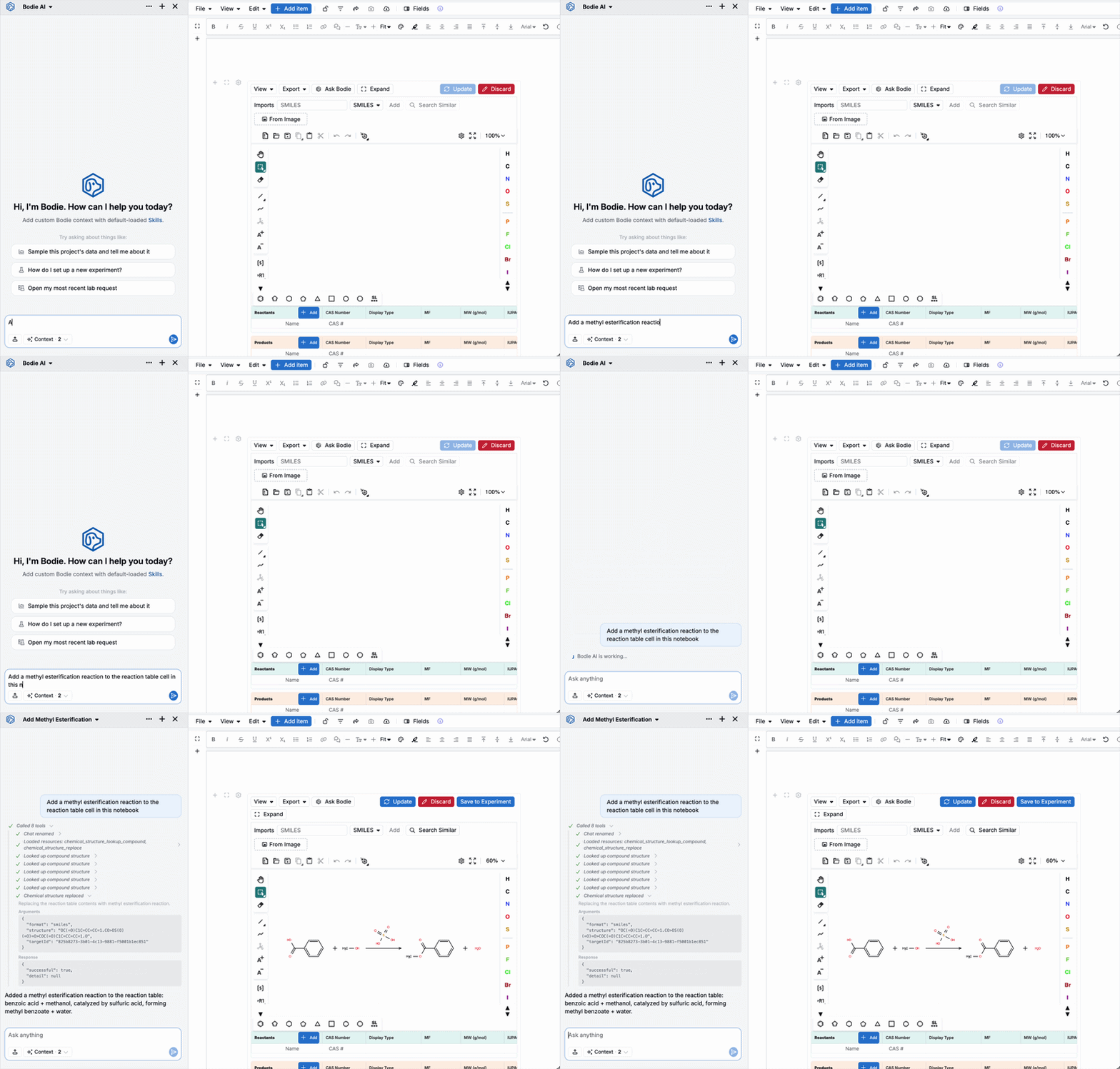
Bodie AI can now be used directly from reaction table cells. When a notebook containing a reaction table is open, Bodie receives the full reaction table context, so users can ask for chemistry-specific edits without manually describing every reactant, product, catalyst, or table value.
This makes reaction-table workflows faster and more interactive. Users can ask Bodie to add or modify a reaction, then review and save the result back to the notebook cell. The same editing flow can also be used from entity forms and listings, so reaction fields can be updated in the places users are already working rather than requiring a separate notebook-only workflow.
Example prompts:
- “Add a methyl esterification reaction to this table.”
- “Update this reaction to use a platinum catalyst.”
- “Edit this reaction field and save the updated structure.”
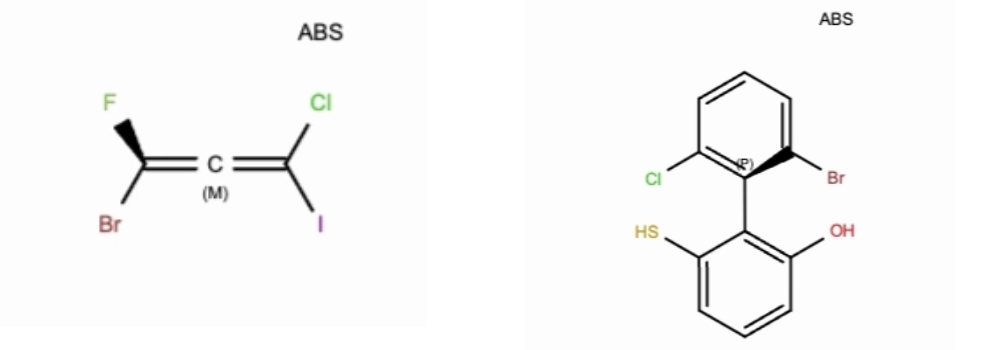
This update also adds more stereochemistry support, including improved R/S handling and new P/M labeling. That gives chemists better structure representation when working with chiral or helical stereochemistry, and makes Bodie-assisted reaction edits more useful for complex synthesis workflows.
To learn more, refer to Editing Reactions and Structures with Bodie AI.
Bodie Improvements on the Measurements Page
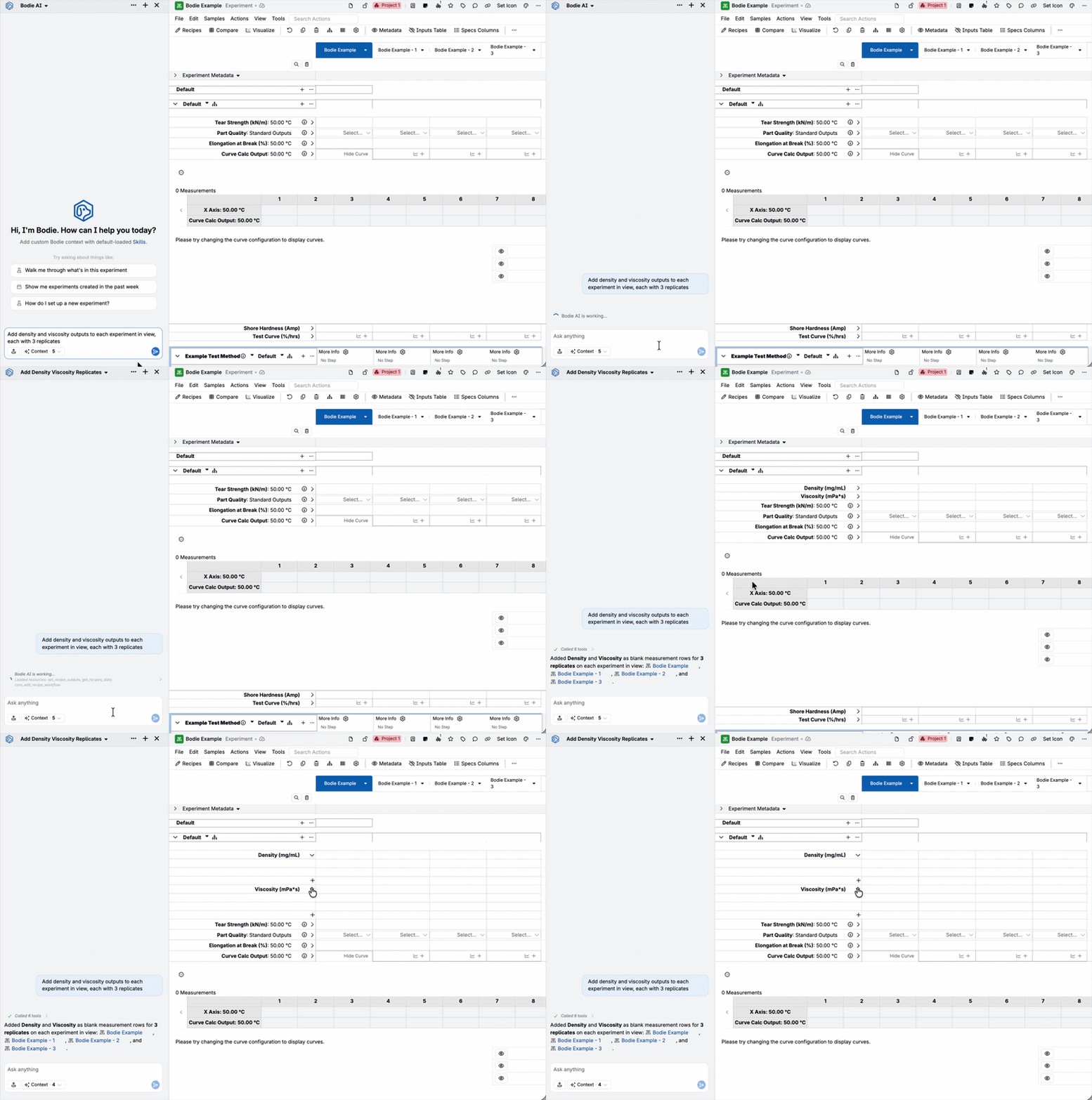
Bodie AI now recognizes rows you’ve selected on the Measurements page and includes that selection with your prompt, so you can ask about or act on specific measurements directly.
This makes it easier to work with specific data points. For example, you can use Bodie to edit specs on selected measurements, or to perform bulk operations like creating outputs with replicates and assigning specs, all from the chat interface.
Example prompts:
- “Add density and viscosity outputs to each recipe in view, each with three replicates.”
- “Edit the specs on the selected measurements to match the target values.”
To learn more, refer to Bodie AI.
Config Setup with Bodie-Powered Drafting
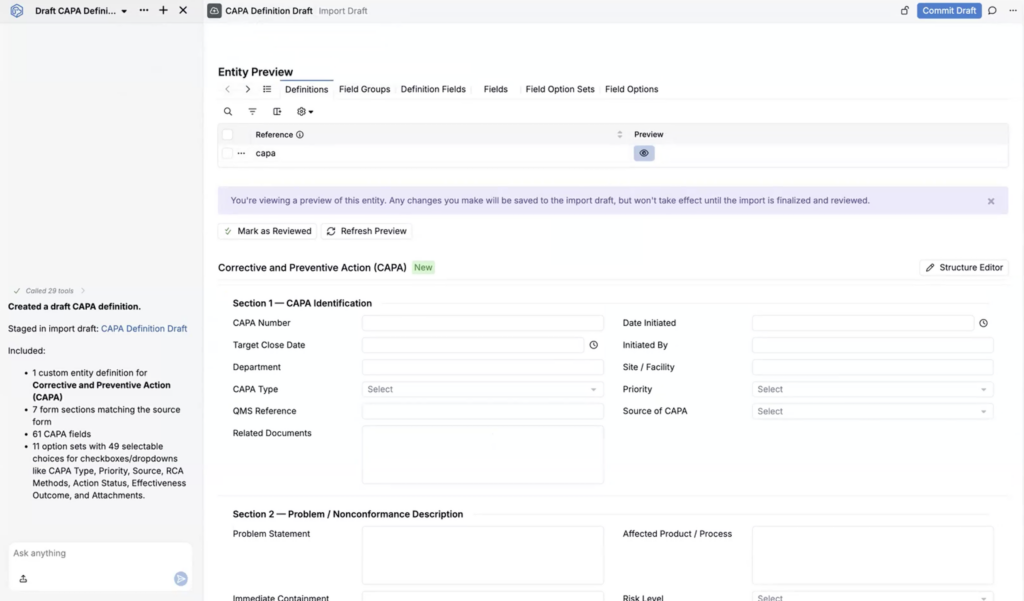
Setting up configuration is now easier with a new drafting system powered by Bodie AI. Drop in a file or describe the definition you want, and Bodie generates a draft for you to review before committing. This reduces the time and effort required for large configuration imports — especially for teams setting up 800–900+ entity imports — with the ability to review, edit, and reject individual inserts before committing.
Drafts open in a new import draft view with a preview mode and structure editor, where every inserted definition, field group, field, and option set is flagged with a “new” badge. You can make manual edits directly, or prompt Bodie for additional changes on top of the draft.
To learn more, refer to Bodie AI.
Generate Training Modules with Bodie
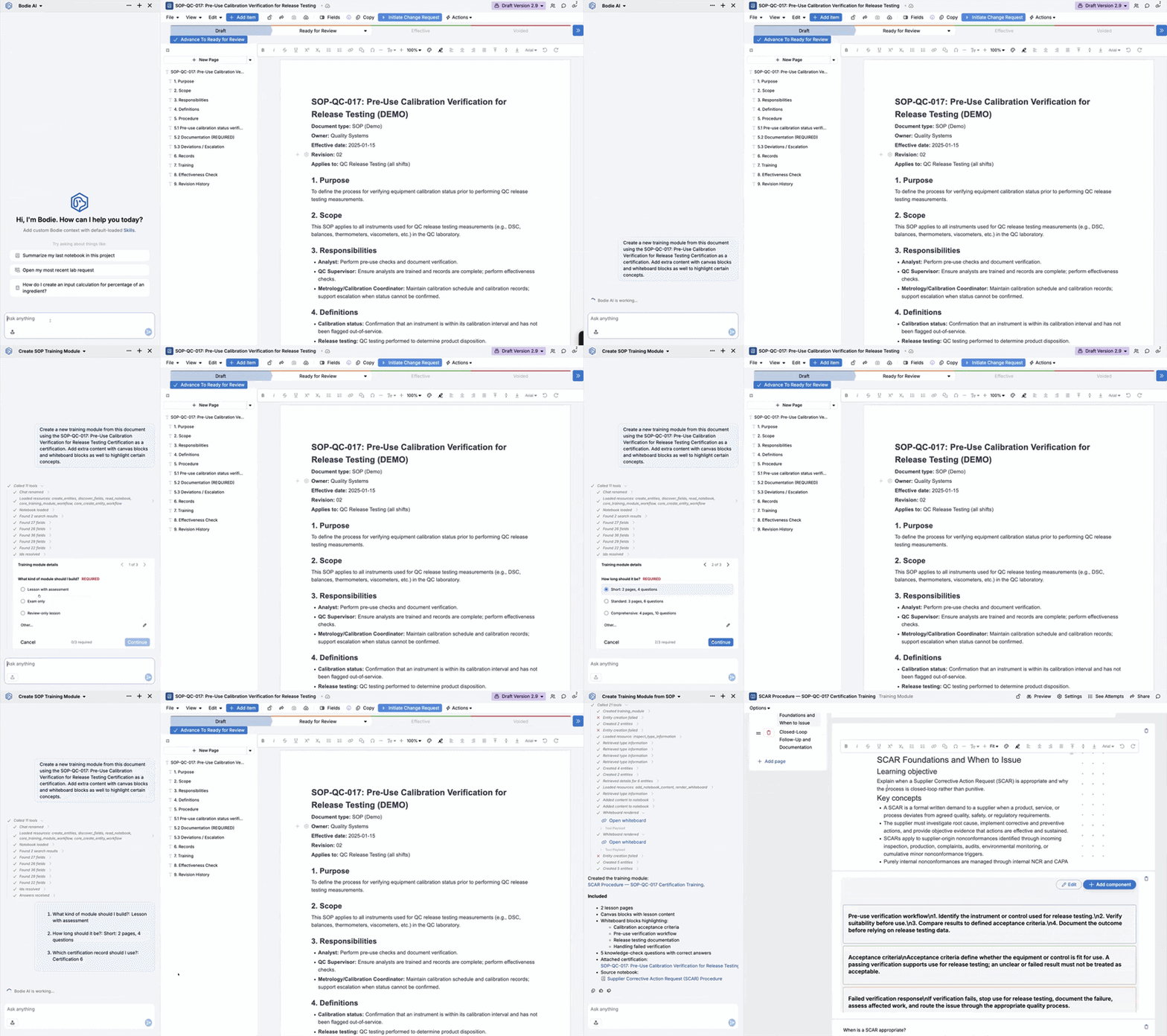
You can now prompt Bodie AI to generate training modules from source content such as a document, notebook, file, or platform entity. Bodie can create training pages and generate quiz-style questions as a first draft, giving admins a faster starting point for onboarding and compliance training.
This addresses one of the biggest obstacles in training module creation: manually turning existing source-of-truth material into structured lessons and assessment questions. For regulated teams, this also helps reduce drift between controlled documents and the training content derived from them.
The generation flow is designed for iteration. Bodie can ask clarifying questions up front — such as whether the module should be a lesson or exam, how long it should be, and how dense the content should be — then generate a draft that admins can review, edit, and refine before publishing.
Bodie Compaction
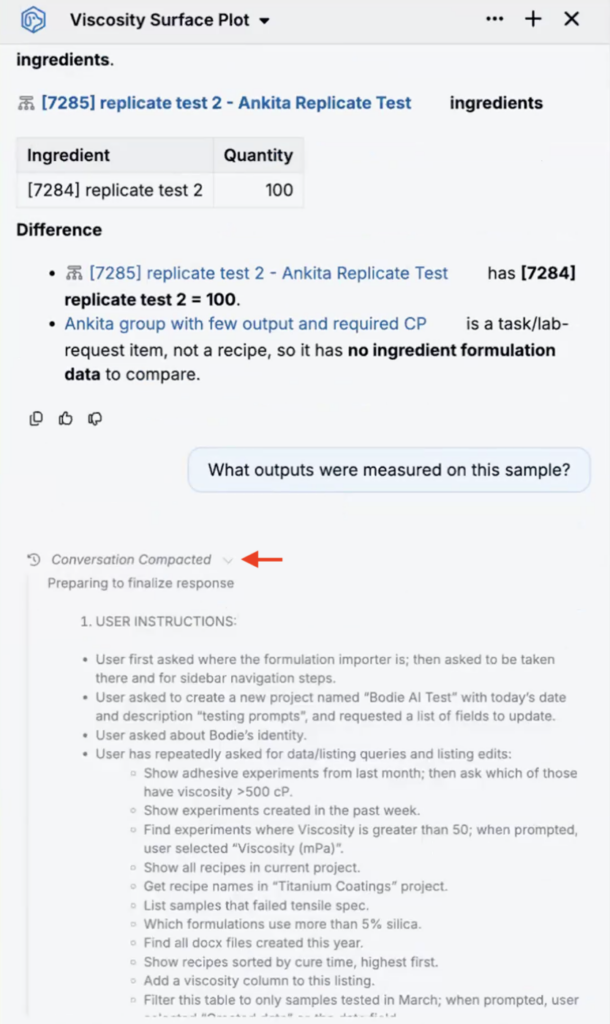
Long conversations with Bodie AI can now continue past the point where they would previously run into context limits. When a conversation gets long, Bodie generates a compacted summary of the message history and uses that summary in place of the full thread.
This lets users keep working in the same conversation instead of starting over once the chat becomes too large. The compacted summary is capped at 8,000 tokens, so for a 400,000-token model it can reduce the prompt size by roughly 98% while preserving the important context needed for follow-up work.
This is particularly useful for longer Bodie workflows, such as iterating on configuration setup, importing complex recipe data, creating training modules, or asking Bodie to make several rounds of changes. Users can continue the same discussion with less risk of losing continuity or hitting a hard limit.
To learn more, refer to Bodie AI.
Bodie AI: Page Action Buttons
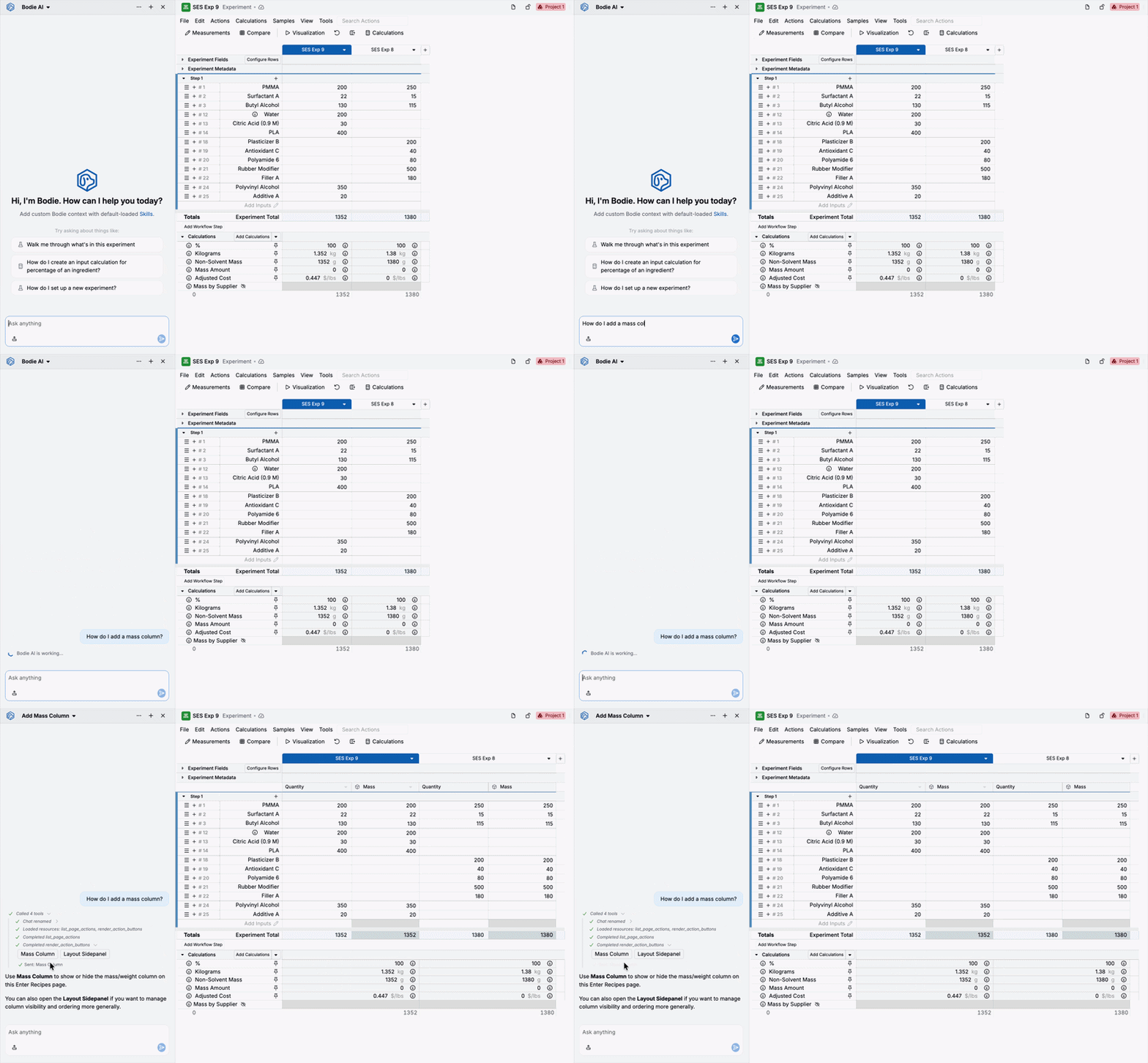
Bodie AI can now return clickable buttons for platform actions on the Recipe and Measurements pages. Users can ask how to complete a task, or ask Bodie to do it directly, and Bodie will surface the relevant action button.
Experiment pages include more than 200 actions, contained within various menus. This update makes those actions easier to find and use from the chat.
Note: This currently supports one-click actions only. Actions that require additional details, such as Add Ingredient, are not surfaced yet.
Example prompts:
- “How do I add a mass column?”
- “Is there a way to see which outputs I recently changed?”
- “How can I see a record of who has changed this recipe?”
To learn more, refer to Bodie AI.
Bodie AI: Custom Whiteboards (Beta)
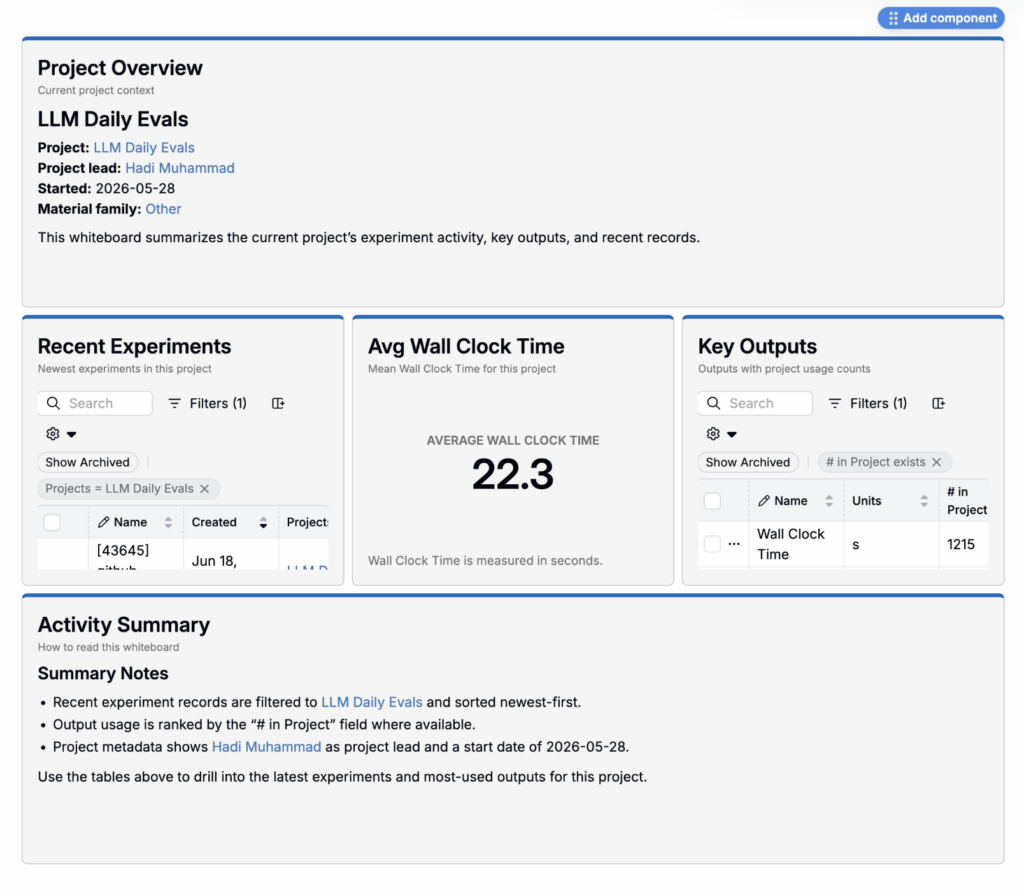
Bodie AI can now generate Whiteboards — custom, interactive interfaces for visualizing your data. Ask Bodie to build one and it assembles a layout from the components you need.
Whiteboards support:
- Customizable layouts built from charts, stat tiles, listing tables, markdown text cells, and selector cells
- Interactivity via selector components that dynamically change the view
- Cell-level inspection to view the underlying data behind any component
- Drag-and-drop placeholder components so you can describe exactly the edit you want
Whiteboards are their own entity type, accessible from Quick Actions, and follow standard entity permissions. For now, only Bodie can create or edit a whiteboard; there’s no manual editing interface.
To learn more, refer to Whiteboards.
Bodie AI: Measurements Page Access
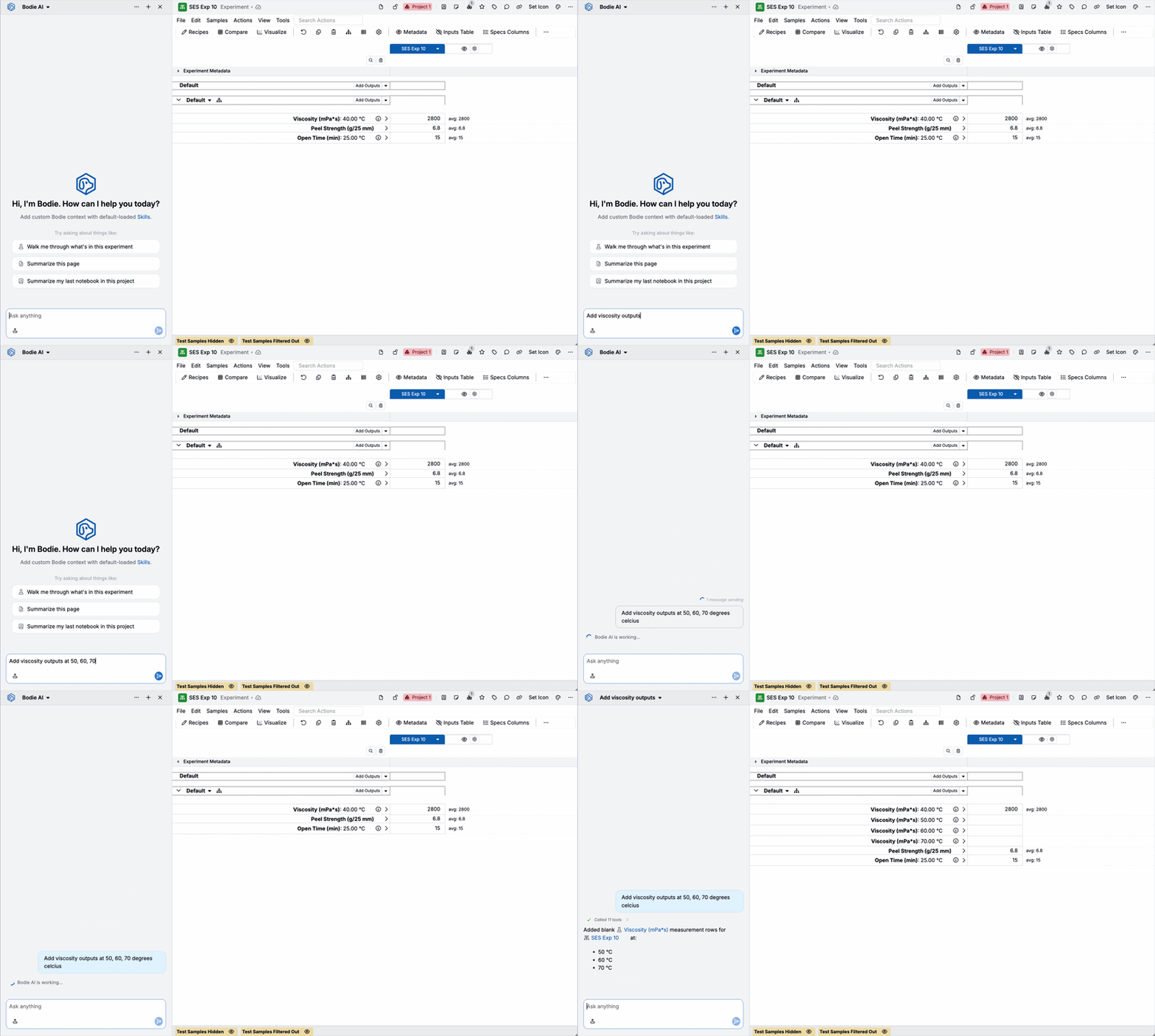
Bodie AI can also now modify the Measurements view of experiments. Use Bodie to add outputs and change output sorting and organization settings directly from chat.
This is especially helpful when setting up repetitive output structures, like the same measurement at several time points or conditions, since you can describe the whole set in one prompt instead of adding and organizing each output by hand.
Example prompts:
- “Add outputs at 1 hour, 4 hours, and 24 hours.”
- “Organize the measurements page by category, then column the outputs by cure time.”
- “Add the standard tensile outputs and sort them by test condition.”
To learn more, refer to Bodie AI.
Response Feedback
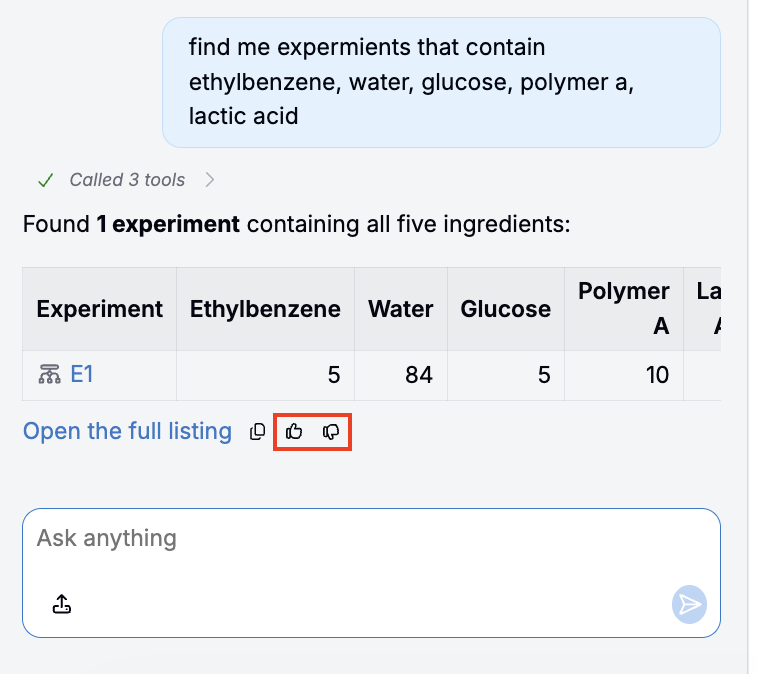
You can now rate Bodie AI responses directly from the chat interface. Hover over any response to reveal thumbs up and thumbs down buttons. Clicking either submits feedback on that response; thumbs down opens a form where you can add comments describing what went wrong.
This helps the Uncountable team identify and improve responses that aren’t working well. To learn more, refer to Bodie AI.
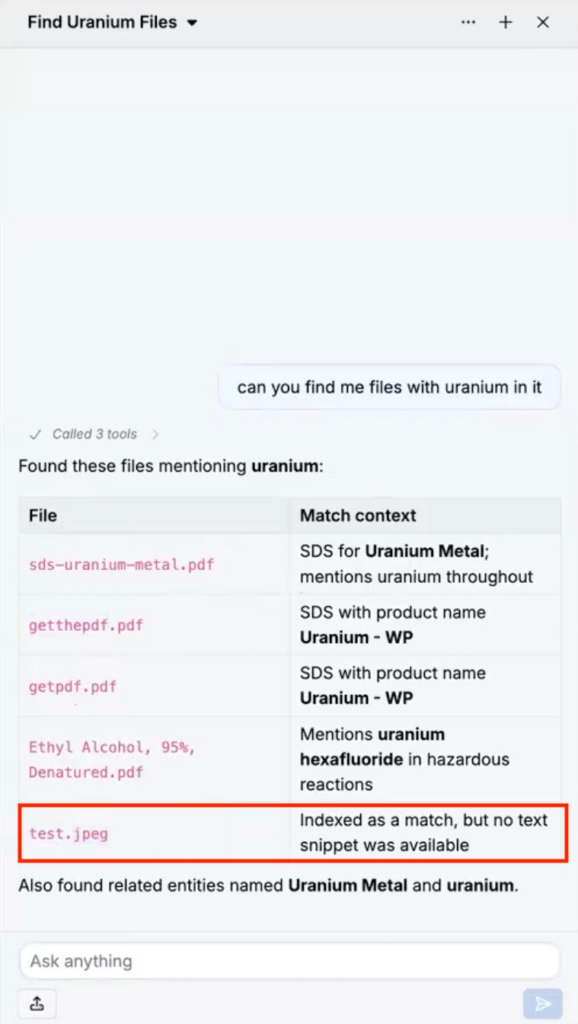
LLM Indexing for Files and Images
Bodie can now read and index files and images in the files directory, so their contents are searchable alongside other platform data.
Text-based files (including selectable-text PDFs and Word documents) are indexed automatically when uploaded. For files that need OCR, like scanned PDFs, standalone images, and handwritten documents, you’ll need to run LLM Index File to extract and index the text. This also applies to images embedded inside Word documents.
This makes it much easier to find information in reference materials, scans, and image-heavy reports stored in the files directory.
How to use:
- Navigate to the Files directory.
- Select the file or image you want to make searchable.
- Click … > LLM Index File. Bodie will read the contents (including embedded images in Word documents) and index them. You can also use the LLM Indexed column to see which files are currently accessible to Bodie.
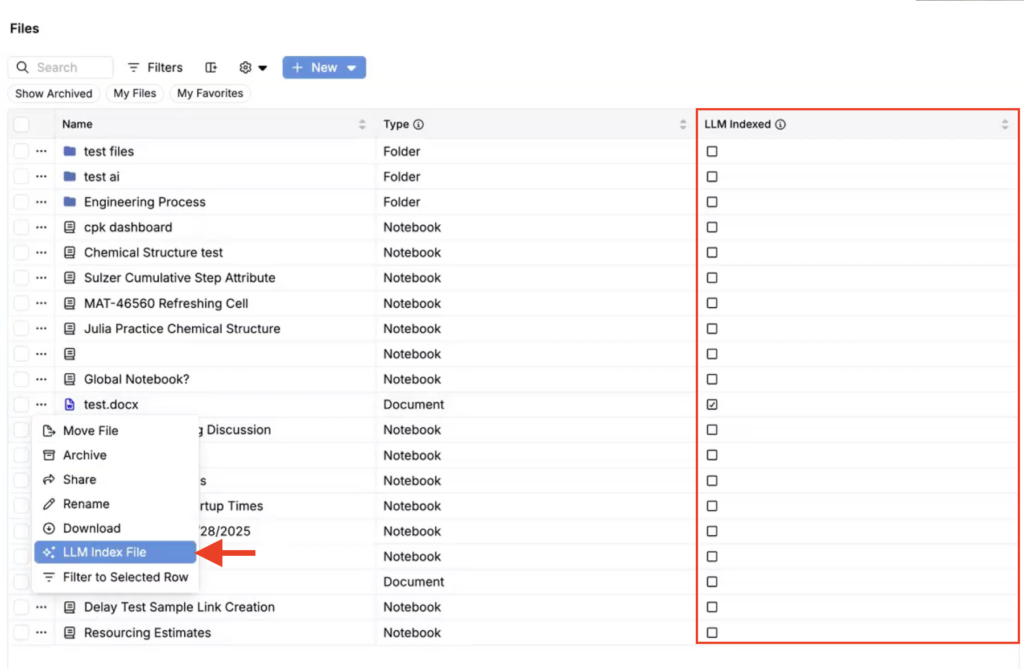
Once indexed, the file’s content can be surfaced in Bodie search results.
Updated Name + New Navigation Location
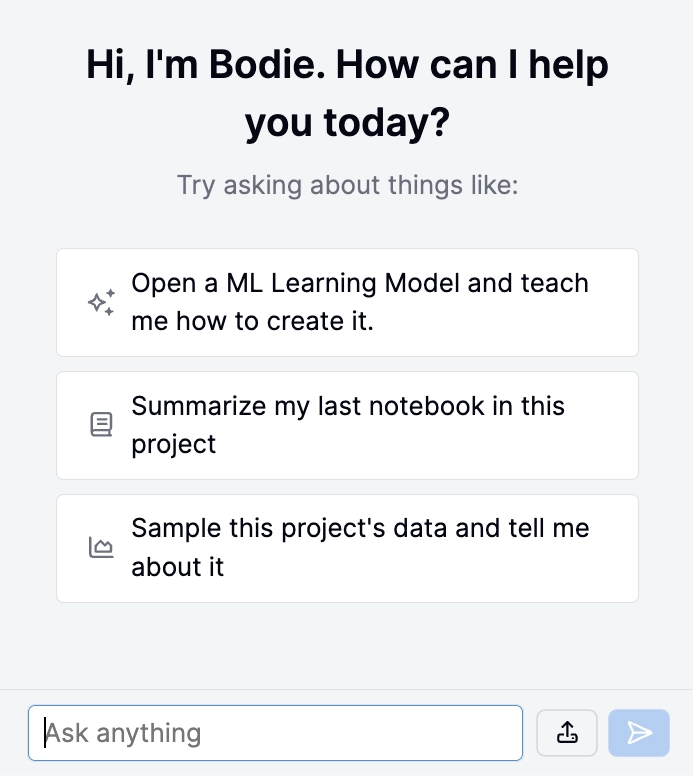
The Uncountable Assistant has been renamed to Bodie AI across the platform.
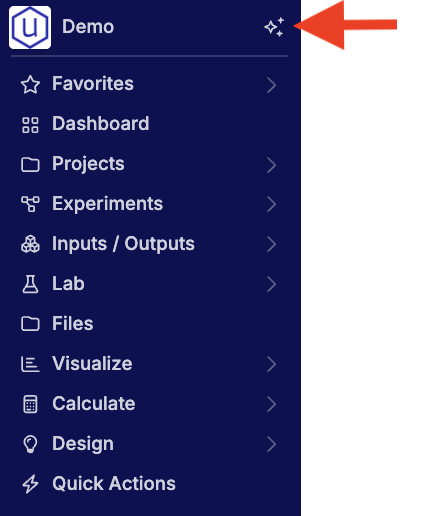
Additionally, the ✨ button used to open it has moved from the top-right of the navigation bar to the footer section.
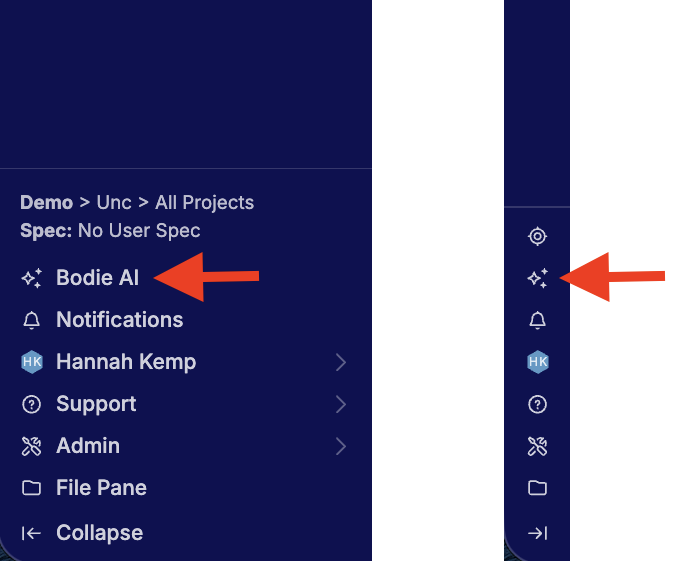
This update is meant to make access to Bodie more consistent and easier to find alongside other persistent navigation controls. There is no change to Bodie’s functionality.
To learn more, refer to Uncountable Assistant Updates.
Upload Files into Chat
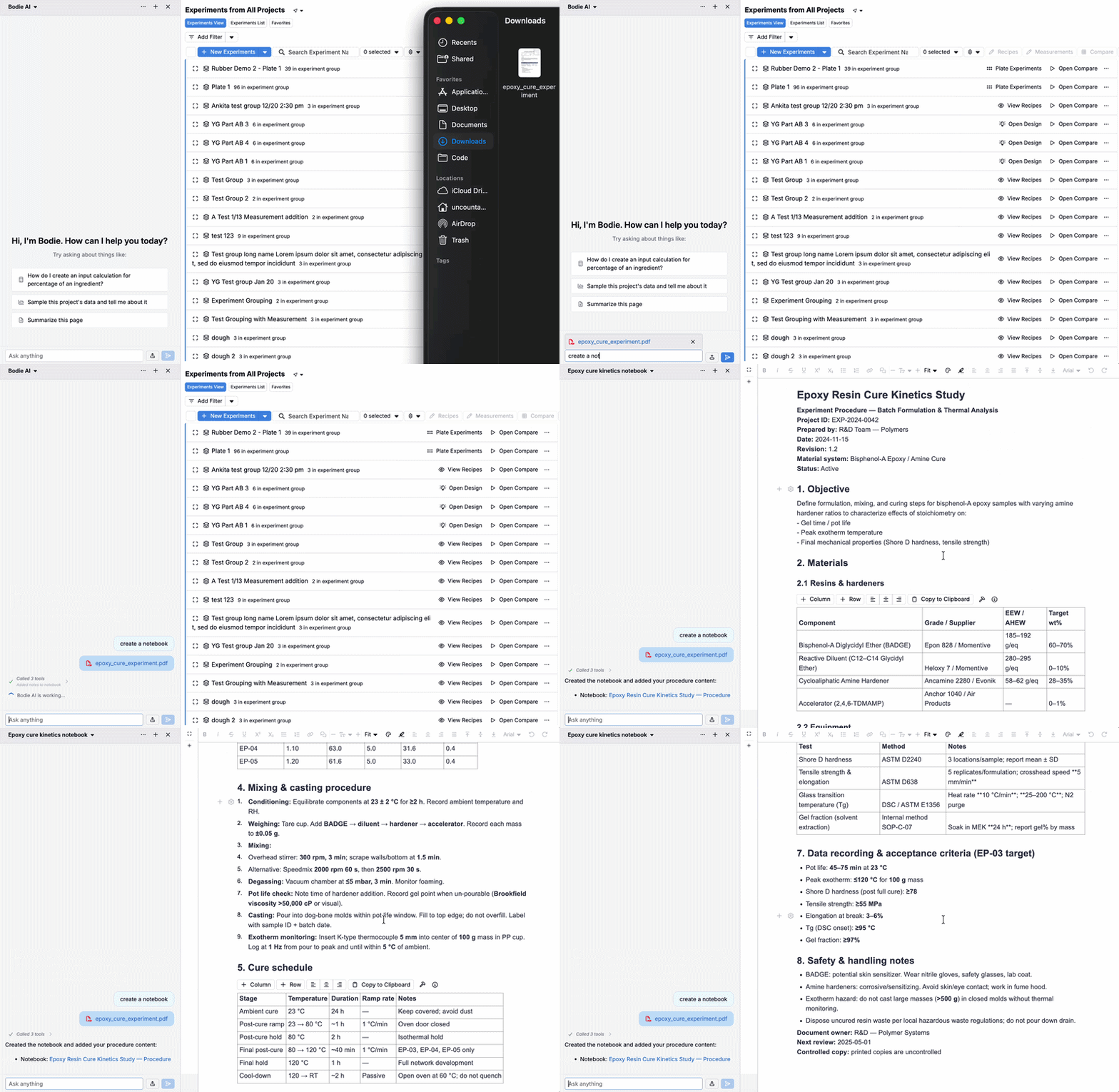
File uploads are now available in Bodie AI, with drag-and-drop and click-to-upload support. This makes it easier to ask questions and generate content directly from documents, without switching tools or copy/pasting.
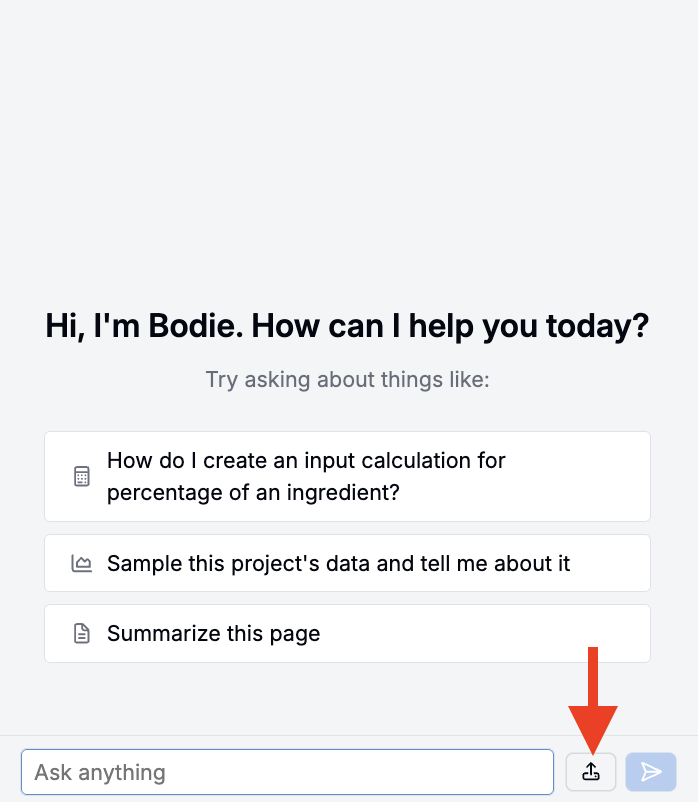
How it will work:
- Open Bodie AI.
- Click the upload icon or drag-and-drop a file.
- Ask a question or request an output based on the uploaded document.
Improved Context and Multi-Step Requests
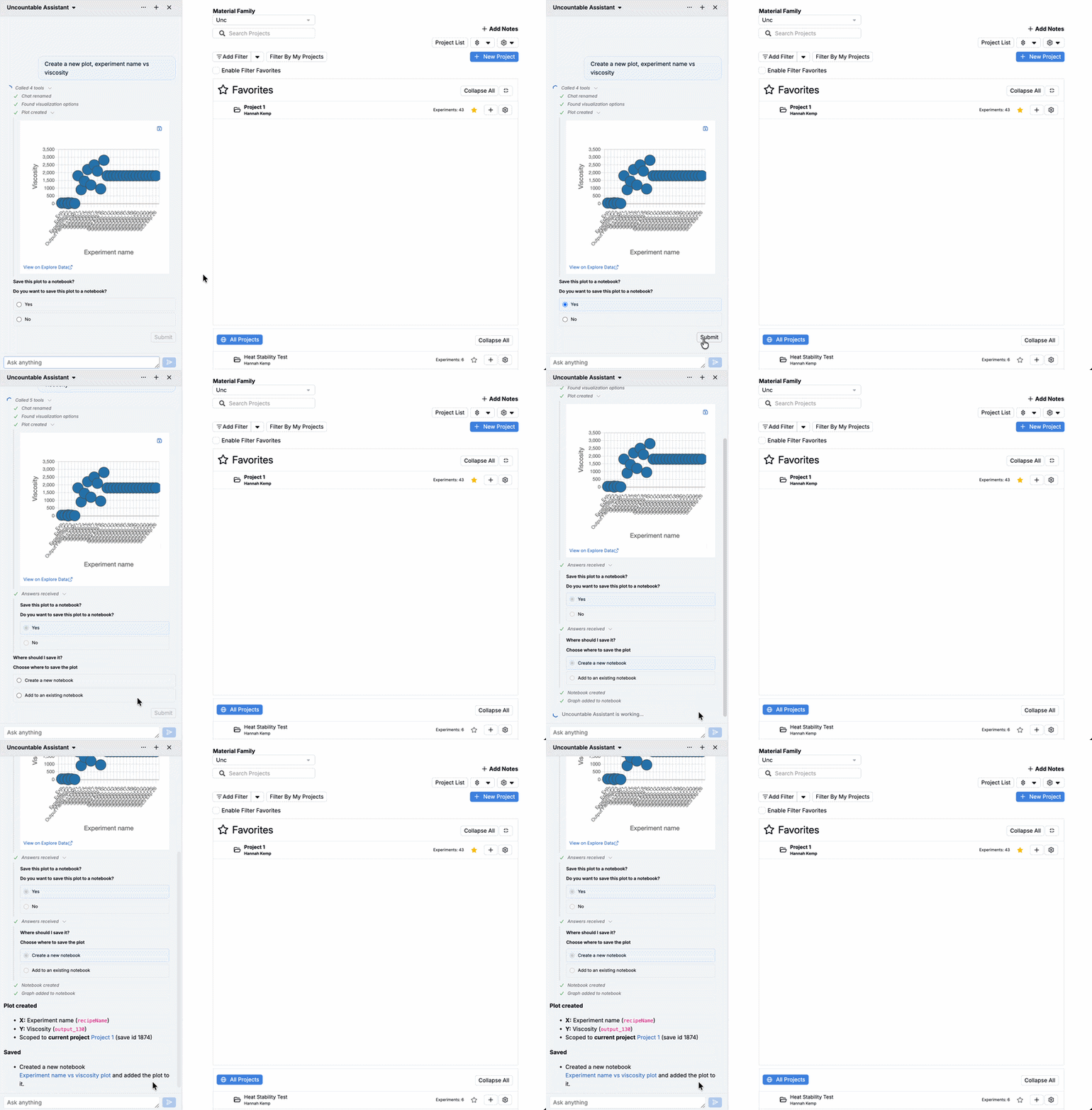
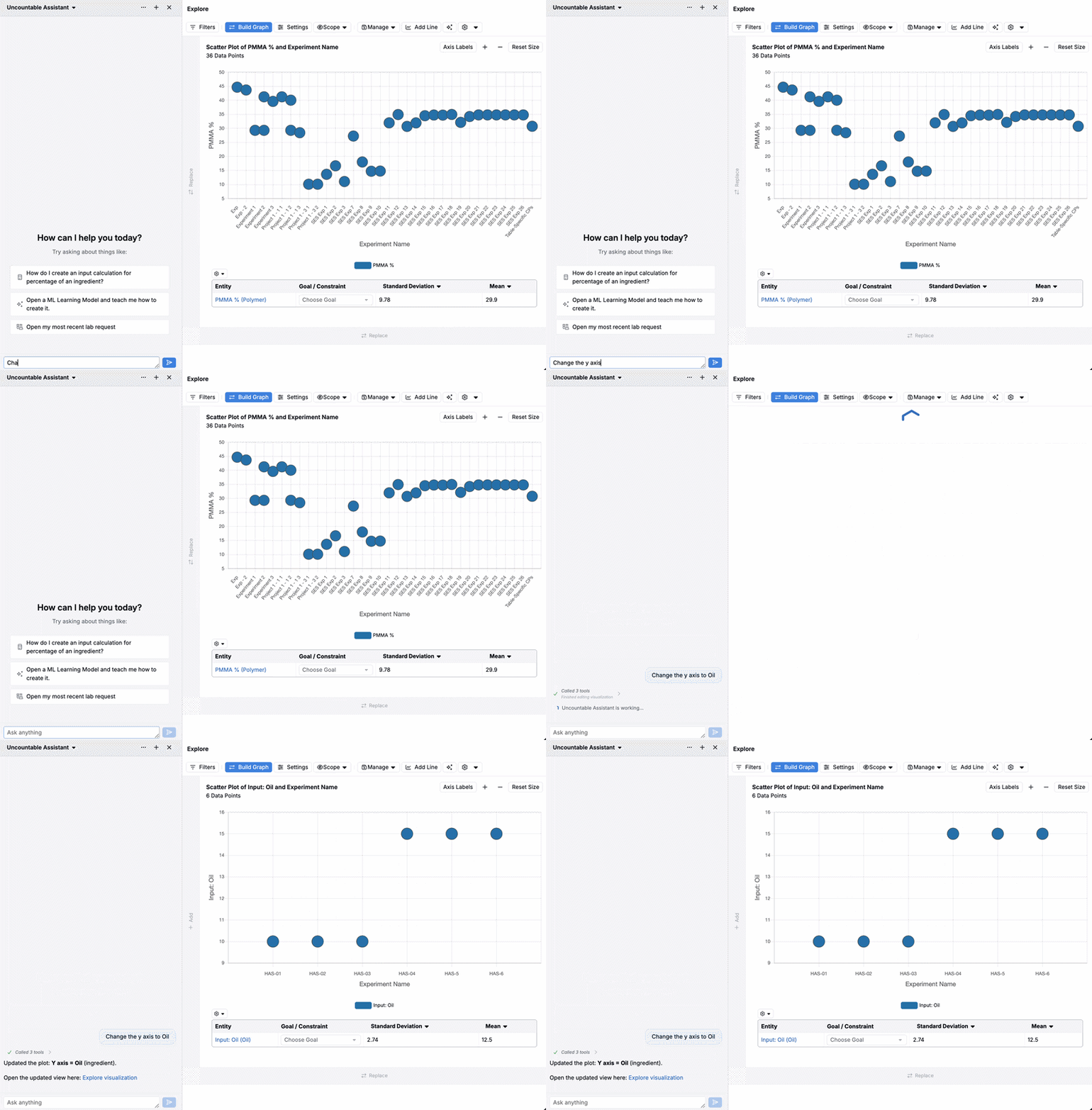
Recent updates to Bodie AI improve page context understanding. For example, when using Bodie to create Explore Data plots, you could enter a prompt such as “Update the y axis to Oil” and Bodie will do so automatically.
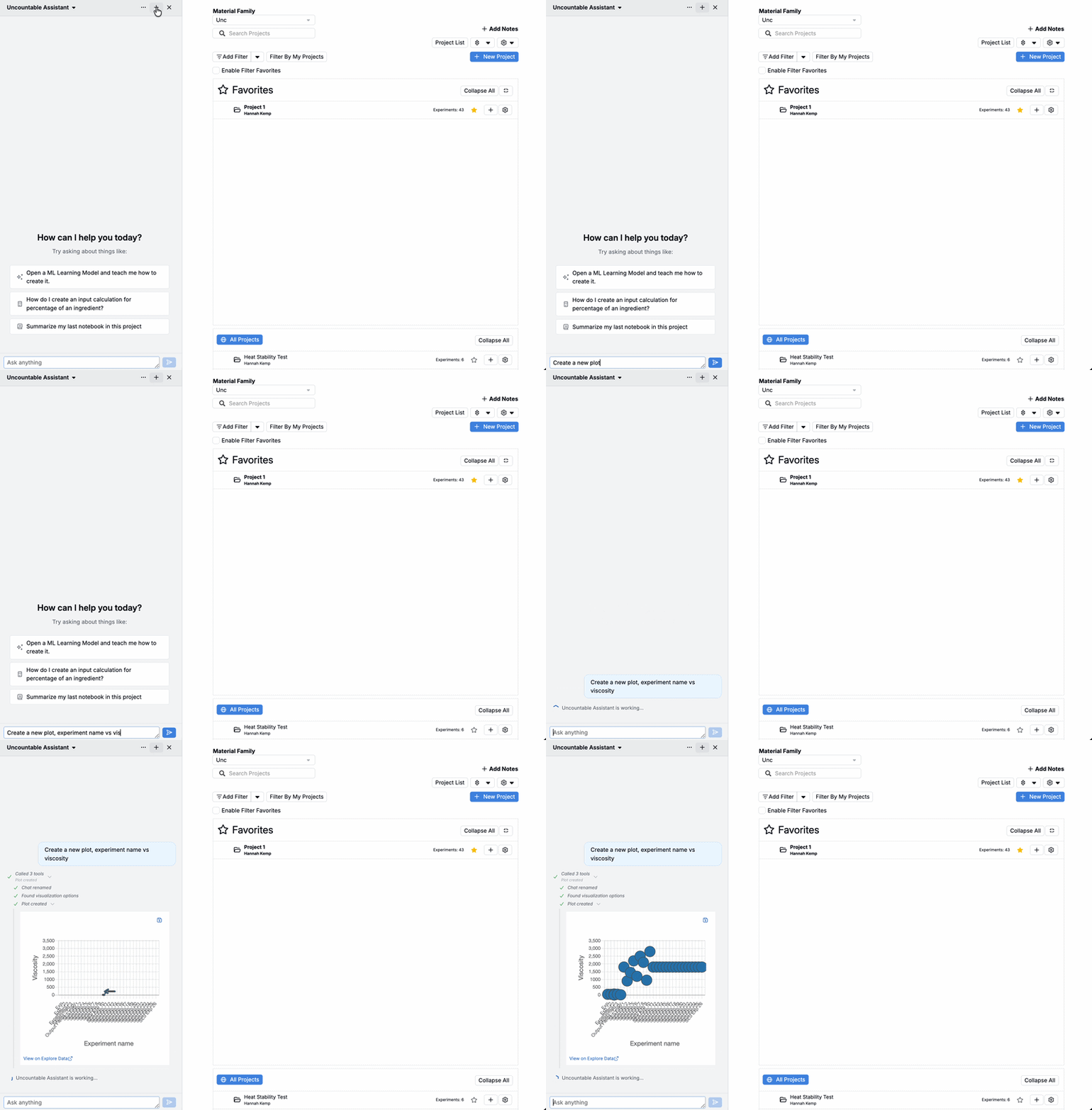
You can also give multi-step requests, such as “Change to a bar chart and plot PMMA on the Y axis”.
Plot Previews
When creating plots from scratch with Bodie AI, you’ll now see inline plot previews so you can quickly confirm the chart looks right before saving it.
To use this feature, describe the plot you want to create (e.g. “Create a new plot, experiment name vs viscosity”). Bodie will generate a preview inline.
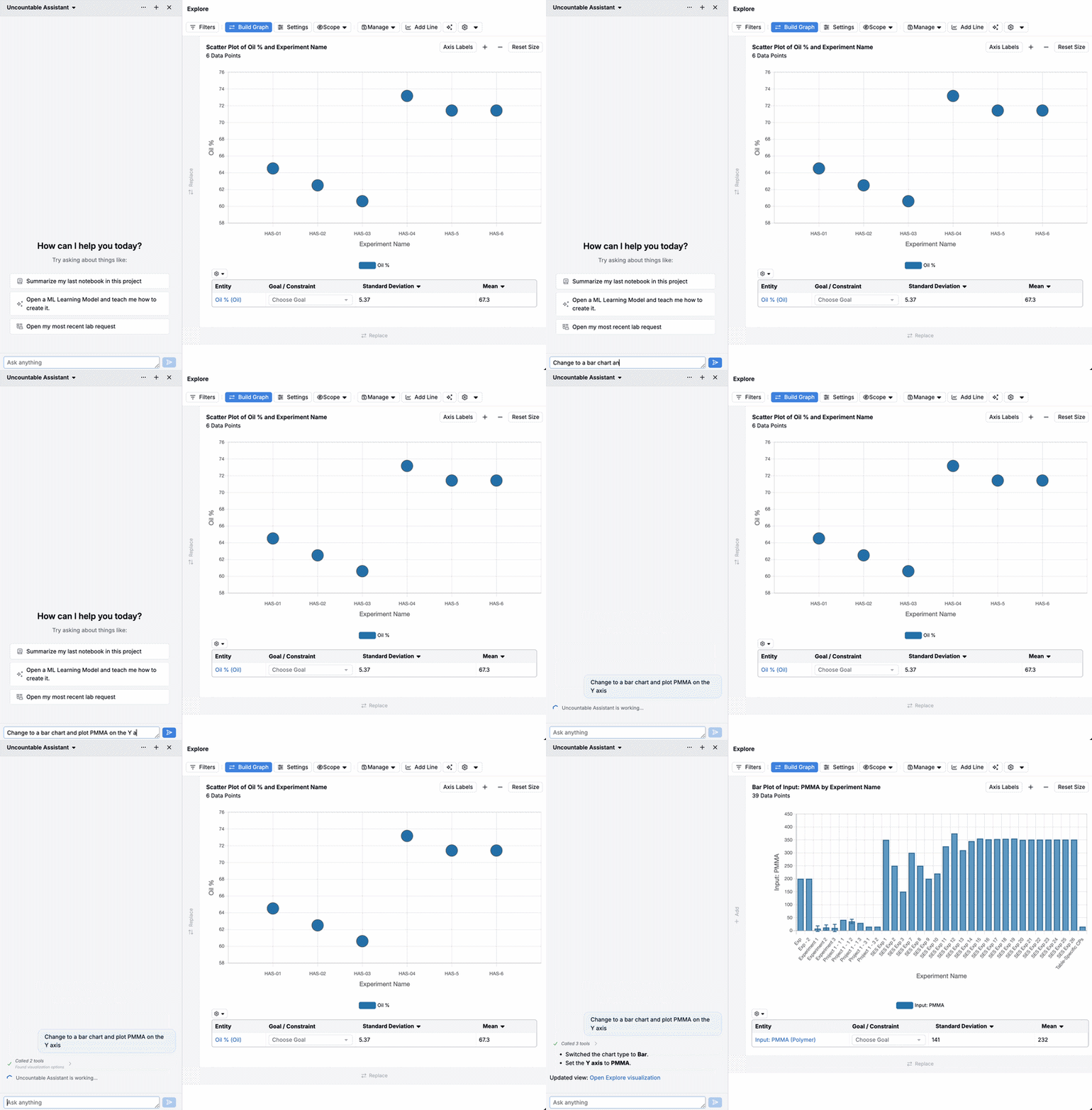
Once you’re happy with it, you can save the plot to a new or existing notebook, all within the chat interface.
New Data Analysis/QC/RCA Features
Bodie AI now has access to new tools to support data analysis, quality control, and root-cause analysis workflows.
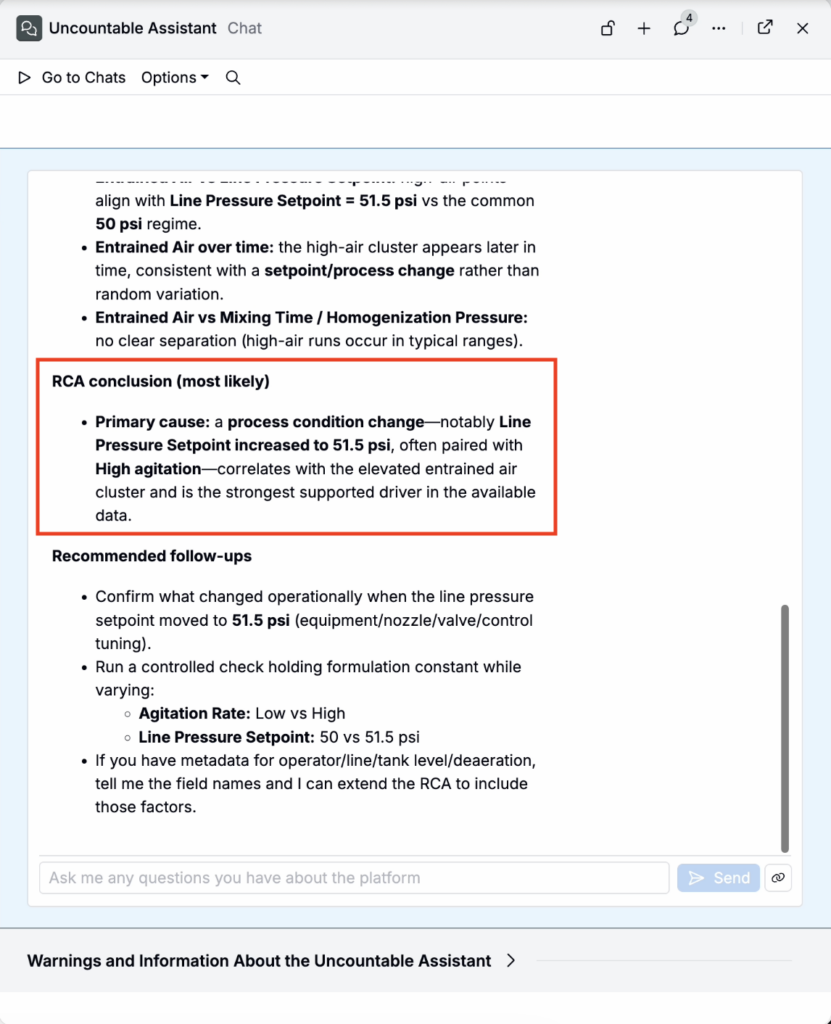
- Sampling and inspection: You can now use Bodie to pull a random or stratified sample of recipes from a project or recipe set. Stratification can use experiment tags, metadata, output values, created time, and more. This makes it easier to review representative slices of large datasets.
Example: “Can you sample the experiments in this project and explain why entrained air is higher than normal in a few of them?”
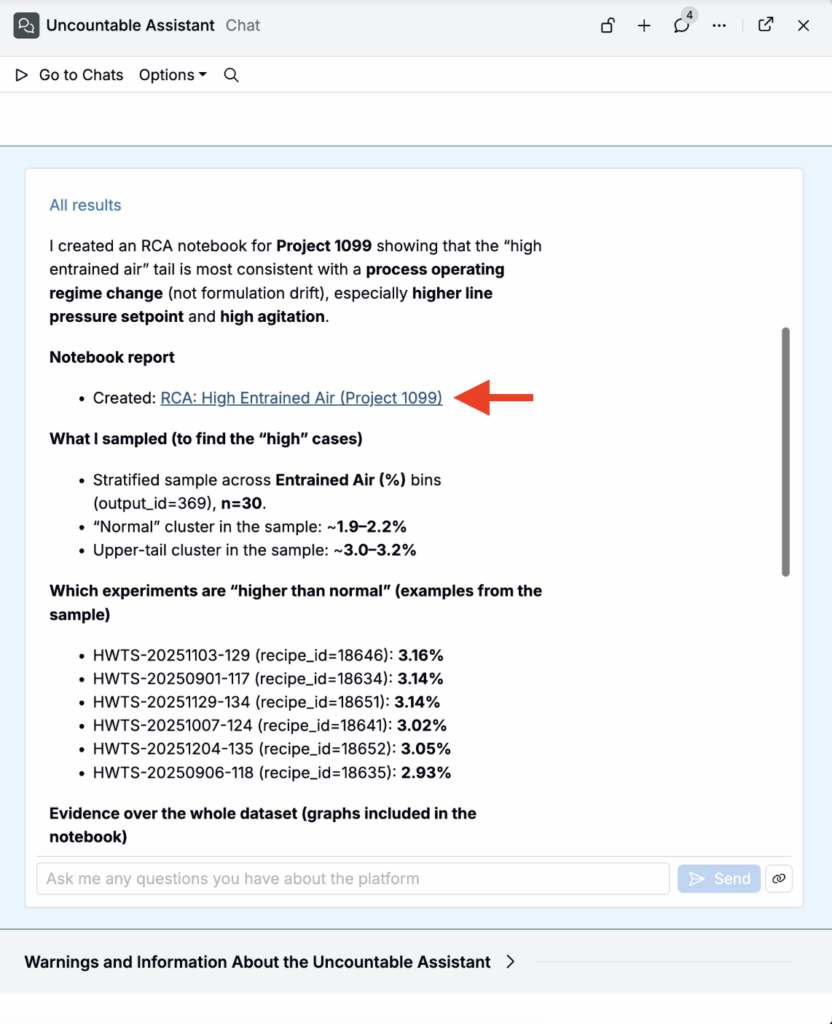
- Notebook creation + graphs: Bodie can now create notebooks, add content, and generate graphs that illustrate relationships in your data. When a notebook is created, Bodie will provide a link to it within the chat.
Example: “Produce a notebook report, conducting an RCA. Include graphs illustrating relationships over the whole dataset as evidence.”
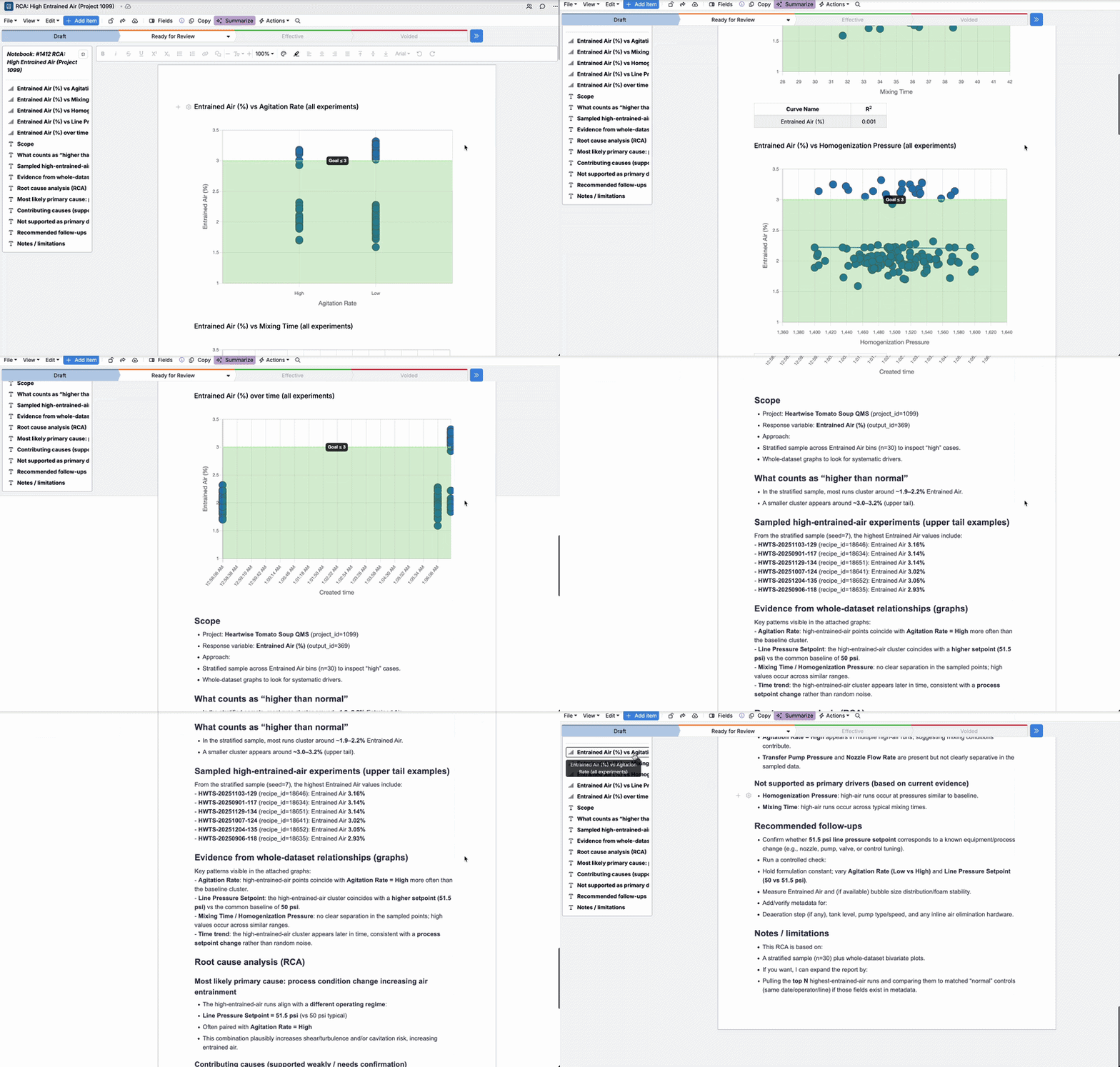
These features were added because teams increasingly use Bodie as part of day-to-day technical work, not just for quick questions. Sampling, inspection, and lightweight analysis are common steps in QC and RCA, and previously they required manual filtering, exporting, and repeated context switching.
With these tools, Bodie can help teams move faster from “something looks off” to a concrete, reviewable set of evidence. It makes it easier to look at representative data, capture findings in a notebook, and share graphs and outputs with others.
Structured Search Agent
We’ve added a new Structured Search agent to Bodie AI making it easier to discover relevant experiments without manually configuring listings.
Previously, users needed to build listing configs or filters by hand to answer questions like “show me all experiments that used carbon black.” With the Structured Search agent, you can ask these questions directly in natural language, and the system will generate and run the underlying listing configuration for you.
How to use:
- In the Uncountable navigation bar, click Ask AI to access Bodie.
- Ask a question similar to how you would configure a listing (for example: “Do I have any experiments with carbon black low grade?”).
- Bodie will return a response, including example experiments.
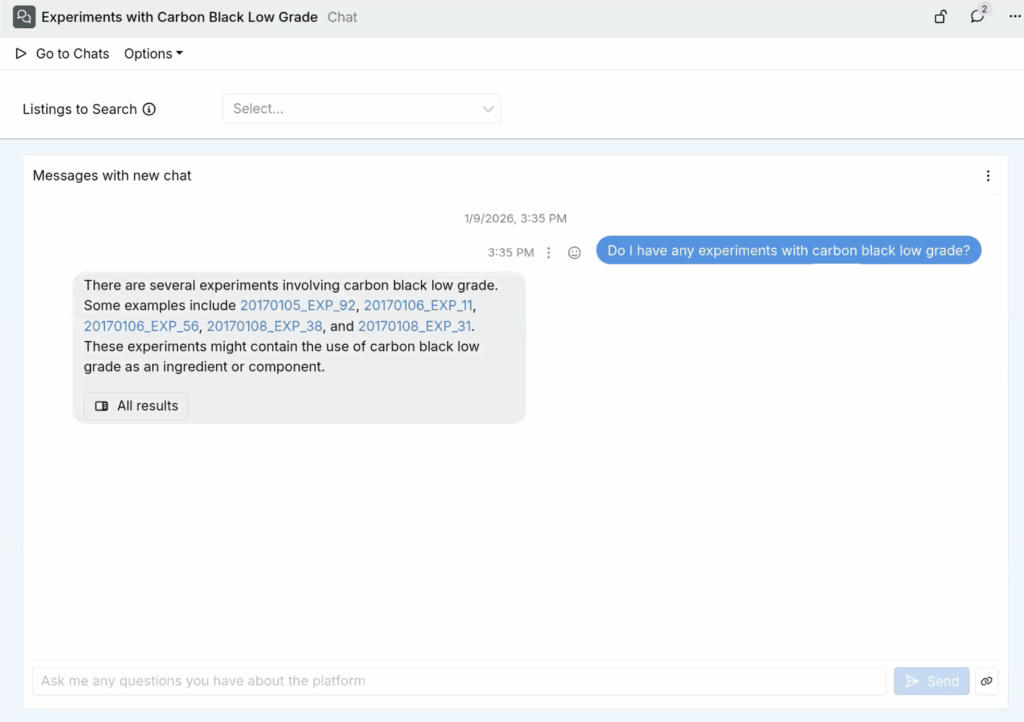
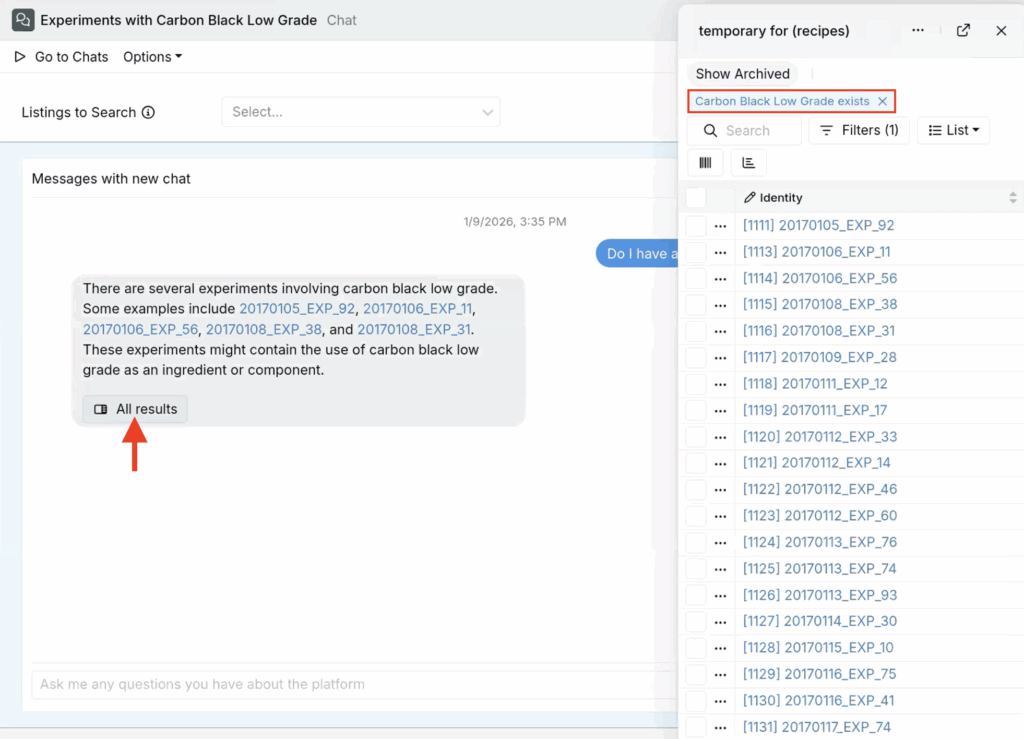
- Click All Results to open the listing in a sidepanel, with the appropriate filters automatically applied. Here, you can inspect and adjust the listing configuration if needed (e.g. adding additional filters or columns).
Context-Aware Responses
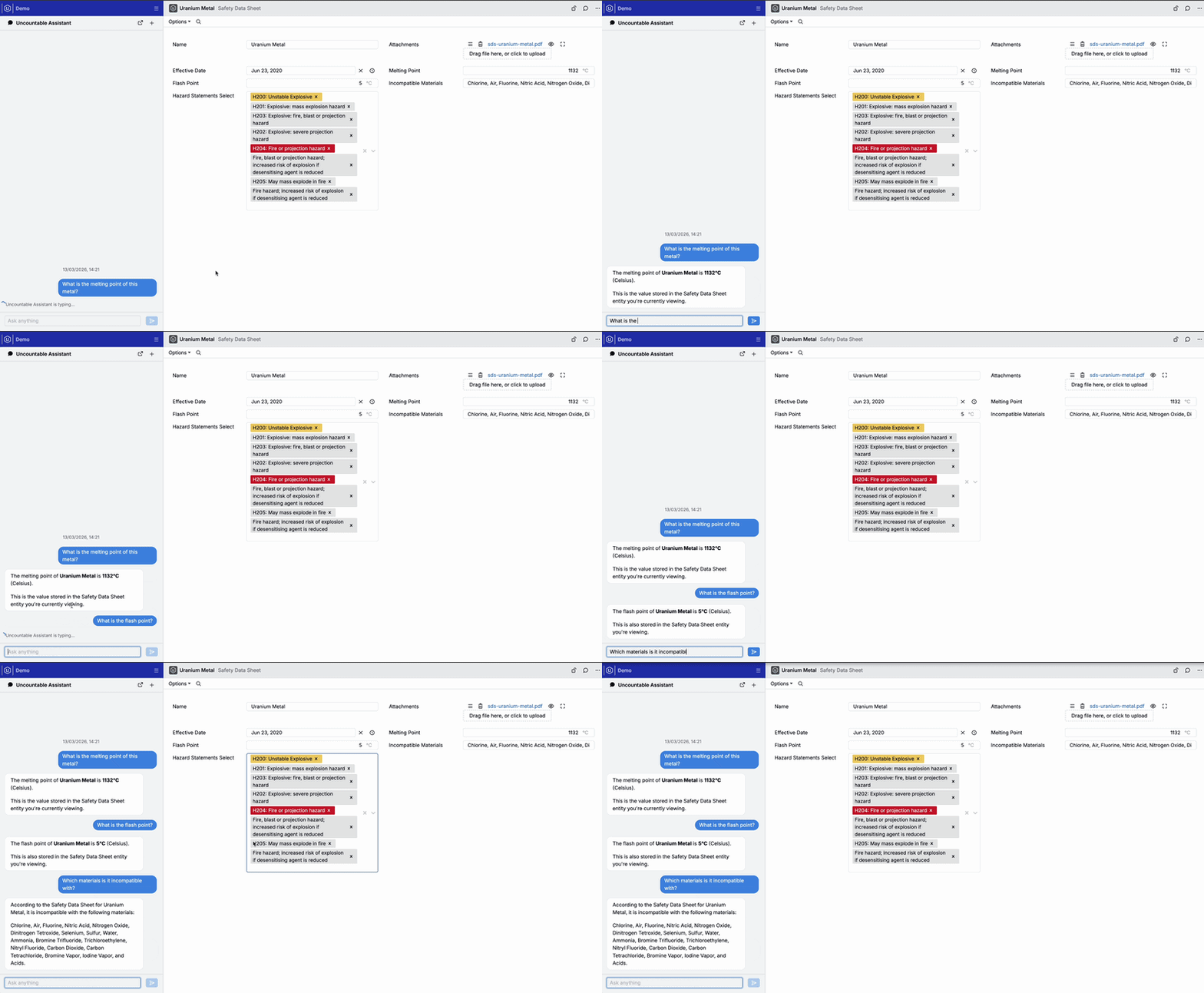
Bodie AI can now use the context of what you are currently viewing in Uncountable to answer questions more precisely. Instead of asking you to restate what you are looking at, Bodie can inspect the entity on screen and pull relevant values directly from the page, including information contained in attached PDFs.
This is especially useful when you are validating data or troubleshooting in the moment. For example, if you are viewing a Safety Data Sheet, you can ask:
- “What is the melting point of this material?”
- “What is the flash point?”
- “Which materials is it incompatible with?”
Bodie will answer using the content on the page you have open, so you can stay in your workflow while you confirm details and move to the next step.
Page-Aware Responses
Bodie AI now takes the current page context into account when answering questions. This makes it easier to ask task-oriented questions directly from where you are working and receive answers tailored to that workflow.
Examples:
- On the Ingredients Listing page, asking “How can I create a new ingredient from here?” returns instructions specific to that listing. On the Recipe view of an experiment, the same question returns create-from-recipe guidance instead.
- On the Recipe vs Measurement view of an experiment, asking “How can I turn on the attribute column?” returns different, view-appropriate instructions.
Modify Listings with Actions
Bodie AI can now perform common listing actions for you, like removing columns, adding filters, and editing listing configurations.
Previously, making listing changes required manually editing the listing in the UI every time. With this update, you can ask Bodie to apply listing changes directly, and it can ask clarifying questions when needed.
Example actions Bodie supports:
- Remove columns
- Add filters
- Remove filters
- Add columns
- Set column values
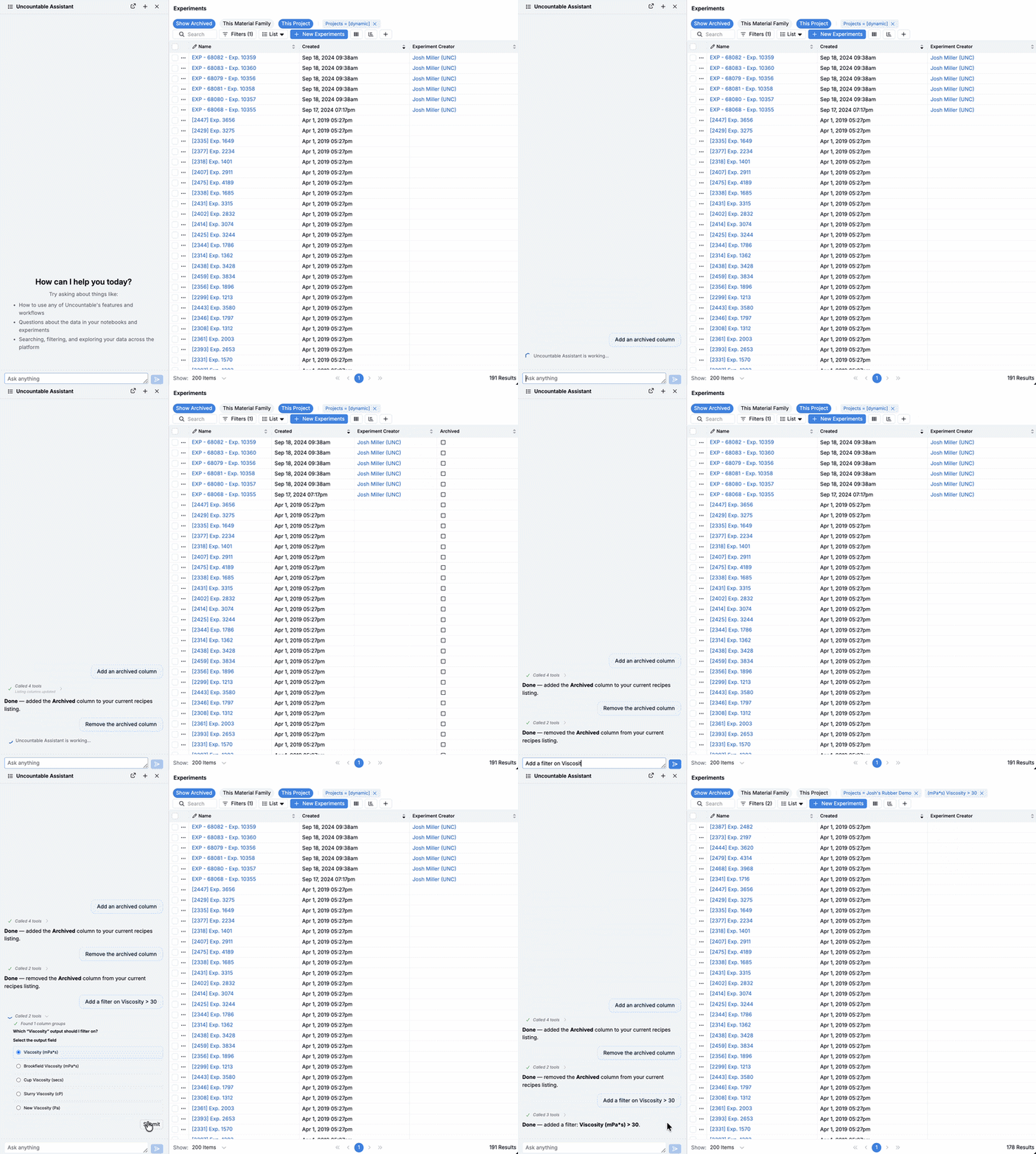
This listing modification flow is expected to become the primary way to update listings over time.
Redesigned UI for Easier Navigation
Bodie AI has a refreshed UI designed to make it easier to access, view past chats, and create new ones.
- Access Bodie by selecting the ✨ symbol at the top of the Uncountable navigation bar. This will open the chat in a sidepanel on the left side of your screen. If you close the chat, clicking it again will bring you back to your active thread.
Currently, this feature must be enabled manually in Company-Wide Settings > Platform Config by toggling on Enable Ask AI in Sidebar.
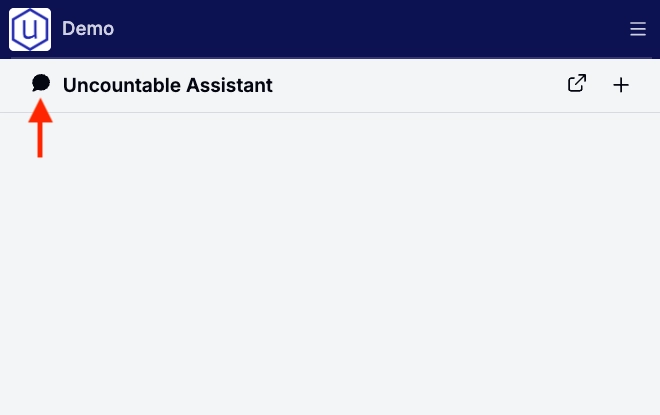
- View a listing of past chats by clicking the 🗨️ icon in the top left corner of the chat.
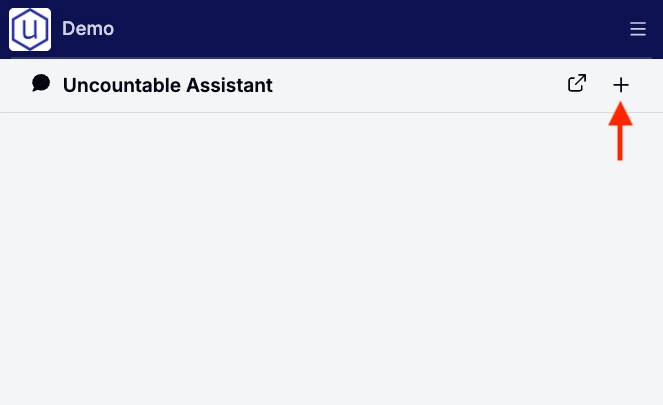
- Create a new chat by clicking the ➕ icon in the top right corner of the chat.
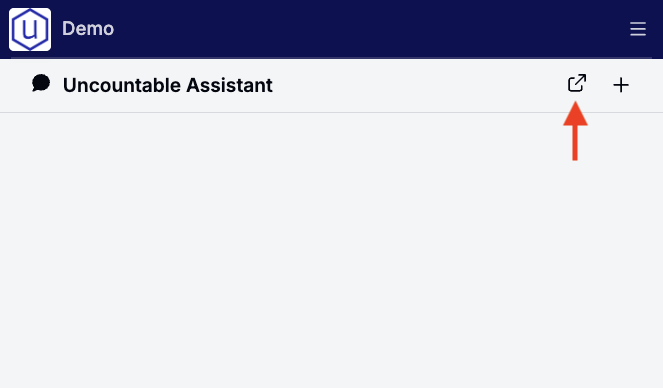
- View your chat in a full page (instead of sidepanel) by clicking the open icon in the top right corner of the sidepanel.
This redesign was introduced because users increasingly treat chat as a workflow surface, not a one-off interaction. The new UI reduces friction when you need to reference prior chats, restart a workflow, or quickly return to your active thread.
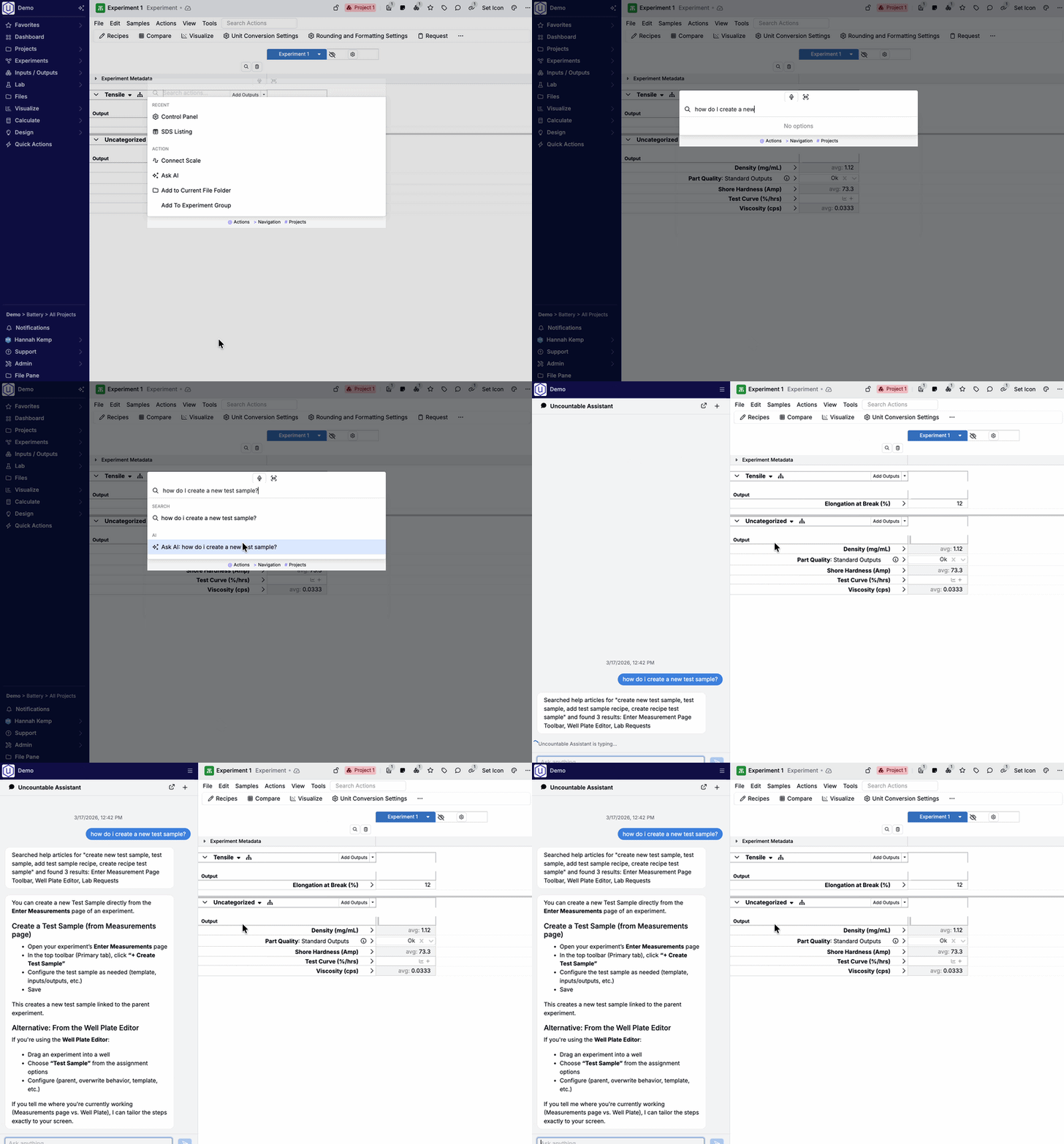
“Ask AI” from the Quick Actions Menu
Uncountable users can now ask Bodie AI questions directly from Quick Actions.
This reduces the number of clicks needed to access the help tool. It is intended to make Bodie more discoverable and better integrated into your workflows at the moment users get stuck. Instead of leaving the workflow to search docs or open a separate help surface, users can quickly access the help bot and ask questions.
Now, simply click Quick Actions in the navigation bar (or use the Command + K shortcut) to open the Quick Actions modal, type your question, and select Ask AI.
Create and Edit Custom Entities
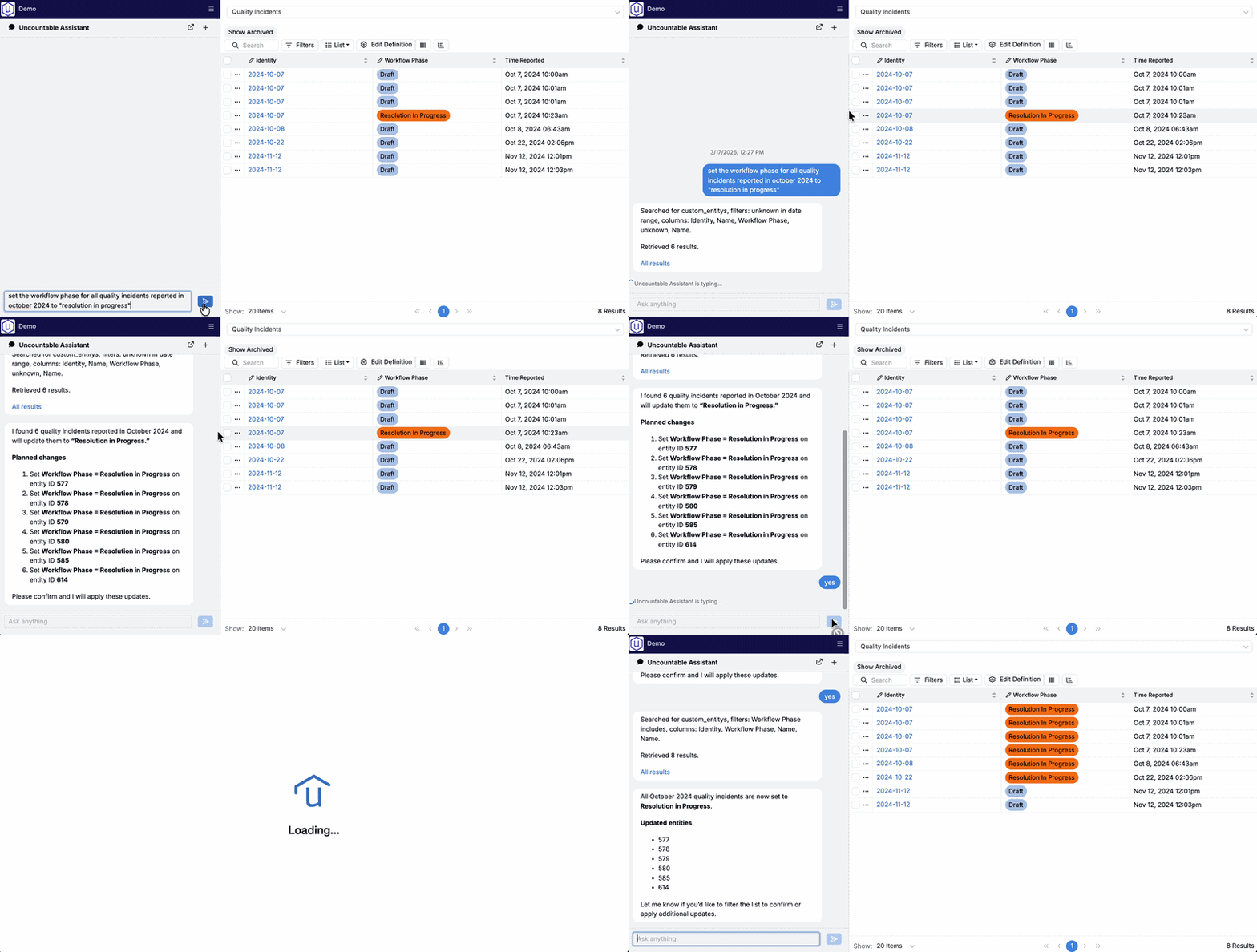
Bodie AI now also supports editing custom entities directly through chat. For example, you can now use Bodie to request entity changes such as:
- “Append ‘(Legacy)’ to all entities created before 2024.”
- “Set the workflow phase for all Quality Incidents reported in October 2024 to ‘Resolution in Progress’.”
If the request is not immediately clear, Bodie will then follow up with clarifying questions to ensure the edit is scoped correctly (for example, when names match multiple entities, or the entity type or field is not specified). Before submitting, Bodie will send a proposed change summary so you can quickly review what changed.
Edits run under the current user’s permissions. This means that Bodie can only make changes to entities that the current user has access to.
Currently, this applies only to custom entities but support for future base entity types will be added in the future. To learn more, refer to Gen AI: Bodie AI.