
The Bulk Modify Experiments page is a powerful admin tool in Uncountable that allows users to perform large-scale operations across experiments, inputs, outputs, and other entities. It is designed for operations that require editing potentially thousands of records at once—tasks that cannot be completed synchronously through standard UI interactions.
Admins can access Bulk Modify Experiments from the Control Panel or by using Quick Actions (Cmd + K) to search for “Bulk Modify”.
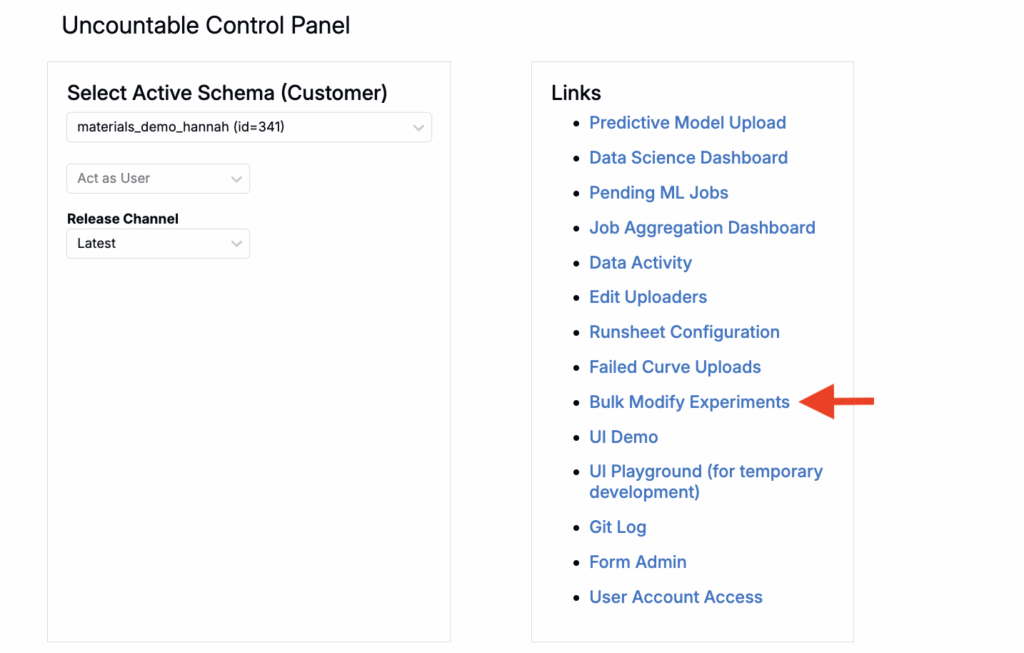
How the Bulk Modify Page Works
On the Bulk Modify, you can select a bulk operation. The Bulk Modify page runs operations as asynchronous jobs on the ML server. This means:
- Operations can process thousands of entities without timing out
- Jobs run in the background—you don’t need to keep the page open
- Progress is tracked and visible on the Bulk Modify page
- If a job times out or fails, batching ensures you don’t lose all progress
Available Bulk Operations
Swap Ingredients
The Swap Ingredients operation replaces one ingredient with another across multiple experiments, with optional quantity conversion. Use this operation when you need to replace a discontinued ingredient across all formulations, test ingredient substitutions with defined conversion ratios, or conduct supplier changes across large experiment sets.
How to use it:
- Select Swap Ingredients from the Bulk Operation dropdown.
- Use filters to narrow down the experiments you want to modify.
- Choose the ingredient to replace and the ingredient to replace it with.
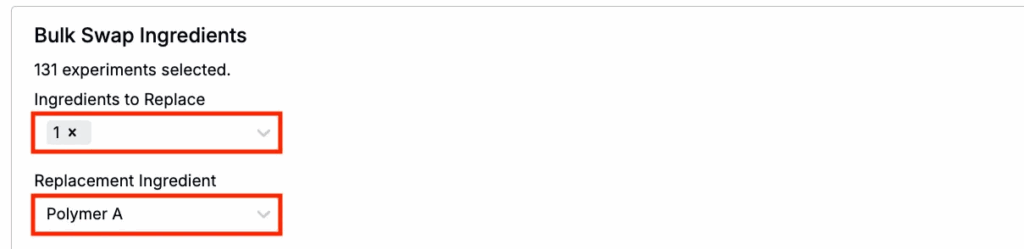
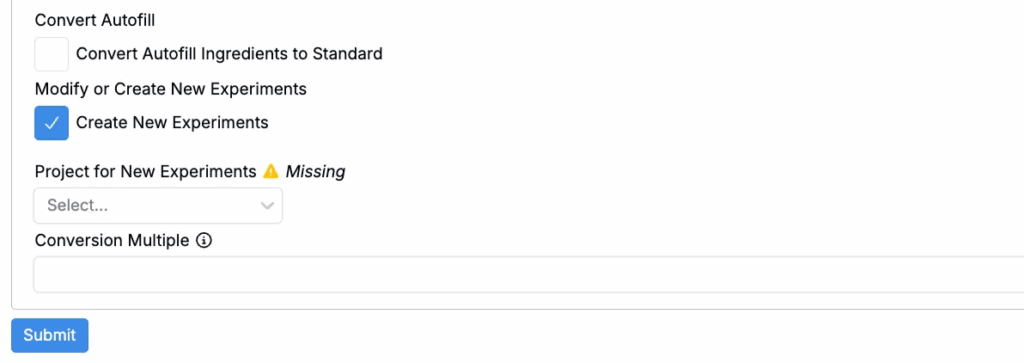
- Optionally, you can also:
- Convert Autofill Ingredients to Standard
- Create New Experiments — if yes, select a project to add into
- Conversion Multiple — set a conversion ratio (e.g., 1g of Ingredient A becomes 2g of Ingredient B).
- Click Submit.
Swap Outputs
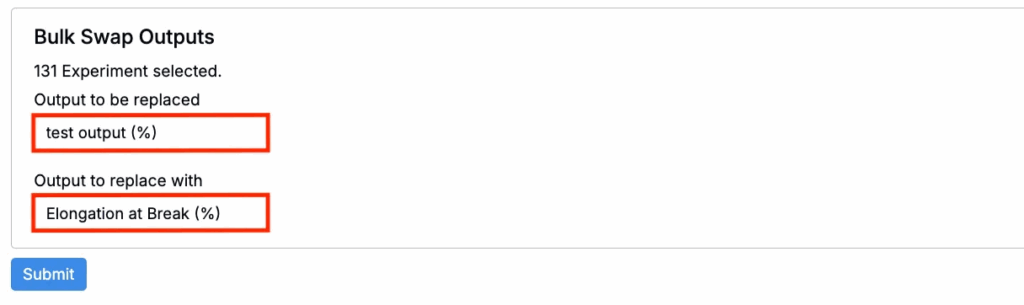
The Swap Outputs operation replaces one output with another across experiments, output groups, or specs, including swapping condition parameters and optionally converting units.Use this operation when you need to consolidate duplicate outputs, migrate from a numeric output to a calculation output, or standardize output configurations across experiments.
How to use it:
- Select Swap Outputs from the Bulk Operation dropdown.
- Select the entity type: Experiments, Output Groups, or Spec.
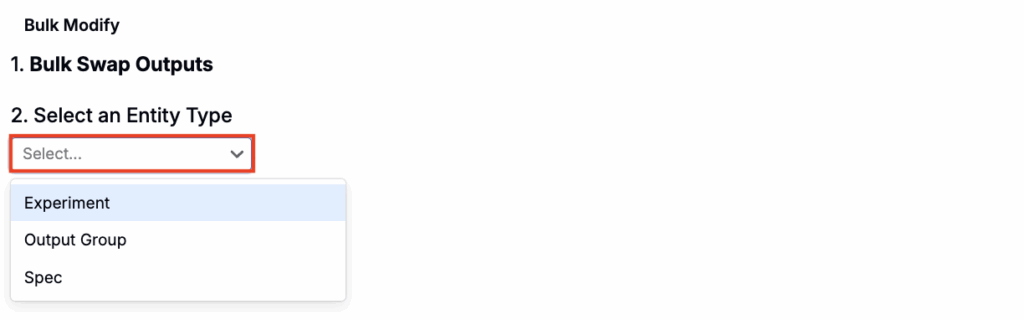
- Use filters to select target entities.
- Choose the output to replace and the output to replace it with.
- Click Submit.
Add Metadata
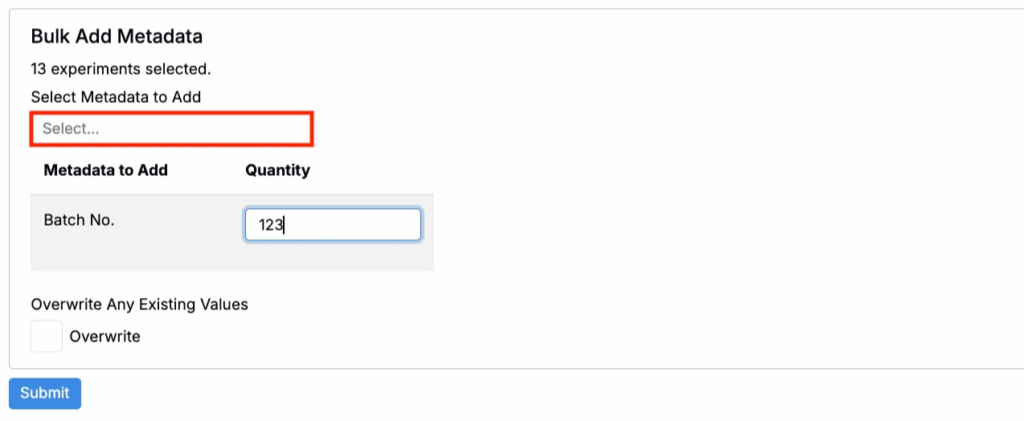
The Add Metadata operation adds experiment metadata fields and values to multiple experiments at once. Use this operation when you need to tag experiments with project phases, dates, or other categorical information, add missing metadata to historical experiments, or organize experiments for reporting or compliance purposes.
How to use it:
- Select Add Metadata from the Bulk Operation dropdown.
- Use filters to select target experiments.
- Select metadata fields to add.
- If desired, specify metadata values.
- (Optional) Use the Overwrite checkbox to overwrite any existing metadata values.
- Click Submit.
Archive Experiments
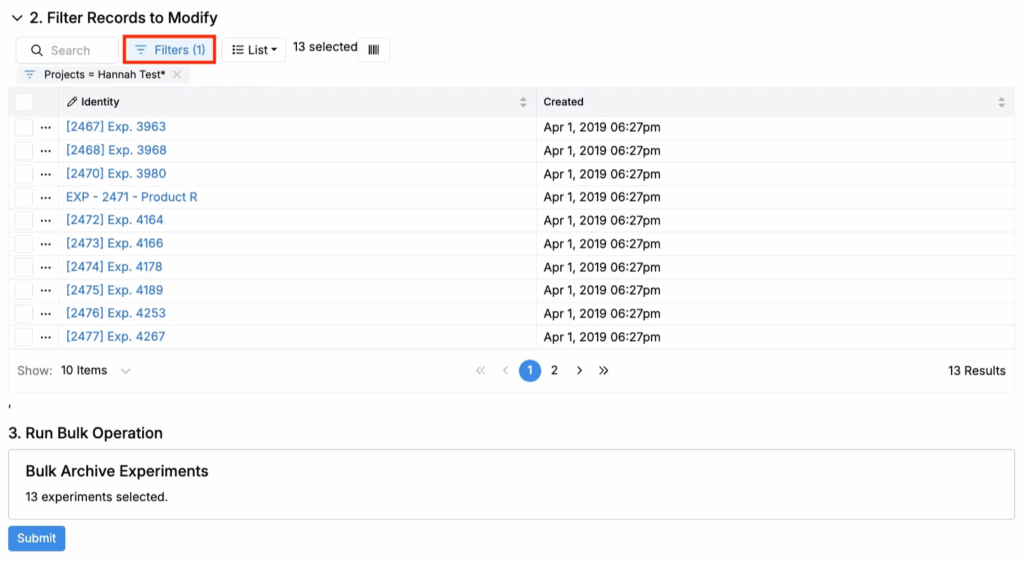
The Archive Experiments operation archives multiple experiments at once, removing them from active listings while preserving their data.Use this operation when you need to clean up obsolete experiments, archive all experiments from a completed project, or remove test experiments from active experiment listings.
How to use it:
- Select Archive Entities from the Bulk Operation dropdown.
- Choose Experiments as the entity type.
- Use filters to select the experiments to archive.
- Click Submit.
Type Change
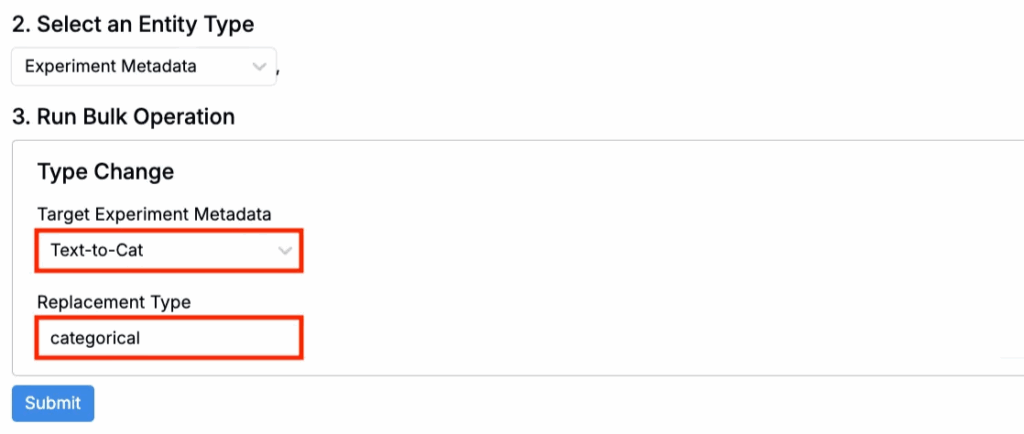
The Type Change operation converts the data type of experiment metadata fields (e.g., numeric to text, text to categorical). Use this operation when you need to convert legacy free-text fields to structured categorical fields, standardize metadata formats across experiments, or prepare data for improved filtering and analysis.
How to use it:
- Select Type Change from the Bulk Operation dropdown.
- Select Experiment Metadata as the entity type.
- Choose the target experiment metadata type.
- Choose the replacement type.
- Click Submit.
Add Comment
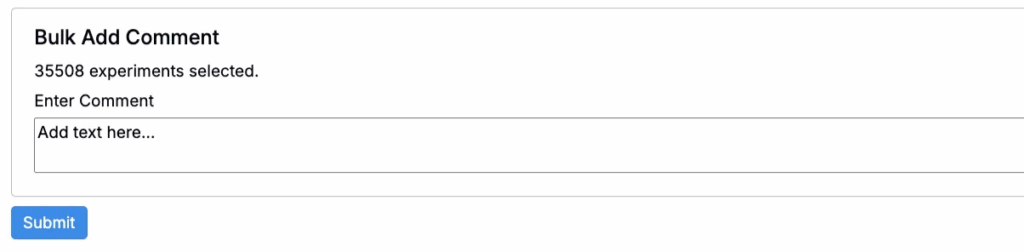
The Add Comment operation adds a standardized comment to multiple experiments. Use this operation when you need to add notes about data quality issues, document batch processing or corrections, or flag experiments for review.
How to use it:
- Select Add Comment from the Bulk Operation dropdown.
- Use filters to select target experiments.
- Enter the comment text.
- Click Submit.
Cleanup Mix Order
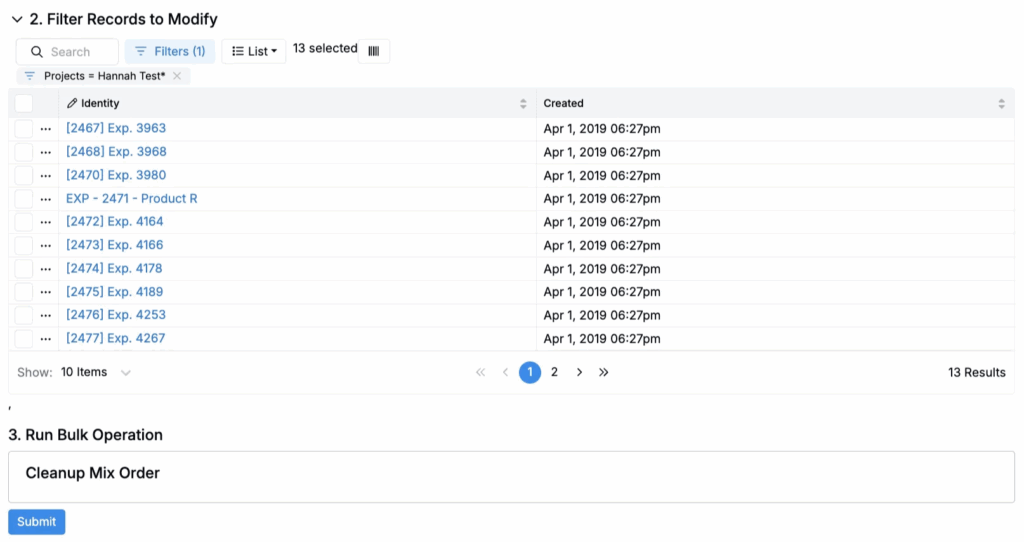
The Cleanup Mix Order operation removes empty or invalid entries from experiment mix order configurations. Mix order cleanup typically addresses issues caused by deleting ingredients, archiving ingredients, or making other structural changes to recipes.
Use this operation when you need to remove archived ingredients that remain in mix order, clean up experiments after ingredient consolidation, or fix mix order data integrity issues.
Internal note: The cleanup operation is supposed to make mix steps start at 1, but it’s not perfect and may not work in all cases.
How to use it:
- Select Cleanup Mix Order from the Bulk Operation dropdown.
- Use filters to select experiments with mix order issues.
- Click Submit.
Archive/Unarchive Entities
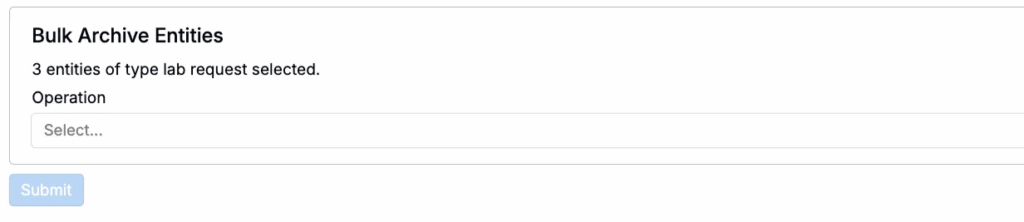
The Archive/Unarchive Entities operation archives or unarchives multiple entities at once, including experiments, ingredients, outputs, and other entity types. Archiving removes entities from active listings while preserving their data, and unarchiving restores them to active status.
Use this operation when you need to clean up obsolete entities, archive all entities from a completed project, remove test data from active listings, or restore accidentally archived entities.
How to use it:
- Select Archive/Unarchive Entities from the Bulk Operation dropdown.
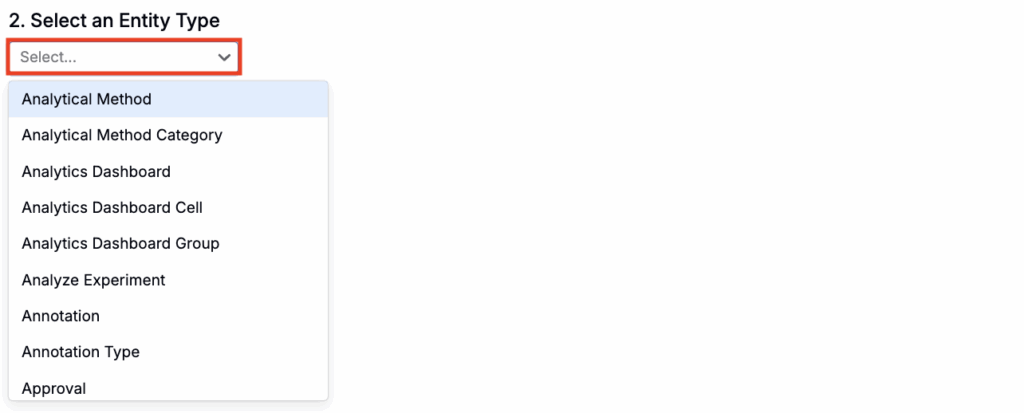
- Choose the entity type (e.g., Experiments, Ingredients, Outputs, Calculations).
- Use filters to select the entities to archive or unarchive.
- Use the Operation field to select either Archive or Unarchive.
- Click Submit.
Lock/Unlock Entities
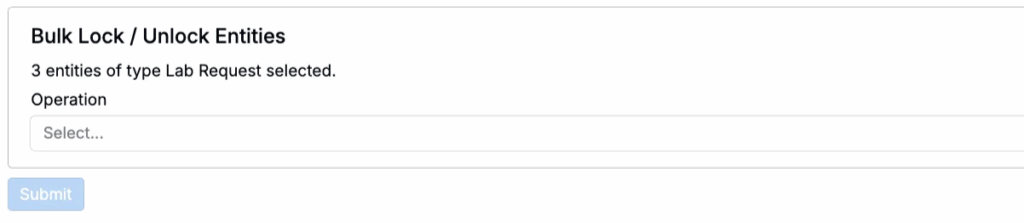
The Lock/Unlock Entities operation locks or unlocks multiple experiments to prevent or allow editing. Use this operation when you need to lock all experiments in a completed project for compliance, temporarily unlock experiments for bulk updates then re-lock them, or manage data integrity during audits or regulatory reviews.
How to use it:
- Select Lock Entities or Unlock Entities from the Bulk Operation dropdown.
- Choose the entity type (e.g., Experiments, Ingredients, Outputs, Calculations).
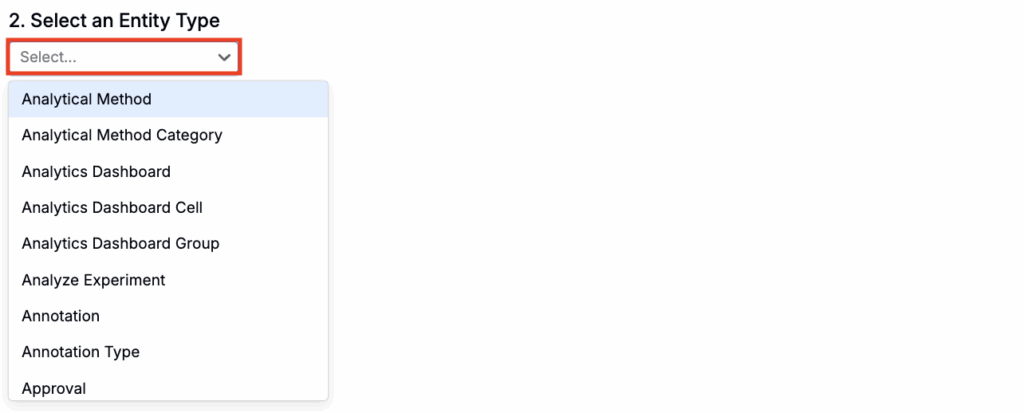
- Use filters to select the entities to lock or unlock entities.
- Use the Operation field to select either Archive or Unarchive.
- Click Submit.
Add/Remove Entities from Material Families
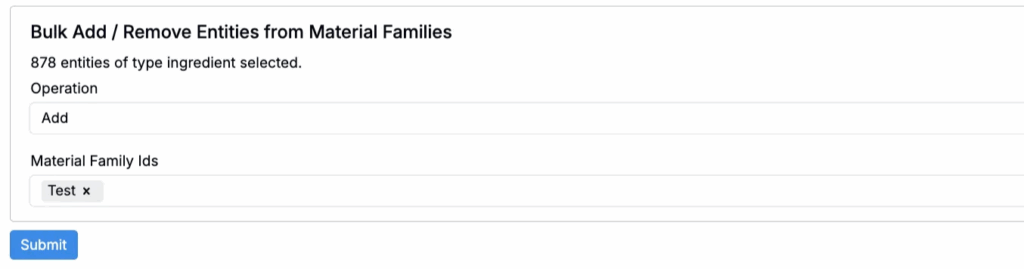
The Add/Remove Entities from Material Families operation adds or removes ingredients, ingredient attributes, outputs, or calculations to one or more material families in bulk. Use this operation when you need to share standard ingredients across multiple material families, add outputs to newly created material families, or consolidate shared resources across workflows.
How to use it:
- Select Add/Remove Entities from Material Families from the Bulk Operation dropdown.
- Choose the entity type.
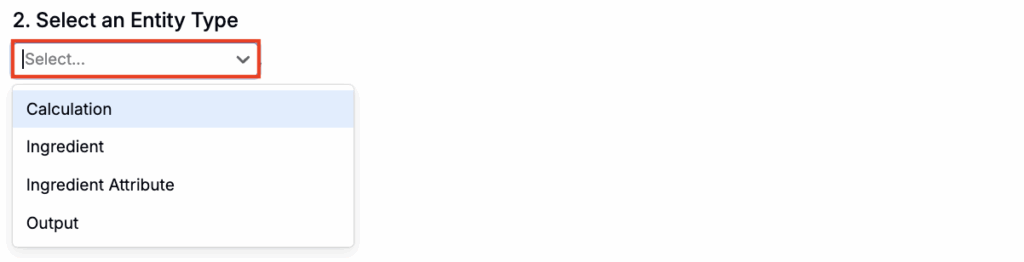
- Use filters to select entities to add or remove.
- Set the Operation to Add or Remove.
- Select the target Material Family IDs.
- Click Submit.
Apply Solver Locks
The Apply Solver Locks operation applies solver lock configurations to ingredients across multiple experiments. Use this operation when you need to set ingredient quantity constraints before running DOE, standardize solver configurations across experiment sets, or prepare experiments for formulation optimization.
How to use it:
- Select Apply Solver Locks from the Bulk Operation dropdown.
- Use filters to select target experiments.
- Select a constraint set.
- Click Submit.

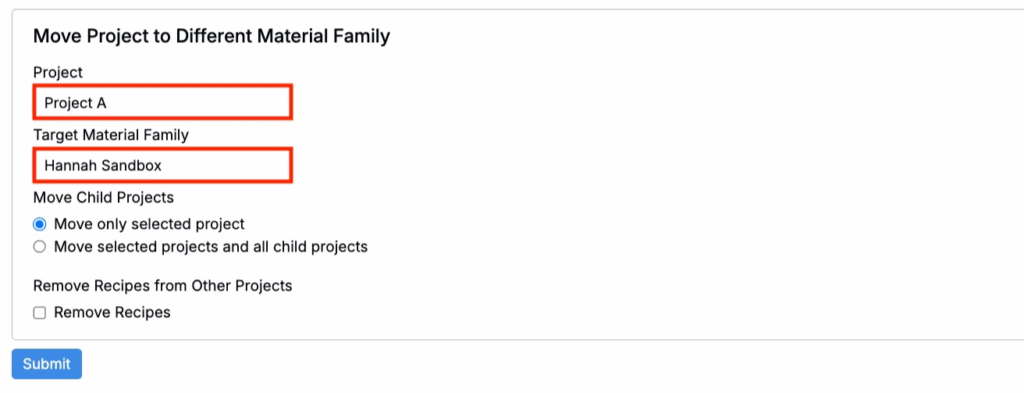
Move Project
The Move Project operation moves experiments between material families. Use this operation when you need to reorganize experiments during schema restructuring, move experiments between labs or divisions, or consolidate projects after acquisitions or reorganizations.
How to use it:
- Select Move Project from the Bulk Operation dropdown.
- Select the project to move.
- Select the destination material family.
- (Optional) Under Move Child Projects, select whether to move the selected project or to include all child projects.
- (Optional) To remove recipes from other projects, use the Remove Recipes checkbox.
- Click Submit.
Convert Units
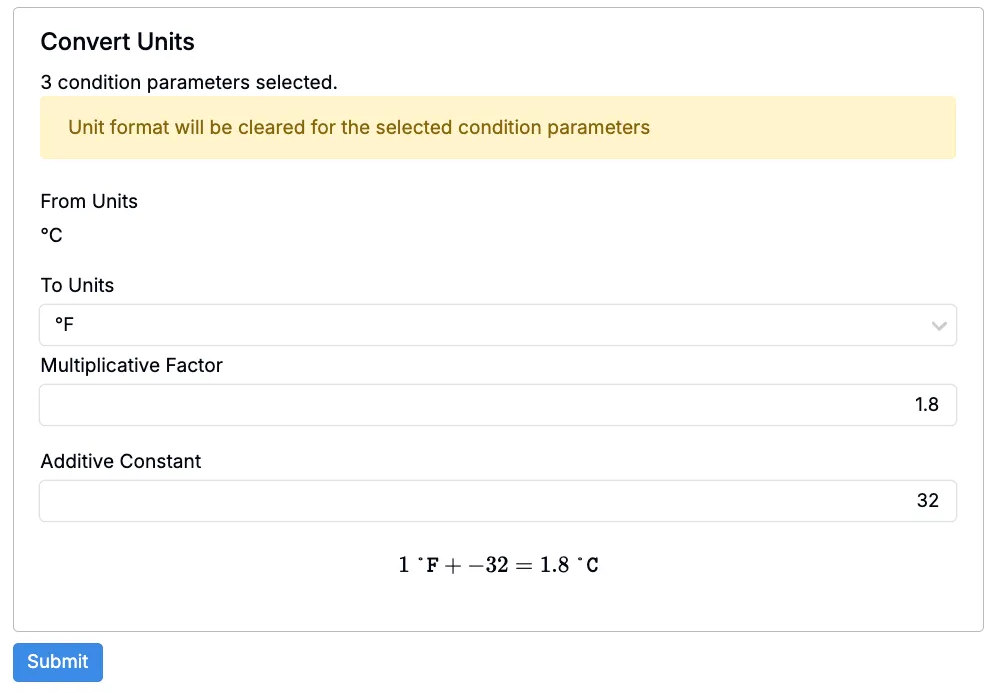
The Convert Units operation converts condition parameter units across multiple outputs in bulk. Use this operation when you need to standardize temperature units from Fahrenheit to Celsius, convert pressure units across all experiments, or harmonize units after merging labs with different standards.
How to use it:
- Select Convert Units from the Bulk Operation dropdown.
- Select the condition parameter to convert.
- Choose the new unit.
- Click Submit.
Refresh Calculations
The Refresh Calculations operation recalculates input calculation values across multiple experiments to ensure they reflect the latest calculation definitions. This operation is particularly useful when calculation values don’t automatically update, such as when upstream intermediate recipes change.
Use this operation when you need to:
- Update calculation values after modifying calculation definitions
- Propagate changes to intermediates through dependent experiments
- Ensure calculation values are synced after ingredient attribute updates
- Fix calculation values that appear out of sync or missing
How to use it:
- Select Refresh Calculations from the Bulk Operation dropdown.
- Use filters to select experiments whose calculations need updating.
- Select specific calculations to refresh.
- Optionally configure number of parallel workers (1-3 workers for faster processing).
- Click Submit.

Migrate Legacy Fields
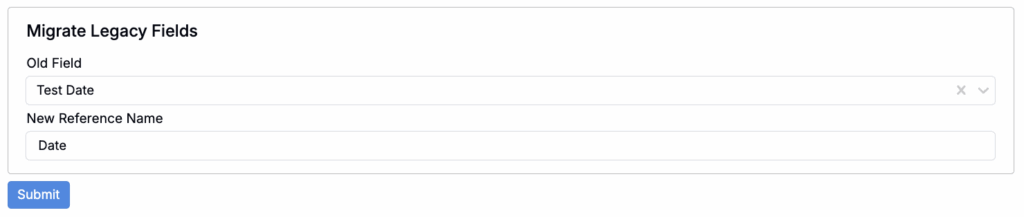
The Migrate Legacy Fields operation converts legacy field structures (such as experiment metadata or experiment output metadata) into modern entity fields. After migration, the legacy field is archived and its data is transferred to the new entity field.
How to use it:
- Select Migrate Legacy Fields from the Bulk Operation dropdown.
- Choose the entity type (e.g., recipe metadata, output attributes).
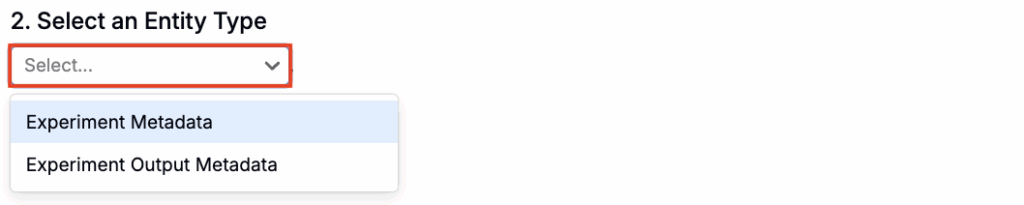
- Select the old field to migrate.
- Enter a reference name for the new entity field.
- Click Submit.
Migrate Field Table
The Migrate Field Table operation converts legacy field tables into modern sub-entity listings on definitions, preserving historical data while enabling more flexible data management.
How to use it:
- Select Migrate Field Table from the Bulk Operation dropdown.
- Select the existing field table to migrate (labeled with the field table group name and the definition in parentheses).
- Choose to either create a new custom entity definition or select an existing one:
- Create new: Provide a name for the new custom entity definition
- Use existing: Select an existing custom entity definition (useful for consolidating multiple field tables)
- Click Submit.

Merge Duplicate Conditions
The Merge Duplicate Conditions operation identifies and merges duplicate output conditions in the database. Use this operation when you need to clean up duplicate output conditions created over time, improve data quality and search accuracy, or reduce clutter.
How to use it:
- Select Merge Duplicate Conditions from the Bulk Operation dropdown.
- Review identified duplicates.
- Click Submit to merge.

Transform Condition Parameters
The Transform Condition Parameters operation applies condition parameter transformations to outputs, such as adding or modifying condition parameters on existing measurements. Use this operation when you need to add missing condition parameters to historical measurements, standardize condition parameter configurations across outputs, or clean up condition parameter inconsistencies.
How to use it:
- Select Transform Condition Parameters from the Bulk Operation dropdown.
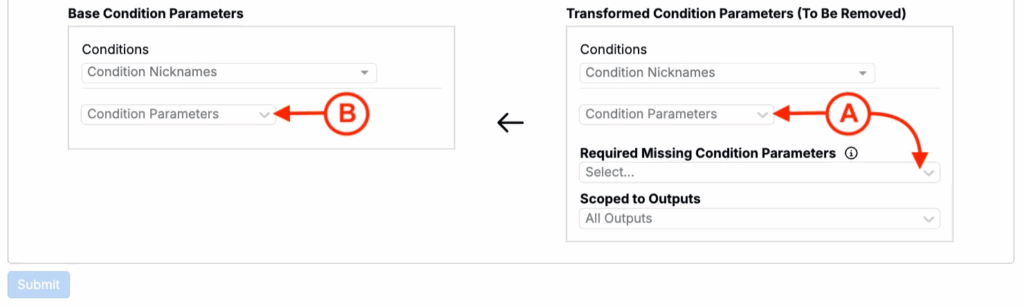
- Use the top checkboxes to choose whether to transform output parameters only within the current material family and whether to allow removing measurements to complete the transformation.

- Select Condition Parameters, or Required Missing Condition Parameters (A).
- If you select a required missing CP, the transformation will only apply to outputs that don’t have these parameters.
- If using a required missing condition parameter, use the Scoped to Outputs field to scope to a specific output. Leave this blank to scope to all outputs.
- Select the Base Condition Parameters (B).
- Click Submit.
Bulk Unset Compound as Intermediate
The Bulk Unset Compound as Intermediate operation removes the “compound as intermediate” designation from multiple ingredients at once.
How to use it:
- Select Bulk Unset Compound as Intermediate from the Bulk Operation dropdown.
- Use filters to select target ingredients.
- Click Submit.

Migrate Categorical Ingredient Attributes
operationThe Migrate Categorical Ingredient Attributes operation converts categorical ingredient attributes to ID-based fixed list attributes, improving data management and option control.
How to use it:
- Select Migrate Categorical Ingredient Attributes from the Bulk Operation dropdown.
- Use filters to display only the categorical attributes you want to convert.
- Click Submit.

Migrate Categorical Outputs
The Migrate Categorical Outputs operation converts legacy categorical outputs to ID-based single-select or multi-select outputs, improving data management and preventing value corruption. The migration creates a field option set and converts all existing categorical values to ID references, preserving historical data.
How to use it:
- Select Migrate Categorical Outputs from the Bulk Operation dropdown.
- Use filters to display only the categorical outputs you want to convert.
- Click Submit.

Migrate Recipe Metadata to Recipe Fields
The Migrate Recipe Metadata to Recipe Fields operation migrates existing experiment metadata into experiment fields in bulk, including copying existing values.
Use this operation when you need to transition away from experiment metadata into fields that are less costly performance-wise, while preserving existing values and standardizing how those fields are configured and shown across experiment types and material families.
Migrating a metadata field to an entity field with this method will also give it a ref name, generated from its identity name.
How to use it:
Before beginning, make sure you are in the material family that contains the metadata you want to migrate.
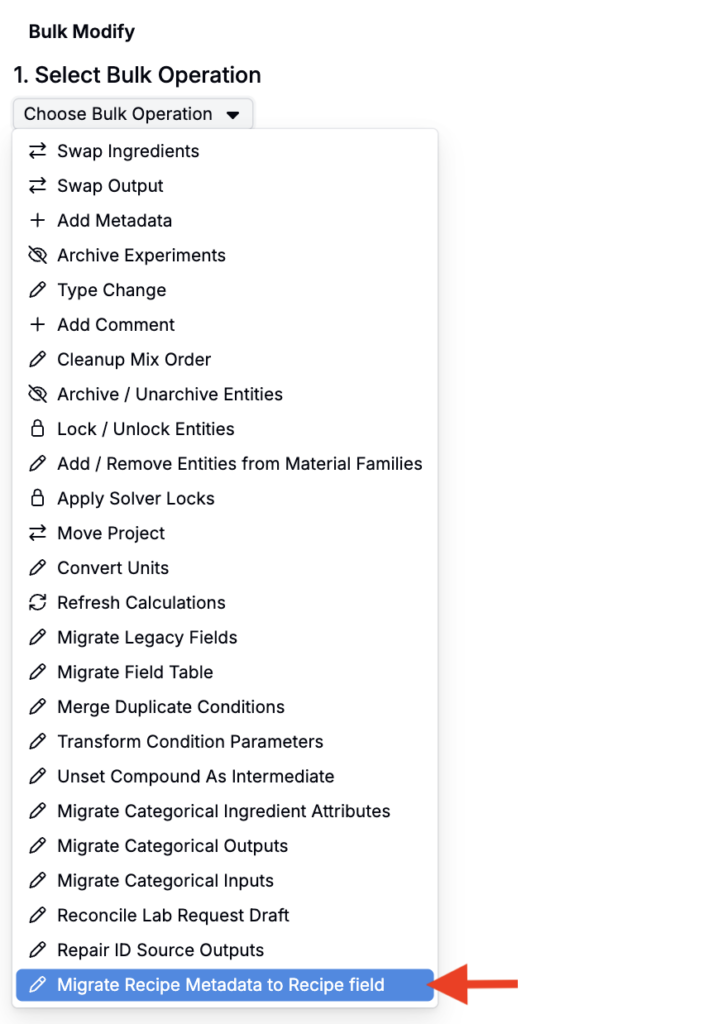
- Select Migrate Recipe Metadata to Recipe Field from the Bulk Operation dropdown.
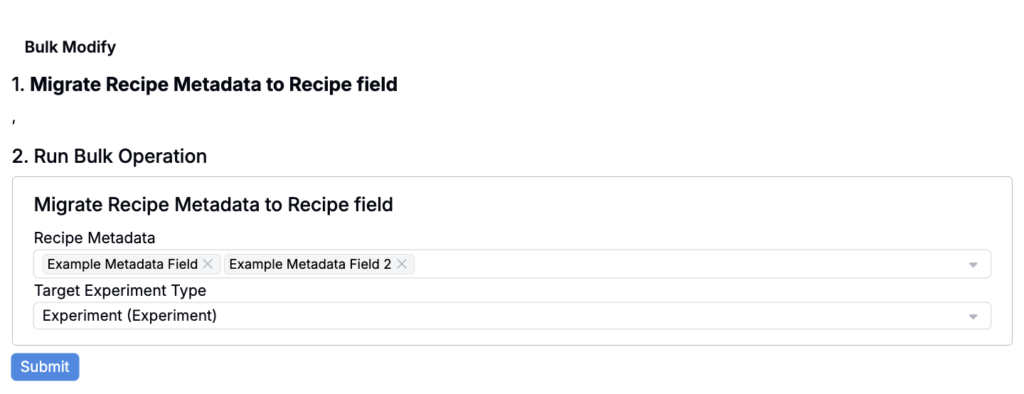
- Select which recipe metadata fields you want to migrate.
- Choose the target experiment type (experiment definition) to apply the migration to.
- Click Submit to run the migration.
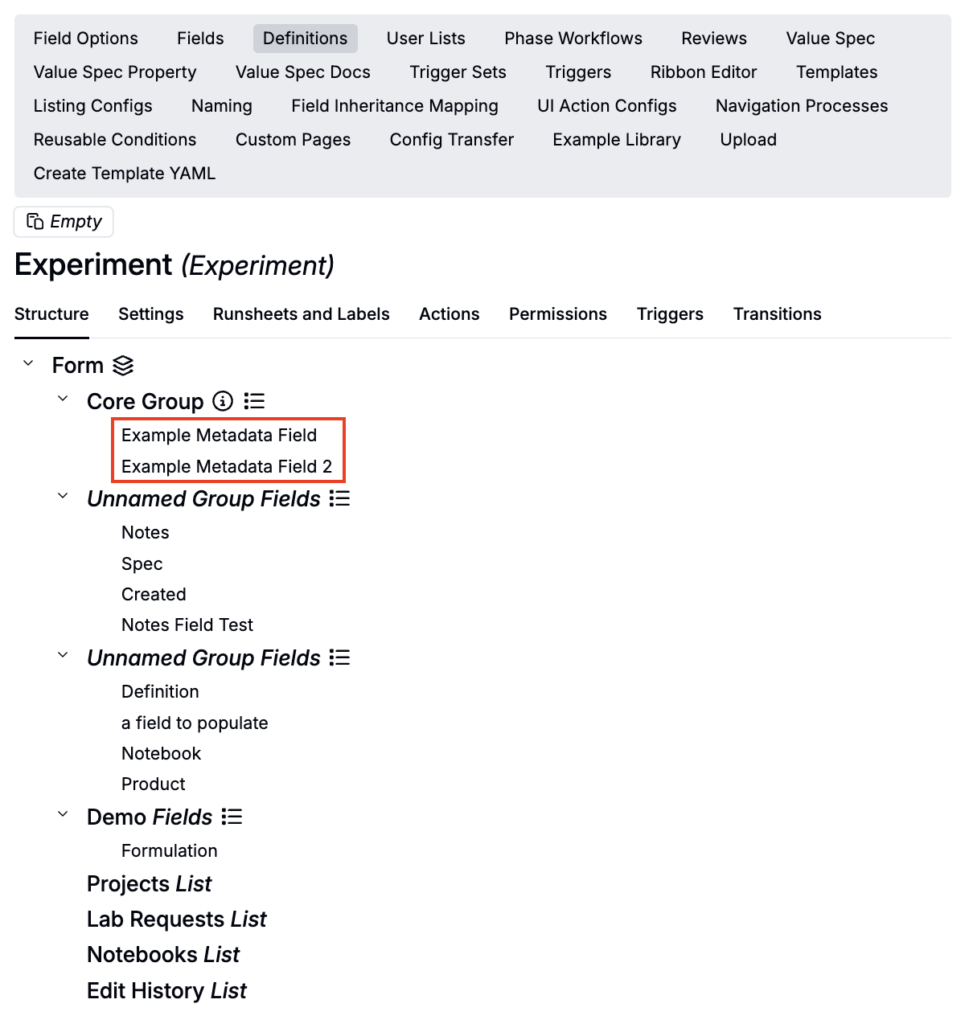
All selected experiment metadata fields will migrate into entity fields attached to the selected definition. Existing recipe metadata values will be copied to the new fields and cleared from the source.
Tips for Using Bulk Modify
- Test on a small set first: When possible, test your operation on a small subset of experiments (filtered to 5-10) before running it across thousands.
- Check job progress: Monitor the ML server queue or Pending ML Jobs page (on the Control Panel) to track operation status, especially for large operations.
- Understand permanence: Most Bulk Modify operations cannot be undone automatically. Archive operations can be reversed, but swaps and type changes may require manual correction if errors occur.
- Consider alternatives: For simpler operations on smaller sets (under ~200 entities), consider using the Toggle Bulk Editor in standard listing tables, which provides immediate feedback.
Questions?
If you need help with a specific Bulk Modify operation or encounter errors, contact your Uncountable administrator or reach out to the Uncountable support team.