A key advantage of Uncountable’s structured data is the searching and filtering capabilities it enables. Searching and filtering is available for many entities across the platform (ingredients, measurements, lab requests, inventory, and more), but the most common use case is narrowing down and comparing experiments.
This article focuses on the day-to-day workflow: searching and filtering experiments from within a project on it’s Dashboard page. If you need to broaden scope across projects or material families, jump to Searching and Filtering Across Uncountable.
What “within a project” means
Your current location determines the scope of your results:
- When you filter from a Project Dashboard, results are limited to the current, active project and its child projects.
- If you want to search across a wider dataset (for example, a full material family), scope to All Projects or use an Experiment List view instead.
Key concepts
- Filters are additive (AND by default). Each filter narrows your result set.
- Use groups for OR logic. Create filter groups when you need “this OR that.”
- You can filter on more than names. Filters can reference experiment metadata, inputs, outputs (measurements), calculations, lots, lot information, and more.
- Some outputs include conditions. If an output has condition parameters (or default condition parameters), you may be prompted to specify condition values.
Quick keyword search
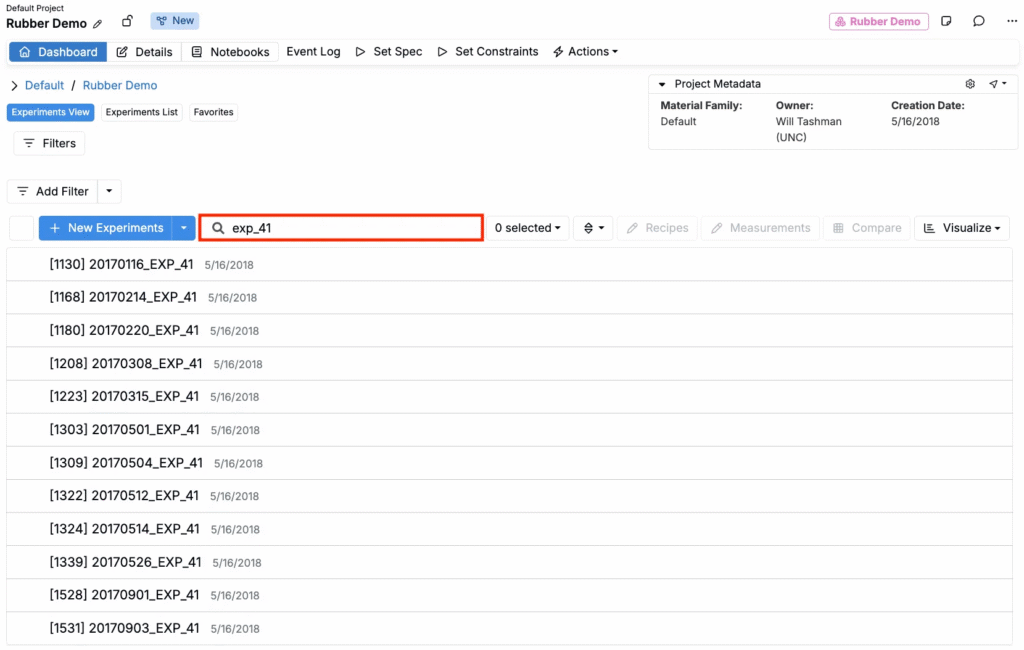
On the Project Dashboard, use the search bar to run a simple keyword search. Uncountable will return experiments with names matching your text.
Add filters
Filtered searches let you find experiments based on structured data—ingredients, measurement values, calculated results, metadata, and more.
- Click Add Filter at the top of the dashboard
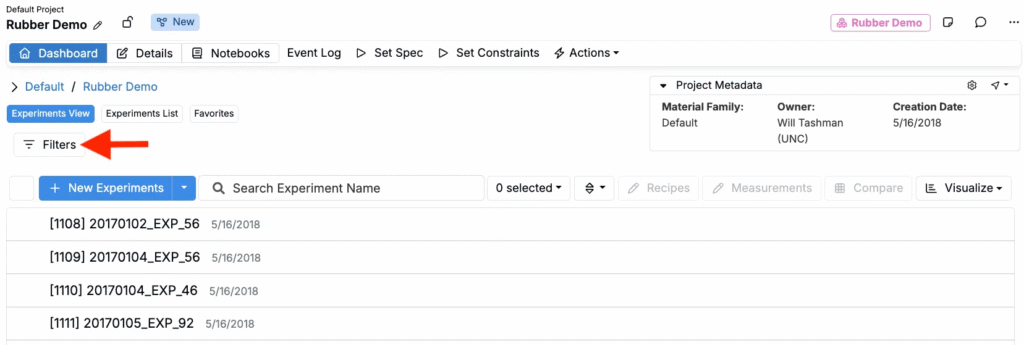
- Choose what you want to filter by (e.g. Ingredients, Outputs, Calculations, or Experiment metadata).
- Configure the comparison logic (exists, equals, greater than, between, etc.).
- Add additional filters to narrow results further.
Common filter types
Filter by inputs
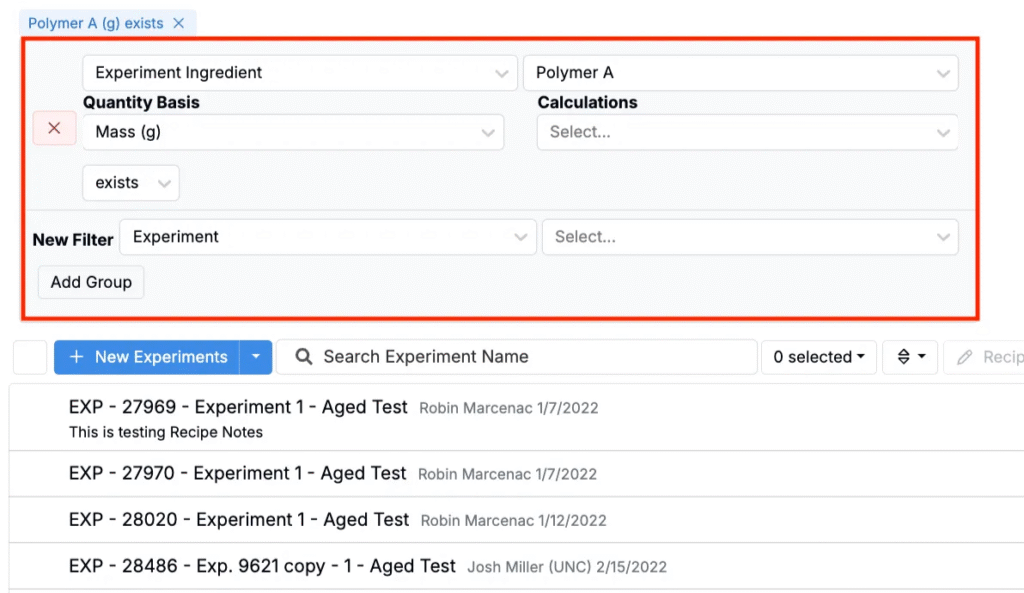
Use Experiment Ingredient or Process Parameter filters to find experiments based on what’s in the recipe.
- Exists: find all experiments where an input is present (for example, Polymer A exists).
- Thresholds / ranges: narrow by quantity (for example, Polymer A > 5 or between 5–10 g).
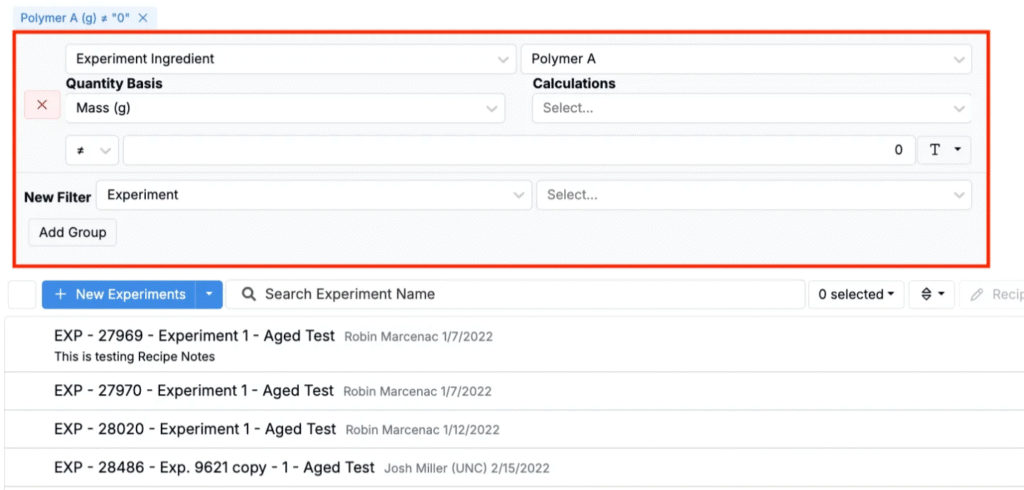
Additional options may include:
- Quantity Basis: compare by mass, volume, or moles.
- Calculations: filter using ingredient-associated calculations (for example, carbon cost of Polymer A), rather than raw ingredient amount.
- Use values on a percentage basis: interpret your comparison value as a % of the total recipe (instead of a quantity basis like grams).
- Use actual quantities: reference the actual ingredient amounts recorded at time of sample creation (if your workflow captures them), rather than the set/formulated amounts.
- Include chemically similar ingredients: broaden results to include chemically similar substances.
- Step name(s): limit the ingredient filter to specific process steps (for example, Mixing, Culturing, Evaporation).
Filter by outputs
Use output filters to find experiments based on measured results (for example, tensile strength, density, tear strength).
- Filter for the presence of a measurement (for example, Tensile Strength exists).
- Filter by numeric thresholds or ranges (for example, Tensile Strength > 16 MPa).
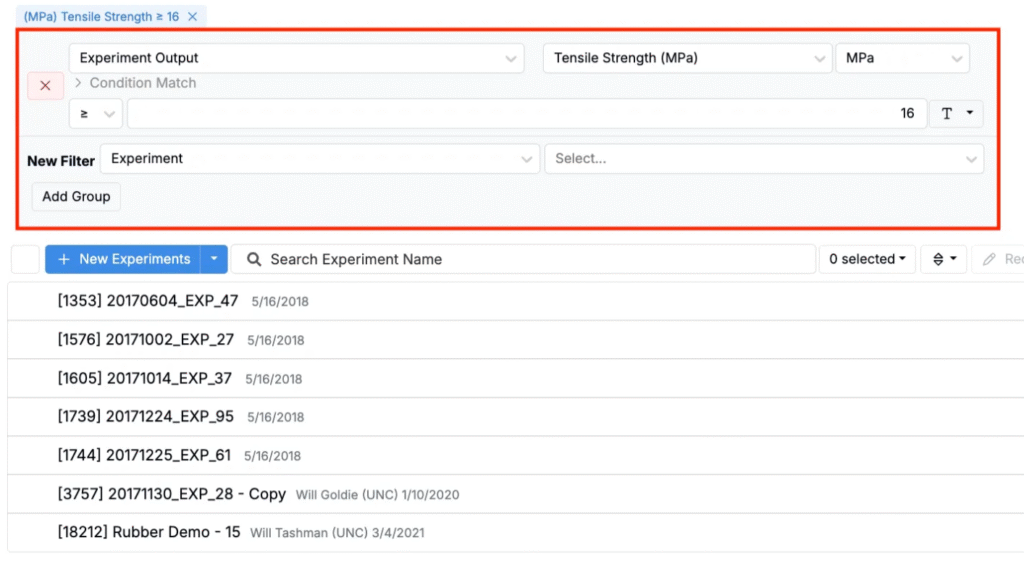
Output filter conditions
To include condition parameters or output conditions in your output filters, expand the Conditions Match section. You can restrict results to only measurements matching specific condition values. These fields are optional—leaving them blank runs a broader filter across all measurements for that output.
If an output has default condition parameters, those defaults may be automatically applied when you create filters. Expand the Conditions Match section to remove them if needed.
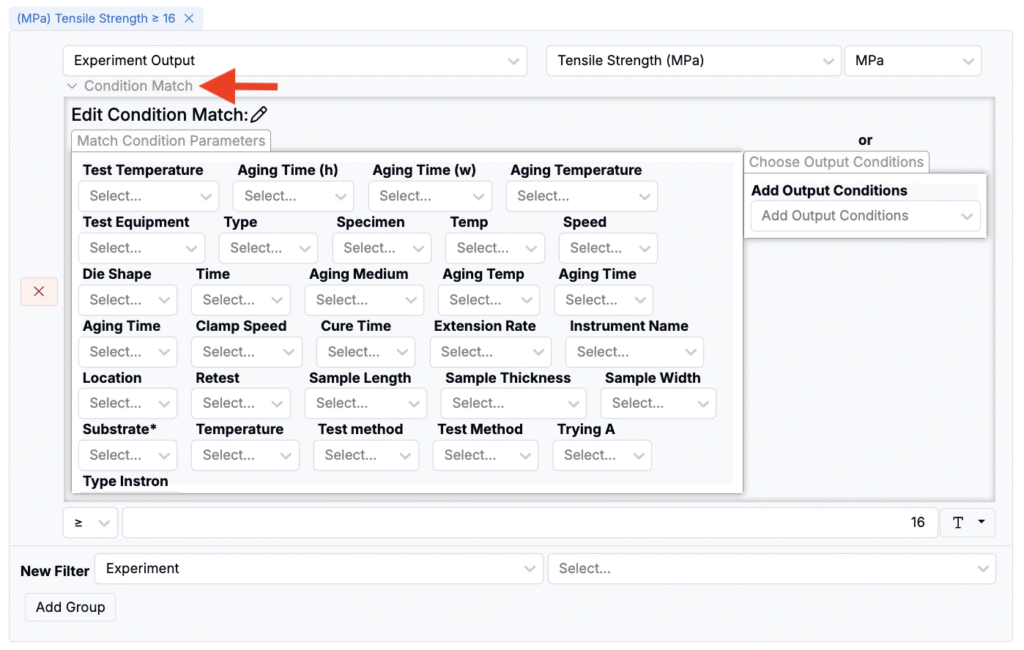
Additional filters
In addition to inputs and outputs, you can also filter by:
- Experiment Metadata (Experiment Metadata + [Metadata field])

- Lots (Experiment + Lots Used)

- Experiment Calculations (Experiment Calculation + [Calculation])

- Ingredient lot information — This can be done using a Custom Filter type and is useful when you want to filter experiments by a specific lot used in the recipe (Custom Filter > Lot Information > [Ingredient] + [Lot field]). Learn more.
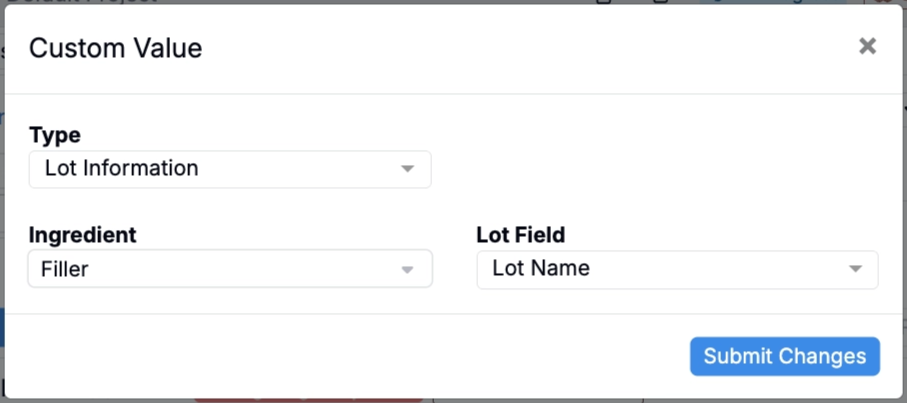

- Ingredient Calculations (Experiment Ingredient + Polymer A + [Calculation])

OR logic with filter groups
By default, multiple filter rows behave like AND logic (all conditions must be true). To create OR logic, use filter groups:
- Stacked filter rows = AND
- Separate filter groups = OR (results that match all rows in at least one group)
- Add your first set of filters.
- Click Add Group to create a second group.
- Configure the second group’s filters.
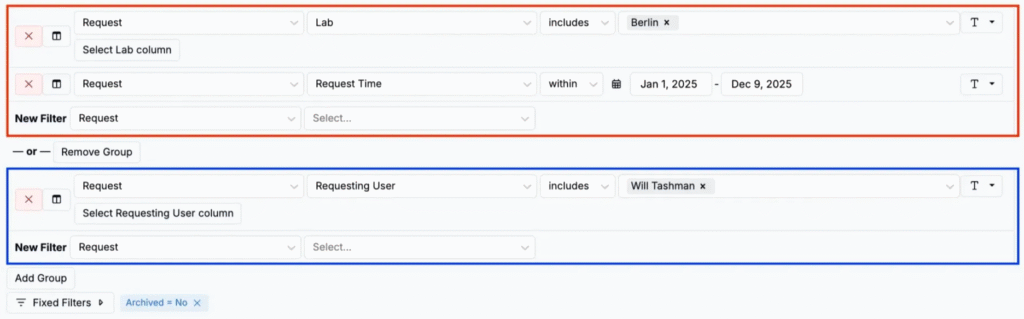
To learn more about OR logic patterns, see OR Filters and Filter Groups.
Sort results
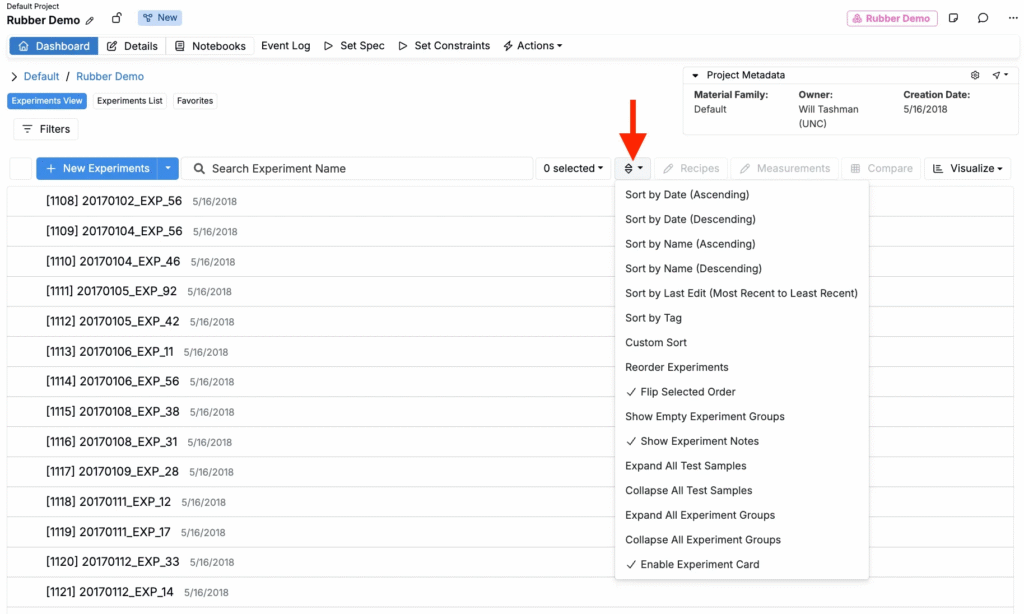
Use the sort control (⇳) on a to sort experiments by common fields such as date, name, last edit, tags, or a custom ingredient-based sort.
Next steps
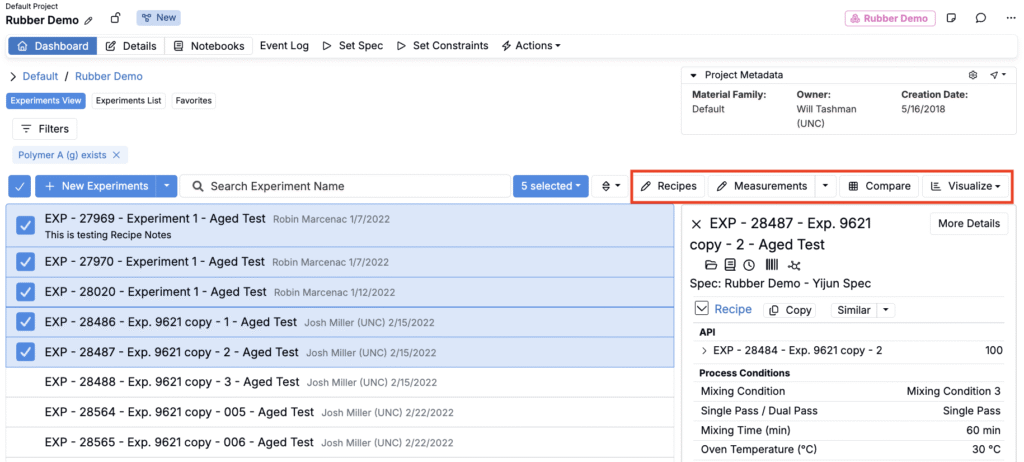
Once you’ve found and selected your desired experiments, you can quickly move into analysis workflows:
- Recipes — jump to a recipe view of the selected experiments
- Measurements — jump to a measurements view of the selected experiments
- Compare — open Compare to review inputs, calculations, and measurements side by side
- Visualize — open Explore Data pre-filtered to your selected experiments