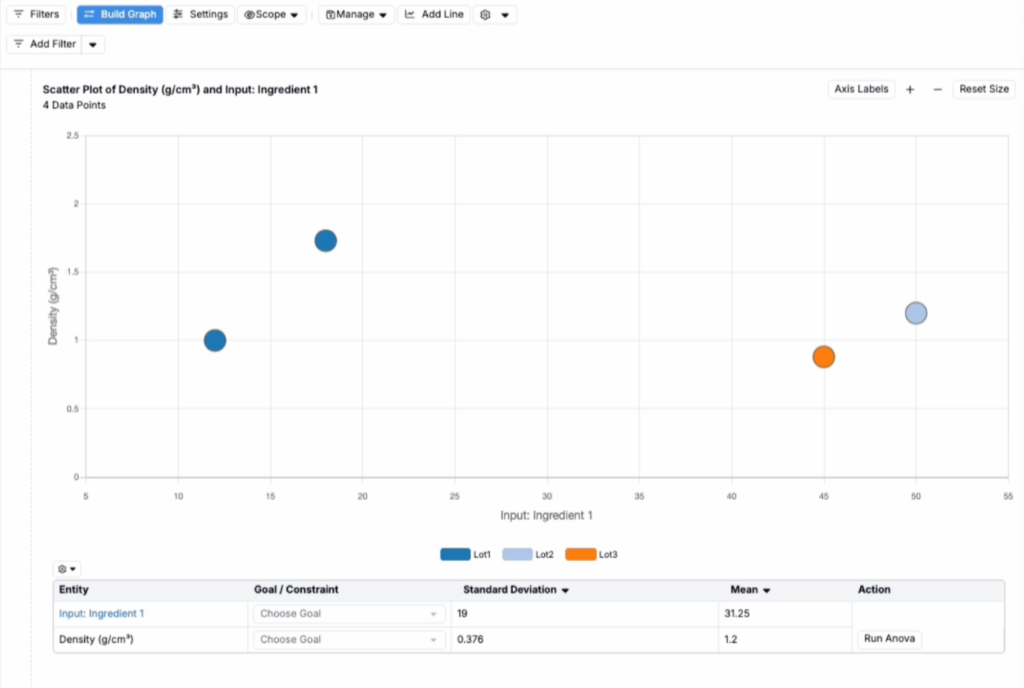
Experiments can be filtered by ingredient lot information on the Dashboard (when filtering projects) and on the Explore Data page. The path to access lot filtering is slightly different in each location and is easy to miss, so this article walks through the correct steps for both.
Filtering by Lot Information on the Dashboard
When filtering experiments from the Dashboard, lot information filters are available under the Custom filter category.
- Open the filter panel on the Dashboard.
- Select Custom from the filter type options.
- Select Lot Information from the submenu.
- Use the Options dropdown to choose the specific lot field and value to filter by.
- Within the filter panel, set your specific lot information criteria (e.g. Ingredient lot name is “Filler Lot 1” or “Filler Lot 2”.)

Filtering by Lot Information in Explore Data
On the Explore Data page, lot information can be used to color, size, or filter visualization data points. The option is nested under Advanced Options > Custom.
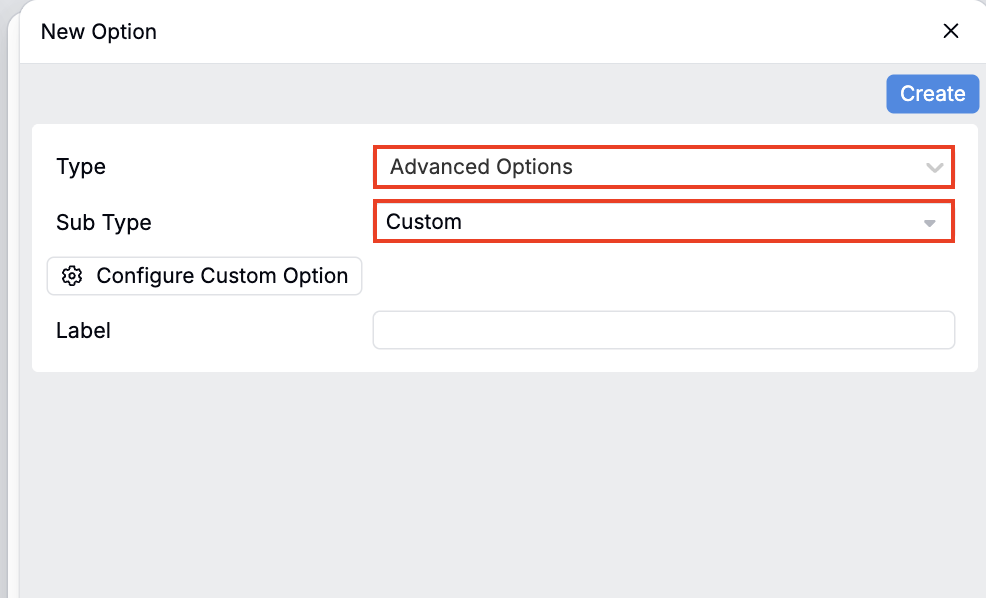
- On the Explore Data page, click + New in the Options panel on the right side to open the New Option panel.
- In the New Option panel, set Type to Advanced Options.
- Set Sub Type to Custom.
- Click Configure Custom Option.
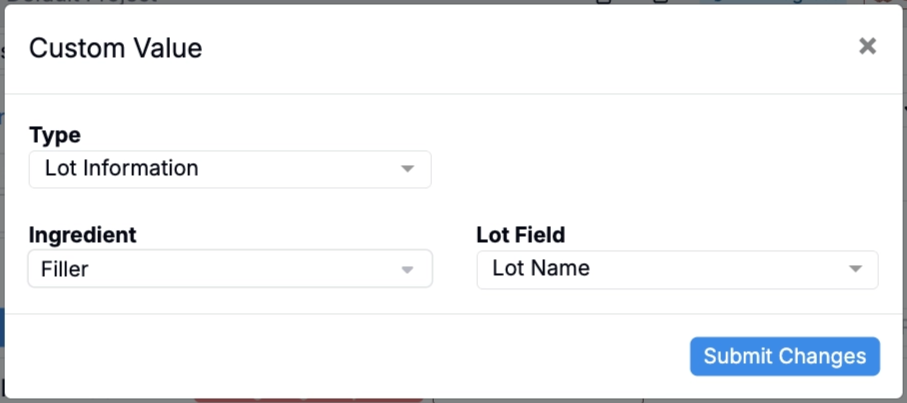
- In the Custom Value modal that opens, set Type to Lot Information.
- Select the Ingredient you want to filter by from the Ingredient dropdown.
- Select the desired field from the Lot Field dropdown.
- Click Submit Changes.
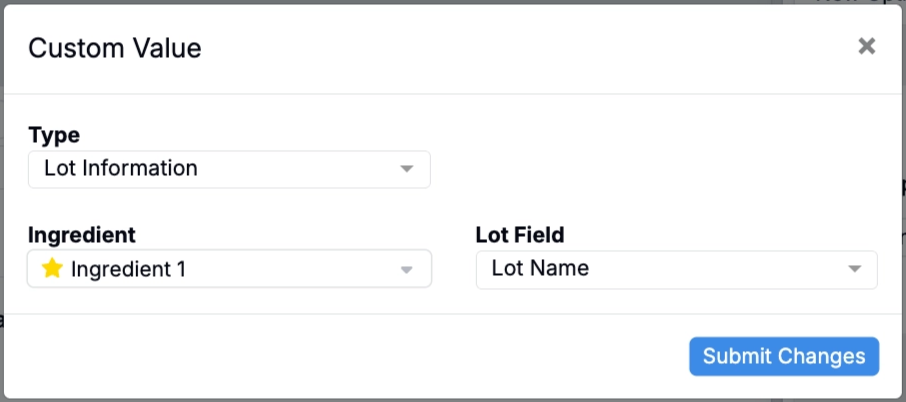
- The new Custom option will appear in the Options panel. Drag it to the Color, Size, or another axis field in the Plotting section to apply it to the visualization.
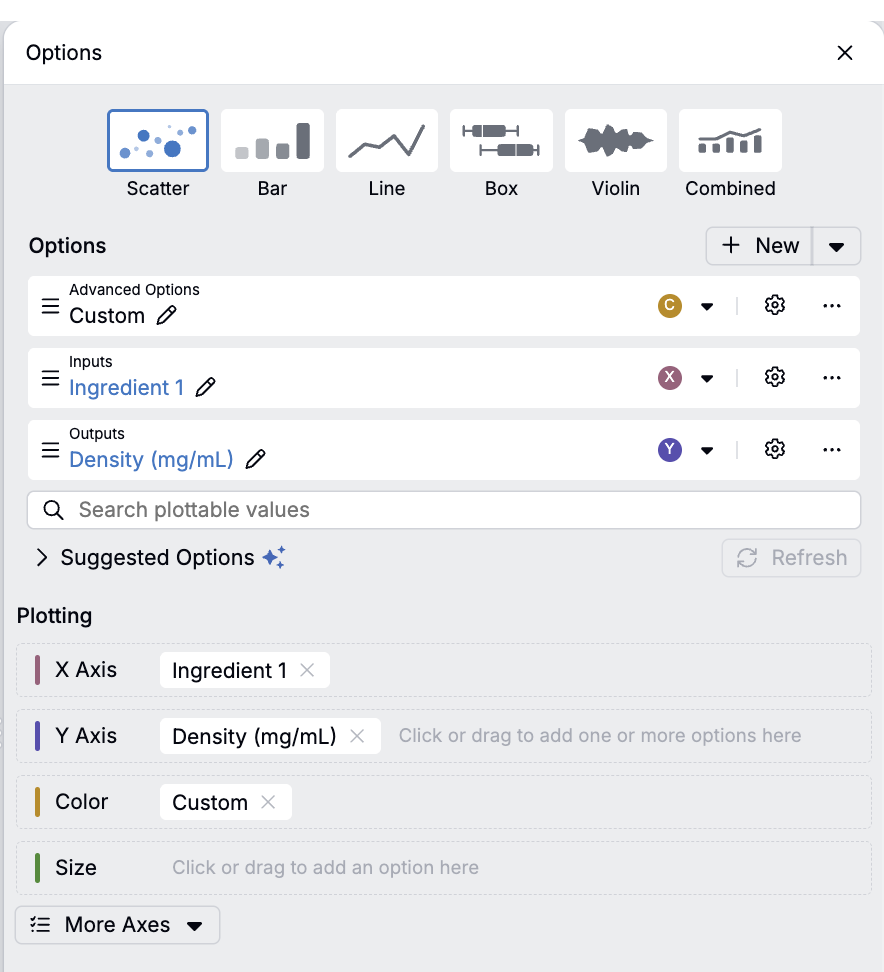
The visualization will update to reflect the lot information grouping — for example, coloring data points by lot (Lot1, Lot2, Lot3) so you can visually identify patterns across different ingredient lots.