
A key advantage of Uncountable’s structured data is the searching and filtering capabilities it enables. While searching and filtering within a project is a common workflow, Uncountable also makes it easy to search across projects and material families when you need to explore broadly or build cross-project datasets for comparison or visualizations.
If you’re trying to filter experiments already within a specific project dashboard, start with Searching and Filtering within a Project.
Key concepts
- Scope matters. Your current location (active project) determines what’s included.
- Filters are additive. Each filter narrows results (AND by default); use groups for OR logic when needed.
- Listing views are built for exploration. The Experiment List view support custom columns, sorting, and quick filters.
Quick Actions and Universal Search
Use Quick Actions (or ⌘K) to jump anywhere or run a global search without leaving your current page. From the modal, you can also access the full Universal Search page to refine or broaden your search.
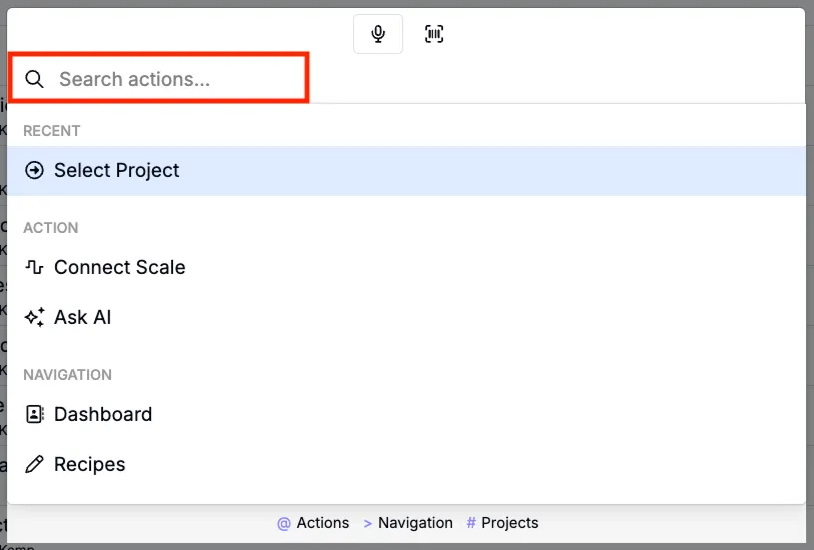
To learn more, refer to Quick Actions & Universal Search.
Searching across projects or material families
When you need to explore across a broader set of experiments, click the Experiment List view option on a project’s dashboard.
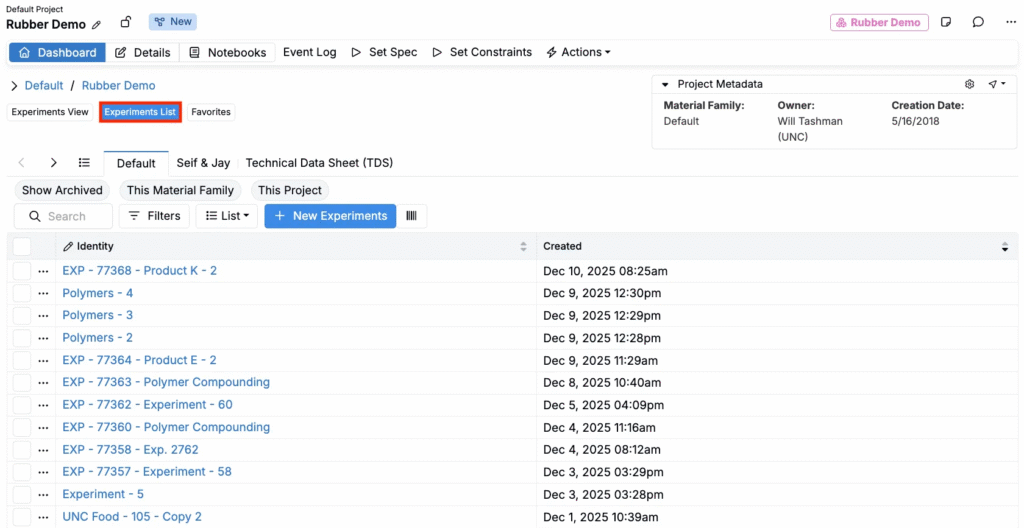
You can also access the Experiments listing page (Experiments > Experiment List).
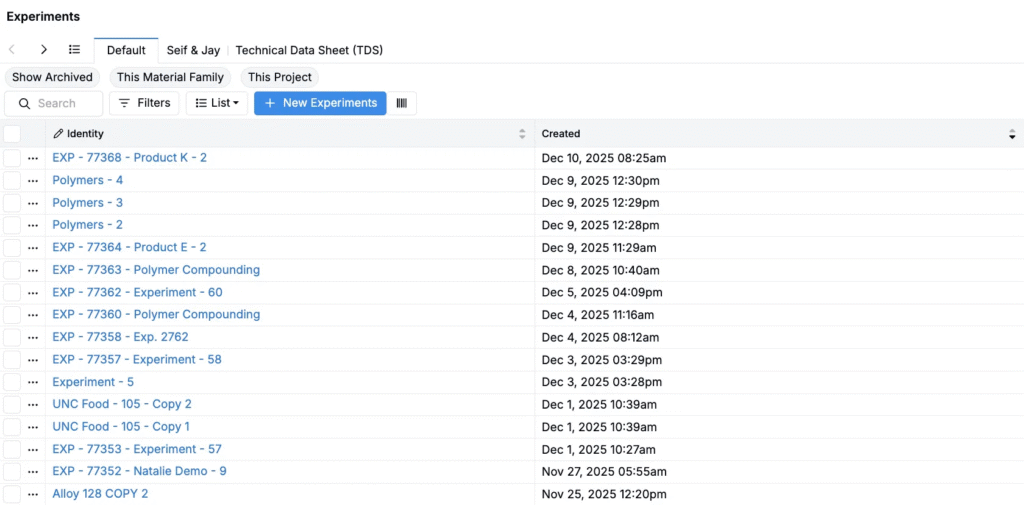
Use Quick Filters
On the listing view of experiments, you can add Quick Filters at the top of the listing help you control scope quickly:
- This Material Family — include experiments in the current material family
- This Project — include only the current project
- Show Archived — include archived experiments
- Type — filter by experiment type (recipe, quality recipe, lot, test sample, build, analytical recipe)
You can still use the Search bar and the Filters button for additional criteria. Remember that filters are additive.
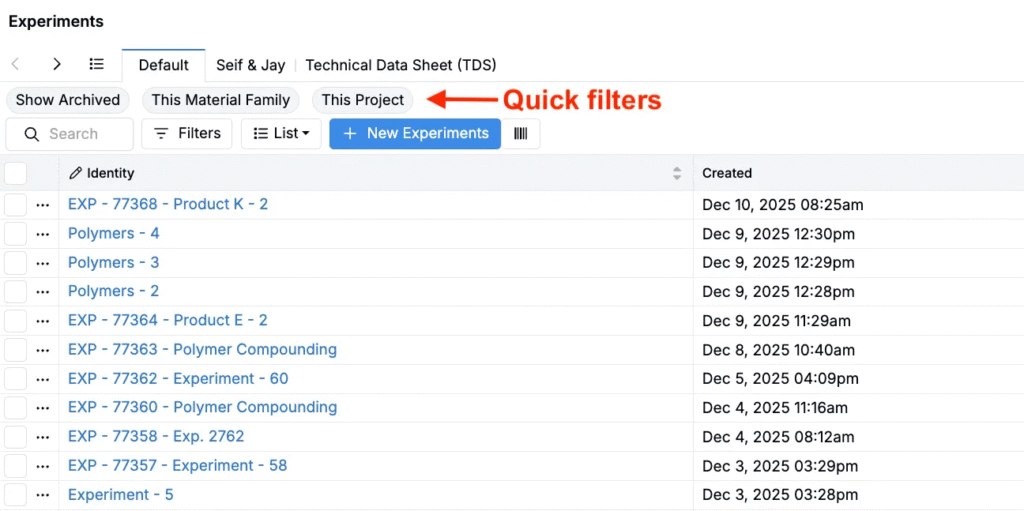
To learn more, refer to Quick Filters.
Add custom columns
The Experiment Lists view also support a “table-like” workflow where you can bring key fields into the list view to evaluate results quickly.
Add or edit columns
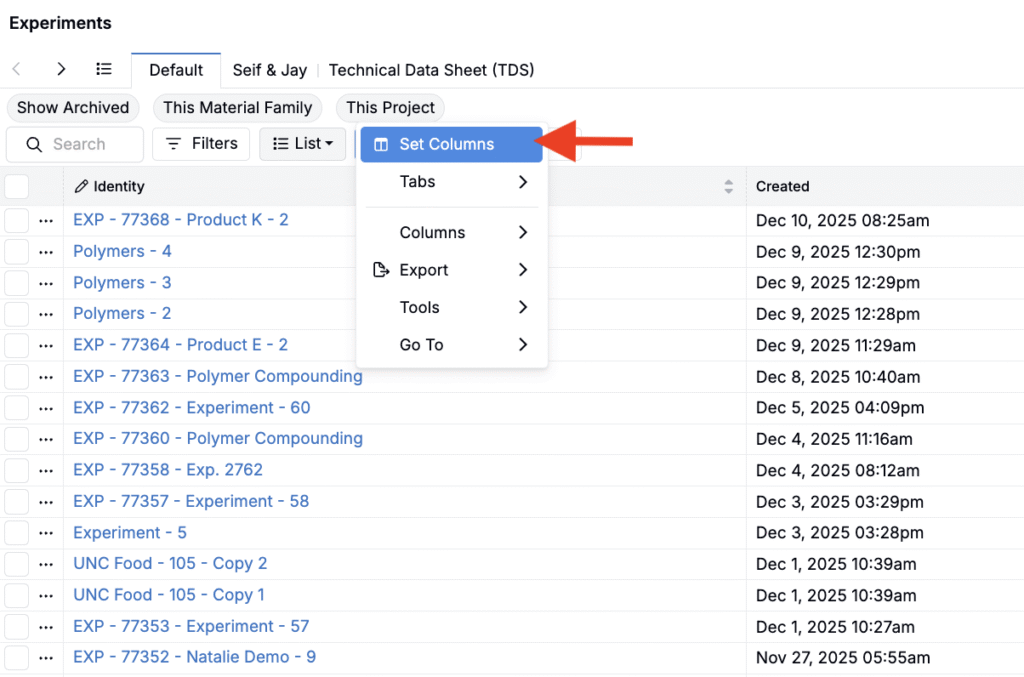
Click List > Set Columns to add, remove, reorder, or rename columns.
Add a column directly from a filter
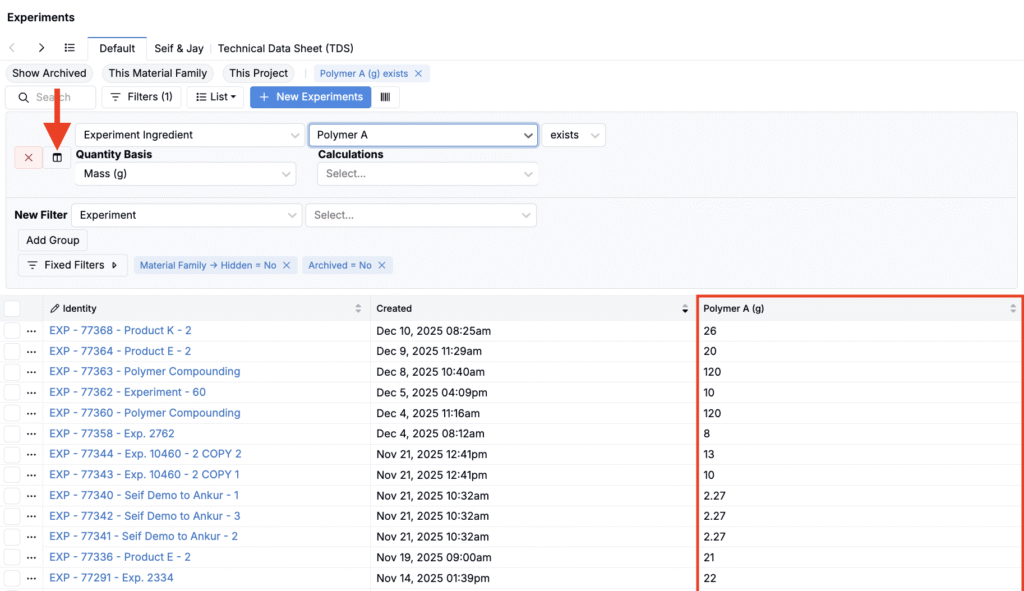
Click the column icon next to a filter to add that field as a listing column.
Sort or filter from the column header
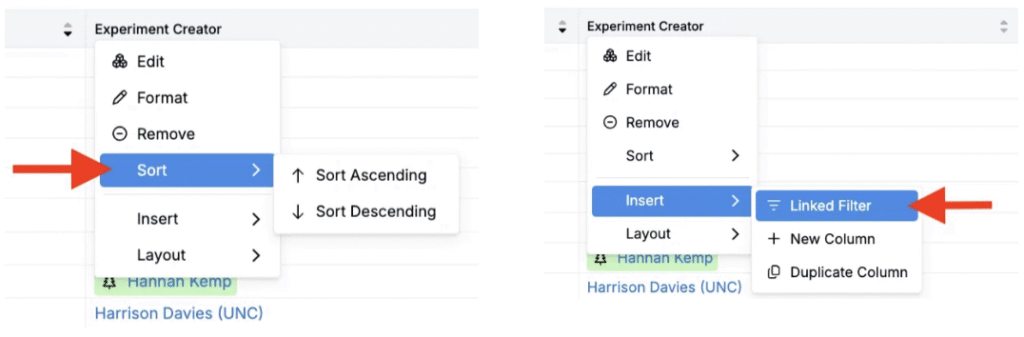
Sort by any column, or create a filter directly from a column header.
To learn more, refer to Structured Listings (Listing Table Configuration).
Example: building a cross-project dataset
Goal: Find experiments with density between 2–2.5 mg/ml and tear strength greater than 30 within the current material family.
- Toggle This Material Family.
- Add an Experiment Output → Density filter: 2–2.5 mg/ml
- Add an Experiment Output → Tear Strength filter: > 30
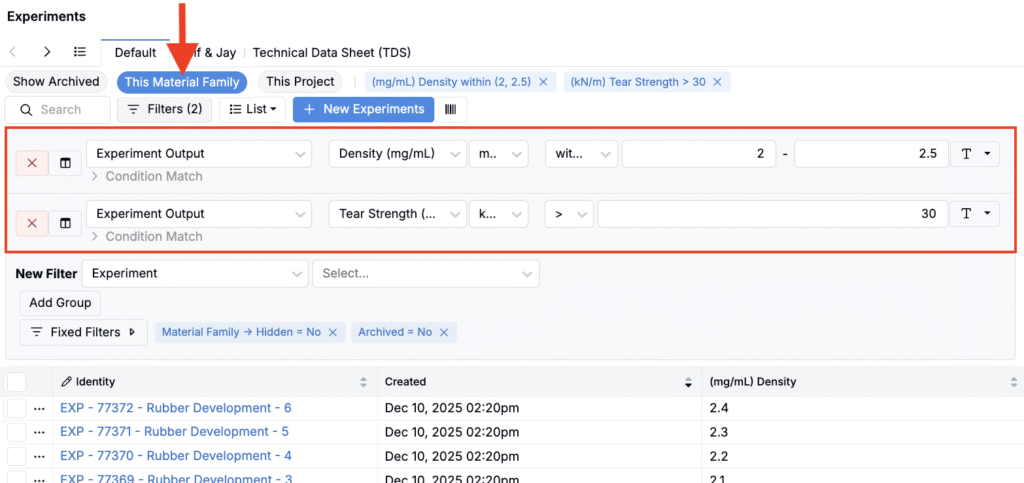
Tip: Add the Density output as a column using the column icon so you can scan values across results without opening each experiment.
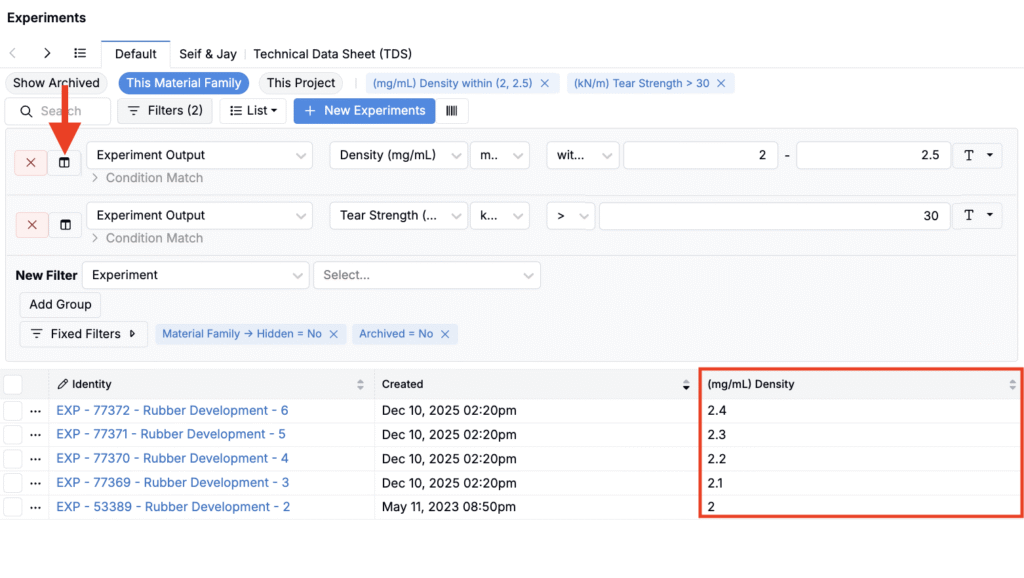
To broaden scope beyond the material family, turn off This Material Family and keep the same filters to search across a wider dataset.
Objective Search
If you have a clear goal and want Uncountable to surface strong candidates automatically, you can also use Objective Search. Instead of filtering field-by-field, Objective Search helps you find relevant experiments, recipes, and measurements based on an objective (e.g. “Maximize tensile strength while keeping viscosity below X”).
Use it when:
- You’re not sure which specific fields will best capture what you want
- You want Uncountable to propose candidates worth reviewing
- You’re exploring rather than validating a known constraint set
To learn more, see Objective Search.