
Uncountable is introducing the Libraries page, a new way to reach the listings currently found under the Inputs/Outputs menu in the navigation bar.
Libraries brings ingredients, process parameters, outputs, test methods, groups, calculations, and other definition listings together on a single page with an organized side navigation. Because Libraries is a Custom Page, admins can fully rename, reorder, and reorganize it to fit their team’s workflow.
What’s changing
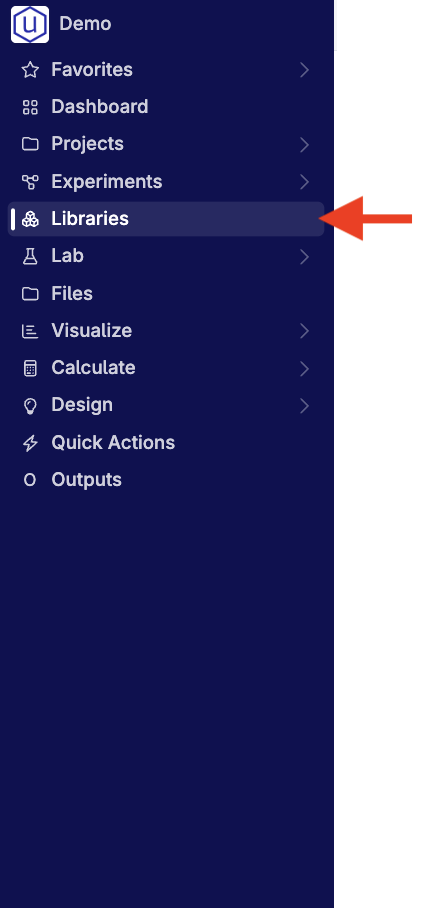
A Libraries link in the navigation bar
Before: Definition listings such as Ingredients, Process Parameters, Outputs, and Test Methods were reached through the Inputs/Outputs dropdown menu in the navigation bar.
Now: New schemas show a single Libraries link in the navigation bar in place of the Inputs/Outputs menu.
One page with an organized side navigation
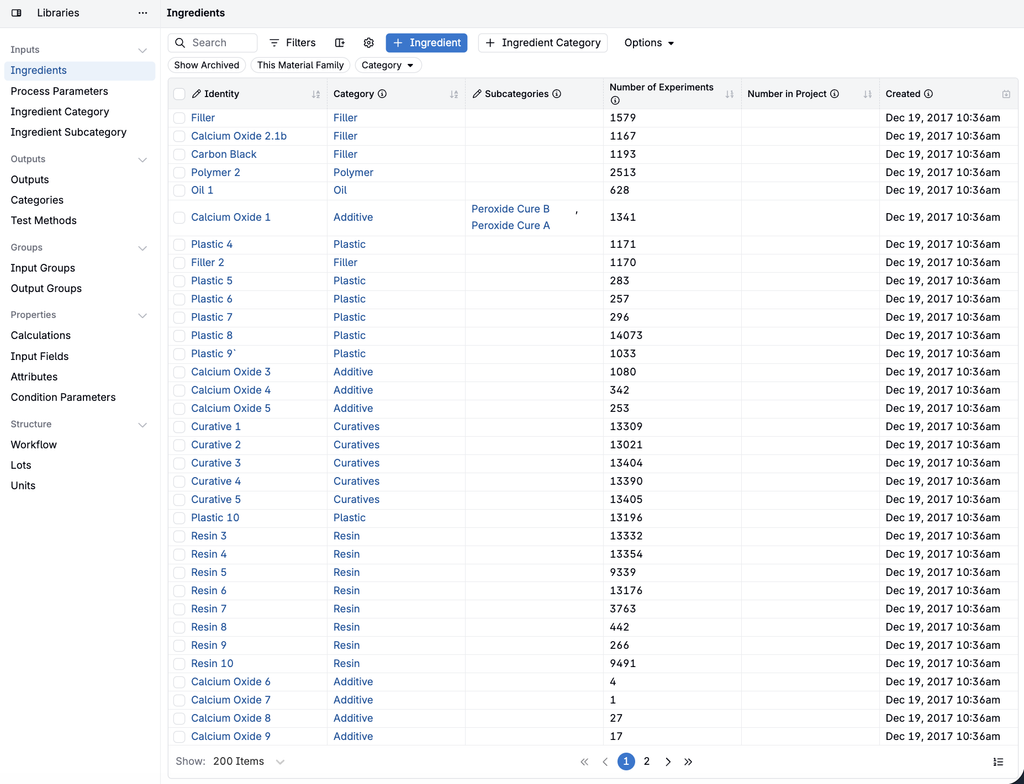
Now: Selecting Libraries opens a page with a side navigation that groups listings into sections. By default, the page is organized as follows:
- Inputs: Ingredients, Process Parameters, Ingredient Category, and Ingredient Subcategory
- Outputs: Outputs, Categories, and Test Methods
- Groups: Input Groups and Output Groups
- Properties: Calculations, Input Fields, Attributes, and Condition Parameters
- Structure: Workflow, Lots, and Units
Select any item in the side navigation to open that listing. Sections can be collapsed using the arrow next to each section name.
Edit the page inline
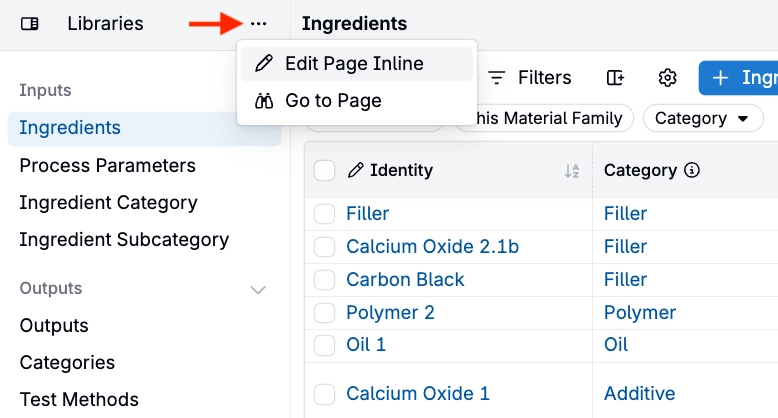
Now: Admins can reorganize the Libraries page directly from the page itself.
- Click the … menu next to Libraries at the top of the side navigation and select Edit Page Inline.
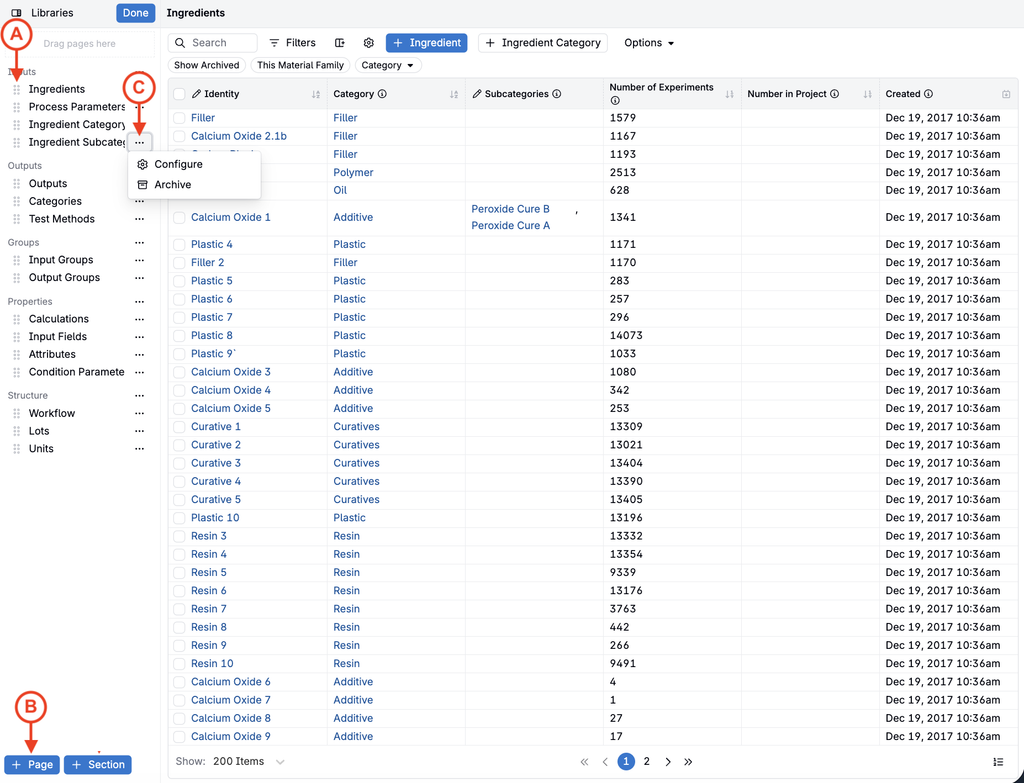
- Drag items by their handles (A) to reorder them or move them between sections.
- Use + Page (B) to add a new item to the side navigation, or + Section to add a new section.
- Use the … menu (C) next to an item or section to make further changes.
- Click Done to save your changes.
Each item in the side navigation is a page member of the Libraries custom page, so it can also be configured from Form Admin like any other custom page. When adding a page member, set Page to Libraries and choose a Page Section to control where it appears in the side navigation.
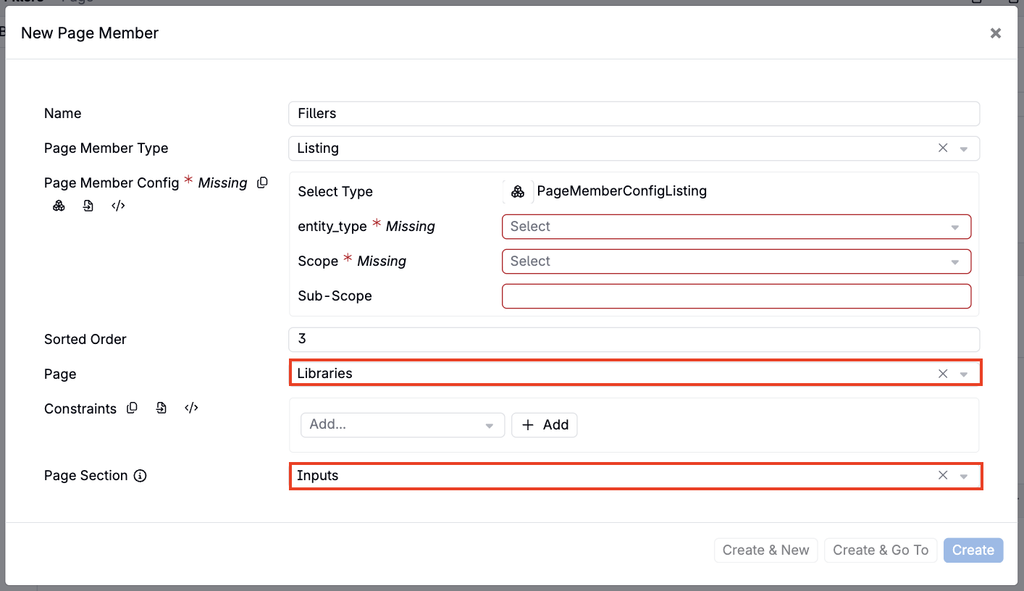
For more on page members, see Custom Pages.
Tailor Libraries for different teams
Because Libraries is a custom page, admins can add listings that use custom listing configurations and apply constraints to individual page members so that certain items only appear for specific user groups. This makes it possible to give each team a Libraries page that shows only the listings relevant to their work.
Rollout
This update applies to new schemas only. Schemas created after this update will show the Libraries link by default, and existing schemas will continue to use the Inputs/Outputs menu with no change.
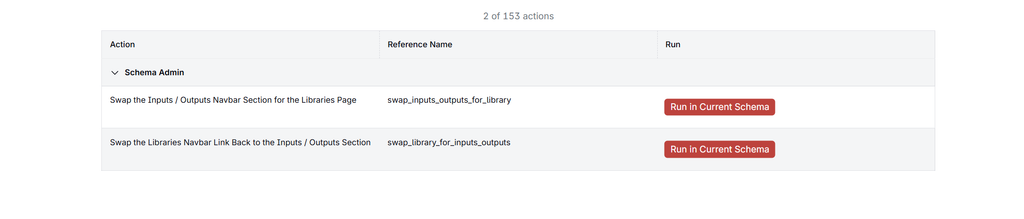
Admins of existing schemas can try the Libraries page, and switch back at any time, using two admin actions on the Admin Actions page (search for Admin Actions in Quick Actions):
- Swap the Inputs / Outputs Navbar Section for the Libraries Page replaces the Inputs/Outputs menu with the Libraries link.
- Swap the Libraries Navbar Link Back to the Inputs / Outputs Section restores the Inputs/Outputs menu.
A Libraries page can also be set up manually by creating a custom page and adding it to the navigation bar from the Edit Favorites page. For more on managing navigation bar links, see Configuring the Navigation Bar.