Landing pages in Uncountable control where a user lands when they enter the app or after they log in. They’re useful for guiding different users (often different user groups) to the most relevant starting place, such as a specific dashboard or workflow, instead of everyone landing in the same default area.
Landing pages are different from custom homepages, which are the pages which load when you click the logo button in navigation bar. To learn about homepages, refer to our Custom Homepages documentation.
Setting up a landing page
Admins need to set the homepage in two places.
Edit Favorites
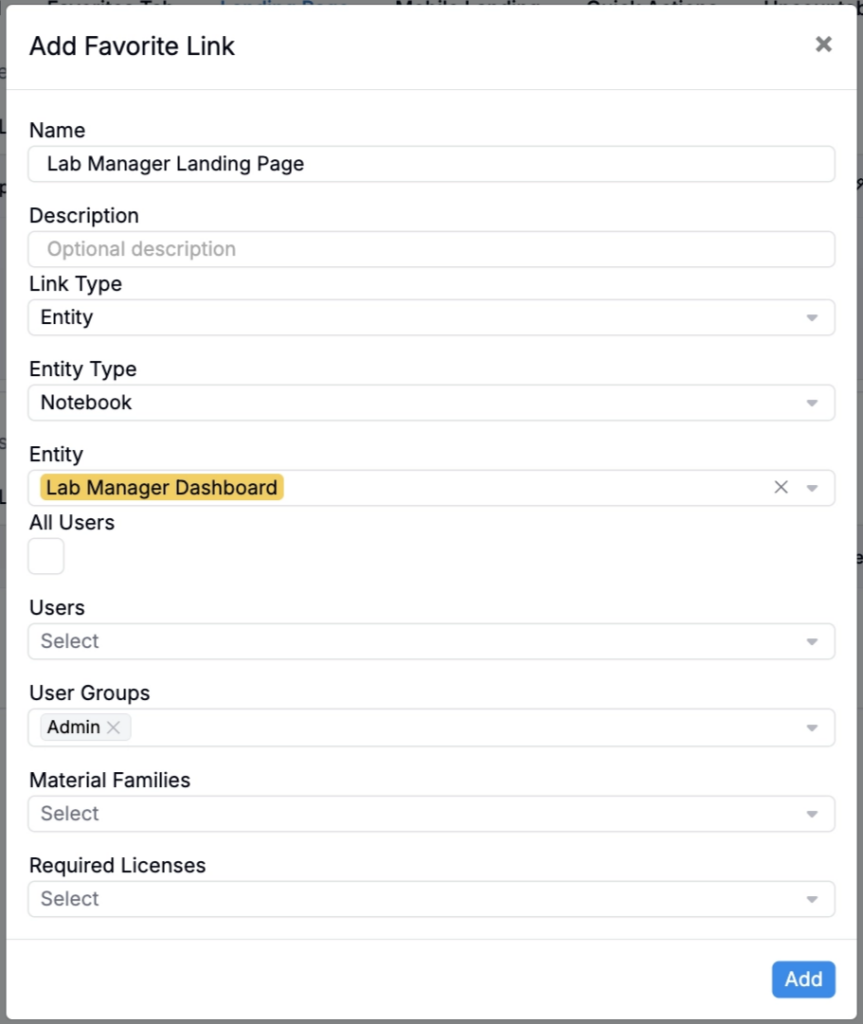
- Navigate to the Landing Pages tab of the Edit Favorites page.
- Click the blue + icon to create a new landing page.
- Add a landing page name and optional description.
- In the Link Type field, select either:
- Page — Select a standard platform page (e.g. the Lab Requests listing, the Tasks listing).
- Entity — Select a notebook/custom homepage or other entity
- Choose the user group(s) and required licenses that should be routed to this landing page.
- Choose the material families where this landing page should apply.
User Administration
- Navigate to the User Administration page.
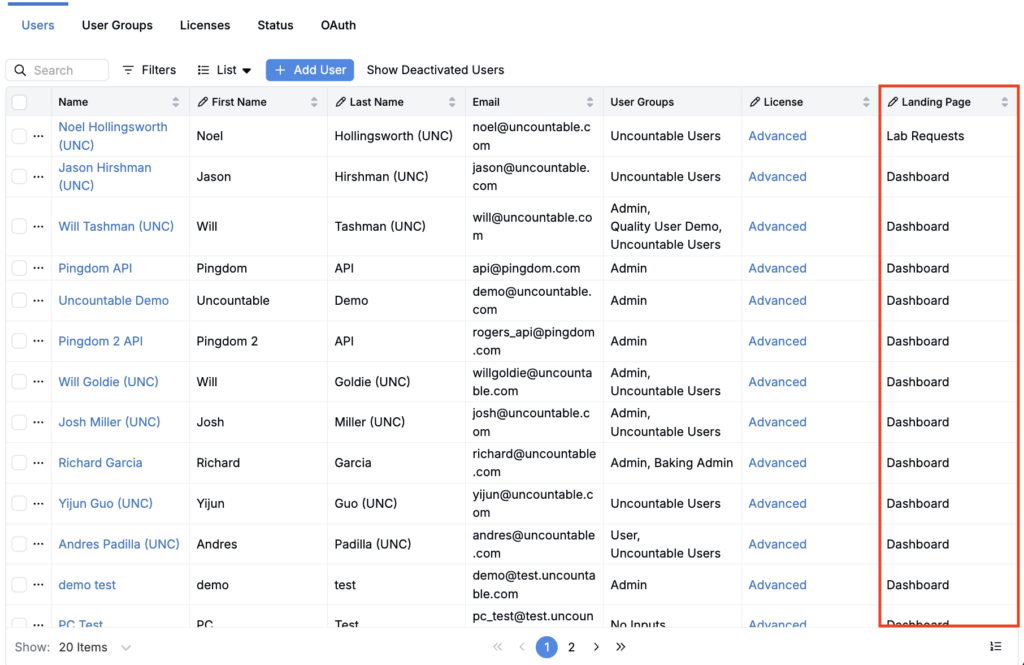
- In the Users tab, add the Landing Page column if it isn’t already visible.
- Set each user’s Landing Page value to the landing page you want them to use.
- (Optional) Bulk update users:
- Filter the Users listing to the target population (e.g. all Admin users).
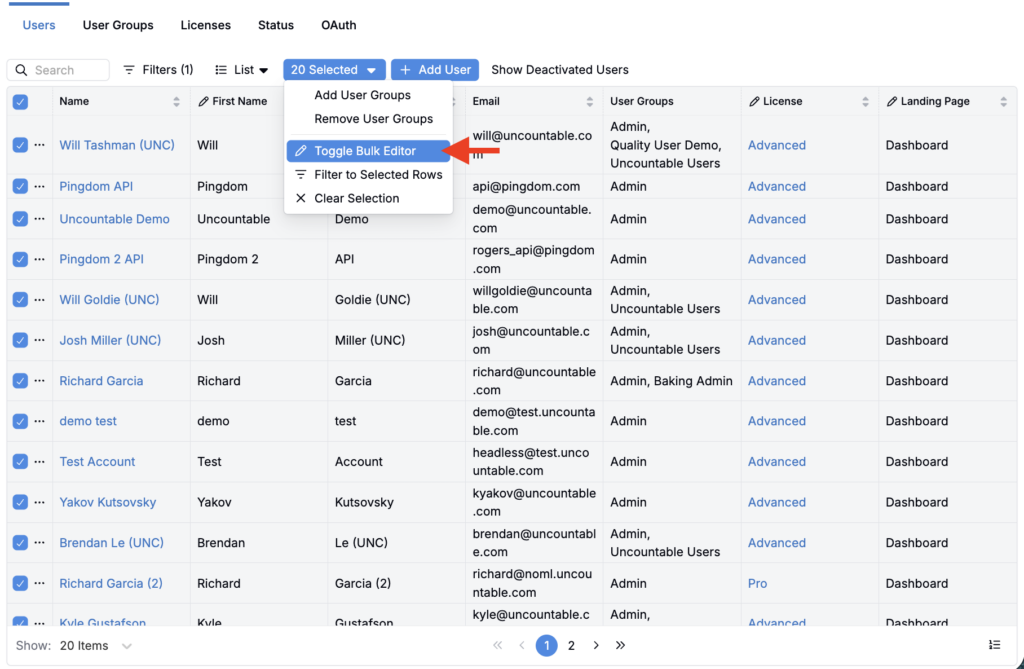
- Select multiple users and click Toggle Bulk Editor.
- Update the Landing Page field for all selected users.