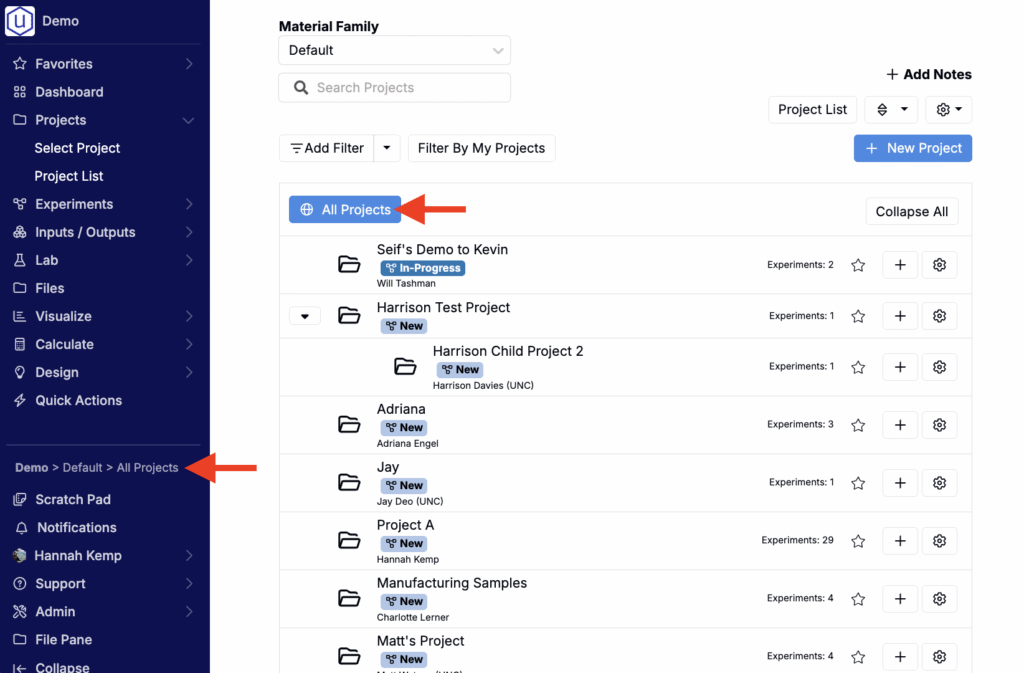
The Select Project page is the default Uncountable homepage. To access, select Projects > Select Projects from the navigation bar. If Select Projects is set as your material family’s default homepage, you can also click your schema name and logo.

Key Features
On the Select Projects page, users can:
- Switch between material families
- Select an active project
- Create new parent or child projects
- Search and filter existing projects
- Manage project information (e.g. project lead, template experiments, default workflow)
- Archive existing parent or child projects
- Manage material family information (e.g. products, metadata fields, tags)
Switching Between Material Families
In Uncountable, different material families typically represent distinct divisions or business units. To switch between material families, use the Material Family field at the top of the page.

Selecting an Active Project
Selecting a project on the Select Project page sets it as the active project, which defines the context for your work across the platform.
Once selected, this project becomes your active workspace. Tools in the Visualize, Calculate, and Design tabs will automatically filter and configure based on data from the active project. For example, in Explore Data, axis options like Experiment Name will only include experiments from the selected project.
You can always identify the active project in the breadcrumbs at the bottom of the Uncountable navigation bar.

To work without project-specific filtering or logic, users can click All Projects to clear the active project selection.
Creating New Projects and Child Projects
To create a new project, take the following steps:
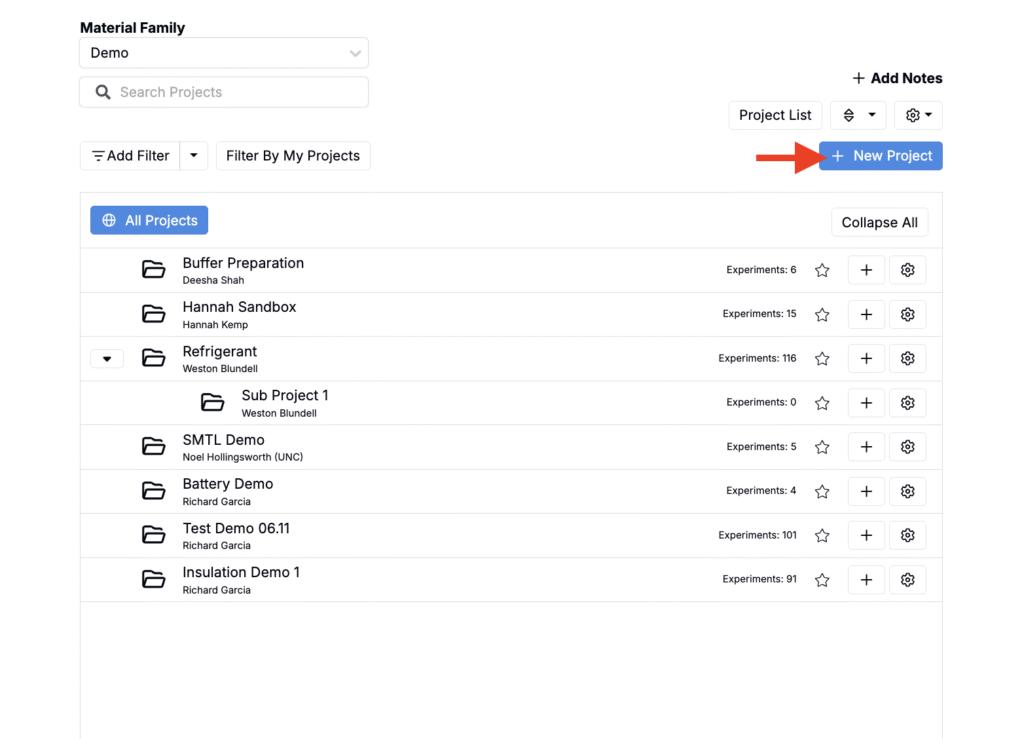
- Click the blue + New Project button.
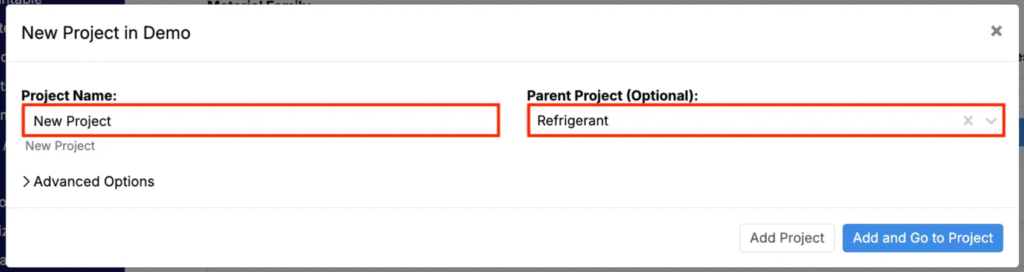
- In the modal, enter a Project Name.
- To nest the project within an existing one, use the Parent Project field to select a parent. Leaving this field blank will create a top-level project.
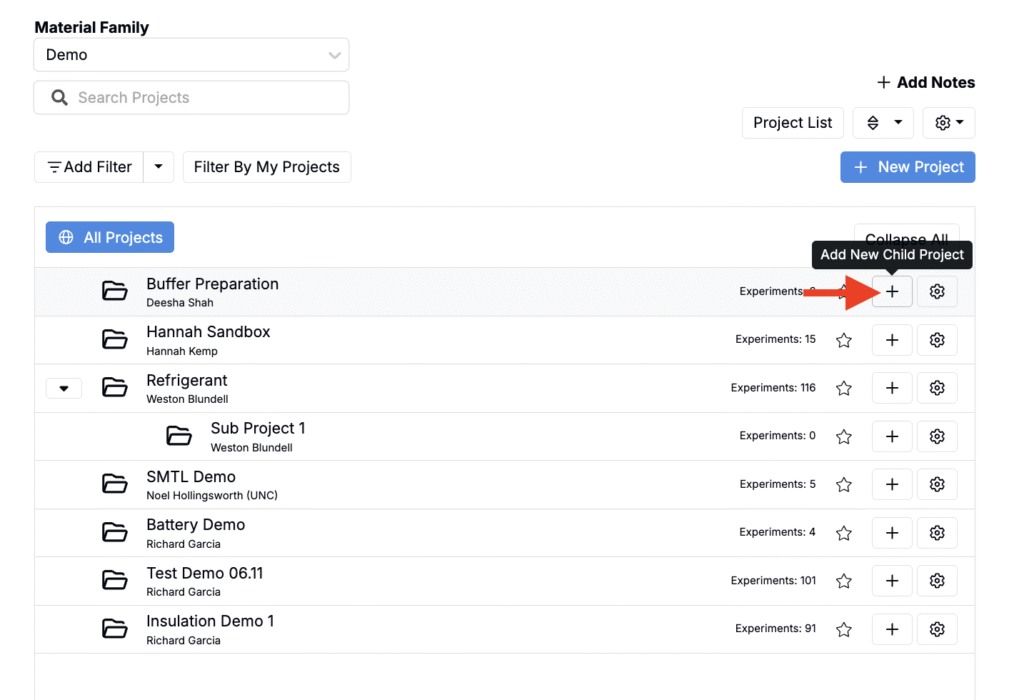
You can also create a new child project by clicking the + icon next to an existing parent project.
Changing or Setting a Project’s Parent
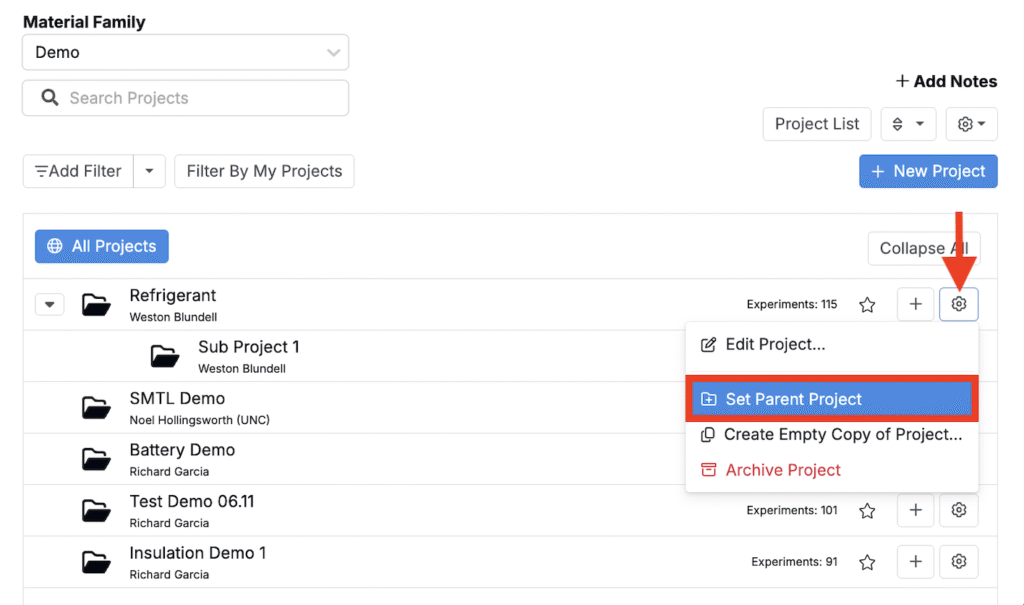
When converting an existing top‑level project into a child project:
- Click the ⚙️ next to the project.
- Select Set Parent Project.
- Choose the parent project.
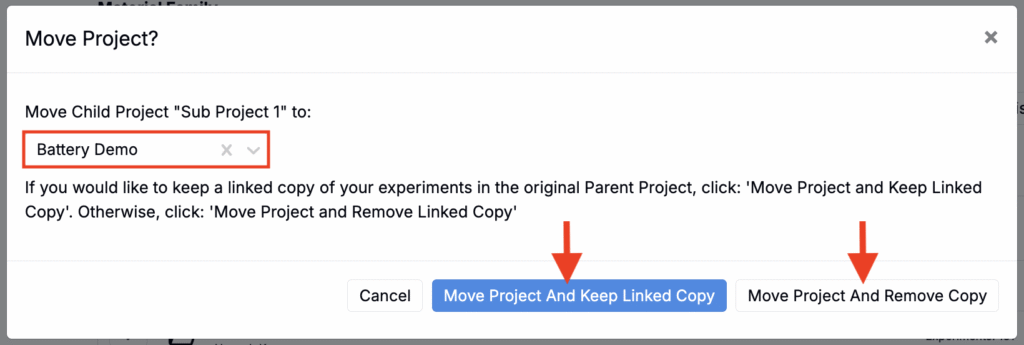
When moving an existing child project to a different parent:
- In the modal, confirm the new parent.
- Then choose one of the options:
- Move Project and Keep Linked Copy — Keeps a linked copy of the child project and all experiments under the original parent.
- Move Project and Remove Copy — Removes the child project and all experiments from the original parent; they will exist only under the new parent.
Searching and Filtering Projects
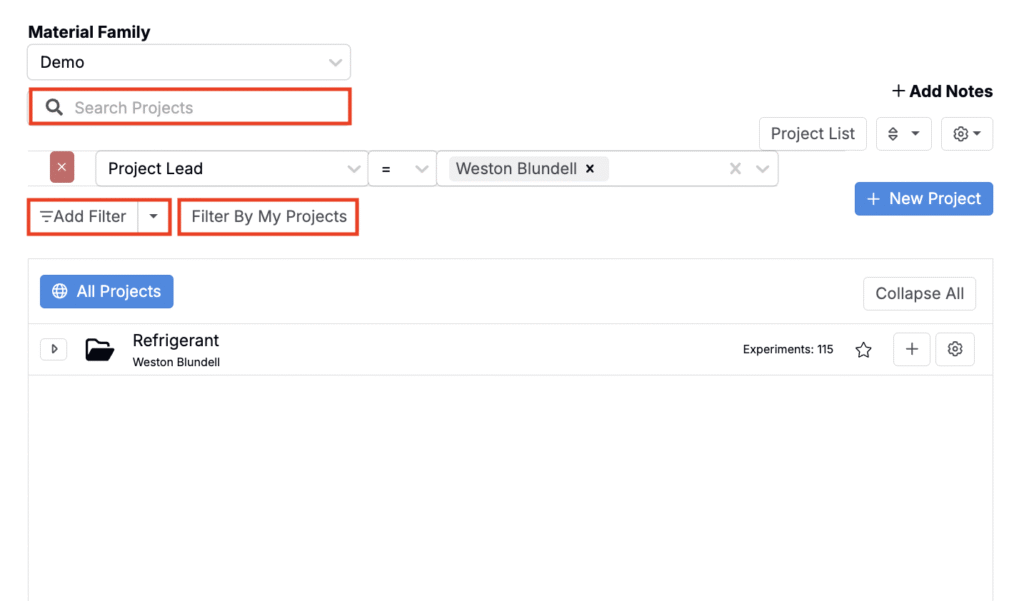
- To search projects within the current material family, use the Search Projects field.
- To add filters, use the Add Filter button.
- To quickly filter to your projects, click Filter By My Projects.
Editing Project Information
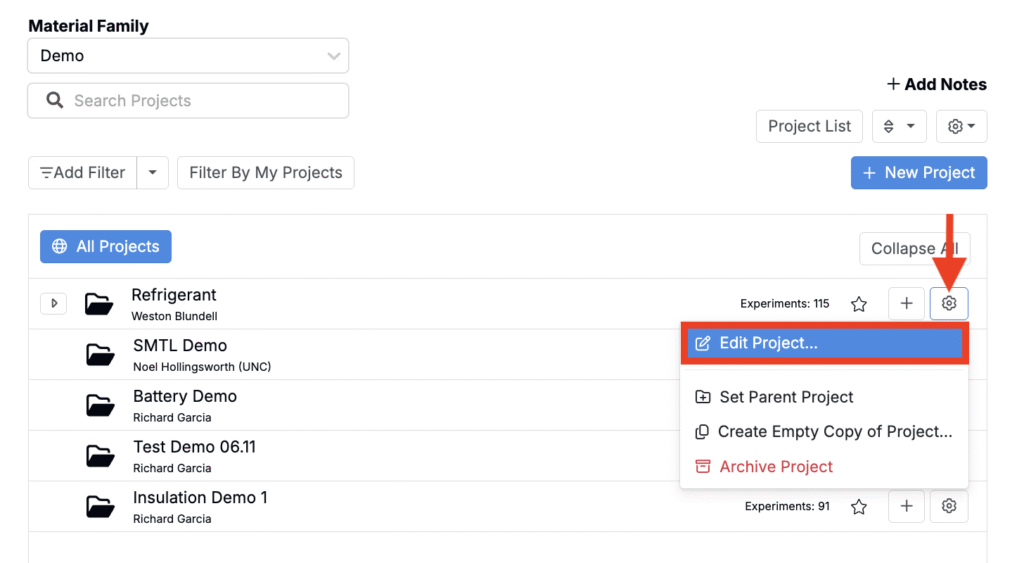
To view and edit project information from the Select Project page, click a ⚙️ next to a project and select Edit Project.
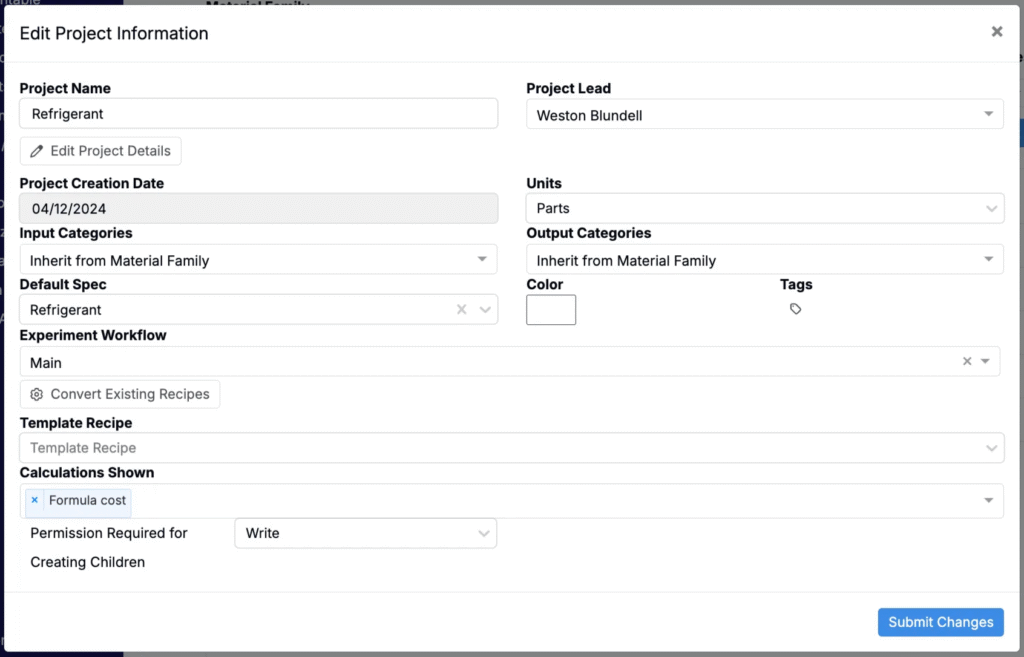
In the modal that appears, you can configure the following settings:
- Project Name – Edit the name of the project.
- Project Lead – Assign the project owner. Defaults to the user who created the project.
- Units – Set the default units for the project.
- Input Categories – Choose whether to inherit input categories from the material family or define them specifically for this project.
- Output Categories – Choose whether to inherit output categories from the material family or define them specifically for this project.
- Default Spec – Set the project’s default spec.
- Color – Change the folder color for easier visual identification.
- Tags – Add tags to group and organize projects (e.g., by region or project type).
- Experiment Workflow – Set the default experiment workflow for this project.
- Convert Existing Recipes – Use this option to convert all existing recipes in the project to the selected experiment workflow.
- Template Recipe – Choose an existing recipe to use as a template. New experiments will automatically inherit its inputs, outputs, metadata, and structure.
- Calculations Shown – Select which calculations will appear in the Calculations section on the Enter Recipes page for experiments in this project.
- Permissions Required for Creating Children – Specify the permission level (Read or Write) required for users or groups to create child projects under this one. Learn more.
Archiving a Project
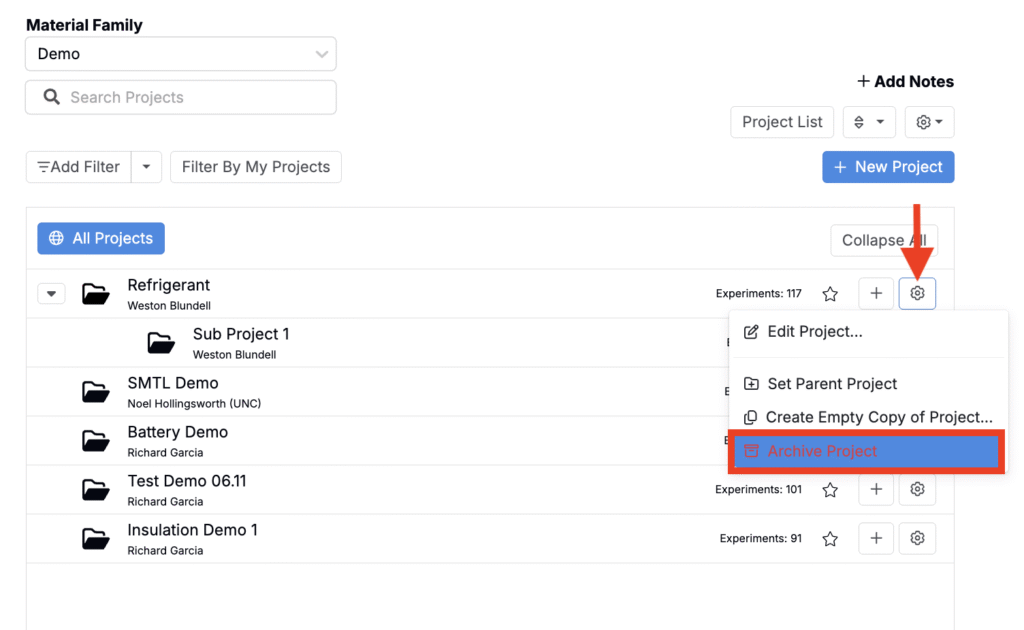
To archive a project from the Select Project page, click the ⚙️ and select Archive Project.
When you archive a project, it is removed from active project listings but is not permanently deleted. You can still access archived projects if needed by enabling the Show Archived filter.
Managing Products
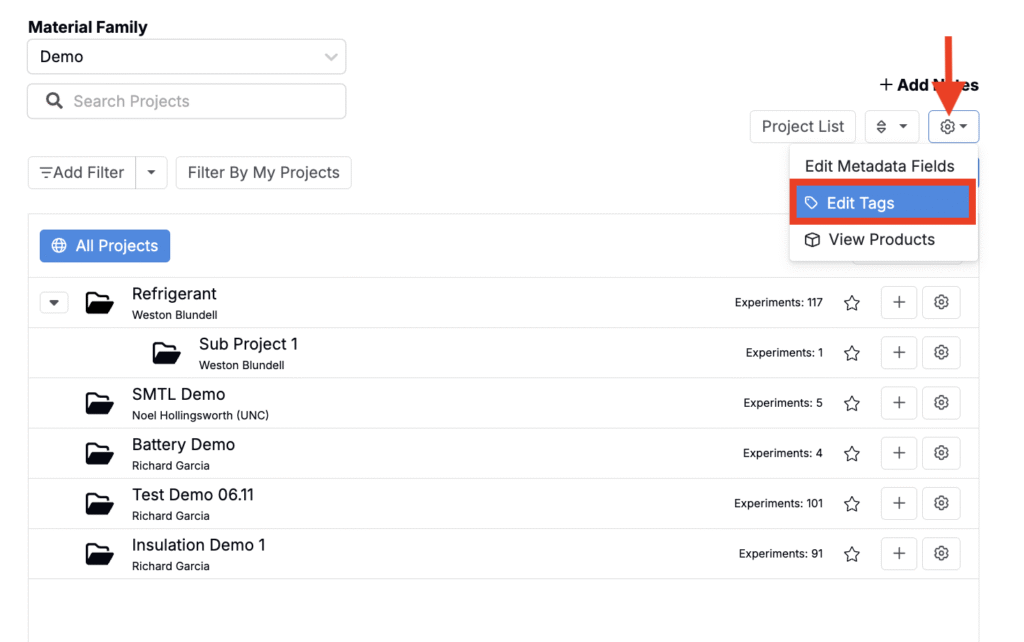
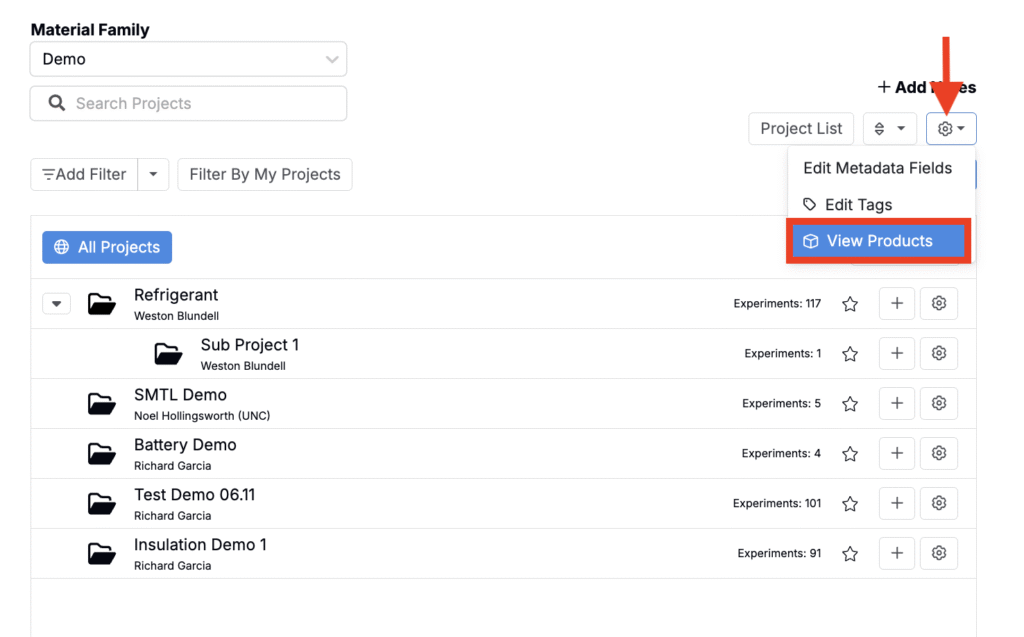
To view and manage products, click the ⚙️ in the top right corner of the Select Project page and select View Products.
To learn, refer to Products.
Managing Project Metadata Fields
Users can customize how project fields appear by configuring project definition fields and project metadata settings.
Project definition fields are added directly to a project’s definition on the Form Admin page and appear on the project’s details page. To display these fields more prominently—such as on the Select Project or Project Dashboard pages—they must also be configured as project metadata fields.
To edit project metadata fields:
- Navigate to the Select Project page.
- Click the ⚙️ in the top-right corner and select Edit Metadata Fields.
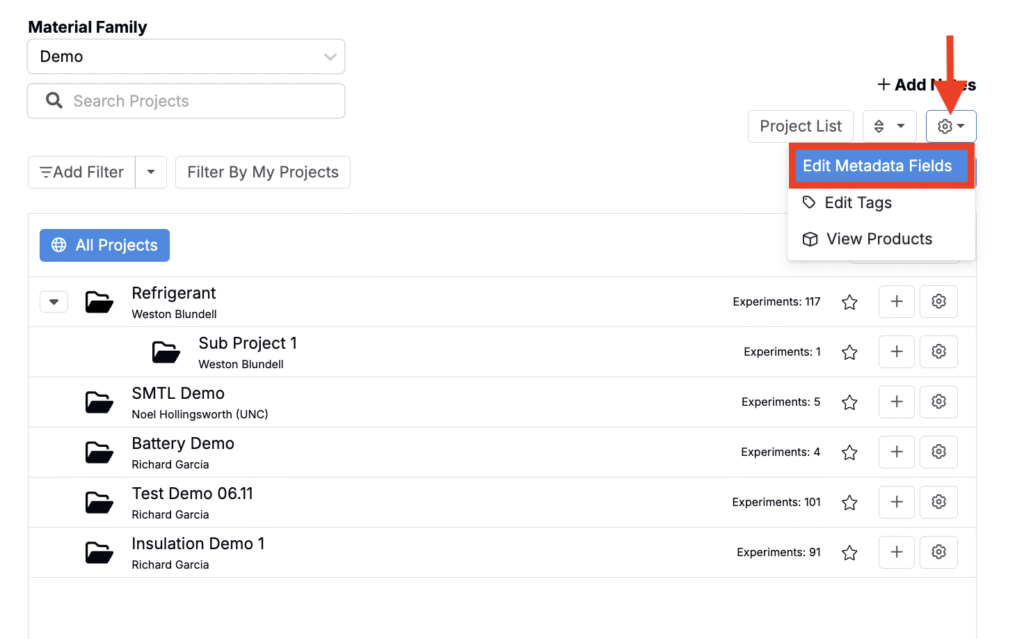
On the metadata configuration page, you can choose which project definition fields to display more broadly by enabling settings such as:
- Show on Dashboard – displays the field in the top-right corner of the project’s Dashboard.
- Show on Select – displays the field beneath the project name on the Select Project page.
To learn more, refer to Project Metadata.
Managing Project Tags
To create new project tags or to manage existing ones, click the ⚙️ in the top right corner of the Select Project page and select Edit Tags.
To learn more, refer to Project Tags.