
New Enter Page Action: Create and Visualize Dataset
We recently introduced Data Sets, which allow users to group and visualize experiments from different projects. Building on that functionality, users can now quickly create and visualize a data set directly from the Enter page using a new action: Create and Visualize Dataset.
When triggered, the action:
- Creates a new Data Set containing all recipes currently shown
- Opens Explore Data, scoped to that newly created set
To enable Create and Visualize Data Sets:
- Open the Configure Actions sidepanel.
- Search for and add the Create and Visualize Dataset action.
Note: This action does not appear in the File menu and is not searchable on its own. It must be added through Configure Actions.
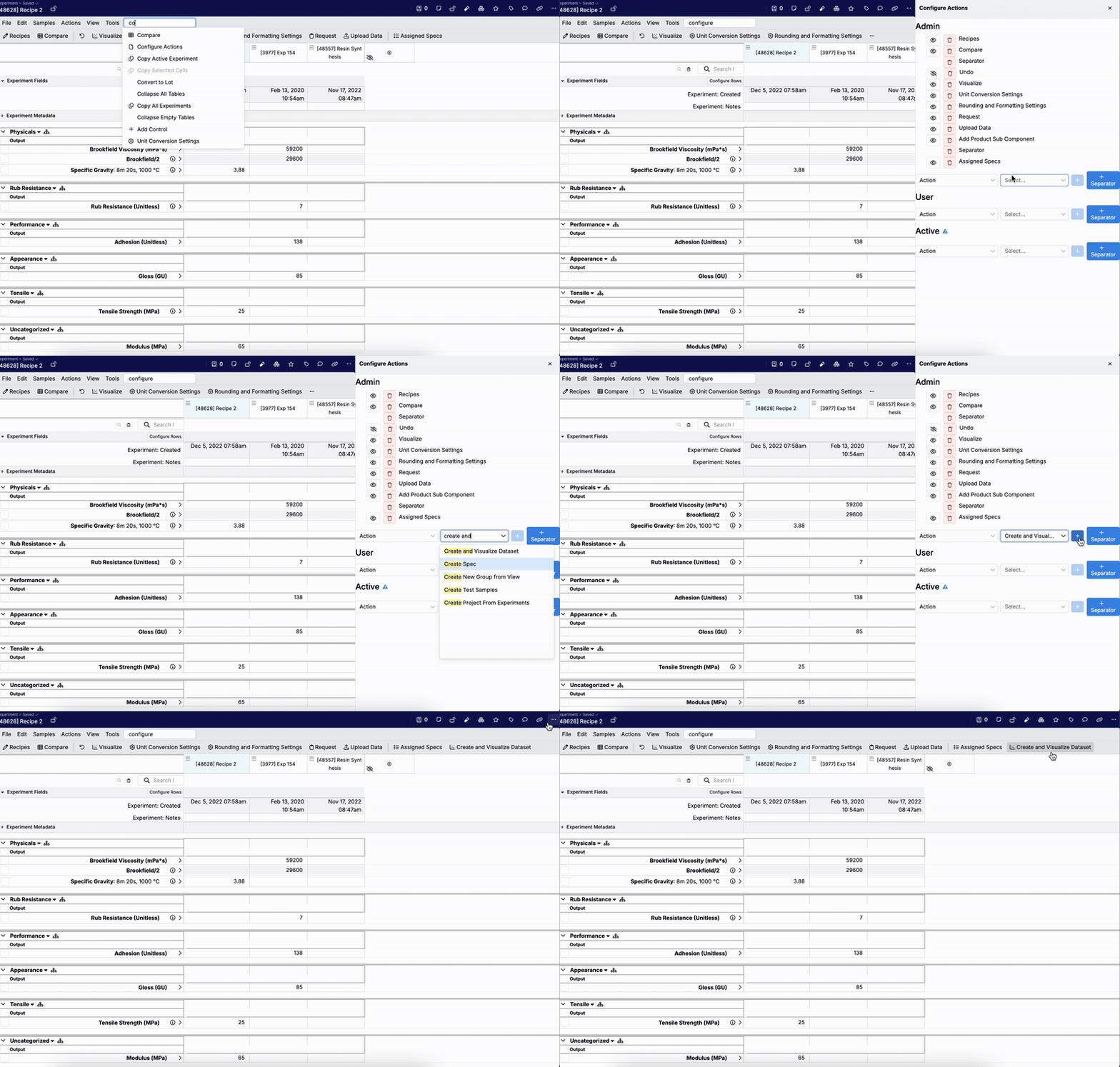
Once added to the Actions toolbar, clicking the button will generate a dataset from all recipes currently in view and navigate to the Explore Data page within that “project”.

To view previously created sets, navigate to the Data Sets page (Visualize → Data Sets) and expand the Existing Data Sets section.

Apply Annotations by Column Parameters
On the Enter Measurements page, you can now select and annotate rows based on column parameter values, making it easier to apply annotations in bulk to measurements that share specific conditions.
This update aims to optimize review workflows—especially when working with large recipes that include repeated tests across different instruments, time points, etc. For example, you could quickly flag all measurements collected using a specific instrument as “Untrusted,” or mark a subset of tests at a certain aging time as “Approximate.”
To apply annotations by column parameter:
- Click on a column parameter value to open its options menu.
- Select Select Rows to open the Operations on Rows side panel.
- In the sidepanel, open the Annotations section and choose the annotations you want to apply.

Instruction Rows Now Supported in Unstructured Steps
For users with Unstructured Steps enabled within their schema, we have now added support for creating instruction rows using ghost and unstructured rows.
Previously, ghost rows (the blank row at the bottom of a workflow step) could only be used to add ingredient cells. With this update, they can also be used to add instruction cells.
In addition, unstructured rows (temporary rows highlighted in orange) can now be converted into instruction rows—either individually or in bulk using the Bulk Convert Unstructured Rows sidepanel.
This update improves the flexibility of the Unstructured Steps tool, making it easier for teams to capture full formulations, including both materials and process instructions, in real time.
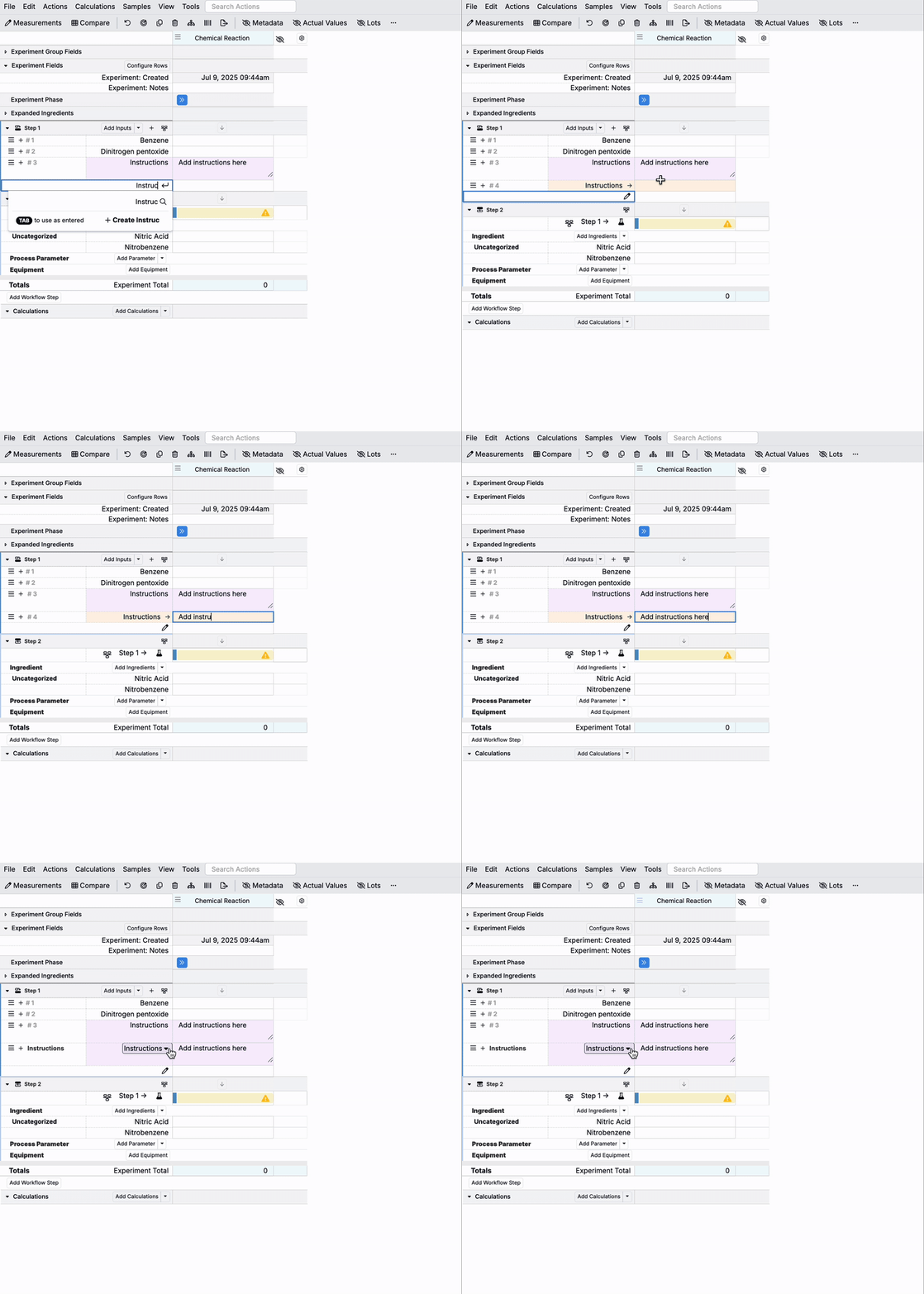
How to Add an Instruction Row Using the Ghost Row:
- Click the Edit icon in the blank ghost row.
- Select Add Instruction.
- A new instruction row (highlighted in purple) will appear. Click into the cell to type your instructions.

How to Convert an Unstructured Row into an Instruction Row:
- Click the arrow icon on an unstructured row (highlighted in orange).
- If the row contains only text, it will be automatically converted into an instruction row (purple).
Note: If the row includes a numeric value, it will be treated as an ingredient row, and Uncountable will search for a matching ingredient name using the row header.
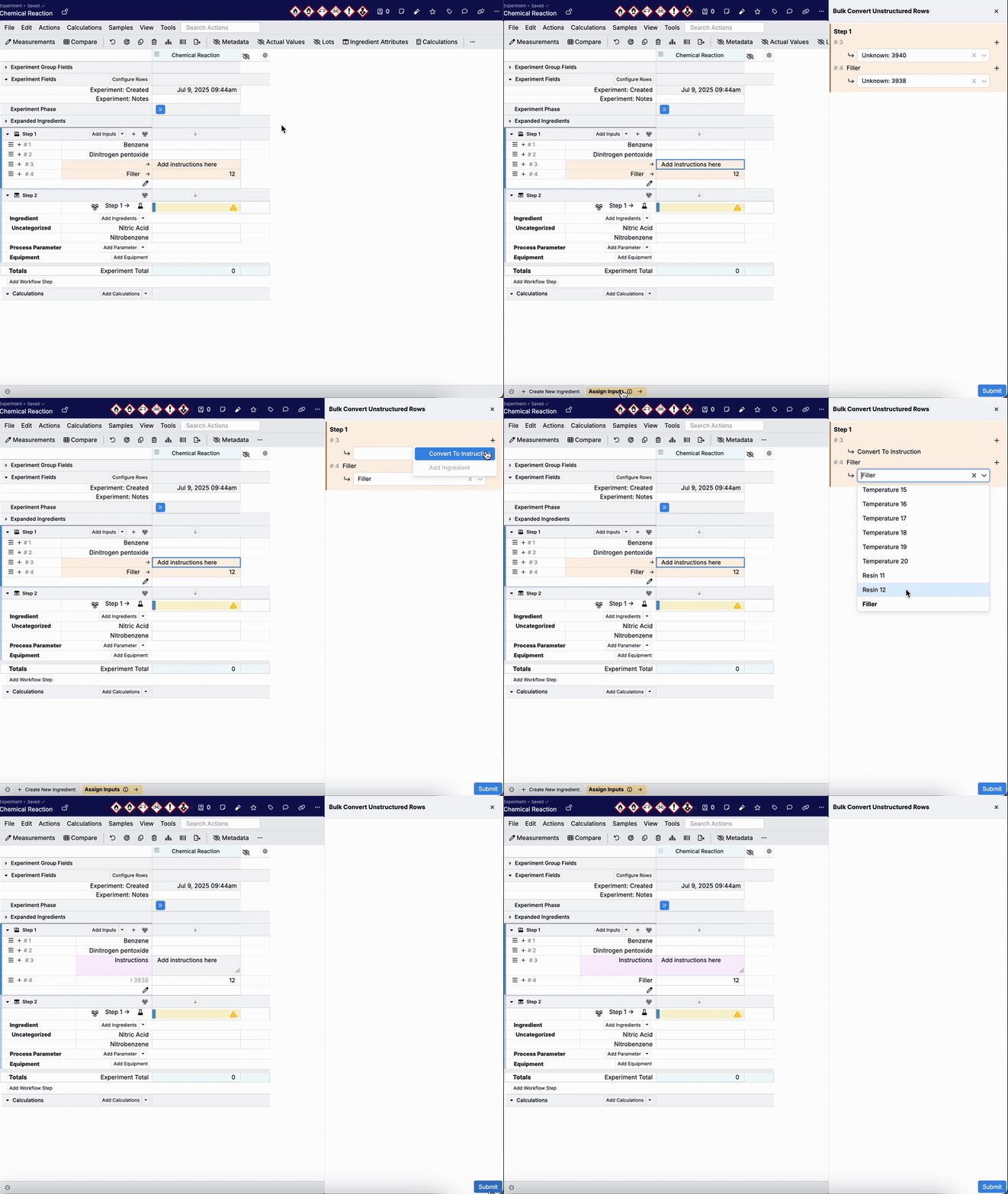
How to Bulk Convert Unstructured Rows to Instruction Rows:
- Click any unstructured row (highlighted in orange).
- In the bottom status bar, click Assign Inputs.
- In the Bulk Convert Unstructured Rows sidepanel, click the + icon and select Convert to Instruction.
- Click Submit.
Only the rows marked for instruction conversion will be changed; all others will be processed as ingredient inputs.
New Chemical Reaction Diagram Cell for Notebooks
We’ve recently introduced a new Reaction Diagram cell type in notebooks to better support chemical synthesis workflows.
This new tool allows users to draw reactions, look up chemical data, perform stoichiometric calculations, and import reactants and products into experiments—all within the Uncountable notebook environment.
This change is part of our effort to offer more chemistry-synthesis features, making it easier for teams to plan, document, and carry out reactions in a structured and connected way within the platform. To learn more, refer to Chemical Reaction Diagrams for Notebooks.

Experiment Metadata Now Displayed for Test Samples
Experiment Listing fields, which allow users to display experiment listing column information in a section on the Enter pages, can now also be shown for Test Samples on the Enter Measurements page.
The update will be especially useful in cases when Test Samples vary by process parameters, instruments, batches, etc. or when you want to surface information from linked entities, such as test sample lab request fields.
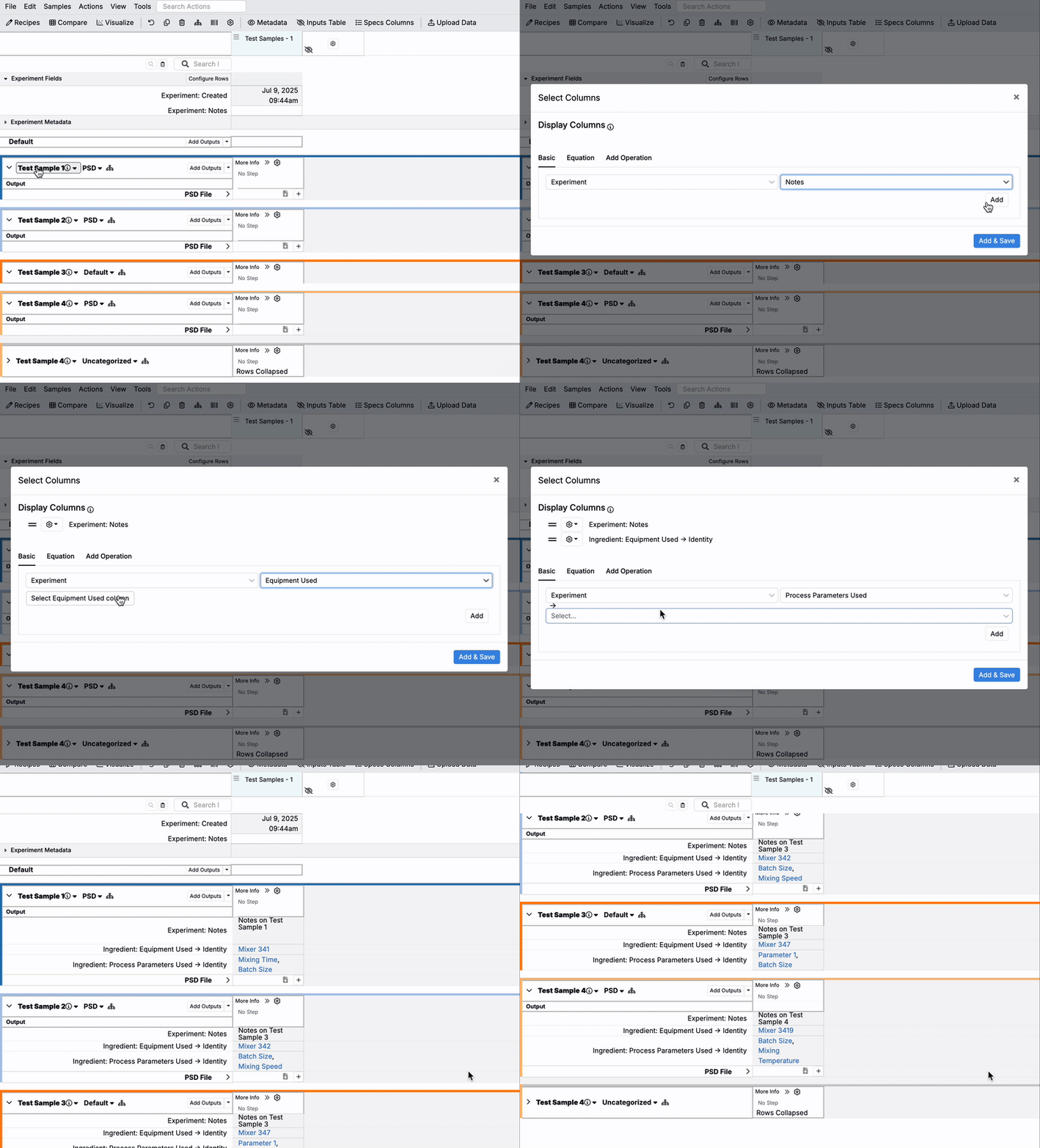
To enable Experiment Listing fields on a test sample:
- Click the test sample header and select Configure Rows.
- In the Select Columns modal, add the desired Experiment Listing fields (e.g. Experiment Notes, Equipment Used, Process Parameters Used).
These fields will appear as rows within each test sample section.
New Support for Printing Duplicate Labels
Users can now generate multiple identical labels for the same entity. For example, on an experiment definition, you can configure the associated label to print five identical copies each time the label is requested—useful for test samples, batch tracking, or backup labels.
This update supports real-world workflows where multiple labels are needed for the same item and removes the need for manual duplication or other workarounds. It makes multi-label printing faster, more reliable, and easier to configure.
To configure duplicate labels:
- Open the Runsheets and Labels tab on the relevant entity definition in Form Admin.
- Access the Edit Runsheet modal for the label you want to configure.
- Within the modal, toggle on Allow Duplicate Target Entities (A).
- Click Target Entity Value Spec (B) to open the value spec editor.
- In the value spec editor, use the new
arrayRepeatScalarfunction to generate repeated instances of the same target entity.- Example:
(arrayRepeatScalar 5 ref:fields.id)will produce five copies of the same experiment label
- Example:


Once set up, any time the label is requested from an experiment using that definition, the configured number of duplicates will be generated automatically.

Label and COA Previews on Lab Requests
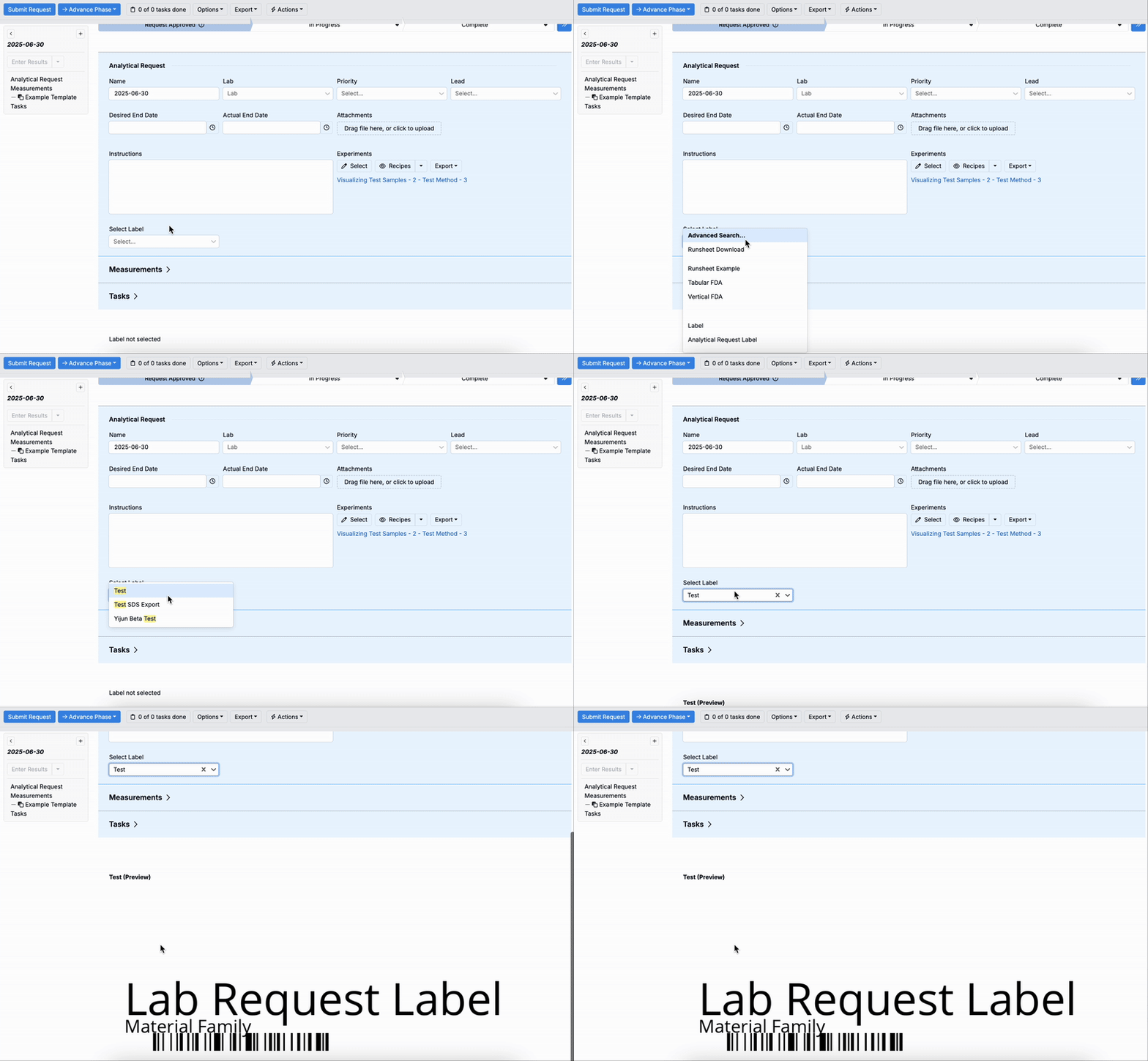
Labels and COAs can now be previewed directly within a lab request form using new settings on the lab request definition.
By adding a Label Preview group to a request definition, you can verify that the correct label template is applied and that key information is displayed correctly. This helps teams catch issues early, prevent labeling errors, and ensure greater confidence in downstream printing.
To add a Label Preview to a lab request:
- Open the Definitions tab on the Form Admin page and access the relevant request definition.
- Add a new field that will allow users to select which label to preview:
- Set a name (e.g., Label Select)
- Set the type to Single Select
- Set the ID Source to RLW Definition Runsheet
- Add a new Label Preview group to the request form.
- Set the Entity Definition Runsheet ID Field to the Single Select field you just created (e.g., Label Select)


Once configured, any lab request created using this definition will include the label preview. Users can select a specific label using the single select field, and the preview will appear directly in the request form.
Note: You can only preview labels and COAs that are available on the entity definition. To view which labels and COAs are associated, go to the Runsheets/Labels tab of the definition.
New Label Editor Settings
We’ve recently added new settings to the Uncountable Label Editor to give users more control over how labels look and behave.
These new features are intended to make it easier to customize the alignment of label elements, dynamically resize the label canvas based on content, and show or hide parts of a label using logic tied to field values.
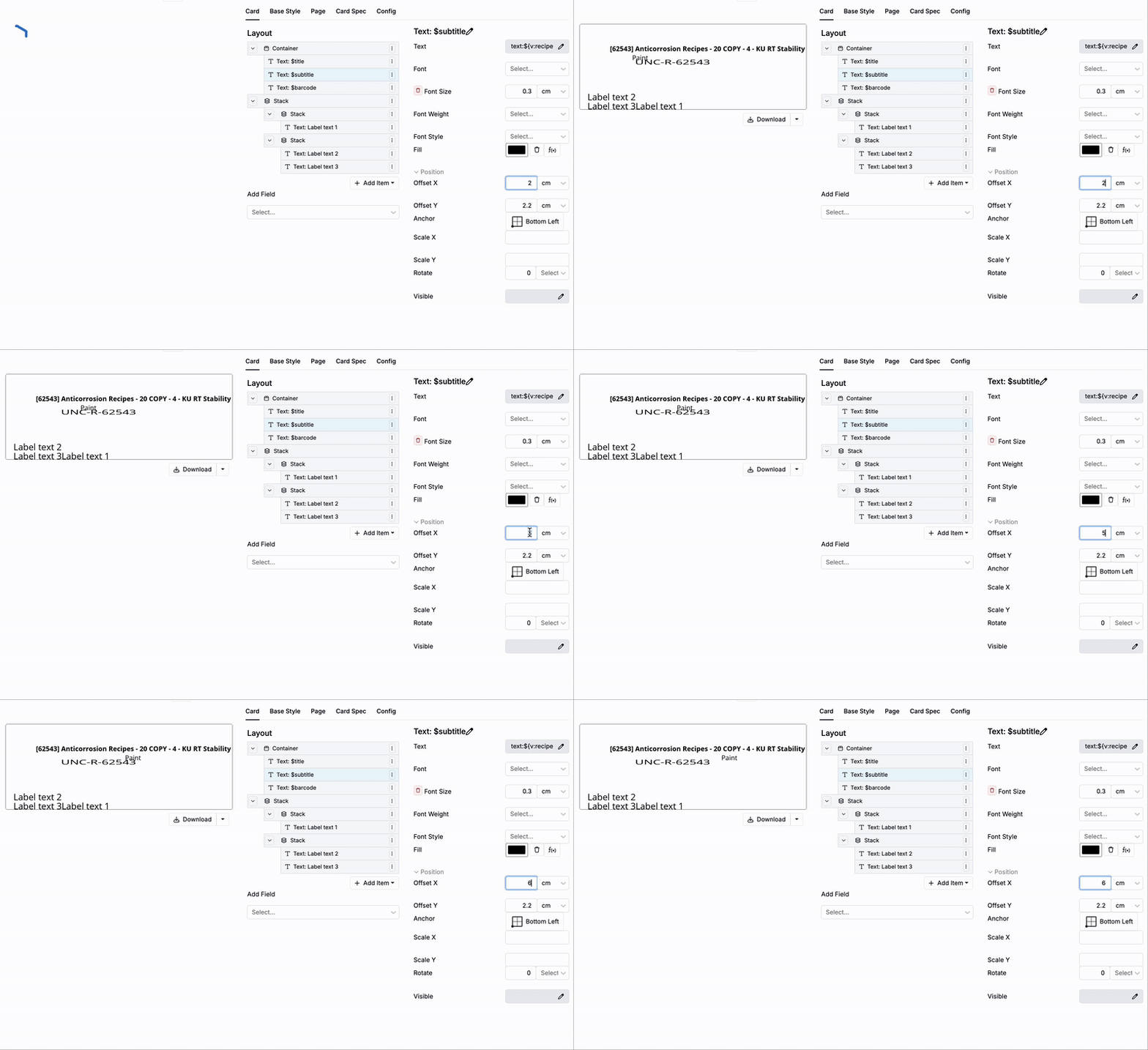
Containers with Absolute Positioning
Container elements now allow precise item placement using Offset X/Y settings. Adding an offset to an item within the group will move it relative to the container.
To use:
- Add a Container element.
- Insert additional elements within the Container.
- Select each additional element and adjust its X/Y Offset in the sidepanel.
Canvas Fit to Content
The new Canvas Fit Content mode automatically resizes the label canvas to fit all visible content.
To use:
- Access the Page tab of the label editor.
- Set Page Made to Canvas Fit Content.

Alignment Options for Containers
Stack containers now support Start and End alignment via a new Align field.
In horizontal Stacks:
- Start → aligns items to the bottom
- End → aligns items to the top
In vertical Stacks:
- Start → aligns items to the left
- End → aligns items to the right
To use:
- Select a Stack container.
- Within the sidepanel, set the Align property to Start/End.

Conditional Visibility via JSON
Label elements now have a Visible field where you can enter JSON logic to show or hide items based on field values. This lets labels change automatically based on the data—for example, hiding a warning when a value is within spec.
To use:
- Select a label element.
- Within the sidepanel, access the Visible JSON editor.
- Within the modal, enter an expression. If the expression evaluates to
true, the element will appear; iffalse, it will be hidden.

Saving Sections to a View Preference
Users can now save the Sections sidepanel configuration as part of their View Preferences on the Enter Recipe and Enter Measurements pages.
The update is designed to make it easier for users to customize their Uncountable workspace for different workflows—particularly when switching between layouts with varying fields, metadata, or output sections.
To include sections in a View Preference:
- Use the Sections sidepanel to show or hide the desired sections.
- Access the View Preferences modal.
- Ensure the Include Sections Shown option is checked.
- Save the View Preference.

To load a saved View Preference:
- Access the View Preferences modal.
- Select the view to load by checking the box associated.
- Click the blue Load button to load the view.
Note that loading a View Preferences created before this update do not include Sections.
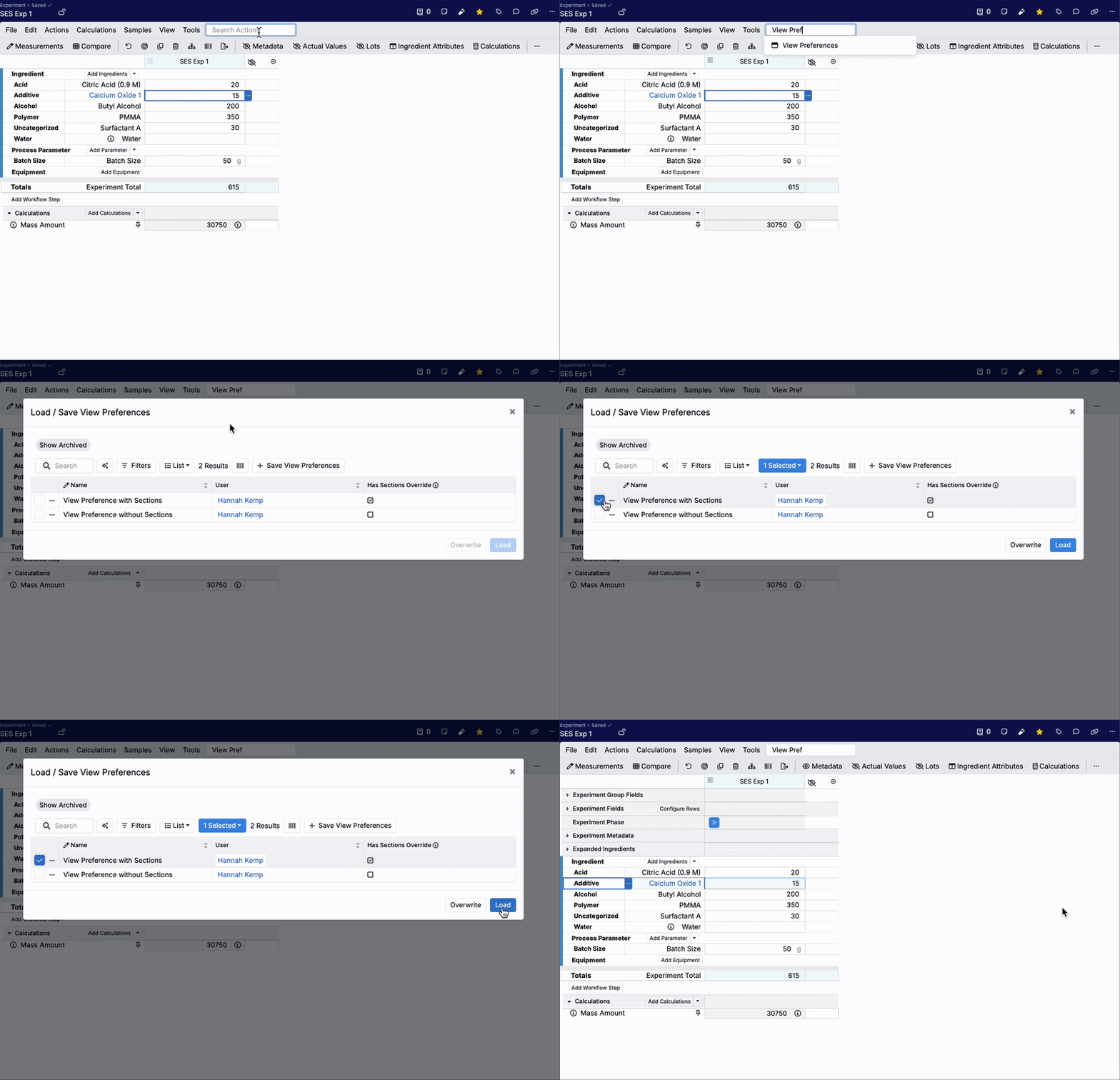
To make it easier to identify which View Preferences include section settings, a new Has Sections Override column has been also added to the View Preferences modal.
