
The new Reaction Diagram cell type in Notebooks allows users to plan, calculate, and document chemical reactions directly within their notebook content.
In addition to drawing individual structures using the Chemical Structure notebook cell, users can now use the Reaction Table and Diagram to:
- Define complete reactions with reactants and products
- Perform stoichiometric calculations based on limiting reagents and equivalents
- Generate and display full reaction diagrams within the notebook
- Import matched components directly into experiments for testing
Built-in PubChem integration streamlines setup by automatically retrieving CAS numbers, molecular formulas, and molecular weights for known chemicals.
How to Use the Reaction Diagram Cell
1. Insert a Chemical Structure Cell
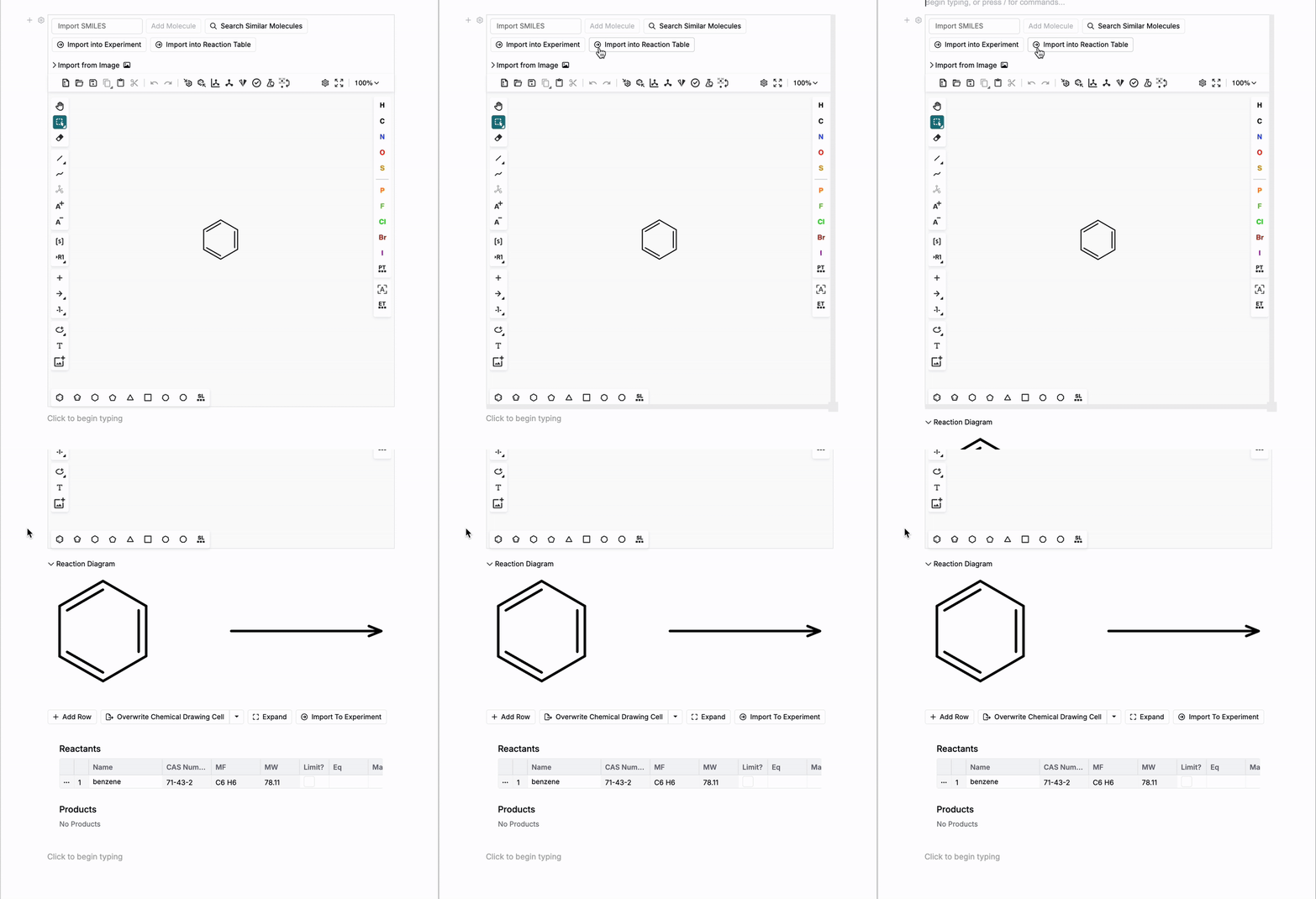
Add a Chemical Structure cell to your notebook. Then, use the drawing tool to draw a molecule, input a SMILES string, or image to auto-generate the structure.

2. Create a Reaction Table
Click Import into Reaction Table at the top of the structure cell. A new table will appear below, allowing you to define your reaction with multiple reactants and products.
3. Add Reactants and Products
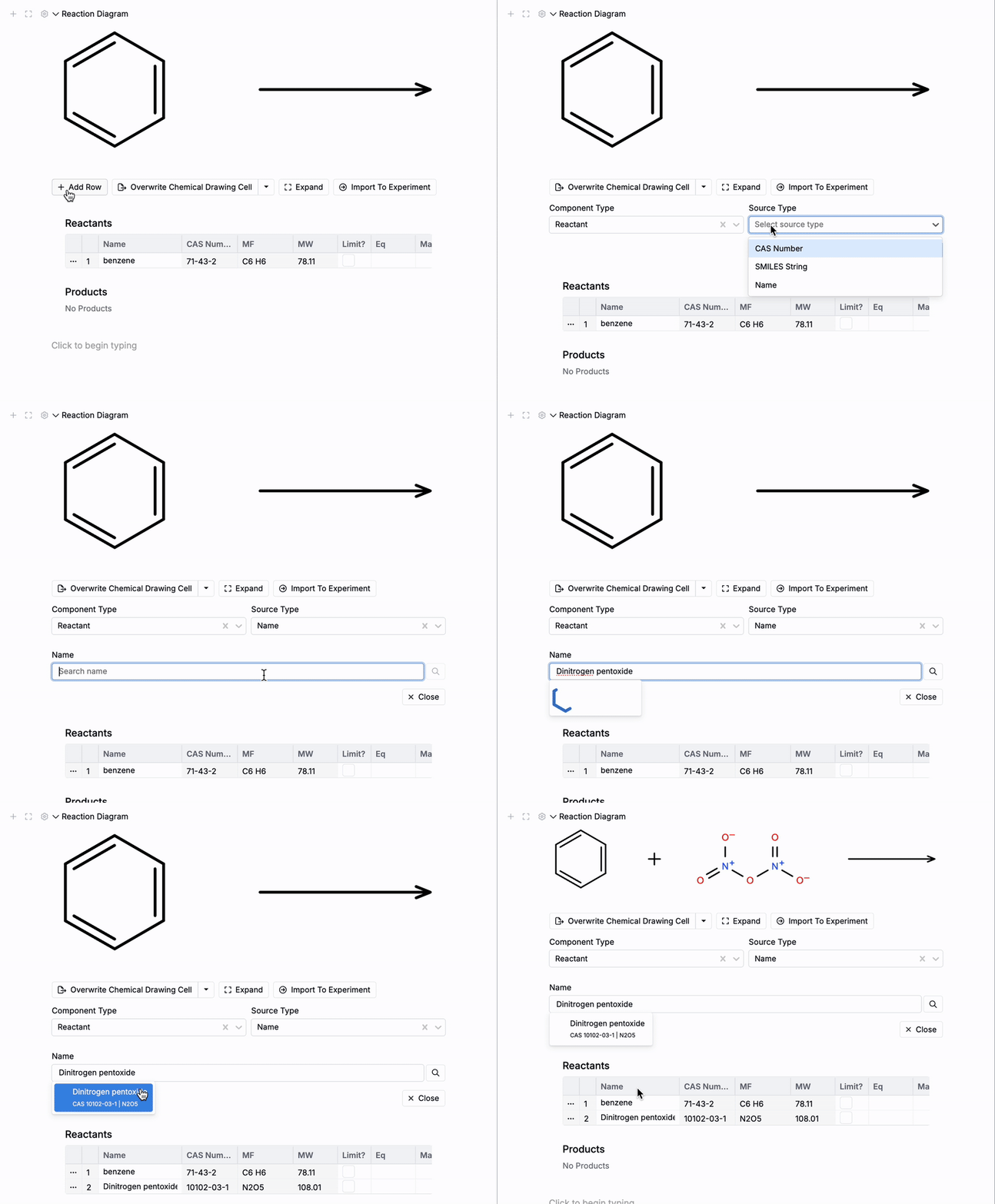
Click the Add Row button to add new components to the reaction diagram and table.
To add a component:
- Select a Component Type (Reactant or Product)
- Choose a Source Type (Name, CAS Number, or SMILES String)
- Input the component name, CAS Number, or SMILES string into the field below and click Add Row
For each entry, Uncountable will retrieve the CAS number, molecular formula, and molecular weight.

4. Input Reaction Parameters
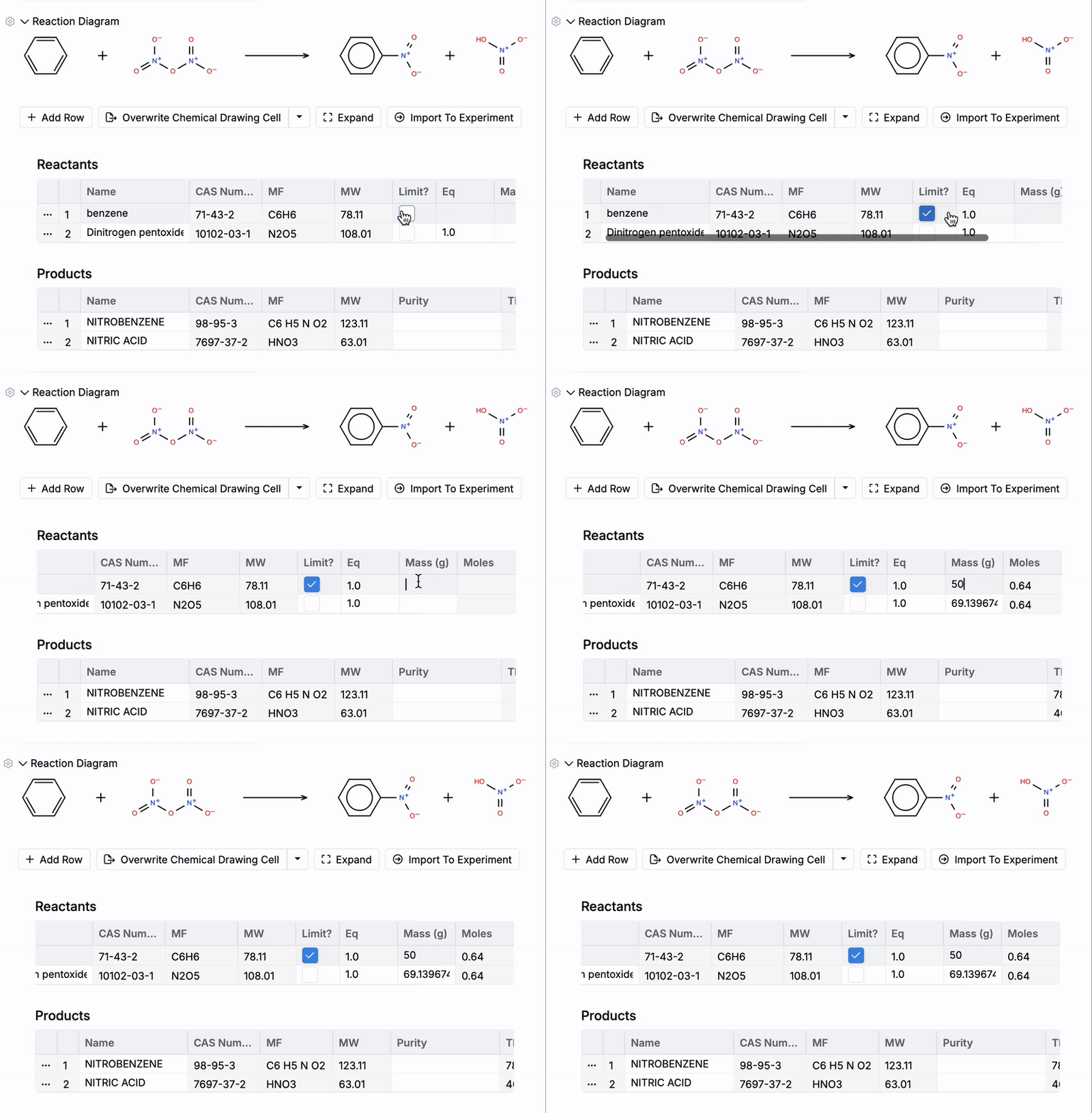
Use the reaction table to set reaction parameters. Within the Reactants section of the table:
- Define the limiting reactant by checking the Limit? box and adding a Mass (g) value
- For non-limiting reactants, use the Eq column to enter equivalents relative to the limiting reactant (e.g. 0.5 if using half as much).
Uncountable will automatically calculate mass and moles for all reactants.
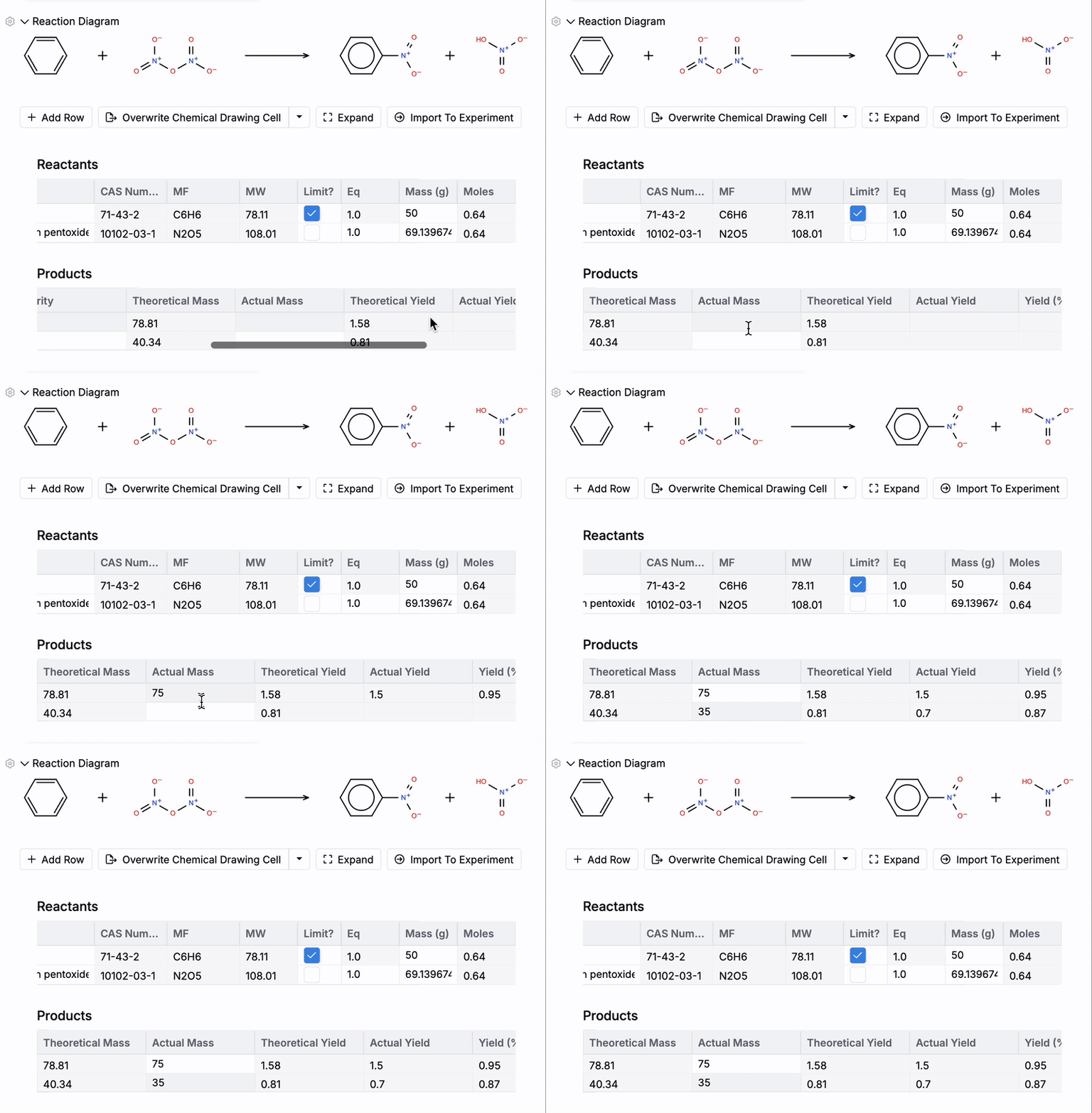
Within the Products section of the table:
- The system will automatically calculate Theoretical Mass and Theoretical Yield.
- By manually entering Actual Mass value, it will also compute Actual Yield and Yield Percentage.
5. Overwriting the Chemical Structure Cell
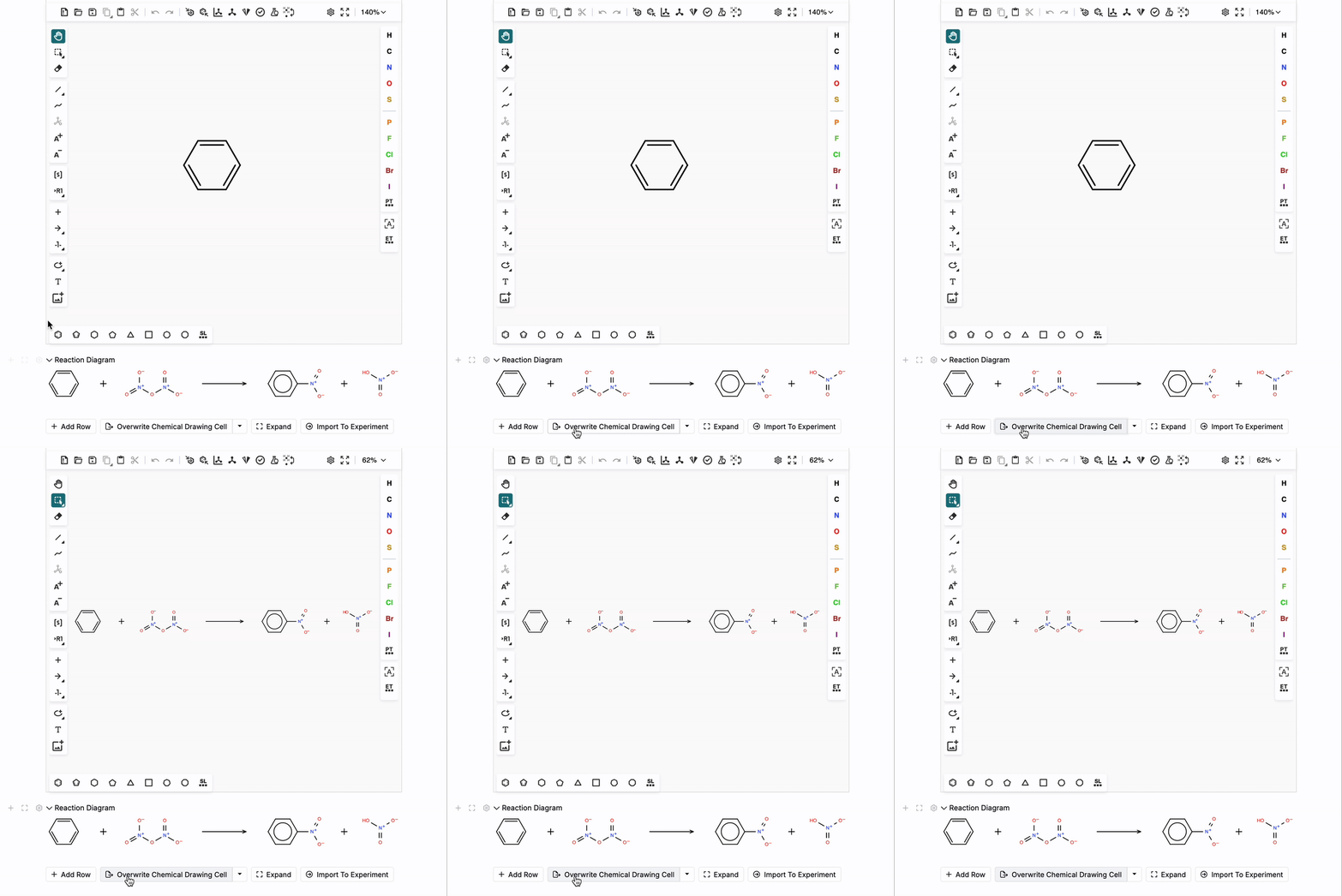
At this point, you have the option to click Overwrite Chemical Drawing Cell to overwrite the original molecule in your Chemical Structure cell.
6. Import the Reaction into an Experiment
You can also import the entire chemical reaction into an experiment directly from the notebook.
- Click Import To Experiment.
- In the modal:
- Select any Attributes to Match
- Use the Matched Ingredient column to match each reactant/product to a new or existing ingredient within the platform
- Use the Workflow Step column to specify which workflow step you want to add each component to
- Select the Experiment to import into
- Click Submit
- The matched reactants and products will be added to the experiment automatically.
