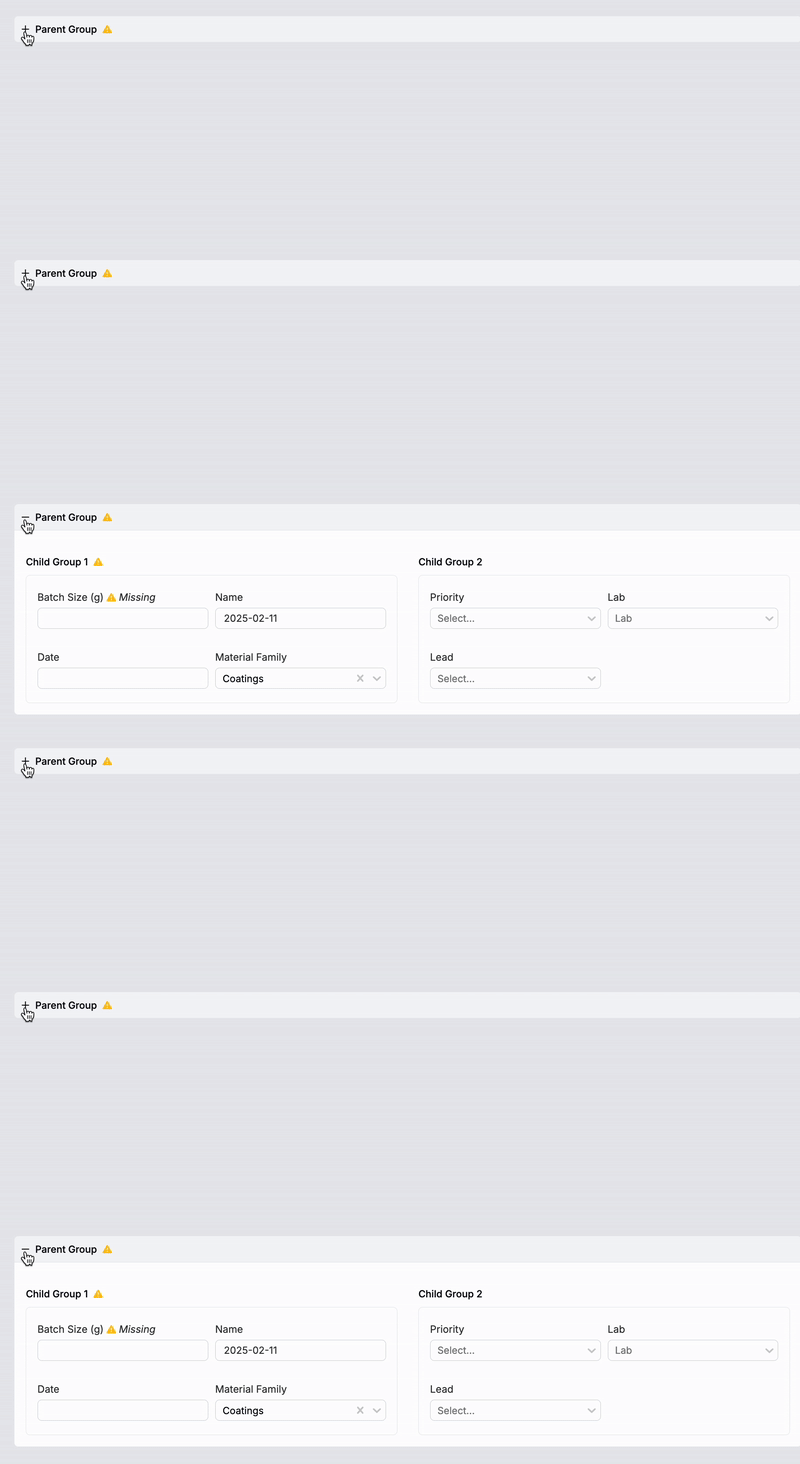
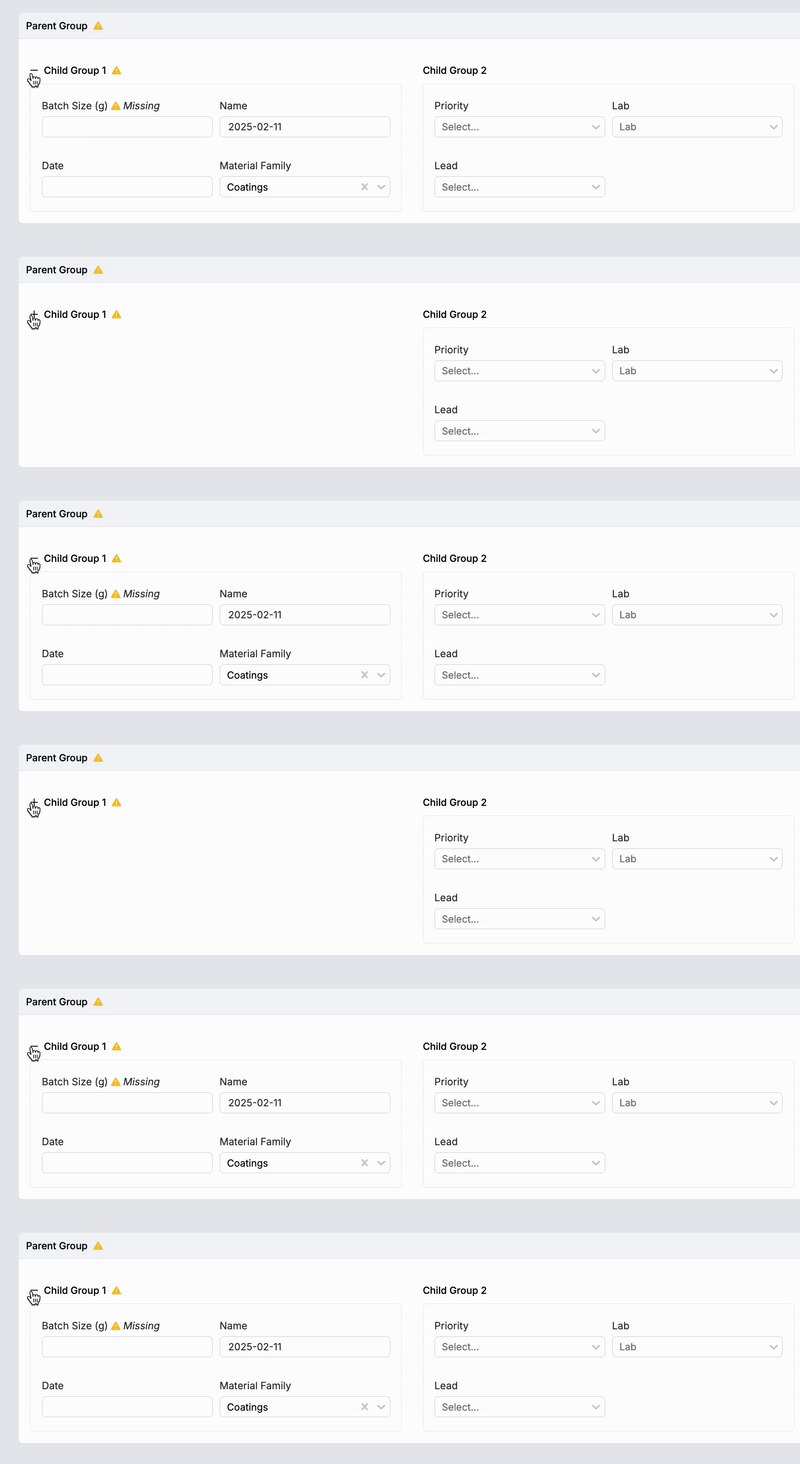
Groups on a definition organize fields, control layout, and allow you to manage visibility, styling, and behavior across sections of entities created using that definition. For example, adding a “Tab” group to a lab request can help separate different types of information into clearly labeled tabs on the request.
Every field on a definition must belong to a group. If you add a field without first creating a group, it will be placed into an unnamed inline group by default. For this reason, it’s best to start by setting up your groups before adding fields.
In this article, we’ll walk through the process of adding and configuring groups using a lab request definition as an example. However, the same principles apply to all definition types created within the Uncountable platform.
Adding Groups to a Definition
To add groups to your definition:
- Access the Structure tab.
- Click Form (A).
- Select from the following submenus “Add Group” (B).

Choose from the following group options:
- Fields: A basic group for organizing adding and organizing fields.
- Inline: A group type which supports nested child groups for additional organization.
- Tab: Creates a tabbed interface where content can be organized into separate, switchable views.
- List: Adds a configurable listing to the request.
- Comment Thread: A specialized group for organizing and displaying threaded comments or discussions.
- Custom: Select from pre-configured custom groups (lab measurements, timesheets, tasks, etc).
- Embedded Entities: Embed entities or custom entities directly into the lab request.
- Related Entities: Display related entities directly within the lab request.
- Sub-Entities: Allows you to use custom entities to add sub-requests within a parent lab request.

Group Display Settings
To rearrange the order of groups, child groups, and fields on a definition, simply click and drag the group or field within the Form section.
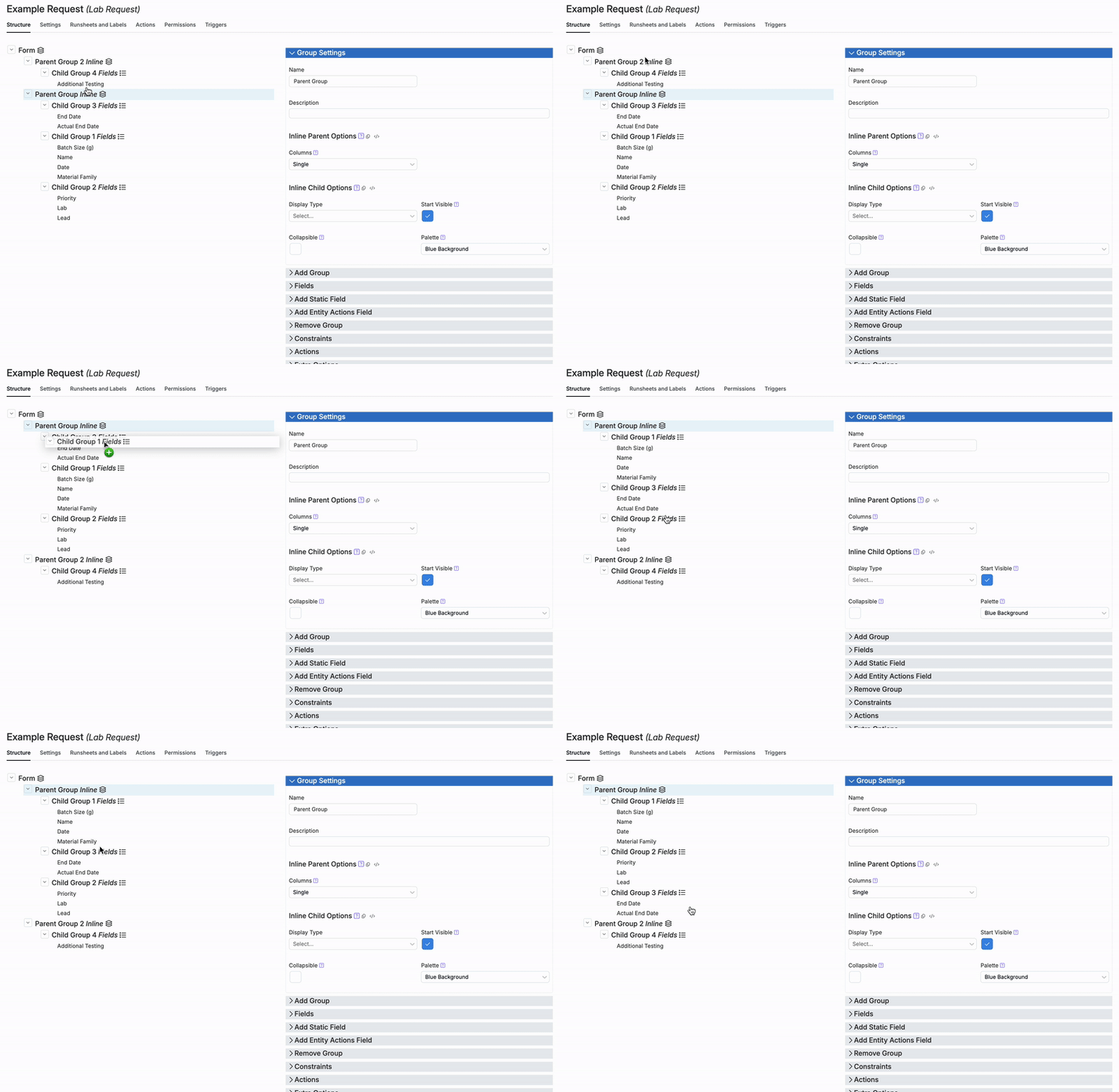
Additional display settings for field groups on a request are managed within the Group Settings tab of both parent and child groups.


Here, users can configure the following display settings:
- Columns: On a parent group, establish how inline child groups will be organized within the selected parent group.
- Single: Stacks child groups vertically.
- Half-half: Organizes child groups into columns.
- Display Type: Option to remove the box surrounding the selected group.
- Standard/Box: By default, groups are displayed within a box.
- No Box: Select to remove box.
- Collapsible: Checking this box makes the selected group collapsible by its header.
- Start Visible: If a parent group is set to be collapsible, unchecking this box will make the group collapsed by default.
- Palette: Customize the background color of a parent or child group.