Uploaded files in the file folder system support a version history and a draft-and-promote lifecycle. Teams can prepare a revised file without replacing the Current version, then promote the revision when it is ready. Earlier versions remain available for reference.
For versioning of custom entity records, see Versioning for Custom Entities.
When to Use It
Use file versioning for documents maintained outside Uncountable, such as a procedure written in Word or a report exported as a PDF. Instead of keeping separate files named “final,” “final revised,” and “final v2,” keep revisions together in one version tree and identify which version is Current.
How File Versions Work
Each file version is Draft, Current, or Approved. Only one version of a file can be Current at a time.
- Draft: A new file or proposed revision that has not been made Current. Drafts are not available in file pickers until promoted.
- Current: The effective version in use.
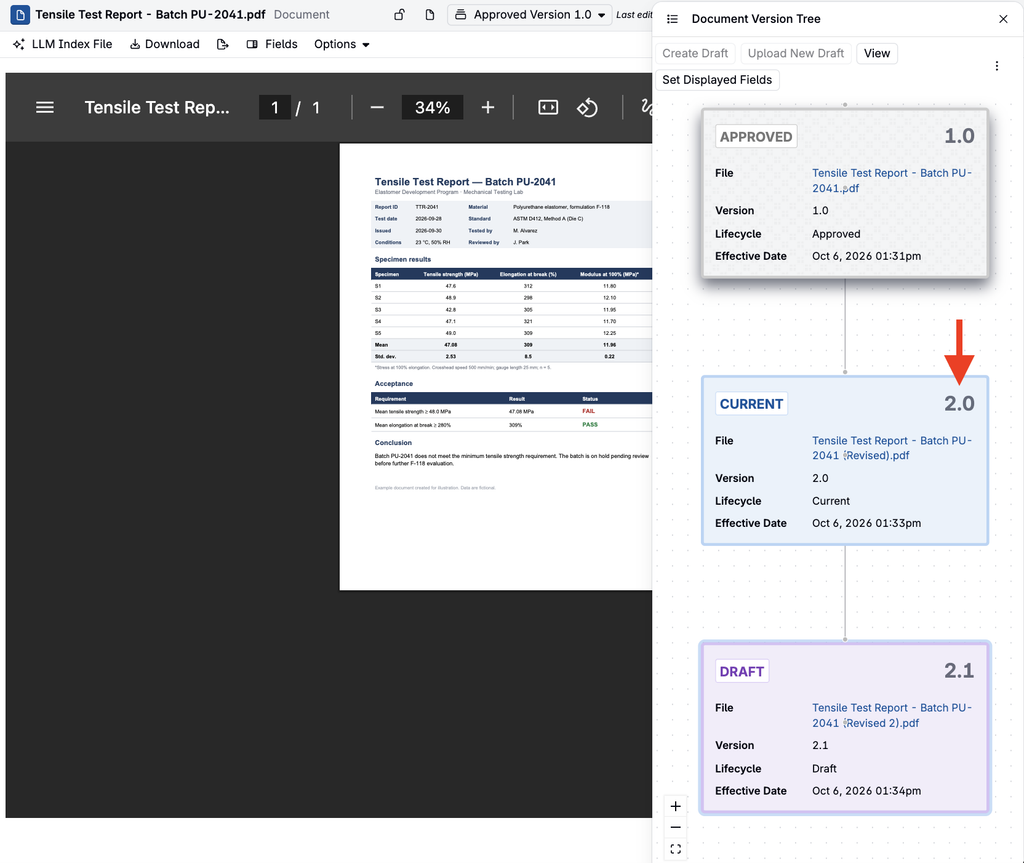
- Approved: A formerly Current file version retained after a newer version replaces it.
Version Numbering
A newly uploaded file starts as a 0.1 Draft, the first draft before any version has been made Current. The “0” means there is not yet a promoted major version; the “.1” identifies the first draft. Promoting this draft makes it 1.0 Current.
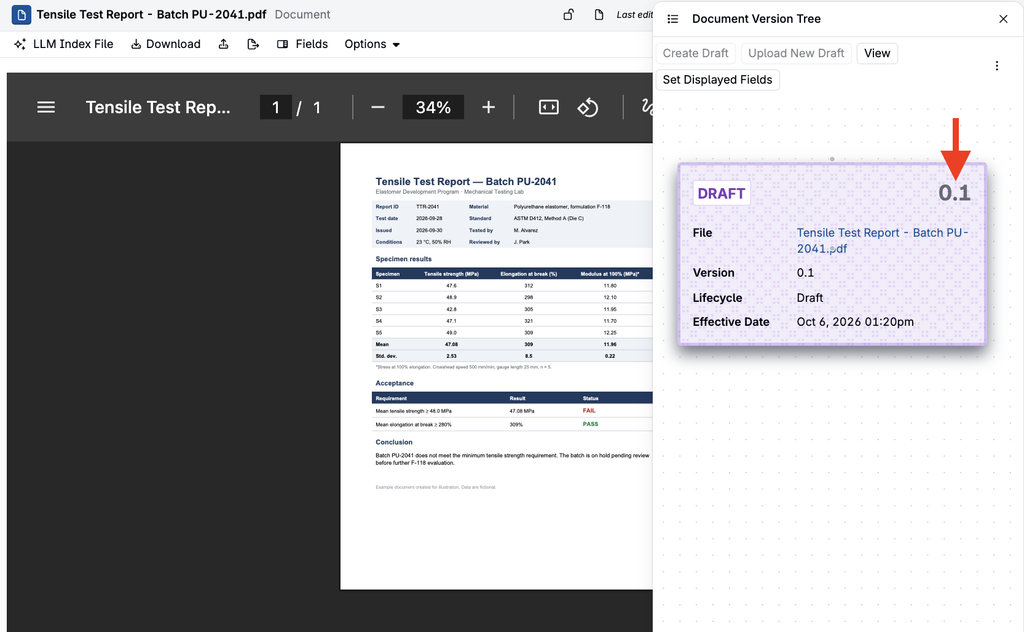
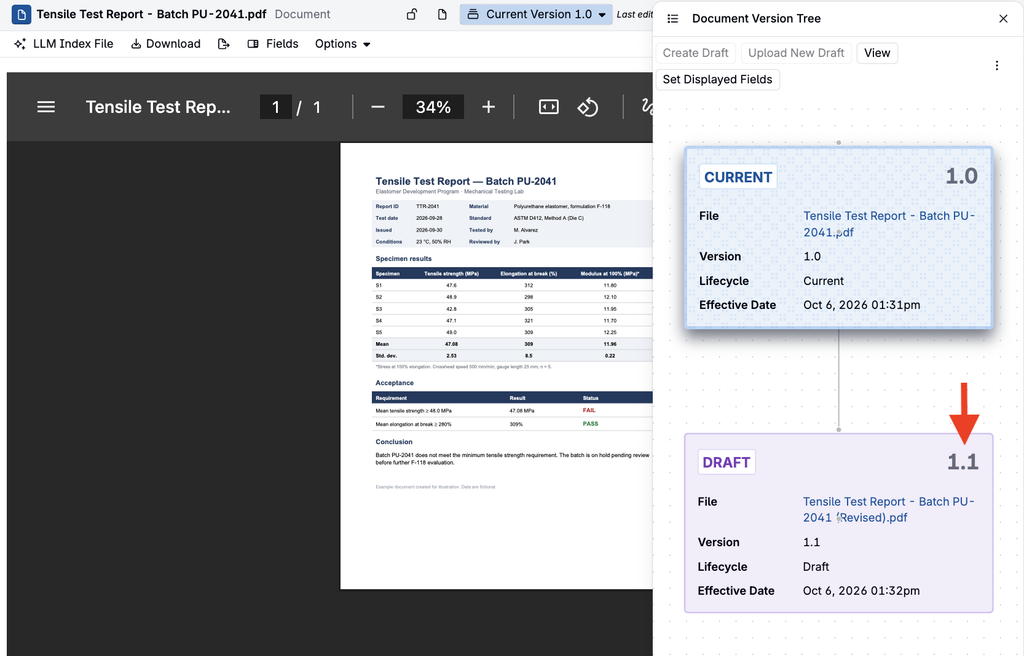
Later revisions follow the same pattern: a draft created from 1.0 Current is 1.1 Draft, and promoting it makes it 2.0 Current (see Creating the Next Revision below).
Viewing Version History
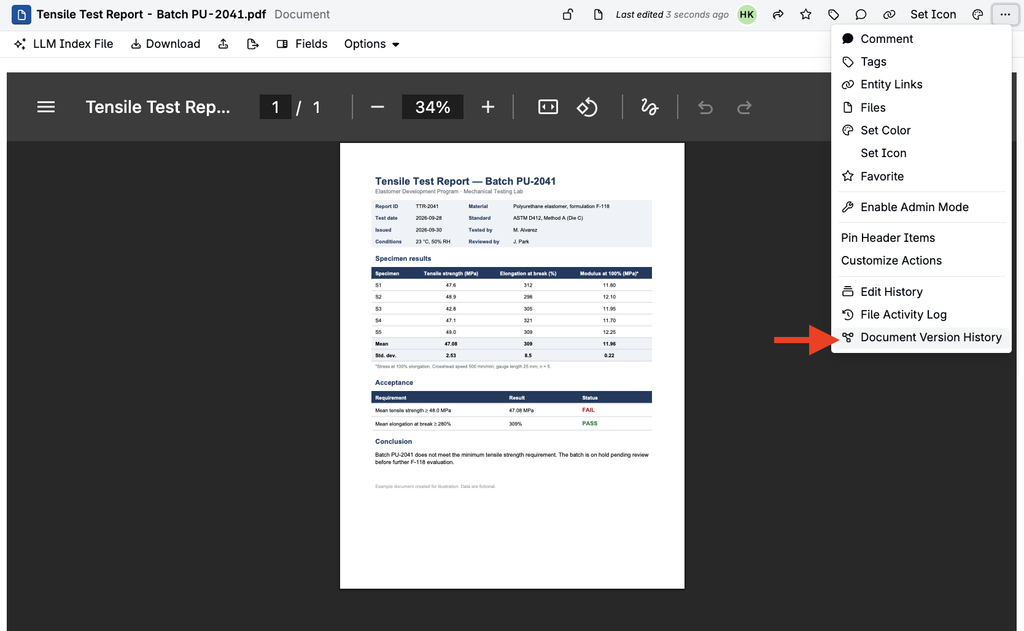
To review a file’s versions, select ⋯ > Document Version History from the file’s entity page.
Promoting a Draft
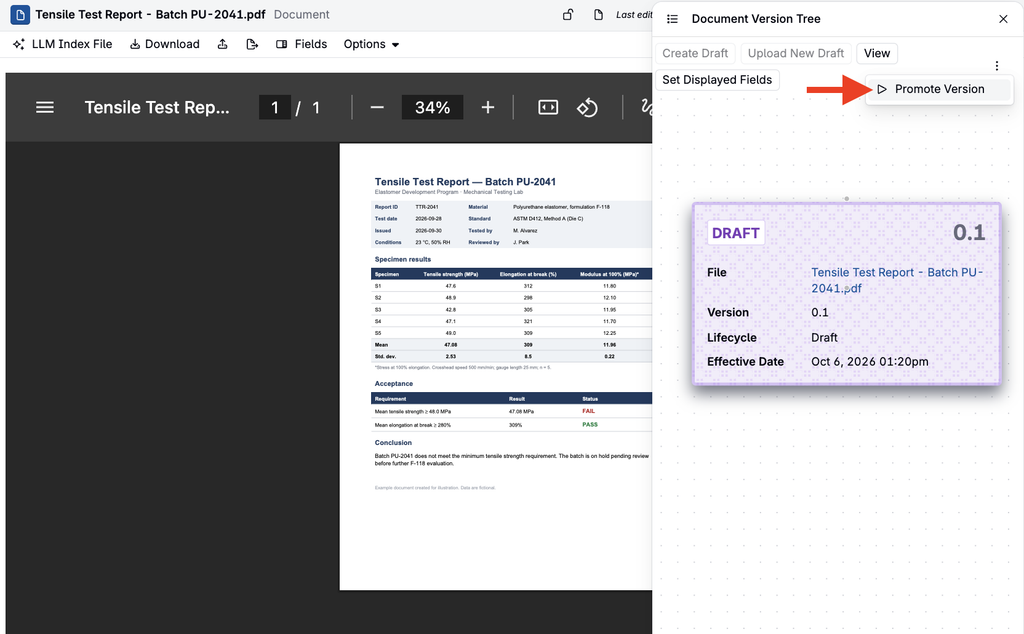
Select a draft in the Version History side panel and select ⋯ > Promote Version to make it Current.
Creating the Next Revision
To prepare the next revision from the Current version, choose:
- Create Draft: Start from a copy of the Current file.
- Upload New Draft: Select a revised file from your computer and add it as a draft in the same version tree.
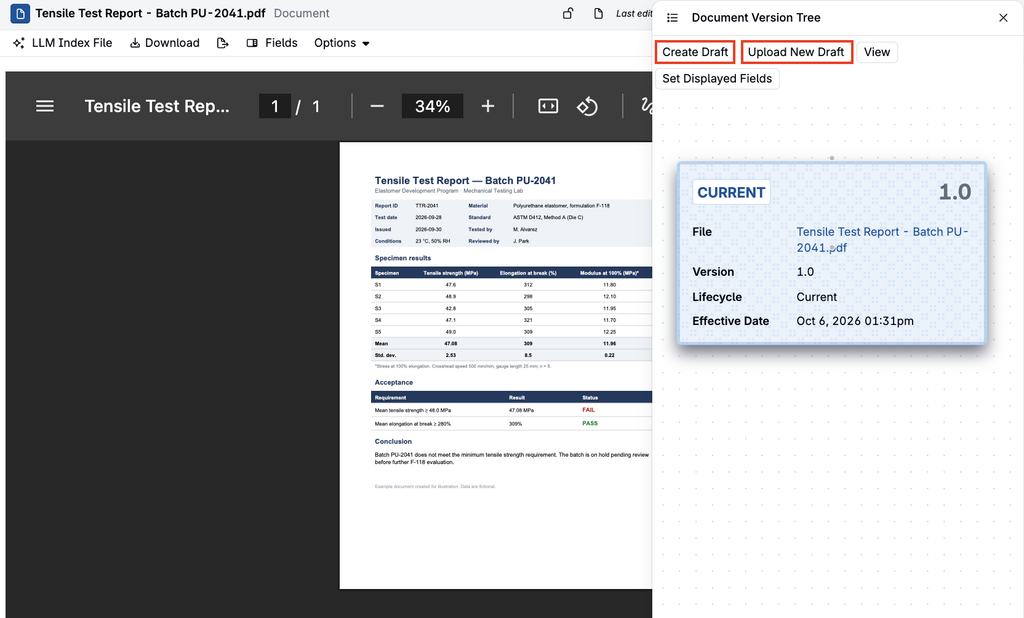
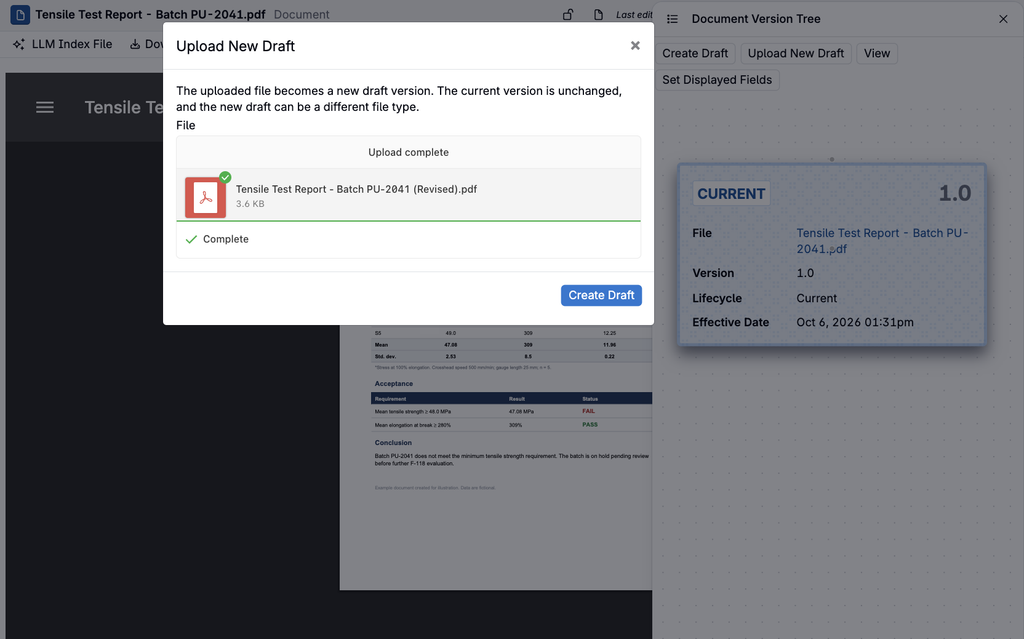
For example, creating a draft from 1.0 Current produces 1.1 Draft.
Promoting it makes it 2.0 Current, while the former 1.0 version becomes Approved. Repeat this cycle as the file evolves: create or upload a new draft from the Current version, then promote it when ready, keeping earlier versions available for reference.
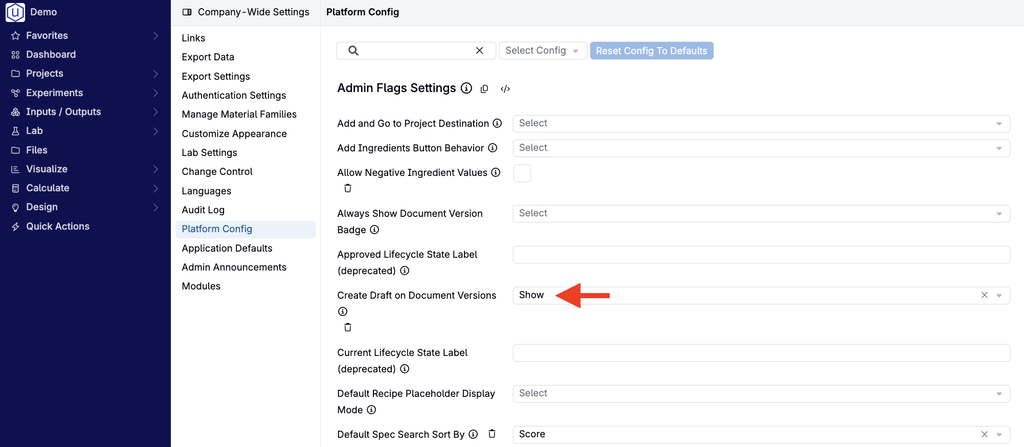
Note: Both drafting options are controlled by Create Draft Document Version Visibility in Platform Config. If they are missing, ask an admin to check this setting.