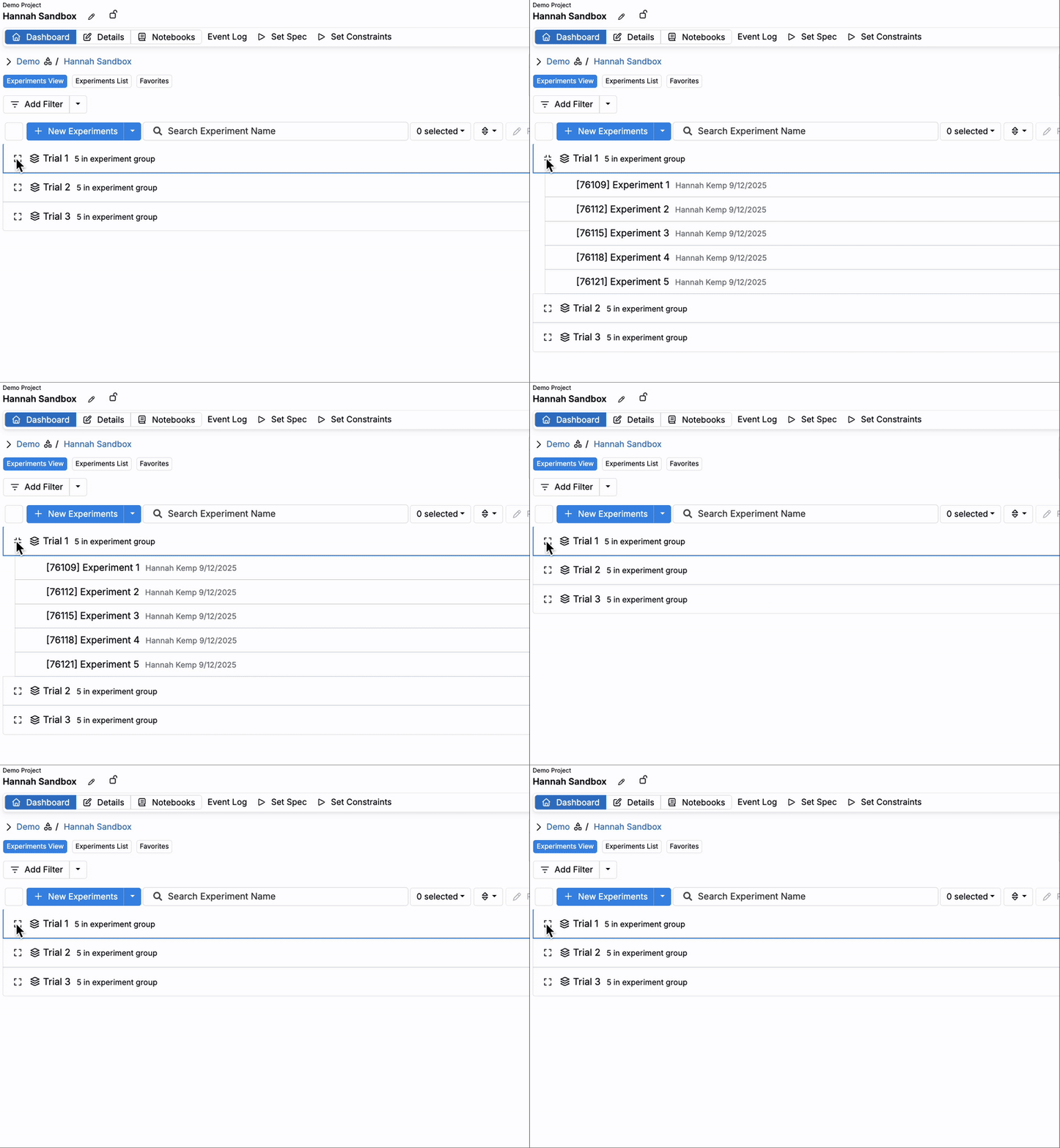
Experiment groups in Uncountable are containers that organize related experiments without creating new projects or subprojects.
Groups are especially useful when experiments are run in batches (daily production runs, weekly trials, multi-plate screening, etc.). Using groups makes it easier to:
- Collapse related experiments into a single row on dashboards for a cleaner view.
- Capture shared context (e.g., notes, location, substrate) at the group level.
- Create Lab Requests or build visualizations that compare results across runs.
Overview
An experiment group is a named collection of experiments. On the Project Dashboard, groups appear as collapsible rows you can expand to see the experiments inside.
Clicking the View Recipes button on an experiment group can route you to the Compare, Recipe, Measurements, or Well Plate Editor page. Where you are routed is configured on the experiment group template. To learn more, refer to Experiment Group Templates.
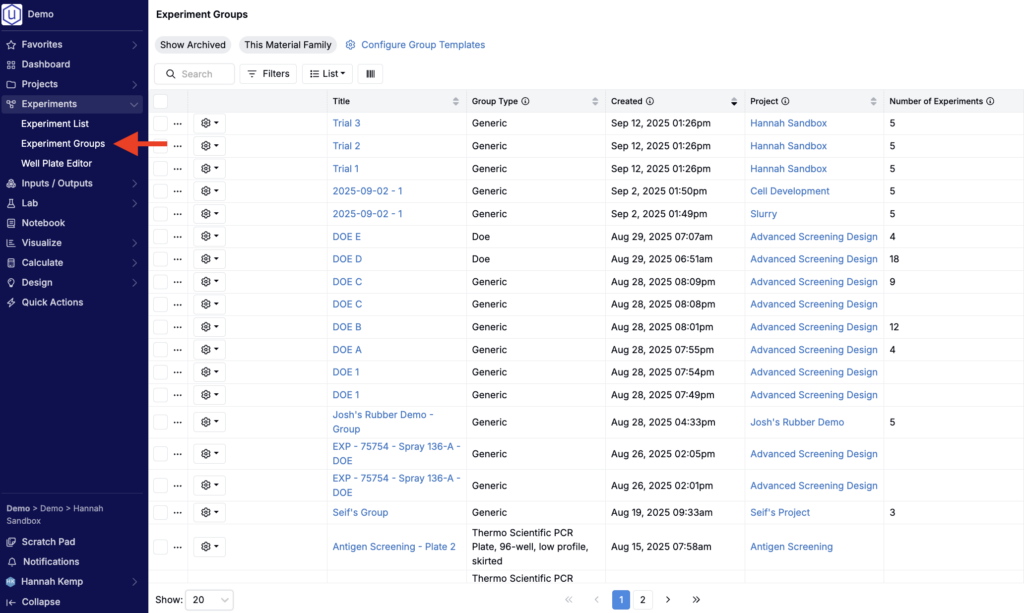
Groups can also be browsed across a schema from the dedicated Experiment Groups listing page (Experiments > Experiment Groups).
Creating an Experiment Group
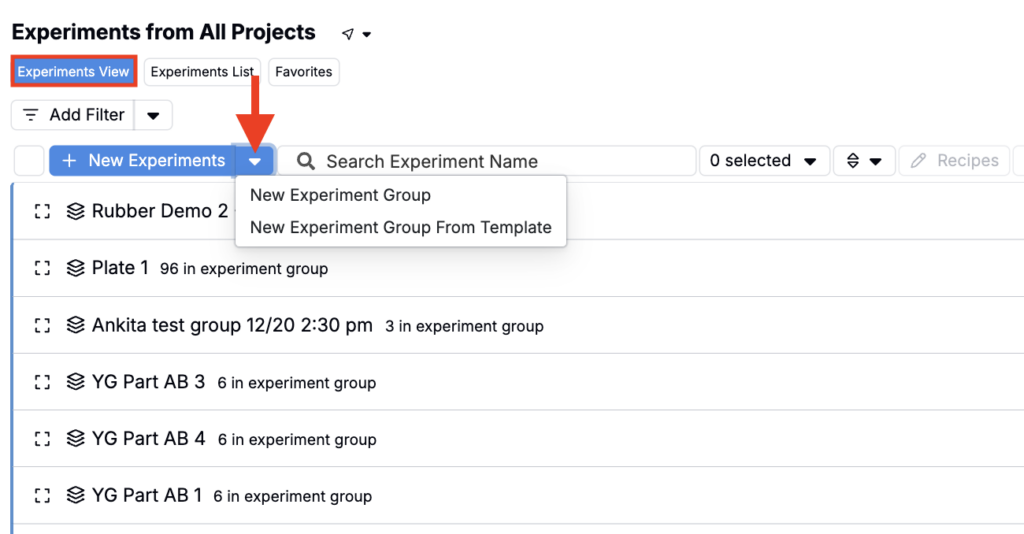
- Go to your project’s Experiment View (Project Dashboard > Experiment View).
- Open the New Experiment button menu.
- Choose one of the following:
- Create Experiment Group — Creates a new group from scratch.
- Create Experiment Group from Template — Creates a new group using an existing experiment group template (recommended when you want a standard, repeatable setup, like a specific well plate type).
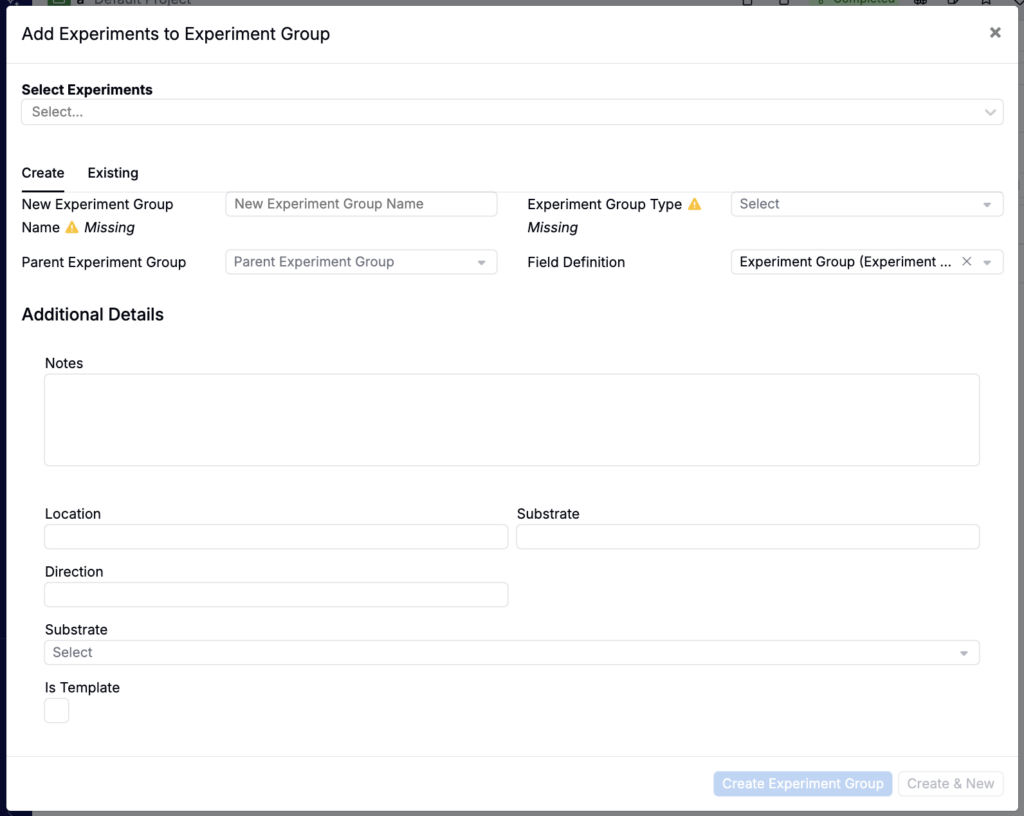
- In the modal:
- Select existing experiments to add (optional).
- Enter a Group Name.
- Select an Experiment Group Type, if using an experiment group template.
- Choose a Parent Group if you want to nest this group under another (optional).
- Select a Group Definition to include custom fields (optional).
- Once selected, these fields appear in an Additional Details section below.
- Use the Field Definition to choose an available definition; then enter values in Additional Details.
Adding Experiments to an Experiment Group
You can add experiments to a group from the Project Dashboard or from an individual experiment’s Recipe/Measurement view.
Project Dashboard
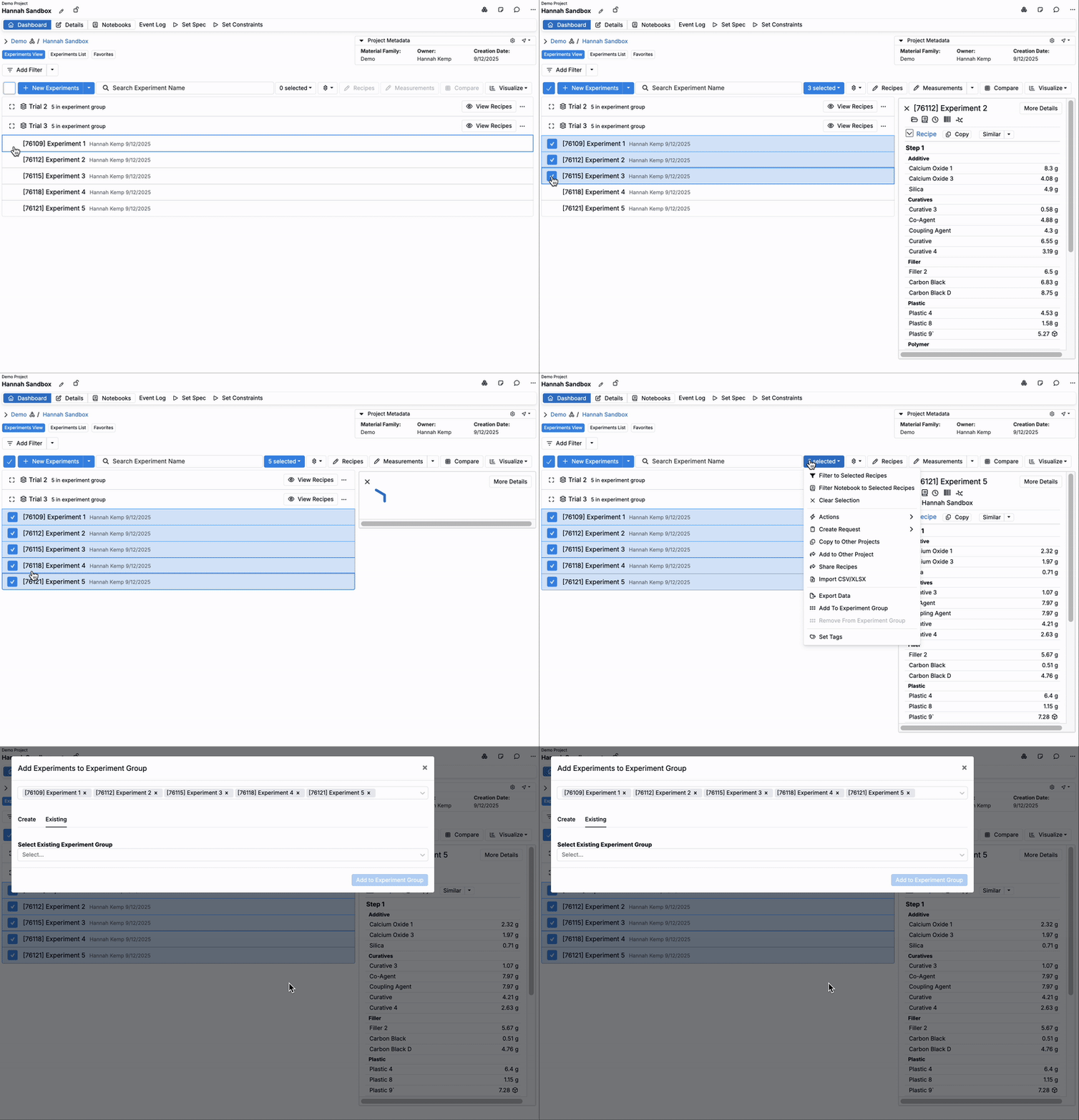
- On the Project Dashboard, select one or more experiments.
- In the selection menu, click Add to Experiment Group.
- In the modal, either create a new group or add the experiments to an existing group.
Experiment View
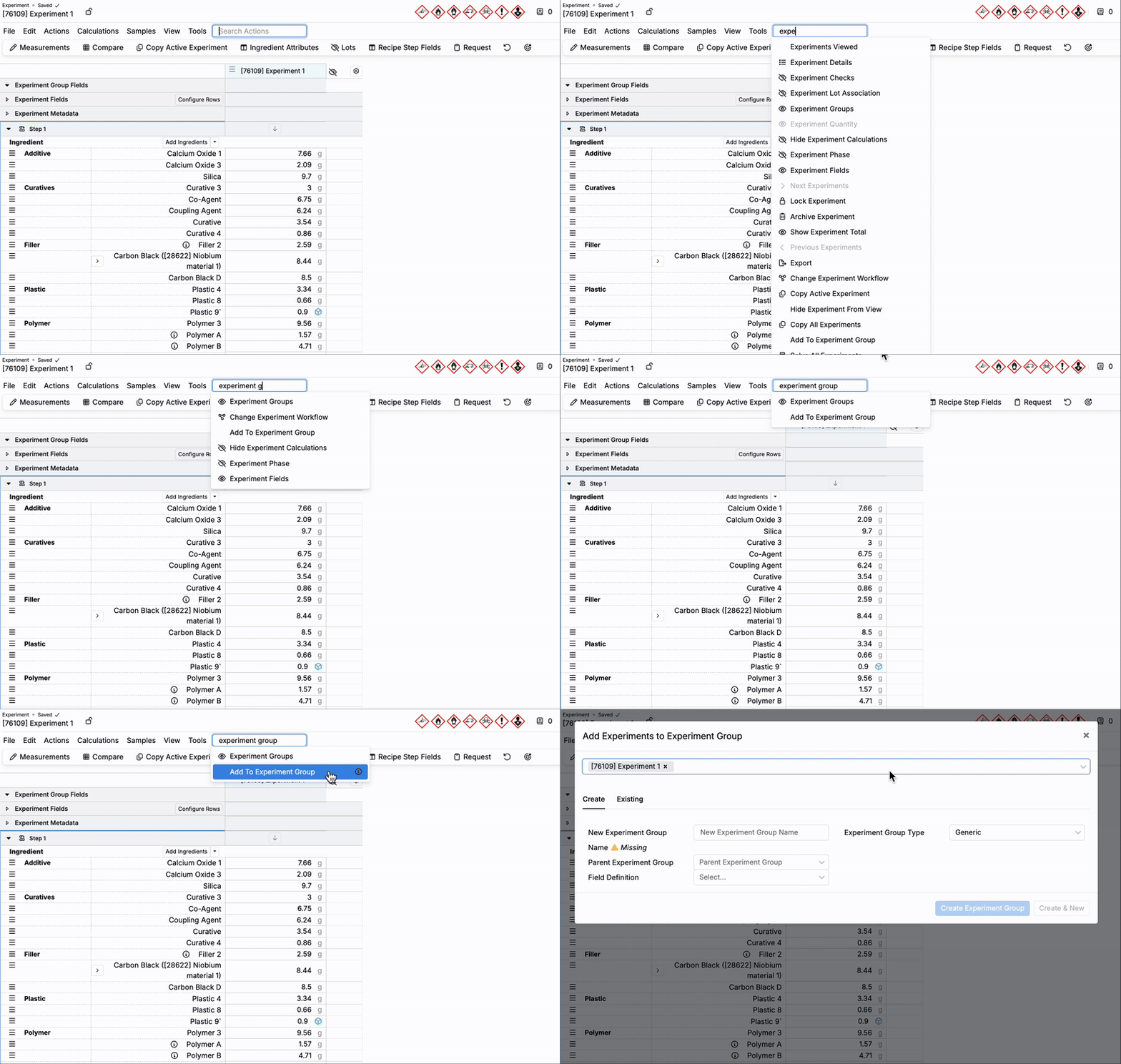
From an experiment’s Recipe or Measurement view, open the toolbar and select Add to Experiment Group. This opens the same modal, where you can create a new group or add the experiment to an existing group.
Experiment Group Fields
Experiment group fields capture metadata that applies to all experiments in a group—such as notes, location, or substrate. They reduce repeated data entry and keep shared context consistent across the group.
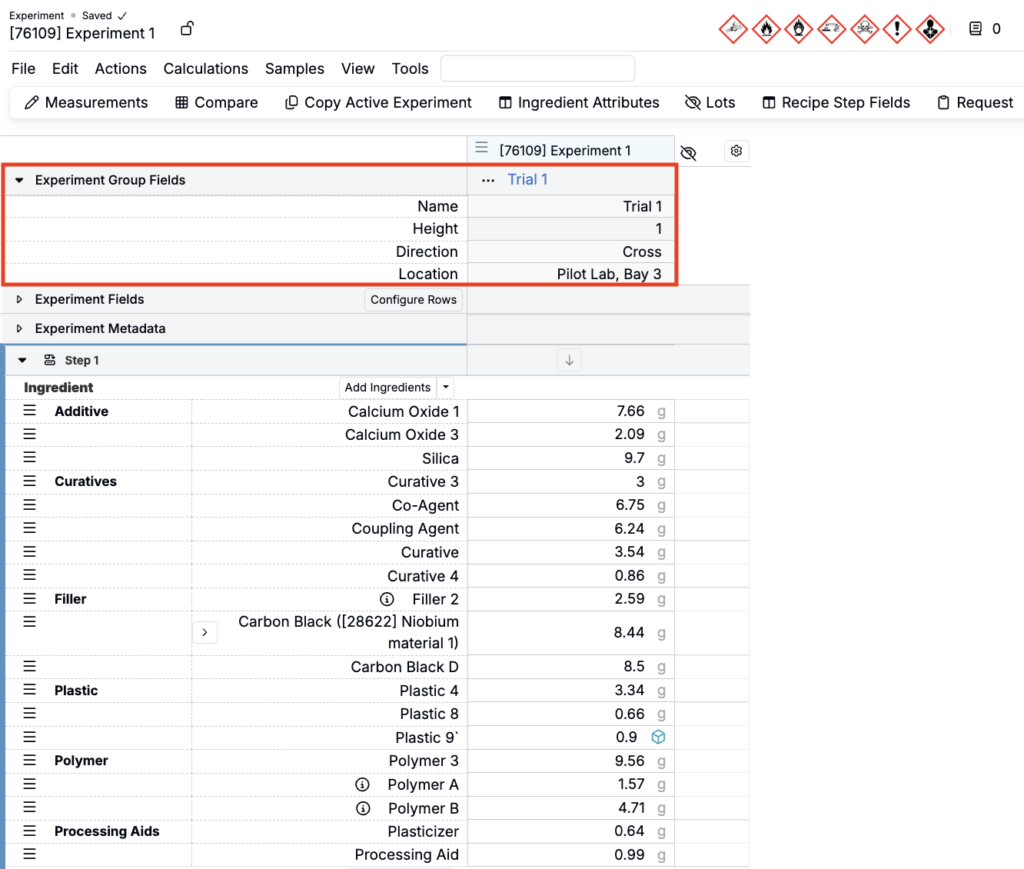
Groups don’t store results themselves, but they can include experiment group fields to track run-level details like date, operator, location, substrate, or notes.
Available fields depend on the experiment group’s definition, which is created and managed by admins in Form Admin.
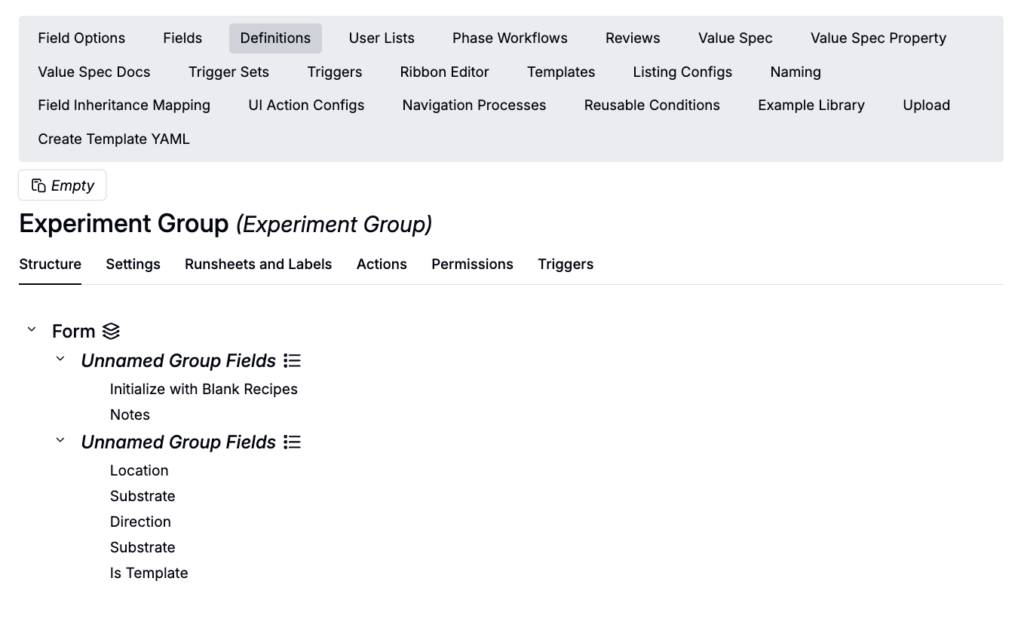
Editing Experiment Group Fields
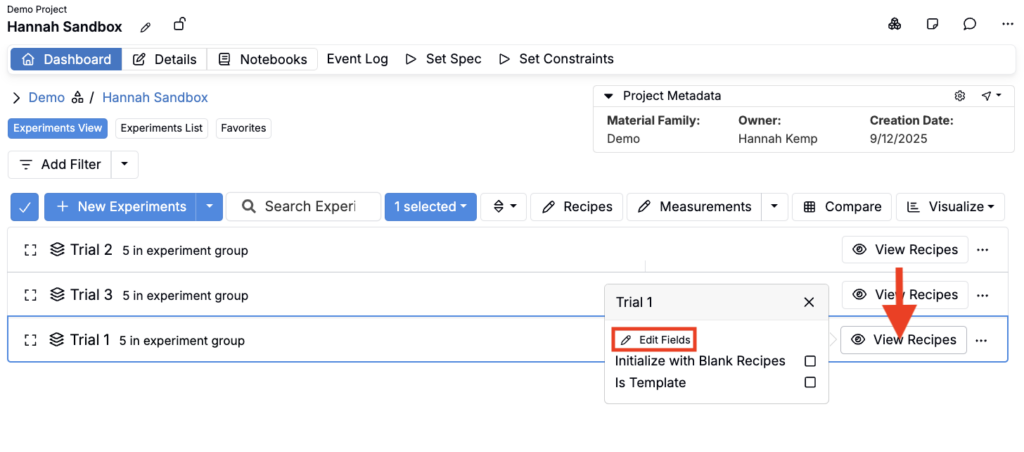
Users can update field values for an existing group from the Project Dashboard view.
- Hover over the group’s View Recipes button.
- Select Edit Fields.
- In the side panel, update values for any available fields.
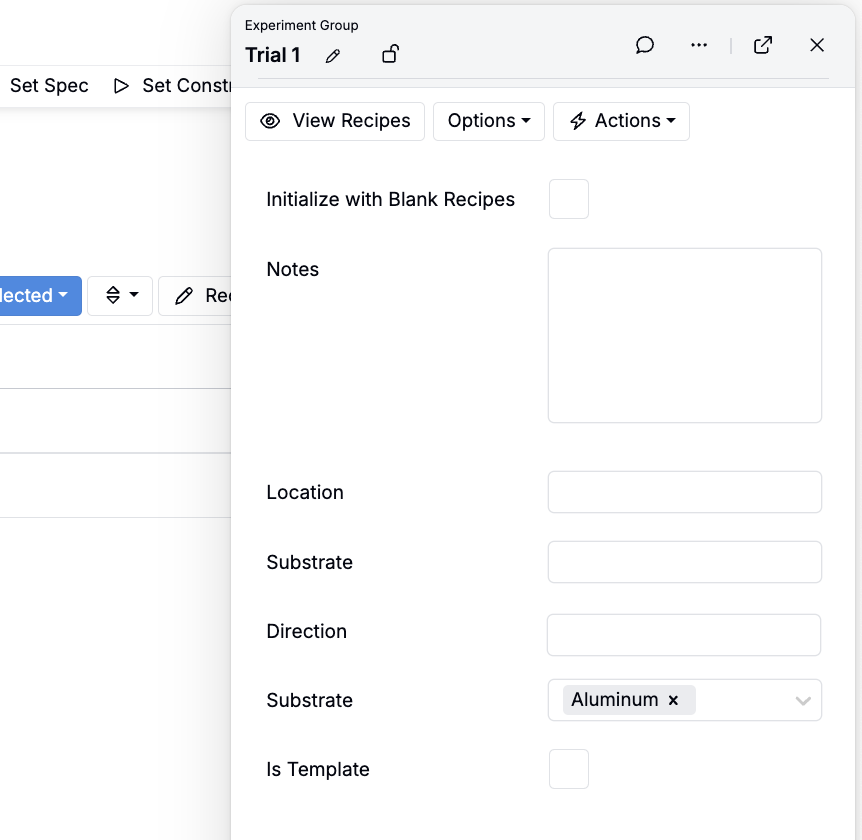
To make additional fields available, an admin must add them to the group’s definition in Form Admin.
Viewing Experiment Group Fields
Experiment group fields can be displayed when viewing individual experiments:
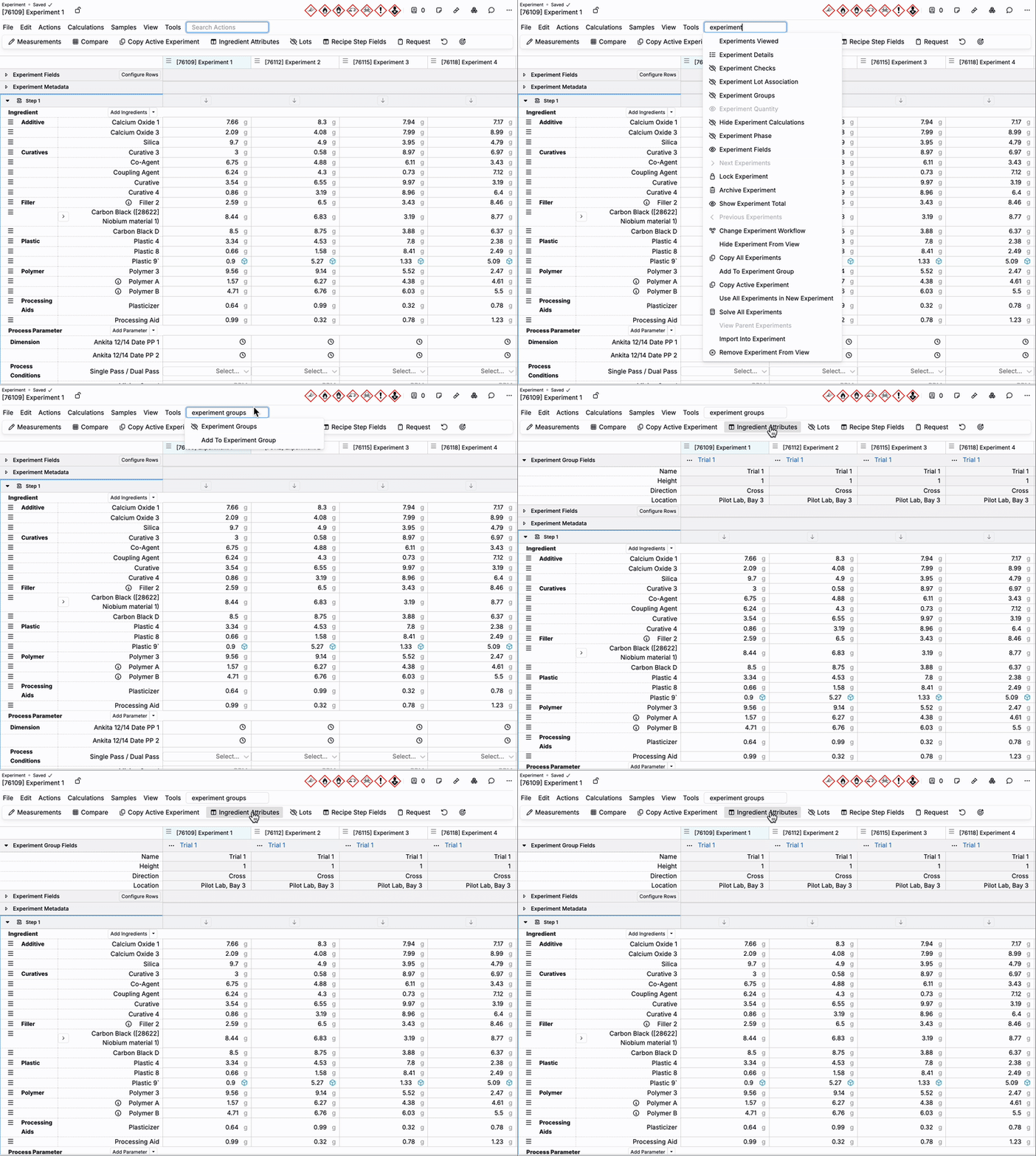
- On the recipe or measurements view of an experiment, use the search bar to add the Experiment Group Fields section to the top of the data grid.
- These values are read-only from the experiment view; editing must be done from the Project Dashboard via the side panel.