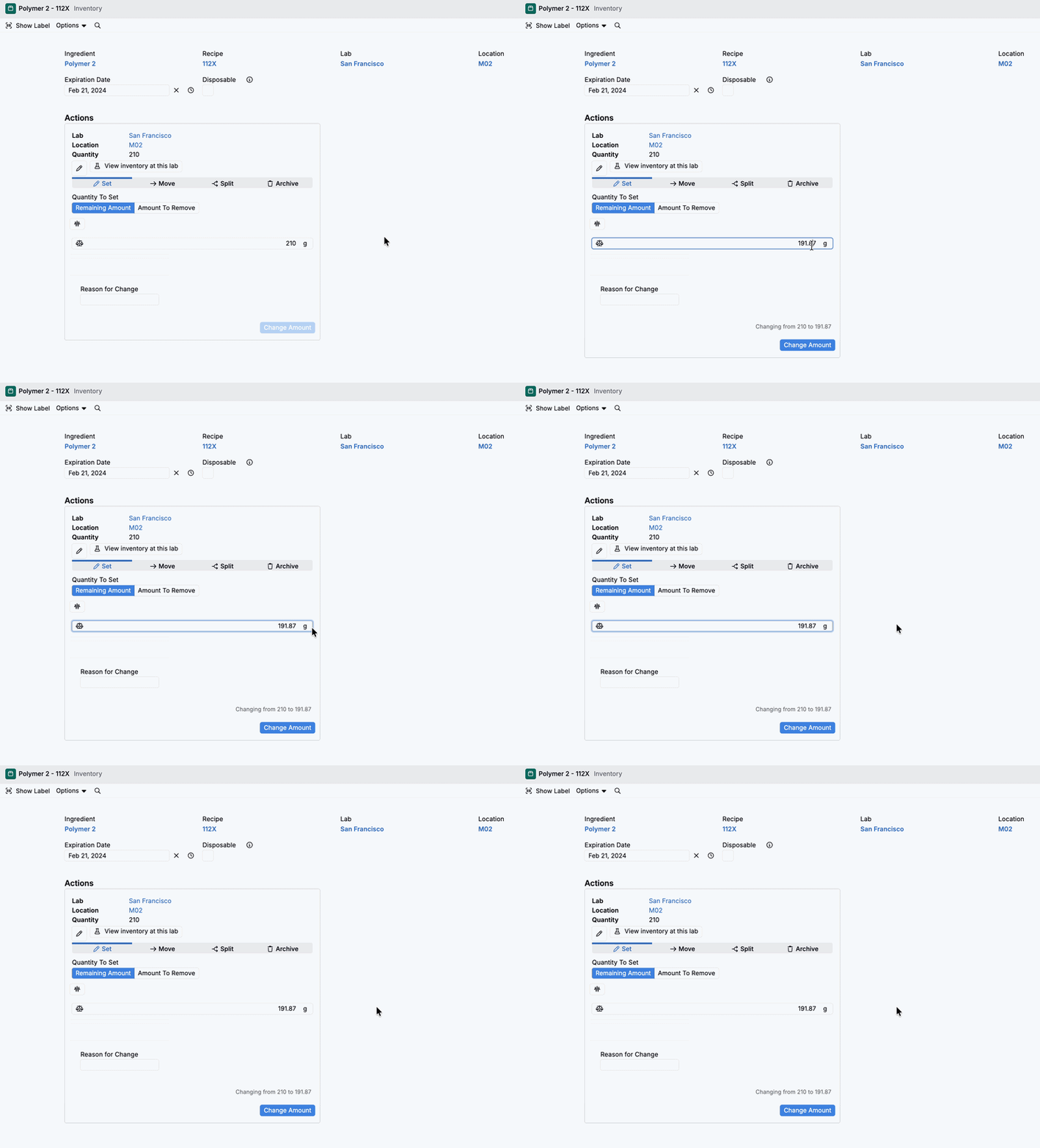
Global Scale Connection lets you connect a compatible USB scale once, then enter weights across supported Uncountable workflows without reconnecting.
After you connect a scale, Uncountable keeps that USB scale connection available as you move between supported pages. For example, you can record recipe actuals and then switch to inventory workflows while staying connected.
Benefits
- Less repeated setup — No need to reconnect the scale each time you open a new supported workflow.
- Faster data entry — Send readings directly into a selected numeric field.
- Fewer transcription errors — Avoid copying values by hand.
- Smoother lab workflows — Weigh across recipe actuals, inventory, and other supported steps in one session.
Set up a global scale connection
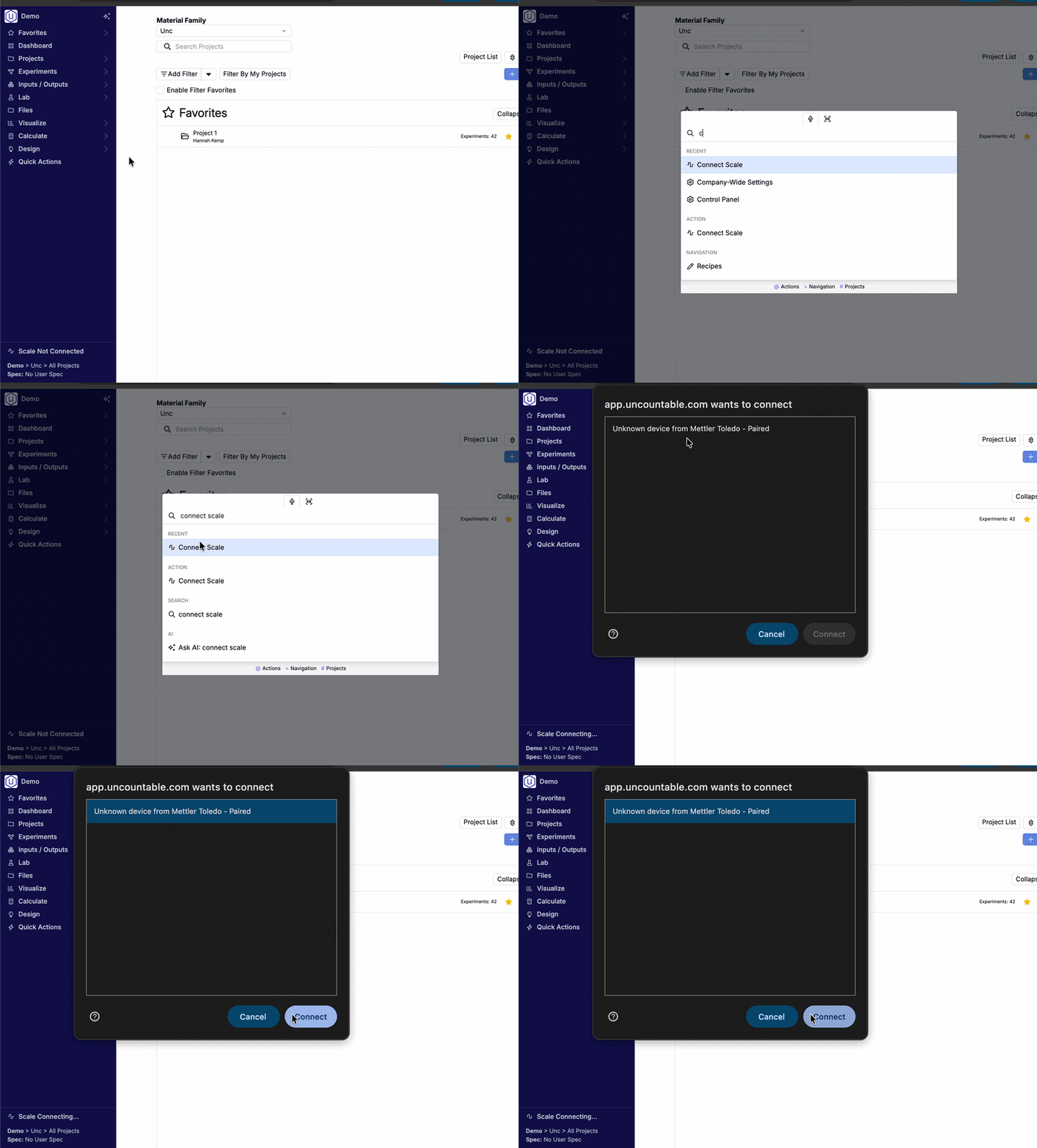
1) Connect a scale
- Plug a compatible scale into the device running Uncountable.
- In Uncountable, open Quick Actions > Connect Scale.
- Choose the scale from the browser’s USB device picker.
- Click Connect.
2) Show scale connection status
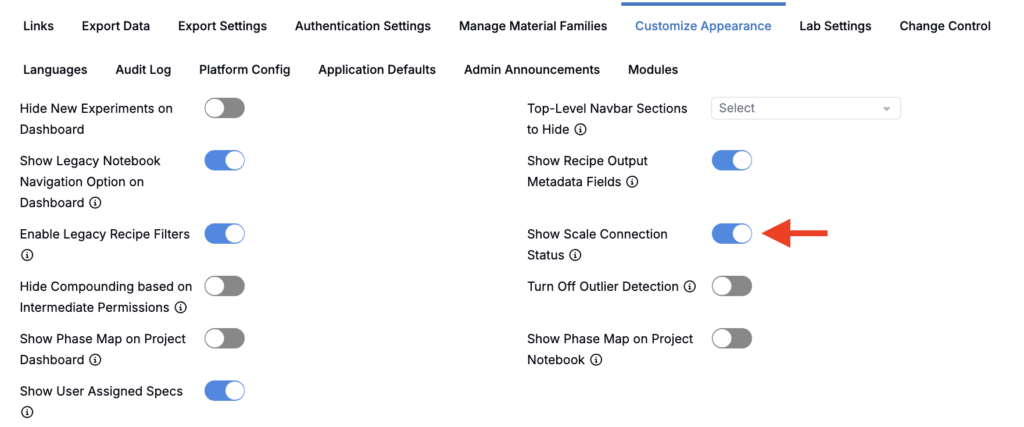
You can also display the scale connection status in the navigation bar so it stays visible while you work.
- Open Company-Wide Settings.
- Go to the Platform Config tab.
- Enable Show Scale Connect Status.
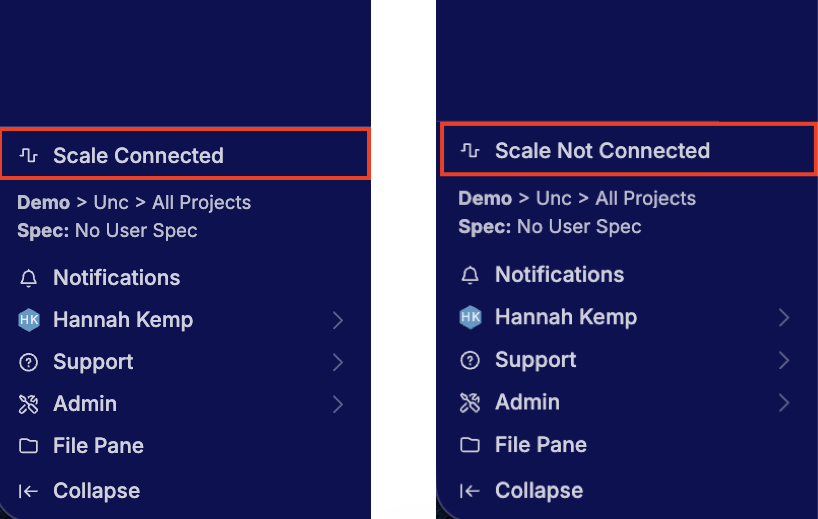
Once enabled, the navigation bar shows a dedicated line for the scale connection status.
Global Scale Connection in practice
Once connected, the scale remains available as you move through the platform. For example, you can weigh ingredients while working in a recipe, then move to an inventory workflow and continue using the same connected scale without reconnecting.
Experiment recipe workflow
- On the Recipe view of your experiment(s), open the Recipe Data Sidepanel.
- In the sidepanel, select the experiment, workflow step, and first ingredient to record values for.
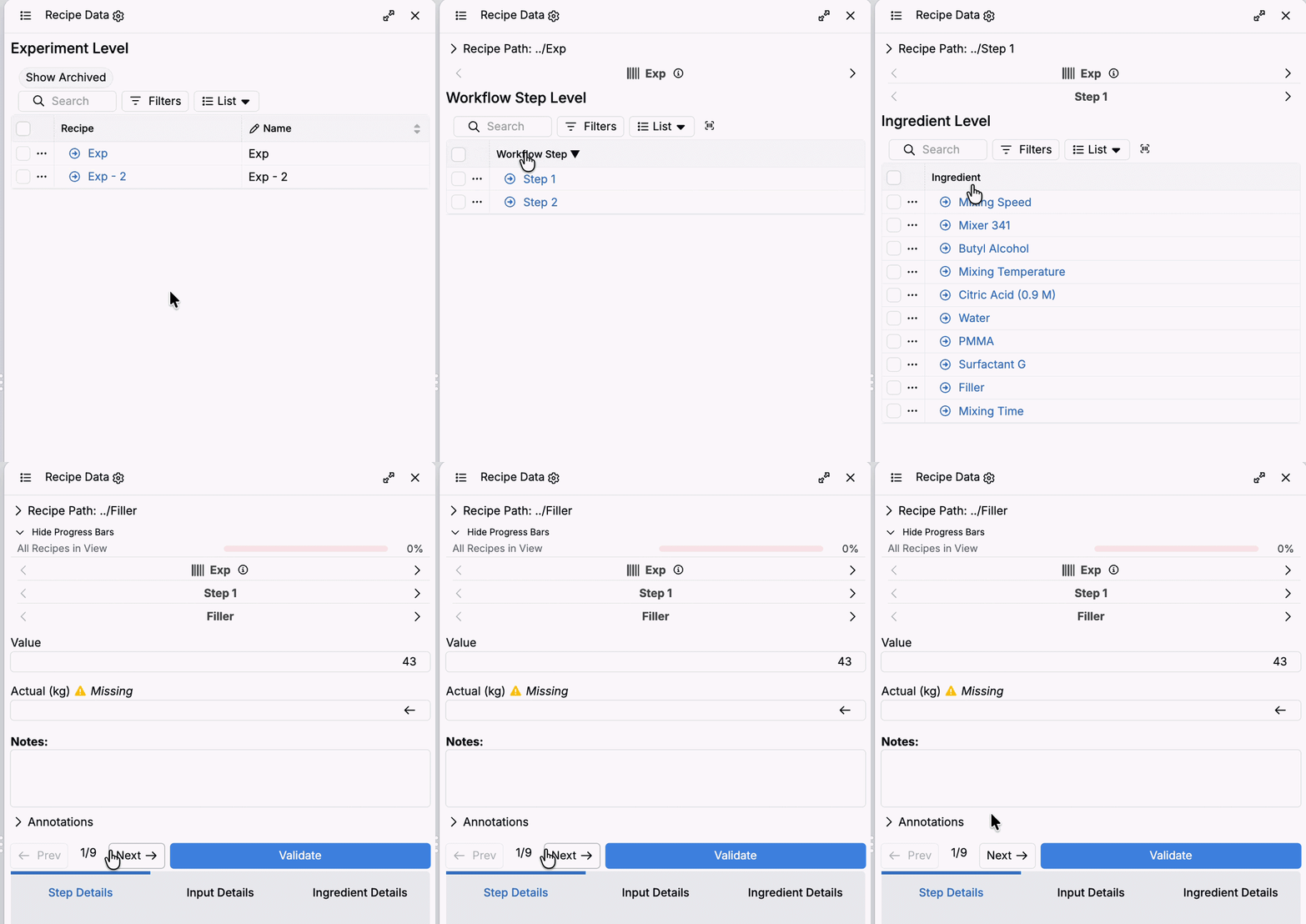
- Use the scale to weigh your first ingredient.
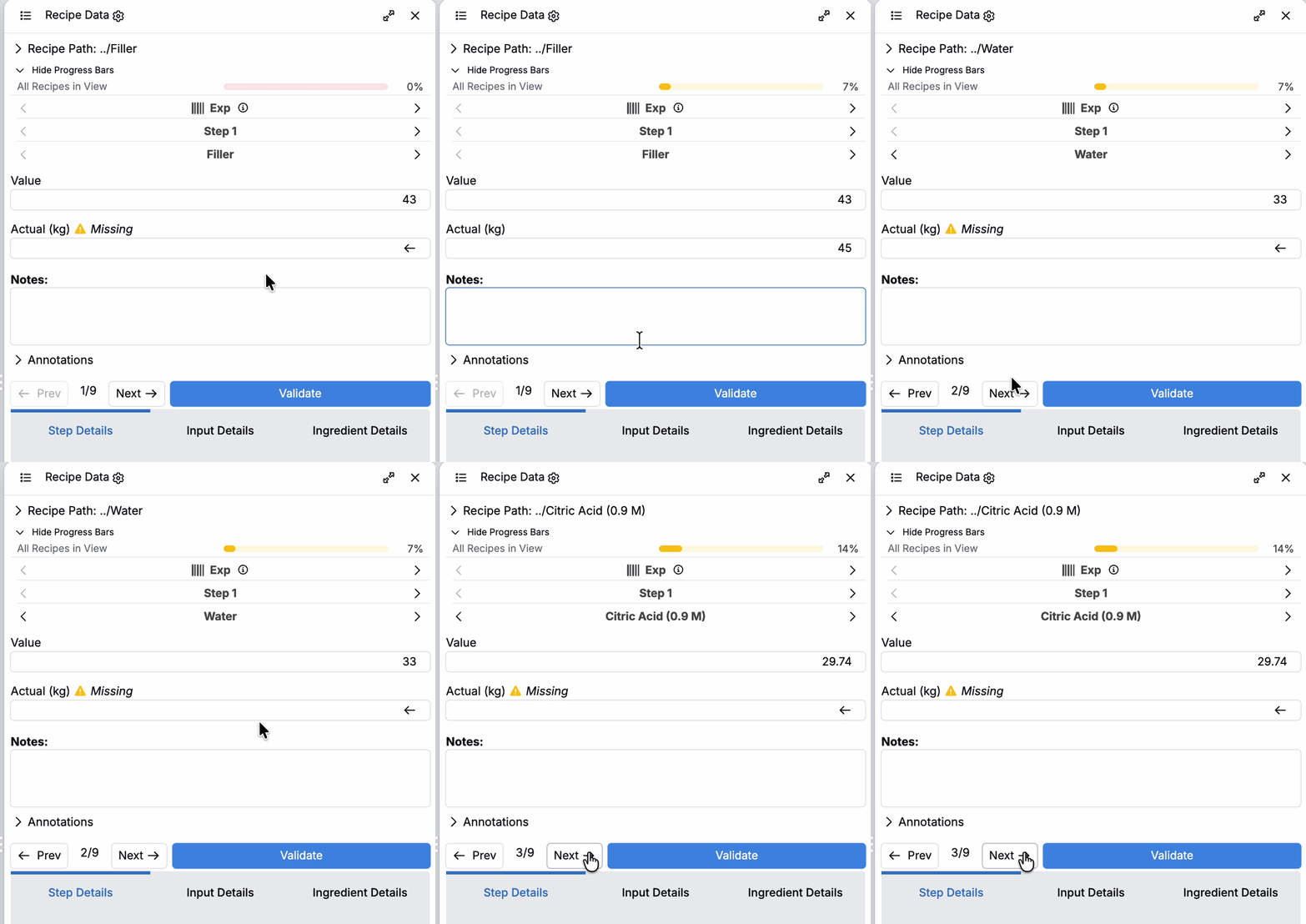
- Send the value from the scale. Depending on the scale configuration, this may be done by pressing the scale’s Print, Transfer, Add to protocol, or equivalent button.
- In the platform sidepanel, click into either the Values or Actual column.
- The measured value will automatically be added.
- Click Next to move to the next ingredient cell.
- Repeat these steps for each ingredient you need to weigh.
Inventory workflows
- Open the Inventory page for your ingredient.
- Use the scale to weigh your the inventory.
- Send the value from the scale. Depending on the scale configuration, this may be done by pressing the scale’s Print, Transfer, Add to protocol, or equivalent button.
- Click into the target inventory numeric field.
- The measured value will automatically transfer into the field.