Projects in Uncountable can be configured with custom fields to capture key details like start date, owner, or business unit. These fields are defined in your schema and help standardize project setup across your organization.
Project Definition Fields
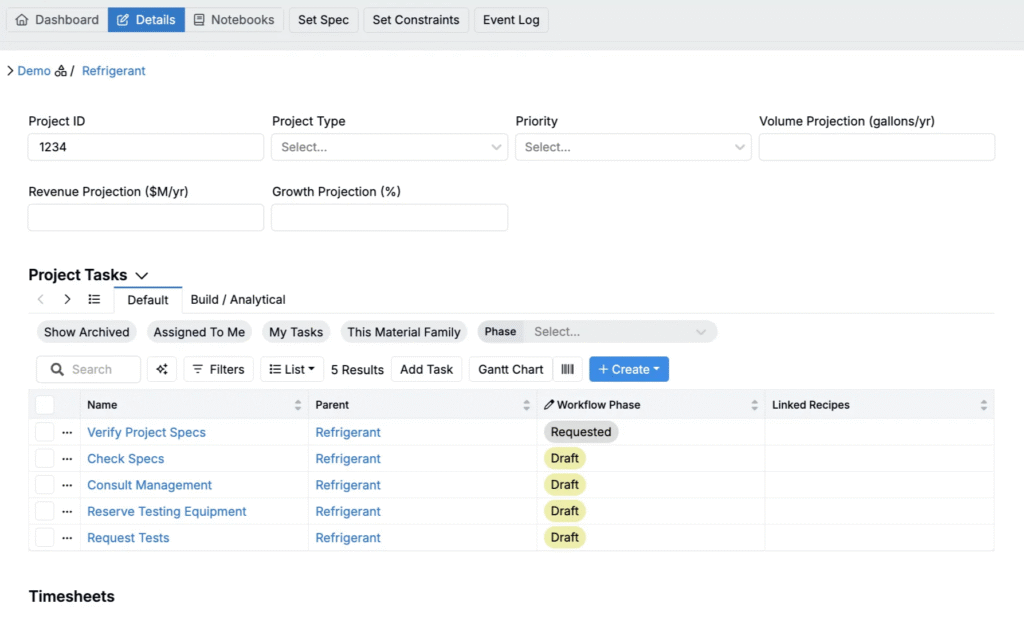
Project definition fields are custom fields added to a project’s schema definition. These fields appear on the project’s details page and can be filled out for each project individually.
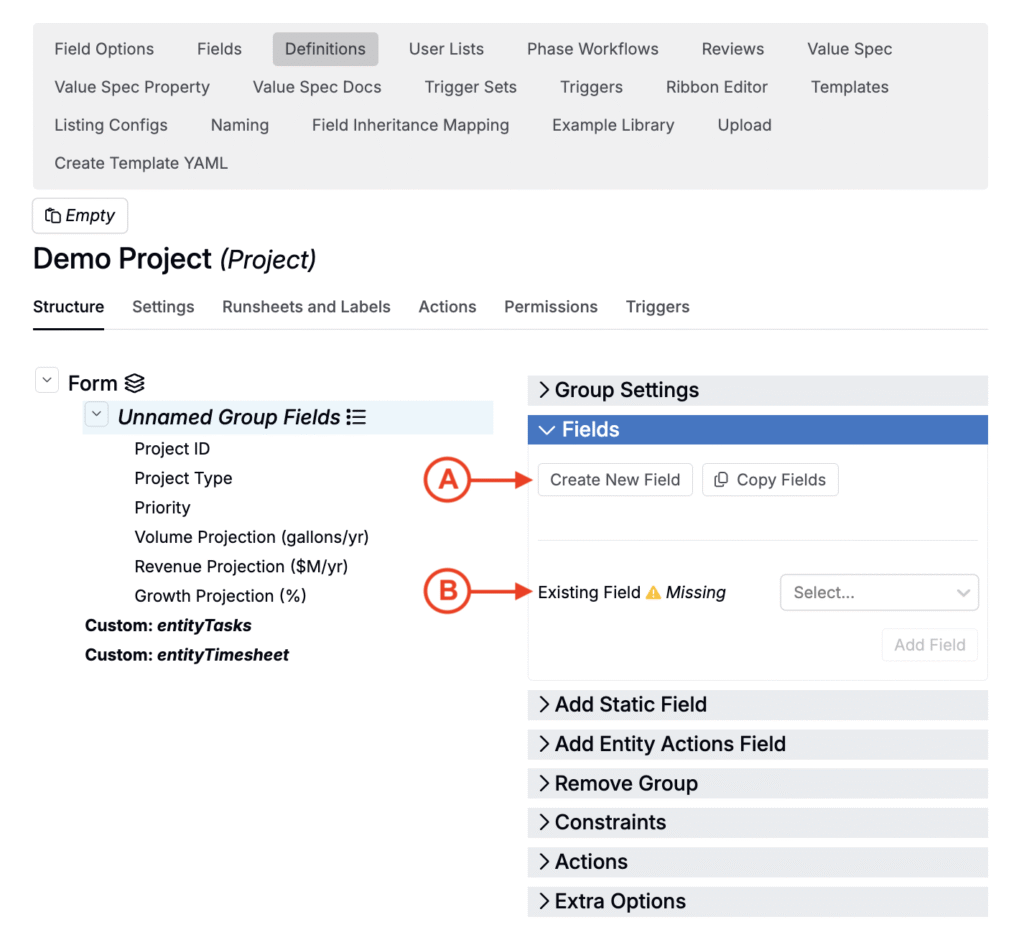
To add project definition fields:
- Go to Form Admin > Definitions.
- Search for the
[Schema Name] + Projectdefinition. - Add or select a field group.
- In the Fields tab, either:
- Create a new field (A), or
- Add an existing field to the group (B).
Supported Field Types
You can use the following field types in project definitions:
- Numeric — Number input (e.g. Projected Volume)
- Text — Free text (e.g. Owner)
- Date — Calendar picker (e.g. Start Date)
- Fixed List (Single) — Admin-managed single-select dropdown (e.g. Business Unit)
- Fixed List (Multiple) — Admin-managed multi-select dropdown (e.g. Product Category)
Once added, project definition fields are visible on the project’s Details page.
Project Metadata Fields
To display project definition fields more prominently throughout the platform, you can configure them as project metadata fields. This allows you to surface key fields in additional places, such as the New Project modal, the Select Projects page, or the Project Dashboard.
To manage project metadata settings:
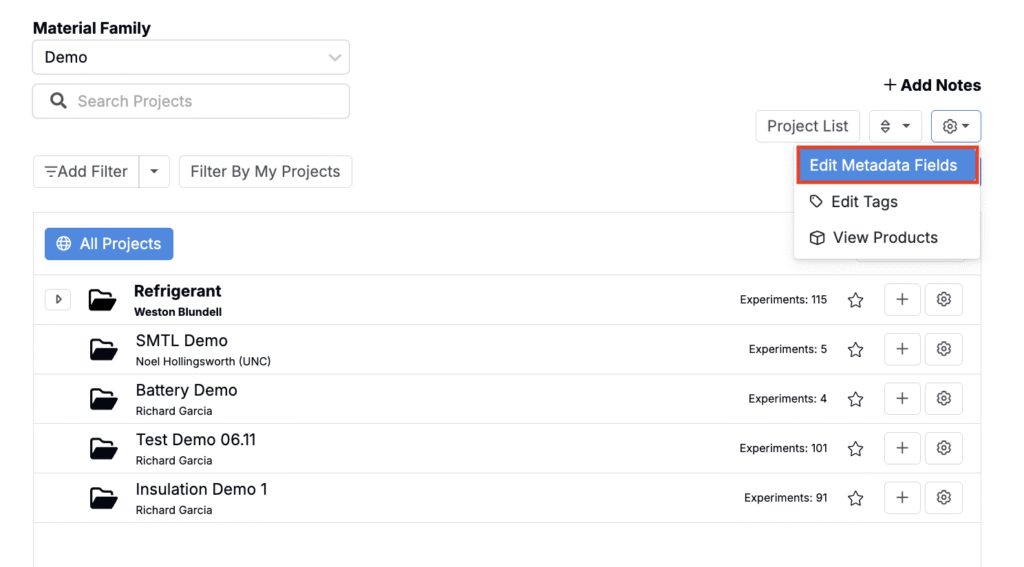
- Navigate to the Select Projects page.
- Click the ⚙️ icon > Edit Project Metadata.
- You can also always use Quick Actions and search “Project Metadata”.
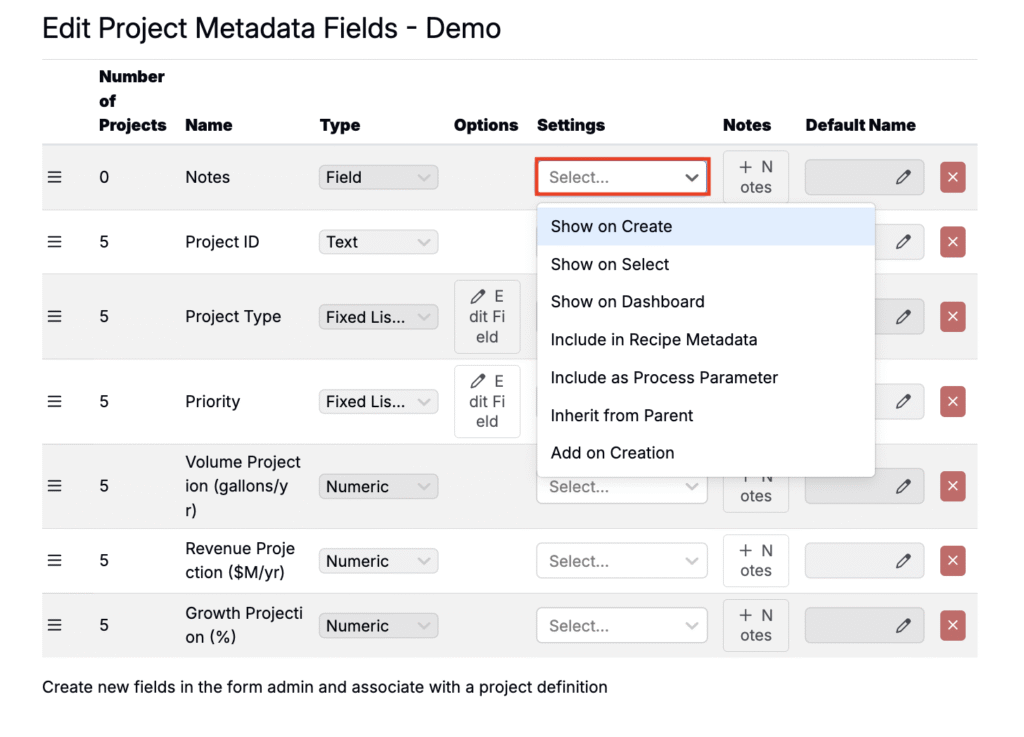
- On the Project Metadata page, use the Settings column to adjust where and how each field appears.
Project Metadata Settings
Project metadata field settings include:
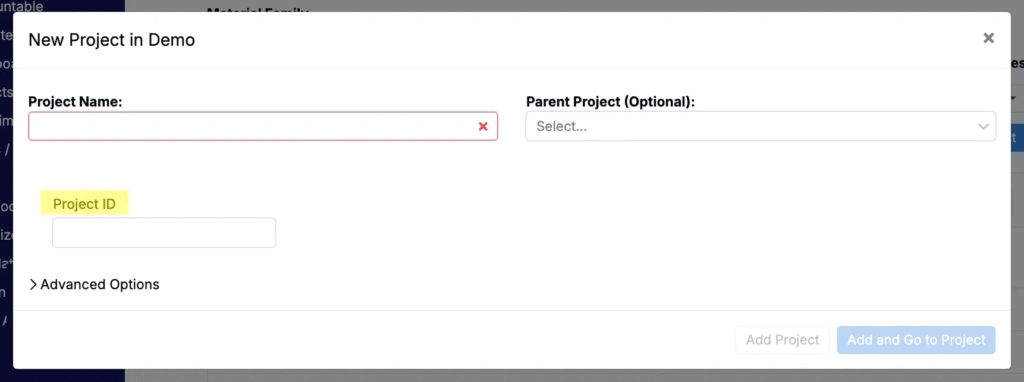
- Show on Create — Field appears in the New Project modal when creating a new project
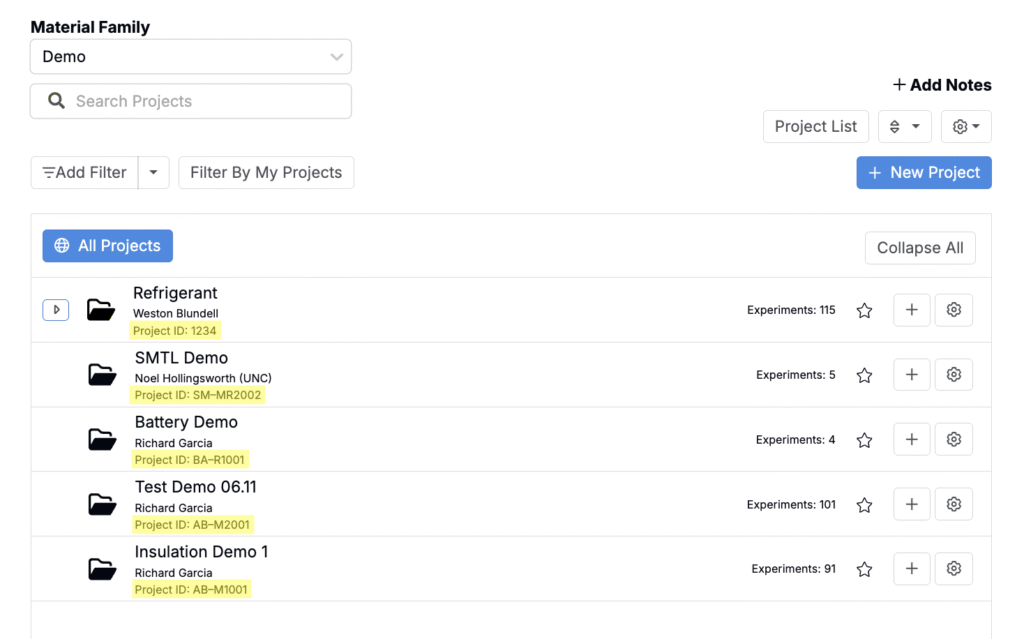
- Show on Select — Field value appears under the project name on the Select Projects page
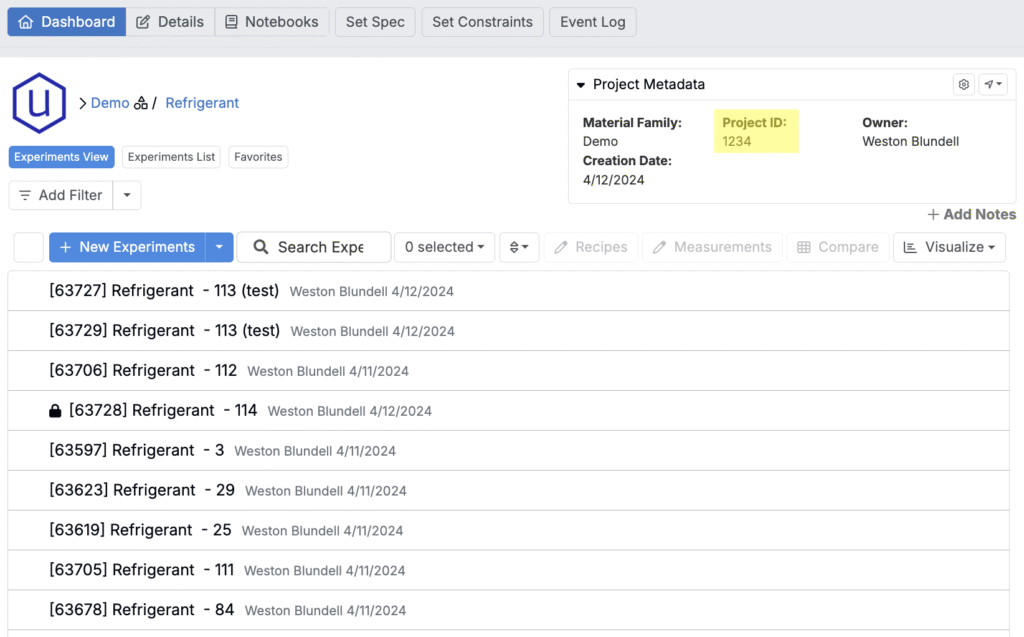
- Show on Dashboard — Field value displayed in the top right corner of the project’s Dashboard
- Include in Recipe Metadata — Links to recipe metadata if field names match
- Include as Process Parameter — Treated as a process parameter if names match
- Inherit from Parent — Value is copied to all child projects
- Add on Creation — Field is automatically added on new projects
Filtering by Project Metadata
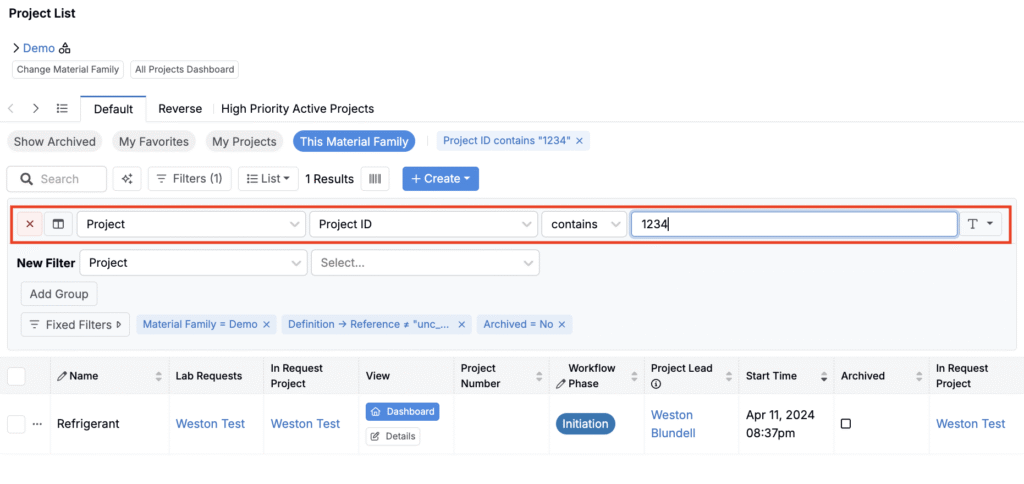
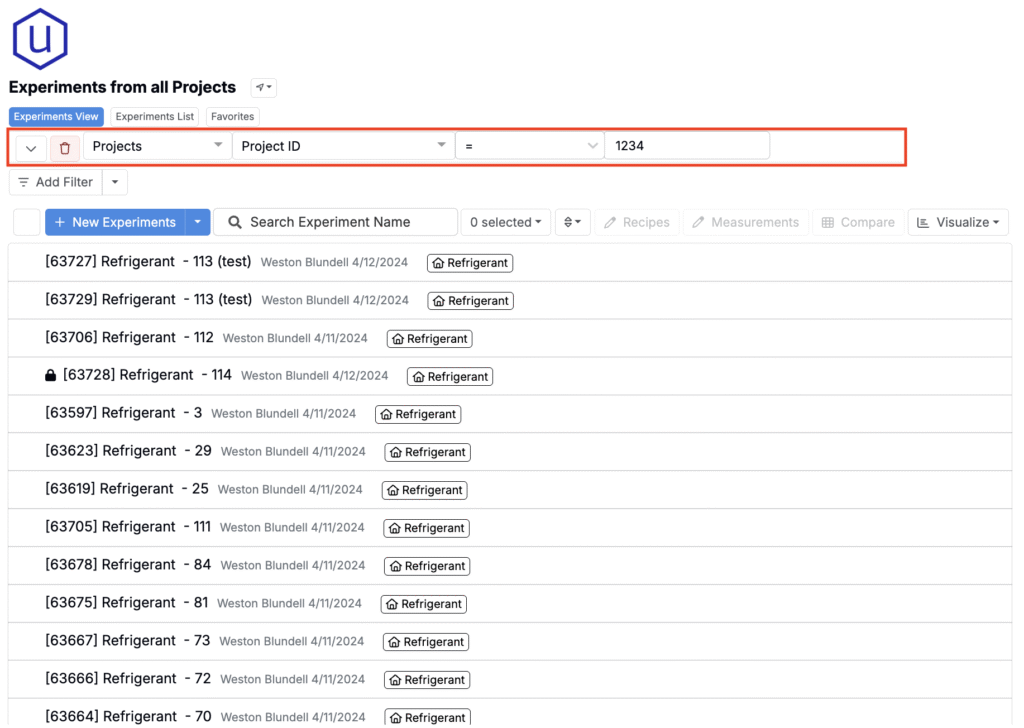
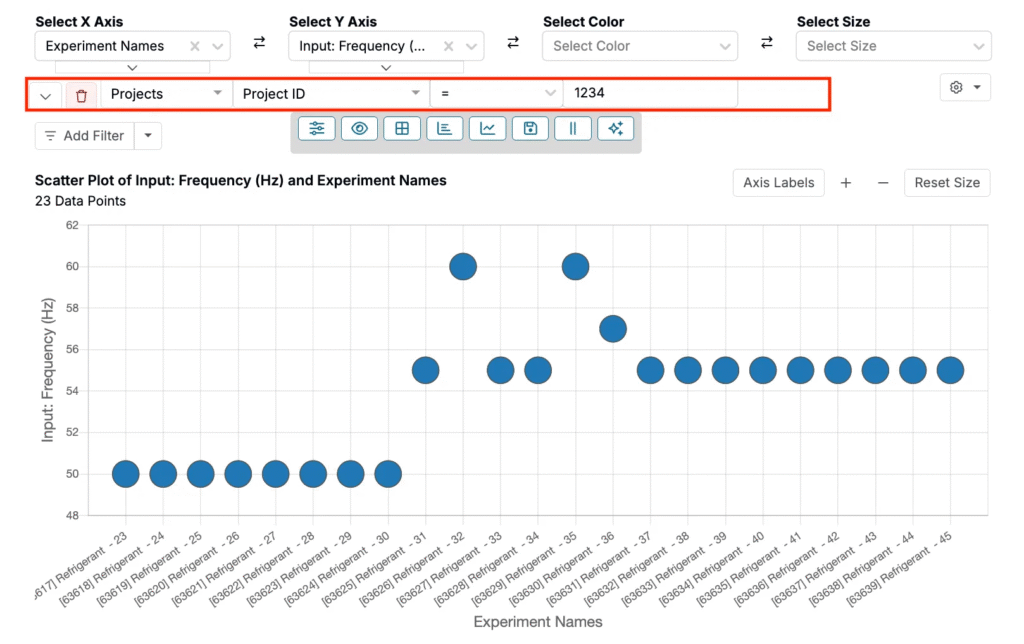
Once metadata values are defined for a project, they can be used as filters across listings, dashboards, and Explore Data visualizations.
To filter based on project metadata:
- Add a filter to your listing, dashboard, or visualization.
- Select Project as the filter source.
- Choose the relevant project metadata field.
- Set your filter condition (e.g. equals, contains, etc.).
This will limit results to experiments within projects that match the selected metadata criteria.