Bodie AI: Suggested Data Cleanup Operations
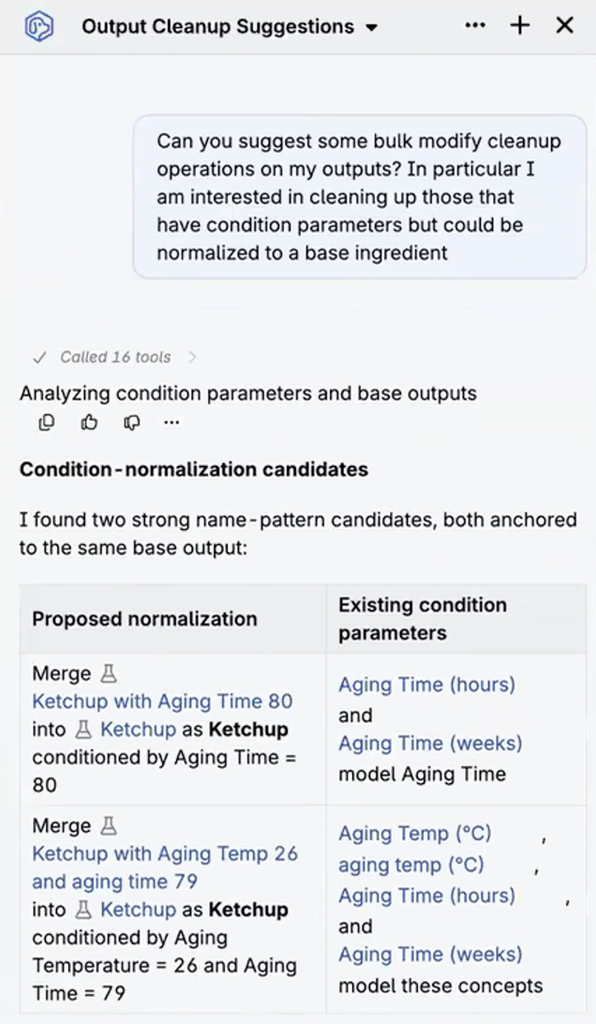
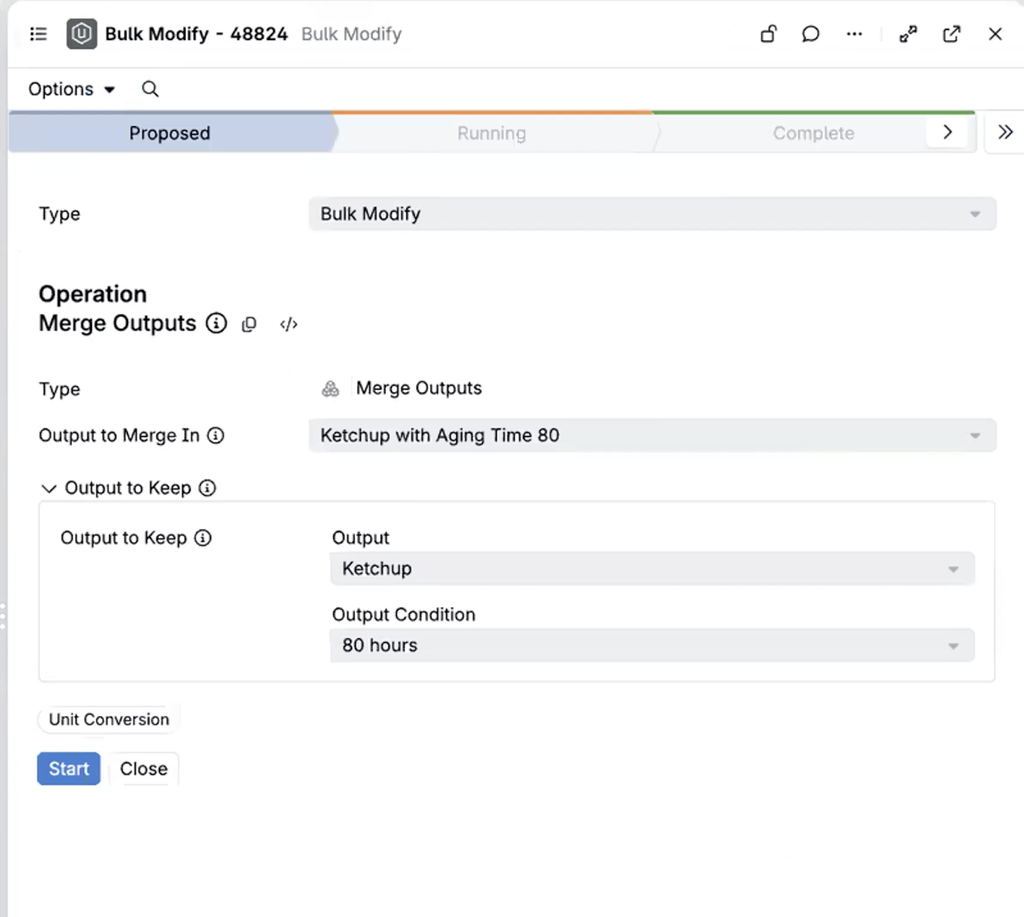
Bodie AI can now identify data-cleanup opportunities and propose bulk modification jobs for review. Current supported operations include:
- Merging outputs
- Merging ingredients
- Swapping outputs
Example prompts:
- “Suggest some bulk modify cleanup operations on my outputs. In particular, clean up those that have condition parameter but could be normalized to a base ingredient.”
- “Find duplicate ingredients that could be merged and prepare a cleanup job for review.”
- “Identify outputs that should be swapped and recommend the correct replacements.”
Bodie identifies potential candidates, recommends how records should be normalized, and prepares the cleanup job for review before execution. This keeps users in control while reducing the manual effort required to find and resolve duplicate or inconsistent data.
Drawing Content with Excalidraw
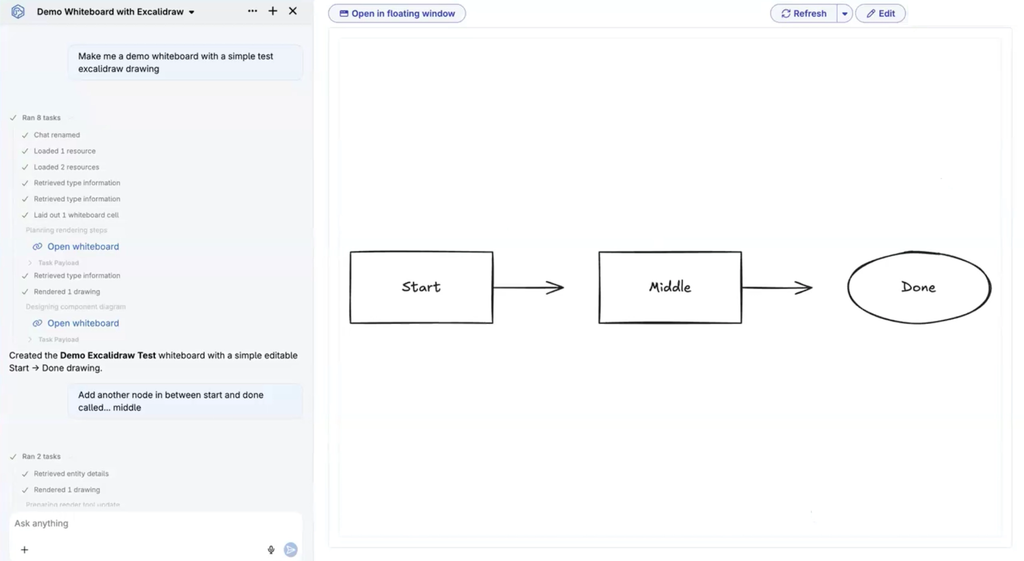
Whiteboards now support Excalidraw drawings, so diagrams, sketches, and simple flowcharts can sit alongside recipe and specification cards on the same canvas. Excalidraw content can be generated and edited through Bodie—for example, ask Bodie to create a diagram, then add or modify nodes and connections.
This capability also lays the foundation for a planned workflow in which Bodie generates a presentation as an Excalidraw whiteboard that can be exported to PowerPoint.
Config Transfer: Favorite Links and Synchronous Exports
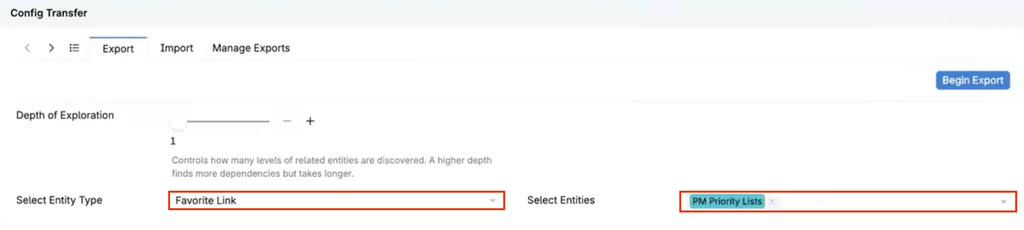
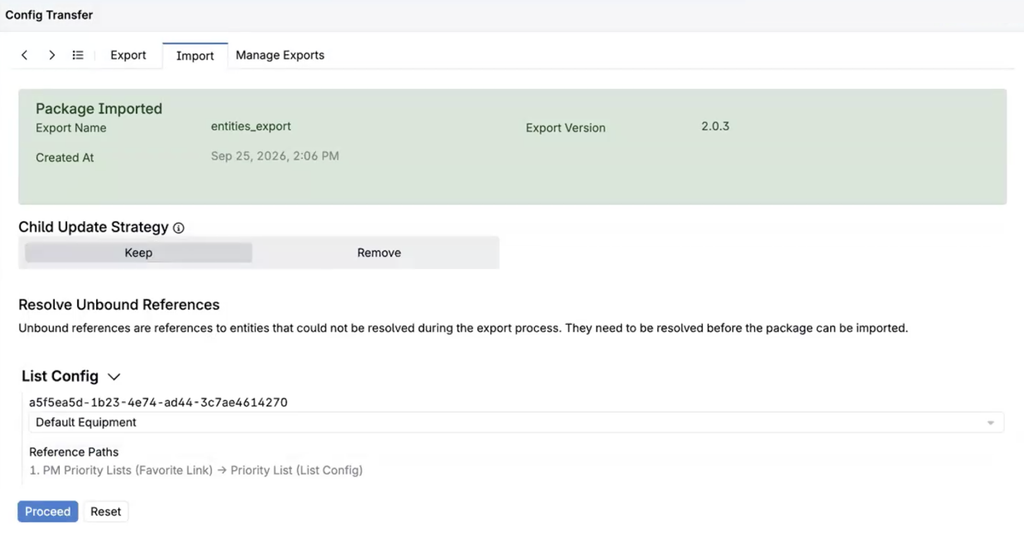
Favorite links can now be exported and imported with Config Transfer, so curated navigation links no longer need to be recreated by hand in each schema. As with other imports, unresolved references (such as a listing the link points to) can be mapped to existing entities in the target schema before the import is committed. This is the first step toward supporting config transfer for full dashboards.
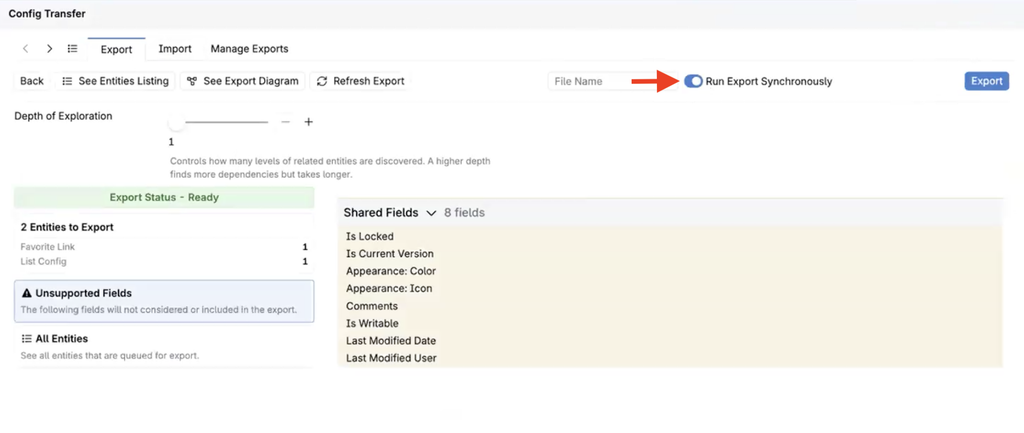
Exports can also now run synchronously. The new Run Export Synchronously switch on the export page is off by default; when turned on, the export runs immediately and returns the file directly instead of being queued as a background job. The switch is unavailable for exports that include more than 400 entities.
How to use:
- Go to Form Admin > Config Transfer and open the Export tab.
- Select Favorite Link as the entity type and choose the links to include.
- Optionally, turn on Run Export Synchronously for smaller exports.
- Export the package, then import it into the target schema from the Import tab.
- In Resolve Unbound References, map any references that do not exist in the target schema, then review and commit the import.
Accepted Child Phases for Embedded Entities
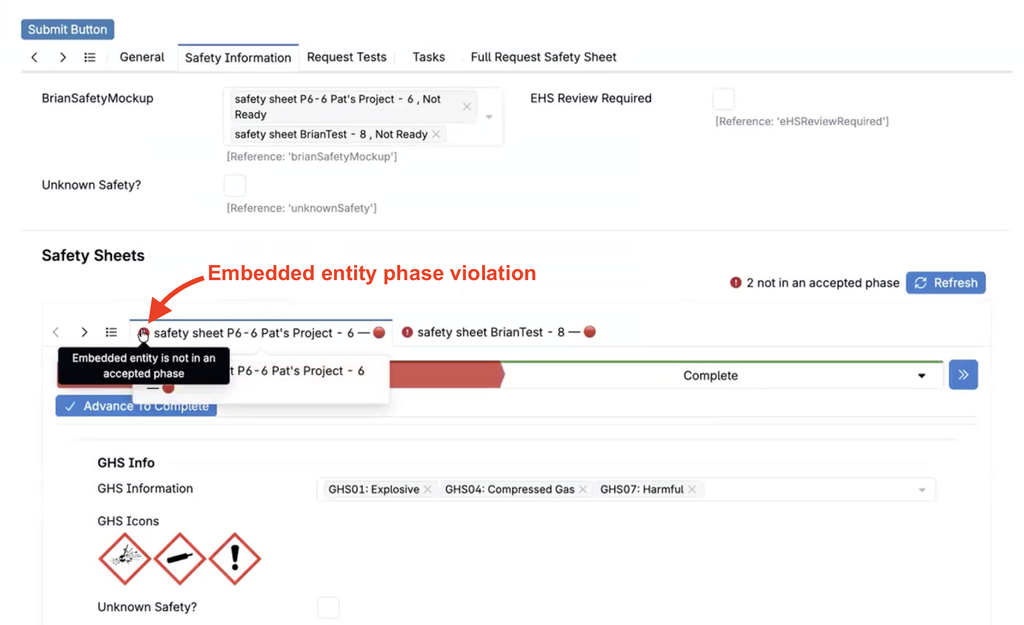
Forms with embedded entities can now require each child to reach an accepted phase before the parent advances. For example, a lab request can remain blocked until every attached safety form is Complete; missing required fields prevent a child from reaching that phase.
The parent form identifies noncompliant entities with field violations and tab warnings. The check also applies recursively to nested entities.
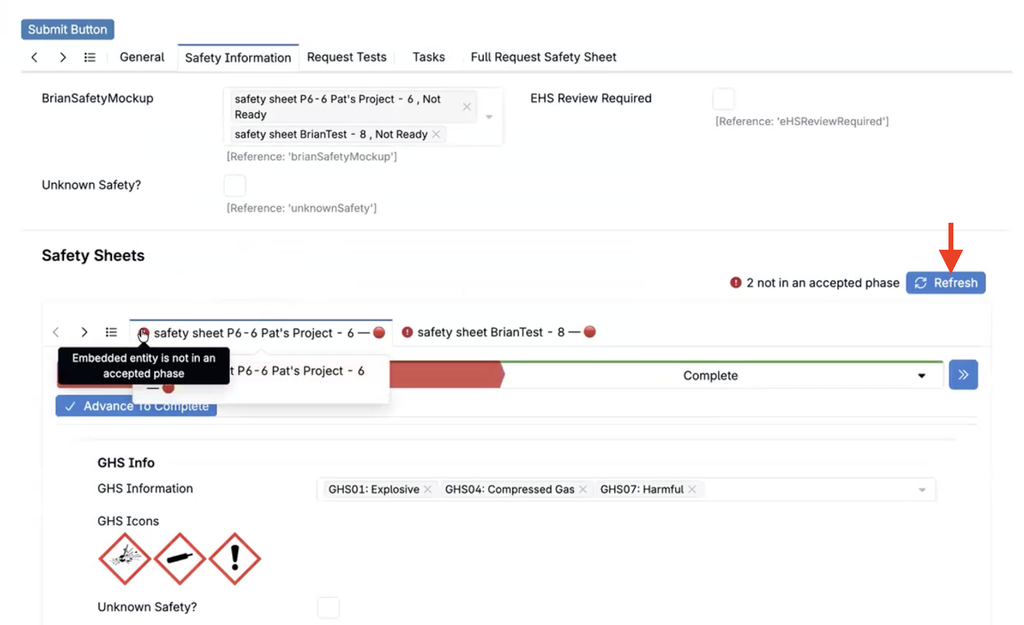
Because nested entities can be edited by other users at the same time, a Refresh control is available to re-run the check and update the violations.
How to use:
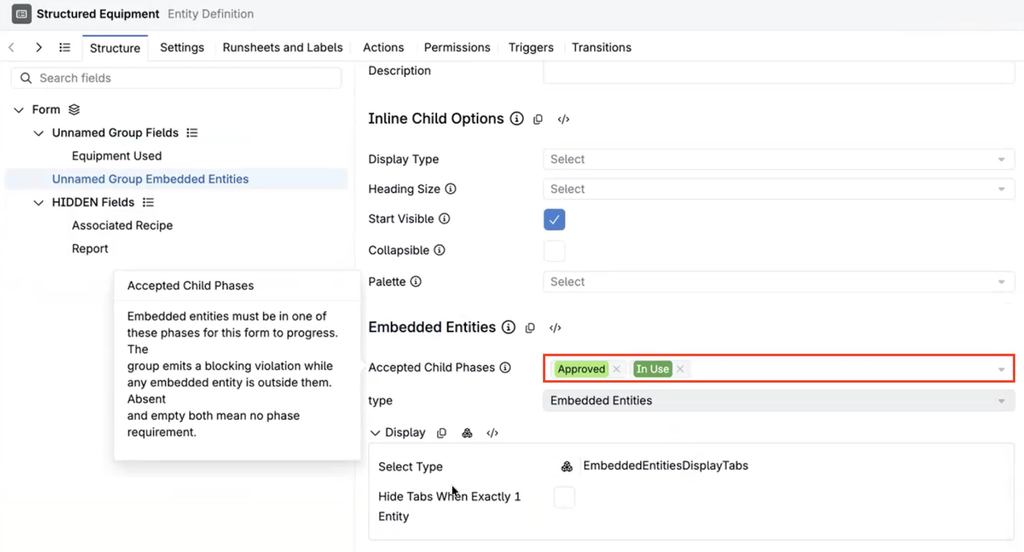
- Open the definition for the parent entity and select the Embedded Entities group.
- Use the Accepted Child Phases field to select the phases that embedded entities must be in. The dropdown lists the phases of the embedded entity’s workflow.
- Save the definition.
- On the parent form, review any field violations and tab warnings for embedded entities outside an accepted phase.
- If nested entities are edited elsewhere, select Refresh to update the violations.
Kanban Boards on Entity Pages
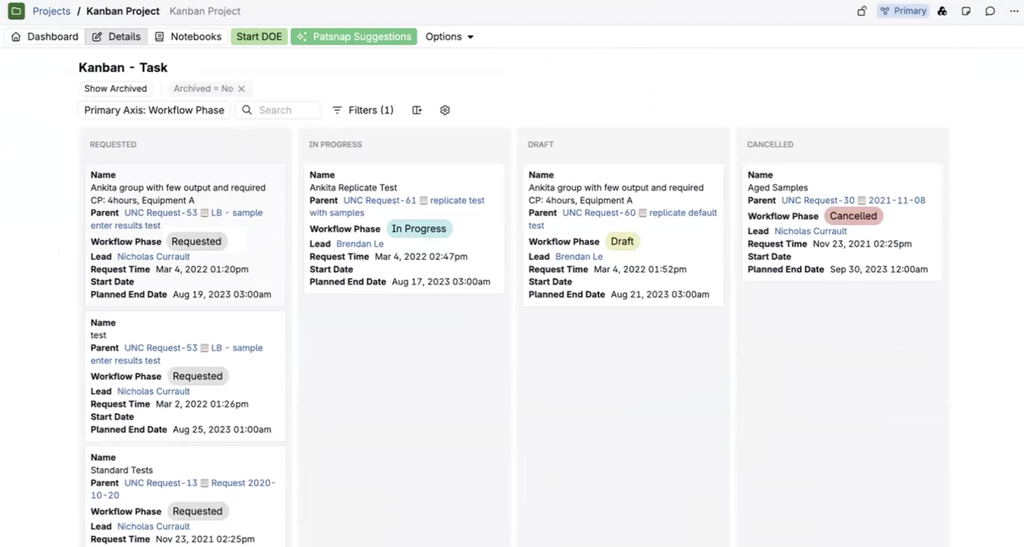
Kanban boards can now be embedded directly on entity pages, in the same way listings can be embedded today. For example, a project page can show all of its associated requests or tasks as cards grouped by status, without leaving the project.
The embedded board supports the same listing configuration as other listings, so columns, filters, and card content can be tailored to the page. The workflow phase bar stays pinned at the top of the page while scrolling through the board.
How to use:
- Open the entity’s definition and add or select a listing group.
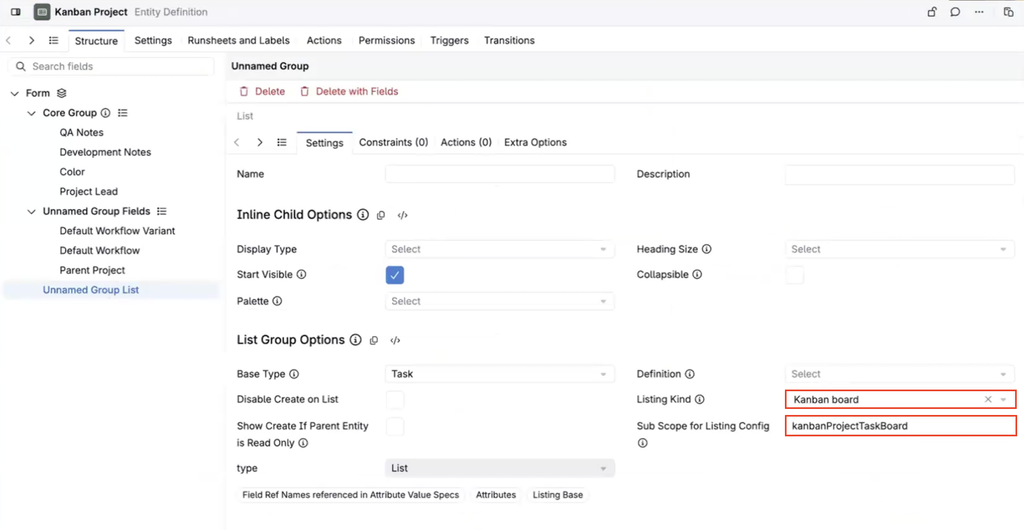
- Set the Listing Kind to Kanban Board.
- Configure the board through its Listing Config, including the columns and the entities it displays.
- Save the definition and open an entity page to view the board.
Run Solver Trigger: Locks and Solver Objective
The Run Solver trigger action now supports more of the configuration previously available only in the Solver side panel, so recurring Solver setups can be automated instead of configured by hand each time.
When adding a Run Solver trigger action to a trigger, users can now also configure:
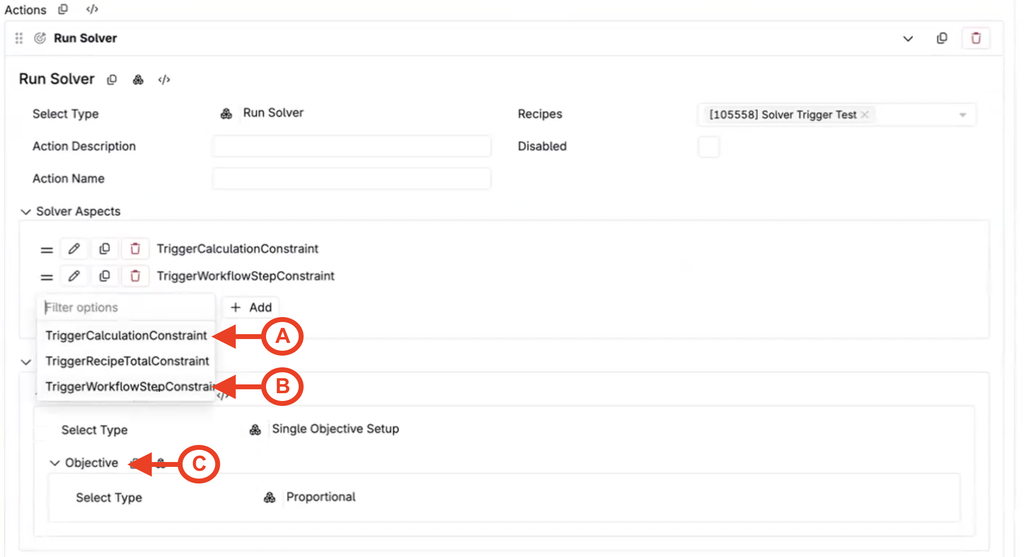
- Calculation locks (A) — Under Solver Aspects, add a TriggerCalculationConstraint to fix a solvable calculation to a specific target value—for example, a fixed design volume .
- Workflow step locks (B) — Under Solver Aspects, add a TriggerWorkflowStepConstraint to hold every ingredient in a workflow step at its current value. Because the lock applies to the step rather than to individual ingredients, it continues to work when the ingredients in that step vary between experiments.
- Solver Objective (C) — Under Solver Objective, you can now set the objective the Solver uses when the trigger runs. For example, a proportional objective keeps the ratios between the remaining ingredients as close to their current values as possible while reaching the calculation targets.
This is especially useful for teams whose users should not need to interact with solver settings directly.
Fully Configurable Sidebar Navigation
All of the built-in links in the Uncountable navigation bar can now be managed through the Edit Favorites system. Previously, most navigation bar items were hard-coded and could not be reordered, renamed, or removed. Admins can now hide, edit, reorder, and remove any sidebar item, and add custom links alongside the standard ones. Links continue to respect license requirements and existing platform configuration.
Two pieces make this possible:
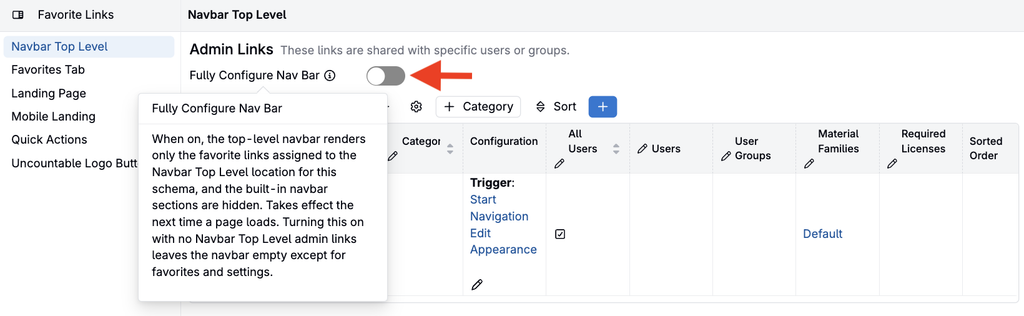
- A Fully Configure Nav Bar toggle in the Admin Links section of Edit Favorites page. When it is on, the built-in sidebar sections are hidden and only favorite links are shown.
- A Control Panel Admin Action copies the schema’s standard sidebar links into Admin Links and enables fully configurable mode. The sidebar initially looks unchanged, but admins can then edit, reorder, hide, or remove each link.
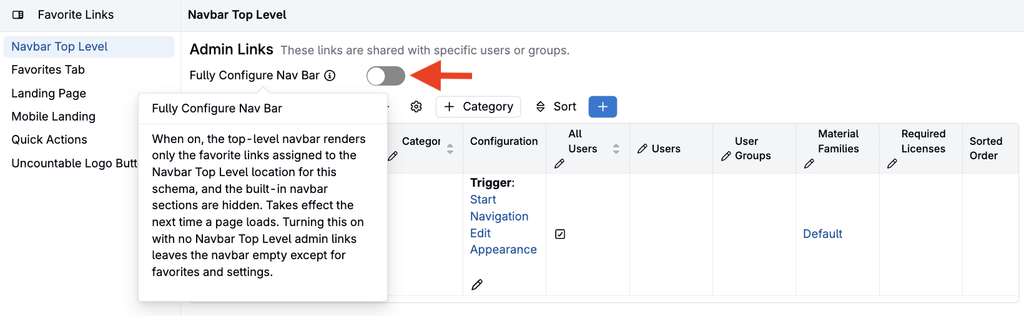
Note: Turning on Fully Configure Nav Bar without running the populate action hides all built-in links and leaves a nearly empty sidebar. Use the admin action unless you intend to build the sidebar from scratch.
Bodie AI: Input Calculations from Excel Spreadsheets
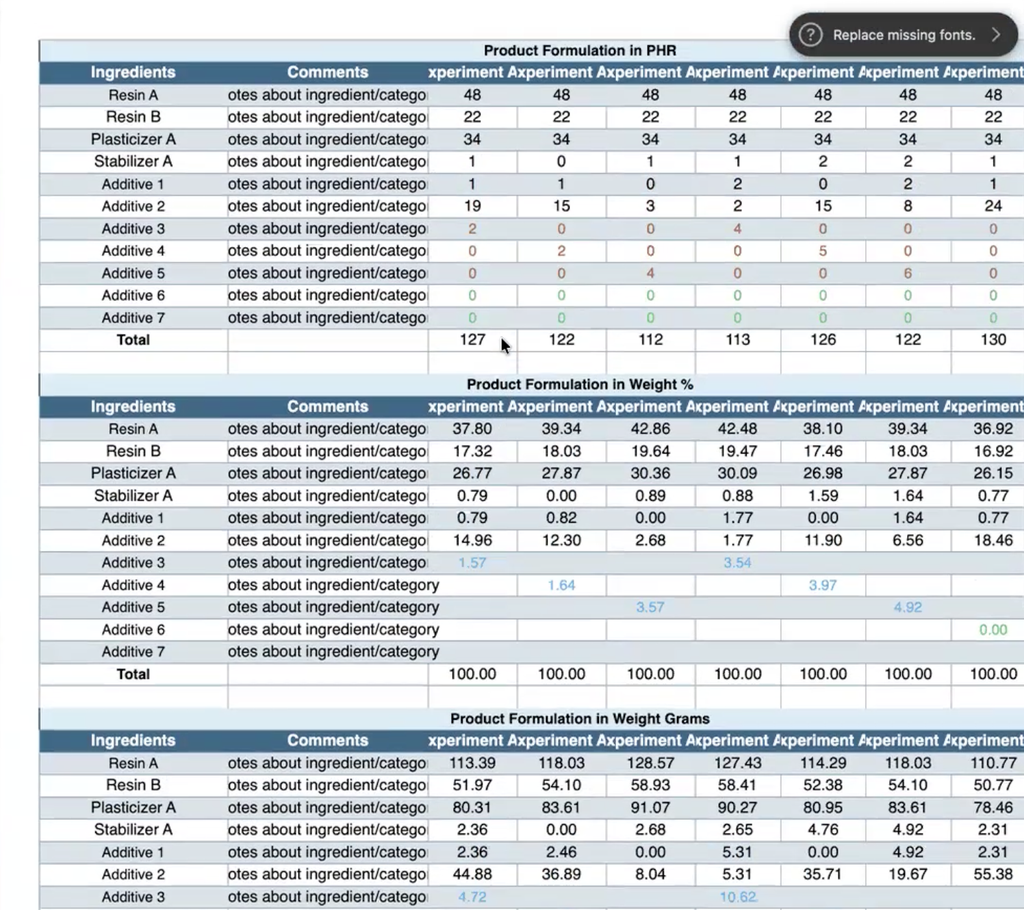
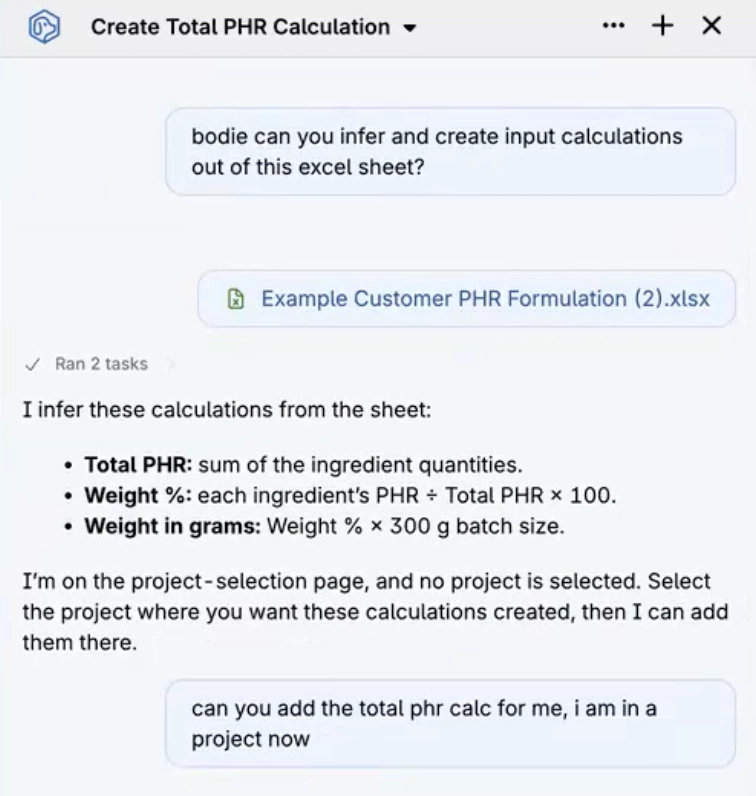
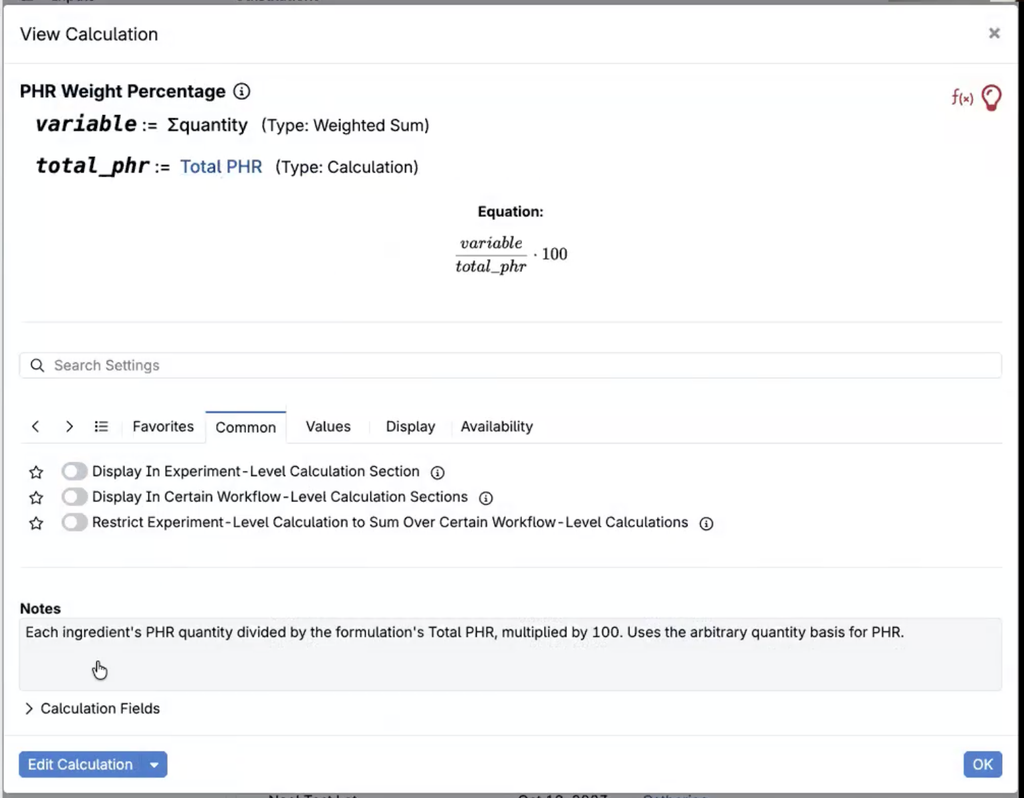
Bodie AI can now read an uploaded Excel spreadsheet and set up matching input calculations. This supports common workflows such as recipe imports and reformulating existing spreadsheet-based formulations in the platform, where calculation logic would otherwise need to be recreated manually.
Bodie first describes what it can infer from the spreadsheet—for example, PHR values, weight percentages, or a combination of the two—and asks for any clarification it needs. It then creates the calculations, including custom calculations where the spreadsheet logic requires them. Handling of more complex or ambiguous spreadsheets is still being improved.
Example prompts:
- “Create input calculations from this spreadsheet.”
- “Import this formulation and recreate its PHR and weight percentage calculations.”
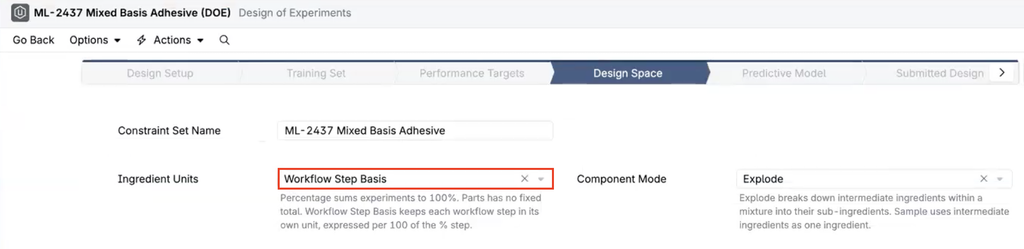
DOE: Workflow Step Basis
DOEs now supports Workflow Step Basis as a unit option in the design space, alongside Percentage and Parts. This is intended for workflows that mix units across steps, for example, a formulation in %, additives in PHR , and solvent in grams.
Previously, these workflows were modeled in mass, so results depended on batch size, suggestions did not sum to 100, and auto-generated constraints could span a very wide range. With Workflow Step Basis, each workflow step keeps its own unit. The first % step is the anchor and always sums to 100, and every other step is measured per 100 of that step. Batch size no longer affects the model, and suggestions come back in the workflow’s own units.
Auto-generated constraints respect the selected basis and each ingredient’s units. The option is available only for workflows that include a % step.
How to use:
- In the DOE flow, open the Design Space step.
- In the units selector, select Workflow Step Basis.
- Select Auto Generate Constraints to create constraints in each step’s own units.
- Review the constraints and continue to generate suggestions.