Expanded File Type Previews
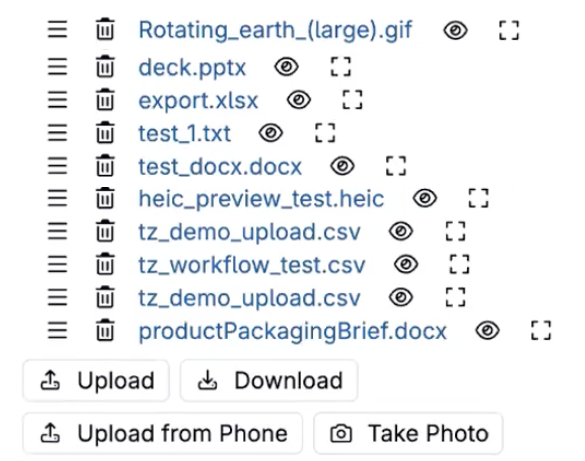
File previews now extend beyond PDFs. From an entity or listing table, you can preview PowerPoint, Word, additional image formats, CSV, and MSG email files inline, including downloading and rendering email attachments directly from the preview.
To preview a file, click the 👁️ icon associated.
Formula/Solve Mode Toggle on the Recipes Page
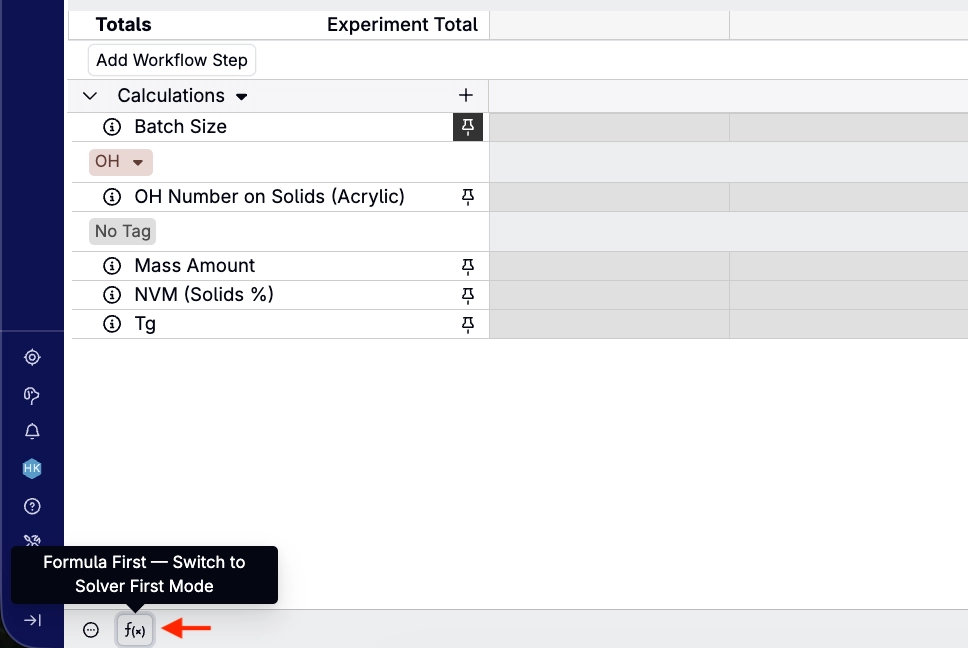
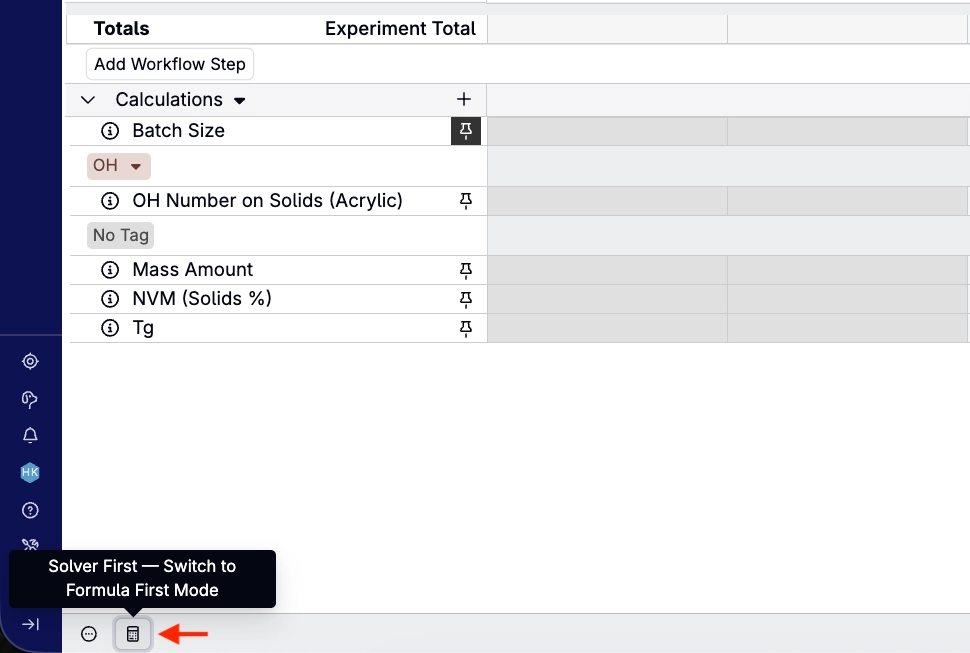
A new toggle button in the bottom-left corner of the Recipes page lets you switch between Formula First Mode and Solver First Mode.
- Formula First Mode is best when you’re building or adjusting a recipe directly from its ingredients — for example, adding ingredients, editing amounts, or experimenting with a formulation manually. Use this mode when you know what should go into the recipe and want calculated outputs to update from those ingredient choices.
- Solver First Mode is best when you’re starting from target outputs or constraints and want Uncountable to calculate the ingredient amounts needed to meet them. Use this mode when you know what properties, specs, or targets the recipe should achieve, but want the solver to determine the formula.
Previously, switching modes required the action bar, which meant the current mode wasn’t always obvious at a glance. The new toggle keeps the active mode visible at all times and reduces switching to a single click.
Note that the toggle controls which formula type is active on the recipe’s cells, so it will only look different on recipes that have Excel formulas or Solver locks set up.
Multiple Previous Tasks and Critical Path in Gantt Charts
You can now link multiple previous tasks to a single task in Gantt charts, either by dragging between tasks or through the Previous Tasks field in the task’s sidepanel. Previously, a task could only have one predecessor.
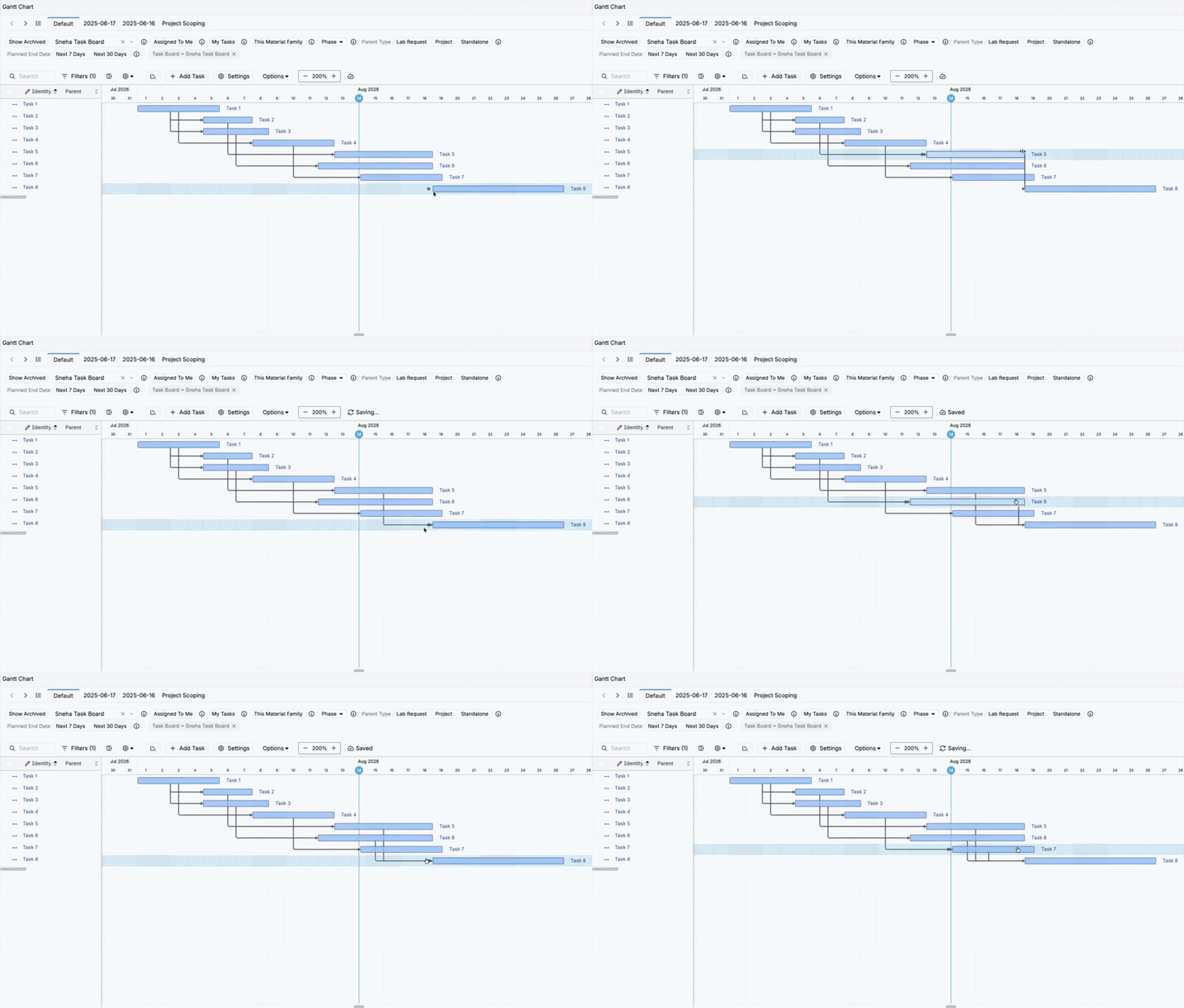
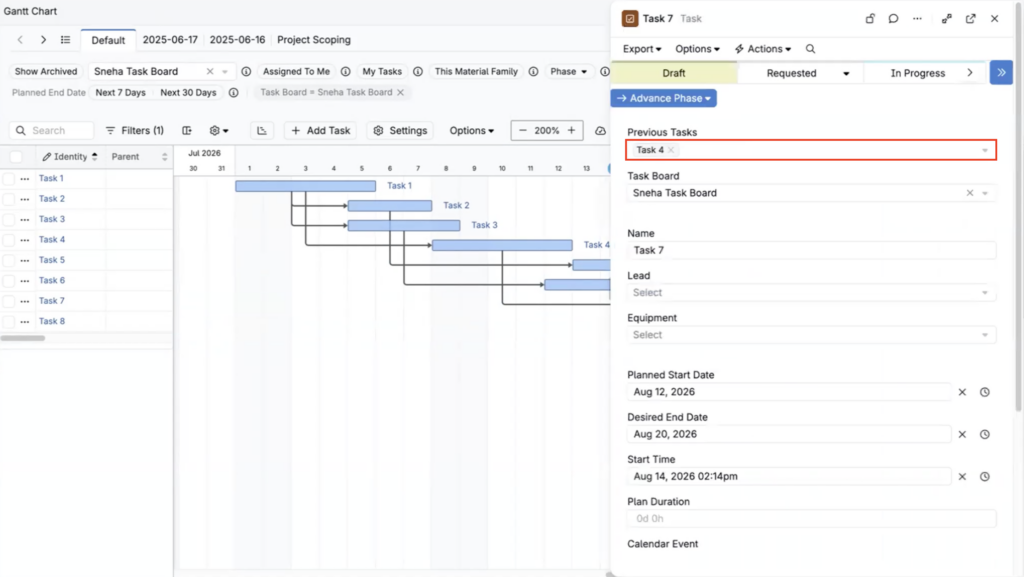
Additionally, new Critical Path toggle in Gantt chart settings highlights the critical path across the entire task network, making it easier to spot the sequence of tasks that actually determines the project timeline.
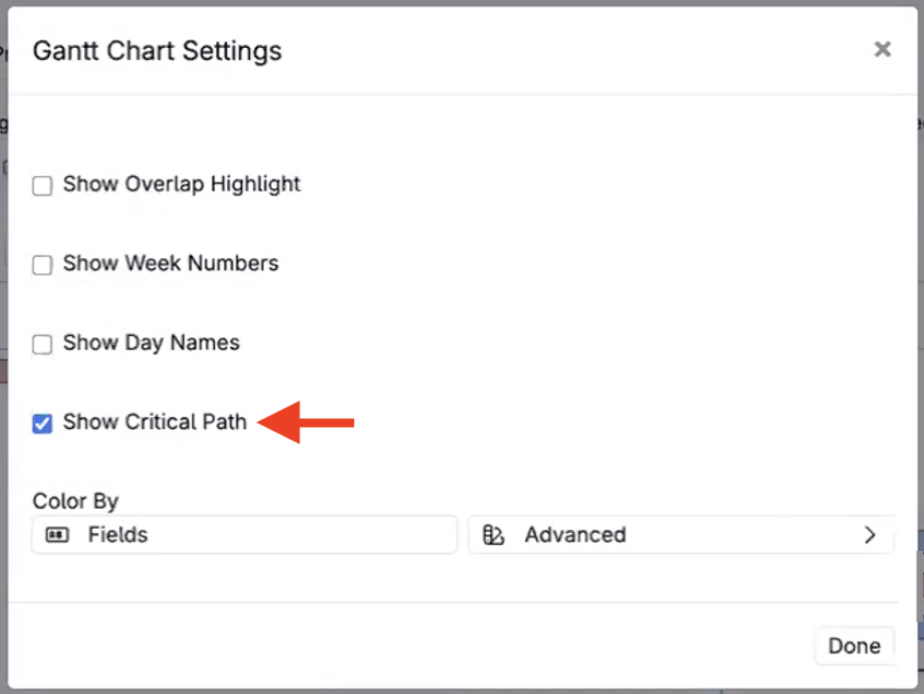
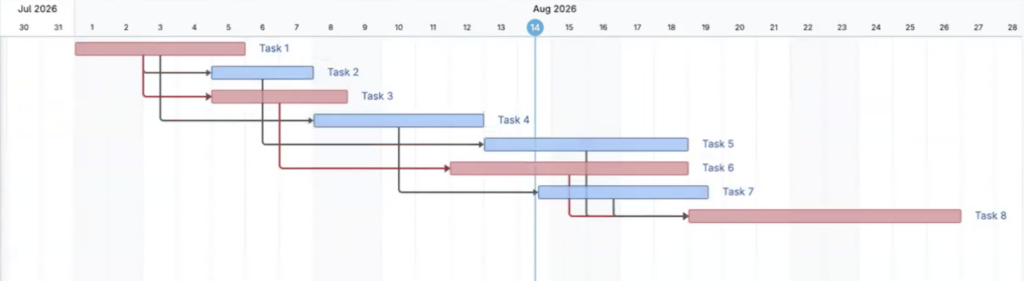
This is especially useful for PPM use cases, where a project can involve many interdependent tasks across different teams — being able to see which chain of tasks is driving the timeline, rather than just the longest individual task, makes it much easier to prioritize and unblock work.
Bodie AI Walkthroughs
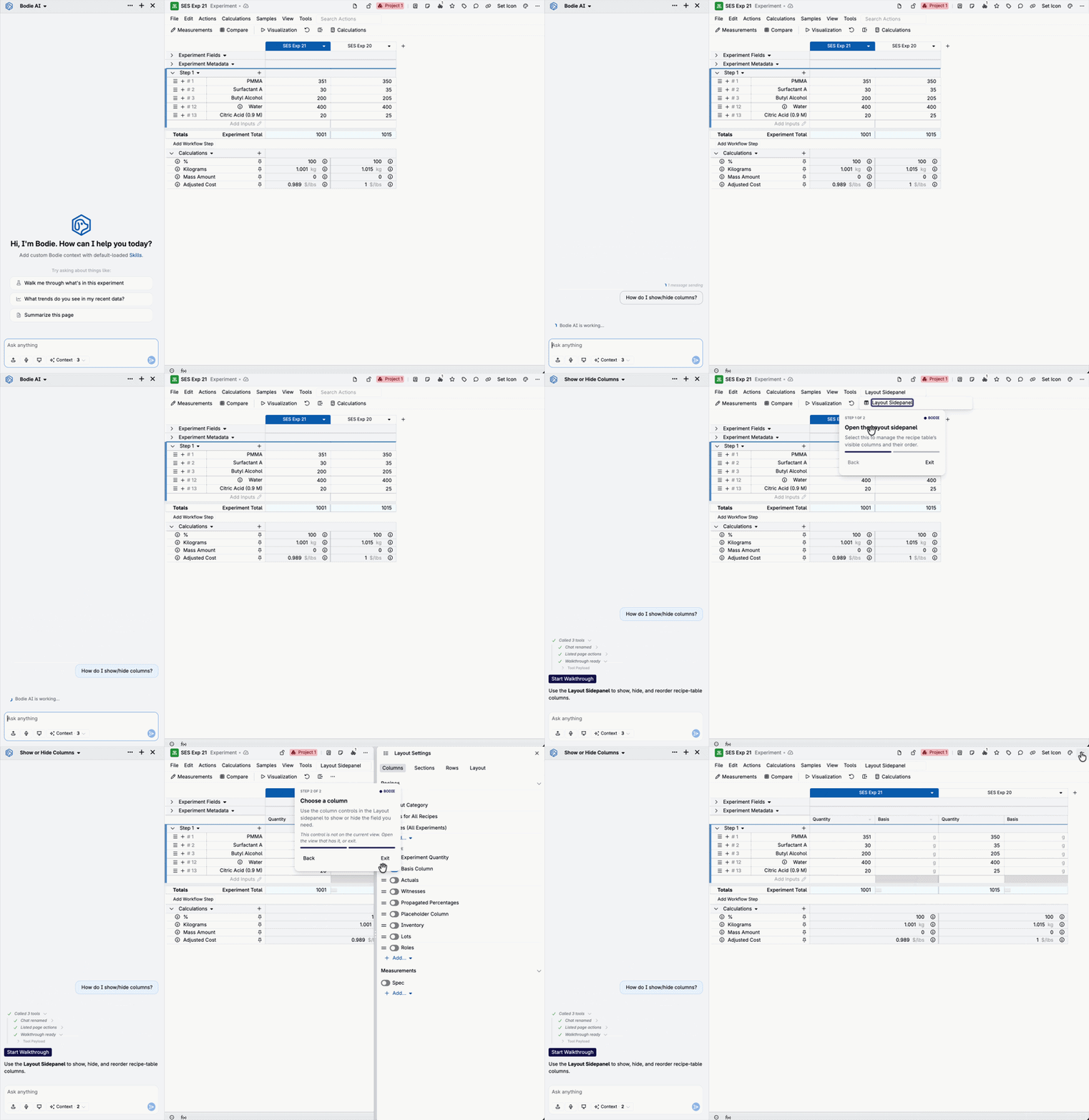
Bodie can now walk you through platform actions on the Recipe and Measurement views of experiments, instead of just telling you where to look. Ask Bodie how to do something and can highlights each step live as you navigate to the control.
This builds on the page action buttons Bodie shipped in June, extending it from one-click shortcuts to full multi-step, highlighted guidance. See Bodie AI Walkthroughs for more detail.
Configurable Project Navigation Buttons
Project pages now give admins more control over the buttons shown across the top of the Project Definition page.
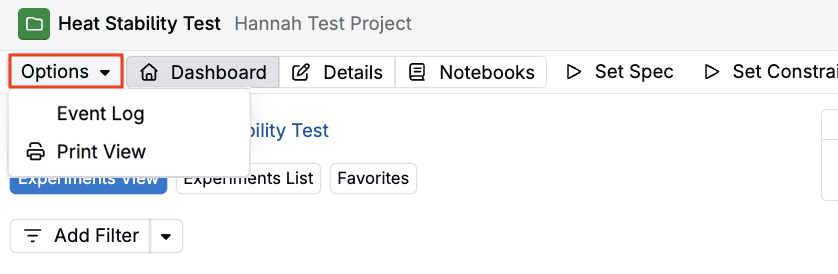
- Event Log and Print View have moved into the Options menu, matching the layout used on other entity pages.
- Schemas that want per-project control over navigation can also hide the default Dashboard, Details, and Notebooks buttons using a new company-wide setting.
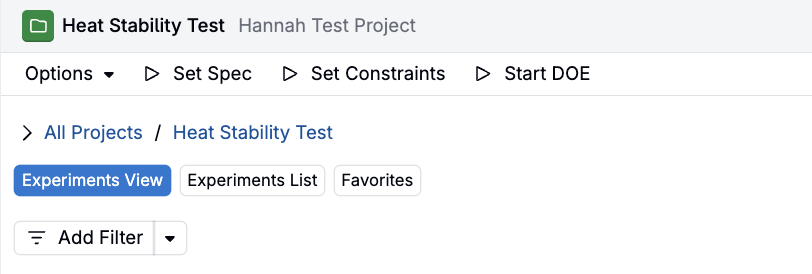
Once hidden, those destinations can be added back as configurable action buttons on individual project definitions. Read the full update for more information.
Gen AI Is Now Organized Around Connectors
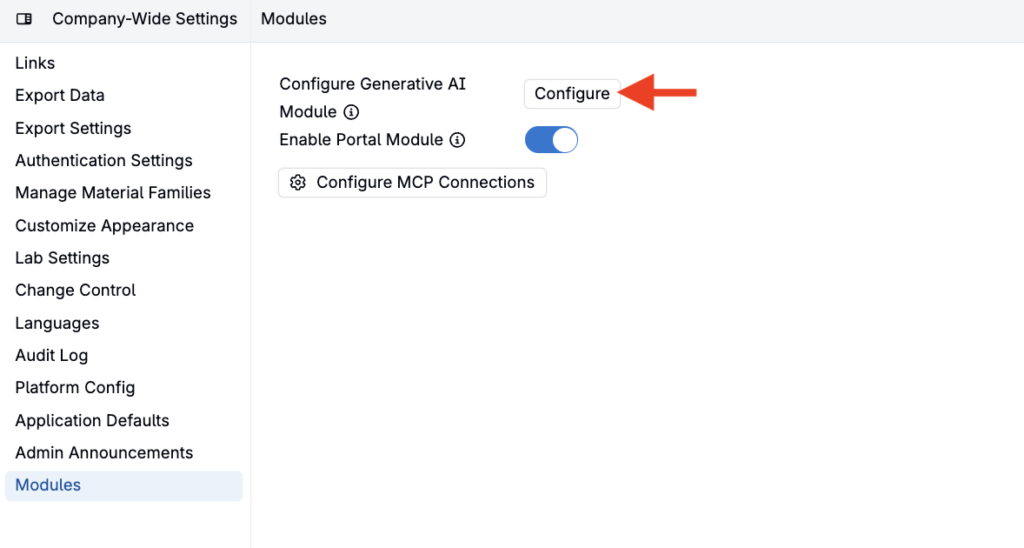
We’ve upgraded how Generative AI is managed on the Uncountable platform. GenAI now runs on connectors — the specific AI backends your account is connected to — with a new Configure Generative AI Module page for adding, testing, and managing them all in one place. This release also brings Google on as a new provider, a guided setup flow for adding connectors, shared chat viewability, and per-connector model controls for Bedrock.
Read the full update to learn how to configure your connectors and what’s changing for admins.