
The Solver is a powerful optimization tool, but complex constraints, hidden locks, zero-value ingredients, or incompatible calculations can lead to infeasible solves or unexpected behavior.
This guide explains the most common issues you may encounter and how to resolve them quickly.
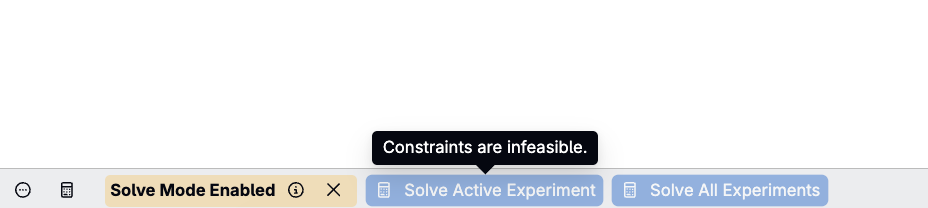
Understanding “Infeasible” Errors
If you get an infeasible error message, this simply means that your locked constraints cannot be satisfied simultaneously with the ingredients Solver is allowed to modify. Often this happens due to configuration issues rather than true mathematical impossibility. The steps below help uncover and fix the root cause.
Common Solver Issues and How to Fix Them
Issue 1: Blank or Zero Ingredient Amounts
Solver never changes blank (“–”) or zero (0) ingredient amounts. If any ingredient you expect Solver to adjust is zero/blank, the solve will fail or produce incomplete results.
How to fix
- Replace blank/zero amounts with a small non-zero value (e.g., 1 g)
Issue 2: Too Many Locked Calculations (Over-Constrained System)
Solver needs at least as many adjustable ingredients as locked calculation constraints. As a general rule of thumb, unlocked ingredients ≥ locked calculations.
How to fix
- Unlock more ingredients
- Or unlock one or more calculations
- Or convert one or more fixed-value locks into a directional (range) constraint to relax the requirement
- Re-run with a simpler set of constraints first
Note: Column-calculation locks (e.g., several Weight % rows) add one constraint per locked row, not a single constraint for the whole column.
Issue 3: Hidden Calculation Locks
You may have locked a calculation and then hidden it or removed the column from the recipe page. The lock still exists behind the scenes.
How to fix
- Open Solver/Locks.
- Review all calculation and ingredient locks
- Remove any unintended or hidden locks
- Re-run Solver
Issue 4: Using a Non-Solver-Compatible Calculation
Locked calculations must come from weighted sum calculations. Solver fails when calculations include:
- Manually specified totals
- Calculated totals
- Weighted averages used inside composites
- Ingredient-calculation multipliers that break compatibility
Symptoms
- No lock icon next to the calculation in Solve Mode
- Solver does not respond to the typed-in target
How to fix
- Rebuild the calculation using supported calculation types
- Confirm a lock icon appears
- Try solving again
Issue 5: Trying to Solve Before Setting Attributes or Data
Solver uses ingredient attributes (e.g., Tg, OH number). If attributes are missing, incorrect, or not displayed, Solver may behave unpredictably.
How to fix
- Ensure all necessary ingredient attributes are displayed
- Verify attributes are correctly populated
- Re-run Solver once attributes appear
Issue 6: Ingredient Locks + Column Locks + Calculation Locks Conflict
In complex solves, you may have:
- Row-level ingredient locks
- Column-level target locks
- Bottom calculation locks
- Batch-size constraints
These can conflict even if the count of constraints is mathematically valid.
Symptoms
- Solver tries to change ingredients you didn’t expect
- Solver heavily adjusts one ingredient and lightly adjusts others
- Changing one constraint breaks another
How to fix
- Start with fewer constraints
- Solve sequentially before layering additional locks
- Lock ingredients intentionally
- Avoid unnecessary or redundant constraints
Issue 7: Wrong Workflow Step
If a calculation belongs to a specific workflow step, Solver only evaluates ingredients in that step.
How to fix
- Verify the calculation belongs to the correct step
- Ensure Solve Mode is enabled in the same workflow step
- Display the correct columns for that step
Issue 8: Compounded or Subcomponent Ingredient Locks Behaving Unexpectedly
If an ingredient appears inside more than one parent ingredient, a lock on it can be scoped in more than one way: a Compounded Ingredient Quantity lock (its total across every parent) or a Subcomponent lock (within one specific parent only).
Symptoms
- Locking an ingredient’s quantity doesn’t seem to hold once other parents are adjusted
- An ingredient changes in one part of the recipe when you expected it to stay fixed elsewhere
How to fix
- Use the Expanded Ingredients view to see the ingredient’s compounded total across all parents
- Confirm which lock type (compounded vs. subcomponent) matches what you actually want fixed
- Re-check the Solver/Locks panel to confirm the lock is scoped the way you expect
How to Diagnose Problems Quickly
Before assuming a configuration issue, follow this checklist:
- Check ingredient values — Are all adjustable ingredients non-zero?
- Open the Solver/Locks panel — Are there hidden calculation or column locks?
- Check for competing constraints vs. adjustable variables — If constraints outnumber practical adjustable variables, remove some constraints, unlock additional ingredients, apply Tolerance Percent, or switch a fixed value to a range.
- Check calculation types — Do the locked calculations show a lock icon?
- Remove and re-add constraints — Start simple, then build up.
Most Solver issues are resolved by one of the steps above.
Best Practices to Avoid Solver Errors
- Always seed adjustable ingredients with 1 g if starting from scratch
- Avoid locking too many things at once
- Check for hidden locks regularly
- Use Undo to revert unexpected solver results
- Display all relevant ingredient attributes
- Verify calculation types before solving
- Build calculations as Weighted Sums or Composites to ensure compatibility
- Keep Auto-Lock Column Calculations off unless intentionally used
- Start with a simple constraint, solve, then add more constraints gradually
- Use a directional (range) lock instead of a fixed value where a range is acceptable—it’s one of the easiest ways to avoid an infeasible solve
When to Contact Support
You should reach out to support or your implementation team when:
- You believe a feasible solution exists but Solver cannot find it
- Column calculations behave inconsistently
- A composite calculation appears solver-compatible but does not lock
- Solver results differ significantly from expected chemical behavior
Rarely, true edge-case optimization failures can occur, and support can help verify feasibility or escalate to engineering.