
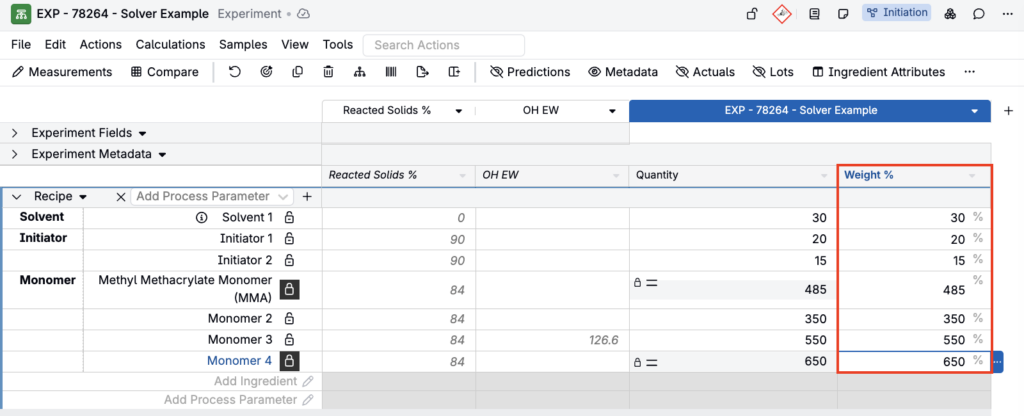
Column calculations allow you to view and manipulate ingredient-level values—such as Weight %, OH equivalents, reacted solids contribution, or other weighted sum results—directly in the ingredient table.
The Solver can use these column calculations as targets, making it possible to perform highly constrained solves such as locking the Weight % distribution of ingredients or setting proportional relationships within a batch.
This article explains how column calculations behave when used with Solver, how to lock and adjust them, and how to interpret the results.
What Column Calculations Are
Column calculations are ingredient-level values computed for each row in the recipe table. Examples include:
- Weight % per ingredient
- OH equivalence per ingredient
- Reacted solids contribution
- Mass or mole fractions
- Other ingredient-based weighted sum calculations
Column calculations must be weighted sum calculations in order to appear as columns. Composite and weighted-average calculations cannot be displayed as columns.
When Column Calculations Can Be Used with Solver
A column calculation is Solver-compatible when:
- It is built as a weighted sum calculation
- It appears as a column in the recipe table
- You can lock individual ingredient rows appearing under that column
If a column value does not show a lock option, it cannot be used as a solver constraint.
How Solver Uses Column Calculations
Column calculations function like any other constraint:
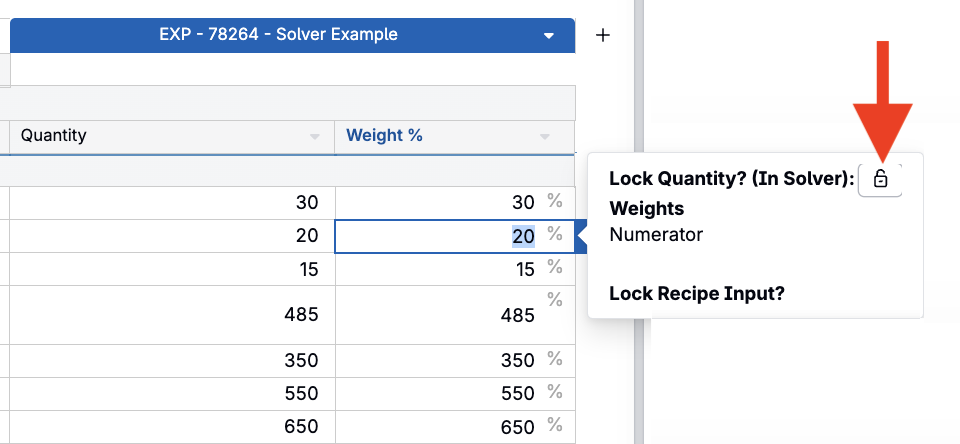
- Locked column values become equality (or, for directional locks, inequality) constraints
- Unlocked ingredients (rows) are variables the Solver may adjust
- Solver will adjust ingredient amounts to match the locked column values
Each locked row is added to the constraint system individually—locking a column calculation adds one constraint per locked ingredient row, not one constraint for the whole column.
For example, locking three Weight % values (for three ingredients) adds three constraints (one per locked row).
Locking Column Calculation Values
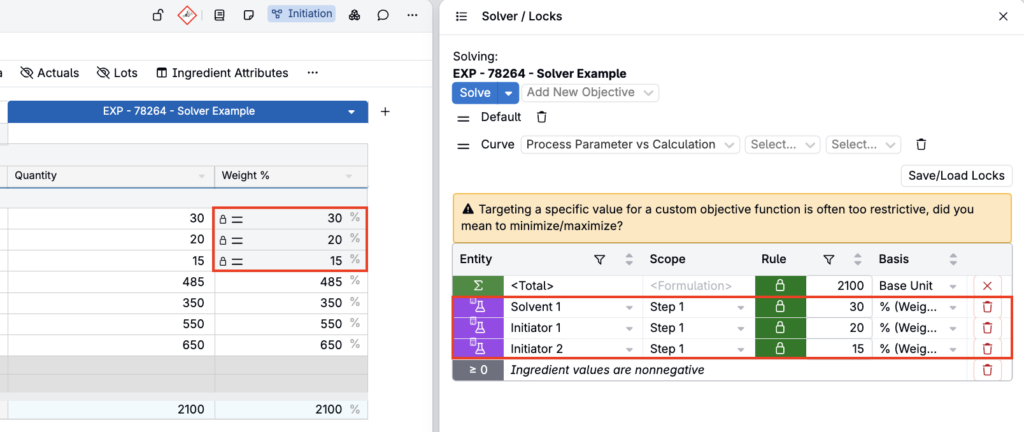
To lock a column calculation value:
- Right click on the value.
- Click the 🔓 icon next to Lock Quantity? (In Solver).
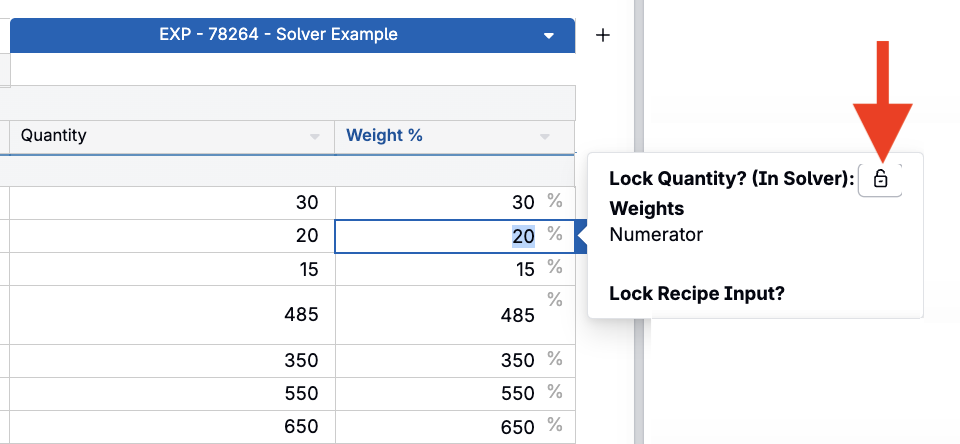
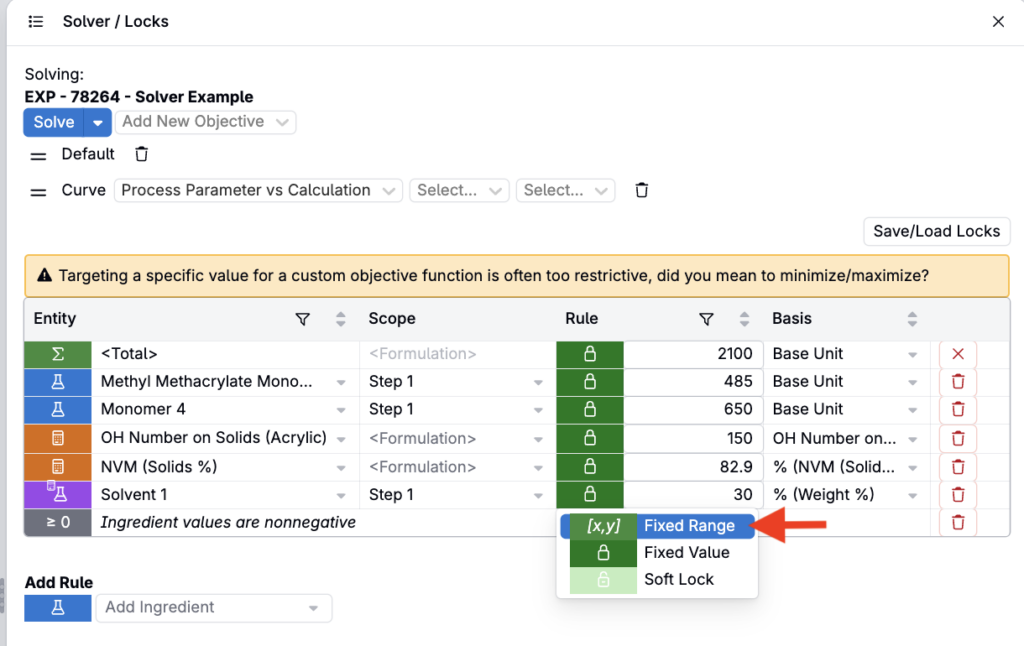
Like other calculations, a column value can also be locked to a directional (fixed range) constraint—a minimum, a maximum, or a fixed range—instead of one exact number. This can be useful when a per-ingredient contribution just needs to stay within bounds (e.g., Weight % of an ingredient must not exceed 25%). See Solver for how directional constraints work.
Why Column Solving Works
Column values are tied to ingredient amounts through weighted sum logic. When you lock a column calculation value, the Solver treats it as: “Adjust the ingredient amounts so that this formula evaluates to the locked number, for this specific row.”
Behind the scenes:
- Each locked column value is added to the constraint system as its own constraint
- Locking multiple rows in the same column adds one constraint per row, not one constraint for the column as a whole
- Ingredient amounts adjust to satisfy all locked row values simultaneously
This makes column-level solves powerful for controlling internal proportions of a recipe, but it also means that locking many rows in a column can use up degrees of freedom quickly—see the counting example below.
Common Behaviors When Solving Column Calculations
Solver may adjust other unlocked ingredients
If any ingredient is unlocked, Solver may modify it to minimize total change across the recipe. If you want ingredients to remain untouched: Lock them before solving.
Zero or blank ingredient amounts cause failure
Solver will never change blank or 0 amounts. Seed adjustable ingredients with 1 g before locking column calculations.
Column calculations count one constraint per locked row
Locking multiple rows in one column adds a separate constraint for each locked row—it does not collapse into a single constraint for the whole column. Keep this in mind when counting constraints against your unlocked ingredients (see Advanced Solver Configuration).
Locking too many columns can still over-constrain the system
Since each locked row counts as its own constraint, combining several column locks with bottom calculations (e.g., batch size + Tg + NVM) can exceed available degrees of freedom faster than it might first appear.
Using Column Calculations in Multi-Step Recipes
Column solving respects workflow steps:
- If a column is displayed inside a specific workflow step, Solver adjusts only the ingredients within that step.
- Column locks in Step 1 do not constrain ingredients in Step 2 or Step 3.
This allows granular solving inside multi-phase reactions or blend stages.
Best Practices for Column Solves
- Use right-click → Lock This Quantity for clarity and consistency
- Turn on Auto-Lock Column Calculations only if you solve column values frequently
- Always ensure adjustable ingredients have non-zero amounts
- Lock all non-adjustable ingredients before solving
- Start with a simple solve (e.g., Weight % only), verify, then add constraints
- Remember that each locked row counts as its own constraint when planning a complex solve
- Use the Solver/Locks panel to confirm intended column locks are active
- Avoid unexpected auto-populated column locks by double-checking hidden locks