In Uncountable, a spec (specification) is a set of goals that defines performance criteria for test outputs in a project. There are several types of specs, including project specs, assigned specs, user assigned specs, and relative specs.
A project spec is the default spec associated with a project. It defines the goals Uncountable uses when evaluating recipes or experiments in that project, unless a more specific assigned spec or user assigned spec applies.
To learn more about specs, including spec types, priority, permissions, and configuration, refer to Specs.
Accessing project specs
Each project created in Uncountable is assigned a blank, default spec upon creation. You can access your project’s spec in two ways:
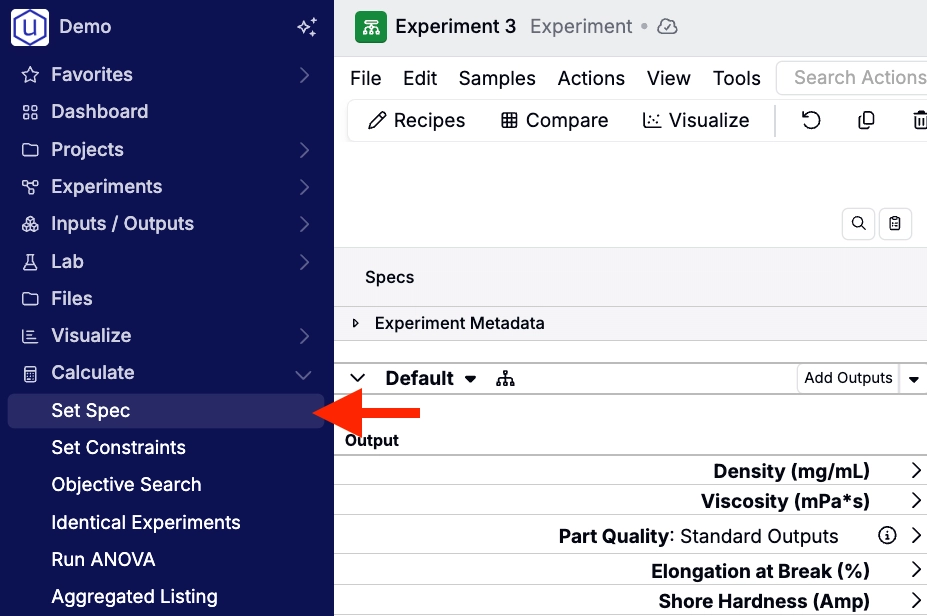
- From the navigation bar, select Calculate > Set Spec.
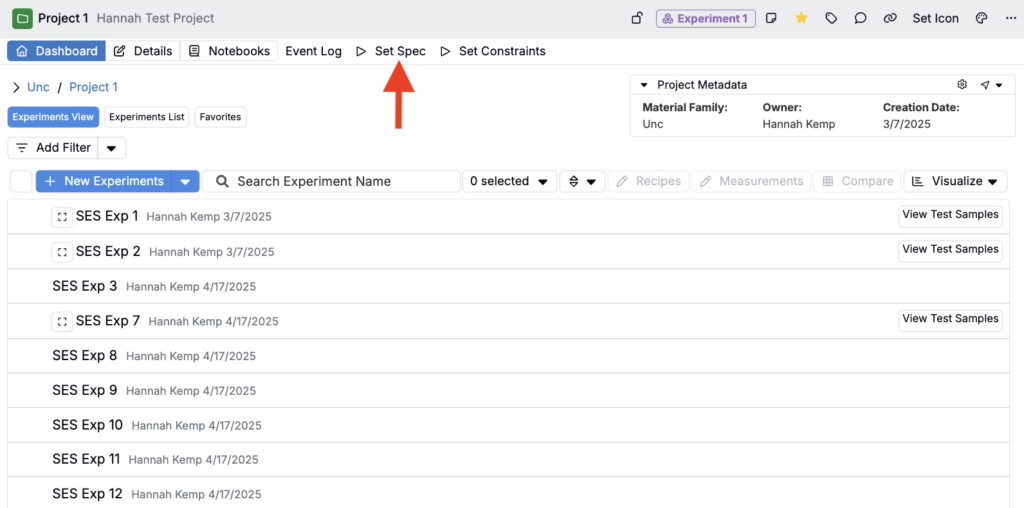
- From the project’s Dashboard page, click the Set Spec button.
Configuring project specs
From the Spec page, project specs are configured by adding goals to the spec table, then defining how each goal should be evaluated.
At a high level, this includes selecting the outputs and/or calculations to include, setting each goal’s priority and spec type, and entering any limits, targets, or allowed values that define success.
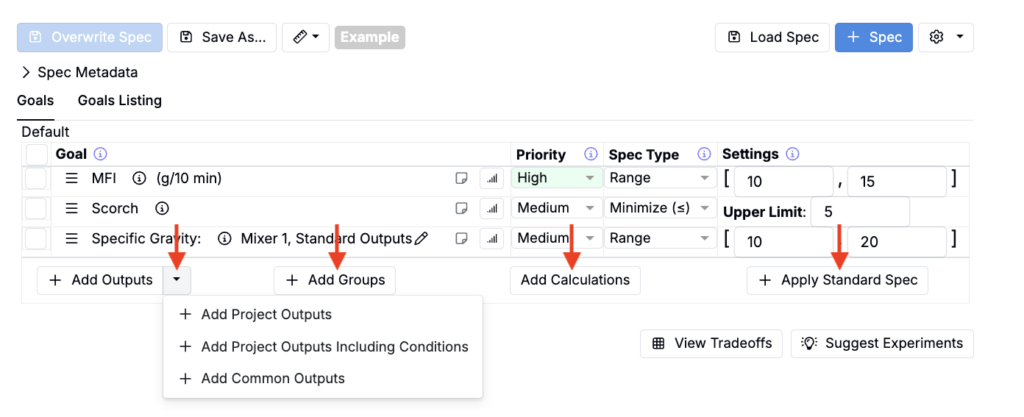
For a more detailed overview of spec configuration, refer to Specs.
Loading a spec from another project
Instead of reconfiguring a new spec, you can also load another previously configured spec, overriding a project’s default.
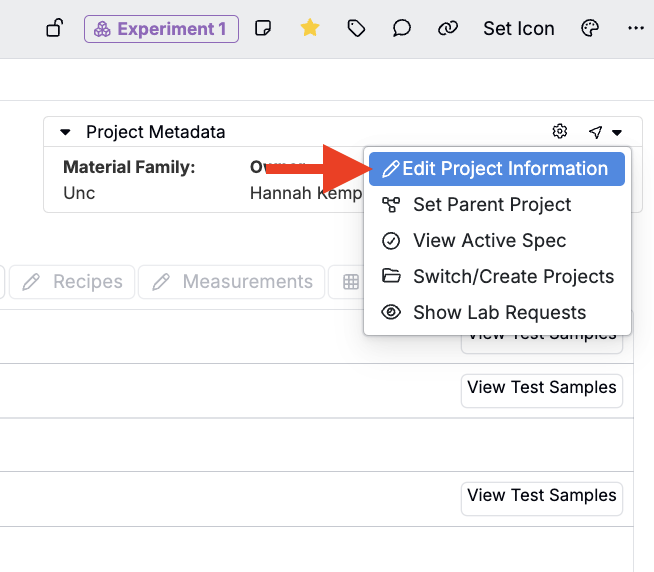
- From your project’s Dashboard, click the navigation icon and select Edit Project Information.
- In the modal, under Default Spec, choose the desired spec from the dropdown.
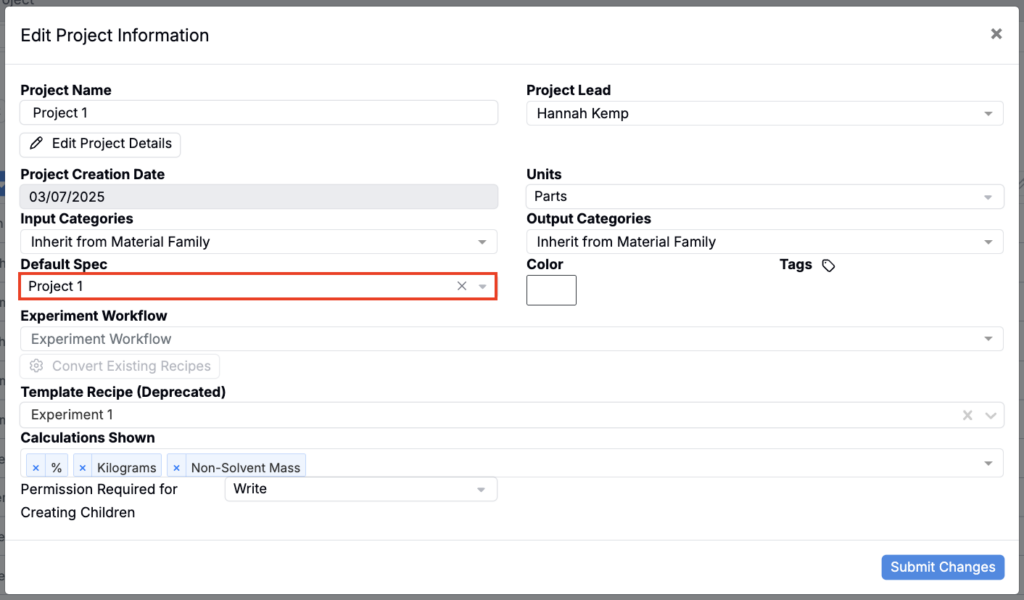
Any new recipe in that project will inherit this spec unless an assigned spec is set.
Displaying specs on experiments
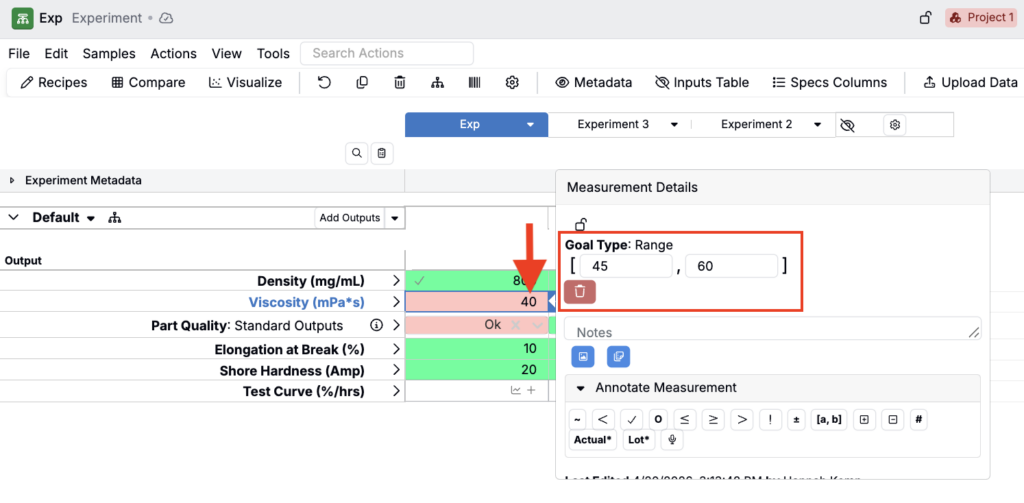
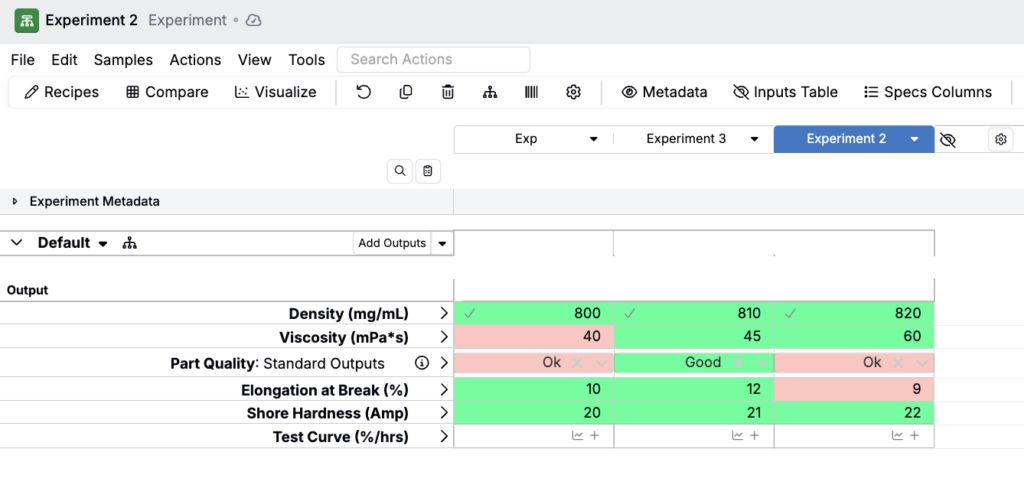
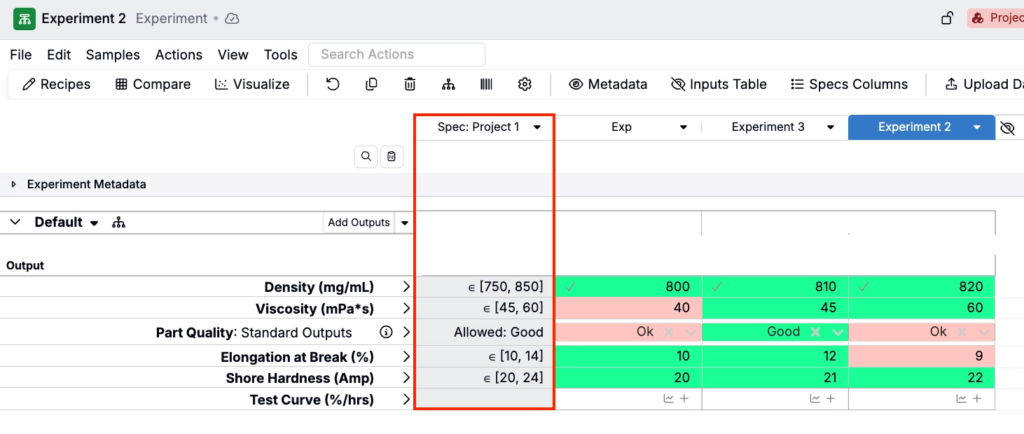
After a project spec is created, it will automatically appear in the Measurements view of experiments within that project and on the Compare page, highlighting outputs with defined goals. Red highlighting indicates that a cell’s value falls out of spec range, while green highlighting indicates a value is within spec.
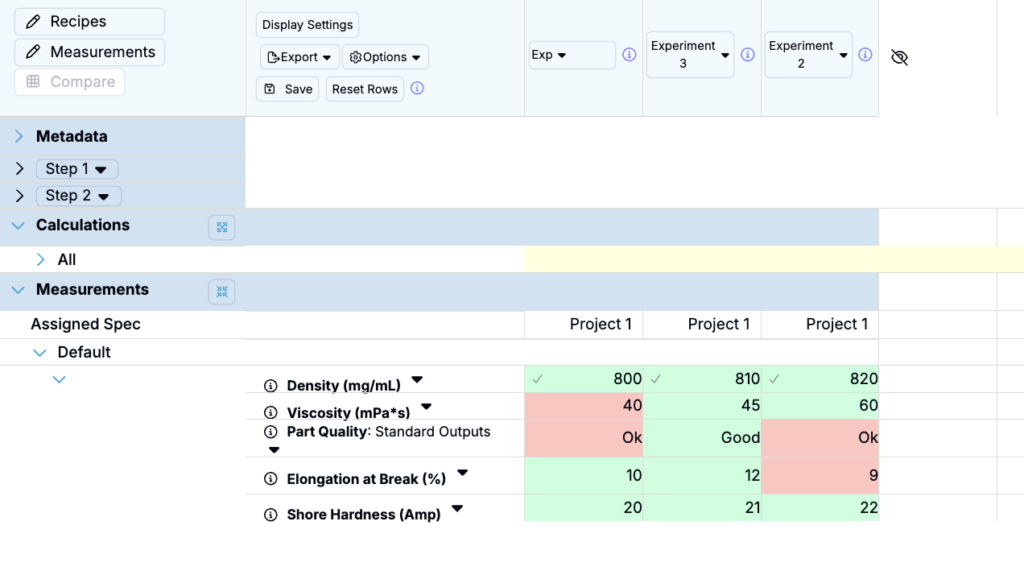
Project Spec column
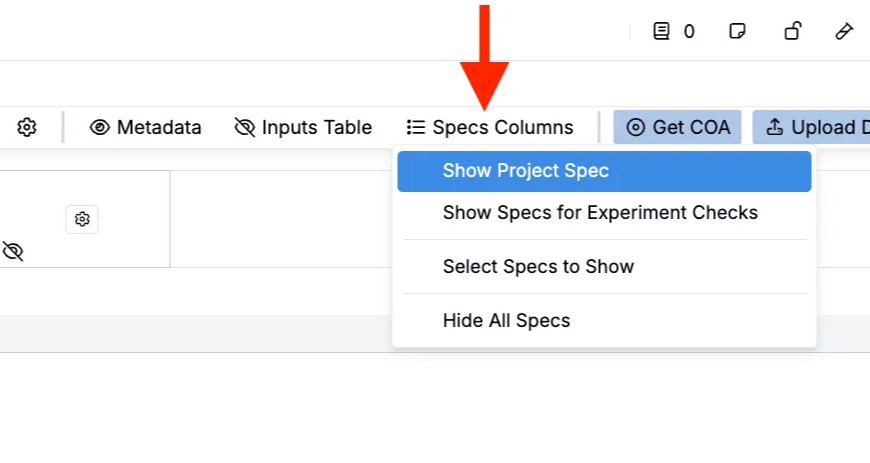
To display specs as columns on the datagrid, select Specs Columns > Show Project Spec.
Adjusting specs from an experiment
You can also edit specs directly from the experiment. Click any spec goal within the datagrid to access the Measurement Data sidepanel and adjust goal settings.