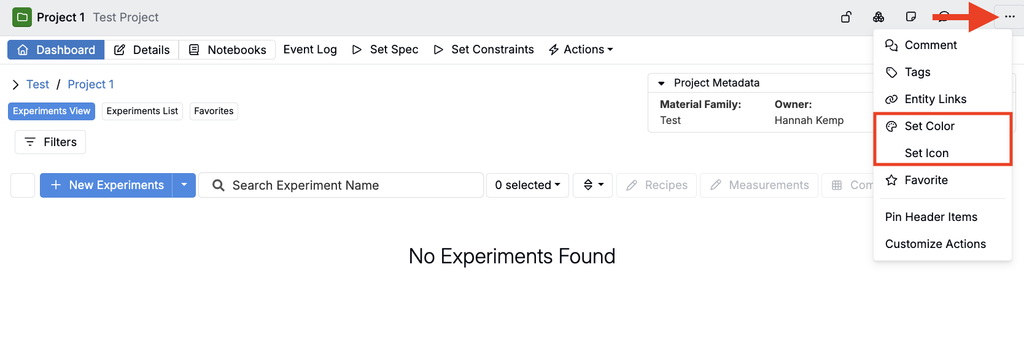
The Settings tab of a definition allows you to configure core options that control how the definition, and the entities created from it, behave and appear across the platform. Available settings can vary by definition type.
Definitions as templates
Definitions act as templates for the entities users create, such as experiments, lab requests, approvals, and custom entities. Each definition specifies the fields, structure, constraints, and settings that entities created from it share.
For example, a lab request template is a definition created on the Form Admin page with the lab_request type. When users create a new lab request, they select a template, and the new request uses the fields and settings configured on that definition. The settings described in this article control how those lab requests behave and appear.
The screenshots in this article use a lab request template as an example. To learn more, refer to Creating Definitions and Lab Request Templates.
Settings tab
Definition settings include:
- Name: Change the name of the definition.
- Material Families: By default, the definition is available across all material families. To restrict its availability, update the material family settings.
- Phase Workflow: Select the phase workflow for the definition. Workflows are configured within the Phase Workflow tab on Form Admin.
- Show Measurements: Configure whether measurements are displayed on entities created from the definition.
- Show Workflow: Adds a phase workflow diagram at the top of entities created from the definition, showing the current phase and enabling users to advance phases.
- Admin Mode: Use Admin Mode to review configurations and resolve potential issues. When enabled, clicking a field on an entity opens the field editor in the sidepanel (Overrides, Constraints, and Format), and edits apply to the form immediately. Use with caution, as this will display on all entities created from the definition. Admin Mode can also be turned on for a single entity by selecting Enable Admin Mode from its … menu; this only applies to you, does not change the definition’s setting and resets on refresh.
- Use Legacy Status: Enable legacy status for entities created from the definition.
- Archive: If a definition is no longer needed, archive it to keep the listing view organized. For example, when creating a new definition from an existing one, archive the original to reduce clutter and avoid confusion.
- Form Layout Width: Choose between Full or Standard width for the form layout.
- Show Online User Indicators: Shows icons for other users who are currently viewing an entity created from the definition. Turn this setting off to hide these indicators.
- Hide Archive Action: Removes Archive from the Options menu of all entities created from the definition. This is useful when archiving is managed through custom triggers or workflow steps, or to prevent accidental archiving.
- Hide Recent Event Log: Available on approval definitions. Hides the default Recent Event Log section on approval forms created from the definition.
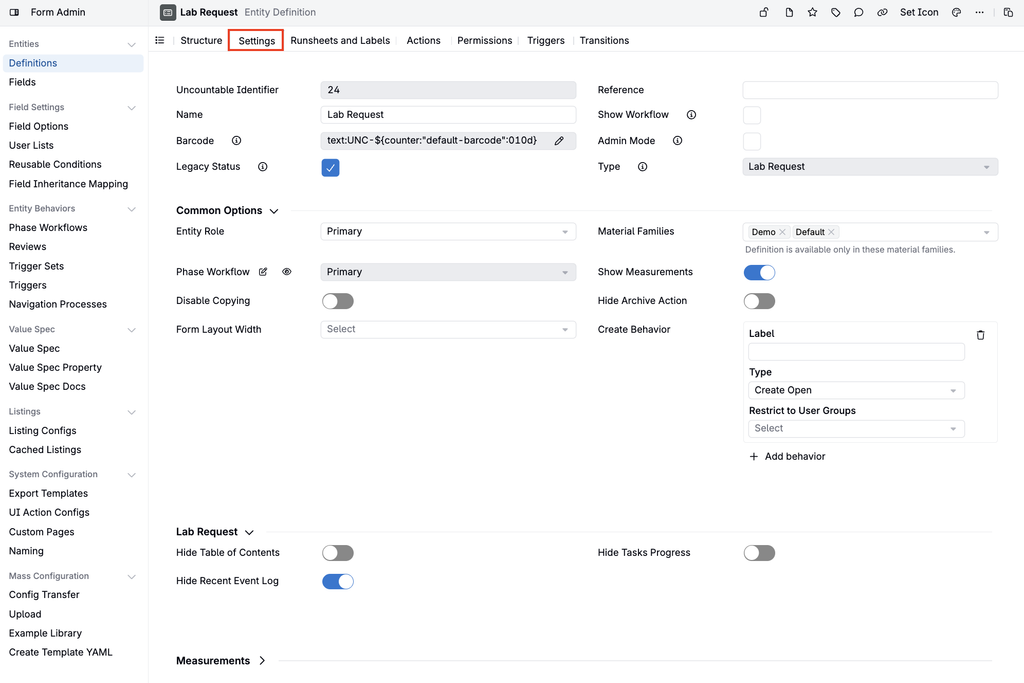
Versioned definitions
Custom entity definitions include a Versioned setting. Marking a definition as versioned places each entity created from it on a version tree with Current, Approved, and Draft versions. To learn more, refer to Versioning for Custom Entities.
Warning: Marking a definition as versioned cannot be undone.
Default entity icon and color
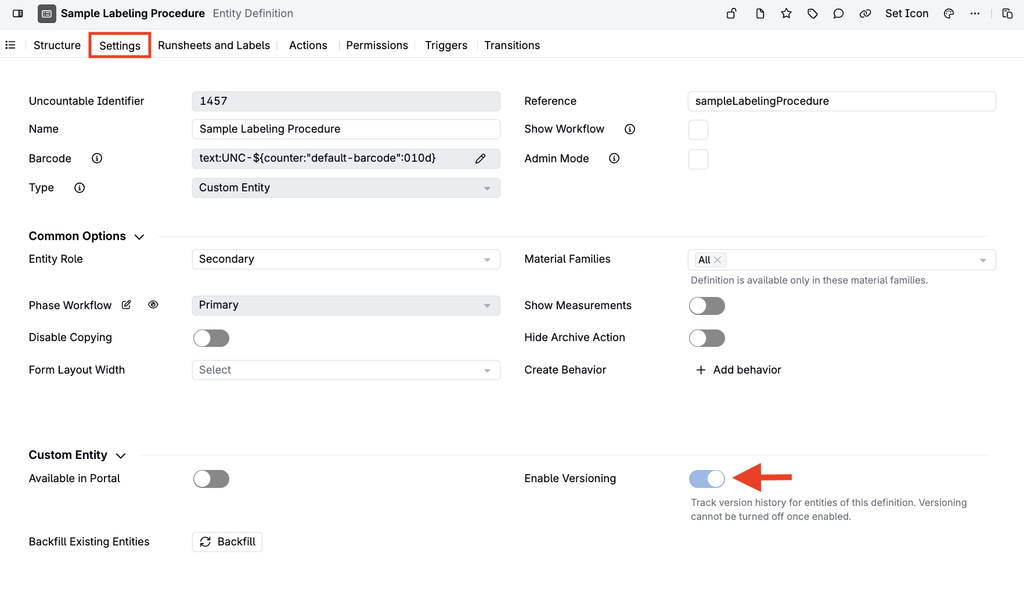
Within the Settings tab, you can also configure the default icon and color for entities created from a definition in the Settings tab.
- Click the … menu on the right side of the entity header at the top of the tab.
- Select Change Icon or Change Color.
- This sets the default for all new entities created from that definition.
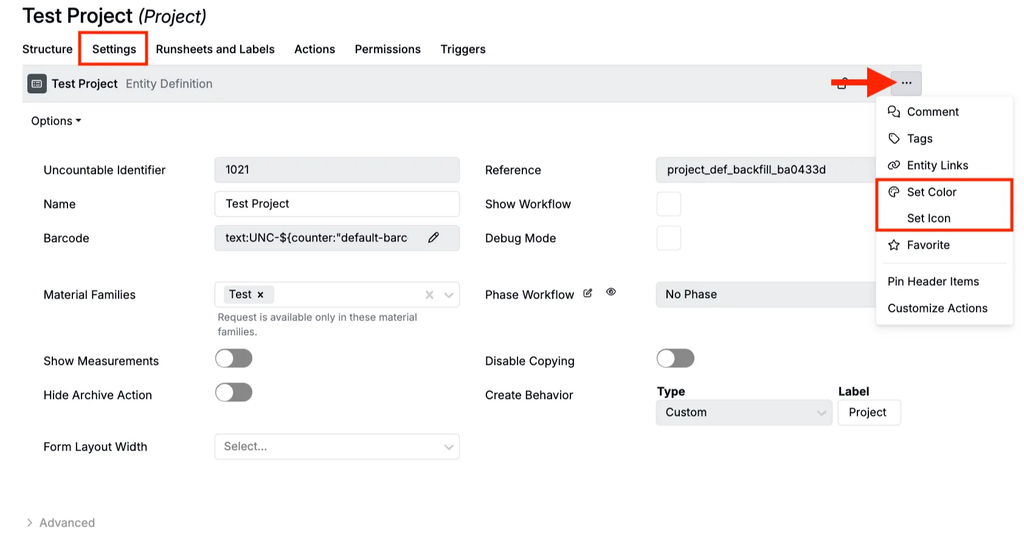
You can also override these defaults for individual entities:
- Click the … menu in the entity’s header.
- Select Change Icon or Change Color.
- This updates only that entity, overriding the default defined at the definition level.