
Inventory limits compare stock against an upper or lower threshold. Use them to identify when an ingredient needs restocking or when a material or group of materials exceeds a storage limit.
Each limit tracks either a single ingredient or the combined inventory matching a saved listing configuration. Limits help monitor stock; they do not automatically order materials or prevent inventory changes. For inventory basics, see Inventory.
Accessing Inventory Limits
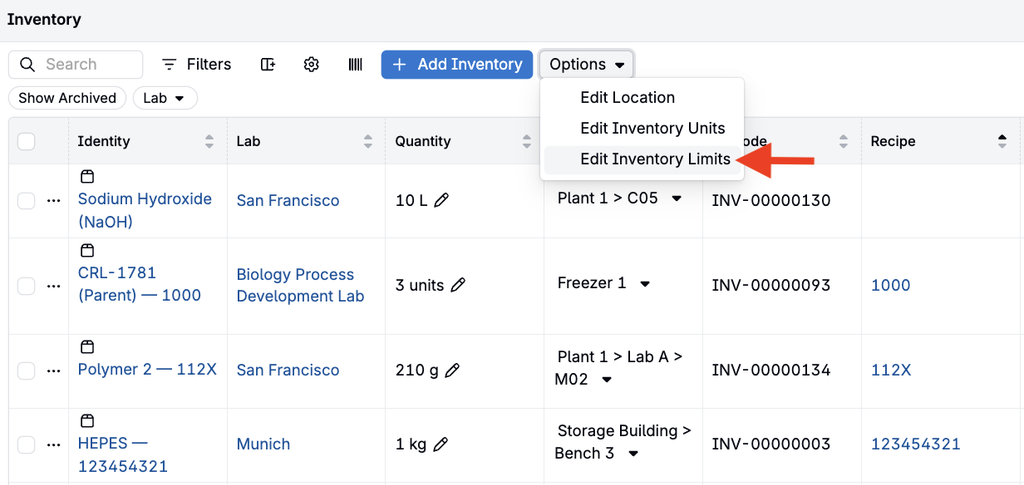
Go to Lab > Inventory, then select Options > Edit Inventory Limits.
Reading the Listing
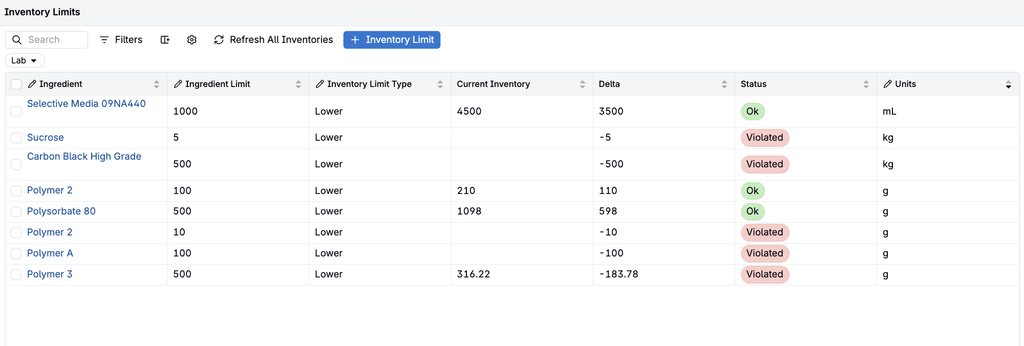
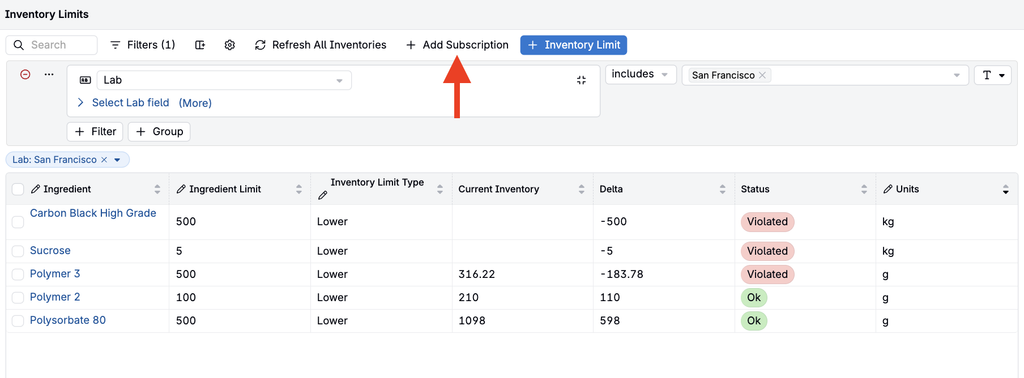
The listing shows each limit’s scope, threshold, and latest calculated stock total. Available columns depend on your listing configuration.
- Ingredient / Listing Config: The ingredient or filtered group of inventory being monitored.
- Lab / Location: Where the limit applies, when included in the configuration.
- Ingredient Limit: The threshold amount, including for listing-based limits.
- Inventory Limit Type: Upper or lower limit.
- Current Inventory: The stock total calculated for the limit—not the threshold you entered.
- Delta: Current inventory minus the threshold. A positive value means stock is above the threshold; a negative value means it is below.
- Status: OK when the threshold is not breached; Violated when stock is above an upper limit or below a lower limit.
- Units: The unit used for the limit.
A quantity equal to the threshold is not a violation.
Refreshing Stock Totals
Inventory limits refresh automatically every hour. To request an update sooner:
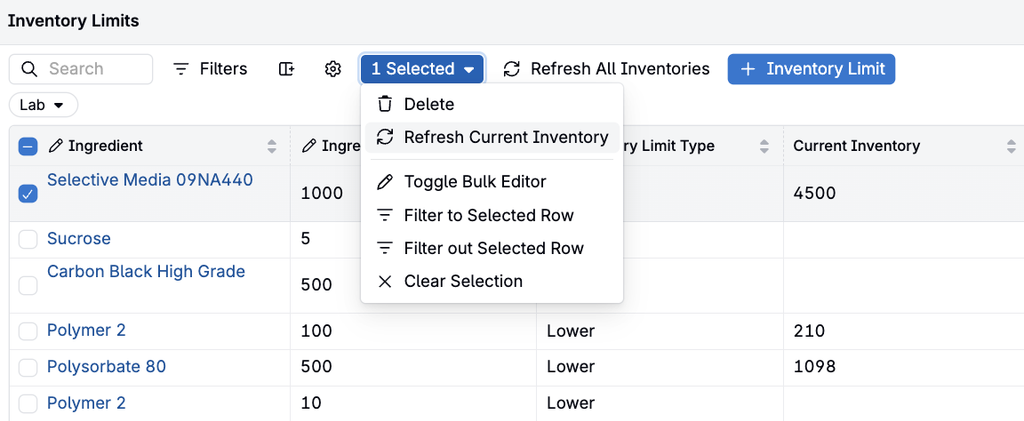
- Click Refresh All Inventories to recalculate all limits, or
- Select a limit, then use the n Selected menu and choose Refresh Current Inventory to recalculate it.
Refreshing recalculates the limit’s stock total and status; it does not change the inventory records themselves. Listing-based limits are calculated asynchronously and should not be treated as live warnings after every inventory change. Refresh before making a time-sensitive decision.
Creating an Inventory Limit
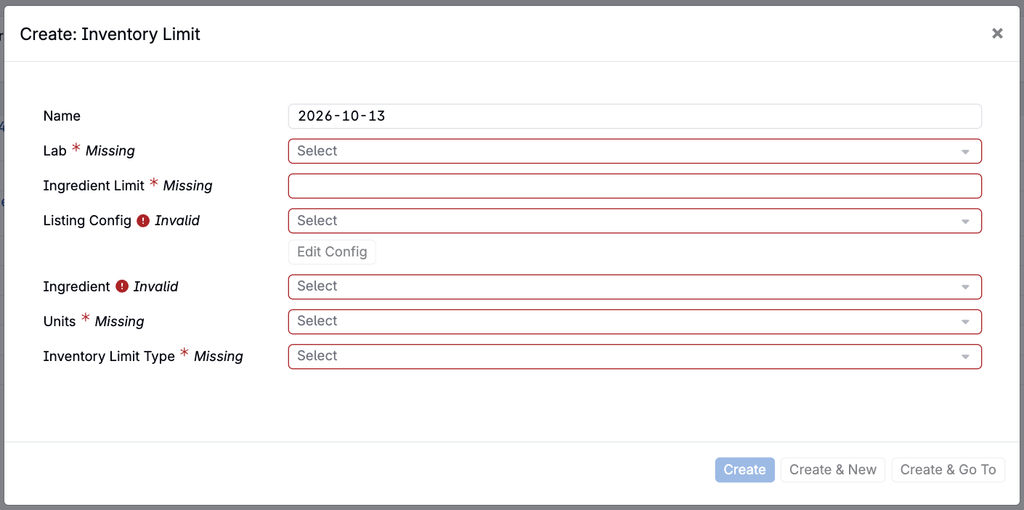
- On the Inventory Limits listing, click + Inventory Limit. The button label may vary with your configuration.
- Complete the creation form:
- Name: Use a descriptive name, if this field is shown.
- Lab: Select the lab to monitor. A lab is not the same as a room, cabinet, or shelf within it.
- Inventory source: Select either an Ingredient or a Listing Config, not both.
- Amount / Threshold: Enter the stock threshold.
- Units: Select the unit for the threshold. Review the unit guidance below before saving.
- Limit Type: Choose Upper Limit to flag stock above the threshold, or Lower Limit to flag stock below it.
- Complete any additional fields required by your inventory-limit definition.
- Submit the form, then refresh the limit and check its total and status.
Examples: A lower limit of 100 kg flags stock below 100 kg for restocking. An upper limit of 500 kg flags stock above 500 kg.
Creating a limit does not subscribe you to notifications; configure those separately.
Limits for Filtered Inventory
Use Listing Config when a limit should cover a group of materials or a specific part of a lab, rather than one ingredient’s stock across the lab. The limit compares the combined total of matching inventory with one threshold; it does not apply the threshold separately to each matching ingredient.
- Create or choose a saved inventory listing configuration. An admin can manage these in Form Admin > Listing Config.
- Set fixed filters to define the stock included in the total. Depending on your setup, filters can reference inventory fields, ingredient fields or attributes, and inventory-location fields.
- In the inventory-limit creation form, select the saved Listing Config instead of an Ingredient, then set the lab, threshold, units, and limit type.
- Review the inventory returned by the configuration, then refresh the limit and validate the total.
For example, a configuration could include ingredients with more than 20% solids stored in selected rooms. A lower limit then monitors the combined stock matching those filters.
Location Scope
Be explicit about whether the limit includes an exact location or that location and its descendants. A Location Path filter can include a room and the cabinets or shelves beneath it; an exact-location filter targets only that location. See Inventory Locations.
Filtering the Inventory Limits listing only changes which limits you see. It does not change the inventory included in each limit; that scope comes from the limit’s ingredient or saved listing configuration.
Units and Reliable Totals
Use the same unit for the threshold and the inventory it monitors. For listing-based limits, ensure the saved filters exclude stock recorded in other units.
Mixed-unit inventory can produce inconsistent totals or statuses: ingredient-based refreshes may exclude stock in a different unit, while listing-based aggregation may add quantities without converting them. Do not assume that a displayed conversion means the stored status uses the same conversion. Mass-to-volume conversions also require material-specific density and should not be assumed to work automatically.
If your workflow must combine units, ask your Uncountable team to validate the configuration before relying on the limit.
Recurring Notifications
Inventory-limit reports are lab-scoped subscriptions, separate from creating a limit.
- Open the Inventory Limits listing and filter Lab to one lab using a single-select or quick filter.
- Click Add Subscription and configure the recurring interval available in the subscription form.
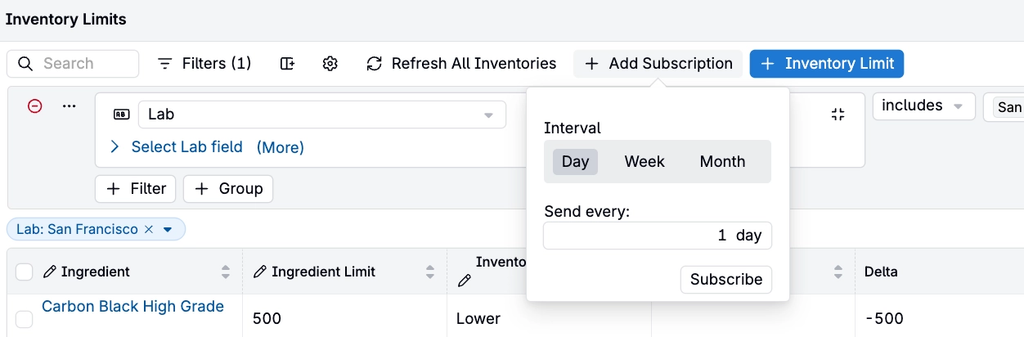
- In Notifications > Go to Inbox > User Subscriptions, enable the desired platform and email delivery options for Recurring Inventory Limit.
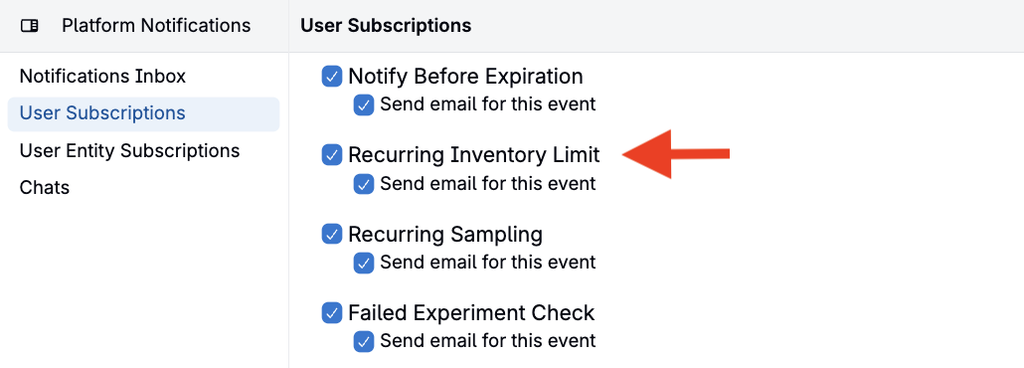
If Add Subscription is not visible, first check that exactly one lab is selected. See User Subscriptions and Emails.
Recurring reports are scheduled summaries, not an immediate email for every threshold crossing. If a configured report is not arriving, ask your administrator or Uncountable team to check the subscription and delivery settings.
In-Platform Warnings
An administrator can enable Check Inventory Limits After Move for the relevant lab in Company-Wide Settings > Lab Settings. Configure inventory limits for that lab before testing the setting.
When enabled, inventory moves can return a warning if an applicable limit is violated. The warning is informational: it does not block the move and is separate from recurring email subscriptions.
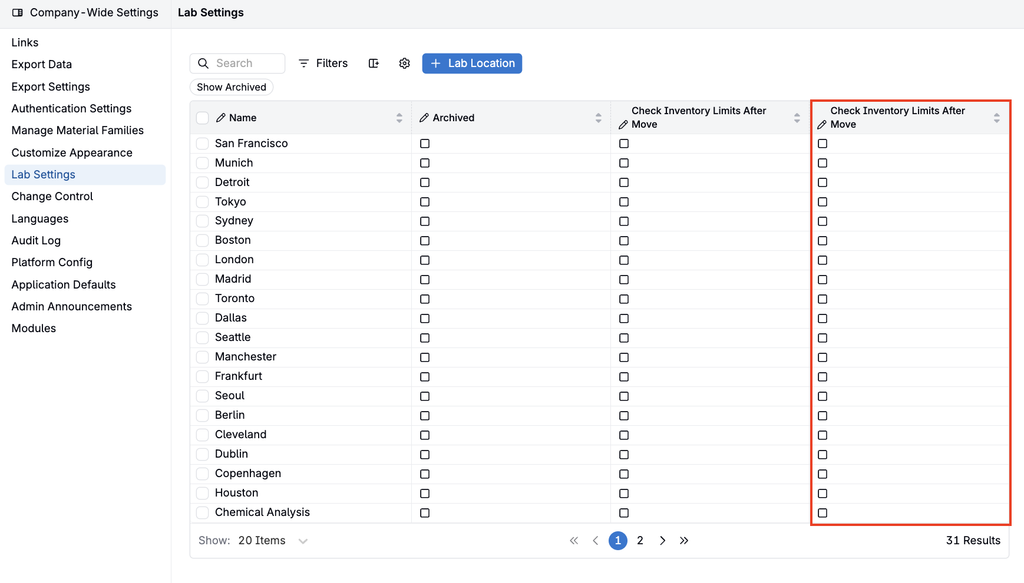
To test, move inventory so that an applicable ingredient-based limit crosses its threshold, then check the returned warning and the limit’s status.
Do not assume that listing-based limits will produce immediate warnings from every workflow. In particular, recipe-page inventory decrement does not refresh all filter-scoped limits. Use Refresh Current Inventory or Refresh All Inventories to verify those totals.
For configured workflows, inventory-limit status changes can also trigger actions such as creating a reorder request. These require separate setup with your administrator or Uncountable team; they are not enabled simply by creating a limit.
